Help:TRS19 Driver Drivers: Difference between revisions
m S301 moved page Help:TRS18 Driver Drivers to Help:TRS19 Driver Drivers |
|||
| (One intermediate revision by the same user not shown) | |||
| Line 31: | Line 31: | ||
====[[File:TRS2019-driver-focus-on.jpg]] Focus on Driver==== | ====[[File:TRS2019-driver-focus-on.jpg]] Focus on Driver==== | ||
Will move the focus of the camera to the train that the driver is assigned to. | Will move the focus of the camera to the train that the driver is assigned to. | ||
====[[File:TRS2019-driver-loco-preview.jpg]] Locomotive Preview==== | |||
Shows a preview of the locomotive the driver is assigned to, along with it's name and current status. | |||
Return to [[TRS19 | TRS19 Home Page]] - [[Help:TRS19_Driver_UI|TRS2019 Driver UI]] - [[Help:TRS19|TRS19 Help]] | Return to [[TRS19 | TRS19 Home Page]] - [[Help:TRS19_Driver_UI|TRS2019 Driver UI]] - [[Help:TRS19|TRS19 Help]] | ||
[[Category:TRS19]] | [[Category:TRS19]] | ||
[[Category: Help]] | |||
Latest revision as of 05:31, 24 July 2018
Drivers Menu

The Drivers Menu, accessed by clicking the driver character icon in the Driver UI, allows you to add, remove, move and select between the driver characters in the session.
Drivers Window

The Drivers Window provides several options relating to the 'AI' driver characters in the session.
 Add Driver

Adds a new driver to the session.
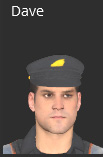 Driver Preview

Shows the name and a preview of the driver character.
 Unassign Driver (Multiplayer Only)

Allows you to unassign a driver from a player when in a multiplayer session.
 Remove Driver

Removes the driver from the session. This will also clear all driver commands assigned to that driver.
 Get Off Train

Removes the Driver Character from the train it is currently assigned to.
 Move to Destination

Select this tool, then click on the locomotive/train (must have a locomotive in it) you wish to move the Driver character to. Also used to assign a newly created driver to a locomotive/train.
 Focus on Driver

Will move the focus of the camera to the train that the driver is assigned to.
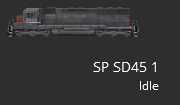 Locomotive Preview

Shows a preview of the locomotive the driver is assigned to, along with it's name and current status.
Return to TRS19 Home Page - TRS2019 Driver UI - TRS19 Help
