How to Use Message Popup Rule (Applications): Difference between revisions
From TrainzOnline
Jump to navigationJump to search
mNo edit summary |
mNo edit summary |
||
| (20 intermediate revisions by the same user not shown) | |||
| Line 1: | Line 1: | ||
The information in this Wiki Page | <table width=1000 bgcolor=#000000 cellpadding=2> | ||
<tr valign="top"> | |||
<td> | |||
<table width=996 bgcolor=#ffffff cellpadding=2> | |||
<tr valign="middle"> | |||
<td width=35>[[image:Information.png|35px|link=]]</td> | |||
<td><span style="font-size: 15px;">The information in this Wiki Page gives practical examples of how to use the '''Message Popup Rule''' in Sessions to create messages that will appear after specific events in '''T:ANE''', '''TRS19''', '''TRS22''' and '''Trainz Plus'''.</span></td> | |||
</tr> | |||
</table> | |||
</td> | |||
</tr> | |||
</table> | |||
<br> | <br> | ||
<table width=1000> <!-- BEGIN Nav Buttons Table NO SKIPS --> | |||
<tr valign="top"> | |||
<td width=629> </td> | |||
<td width=50> </td> <!-- Skip Down --> | |||
<td width=50> </td> <!-- Skip Up --> | |||
<td width=46> </td> | |||
<td width=75> </td> | |||
<td width=75>[[image:NextDown.png|link=#stepTimed|alt=Next Down|Next Down]]</td> | |||
<td width=75>[[image:BackToBottom.png|link=#bottom|alt=Bottom|Bottom]]</td> | |||
</tr> | |||
</table> <!-- END Nav Buttons Table --> | |||
<table width=1000> | |||
<tr valign="top"> | |||
<td width=400> | |||
__TOC__ | __TOC__ | ||
</td> | |||
<td> | |||
<table cellpadding=2 bgcolor="Aquamarine"> | |||
<tr valign="top"> | |||
<td>[[image:LinkWiki.PNG|link=]]</td> | |||
<td> | |||
For information of how to configure the '''Message Popup Rule''' in '''Trainz''', see the '''Trainz Wiki Page''' at:-<br> | |||
* '''[[How to Use Message Popup Rule]]''' | |||
</td> | |||
</tr> | |||
</table> | |||
</td> | |||
</tr> | |||
</table> | |||
<br> | <br> | ||
<table bgcolor=#000000 cellpadding=2> | |||
<table cellpadding=" | <tr valign="top"> | ||
<td> | |||
<table bgcolor=#ffffb0 cellpadding=2> | |||
<tr valign="top"> | |||
<td width=25>[[image:NotePad.PNG|link=]]</td> | |||
<td><span style="font-size: 17px;">'''Notes:'''</span><br> | |||
---- | |||
</td> | |||
</tr> | |||
<tr valign="top"> | <tr valign="top"> | ||
<td>[[ | <td>[[image:DotPoint.JPG|10px|link=]]</td> | ||
<td>The [[ | <td>The [[image:WikiLink.PNG|link=]] '''[[Session_Rule_List_with_Parameters#Message_Popup_Rule|Message Popup Rule]]''' is a '''Trainz Session Rule''' that creates onscreen messages for users in '''Driver Mode'''</td> | ||
</tr> | </tr> | ||
<tr valign="top"> | <tr valign="top"> | ||
<td>[[ | <td>[[image:DotPoint.JPG|10px|link=]]</td> | ||
<td>The [[ | <td>The [[image:WikiLink.PNG|link=]] '''[[Session_Rule_List_with_Parameters#Close_Message_Popup_Rule|Close Message Popup Rule]]''' is a '''Trainz Session Rule''' that closes onscreen messages for users in '''Driver Mode'''</td> | ||
</tr> | |||
</table> | |||
</td> | |||
</tr> | </tr> | ||
</table> | </table> | ||
<br> | |||
<table width=1000> <!-- BEGIN Nav Buttons Table NO SKIPS --> | |||
<tr valign="top"> | |||
<td width=629><span id="stepTimed"></span> | |||
='''Application 1: Timed Message'''= | ='''Application 1: Timed Message'''= | ||
</td> | |||
<td width=50> </td> <!-- Skip Down --> | |||
<td width=50> </td> <!-- Skip Up --> | |||
<td width=46>[[image:BackToTop.png|link=#top|alt=Top|Top]]</td> | |||
<td width=75> </td> | |||
<td width=75>[[image:NextDown.png|link=#stepNavPoint|alt=Next Down|Next Down]]</td> | |||
<td width=75>[[image:BackToBottom.png|link=#bottom|alt=Bottom|Bottom]]</td> | |||
</tr> | |||
</table> <!-- END Nav Buttons Table --> | |||
<table cellpadding= | <table width=1000 cellpadding=2 bgcolor=#ffffff> | ||
<tr valign="top"> | |||
<td width=60 rowspan=4>[[image:magnifier.png|link=]]</td> | |||
<td><span style="font-weight: 700; font-size: 17px;">The Scenario:</span></td> | |||
</tr> | |||
<tr valign="top"> | <tr valign="top"> | ||
<td | <!-- <td> </td> --> | ||
<td | <td>A '''Message Popup''' is activated by a track trigger event and is automatically closed by a timed event</td> | ||
</tr> | </tr> | ||
</table> | </table> | ||
<br> | |||
<table width=1000 cellpadding=2 bgcolor=#ffffff> | |||
<table cellpadding= | |||
<tr valign="top"> | <tr valign="top"> | ||
<td width= | <td width=60 rowspan=2>[[image:RulesWiki.PNG|link=]]</td> | ||
<td | <td><span style="font-size: 17px;">'''Rules Used:'''</span></td> | ||
----</td> | </tr> | ||
<tr valign="top"> | |||
<!-- <td> </td> --> | |||
<td> | |||
<table> | |||
<tr valign="top"> | |||
<td width=10>[[image:DotPoint.JPG|10px|link=]]</td> | |||
<td>'''[[Session_Rule_List_with_Parameters#Trigger_Check_Rule|Trigger Check Rule]]''' to trigger the message event</td> | |||
</tr> | |||
<tr valign="top"> | |||
<td widht=10>[[image:DotPoint.JPG|10px|link=]]</td> | |||
<td>'''[[Session_Rule_List_with_Parameters#Simultaneous_List_Rule|Simultaneous List Rule]]''' to force all child rules to be executed at the same time</td> | |||
</tr> | |||
<tr valign="top"> | |||
<td>[[image:DotPoint.JPG|10px|link=]]</td> | |||
<td>'''[[Session_Rule_List_with_Parameters#Message_Popup_Rule|Message Popup Rule]]''' to open a message window on the screen</td> | |||
</tr> | |||
<tr valign="top"> | |||
<td>[[image:DotPoint.JPG|10px|link=]]</td> | |||
<td>'''[[Session_Rule_List_with_Parameters#Wait_Rule|Wait Rule]]''' to wait a set time interval</td> | |||
</tr> | |||
<tr valign="top"> | |||
<td>[[image:DotPoint.JPG|10px|link=]]</td> | |||
<td>'''[[Session_Rule_List_with_Parameters#Close Message Popup Rule|Close Message Popup Rule]]''' to close the message window</td> | |||
</tr> | |||
</table> | |||
</td> | |||
</tr> | </tr> | ||
</table> | </table> | ||
<br> | <br> | ||
<table cellpadding= | <table width=1000 cellpadding=2 bgcolor=#ffffff> | ||
<tr valign="top"> | <tr valign="top"> | ||
<td width= | <td width=60 rowspan=2>[[image:screenshot.PNG|link=]]</td> | ||
<td | <td><span style="font-size: 17px;">'''Session Editor Screenshot:'''</span></td> | ||
</tr> | </tr> | ||
< | <tr valign="top"> | ||
< | <!-- <td> </td> --> | ||
< | <td>[[image:Message_Popup.jpg|link=]]</td> | ||
<td>[[ | |||
</tr> | </tr> | ||
</table> | </table> | ||
<br> | <br> | ||
<table cellpadding= | <table width=1000 cellpadding=2 bgcolor=#ffffff> | ||
<tr valign="top"> | <tr valign="top"> | ||
<td width= | <td width=60 rowspan=2>[[image:explanation.PNG|link=]]</td> | ||
<td | <td><span style="font-size: 17px;">'''Description:'''</span></td> | ||
--- | </tr> | ||
<tr valign="top"> | |||
<!-- <td> </td> --> | |||
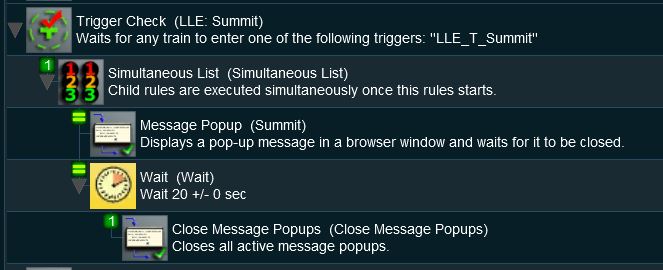
<td>'''Line''' <span style="font-weight: 700; font-size: 15px; color: white; background-color: black;"> 1 </span>''': Trigger Check''' The event is triggered when a consist passes over a track trigger but any event could be used, such as a '''Navigation Point''', a '''TimeCheck''', a '''Wait On ...''' or '''Wait For ...''', etc. As long as the following rules are child rules of the trigger event. This executes the following lines:- | |||
:'''Line''' <span style="font-weight: 700; font-size: 15px; color: white; background-color: black;"> 2 </span>''': Simultaneous List''' This forces all the following child rules to be executed at the same time. Events such as the '''Trigger Check''' that execute their child rules in order would not work in this example because everything else would be forced to wait until the '''Message Popup''' has been closed. Using the '''Simultaneous List Rule''' avoids this problem. Events that execute their child rules simultaneously would not need the '''Simultaneous List Rule''' (see next example). This executes the following lines:- | |||
::'''Line''' <span style="font-weight: 700; font-size: 15px; color: white; background-color: black;"> 3 </span>''': Message Popup''' This places the message window on the screen and waits for it to be closed either manually (by the user) or by another rule | |||
::'''Line''' <span style="font-weight: 700; font-size: 15px; color: white; background-color: black;"> 4 </span>''': Wait''' This forces a wait for a set time period, in this case 20 seconds but any time interval can be set. At the end of that period the '''Wait Rule''' will execute its own set of child rules. This executes the following line:- | |||
:::'''Line''' <span style="font-weight: 700; font-size: 15px; color: white; background-color: black;"> 5 </span>''': Close Message Popup''' The message window is closed</td> | |||
</tr> | </tr> | ||
</table> | </table> | ||
<br> | <br> | ||
<table width=1000> <!-- BEGIN Nav Buttons Table NO SKIPS --> | |||
<tr valign="top"> | |||
<td width=629><span id="stepNavPoint"></span> | |||
='''Application 2: Navigation Point/Train Stopped Event'''= | |||
</td> | |||
<td width=50> </td> <!-- Skip Down --> | |||
<td width=50> </td> <!-- Skip Up --> | |||
<td width=46>[[image:BackToTop.png|link=#top|alt=Top|Top]]</td> | |||
<td width=75>[[image:NextUp.png|link=#stepTimed|alt=Next Up|Top]]</td> | |||
<td width=75>[[image:NextDown.png|link=#bottom|alt=Next Down|Next Down]]</td> | |||
<td width=75>[[image:BackToBottom.png|link=#bottom|alt=Bottom|Bottom]]</td> | |||
</tr> | |||
</table> <!-- END Nav Buttons Table --> | |||
= | <table width=1000 cellpadding=2 bgcolor=#ffffff> | ||
<tr valign="top"> | |||
< | <td width=60 rowspan=4>[[image:magnifier.png|link=]]</td> | ||
<td><span style="font-weight: 700; font-size: 17px;">The Scenario:</span></td> | |||
</tr> | |||
<tr valign="top"> | <tr valign="top"> | ||
<td | <!-- <td> </td> --> | ||
<td | <td>A '''Message Popup''' is activated by a navigation event and is automatically closed by a train stopped event</td> | ||
</tr> | </tr> | ||
</table> | </table> | ||
<br> | |||
<table width=1000 cellpadding=2 bgcolor=#ffffff> | |||
<table cellpadding= | |||
<tr valign="top"> | <tr valign="top"> | ||
<td width= | <td width=60 rowspan=4>[[image:conditions.PNG|link=]]</td> | ||
<td | <td colspan=2><span style="font-size: 17px;">'''Preconditions:'''</span></td> | ||
----</td> | </tr> | ||
<tr valign="top"> | |||
<!-- <td> </td> --> | |||
<td> | |||
<table> | |||
<tr valign="top"> | |||
<td width=10>[[image:DotPoint.JPG|10px|link=]]</td> | |||
<td>'''[[Session_Rule_List_with_Parameters#Navigation_Display_Rule|Navigation Display Rule]]''' to create the navigation point set</td> | |||
</tr> | |||
</table> | |||
</td> | |||
</tr> | </tr> | ||
</table> | </table> | ||
<br> | <br> | ||
<table cellpadding=" | <table width=1000 cellpadding=2 bgcolor=#ffffff> | ||
<tr valign="top"> | |||
<td width=60 rowspan=2>[[image:RulesWiki.PNG|link=]]</td> | |||
<td><span style="font-size: 17px;">'''Rules Used:'''</span></td> | |||
</tr> | |||
<tr valign="top"> | |||
<!-- <td> </td> --> | |||
<td> | |||
<table> | |||
<tr valign="top"> | |||
<td width=10>[[image:DotPoint.JPG|10px|link=]]</td> | |||
<td>'''[[Session_Rule_List_with_Parameters#Navigation_Display_Rule|Navigation Display Rule]]''' to create the navigation point set (in '''Preconditions''' above)</td> | |||
</tr> | |||
<tr valign="top"> | |||
<td>[[image:DotPoint.JPG|10px|link=]]</td> | |||
<td>'''[[Session_Rule_List_with_Parameters#Wait_on_Navigation_Point_Rule|Wait on Navigation Point Rule]]''' to trigger the message event</td> | |||
</tr> | |||
<tr valign="top"> | |||
<td>[[image:DotPoint.JPG|10px|link=]]</td> | |||
<td>'''[[Session_Rule_List_with_Parameters#Message_Popup_Rule|Message Popup Rule]]''' to open a message window on the screen</td> | |||
</tr> | |||
<tr valign="top"> | |||
<td>[[image:DotPoint.JPG|10px|link=]]</td> | |||
<td>'''[[Session_Rule_List_with_Parameters#Wait_on_Train_Stop/Start_Rule|Wait on Train Stop/Start Rule]]''' to trigger an event when the consist stops moving</td> | |||
</tr> | |||
<tr valign="top"> | <tr valign="top"> | ||
<td | <td>[[image:DotPoint.JPG|10px|link=]]</td> | ||
<td | <td>'''[[Session_Rule_List_with_Parameters#Close Message Popup Rule|Close Message Popup Rule]]''' to close the message window</td> | ||
</tr> | |||
</table> | |||
</td> | |||
</tr> | </tr> | ||
</table> | </table> | ||
<br> | <br> | ||
<table cellpadding= | <table width=1000 cellpadding=2 bgcolor=#ffffff> | ||
<tr valign="top"> | <tr valign="top"> | ||
<td width= | <td width=60 rowspan=2>[[image:screenshot.PNG|link=]]</td> | ||
<td | <td><span style="font-size: 17px;">'''Session Editor Screenshot:'''</span></td> | ||
----</td> | </tr> | ||
<tr valign="top"> | |||
<!-- <td> </td> --> | |||
<td>[[image:Message_Popup2.JPG|link=]]</td> | |||
</tr> | </tr> | ||
</table> | </table> | ||
<table> | <br> | ||
<tr> | <table width=1000 cellpadding=2 bgcolor=#ffffff> | ||
<td>[[ | <tr valign="top"> | ||
<td width=60 rowspan=3>[[image:explanation.PNG|link=]]</td> | |||
<td><span style="font-size: 17px;">'''Description:'''</span></td> | |||
</tr> | |||
<tr valign="top"> | |||
<!-- <td> </td> --> | |||
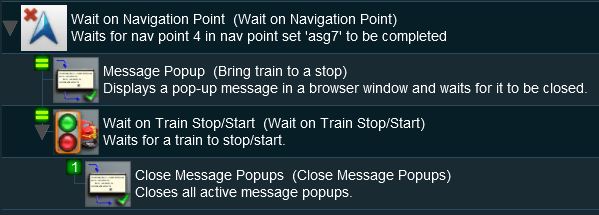
<td>'''Line''' <span style="font-weight: 700; font-size: 15px; color: white; background-color: black;"> 1 </span>''': Wait on Navigation Point''' The event is triggered when a consist reaches a preset navigation point. This rule executes all its child rules simultaneously so no '''Simultaneous List Rule''' is required in this example. This executes the following lines:- | |||
:'''Line''' <span style="font-weight: 700; font-size: 15px; color: white; background-color: black;"> 2 </span>''': Message Popup''' This places the message window on the screen and waits for it to be closed either manually (by the user) or by another rule | |||
:'''Line''' <span style="font-weight: 700; font-size: 15px; color: white; background-color: black;"> 3 </span>''': Wait on Train Stop/Start''' When the consist comes to a stop then it will execute its own set of child rules. This executes the following line:- | |||
::'''Line''' <span style="font-weight: 700; font-size: 15px; color: white; background-color: black;"> 4 </span>''': Close Message Popup''' The message window is closed</td> | |||
</tr> | |||
<tr val="top"> | |||
<td>In this example, the '''Close Message Popups Rule''' could be replaced by lines 2, 3, 4 and 5 from the '''Timed Message''' example shown above to produce a new message when the train stops moving and that message would be closed after a set time interval.</td> | |||
</tr> | </tr> | ||
</table> | </table> | ||
<br> | <br> | ||
<table cellpadding=" | <table cellpadding=2 bgcolor="Aquamarine"> | ||
<tr valign="top"> | <tr valign="top"> | ||
<td | <td>[[image:LinkWiki.PNG|link=]]</td> | ||
<td | <td> | ||
Information of setting and using '''Navigation Points''' can be found on the '''Trainz Wiki Page''' at:-<br> | |||
* '''[[How to Use Navigation Point Rules]]''' | |||
</td> | |||
</tr> | </tr> | ||
</table> | </table> | ||
<table width=1000> <!-- BEGIN Nav Buttons Table --> | |||
<tr valign="top"> | |||
<td width=729><span id="bottom"></span> </td> | |||
<td width=46>[[image:BackToTop.png|link=#top|alt=Top|Top]]</td> | |||
<td width=75>[[image:NextUp.png|link=#stepNavPoint|alt=Next Up|Top]]</td> | |||
<td width=75> </td> | |||
<td width=75> </td> | |||
</tr> | |||
</table> <!-- END Nav Buttons Table --> | |||
---- | ---- | ||
---- | ---- | ||
='''Trainz Wiki'''= | ='''Trainz Wiki'''= | ||
<table cellpadding= | <table cellpadding=2 bgcolor=#ffffff> | ||
<tr valign="top"> | <tr valign="top"> | ||
<td>[[ | <td>[[image:TrainzWiki.png|link=]]</td> | ||
<td> | <td> | ||
<font size | <span style="font-size: 17px;">'''More Tutorials and Guides to Using Trainz'''</span><br> | ||
*'''<span class="plainlinks">[http://online.ts2009.com/mediaWiki/index.php/HowTo How to Guides]</span>''' | *'''<span class="plainlinks">[http://online.ts2009.com/mediaWiki/index.php/HowTo How to Guides]</span>''' | ||
*'''[[Driver Commands List]]''' | *'''[[Driver Commands List]]''' | ||
| Line 143: | Line 291: | ||
</tr> | </tr> | ||
</table> | </table> | ||
---- | |||
This page was created by Trainz user '''<span class="plainlinks">[http://online.ts2009.com/mediaWiki/index.php/User:Pware pware]</span>''' in April 2018 and was last updated as shown below. | |||
---- | |||
[[Category:How-to guides]][[Category:Rules]] | [[Category:How-to guides]][[Category:Rules]] | ||
Latest revision as of 05:38, 4 July 2026
|
 |
 |
|
|


Application 1: Timed Message |
 |
|
|
 |
The Scenario: |
| A Message Popup is activated by a track trigger event and is automatically closed by a timed event |
 |
Rules Used: | |||||||||
|
 |
Session Editor Screenshot: |
 |
 |
Description: |
Line 1 : Trigger Check The event is triggered when a consist passes over a track trigger but any event could be used, such as a Navigation Point, a TimeCheck, a Wait On ... or Wait For ..., etc. As long as the following rules are child rules of the trigger event. This executes the following lines:-
|
Application 2: Navigation Point/Train Stopped Event |
|
 |
|
|
|
The Scenario: |
| A Message Popup is activated by a navigation event and is automatically closed by a train stopped event |
 |
Preconditions: | |
|
||
|
Rules Used: | |||||||||
|
|
Session Editor Screenshot: |
 |
|
Description: |
Line 1 : Wait on Navigation Point The event is triggered when a consist reaches a preset navigation point. This rule executes all its child rules simultaneously so no Simultaneous List Rule is required in this example. This executes the following lines:-
|
|
| In this example, the Close Message Popups Rule could be replaced by lines 2, 3, 4 and 5 from the Timed Message example shown above to produce a new message when the train stops moving and that message would be closed after a set time interval. |
 |
Information of setting and using Navigation Points can be found on the Trainz Wiki Page at:- |
|
|
Trainz Wiki
 |
More Tutorials and Guides to Using Trainz |
This page was created by Trainz user pware in April 2018 and was last updated as shown below.


