How to Get and Activate an FCT: Difference between revisions
From TrainzOnline
Jump to navigationJump to search
| (2 intermediate revisions by the same user not shown) | |||
| Line 140: | Line 140: | ||
<tr valign="top"> | <tr valign="top"> | ||
<td>[[image:DotPoint.JPG|10px|link=]]</td> | <td>[[image:DotPoint.JPG|10px|link=]]</td> | ||
<td>Once purchased an '''FCT''' <span style="font-weight: 700; font-size: 15px;">has to be manually activated before it can be used</span>. You can purchase an '''FCT''' when it is on sale, for example, and leave it inactive until you are ready to use it.</td> | <td>Once purchased an '''FCT''' <span style="font-weight: 700; font-size: 15px;">has to be manually activated before it can be used</span>. You can purchase an '''FCT''' when it is on sale for a reduced rate, for example, and leave it inactive until you are ready to use it.</td> | ||
</tr> | </tr> | ||
<tr valign="top"> | <tr valign="top"> | ||
| Line 267: | Line 267: | ||
<tr valign="top"> | <tr valign="top"> | ||
<td width=25>[[image:DotPoint1.JPG|link=]]</td> | <td width=25>[[image:DotPoint1.JPG|link=]]</td> | ||
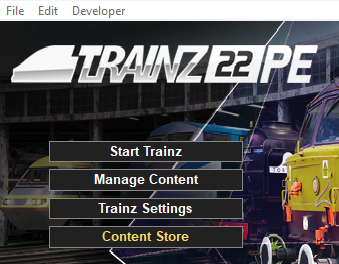
<td>Start your copy of '''Trainz''' which will load to show the '''Launcher Window''' (shown below).< | <td>Start your copy of '''Trainz''' which will load to show the '''Launcher Window''' (shown below). | ||
[[image:TRS22Launcher.png|link=]]</td> | <table> | ||
<tr valign="top"> | |||
<td width=340>[[image:TRS22Launcher.png|link=]]</td> | |||
<td> | |||
<table> | |||
<tr valign="top"> | |||
<td colspan=2> </td> | |||
</tr> | </tr> | ||
<tr valign="top"> | <tr valign="top"> | ||
<td width=25>[[image:DotPoint2.JPG|link=]]</td> | <td width=25>[[image:DotPoint2.JPG|link=]]</td> | ||
<td><span style="font-weight: 700; font-size: 15px; background-color: lightcyan;"> Left Click </span> on the <span style="font-weight: 700; font-size: 15px;">Trainz Settings</span> option to load the '''Trainz Settings''' dialogue window.</td> | <td><span style="font-weight: 700; font-size: 15px; background-color: lightcyan;"> Left Click </span> on the <span style="font-weight: 700; font-size: 15px;">Trainz Settings</span> option to load the '''Trainz Settings''' dialogue window.</td> | ||
</tr> | |||
<tr valign="top"> | |||
<td colspan=2> </td> | |||
</tr> | </tr> | ||
<tr valign="top"> | <tr valign="top"> | ||
| Line 278: | Line 287: | ||
<td>In the '''Trainz Settings''' dialogue window <span style="font-weight: 700; font-size: 15px; background-color: lightcyan;"> Left Click </span> on the <span style="font-weight: 700; font-size: 15px;">MyTrainz Tab</span> (in older versions of '''Trainz''' this was labelled the '''Internet''' tab).<br> | <td>In the '''Trainz Settings''' dialogue window <span style="font-weight: 700; font-size: 15px; background-color: lightcyan;"> Left Click </span> on the <span style="font-weight: 700; font-size: 15px;">MyTrainz Tab</span> (in older versions of '''Trainz''' this was labelled the '''Internet''' tab).<br> | ||
[[image:TrainzSettingsTabs.png|link=]]</td> | [[image:TrainzSettingsTabs.png|link=]]</td> | ||
</tr> | |||
<tr valign="top"> | |||
<td colspan=2> </td> | |||
</tr> | </tr> | ||
<tr valign="top"> | <tr valign="top"> | ||
<td>[[image:DotPoint4.JPG|link=]]</td> | <td>[[image:DotPoint4.JPG|link=]]</td> | ||
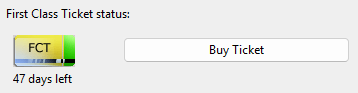
<td>In the '''First Class Ticket Status''' section of the <span style="font-weight: 700; font-size: 15px;">MyTrainz Tab</span> <span style="font-weight: 700; font-size: 15px; background-color: lightcyan;"> Left Click </span> on the [[image:MyTrainz-FCTBuy.png|link=]] button. | <td>In the '''First Class Ticket Status''' section of the <span style="font-weight: 700; font-size: 15px;">MyTrainz Tab</span> <span style="font-weight: 700; font-size: 15px; background-color: lightcyan;"> Left Click </span> on the [[image:MyTrainz-FCTBuy.png|link=]] button.<br> | ||
[[image:MyTrainz-FCT.png|link=]]<br> | |||
< | This will take you direct to the '''BUY FIRST CLASS TICKET''' page on the '''Forum Web Site'''.</td> | ||
</tr> | |||
</table> | |||
</td> | |||
</tr> | </tr> | ||
</table> | </table> | ||
| Line 366: | Line 379: | ||
<td width=75>[[image:MyTrainz-FCTDaysLeft.png|link=]]</td> | <td width=75>[[image:MyTrainz-FCTDaysLeft.png|link=]]</td> | ||
<td>The '''FCT Status''' shown in the '''Install Tab''' indicates how many days are left on your current '''FCT'''.<br> | <td>The '''FCT Status''' shown in the '''Install Tab''' indicates how many days are left on your current '''FCT'''.<br> | ||
If you have an '''FCT''' with days | If you have an '''FCT''' with days in credit (e.g. '''47 days left''') then it will be active as soon as you use '''Content Manager''' to download from the '''DLS'''.</td> | ||
</tr> | </tr> | ||
</table> | </table> | ||
| Line 454: | Line 467: | ||
---- | ---- | ||
---- | ---- | ||
='''Trainz Wiki'''= | ='''Trainz Wiki'''= | ||
<table cellpadding=2 bgcolor=#ffffff> | <table cellpadding=2 bgcolor=#ffffff> | ||
Latest revision as of 10:33, 18 August 2026
|
 |
 |
|
|||||||||
What is a First Class Ticket (FCT) |
 |
|
| With an FCT:- | |
| Error creating thumbnail: /bin/bash: line 1: /usr/bin/convert: No such file or directory Error code: 127 | there is no limit to how much or how often you can download from the DLS. |
| Error creating thumbnail: /bin/bash: line 1: /usr/bin/convert: No such file or directory Error code: 127 | you get priority Download Station access. |
| Error creating thumbnail: /bin/bash: line 1: /usr/bin/convert: No such file or directory Error code: 127 | only 1 FCT is needed per account, not 1 per Trainz product. So if you own both TRS19 and TRS22 then the same FCT will be used for both without any penalty. |
| Error creating thumbnail: /bin/bash: line 1: /usr/bin/convert: No such file or directory Error code: 127 | you will get increased download speeds. The exact speed will depend on external factors such as the speed of your internet connection, the paths taken by the data to reach your system, the access speed of the servers used by N3V and any restrictions imposed by your Internet Service Provider. |
| As soon as you access the DLS using Content Manager your FCT status is checked using your Trainz Login. If you have an active FCT then you will be given priority access at the maximum available download speed. |
|


|

How to Purchase an FCT |
|
|
 |
You can purchase an FCT from within the Trainz Program itself or from the Trainz Discussion Forum web site. |
|
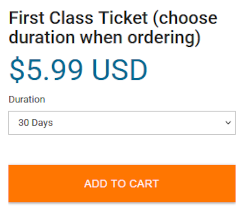
You can purchase an FCT for 7, 30, 90, 180 and 365 days. |
|
If you have a Trainz Plus subscription, then an FCT is automatically included in your subscription. |
There are two ways to purchase an FCT From the Forum Web Site |
|
||||||||||||||||||







 From Trainz |
|
||||||||||||||||||||||||||||||



How to Activate an FCT |
|
|
|
Once activated an FCT will run automatically for the full calendar duration of the ticket. |
|
An FCT that is part of a subscription is automatically activated with the subscription. |
|
 |
The FCT Status shown in the Install Tab indicates how many days are left on your current FCT. If you have an FCT with days in credit (e.g. 47 days left) then it will be active as soon as you use Content Manager to download from the DLS. |
|
|||||||||||||||||||||

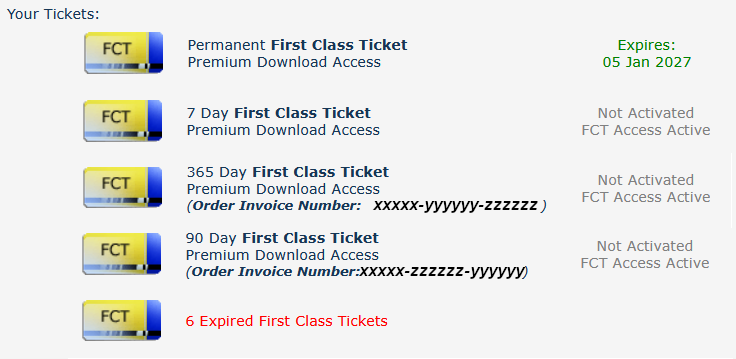

 |
|
Trainz Wiki
 |
More Tutorials and Guides to Using Trainz |
This page was created by Trainz user pware in August 2026 and was last updated as shown below.


