How to Use the UDS Interface: Difference between revisions
mNo edit summary |
mNo edit summary |
||
| (24 intermediate revisions by the same user not shown) | |||
| Line 1: | Line 1: | ||
<table width=1000 bgcolor=#000000 cellpadding=2> | |||
<table> | |||
<tr valign="top"> | <tr valign="top"> | ||
<td> | <td> | ||
<table width=996 bgcolor=#ffffff cellpadding=2> | |||
<tr valign="middle"> | |||
<td width=35>[[image:Information.png|35px|link=]]</td> | |||
<td><span style="font-size: 15px;">The information in this Wiki Page applies to '''TRS19 Platinum Edition''', '''TRS22''' and '''Trainz Plus'''. It explains the use of the '''UDS''' ('''U'''nified '''D'''river '''S'''urveyor) feature that allows you to switch seamlessly between '''Surveyor''' and '''Driver'''.</span></td> | |||
</tr> | |||
</table> | |||
</td> | |||
</tr> | |||
</table> | |||
<br> | |||
<table width=1000> | |||
<tr valign="top"> | |||
<td width=225> | |||
__TOC__ | __TOC__ | ||
</td> | </td> | ||
<td | <td> | ||
<table | <table width=775 bgcolor="lightcyan" cellpadding=2> | ||
<tr valign="top"> | <tr valign="top"> | ||
<td colspan=2><span style="font- | <td colspan=2><span style="font-weight: 700; font-size: 15px;">Key Points:-</span></td> | ||
</tr> | </tr> | ||
<tr valign="top"> | <tr valign="top"> | ||
<td>[[image: | <td width=10>[[image:BlueDot10x10.png|link=]]</td> | ||
<td>The '''UDS''' is only found in '''TRS19 Platinum Edition''', '''Trainz Plus''' and '''TRS22'''</td> | <td>The '''UDS''' feature is only found in '''TRS19 Platinum Edition''', '''Trainz Plus''' and '''TRS22'''</td> | ||
</tr> | </tr> | ||
<tr valign="top"> | <tr valign="top"> | ||
<td>[[ | <td>[[image:BlueDot10x10.png|link=]]</td> | ||
<td>It provides a method of quickly switching from '''Driver''' | <td>It provides a method of quickly switching from '''Driver''' to '''Surveyor''' and back again without having to restart a running session after each switch</td> | ||
</tr> | </tr> | ||
<tr valign="top"> | <tr valign="top"> | ||
<td>[[ | <td>[[image:BlueDot10x10.png|link=]]</td> | ||
<td>After switching | <td>After switching to '''Surveyor''' and editing you can save your edits before switching back into '''Driver'''</td> | ||
</tr> | </tr> | ||
<tr valign="top"> | <tr valign="top"> | ||
<td>[[ | <td>[[image:BlueDot10x10.png|link=]]</td> | ||
<td>If your edits made changes to the session then it is '''<u>recommended</u>''' that you save your work as a new session (unless you really do want to '''overwrite''' the original session)</td> | |||
</tr> | |||
<tr valign="top"> | |||
<td>[[image:BlueDot10x10.png|link=]]</td> | |||
<td>The '''<u>virtual location</u>''' of all consists is now stored as part of the '''Session''' even if the consists themselves are placed in the '''Route'''</td> | <td>The '''<u>virtual location</u>''' of all consists is now stored as part of the '''Session''' even if the consists themselves are placed in the '''Route'''</td> | ||
</tr> | </tr> | ||
<tr valign="top"> | <tr valign="top"> | ||
<td>[[ | <td>[[image:BlueDot10x10.png|link=]]</td> | ||
<td>The '''Session Editor''' | <td>The '''Session Editor''' allows you to reset any or all of the Session Rules before restarting a session</td> | ||
</tr> | </tr> | ||
</table> | </table> | ||
| Line 35: | Line 51: | ||
</table> | </table> | ||
<br> | <br> | ||
<table> <!-- BEGIN Nav Buttons Table --> | <table width=1000> <!-- BEGIN Nav Buttons Table --> | ||
<tr valign="top"> | <tr valign="top"> | ||
<td width= | <td width=629><span id="stepWhatIs"></span> | ||
<td width= | ='''What is the UDS Interface?'''= | ||
</td> | |||
<td width=50> </td> <!-- for Skip Down --> | |||
<td width=50> </td> <!-- for Skip Up --> | |||
<td width=46>[[image:BackToTop.png|link=#top|alt=Top|Top]]</td> | |||
<td width=75> </td> | <td width=75> </td> | ||
<td width=75>[[ | <td width=75>[[image:NextDown.png|link=#stepSwitch|alt=Next Down|Next Down]]</td> | ||
<td width=75>[[ | <td width=75>[[image:BackToBottom.png|link=#bottom|alt=Bottom|Bottom]]</td> | ||
</tr> | </tr> | ||
</table> <!-- END Nav Buttons Table --> | </table> <!-- END Nav Buttons Table --> | ||
= | <br> | ||
<table width=1000> | |||
'''UDS''' stands for | <tr valign="top"> | ||
<td> | |||
<table bgcolor=#ffffb0 width= | '''UDS''' stands for <span style="font-weight: 700; font-size: 15px; color: white; background-color: black;"> U </span>'''nified''' <span style="font-weight: 700; font-size: 15px; color: white; background-color: black;"> D </span>'''river''' <span style="font-weight: 700; font-size: 15px; color: white; background-color: black;"> S </span>'''urveyor''' and is an "interface" or option built into '''TRS19 Platinum Edition''', '''Trainz Plus''' and '''TRS22''' that allows you to jump seamlessly from '''Driver''' into '''Surveyor''' and then back into '''Driver''' again to resume a session at the point where you left it. There is no need to restart a '''Driver''' session from the very beginning.</td> | ||
</tr> | |||
</table> | |||
<br> | |||
<table bgcolor=#ffffb0 width=1000> | |||
<tr valign="top"> | <tr valign="top"> | ||
<td><span style="font-weight: 700; font-size:17px;">The Scenario:</span><br> | <td><span style="font-weight: 700; font-size:17px;">The Scenario:</span><br> | ||
---- | ---- | ||
You are in '''Driver''' | You are in '''Driver''' testing out a route and session when you discover a problem.</td> | ||
</tr> | </tr> | ||
</table> | </table> | ||
<table bgcolor=#ffffb0 width= | |||
<table bgcolor=#ffffb0 width=1000> | |||
<tr valign="top"> | <tr valign="top"> | ||
<td width=450>[[image:UDS-Scenario1.png|link=]]</td> | <td width=450>[[image:UDS-Scenario1.png|link=]]</td> | ||
<td width= | <td width=550>Previously (before the '''UDS''') your only options would be to choose one of the following:- | ||
<span style="font-weight: 700; font-size: 15px;">Options:</span><br> | <span style="font-weight: 700; font-size: 15px;">Options:</span><br> | ||
<table> | <table> | ||
| Line 81: | Line 106: | ||
<tr valign="top"> | <tr valign="top"> | ||
<td> | <td> | ||
<span style="font-weight: 700; font-size: 15px;">Steps:</span> | <span style="font-weight: 700; font-size: 15px;">Steps: To Fix the Problem:-</span><br> | ||
<table> | <table> | ||
<tr valign="top"> | <tr valign="top"> | ||
| Line 111: | Line 136: | ||
</table> | </table> | ||
<br> | <br> | ||
<table | <table width=1000 bgcolor="lightcyan" cellpadding=2> | ||
<tr valign="top"> | <tr valign="top"> | ||
<td>[[ | <td width=10>[[image:BlueDot10x10.png|link=]]</td> | ||
<td>The '''UDS''' interface allows you to switch, via a menu option, directly to '''Surveyor''' without having to stop and exit '''Driver''' | <td>The '''UDS''' interface allows you to switch, via a menu option, directly to '''Surveyor''' without having to stop and exit the '''Session''' in '''Driver''' first</td> | ||
</tr> | </tr> | ||
</table> | </table> | ||
<br> | <br> | ||
<table bgcolor=#ffffb0 width= | <table bgcolor=#ffffb0 width=1000> | ||
<tr valign="top"> | <tr valign="top"> | ||
<td> | <td> | ||
When using the '''UDS''' you switch from '''Driver''' to '''Surveyor''' with the currently active '''Driver''' consist still as the focus and at the place it was located when you switched into '''Surveyor''' from '''Driver'''.</td> | |||
</tr> | </tr> | ||
</table> | </table> | ||
<table bgcolor=#ffffb0 width= | |||
<table bgcolor=#ffffb0 width=1000> | |||
<tr valign="top"> | <tr valign="top"> | ||
<td width=450>[[image:UDS-Scenario2.png|link=]]</td> | <td width=450>[[image:UDS-Scenario2.png|link=]]</td> | ||
<td width= | <td width=550> | ||
<table> | |||
<tr valign="top"> | |||
<td width=10>[[image:DotPoint.JPG|10px|link=]]</td> | |||
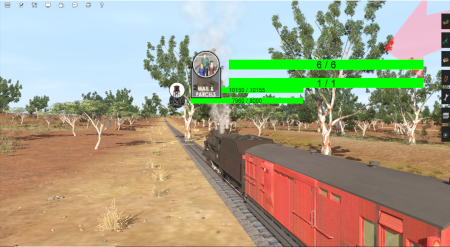
<td>All the '''Surveyor''' tools and options are available for you to use, including the '''Session Editor''' (more on that later)</td> | |||
</tr> | |||
</table> | |||
</td> | </td> | ||
</tr> | </tr> | ||
<tr valign="top"> | <tr valign="top"> | ||
<td width=450>[[image:UDS-Scenario3.png|link=]]</td> | <td width=450>[[image:UDS-Scenario3.png|link=]]</td> | ||
<td width= | <td width=550> | ||
You can then (if you wish) save the edited route and/or session (again there will be more on that later) | <table> | ||
<tr valign="top"> | |||
<td width=10>[[image:DotPoint.JPG|10px|link=]]</td> | |||
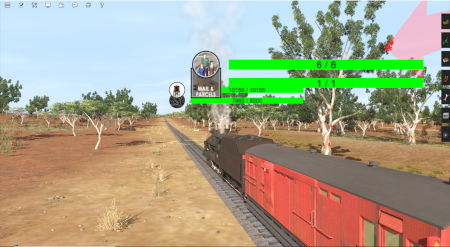
<td>You use the '''Surveyor''' tools to fix the problem, such as deleting (as shown left), moving or adding a scenery object.</td> | |||
</tr> | |||
<tr valign="top"> | |||
<td>[[image:DotPoint.JPG|10px|link=]]</td> | |||
<td>You can then (if you wish) save the edited route and/or session (again there will be more on that later)</td> | |||
</tr> | |||
</table> | |||
</td> | </td> | ||
</tr> | </tr> | ||
<tr valign="top"> | <tr valign="top"> | ||
<td width=450>[[image:UDS-Scenario4.png|link=]]</td> | <td width=450>[[image:UDS-Scenario4.png|link=]]</td> | ||
<td width= | <td width=550> | ||
<table> | |||
<tr valign="top"> | |||
<td width=10>[[image:DotPoint.JPG|10px|link=]]</td> | |||
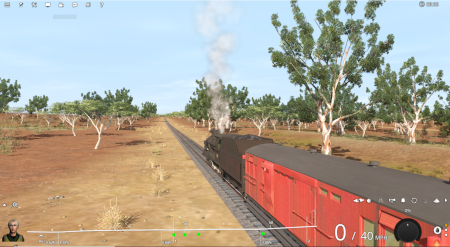
<td>You then switch back into '''Driver''' to continue driving the session with the problem fixed</td> | |||
</tr> | |||
</table> | |||
</td> | </td> | ||
</tr> | </tr> | ||
| Line 145: | Line 192: | ||
<table> <!-- BEGIN Nav Buttons Table --> | <table> <!-- BEGIN Nav Buttons Table --> | ||
<tr valign="top"> | <tr valign="top"> | ||
<td width= | <td width=629><span id="stepSwitch"></span> | ||
<td width=46>[[ | ='''Switching Modes'''= | ||
<td width=75>[[ | </td> | ||
<td width=75>[[ | <td width=50> </td> <!-- for Skip Down --> | ||
<td width=75>[[ | <td width=50> </td> <!-- for Skip Up --> | ||
<td width=46>[[image:BackToTop.png|link=#top|alt=Top|Top]]</td> | |||
<td width=75>[[image:NextUp.png|link=#stepWhatIs|alt=Next Up|Next Up]]</td> | |||
<td width=75>[[image:NextDown.png|link=#stepSaving|alt=Next Down|Next Down]]</td> | |||
<td width=75>[[image:BackToBottom.png|link=#bottom|alt=Bottom|Bottom]]</td> | |||
</tr> | </tr> | ||
</table> <!-- END Nav Buttons Table --> | </table> <!-- END Nav Buttons Table --> | ||
<table width=1000> | <table width=1000> | ||
<tr valign="top"> | <tr valign="top"> | ||
<td> | <td width=25>[[image:DotPoint.JPG|link=]]</td> | ||
< | <td><span style="font-weight: 700; font-size: 17px;">Driver to Surveyor</span></td> | ||
</tr> | |||
<tr valign="top"> | <tr valign="top"> | ||
<td | <td colspan=2> | ||
<table> | |||
< | |||
<tr valign="top"> | <tr valign="top"> | ||
<td width= | <td width=210 align="center">[[image:UDS-DriverToSurveyor_S10.png|link=]]<br>'''In TRS19 and TRS22 (standard)'''</td> | ||
<td width= | <td width=210 align="center">[[image:UDS-DriverToSurveyor_S20.png|link=]]<br>'''In Trainz Plus and TRS22PE'''</td> | ||
</td> | |||
<td> | <td> | ||
<table bgcolor=#000000 cellpadding=2> | <table bgcolor=#000000 cellpadding=2> | ||
| Line 174: | Line 221: | ||
<table bgcolor=#ffffff cellpadding=2> | <table bgcolor=#ffffff cellpadding=2> | ||
<tr valign="top"> | <tr valign="top"> | ||
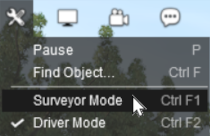
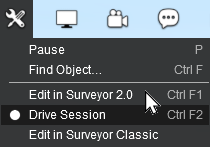
<td><span style="font-weight: 700; font-size: 15px;">Steps: | <td><span style="font-weight: 700; font-size: 15px;">Steps: To Switch from Driver to Surveyor:-</span> | ||
<table> | <table> | ||
<tr valign="top"> | <tr valign="top"> | ||
<td>[[image:DotPoint1.JPG|link=]]</td> | <td>[[image:DotPoint1.JPG|link=]]</td> | ||
<td>Open the '''Tools Menu''' and select <span style="color: white; background-color: black; font-weight: 700; font-size: 15px;"> Surveyor Mode </span> ''' | <td>Open the [[image:SurveyorToolsIcon_S20.png|link=]] '''Tools Menu''' and select <span style="color: white; background-color: black; font-weight: 700; font-size: 15px;"> Surveyor Mode </span> (in '''TRS19/22''') or one of the two <span style="color: white; background-color: black; font-weight: 700; font-size: 15px;"> Edit in Surveyor </span> options (in '''Trainz Plus''' and '''TRS22PE''')<br> | ||
<span style="font-weight: 700; font-size: 15px;">Keyboard Shortcut:</span> Press <span style="font-weight: 700; font-size: 15px;"><span style="color: white; background-color: black;"> Ctrl </span> + <span style="color: white; background-color: black;"> F1 </span></span> for '''Surveyor 2.0''' ('''Trainz Plus''' and '''TRS22PE''') or '''Surveyor Classic''' (in '''TRS19''' and '''TRS22''')</td> | |||
</tr> | </tr> | ||
</table> | </table> | ||
</td> | </td> | ||
</tr> | </tr> | ||
</table> | </table> | ||
</td> | </td> | ||
</tr> | </tr> | ||
| Line 202: | Line 242: | ||
</table> | </table> | ||
<br> | <br> | ||
<table width=1000> | <table width=1000 bgcolor=#ff0000 cellpadding=2> | ||
<tr valign="top"> | <tr valign="top"> | ||
<td> | <td> | ||
<table | <table bgcolor=#fcbcbc> | ||
<tr valign="top"> | <tr valign="top"> | ||
<td | <td colspan=2><span style="font-size: 17px; font-weight: 700;">Warning:</span></td> | ||
</tr> | </tr> | ||
<tr valign="top"> | <tr valign="top"> | ||
<td> | <td>[[image:Stop.PNG|link=]]</td> | ||
<td>[[image: | <td>When you switch to '''Surveyor''' from '''Driver''' the '''Pause''' option (at the top of the '''Tools menu''') will be automatically turned '''ON'''. If you turn this option '''OFF''' in '''Surveyor''' then any consists that were moving in '''Driver''' (and were then paused when you switched) will start moving again. This will almost certainly cause problems such as derailments because the moving trains '''WILL NOT''' be under manual or AI control as they would be in '''Driver'''.</td> | ||
</tr> | |||
<tr valign="top"> | |||
<td>[[image:Stop.PNG|link=]]</td> | |||
<td>When '''Paused''' is checked '''ON''' in '''Surveyor''' it will also pause '''<u>ALL</u>''' animation effects (smoke, procedural track switch blades, animated scenery assets, sounds, etc). If you turn this '''OFF''' to check the animations then you will also unpause any and all moving consists with the same result as described above.</td> | |||
</tr> | </tr> | ||
</table> | </table> | ||
</td> | </td> | ||
</tr> | |||
</table> | |||
<br> | |||
<table width=1000> | |||
<tr valign="top"> | |||
<td width=25>[[image:DotPoint.JPG|link=]]</td> | |||
<td><span style="font-weight: 700; font-size: 17px;">Surveyor to Driver</span></td> | |||
</tr> | |||
<tr valign="top"> | |||
<td colspan=2> | |||
<table> | |||
<tr valign="top"> | |||
<td width=210 align="center">[[image:UDS-SurveyorToDriver_S10.png|link=]]<br>'''In TRS19 and TRS22 (standard)'''</td> | |||
<td width=210 align="center">[[image:UDS-SurveyorToDriver_S20.png|link=]]<br>'''In Trainz Plus and TRS22PE'''</td> | |||
<td> | <td> | ||
<table bgcolor=#000000 cellpadding=2> | <table bgcolor=#000000 cellpadding=2> | ||
| Line 223: | Line 279: | ||
<table bgcolor=#ffffff cellpadding=2> | <table bgcolor=#ffffff cellpadding=2> | ||
<tr valign="top"> | <tr valign="top"> | ||
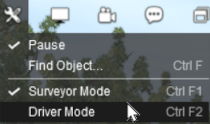
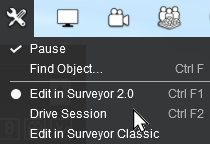
<td><span style="font-weight: 700; font-size: 15px;">Steps: | <td><span style="font-weight: 700; font-size: 15px;">Steps: To Switch from Surveyor to Driver:-</span> | ||
<table> | <table> | ||
<tr valign="top"> | <tr valign="top"> | ||
<td>[[image:DotPoint1.JPG|link=]]</td> | <td>[[image:DotPoint1.JPG|link=]]</td> | ||
<td>Open the '''Tools Menu''' and select <span style="color: white; background-color: black; font-weight: 700; font-size: 15px;"> Driver Mode </span> ''' | <td>Open the [[image:SurveyorToolsIcon_S20.png|link=]] '''Tools Menu''' and select <span style="color: white; background-color: black; font-weight: 700; font-size: 15px;"> Driver Mode </span> (in '''TRS19/22''') or <span style="color: white; background-color: black; font-weight: 700; font-size: 15px;"> Drive Session </span> (in '''Trainz Plus''' and '''TRS22PE''')<br> | ||
<span style="font-weight: 700; font-size: 15px;">Keyboard Shortcut:</span> Press <span style="font-weight: 700; font-size: 15px;"><span style="color: white; background-color: black;"> Ctrl </span> + <span style="color: white; background-color: black;"> F2 </span></span></td> | |||
</tr> | </tr> | ||
<tr valign="top"> | <tr valign="top"> | ||
<td>[[image:DotPoint2.JPG|link=]]</td> | <td>[[image:DotPoint2.JPG|link=]]</td> | ||
<td>If the '''Paused''' option is '''ON''' in '''Surveyor | <td>If the '''Paused''' option is '''ON''' in '''Surveyor''' (the default condition unless you have turned it '''OFF''') then the simulation will be paused and the '''Paused''' message will appear on the screen when you switch to '''Driver'''. Hit the <span style="font-weight: 700; font-size: 15px; color: white; background-color: black;"> P </span> key to '''Unpause''' and resume the simulation.</td> | ||
</tr> | |||
</table> | |||
</td> | |||
</tr> | </tr> | ||
</table> | </table> | ||
| Line 249: | Line 309: | ||
<table bgcolor=#ffffb0> | <table bgcolor=#ffffb0> | ||
<tr valign="top"> | <tr valign="top"> | ||
<td>[[image:NotePad.PNG|link=]] The '''Undo''' command (<span style="font-weight: 700; font-size: 15px;"><span style="color: white; background-color: black;"> Ctrl </span> + <span style="color: white; background-color: black;"> Z </span></span>) can be used in '''Surveyor | <td>[[image:NotePad.PNG|link=]] The '''Undo''' command (<span style="font-weight: 700; font-size: 15px;"><span style="color: white; background-color: black;"> Ctrl </span> + <span style="color: white; background-color: black;"> Z </span></span>) can be used in '''Surveyor''' but not in '''Driver'''. | ||
</td> | </td> | ||
</tr> | </tr> | ||
| Line 259: | Line 319: | ||
<table> <!-- BEGIN Nav Buttons Table --> | <table> <!-- BEGIN Nav Buttons Table --> | ||
<tr valign="top"> | <tr valign="top"> | ||
<td width= | <td width=629><span id="stepSaving"></span> | ||
<td width=46>[[ | ='''Saving'''= | ||
<td width=75>[[ | </td> | ||
<td width=75>[[ | <td width=50> </td> <!-- for Skip Down --> | ||
<td width=75>[[ | <td width=50> </td> <!-- for Skip Up --> | ||
<td width=46>[[image:BackToTop.png|link=#top|alt=Top|Top]]</td> | |||
<td width=75>[[image:NextUp.png|link=#stepSwitch|alt=Next Up|Top]]</td> | |||
<td width=75>[[image:NextDown.png|link=#stepReset|alt=Next Down|Next Down]]</td> | |||
<td width=75>[[image:BackToBottom.png|link=#bottom|alt=Bottom|Bottom]]</td> | |||
</tr> | </tr> | ||
</table> <!-- END Nav Buttons Table --> | </table> <!-- END Nav Buttons Table --> | ||
<table bgcolor=#000000 width=1000> | |||
<table bgcolor=#000000 width= | |||
<tr valign="top"> | <tr valign="top"> | ||
<td> | <td> | ||
<table bgcolor=#ffffb0 width= | <table bgcolor=#ffffb0 width=996> | ||
<tr valign="top"> | <tr valign="top"> | ||
<td>[[image:NotePad.PNG|link=]]</td> | <td>[[image:NotePad.PNG|link=]]</td> | ||
| Line 282: | Line 345: | ||
<table bgcolor=#ffffe0> | <table bgcolor=#ffffe0> | ||
<tr valign="top"> | <tr valign="top"> | ||
<td>[[ | <td>[[image:PencilTips.PNG|link=]]</td> | ||
<td>It is '''<u>strongly recommended</u>''' that all consists be placed into a '''Session Layer''' and become part of a '''Session''' instead of the '''Route''' | <td>It is '''<u>strongly recommended</u>''' that all consists be placed into a '''Session Layer''' and become part of a '''Session''' instead of the '''Route''' | ||
</td> | </td> | ||
| Line 302: | Line 365: | ||
</tr> | </tr> | ||
<tr valign="top"> | <tr valign="top"> | ||
<td>[[ | <td>[[image:Stop.PNG|link=]]</td> | ||
<td>If you decide to save your '''Surveyor''' edits and select the option to<br> | <td>If you decide to save your '''Surveyor''' edits and select the option to<br> | ||
[[image:UDS-OverwriteExistingSession.png|link=]]<br><br> | [[image:UDS-OverwriteExistingSession.png|link=]]<br><br> | ||
then you will '''OVERWRITE''' (a nicer way of saying | then you will '''OVERWRITE''' (a nicer way of saying <span style="font-weight: 700; font-size: 15px;">DESTROY</span>) your starting or original '''Session''' | ||
</td> | |||
</tr> | |||
</table> | |||
</td> | |||
</tr> | |||
</table> | |||
<br> | |||
<table width=1000> | |||
<tr valign="top"> | |||
<td> | |||
Most of the problems users seem to be experiencing with the '''UDS''', judging from the posts in the Trainz Forums, is when saving their edited '''Driver''' session after switching to '''Surveyor'''.</td> | |||
</tr> | |||
</table> | |||
<br> | |||
<table bgcolor=#000000 cellpadding=2> | |||
<tr valign="top"> | |||
<td> | |||
<table bgcolor=#ffffb0 cellpadding=2> | |||
<tr valign="top"> | |||
<td width=25>[[image:NotePad.PNG|link=]]</td> | |||
<td><span style="font-size: 17px;">'''Notes:'''</span><br> | |||
---- | |||
</td> | </td> | ||
</tr> | |||
<tr valign="top"> | |||
<td>[[image:DotPoint.JPG|10px|link=]]</td> | |||
<td>Using '''Driver''' involves driving consists (either manually or through the AI) and activating session rules. '''This will change the session parameters'''</td> | |||
</tr> | |||
<tr valign="top"> | |||
<td>[[image:DotPoint.JPG|10px|link=]]</td> | |||
<td>'''Overwriting the Session will save the consist locations and Session Rules in their new positions/conditions'''</td> | |||
</tr> | </tr> | ||
</table> | </table> | ||
| Line 313: | Line 406: | ||
</table> | </table> | ||
<br> | <br> | ||
<table width=1000> | |||
<tr valign="top"> | |||
<td>When you are in '''Driver''' at least one of the consists will probably be moving. Some of the Session rules may have already been completed while others may still be running or waiting for events (e.g. triggers to be activated). | |||
< | If, after switching to '''Surveyor''', you then choose to save using the '''Overwrite existing session''' option then you will be replacing your original starting Session with a new one with the consists saved in their new positions and the Session rules saved in their new states. So when you later load and restart the Session things will not be the same as they were in the original or starting Session.</td> | ||
</tr> | |||
<tr valign="top"> | <tr valign="top"> | ||
<td> | <td> </td> | ||
</tr> | </tr> | ||
<tr valign="top"> | <tr valign="top"> | ||
<td> | <td><span style="font-size: 17px; background-color: yellow; font-weight: 700"> Unless you have a particular reason for overwriting the original Session then the recommended save options are:-</span></td> | ||
</tr> | </tr> | ||
</table> | </table> | ||
<table width=1000> | <table width=1000> | ||
<tr valign="top"> | <tr valign="top"> | ||
| Line 352: | Line 442: | ||
<table bgcolor=#ffffff cellpadding=2> | <table bgcolor=#ffffff cellpadding=2> | ||
<tr valign="top"> | <tr valign="top"> | ||
<td colspan=2><span style="font-weight: 700; font-size: 15px;">Steps: | <td colspan=2><span style="font-weight: 700; font-size: 15px;">Steps: To Save the Route Only:-</span></td> | ||
</tr> | </tr> | ||
<tr valign="top"> | <tr valign="top"> | ||
| Line 389: | Line 479: | ||
<table bgcolor=#ffffff cellpadding=2> | <table bgcolor=#ffffff cellpadding=2> | ||
<tr valign="top"> | <tr valign="top"> | ||
<td colspan=2><span style="font-weight: 700; font-size: 15px;">Steps: | <td colspan=2><span style="font-weight: 700; font-size: 15px;">Steps: To Save the Route and a NEW Session:-</span></td> | ||
</tr> | </tr> | ||
<tr valign="top"> | <tr valign="top"> | ||
<td width=25>[[image:DotPoint1.JPG|link=]]</td> | <td width=25>[[image:DotPoint1.JPG|link=]]</td> | ||
<td><span style="font-weight: 700; font-size: 15px; background-color: lightcyan;">Left Click</span> the checkbox | <td><span style="font-weight: 700; font-size: 15px; background-color: lightcyan;">Left Click</span> the checkbox <span style="font-weight: 700; font-size: 15px; color: white; background-color: black;"> Create new session </span> </td> | ||
</tr> | </tr> | ||
<tr valign="top"> | <tr valign="top"> | ||
| Line 410: | Line 500: | ||
</tr> | </tr> | ||
</table> | </table> | ||
<table width=1000 bgcolor=#000000> | <table width=1000 bgcolor=#000000> | ||
<tr valign="top"> | <tr valign="top"> | ||
| Line 420: | Line 510: | ||
<table bgcolor=#ffffff> | <table bgcolor=#ffffff> | ||
<tr valign="top"> | <tr valign="top"> | ||
<td colspan=2><span style="font-weight: 700; font-size: 15px;">Steps:</span></td> | <td colspan=2><span style="font-weight: 700; font-size: 15px;">Steps: To Save Session Layer Edits Without Overwriting the Starting Session:-</span></td> | ||
</tr> | </tr> | ||
<tr valign="top"> | <tr valign="top"> | ||
<td width=20>[[image:DotPoint1.JPG|link=]]</td> | <td width=20>[[image:DotPoint1.JPG|link=]]</td> | ||
<td>move that '''Session Layer''' to the '''Route Layer Group''' before starting the Session in Driver. See [[ | <td>move that '''Session Layer''' to the '''Route Layer Group''' before starting the Session in Driver. See [[image:WikiLink.PNG|link=]] '''[[How_to_Use_Layers#Moving_a_Layer|Moving Layers]]''' for more details</td> | ||
</tr> | </tr> | ||
<tr valign="top"> | <tr valign="top"> | ||
<td>[[image:DotPoint2.JPG|link=]]</td> | <td>[[image:DotPoint2.JPG|link=]]</td> | ||
<td>switch from '''Driver''' to '''Surveyor''' and edit when required. You can safely edit any '''Route Layer''' which now includes the moved '''Session | <td>switch from '''Driver''' to '''Surveyor''' and edit when required. You can safely edit any '''Route Layer''' which now includes the moved '''Session Layer'''</td> | ||
</tr> | </tr> | ||
<tr valign="top"> | <tr valign="top"> | ||
| Line 438: | Line 528: | ||
<table bgcolor=#ffffff> | <table bgcolor=#ffffff> | ||
<tr valign="top"> | <tr valign="top"> | ||
<td colspan=2><span style="font-weight: 700; font-size: 15px;">Steps:</span></td> | <td colspan=2><span style="font-weight: 700; font-size: 15px;">Steps: To Move the Layer Back to the Session:-</span></td> | ||
</tr> | </tr> | ||
<tr valign="top"> | <tr valign="top"> | ||
| Line 450: | Line 540: | ||
<tr valign="top"> | <tr valign="top"> | ||
<td>[[image:DotPoint3.JPG|link=]]</td> | <td>[[image:DotPoint3.JPG|link=]]</td> | ||
<td>move the layer from the '''Route Layer Group''' back to the '''Session Layer Group'''. See [[ | <td>move the layer from the '''Route Layer Group''' back to the '''Session Layer Group'''. See [[image:WikiLink.PNG|link=]] '''[[How_to_Use_Layers#Moving_a_Layer|Moving Layers]]''' for more details</td> | ||
</tr> | </tr> | ||
<tr valign="top"> | <tr valign="top"> | ||
| Line 466: | Line 556: | ||
<table> <!-- BEGIN Nav Buttons Table --> | <table> <!-- BEGIN Nav Buttons Table --> | ||
<tr valign="top"> | <tr valign="top"> | ||
<td width= | <td width=629><span id="stepReset"></span> | ||
<td width=46>[[ | ='''Resetting the Session Rules'''= | ||
<td width=75>[[ | </td> | ||
<td width=75>[[ | <td width=50> </td> <!-- for Skip Down --> | ||
<td width=75>[[ | <td width=50> </td> <!-- for Skip Up --> | ||
<td width=46>[[image:BackToTop.png|link=#top|alt=Top|Top]]</td> | |||
<td width=75>[[image:NextUp.png|link=#stepSaving|alt=Next Up|Top]]</td> | |||
<td width=75>[[image:NextDown.png|link=#stepQuestions|alt=Next Down|Next Down]]</td> | |||
<td width=75>[[image:BackToBottom.png|link=#bottom|alt=Bottom|Bottom]]</td> | |||
</tr> | </tr> | ||
</table> <!-- END Nav Buttons Table --> | </table> <!-- END Nav Buttons Table --> | ||
<table width=1000 bgcolor="lightcyan" cellpadding=2> | |||
<table | |||
<tr valign="top"> | <tr valign="top"> | ||
<td>[[ | <td width=10>[[image:BlueDot10x10.png|link=]]</td> | ||
<td>After you switch from '''Driver | <td>After you switch from '''Driver''' to '''Surveyor''' it may be necessary to restart or reset some of the '''Session Rules'''</td> | ||
</tr> | </tr> | ||
</table> | </table> | ||
<br> | <br> | ||
As mentioned above, when '''Driver | <table width=1000> | ||
<tr valign="top"> | |||
<td> | |||
As mentioned above, when '''Driver''' is running some of the Session rules may be completed while others may still be running or waiting for certain events (e.g. triggers to be activated). When you switch to '''Surveyor''' these rules may be in a different state compared to what they were at the start of the Session. When you restart '''Driver''' these rules may not be in a useful condition.<br> | |||
The '''Session Editor''' built into all Trainz versions allows you to add, delete and modify the rules that will operate during a Session.</td> | |||
</tr> | |||
</table> | |||
<br> | |||
<table cellpadding=4 bgcolor="Aquamarine"> | <table cellpadding=4 bgcolor="Aquamarine"> | ||
<tr valign="top"> | <tr valign="top"> | ||
<td>[[ | <td>[[image:LinkWiki.PNG|link=]]</td> | ||
<td>Information on the '''Session Editor''' can be found at:-<br> | <td>Information on the '''Session Editor''' can be found at:-<br> | ||
* '''[[How to Use Session Editor|Using the Session Editor]]''' | * '''[[How to Use Session Editor|Using the Session Editor]]''' | ||
| Line 501: | Line 599: | ||
[[image:UDS-SessionRules.png|link=]]<br> | [[image:UDS-SessionRules.png|link=]]<br> | ||
<table width= | <table width=1000> | ||
<tr valign="top"> | <tr valign="top"> | ||
<td>[[image:SessionEditMenuRestartRules.png|link=]]</td> | <td>[[image:SessionEditMenuRestartRules.png|link=]]</td> | ||
| Line 511: | Line 609: | ||
</tr> | </tr> | ||
<tr valign="top"> | <tr valign="top"> | ||
<td colspan=2>When | <td colspan=2> </td> | ||
</tr> | |||
<tr valign="top"> | |||
<td colspan=2 align="center"><span style="font-size: 15px; background-color: yellow;">When '''Driver''' is selected again, all the reset or '''(paused)''' rules will be restarted</span></td> | |||
</tr> | </tr> | ||
</table> | </table> | ||
| Line 517: | Line 618: | ||
<table> <!-- BEGIN Nav Buttons Table --> | <table> <!-- BEGIN Nav Buttons Table --> | ||
<tr valign="top"> | <tr valign="top"> | ||
<td width= | <td width=629><span id="stepQuestions"></span> | ||
<td width=46>[[ | ='''Some Questions Answered'''= | ||
<td width=75>[[ | </td> | ||
<td width=75> | <td width=50> </td> <!-- for Skip Down --> | ||
<td width=75>[[ | <td width=50> </td> <!-- for Skip Up --> | ||
<td width=46>[[image:BackToTop.png|link=#top|alt=Top|Top]]</td> | |||
<td width=75>[[image:NextUp.png|link=#stepReset|alt=Next Up|Top]]</td> | |||
<td width=75> </td> | |||
<td width=75>[[image:BackToBottom.png|link=#bottom|alt=Bottom|Bottom]]</td> | |||
</tr> | </tr> | ||
</table> <!-- END Nav Buttons Table --> | </table> <!-- END Nav Buttons Table --> | ||
<table cellpadding=4 bgcolor=#bbffff> | <table cellpadding=4 bgcolor=#bbffff> | ||
<tr valign="top"> | <tr valign="top"> | ||
| Line 534: | Line 638: | ||
</table> | </table> | ||
<br> | <br> | ||
Many scenery assets actually have their properties stored in the Session, even when the assets themselves are in a Route layer. Editing the properties of these assets is considered to be a change to the Session. These include:- | <table width=1000> | ||
<tr valign="top"> | |||
<td colspan=2>Many scenery assets actually have their properties stored in the Session, even when the assets themselves are in a Route layer. Editing the properties of these assets is considered to be a change to the Session. These include:-</td> | |||
</tr> | |||
<tr valign="top"> | |||
<td width=10>[[image:DotPoint.JPG|10px|link=]]</td> | |||
<td>junction switches - the left/right switch direction is stored in the Session (but the switch '''default''' direction is stored in the Route). See '''[[image:WikiLink.PNG|link=]] [[Route_and_Session_Basics#SwitchDirections|Setting Switch Directions in Routes and Sessions]]''' for more information on this</td> | |||
</tr> | |||
<tr valign="top"> | |||
<td>[[image:DotPoint.JPG|10px|link=]]</td> | |||
<td>industries - the commodities and quantities loaded/unloaded are stored in the Session</td> | |||
</tr> | |||
<tr valign="top"> | |||
<td>[[image:DotPoint.JPG|10px|link=]]</td> | |||
<td>industry enabled wagons - the commodities and quantities carried are stored in the Session</td> | |||
</tr> | |||
<tr valign="top"> | |||
<td>[[image:DotPoint.JPG|10px|link=]]</td> | |||
<td>consist locations - this is stored in the Session ('''TRS19 Platinum Edition''', '''Trainz Plus''' and '''TRS22''' only</td> | |||
</tr> | |||
<tr valign="top"> | |||
<td>[[image:DotPoint.JPG|10px|link=]]</td> | |||
<td>named route objects - while the name is stored in the Route, adding or changing the name is treated as a change to the Session</td> | |||
</tr> | |||
<tr valign="top"> | |||
<td colspan=2 bgcolor="yellow">If you have '''NOT''' altered any '''Session data''' or assets that have been placed in a '''session layer''' then you can ignore the request to save the Session as well as the Route. Changing the name of an asset in a route layer, for example, does not alter any session data</td> | |||
</tr> | |||
</table> | |||
<br> | <br> | ||
<table cellpadding=4 bgcolor=#bbffff> | <table cellpadding=4 bgcolor=#bbffff> | ||
<tr valign="top"> | <tr valign="top"> | ||
<td>[[image:Question.PNG|link=|30px]]</td> | <td>[[image:Question.PNG|link=|30px]]</td> | ||
<td>'''Interlocking Towers (including Enhanced Interlocking Towers) show paths as "not editable" after switching to Surveyor | <td>'''Interlocking Towers (including Enhanced Interlocking Towers) show paths as "not editable" after switching to '''Surveyor'''. Why?''' | ||
</td> | </td> | ||
</tr> | </tr> | ||
</table> | </table> | ||
<br> | <br> | ||
If you make the switch from '''Driver | <table width=1000> | ||
<tr valign="top"> | |||
Pierre ('''pguy'''), the creator of the '''EIT''' asset and associated rules, has a detailed description of this and some possible solutions in a Trainz Forum post at:- '''<span class=" | <td>If you make the switch from '''Driver''' to '''Surveyor''' after an '''IT/EIT''' path has been activated (but not yet cleared or cancelled) then you will be unable to edit that path. In addition, you will not be able to add new paths to an '''IT/EIT''' that has an open active path.</td> | ||
</tr> | |||
<tr valign="top"> | |||
<td>Pierre ('''pguy'''), the creator of the '''EIT''' asset and associated rules, has a detailed description of this and some possible solutions in a Trainz Forum post at:- '''<span class="plain;">[https://forums.auran.com/trainz/showthread.php?159841-Interlocking-Towers-Session-Only&p=1825875#post1825875 EITs and the UDS]</span>'''</td> | |||
</tr> | |||
</table> | |||
<br> | <br> | ||
<table cellpadding=4 bgcolor=#bbffff> | <table cellpadding=4 bgcolor=#bbffff> | ||
<tr valign="top"> | <tr valign="top"> | ||
<td>[[image:Question.PNG|link=|30px]]</td> | <td>[[image:Question.PNG|link=|30px]]</td> | ||
<td>'''Can I add new trains or replace existing trains after switching to Surveyor | <td>'''Can I add new trains or replace existing trains after switching to Surveyor?''' | ||
</td> | </td> | ||
</tr> | </tr> | ||
</table> | </table> | ||
<br> | <br> | ||
You can add additional trains and replace existing ones when in '''Surveyor | <table> | ||
<tr valign="top"> | |||
<td colspan=2>You can add additional trains and replace existing ones when in '''Surveyor''' but it is advised that:-</td> | |||
</tr> | |||
<tr valign="top"> | |||
<td width=10>[[image:DotPoint.JPG|10px|link=]]</td> | |||
<td>the '''Paused''' option be set ON (the default condition) in '''Surveyor''', and</td> | |||
</tr> | |||
<tr valign="top"> | |||
<td>[[image:DotPoint.JPG|10px|link=]]</td> | |||
<td>it is recommended that you reset the '''Driver Setup Rule''' in the '''Session Editor''', particularly if you have added/edited driver commands to the new or altered consists</td> | |||
</tr> | |||
</table> | |||
<br> | <br> | ||
<table cellpadding=4 bgcolor=#bbffff> | <table cellpadding=4 bgcolor=#bbffff> | ||
| Line 572: | Line 713: | ||
</tr> | </tr> | ||
</table> | </table> | ||
<br> | |||
<table width=1000> | |||
A train that is driven into a portal and later returned to the layout will be returned in the same layer as the portal and not in the trains originally assigned layer. Trains that are produced by a portal will be assigned to the same layer as the portal. This has <span style="background-color: yellow; font-weight: 700;"> possibly always been the case with portals </span> but was probably unnoticed until the arrival of the '''UDS'''. It seems to have no other noticeable effect on trains.<br> | <tr valign="top"> | ||
<td>A train that is driven into a portal and later returned to the layout will be returned in the same layer as the portal and not in the trains originally assigned layer. Trains that are produced by a portal will be assigned to the same layer as the portal. This has <span style="background-color: yellow; font-weight: 700;"> possibly always been the case with portals </span> but was probably unnoticed until the arrival of the '''UDS'''. It seems to have no other noticeable effect on trains.<br> | |||
This could become an issue if you make the switch from '''Driver''' to '''Surveyor''' after a train has been '''returned''' to the layout from a portal. For example, if a train is originally in a '''Session Layer''' (as '''recommended''' for '''TRS19 Platinum Edition''', '''Trainz Plus''' and '''TRS22''') then it is part of a '''Session'''. If it is returned from a portal that is in a '''Route Layer''' then it will now be in the same '''Route Layer''' as the portal and it will be part of the '''Route''', not part of the '''Session'''.<br> | This could become an issue if you make the switch from '''Driver''' to '''Surveyor''' after a train has been '''returned''' to the layout from a portal. For example, if a train is originally in a '''Session Layer''' (as '''recommended''' for '''TRS19 Platinum Edition''', '''Trainz Plus''' and '''TRS22''') then it is part of a '''Session'''. If it is returned from a portal that is in a '''Route Layer''' then it will now be in the same '''Route Layer''' as the portal and it will be part of the '''Route''', not part of the '''Session'''.<br> | ||
| Line 580: | Line 722: | ||
If you save the '''Route''' after switching to '''Surveyor''' then the train will be saved in the '''Route''' and not in the '''Session'''. If this is an issue then the remedy is to open the property dialogue window of any wagon in the train after it has left the portal and change its assigned layer to the correct one. This will set all vehicles in that train to the same correct layer.<br> | If you save the '''Route''' after switching to '''Surveyor''' then the train will be saved in the '''Route''' and not in the '''Session'''. If this is an issue then the remedy is to open the property dialogue window of any wagon in the train after it has left the portal and change its assigned layer to the correct one. This will set all vehicles in that train to the same correct layer.<br> | ||
'''Note:''' It is not recommended that you solve this by moving portals to a '''Session Layer''' if you have multiple '''Sessions''' because the portals will then only appear in the '''Session''' that contains the portals. | '''Note:''' It is not recommended that you solve this by moving portals to a '''Session Layer''' if you have multiple '''Sessions''' because the portals will then only appear in the '''Session''' that contains the portals.</td> | ||
</tr> | |||
</table> | |||
<br> | <br> | ||
<table> <!-- BEGIN Nav Buttons Table --> | <table> <!-- BEGIN Nav Buttons Table --> | ||
<tr valign="top"> | <tr valign="top"> | ||
<td width= | <td width=629><span id="bottom"></span> </td> | ||
<td width=46>[[ | <td width=50> </td> <!-- for Skip Down --> | ||
<td width=75>[[ | <td width=50> </td> <!-- for Skip Up --> | ||
<td width=46>[[image:BackToTop.png|link=#top|alt=Top|Top]]</td> | |||
<td width=75>[[image:NextUp.png|link=#stepQuestions|alt=Next Up|Top]]</td> | |||
<td width=75> </td> | <td width=75> </td> | ||
<td width=75> </td> | <td width=75> </td> | ||
| Line 593: | Line 739: | ||
---- | ---- | ||
---- | ---- | ||
='''Trainz Wiki'''= | ='''Trainz Wiki'''= | ||
<table cellpadding= | <table width=1000> | ||
<tr valign="top"> | |||
<td> | |||
<table width=500 cellpadding=2 bgcolor=#ffffff> | |||
<tr valign="top"> | <tr valign="top"> | ||
<td>[[ | <td width=80>[[image:TrainzWiki.png|link=]]</td> | ||
<td> | <td> | ||
<span style="font-size: 17px | <span style="font-size: 17px;">'''More Tutorials and Guides to Using Trainz'''</span><br> | ||
*'''<span class=" | *'''<span class="plain;">[http://online.ts2009.com/mediaWiki/index.php/HowTo How to Guides]</span>''' | ||
*'''[[Driver Commands List]]''' | *'''[[Driver Commands List]]''' | ||
*'''[[Session Rule List with Parameters|Session Rules List (Alphabetical) with Parameters]]''' | *'''[[Session Rule List with Parameters|Session Rules List (Alphabetical) with Parameters]]''' | ||
*'''[[Session Rules By Categories With Properties|Session Rules List (Categories) With Parameters]]''' | *'''[[Session Rules By Categories With Properties|Session Rules List (Categories) With Parameters]]''' | ||
</td> | |||
</tr> | |||
</table> | |||
</td> | |||
<td> | |||
<table width=500 cellpadding=4 bgcolor="aquamarine"> | |||
<tr valign="top"> | |||
<td width=50>[[image:LinkWiki.PNG|link=]]</td> | |||
<td> | |||
<span style="font-size: 17px;">'''Related Links'''</span><br> | |||
* '''[[How to Use Session Editor|Using the Session Editor]]''' | |||
</td> | |||
</tr> | |||
</table> | |||
</td> | </td> | ||
</tr> | </tr> | ||
</table> | </table> | ||
---- | ---- | ||
This page was created by Trainz user '''<span class=" | This page was created by Trainz user '''<span class="plain;">[http://online.ts2009.com/mediaWiki/index.php/User:Pware pware]</span>''' in June 2021 and was last updated as shown below. | ||
---- | ---- | ||
[[Category:How-to guides]] | [[Category:How-to guides]] | ||
Latest revision as of 00:33, 30 August 2026
|
|
|||||||||||||||
What is the UDS Interface? |
 |
 |
 |
| UDS stands for U nified D river S urveyor and is an "interface" or option built into TRS19 Platinum Edition, Trainz Plus and TRS22 that allows you to jump seamlessly from Driver into Surveyor and then back into Driver again to resume a session at the point where you left it. There is no need to restart a Driver session from the very beginning. |
| The Scenario: You are in Driver testing out a route and session when you discover a problem. |
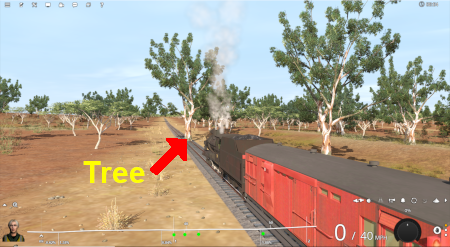 |
Previously (before the UDS) your only options would be to choose one of the following:-
Options:
|
In both cases you would have to:-
|


 |
The UDS interface allows you to switch, via a menu option, directly to Surveyor without having to stop and exit the Session in Driver first |
| When using the UDS you switch from Driver to Surveyor with the currently active Driver consist still as the focus and at the place it was located when you switched into Surveyor from Driver. |
 |
|
||||
 |
|
||||
 |
|
Switching Modes |
|
 |
|
|
 |
Driver to Surveyor | |||||||
|
||||||||

|
||||||

|
Surveyor to Driver | |||||||||
|
||||||||||
|

Saving |
|
|
|
|
|
||||||

|
||||
| Most of the problems users seem to be experiencing with the UDS, judging from the posts in the Trainz Forums, is when saving their edited Driver session after switching to Surveyor. |
|
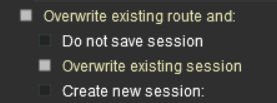
| When you are in Driver at least one of the consists will probably be moving. Some of the Session rules may have already been completed while others may still be running or waiting for events (e.g. triggers to be activated). If, after switching to Surveyor, you then choose to save using the Overwrite existing session option then you will be replacing your original starting Session with a new one with the consists saved in their new positions and the Session rules saved in their new states. So when you later load and restart the Session things will not be the same as they were in the original or starting Session. |
| Unless you have a particular reason for overwriting the original Session then the recommended save options are:- |
 |
||||||||
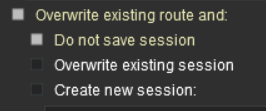
Option  Do Not Save the Session |
||||||||
|
This will save the Route only, using its existing name and it will overwrite the original route. This will save any edits that you have made to the Route but not to the Session. |
|||||||
|
||||||||||
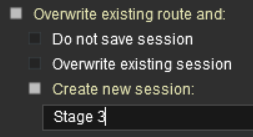
Option  Create a New Session |
||||||||||
|
This will save the Route using its existing name and it will overwrite the original route. It will also save the Session using the name you enter in the text box below the checkbox (Stage 3 in the example shown). The original Session will not be altered. This is useful when you want to test out changes to consists, industry settings, Rules, driver commands, etc but do not want to destroy the original Session. |
|||||||||
|
||||||||||
|
||||||||||||||||||||
Resetting the Session Rules |
|
|
|
|
|
After you switch from Driver to Surveyor it may be necessary to restart or reset some of the Session Rules |
|
As mentioned above, when Driver is running some of the Session rules may be completed while others may still be running or waiting for certain events (e.g. triggers to be activated). When you switch to Surveyor these rules may be in a different state compared to what they were at the start of the Session. When you restart Driver these rules may not be in a useful condition. |
 |
Information on the Session Editor can be found at:- |
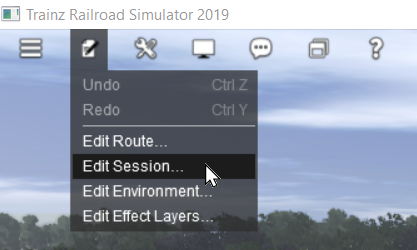
To open the Session Editor open the Edit menu and select Edit Session
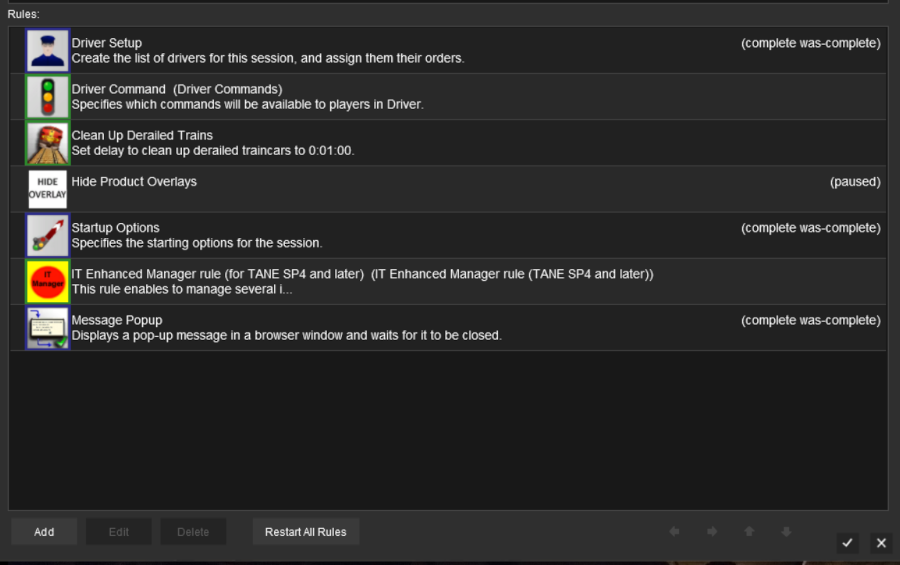
 |
At the bottom of the Session Editor is a new button, Restart ALL Rules . This will reset or restart ALL rules in the Session. |
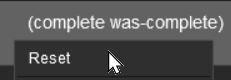 |
Some rules, as shown in the screen shot above, have the label (complete was-complete) after the rule name. This indicates that the rule has already been completed. These rules can be individually restarted by a Left Click on the rule and selecting the Reset option from the pop up menu. This will change the rule status to (paused). |
| When Driver is selected again, all the reset or (paused) rules will be restarted | |
Some Questions Answered |
|
|
|
| Error creating thumbnail: /bin/bash: line 1: /usr/bin/convert: No such file or directory Error code: 127 | I have only edited assets that are in the Route layers but selecting Save always sets the option to "Overwrite exiting session" as the default. Why? |
| Many scenery assets actually have their properties stored in the Session, even when the assets themselves are in a Route layer. Editing the properties of these assets is considered to be a change to the Session. These include:- | |
| Error creating thumbnail: /bin/bash: line 1: /usr/bin/convert: No such file or directory Error code: 127 | junction switches - the left/right switch direction is stored in the Session (but the switch default direction is stored in the Route). See  Setting Switch Directions in Routes and Sessions for more information on this |
| Error creating thumbnail: /bin/bash: line 1: /usr/bin/convert: No such file or directory Error code: 127 | industries - the commodities and quantities loaded/unloaded are stored in the Session |
| Error creating thumbnail: /bin/bash: line 1: /usr/bin/convert: No such file or directory Error code: 127 | industry enabled wagons - the commodities and quantities carried are stored in the Session |
| Error creating thumbnail: /bin/bash: line 1: /usr/bin/convert: No such file or directory Error code: 127 | consist locations - this is stored in the Session (TRS19 Platinum Edition, Trainz Plus and TRS22 only |
| Error creating thumbnail: /bin/bash: line 1: /usr/bin/convert: No such file or directory Error code: 127 | named route objects - while the name is stored in the Route, adding or changing the name is treated as a change to the Session |
| If you have NOT altered any Session data or assets that have been placed in a session layer then you can ignore the request to save the Session as well as the Route. Changing the name of an asset in a route layer, for example, does not alter any session data | |
| Error creating thumbnail: /bin/bash: line 1: /usr/bin/convert: No such file or directory Error code: 127 | Interlocking Towers (including Enhanced Interlocking Towers) show paths as "not editable" after switching to Surveyor. Why? |
| If you make the switch from Driver to Surveyor after an IT/EIT path has been activated (but not yet cleared or cancelled) then you will be unable to edit that path. In addition, you will not be able to add new paths to an IT/EIT that has an open active path. |
| Pierre (pguy), the creator of the EIT asset and associated rules, has a detailed description of this and some possible solutions in a Trainz Forum post at:- EITs and the UDS |
| Error creating thumbnail: /bin/bash: line 1: /usr/bin/convert: No such file or directory Error code: 127 | Can I add new trains or replace existing trains after switching to Surveyor? |
| You can add additional trains and replace existing ones when in Surveyor but it is advised that:- | |
| Error creating thumbnail: /bin/bash: line 1: /usr/bin/convert: No such file or directory Error code: 127 | the Paused option be set ON (the default condition) in Surveyor, and |
| Error creating thumbnail: /bin/bash: line 1: /usr/bin/convert: No such file or directory Error code: 127 | it is recommended that you reset the Driver Setup Rule in the Session Editor, particularly if you have added/edited driver commands to the new or altered consists |
| Error creating thumbnail: /bin/bash: line 1: /usr/bin/convert: No such file or directory Error code: 127 | Does the UDS change how portals work? |
| A train that is driven into a portal and later returned to the layout will be returned in the same layer as the portal and not in the trains originally assigned layer. Trains that are produced by a portal will be assigned to the same layer as the portal. This has possibly always been the case with portals but was probably unnoticed until the arrival of the UDS. It seems to have no other noticeable effect on trains. This could become an issue if you make the switch from Driver to Surveyor after a train has been returned to the layout from a portal. For example, if a train is originally in a Session Layer (as recommended for TRS19 Platinum Edition, Trainz Plus and TRS22) then it is part of a Session. If it is returned from a portal that is in a Route Layer then it will now be in the same Route Layer as the portal and it will be part of the Route, not part of the Session. If you save the Route after switching to Surveyor then the train will be saved in the Route and not in the Session. If this is an issue then the remedy is to open the property dialogue window of any wagon in the train after it has left the portal and change its assigned layer to the correct one. This will set all vehicles in that train to the same correct layer. |
|
|
Trainz Wiki
|
|

This page was created by Trainz user pware in June 2021 and was last updated as shown below.


