Using Content Manager to Update Assets: Difference between revisions
No edit summary |
mNo edit summary |
||
| (9 intermediate revisions by the same user not shown) | |||
| Line 1: | Line 1: | ||
<table width=1000> | <table width=1000 bgcolor=#000000 cellpadding=2> | ||
<tr valign="top"> | <tr valign="top"> | ||
<td | <td> | ||
<table width=996 bgcolor=#ffffff cellpadding=2> | |||
<tr valign="middle"> | |||
<td width=35>[[image:Information.png|35px|link=]]</td> | |||
<td><span style="font-size: 15px;">The information in this Wiki Page takes you through the process of performing manual asset updates using '''Content Manager'''. Updates occur whenever new versions of assets installed on your system are uploaded to the '''DLS'''. This document applies to '''T:ANE''', '''TRS19''', '''TRS22''' and '''Trainz Plus'''.</span></td> | |||
</tr> | </tr> | ||
</table> | |||
</td> | |||
</tr> | |||
</table> | |||
<br> | |||
<table width=1000> | |||
<tr valign="top"> | <tr valign="top"> | ||
<td width=375> | <td width=375> | ||
| Line 31: | Line 41: | ||
</table> | </table> | ||
<br> | <br> | ||
<table width=1000> <!-- BEGIN Nav Buttons Table --> | |||
<tr valign="top"> | |||
<td width=729><span id="stepFilter"></span> </td> | |||
<td width=46>[[image:BackToTop.png|link=#top|alt=Top|Top]]</td> | |||
<td width=75> </td> | |||
<td width=75>[[image:NextDown.png|link=#stepDLS|alt=Next Down|Next Down]]</td> | |||
<td width=75>[[image:BackToBottom.png|link=#bottom|alt=Bottom|Bottom]]</td> | |||
</tr> | |||
</table> <!-- END Nav Buttons Table --> | |||
='''Set Up An Update Filter'''= | ='''Set Up An Update Filter'''= | ||
| Line 59: | Line 79: | ||
<table cellpadding=2> | <table cellpadding=2> | ||
<tr valign="top"> | <tr valign="top"> | ||
<td colspan=2><span style="font-weight: 700; font-size: 17px;">Steps:</span></td> | <td colspan=2><span style="font-weight: 700; font-size: 17px;">Steps: To Create an "Updates Available" Filter:-</span></td> | ||
</tr> | </tr> | ||
<tr valign="top"> | <tr valign="top"> | ||
| Line 95: | Line 115: | ||
<table> <!-- BEGIN Step 2 table --> | <table> <!-- BEGIN Step 2 table --> | ||
<tr valign="top"> | <tr valign="top"> | ||
<td>[[image: | <td>[[image:OutOfDate.png|link=]]</td> | ||
<td> | <td> | ||
<table> | <table> | ||
| Line 232: | Line 252: | ||
<table width=996 bgcolor=#ffffff cellpadding=2> | <table width=996 bgcolor=#ffffff cellpadding=2> | ||
<tr valign="top"> | <tr valign="top"> | ||
<td colspan=2><span style="font-weight: 700; font-size: 17px;">Steps: | <td colspan=2><span style="font-weight: 700; font-size: 17px;">Steps: To Download and Install all the Updated Assets:-</span></td> | ||
</tr> | </tr> | ||
<tr valign="top"> | <tr valign="top"> | ||
| Line 276: | Line 296: | ||
<tr valign="top"> | <tr valign="top"> | ||
<td width=10>[[image:BlueDot10x10.png|link=]]</td> | <td width=10>[[image:BlueDot10x10.png|link=]]</td> | ||
<td>Assets that are '''Built-in''', '''Base''', '''Packaged or '''Installed, Payware''' will require a few extra steps to be updated | <td>Assets that are '''Built-in''', '''Base''', '''Packaged''' or '''Installed, Payware''' will require a few extra steps to be updated</td> | ||
</tr> | </tr> | ||
</table> | </table> | ||
<table width=1000 bgcolor=#000000 cellpadding=2> | <table width=1000 bgcolor=#000000 cellpadding=2> | ||
| Line 296: | Line 308: | ||
<td><span style="font-size: 17px;">'''Notes:'''</span><br> | <td><span style="font-size: 17px;">'''Notes:'''</span><br> | ||
---- | ---- | ||
Not all '''Built-in''', '''Base''', '''Packaged''' or '''Installed, Payware''' assets found by the filter can be updated. The exceptions will include:- | Not all '''Built-in''', '''Base''', '''Packaged''' or '''Installed, Payware''' assets found by the filter can be updated. The exceptions will include:-</td> | ||
</td> | |||
</tr> | </tr> | ||
<tr valign="top"> | <tr valign="top"> | ||
| Line 308: | Line 319: | ||
</tr> | </tr> | ||
<tr valign="top"> | <tr valign="top"> | ||
<td colspan=2>For '''Packaged''' and '''Payware''' assets | <td colspan=2> | ||
<table bgcolor=#ffffe0 cellpadding=2> | |||
<tr valign="top"> | |||
<td>[[image:PencilTips.PNG|link=]]</td> | |||
<td>For '''Packaged''' and '''Payware''' assets any updates might be in an update to the '''DLC''' package(s) that supplied them. Check the '''Trainz Launcher''' <span style="font-weight: 700; font-size: 15px; color: white; background-color: black;"> Content Store </span> and <span style="font-weight: 700; font-size: 15px; color: white; background-color: black;"> Updates </span> option</td> | |||
</tr> | |||
</table> | |||
</td> | |||
</tr> | </tr> | ||
</table> | </table> | ||
| Line 314: | Line 332: | ||
</tr> | </tr> | ||
</table> | </table> | ||
<table width=1000> | |||
<tr valign="top"> | |||
<td>The method shown above ([[image:PageLink.PNG|link=]] '''[[#Updating Assets "Installed from DLS"|Updating Assets "Installed from DLS"]]''') '''will not work''' for assets that are '''Built-in''', '''Base''', '''Packaged''' or '''Installed, Payware'''. If '''Content Manager''' lists updates for these types of assets as available for download then the process involves a few extra steps.<br> | |||
<br> | |||
For example, if the '''Updates Available''' filter returns the following result:-</td> | |||
</tr> | |||
</table> | |||
[[image:Update_Builtin01.png|link=]] | |||
<table width=1000 cellpadding=2> | <table width=1000 cellpadding=2> | ||
<tr valign="top"> | <tr valign="top"> | ||
<td colspan=2><span style="font-weight: 700; font-size: 17px;">Steps:</span></td> | <td colspan=2><span style="font-weight: 700; font-size: 17px;">Steps: Updating Non-DLS Assets:-</span></td> | ||
</tr> | </tr> | ||
<tr valign="top"> | <tr valign="top"> | ||
| Line 411: | Line 439: | ||
='''Updating a Mixture of Assets'''= | ='''Updating a Mixture of Assets'''= | ||
<table width=1000 cellpadding=4 bgcolor=#ffffff> | |||
<table cellpadding=4 bgcolor=#ffffff> | |||
<tr> | <tr> | ||
<td colspan="2">If '''Content Manager''' shows a mixture of '''Installed from DLS''', '''Built-in''', '''Base''' and '''Installed, Payware''' assets to be updated, then use the method described above for updating all the assets.</td> | <td colspan="2">If '''Content Manager''' shows a mixture of '''Installed from DLS''', '''Built-in''', '''Base''' and '''Installed, Payware''' assets to be updated, then use the method described above for updating all the assets.</td> | ||
| Line 453: | Line 480: | ||
<td> | <td> | ||
<span style="font-size: 17px;">'''More Tutorials and Guides to Using Trainz'''</span><br> | <span style="font-size: 17px;">'''More Tutorials and Guides to Using Trainz'''</span><br> | ||
*'''<span class=" | *'''<span class="plain;">[http://online.ts2009.com/mediaWiki/index.php/HowTo How to Guides]</span>''' | ||
*'''[[Driver Commands List]]''' | *'''[[Driver Commands List]]''' | ||
*'''[[Session Rule List with Parameters|Session Rules List (Alphabetical) with Parameters]]''' | *'''[[Session Rule List with Parameters|Session Rules List (Alphabetical) with Parameters]]''' | ||
| Line 461: | Line 488: | ||
</table> | </table> | ||
---- | ---- | ||
This page was created by Trainz user '''<span class=" | This page was created by Trainz user '''<span class="plain;">[http://online.ts2009.com/mediaWiki/index.php/User:Pware pware]</span>''' in Februrary 2019 and was last updated as shown below. | ||
---- | ---- | ||
[[Category:How-to guides]] | [[Category:How-to guides]] | ||
Latest revision as of 04:34, 2 September 2026
|
|
 |
 |
 |
Set Up An Update Filter
|

| Steps: To Create an "Updates Available" Filter:- | |||||||||
 |
Open a Content Manager Filter:
|
||||||||
 |
Configure:
|
||||||||
 |
... and Configure:
|
||||||||
 |
Save:
|
||||||||
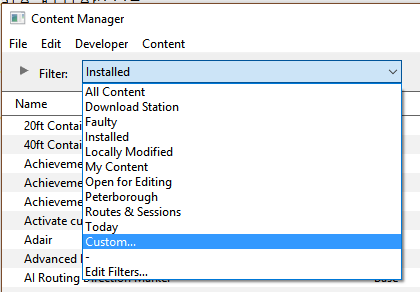


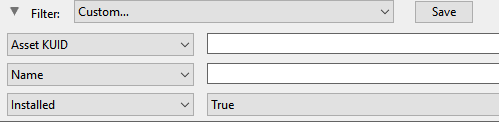
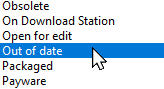
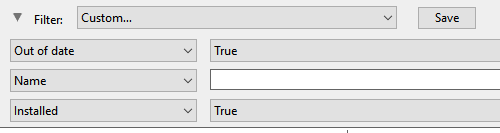


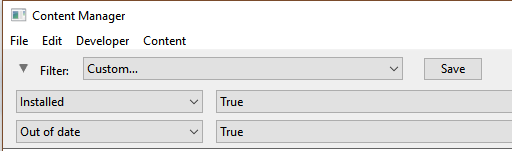
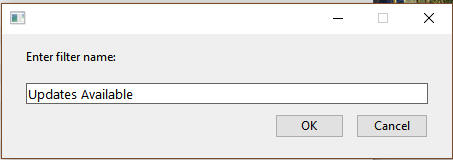
You can now select and run this filter whenever you want to check for and install any asset updates.
|
 |
|
|
Updating Assets "Installed From DLS"
| If you run your new filter and see one or more updated assets available for download that were "Installed from DLS", then the process is very simple. |
|

 |
|
|
||||||||
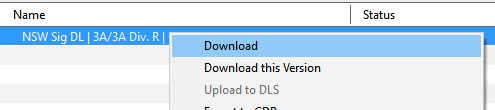
 |
More information on the Status labels used in Content Manager can be found on the Trainz Wiki Page at:- |
|
|
|
|
Updating Built in, Base, Packaged and Payware Assets
 |
Assets that are Built-in, Base, Packaged or Installed, Payware will require a few extra steps to be updated |
|
||||||||||
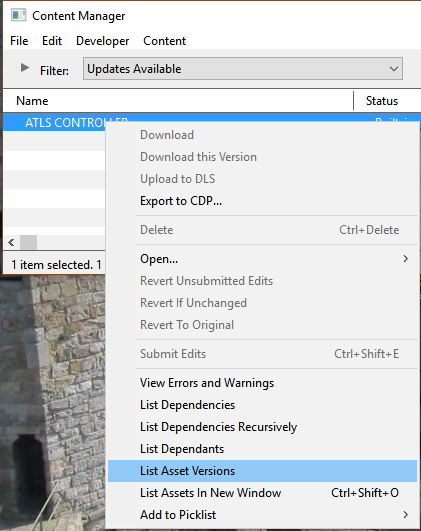
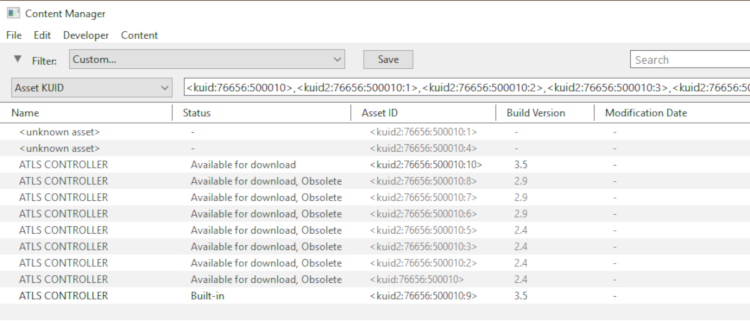
The method shown above ( Updating Assets "Installed from DLS") will not work for assets that are Built-in, Base, Packaged or Installed, Payware. If Content Manager lists updates for these types of assets as available for download then the process involves a few extra steps.
|
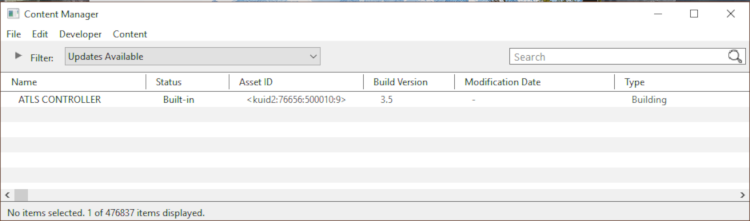
| Steps: Updating Non-DLS Assets:- | |||||||||||||||||
|
Select the Built-in, Base, Packaged and Payware Assets to Update:
|
||||||||||||||||
|
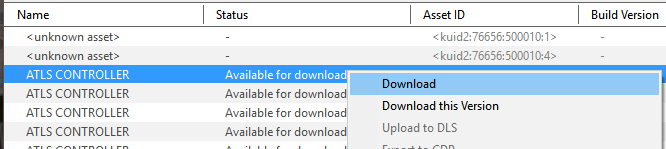
Select Assets to Update:
|
||||||||||||||||


|
|
|
Updating a Mixture of Assets
| If Content Manager shows a mixture of Installed from DLS, Built-in, Base and Installed, Payware assets to be updated, then use the method described above for updating all the assets. | ||||||
Steps:
|
||||||
|
|
Trainz Wiki
 |
More Tutorials and Guides to Using Trainz |
This page was created by Trainz user pware in Februrary 2019 and was last updated as shown below.


