How to Rename a Picklist: Difference between revisions
From TrainzOnline
Jump to navigationJump to search
Created page with "The information in this Wiki Page applies to '''TANE''', '''TRS19''' and '''Trainz Plus'''. This guide will show you how to rename a '''Picklist'''.<br> <br> <table cellpaddi..." |
mNo edit summary |
||
| (18 intermediate revisions by the same user not shown) | |||
| Line 1: | Line 1: | ||
The information in this Wiki Page applies to ''' | <table width=1000 bgcolor=#000000 cellpadding=2> | ||
<tr valign="top"> | |||
<td> | |||
<table width=996 bgcolor=#ffffff cellpadding=2> | |||
<tr valign="middle"> | |||
<td width=35>[[image:Information.png|35px|link=]]</td> | |||
<td><span style="font-size: 15px;">The information in this Wiki Page applies to '''Content Manager''' in '''T:ANE''', '''TRS19''', '''TRS22''' and '''Trainz Plus'''.</span></td> | |||
</tr> | |||
</table> | |||
</td> | |||
</tr> | |||
</table> | |||
<br> | |||
<table cellpadding=2 bgcolor="Aquamarine"> | |||
<tr valign="top"> | |||
<td>[[image:LinkWiki.PNG|link=]]</td> | |||
<td> | |||
* For instructions on how to '''backup''' a Picklist, see the Trainz Wiki page [[image:WikiLink.PNG|link=]] '''[[How_to_Backup_a_Picklist|How to Backup a Picklist]]''' | |||
* For instructions on how to '''create''' a Picklist, see the Trainz Wiki page [[image:WikiLink.PNG|link=]] '''[[How_to_Create_a_Picklist|How to Create a Picklist]]''' | |||
* For instructions on how to '''manage''' a Picklist, see the Trainz Wiki page [[image:WikiLink.PNG|link=]] '''[[How_to_Manage_Filters_and_Picklists|How to Manage Filters and Picklists]]''' | |||
* For instructions on how to '''move''' a Picklist, see the Trainz Wiki page [[image:WikiLink.PNG|link=]] '''[[How_to_Move a Picklist|How to Move a Picklist]]''' | |||
</td> | |||
</tr> | |||
</table> | |||
<table width=1000> <!-- BEGIN Nav Buttons Table NO SKIPS --> | |||
<tr valign="top"> | |||
<td width=629><span id="stepSP4"></span> | |||
='''For TRS19 SP4 (and later), TRS22 and Trainz Plus'''= | |||
</td> | |||
<td width=50> </td> <!-- Skip Down --> | |||
<td width=50> </td> <!-- Skip Up --> | |||
<td width=46> </td> | |||
<td width=75> </td> | |||
<td width=75>[[image:NextDown.png|link=#stepTANE|alt=Next Down|Next Down]]</td> | |||
<td width=75>[[image:BackToBottom.png|link=#bottom|alt=Bottom|Bottom]]</td> | |||
</tr> | |||
</table> <!-- END Nav Buttons Table --> | |||
<table width=1000> | |||
<tr valign="top"> | |||
<td colspan=2><span style="font-size: 15px; font-weight: 700;">Steps: To Rename a Picklist:-</span><br> | |||
From the '''Trainz Launcher''':-</td> | |||
</tr> | |||
<tr valign="top"> | |||
<td width=25>[[image:DotPoint1.JPG|link=]]</td> | |||
<td>select <span style="color: white; background-color: black; font-weight: 700; font-size: 15px;"> Manage Content </span></td> | |||
</tr> | |||
<tr valign="top"> | |||
<td>[[image:DotPoint2.JPG|link=]]</td> | |||
<td>in '''Content Manager''' open the '''Filter''' drop down box<br> | |||
[[image:FilterListEdit.png|link=|alt=Filter List]]</td> | |||
</tr> | |||
<tr valign="top"> | |||
<td>[[image:DotPoint3.JPG|link=]]</td> | |||
<td>select '''Edit Filters and Picklists'''</td> | |||
</tr> | |||
<tr valign="top"> | |||
<td colspan=2>This will open the Picklists</td> | |||
</tr> | |||
<tr valign="top"> | |||
<td>[[image:DotPoint4.JPG|link=]]</td> | |||
<td><span style="font-weight: 700; font-size: 15px; background-color: lightcyan;">Right Click</span> on the Picklist to be renamed and select '''Rename'''<br> | |||
[[image:PicklistRename.png|link=|alt=Rename Picklist]]</td> | |||
</tr> | |||
<tr valign="top"> | |||
<td>[[image:DotPoint5.JPG|link=]]</td> | |||
<td>enter the new name and <span style="font-weight: 700; font-size: 15px; background-color: lightcyan;">Left Click</span> on the <span style="font-weight: 700; font-size: 15px;">OK</span> or <span style="font-weight: 700; font-size: 15px; color: white; background-color: blue;"> Save </span> button</td> | |||
</tr> | |||
</table> | |||
<br> | <br> | ||
<table | <table width=1000> <!-- BEGIN Nav Buttons Table NO SKIPS --> | ||
<tr valign="top"> | |||
<td width=629><span id="stepTANE"></span> | |||
='''For T:ANE and TRS19 SP3 and Earlier Versions'''= | |||
</td> | |||
<td width=50> </td> <!-- Skip Down --> | |||
<td width=50> </td> <!-- Skip Up --> | |||
<td width=46>[[image:BackToTop.png|link=#top|alt=Top|Top]]</td> | |||
<td width=75>[[image:NextUp.png|link=#stepSP4|alt=Next Up|Next Up]]</td> | |||
<td width=75> </td> | |||
<td width=75>[[image:BackToBottom.png|link=#bottom|alt=Bottom|Bottom]]</td> | |||
</tr> | |||
</table> <!-- END Nav Buttons Table --> | |||
<table bgcolor=#000000 cellpadding=2> | |||
<tr valign="top"> | <tr valign="top"> | ||
<td | <td> | ||
<table bgcolor=#ffffb0 cellpadding=2> | |||
<tr valign="top"> | <tr valign="top"> | ||
<td>[[ | <td width=25>[[image:NotePad.PNG|link=]]</td> | ||
<td> | <td><span style="font-size: 15px; font-weight: 700;">Notes:'''</span><br> | ||
---- | |||
</td> | |||
</tr> | </tr> | ||
<tr valign="top"> | <tr valign="top"> | ||
<td>[[ | <td>[[image:DotPoint.JPG|10px|link=]]</td> | ||
<td>The workaround method to rename | <td>Picklists '''cannot''' be renamed directly in these versions</td> | ||
</tr> | |||
<tr valign="top"> | |||
<td>[[image:DotPoint.JPG|10px|link=]]</td> | |||
<td>The workaround method to rename a Picklist is to follow the steps '''To Rename a Picklist''' shown below. The basic sequence is:- | |||
<table> | |||
<tr valign="top"> | |||
<td width=10>[[image:DotPointBlueSquare.png|10px|link=]]</td> | |||
<td>Save a text copy of the '''Picklist''' to be renamed</td> | |||
</tr> | |||
<tr valign="top"> | |||
<td>[[image:DotPointBlueSquare.png|10px|link=]]</td> | |||
<td>Delete the '''Picklist''' from '''Content Manager'''</td> | |||
</tr> | |||
<tr valign="top"> | |||
<td>[[image:DotPointBlueSquare.png|10px|link=]]</td> | |||
<td>Import the text copy back into '''Content Manager''' and give it a new name</td> | |||
</tr> | |||
</table> | |||
</td> | |||
</tr> | |||
</table> | |||
</td> | |||
</tr> | </tr> | ||
</table> | </table> | ||
<br> | <br> | ||
<table width=1000> | |||
<tr valign="top"> | |||
<td colspan=2><span style="font-size: 15px; font-weight: 700;">Steps: To Rename a Picklist:-</span></td> | |||
</tr> | |||
<tr valign="top"> | |||
<td width=25>[[image:DotPoint1.JPG|link=]]</td> | |||
<td>If you have not already created a backup copy of the original Picklist, then follow the steps listed in the '''Trainz Wiki Page [[image:WikiLink.PNG|link=]] [[How to Backup a Picklist]]'''</td> | |||
</tr> | |||
<tr valign="top"> | |||
<td>[[image:DotPoint2.JPG|link=]]</td> | |||
<td>Once you have created the backup copy, delete the Picklist from your Trainz Install | |||
<table> | <table> | ||
<tr valign="top"> | <tr valign="top"> | ||
<td> | <td colspan=2><span style="font-size: 15px; font-weight: 700;">Steps: To Delete a PickList:-</span><br> | ||
< | From the '''Trainz''' Launcher</td> | ||
</tr> | </tr> | ||
<tr valign="top"> | <tr valign="top"> | ||
<td>[[ | <td width=25>[[image:DotPoint1Blue.JPG|link=]]</td> | ||
<td> | <td>select <span style="color: white; background-color: black; font-weight: 700; font-size: 15px;"> Manage Content </span></td> | ||
< | |||
< | |||
</tr> | </tr> | ||
<tr valign="top"> | <tr valign="top"> | ||
<td>[[ | <td>[[image:DotPoint2Blue.JPG|link=]]</td> | ||
<td> | <td>in '''Content Manager''' open the '''Content''' menu</td> | ||
</tr> | |||
<tr valign="top"> | |||
<td>[[image:DotPoint3Blue.JPG|link=]]</td> | |||
<td>select '''Edit Picklist'''<br> | |||
[[ | [[image:PickListEditPickList.png|link=]]</td> | ||
This will display all your current Picklists. | </tr> | ||
<tr valign="top"> | |||
<td>[[image:DotPoint4Blue.JPG|link=]]</td> | |||
[[ | <td colspan=2>This will display all your current Picklists</td> | ||
</tr> | |||
<tr valign="top"> | |||
<td>[[image:DotPoint5Blue.JPG|link=]]</td> | |||
<td>select the Picklist to be deleted</td> | |||
</tr> | |||
<tr valign="top"> | |||
<td>[[image:DotPoint6Blue.JPG|link=]]</td> | |||
<td><span style="font-weight: 700; font-size: 15px; background-color: lightcyan;">Right Click</span> on the selected Picklist and select '''Delete Picklist''' | |||
[[image:PickListDelete.png|link=]]<br> | |||
</td> | </td> | ||
</tr> | </tr> | ||
< | </table> | ||
</td> | |||
</tr> | </tr> | ||
</table></td> | </table> | ||
<table width=1000> | |||
<tr valign="top"> | |||
<td width=25>[[image:DotPoint3.JPG|link=]]</td> | |||
<td>Follow the '''first 3 steps''' listed in the '''Trainz Wiki Page [[image:WikiLink.PNG|link=]] [[How to Backup a Picklist#How to Restore a Picklist|How to Restore a Picklist]]'''</td> | |||
</tr> | </tr> | ||
<tr valign="top"> | <tr valign="top"> | ||
<td>[[ | <td>[[image:DotPoint4.JPG|link=]]</td> | ||
<td> | <td>enter the new name for the Picklist</td> | ||
''' | </tr> | ||
</table> | |||
<br> | |||
<table cellpadding=2 bgcolor="Aquamarine"> | |||
<tr valign="top"> | |||
<td>[[image:LinkWiki.PNG|link=]]</td> | |||
<td> | |||
Information and instructions on backing up and restoring Trainz assets can be found on the '''Trainz Wiki Page''' at:-<br> | |||
*'''[[How to Manage Backups]]'''<br> | |||
</td> | </td> | ||
</tr> | </tr> | ||
</table> | </table> | ||
<br> | |||
<table width=1000> <!-- BEGIN Nav Buttons Table NO SKIPS --> | |||
<tr valign="top"> | |||
<td width=629><span id="bottom"></span></td> | |||
<td width=50> </td> <!-- Skip Down --> | |||
<td width=50> </td> <!-- Skip Up --> | |||
<td width=46>[[image:BackToTop.png|link=#top|alt=Top|Top]]</td> | |||
<td width=75>[[image:NextUp.png|link=#stepTANE|alt=Next Up|Next Up]]</td> | |||
<td width=75> </td> | |||
<td width=75> </td> | |||
</tr> | |||
</table> <!-- END Nav Buttons Table --> | |||
---- | ---- | ||
---- | ---- | ||
='''Trainz Wiki'''= | ='''Trainz Wiki'''= | ||
<table cellpadding= | <table cellpadding=2 bgcolor=#ffffff> | ||
<tr valign="top"> | <tr valign="top"> | ||
<td>[[ | <td>[[image:TrainzWiki.png|link=]]</td> | ||
<td> | <td> | ||
<span style="font-size: 17px;">'''More Tutorials and Guides to Using Trainz'''</span><br> | <span style="font-size: 17px;">'''More Tutorials and Guides to Using Trainz'''</span><br> | ||
*'''<span class=" | *'''<span class="plain;">[http://online.ts2009.com/mediaWiki/index.php/HowTo How to Guides]</span>''' | ||
*'''[[Driver Commands List]]''' | *'''[[Driver Commands List]]''' | ||
*'''[[Session Rule List with Parameters|Session Rules List (Alphabetical) with Parameters]]''' | *'''[[Session Rule List with Parameters|Session Rules List (Alphabetical) with Parameters]]''' | ||
| Line 74: | Line 218: | ||
</table> | </table> | ||
---- | ---- | ||
This page was created by Trainz user '''<span class=" | This page was created by Trainz user '''<span class="plain;">[http://online.ts2009.com/mediaWiki/index.php/User:Pware pware]</span>''' in January 2020 and was last updated as shown below. | ||
---- | ---- | ||
[[Category:How-to guides]] | [[Category:How-to guides]] | ||
Latest revision as of 05:50, 7 September 2026
|
 |
|
For TRS19 SP4 (and later), TRS22 and Trainz Plus |
 |
 |
| Steps: To Rename a Picklist:- From the Trainz Launcher:- |
|
 |
select Manage Content |
 |
in Content Manager open the Filter drop down box |
 |
select Edit Filters and Picklists |
| This will open the Picklists | |
 |
Right Click on the Picklist to be renamed and select Rename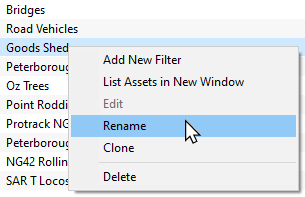 |
 |
enter the new name and Left Click on the OK or Save button |
For T:ANE and TRS19 SP3 and Earlier Versions |
 |
 |
|
|

| Steps: To Rename a Picklist:- | ||||||||||||||||
|
If you have not already created a backup copy of the original Picklist, then follow the steps listed in the Trainz Wiki Page  How to Backup a Picklist |
|||||||||||||||
|
Once you have created the backup copy, delete the Picklist from your Trainz Install
|
|||||||||||||||


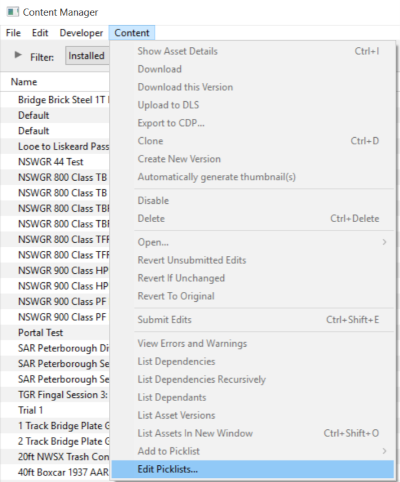


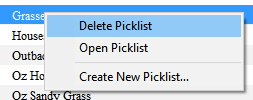
|
Follow the first 3 steps listed in the Trainz Wiki Page How to Restore a Picklist |
|
enter the new name for the Picklist |
|
Information and instructions on backing up and restoring Trainz assets can be found on the Trainz Wiki Page at:- |
|
|
Trainz Wiki
 |
More Tutorials and Guides to Using Trainz |
This page was created by Trainz user pware in January 2020 and was last updated as shown below.


