How to Use Portals: Difference between revisions
mNo edit summary |
mNo edit summary |
||
| (4 intermediate revisions by the same user not shown) | |||
| Line 1: | Line 1: | ||
The information in this Wiki Page | <table width=1000 bgcolor=#000000 cellpadding=2> | ||
<tr valign="top"> | |||
<td> | |||
<table width=996 bgcolor=#ffffff cellpadding=2> | |||
<tr valign="middle"> | |||
<td width=35>[[image:Information.png|35px|link=]]</td> | |||
<td><span style="font-size: 15px;">The information in this Wiki Page explains how to create and manage '''Portals''' in '''T:ANE''', '''TRS19''', '''TRS22''' and '''Trainz Plus''' using '''Surveyor Classic''' (all Trainz versions) and '''Surveyor 2.0''' ('''TRS22PE''' and '''Trainz Plus''').</span></td> | |||
</tr> | |||
</table> | |||
</td> | |||
</tr> | |||
</table> | |||
<br> | |||
<table> | <table> | ||
<tr valign="top"> | <tr valign="top"> | ||
| Line 103: | Line 115: | ||
<br> | <br> | ||
='''Adding a Portal'''= | ='''Adding a Portal'''= | ||
=='''<span style="color: | =='''<span style="color: white; background-color: green;"> In Surveyor Classic (S10) </span>'''== | ||
<table width=1000> | <table width=1000> | ||
| Line 114: | Line 126: | ||
<table bgcolor=#ffffff cellpadding=2> | <table bgcolor=#ffffff cellpadding=2> | ||
<tr valign="top"> | <tr valign="top"> | ||
<td colspan=2><span style="font-weight: 700; font-size: | <td colspan=2><span style="font-weight: 700; font-size: 15px;">Steps: To Find a Portal Using Content Manager:-</span><br> | ||
Set an advanced search filter by:-</td> | Set an advanced search filter by:-</td> | ||
</tr> | </tr> | ||
| Line 167: | Line 179: | ||
<table width=996 bgcolor=#ffffff cellpadding=2> | <table width=996 bgcolor=#ffffff cellpadding=2> | ||
<tr valign="top"> | <tr valign="top"> | ||
<td width=35>[[image:Information.png|35px|link=]]</td> | |||
<td><span style="font-size: 15px;">'''Surveyor 2.0''' is currently only available for '''Trainz Plus''' and '''TRS22 Platinum Edition'''</span></td> | <td><span style="font-size: 15px;">'''Surveyor 2.0''' is currently only available for '''Trainz Plus''' and '''TRS22 Platinum Edition'''</span></td> | ||
</tr> | </tr> | ||
| Line 176: | Line 189: | ||
<table width=1000> | <table width=1000> | ||
<tr valign="top"> | <tr valign="top"> | ||
<td colspan=2><span style="font-weight: 700; font-size: | <td colspan=2><span style="font-weight: 700; font-size: 15px;">Steps: To Find a Portal in the Assets Palette:-</span></td> | ||
</tr> | </tr> | ||
<tr valign="top"> | <tr valign="top"> | ||
| Line 259: | Line 272: | ||
<table bgcolor=#ffffff cellpadding=2> | <table bgcolor=#ffffff cellpadding=2> | ||
<tr valign="top"> | <tr valign="top"> | ||
<td colspan=2><span style="font-weight: 700; font-size: | <td colspan=2><span style="font-weight: 700; font-size: 15px;">Steps: To Open the Properties Window of an Asset in Surveyor 2.0</span></td> | ||
</tr> | </tr> | ||
<tr valign="top"> | <tr valign="top"> | ||
| Line 358: | Line 371: | ||
<table bgcolor=#ffffff cellpadding=2> | <table bgcolor=#ffffff cellpadding=2> | ||
<tr valign="top"> | <tr valign="top"> | ||
<td colspan=2><span style="font-weight: 700; font-size: | <td colspan=2><span style="font-weight: 700; font-size: 15px;">Steps: To Add Consists to be Produced by the Portal:-</span></td> | ||
</tr> | </tr> | ||
<tr valign="top"> | <tr valign="top"> | ||
| Line 390: | Line 403: | ||
<table bgcolor=#ffffff cellpadding=2> | <table bgcolor=#ffffff cellpadding=2> | ||
<tr valign="top"> | <tr valign="top"> | ||
<td colspan=2><span style="font-weight: 700; font-size: | <td colspan=2><span style="font-weight: 700; font-size: 15px;">Steps: To Manually Add Rolling Stock Objects:-</span></td> | ||
</tr> | </tr> | ||
<tr valign="top"> | <tr valign="top"> | ||
| Line 508: | Line 521: | ||
<table bgcolor=#ffffff cellpadding=2> | <table bgcolor=#ffffff cellpadding=2> | ||
<tr valign="top"> | <tr valign="top"> | ||
<td colspan=2><span style="font-weight: 700; font-size: | <td colspan=2><span style="font-weight: 700; font-size: 15px;">Steps: To Add a Saved Consist to a Portal:-</span></td> | ||
</tr> | </tr> | ||
<tr valign="top"> | <tr valign="top"> | ||
| Line 927: | Line 940: | ||
<td> | <td> | ||
<span style="font-size: 17px;">'''More Tutorials and Guides to Using Trainz'''</span><br> | <span style="font-size: 17px;">'''More Tutorials and Guides to Using Trainz'''</span><br> | ||
*'''<span class="plain; | *'''<span class="plain;">[http://online.ts2009.com/mediaWiki/index.php/HowTo How to Guides]</span>''' | ||
*'''[[Driver Commands List]]''' | *'''[[Driver Commands List]]''' | ||
*'''[[Session Rule List with Parameters|Session Rules List (Alphabetical) with Parameters]]''' | *'''[[Session Rule List with Parameters|Session Rules List (Alphabetical) with Parameters]]''' | ||
| Line 935: | Line 948: | ||
</table> | </table> | ||
---- | ---- | ||
This page was created by Trainz user '''<span class="plain; | This page was created by Trainz user '''<span class="plain;">[http://online.ts2009.com/mediaWiki/index.php/User:Pware pware]</span>''' in July 2018 and was last updated as shown below. | ||
---- | ---- | ||
[[Category:How-to guides]] | [[Category:How-to guides]] | ||
Latest revision as of 06:57, 8 September 2026
|
|
 |
 |
 |
What is a Portal?
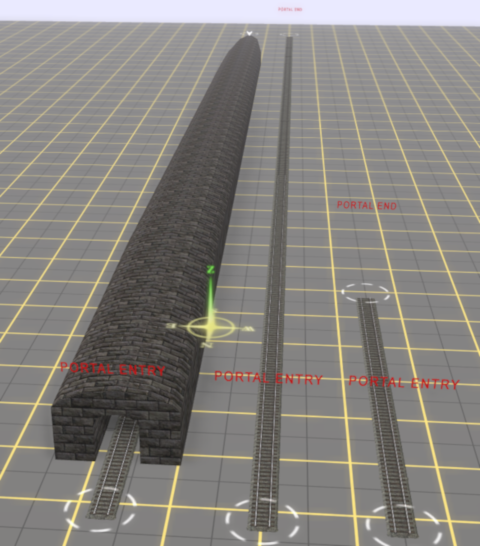 |
Portals come in a variety of forms - some resemble tunnels and others look like a section of normal track. One portal is a Track Marker.
|
Adding a Portal
In Surveyor Classic (S10)
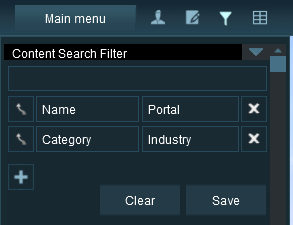 |
The quickest way to find all the train producing and consuming portals in the Surveyor Object Tool window is to set up a search filter. This will sort the portals you want from all the objects named "portal" such as tunnel portals.
|
|||||||||||||
|

In Surveyor 2.0 (S20)
|
| Steps: To Find a Portal in the Assets Palette:- | ||||||||||||||||
 |
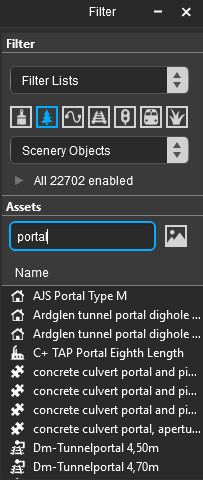
In the Filter Palette Left Click on the Scenery Objects icon or select Scenery Objects from the Content Drop Down box | |||||||||||||||
|
||||||||||||||||



 |
In the Assets Palette enter the text "portal" (UPPER/lower case does not matter) into the Search text box |
 |
Left Click on an entry to select it. If you are not sure about an asset then Double Left Click on the name to bring up its image and description |
 |
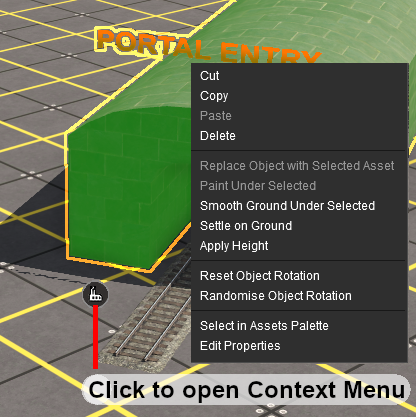
Left Click in your Trainz World to add the portal to the scene |
 |
|
|||||||
|
 |
|
|
Configuring a Basic Portal
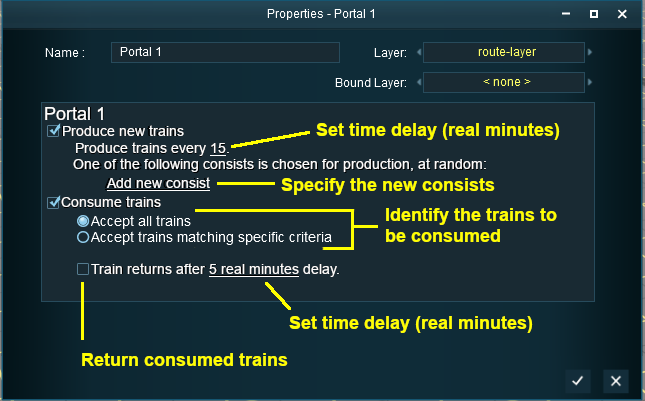
Open the properties window of a portal in the route.
 |
|
|||||||||||||||


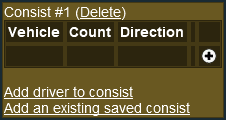
Produce Trains
 |
|
|||||||||

 |
|
|||||||||

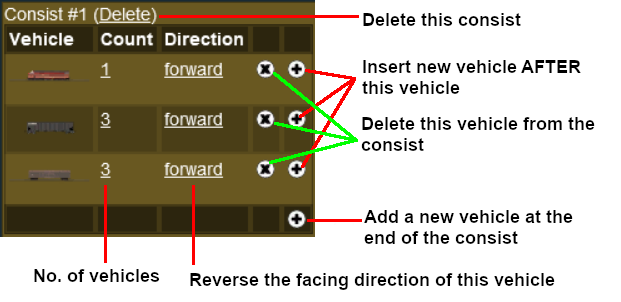
Construct a Consist
 |
|
|||||||||||||||||||||||||||
Add a Saved Consist
If you have already saved your consists in Trainz using the Trainz Tool then those consists can be quickly and easily added to the portal consist list.
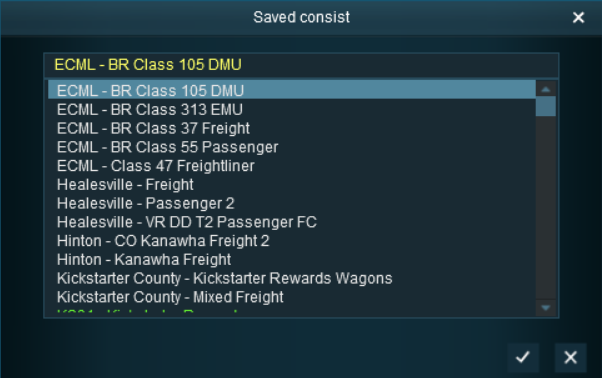 |
|
|||||||||||


Add a Driver
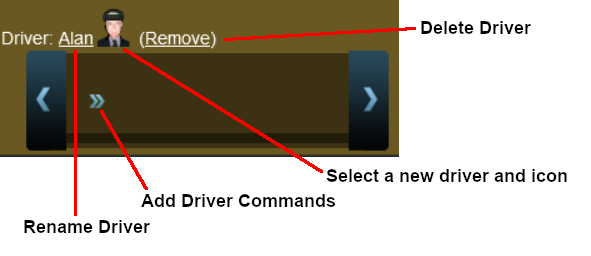 |
|
||||||||||||||
 |
For information on adding driver commands see the Trainz Wiki Page at:- |
Consume Trains
To remove trains from the Session
 |
|
||||||


|

Consume Only Specific Trains
After selecting the option Accept trains matching specific criteria a new set of controls will appear
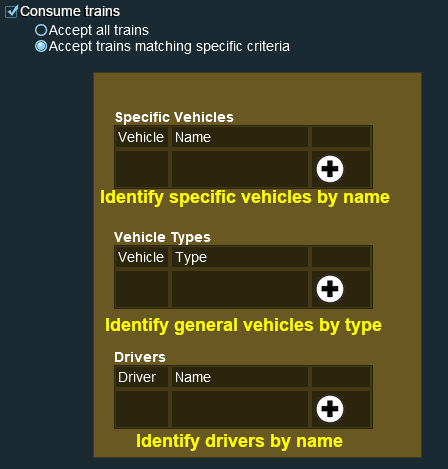 |
|
||||||||||||||||||||||||||||||

An example:-
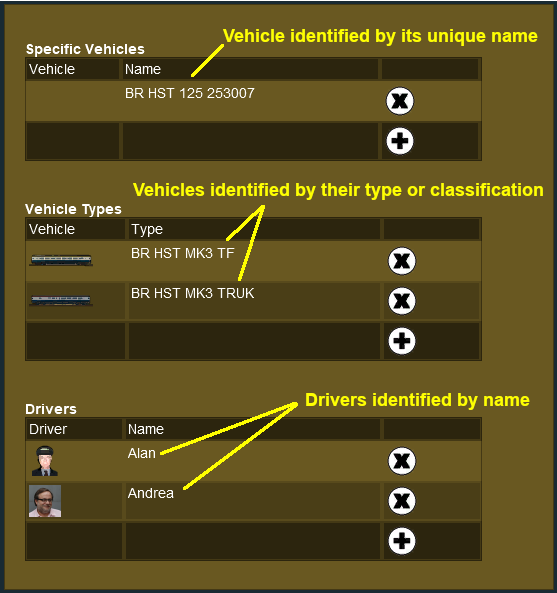 |
|
|||||||||||||||||
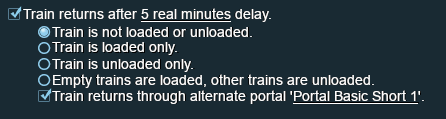
Return Consumed Trains
 |
A train that has been returned after entering a portal will return to the Session with any remaining driver commands still in its Driver Schedule. It will then immediately start obeying those commands |
To return consumed trains back into the Session
|
|
||||||||||||||||||||||
|
|
|
|
Configuring an Enhanced Portal
| There are a number of portals available on the DLS that have additional features or capabilities that are not found in the basic portals built into Trainz. There are also Session Rules available on the DLS that will give additional features or capabilities to the basic portals. |
Quick Portal Manager Standard Edition Rule (SP2 and later)
This is a Session Rule, by pguy, that manages the portals and adds flexible timetables to their operations. It is available on the DLS.
|
Portals and the UDS (Unified Driver Surveyor) Interface
| The UDS is an option for rapid switching, in both directions, between Driver and Surveyor. It is available in TRS19 Platinum Edition and later versions of Trainz. The UDS does not affect the operation of portals but it has revealed one previously unnoticed property of portals. A train that is driven into a portal and later returned to the layout will be returned in the same layer as the portal and not in the trains originally assigned layer. Trains that are produced by a portal will be assigned to the same layer as the portal. This has possibly always been the case with portals but was probably unnoticed until the arrival of the UDS. It seems to have no other noticeable effect on trains. |
|
|
Trainz Wiki
 |
More Tutorials and Guides to Using Trainz |
This page was created by Trainz user pware in July 2018 and was last updated as shown below.


