How to Backup a Picklist: Difference between revisions
From TrainzOnline
Jump to navigationJump to search
mNo edit summary |
mNo edit summary |
||
| (3 intermediate revisions by the same user not shown) | |||
| Line 5: | Line 5: | ||
<tr valign="middle"> | <tr valign="middle"> | ||
<td width=35>[[image:Information.png|35px|link=]]</td> | <td width=35>[[image:Information.png|35px|link=]]</td> | ||
<td><span style="font-size: 15px;">This Wiki Page | <td><span style="font-size: 15px;">This Wiki Page describes how to make backups of your Picklists and applies to '''Content Manager''' in '''T:ANE''', '''TRS19''', '''TRS22''' and '''Trainz Plus'''.</span></td> | ||
</tr> | </tr> | ||
</table> | </table> | ||
| Line 63: | Line 63: | ||
<table width=1000 cellpadding=4 bgcolor=#ffffff> <!-- BEGIN Step table --> | <table width=1000 cellpadding=4 bgcolor=#ffffff> <!-- BEGIN Step table --> | ||
<tr valign="top"> | <tr valign="top"> | ||
<td colspan=2><span style="font-weight: 700; font-size: 15px;">Steps:</span></td> | <td colspan=2><span style="font-weight: 700; font-size: 15px;">Steps: To Access and Copy a Picklist:-</span></td> | ||
</tr> | </tr> | ||
<tr valign="top"> | <tr valign="top"> | ||
| Line 274: | Line 274: | ||
<table width=1000 cellpadding=4 bgcolor=#ffffff> <!-- BEGIN Step table --> | <table width=1000 cellpadding=4 bgcolor=#ffffff> <!-- BEGIN Step table --> | ||
<tr valign="top"> | <tr valign="top"> | ||
<td colspan=2><span style="font-weight: 700; font-size: 15px;">Steps:</span></td> | <td colspan=2><span style="font-weight: 700; font-size: 15px;">Steps: To Copy the Picklist to a Text File:-</span></td> | ||
</tr> | </tr> | ||
<tr valign="top"> | <tr valign="top"> | ||
| Line 339: | Line 339: | ||
<table width=1000 cellpadding=4 bgcolor=#ffffff> | <table width=1000 cellpadding=4 bgcolor=#ffffff> | ||
<tr valign="top"> | <tr valign="top"> | ||
<td colspan=2><span style="font-weight: 700; font-size: 15px;">Steps:</span></td> | <td colspan=2><span style="font-weight: 700; font-size: 15px;">Steps: To Restore a Picklist from a Text File:-</span></td> | ||
</tr> | </tr> | ||
<tr valign="top"> | <tr valign="top"> | ||
Latest revision as of 10:15, 8 September 2026
|
|
 |
|

Access Your Current Picklists |
 |
 |
 |
| Steps: To Access and Copy a Picklist:- | ||||||||||||||||||||||||||||||||
 |
Open Content Manager and Your Picklists
|
|||||||||||||||||||||||||||||||

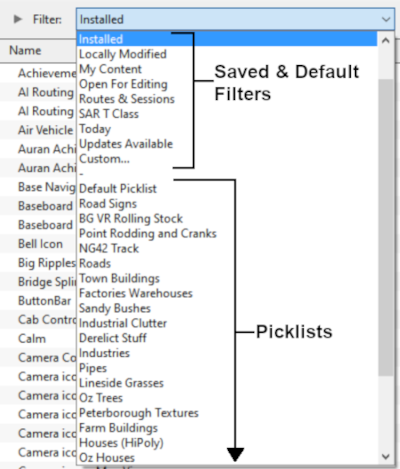


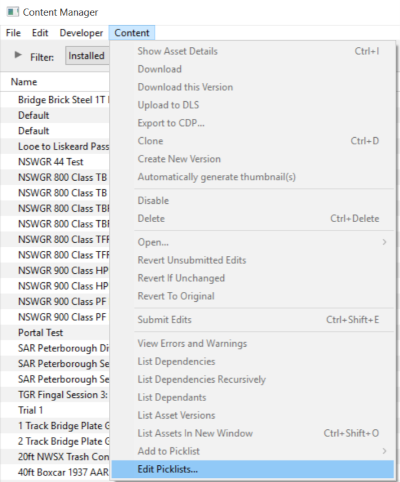


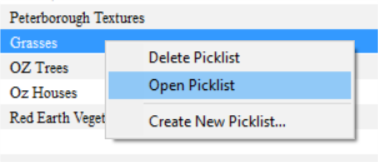
 |
Select the Picklist Contents:
|
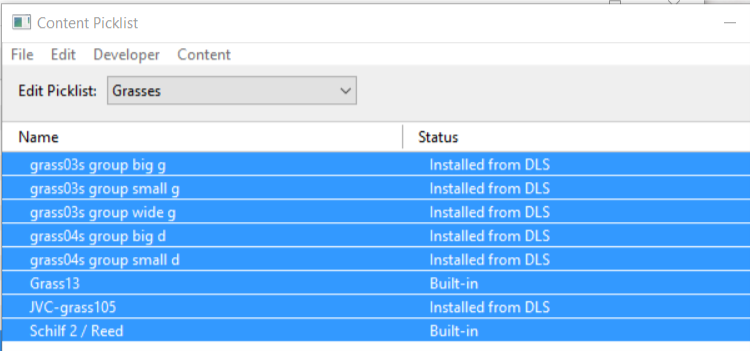
 |
Copy the List to a New Window:
|
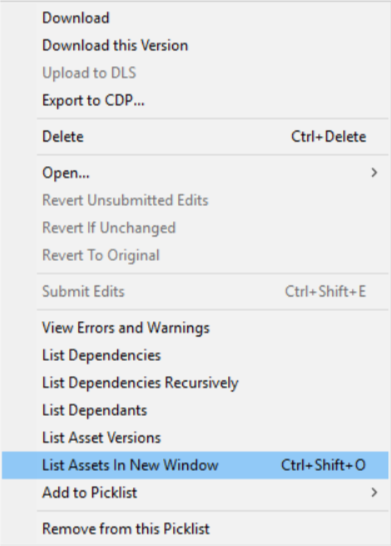
 |
Copy Assets in Picklist:
|
|||||||

Transfer the List to Notepad (or Any Text Editor) |
|
 |
|
|
| Steps: To Copy the Picklist to a Text File:- | |||||
|
Open Notepad or Any Other Suitable Text Editor:
|
||||
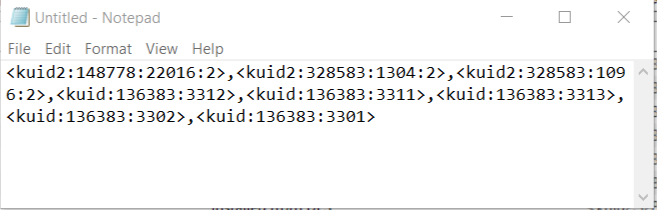
|
Save the Picklist as a Text (.txt) File:
|
How to Restore a Picklist |
|
|
|
 |
Restoring a Picklist basically involves reversing the above two steps |
| Steps: To Restore a Picklist from a Text File:- | |||||||||
|
Open Your Text Editor:
|
||||||||
|
Open CM in the Destination Trainz and Create a New Filter:
|

Create a New Picklist:
|
|||||||||
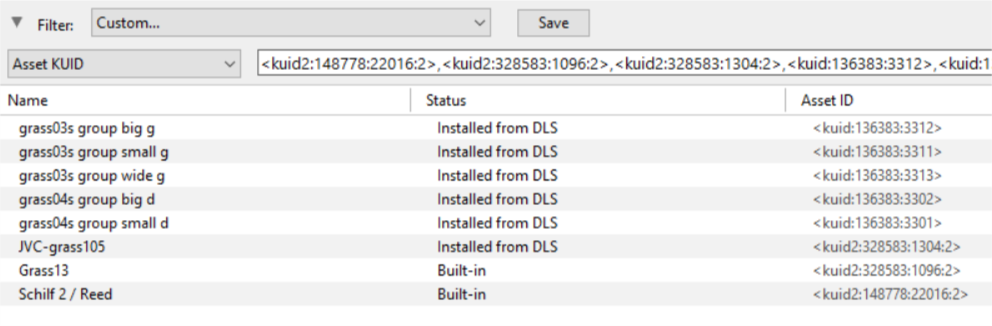
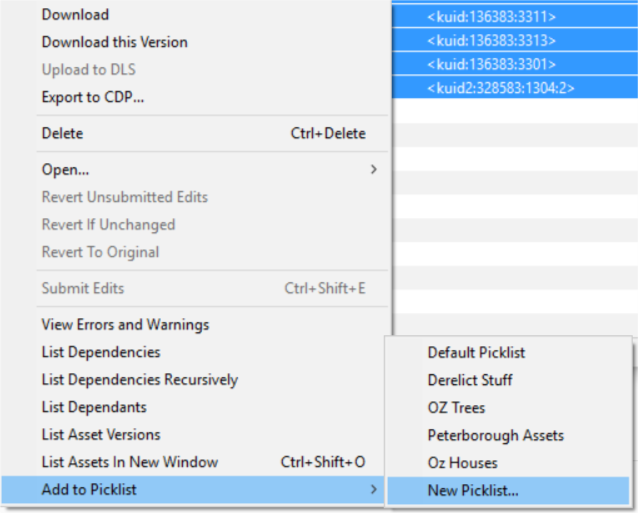
|
Name the Picklist:
|
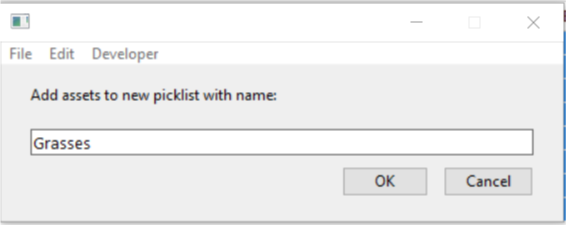
|
|
Trainz Wiki
|
|

This page was created by Trainz user pware in January 2019 and was last updated as shown below.


