How to Create a Clean Install: Difference between revisions
mNo edit summary |
|||
| (2 intermediate revisions by the same user not shown) | |||
| Line 1: | Line 1: | ||
<table width=1000> | <table width=1000 bgcolor=#000000 cellpadding=2> | ||
<tr valign="top"> | <tr valign="top"> | ||
<td> | <td> | ||
<table width=996 bgcolor=#ffffff cellpadding=2> | |||
<tr valign="middle"> | |||
<td width=35>[[image:Information.png|35px|link=]]</td> | |||
<td><span style="font-size: 15px;">This Wiki Page describes how to set up one (or more) alternative '''Local Data Folders''' that can contain different sets of installed assets from a bare minimum '''Clean Install''' (with '''Built-in''' and '''Base''' assets only) to various specialist installs such as a '''DLS Install''' (with '''Built-in''', '''Base''' and '''Downloaded from DLS''' assets only). This document applies to '''T:ANE''', '''TRS19''', '''TRS22''' and '''Trainz Plus'''.</span></td> | |||
</tr> | |||
</table> | |||
</td> | |||
</tr> | </tr> | ||
</table> | </table> | ||
<br> | |||
<table width=1000> | <table width=1000> | ||
<tr valign="top"> | <tr valign="top"> | ||
| Line 12: | Line 19: | ||
<td> | <td> | ||
<table width=700 bgcolor="lightcyan" cellpadding=2> | <table width=700 bgcolor="lightcyan" cellpadding=2> | ||
<tr valign="top"> | |||
<td colspan=2><span style="font-weight: 700; font-size: 15px;">Key Points</span></td> | |||
</tr> | |||
<tr valign="top"> | <tr valign="top"> | ||
<td width=10>[[image:BlueDot10x10.png|link=]]</td> | <td width=10>[[image:BlueDot10x10.png|link=]]</td> | ||
<td>the ''' | <td>the '''Local Data Folder''' is where '''ALL''' stores all your installed assets and packages, screenshots, script libraries, etc, are kept</td> | ||
</tr> | </tr> | ||
<tr valign="top"> | <tr valign="top"> | ||
<td width=10>[[image:BlueDot10x10.png|link=]]</td> | <td width=10>[[image:BlueDot10x10.png|link=]]</td> | ||
<td>you can have multiple ''' | <td>you can have multiple '''Local Data Folders''', each configured for different purposes (e.g. a current "full" install, a "minimal" install, a "'''DLS''' only" install, etc), and can switch between them when required</td> | ||
</tr> | </tr> | ||
</table> | </table> | ||
| Line 42: | Line 52: | ||
<tr valign="top"> | <tr valign="top"> | ||
<td width=10>[[image:BlueDot10x10.png|link=]]</td> | <td width=10>[[image:BlueDot10x10.png|link=]]</td> | ||
<td>A '''Clean Install''' is a ''' | <td>A '''Clean Install''' is a '''Local Data Folder''' that contains only those assets that were originally installed with your version of '''Trainz'''</td> | ||
</tr> | </tr> | ||
<tr valign="top"> | <tr valign="top"> | ||
| Line 52: | Line 62: | ||
<table width=1000> | <table width=1000> | ||
<tr valign="top"> | <tr valign="top"> | ||
<td colspan=2>A '''Clean Install''' will create a ''' | <td colspan=2>A '''Clean Install''' will create a '''Local Data Folder''' that is identical to the one that existed immediately after you first installed your current version of '''Trainz'''.</td> | ||
</tr> | </tr> | ||
<tr valign="top"> | <tr valign="top"> | ||
| Line 101: | Line 111: | ||
<tr valign="top"> | <tr valign="top"> | ||
<td>[[image:DotPoint.JPG|10px|link=]]</td> | <td>[[image:DotPoint.JPG|10px|link=]]</td> | ||
<td>the new ''' | <td>the new '''Local Data Folder''' you create will '''NOT''' delete your current '''Local Data Folder''' but will be a completely separate install and can be on a different drive</td> | ||
</tr> | </tr> | ||
<tr valign="top"> | <tr valign="top"> | ||
<td>[[image:DotPoint.JPG|10px|link=]]</td> | <td>[[image:DotPoint.JPG|10px|link=]]</td> | ||
<td>you can add new assets (from the '''DLS''', '''DLC''', your own creations) so it will become an "Alternate" | <td>you can add new assets (from the '''DLS''', '''DLC''', your own creations) so it will become an "Alternate" Local Data Folder</td> | ||
</tr> | </tr> | ||
<tr valign="top"> | <tr valign="top"> | ||
<td>[[image:DotPoint.JPG|10px|link=]]</td> | <td>[[image:DotPoint.JPG|10px|link=]]</td> | ||
<td>depending on your available storage space you can have many "Alternate" | <td>depending on your available storage space you can have many "Alternate" Local Data Folders installed and can switch '''Trainz''' back-and-forth between them as often as you like</td> | ||
</tr> | </tr> | ||
<tr valign="top"> | <tr valign="top"> | ||
<td>[[image:DotPoint.JPG|10px|link=]]</td> | <td>[[image:DotPoint.JPG|10px|link=]]</td> | ||
<td>only those assets in your currently selected ''' | <td>only those assets in your currently selected '''Local Data Folder''' will be available for use in '''Trainz'''</td> | ||
</tr> | </tr> | ||
</table> | </table> | ||
| Line 126: | Line 136: | ||
<tr valign="top"> | <tr valign="top"> | ||
<td width=629><span id="stepSetUp"></span> | <td width=629><span id="stepSetUp"></span> | ||
='''Setting Up the New | ='''Setting Up the New Local Data Folder'''= | ||
</td> | </td> | ||
<td width=50> </td> <!-- for Skip Down --> | <td width=50> </td> <!-- for Skip Down --> | ||
| Line 144: | Line 154: | ||
<tr valign="top"> | <tr valign="top"> | ||
<td width=10>[[image:BlueDot10x10.png|link=]]</td> | <td width=10>[[image:BlueDot10x10.png|link=]]</td> | ||
<td>it is '''strongly recommended''' that you record the location of your original ''' | <td>it is '''strongly recommended''' that you record the location of your original '''Local Data Folder''' and any alternative '''Local Data Folders''' that you create</td> | ||
</tr> | </tr> | ||
</table> | </table> | ||
| Line 150: | Line 160: | ||
<table width=1000> | <table width=1000> | ||
<tr valign="top"> | <tr valign="top"> | ||
<td colspan=2><span style="font-weight: 700; font-size: 17px;">Steps:</span></td> | <td colspan=2><span style="font-weight: 700; font-size: 17px;">Steps: To Setup Your New Folder:-</span></td> | ||
</tr> | </tr> | ||
<tr valign="top"> | <tr valign="top"> | ||
| Line 157: | Line 167: | ||
<table> | <table> | ||
<tr valign="top"> | <tr valign="top"> | ||
<td colspan=2><span style="font-weight: 700; font-size: 15px;">Steps:</span></td> | <td colspan=2><span style="font-weight: 700; font-size: 15px;">Steps: In File Explorer:-</span></td> | ||
</tr> | </tr> | ||
<tr valign="top"> | <tr valign="top"> | ||
| Line 169: | Line 179: | ||
<td>[[image:DotPoint2Blue.png|link=]]</td> | <td>[[image:DotPoint2Blue.png|link=]]</td> | ||
<td>'''Navigate to the Selected Location'''<br> | <td>'''Navigate to the Selected Location'''<br> | ||
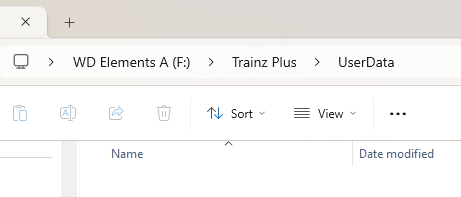
In '''File Explorer''' navigate to the drive and parent folder where the new ''' | In '''File Explorer''' navigate to the drive and parent folder where the new '''Local Data Folder''' will be placed. Create the folder using a name of your choice (e.g. '''F:\Trainz Plus\UserData''')<br> | ||
[[image:MoveUserData11.png|link=]]</td> | [[image:MoveUserData11.png|link=]]</td> | ||
</tr> | </tr> | ||
| Line 190: | Line 200: | ||
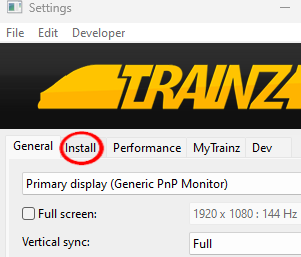
<span style="font-weight: 700; font-size: 15px; background-color: lightcyan;"> Left Click </span> on the <span style="font-weight: 700; font-size: 15px;">Install</span> tab<br> | <span style="font-weight: 700; font-size: 15px; background-color: lightcyan;"> Left Click </span> on the <span style="font-weight: 700; font-size: 15px;">Install</span> tab<br> | ||
[[image:MoveUserData02.png|link=]]<br><br> | [[image:MoveUserData02.png|link=]]<br><br> | ||
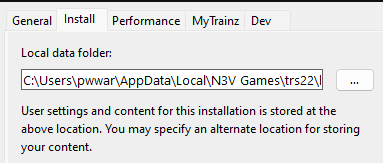
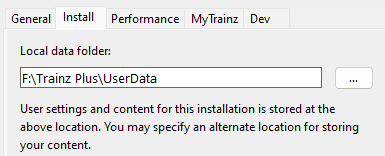
This will display the drive and folder path of the current ''' | This will display the drive and folder path of the current '''Local Data Folder''' which will be shown under the label '''Local data folder'''<br><br> | ||
<table> | <table> | ||
<tr valign="top"> | <tr valign="top"> | ||
<td>[[image:MoveUserData03.png|link=]]</td> | <td>[[image:MoveUserData03.png|link=]]</td> | ||
<td>The image shown is an '''example''' only. Each user and install will have a different location for their current ''' | <td>The image shown is an '''example''' only. Each user and install will have a different location for their current '''Local Data Folder'''</td> | ||
</tr> | </tr> | ||
</table> | </table> | ||
| Line 204: | Line 214: | ||
<table> | <table> | ||
<tr valign="top"> | <tr valign="top"> | ||
<td colspan=2><span style="font-weight: 700; font-size: 15px;">Steps:</span> </td> | <td colspan=2><span style="font-weight: 700; font-size: 15px;">Steps: To Copy and Save the Current Folder Address:-</span> </td> | ||
</tr> | </tr> | ||
<tr valign="top"> | <tr valign="top"> | ||
| Line 222: | Line 232: | ||
<td><span style="font-size: 17px; font-weight: 700;">Notes:'''</span><br> | <td><span style="font-size: 17px; font-weight: 700;">Notes:'''</span><br> | ||
---- | ---- | ||
You may find that your parent folder (e.g. '''N3V Games\trs22''') may have several "build xxxxxxxxx" folders. Each one will be a ''' | You may find that your parent folder (e.g. '''N3V Games\trs22''') may have several "build xxxxxxxxx" folders. Each one will be a '''Local Data Folder''' for a different install of '''Trainz''' - for example, you may have been running both the beta and retail versions. | ||
<br> | <br> | ||
To avoid possible later confusion over which of these folders is the correct one, it is recommended that you save the locations of your original and any created ''' | To avoid possible later confusion over which of these folders is the correct one, it is recommended that you save the locations of your original and any created '''Local Data Folders'''</td> | ||
</tr> | </tr> | ||
</table> | </table> | ||
| Line 238: | Line 248: | ||
<td>[[image:DotPoint2Blue.png|link=]]</td> | <td>[[image:DotPoint2Blue.png|link=]]</td> | ||
<td>'''Create a Text File to Store the Folder Address'''<br> | <td>'''Create a Text File to Store the Folder Address'''<br> | ||
Use '''Notepad''' or another text editor to create a text file and paste into it the copied address of the original ''' | Use '''Notepad''' or another text editor to create a text file and paste into it the copied address of the original '''Local Data Folder'''. Save it for future reference</td> | ||
</tr> | </tr> | ||
</table> | </table> | ||
| Line 245: | Line 255: | ||
<tr valign="top"> | <tr valign="top"> | ||
<td><span style="font-weight: 700; font-size: 17px; color: white; background-color: red;"> 6 </span></td> | <td><span style="font-weight: 700; font-size: 17px; color: white; background-color: red;"> 6 </span></td> | ||
<td><span style="font-weight: 700; font-size: 15px;">Point Trainz to the New | <td><span style="font-weight: 700; font-size: 15px;">Point Trainz to the New Local Data Folder</span> | ||
<table> | <table> | ||
<tr valign="top"> | <tr valign="top"> | ||
| Line 251: | Line 261: | ||
<table width=500> | <table width=500> | ||
<tr valign="top"> | <tr valign="top"> | ||
<td colspan=2><span style="font-weight: 700; font-size: 15px;">Steps:</span></td> | <td colspan=2><span style="font-weight: 700; font-size: 15px;">Steps: To Identify the New Folder in Trainz:-</span></td> | ||
</tr> | </tr> | ||
<tr valign="top"> | <tr valign="top"> | ||
| Line 274: | Line 284: | ||
<tr valign="top"> | <tr valign="top"> | ||
<td>[[image:PencilTips.PNG|link=]]</td> | <td>[[image:PencilTips.PNG|link=]]</td> | ||
<td>Make sure that you add the address of your new ''' | <td>Make sure that you add the address of your new '''Local Data Folder''' to the text file that was recommended in '''Step''' <span style="font-weight: 700; font-size: 15px; color: white; background-color: red;"> 5 </span> above. Again, this is for future reference.</td> | ||
</tr> | </tr> | ||
</table> | </table> | ||
| Line 348: | Line 358: | ||
<tr valign="top"> | <tr valign="top"> | ||
<td width=35>[[image:Information.png|35px|link=]]</td> | <td width=35>[[image:Information.png|35px|link=]]</td> | ||
<td>On launching '''Trainz''' will scan the newly created ''' | <td>On launching '''Trainz''' will scan the newly created '''Local Data Folder''' and discover that it is empty. It will then copy all the required folders and files from its installation files into the new '''Local Data Folder'''</td> | ||
</tr> | </tr> | ||
</table> | </table> | ||
| Line 358: | Line 368: | ||
<tr valign="top"> | <tr valign="top"> | ||
<td width=629><span id="stepSwitching"></span> | <td width=629><span id="stepSwitching"></span> | ||
='''Switching Between | ='''Switching Between Local Data Folders'''= | ||
</td> | </td> | ||
<td width=50> </td> <!-- for Skip Down --> | <td width=50> </td> <!-- for Skip Down --> | ||
| Line 372: | Line 382: | ||
<tr valign="top"> | <tr valign="top"> | ||
<td width=10>[[image:BlueDot10x10.png|link=]]</td> | <td width=10>[[image:BlueDot10x10.png|link=]]</td> | ||
<td>You can switch '''Trainz''' between your seperate ''' | <td>You can switch '''Trainz''' between your seperate '''Local Data Folders''' at any time</td> | ||
</tr> | </tr> | ||
<tr valign="top"> | <tr valign="top"> | ||
<td width=10>[[image:BlueDot10x10.png|link=]]</td> | <td width=10>[[image:BlueDot10x10.png|link=]]</td> | ||
<td>Only those assets installed in your currently selected ''' | <td>Only those assets installed in your currently selected '''Local Data Folder''' will be available for use in '''Trainz'''</td> | ||
</tr> | </tr> | ||
</table> | </table> | ||
| Line 387: | Line 397: | ||
<td>[[image:Stop.PNG|link=]]</td> | <td>[[image:Stop.PNG|link=]]</td> | ||
<td><span style="font-size: 15px; font-weight: 700;">WARNING:</span><br> | <td><span style="font-size: 15px; font-weight: 700;">WARNING:</span><br> | ||
If you have more than one copy of '''Trainz''' installed (e.g. '''Trainz Plus''' and '''TRS22''') then it is '''NOT RECOMMENDED''' that these versions share the same | If you have more than one copy of '''Trainz''' installed (e.g. '''Trainz Plus''' and '''TRS22''') then it is '''NOT RECOMMENDED''' that these versions share the same Local Data Folder. Each install of '''Trainz''' must have its own Local Data Folder</td> | ||
</tr> | </tr> | ||
</table> | </table> | ||
| Line 396: | Line 406: | ||
<table width=1000> | <table width=1000> | ||
<tr valign="top"> | <tr valign="top"> | ||
<td>Different ''' | <td>Different '''Local Data Folders''' can be created containing different sets of assets. Some examples:- | ||
<table> | <table> | ||
<tr valign="top"> | <tr valign="top"> | ||
| Line 411: | Line 421: | ||
</tr> | </tr> | ||
</table> | </table> | ||
Once you have set up an alternative ''' | Once you have set up an alternative '''Local Data Folder''' or '''Folders''' you can easily switch between them and the original at any time.</td> | ||
</tr> | </tr> | ||
</table> | </table> | ||
| Line 417: | Line 427: | ||
<table width=1000> | <table width=1000> | ||
<tr valign="top"> | <tr valign="top"> | ||
<td colspan=2><span style="font-weight: 700; font-size: 17px;">Steps:</span></td> | <td colspan=2><span style="font-weight: 700; font-size: 17px;">Steps: To Switch Trainz to a Different Local Data Folder:-</span></td> | ||
</tr> | </tr> | ||
<tr valign="top"> | <tr valign="top"> | ||
| Line 425: | Line 435: | ||
<table> | <table> | ||
<tr valign="top"> | <tr valign="top"> | ||
<td colspan=2><span style="font-weight: 700; font-size: 15px;">Steps:</span></td> | <td colspan=2><span style="font-weight: 700; font-size: 15px;">Steps: To Locate the Current Folder Setting:-</span></td> | ||
</tr> | </tr> | ||
<tr valign="top"> | <tr valign="top"> | ||
| Line 442: | Line 452: | ||
<span style="font-weight: 700; font-size: 15px; background-color: lightcyan;"> Left Click </span> on the <span style="font-weight: 700; font-size: 15px;">Install</span> tab<br> | <span style="font-weight: 700; font-size: 15px; background-color: lightcyan;"> Left Click </span> on the <span style="font-weight: 700; font-size: 15px;">Install</span> tab<br> | ||
[[image:MoveUserData02.png|link=]]<br><br> | [[image:MoveUserData02.png|link=]]<br><br> | ||
This will display the drive and folder path of the current ''' | This will display the drive and folder path of the current '''Local Data Folder''' which will be shown under the label '''Local data folder'''<br><br> | ||
[[image:MoveUserData03.png|link=]]<br><br></td> | [[image:MoveUserData03.png|link=]]<br><br></td> | ||
</tr> | </tr> | ||
| Line 450: | Line 460: | ||
<tr valign="top"> | <tr valign="top"> | ||
<td><span style="font-weight: 700; font-size: 17px; color: white; background-color: red;"> 2 </span></td> | <td><span style="font-weight: 700; font-size: 17px; color: white; background-color: red;"> 2 </span></td> | ||
<td><span style="font-weight: 700; font-size: 15px;">Navigate to the Alternative | <td><span style="font-weight: 700; font-size: 15px;">Navigate to the Alternative Local Data Folder</span> | ||
<table> | <table> | ||
<tr valign="top"> | <tr valign="top"> | ||
| Line 456: | Line 466: | ||
<table> | <table> | ||
<tr valign="top"> | <tr valign="top"> | ||
<td colspan=2><span style="font-weight: 700; font-size: 15px;">Steps:</span></td> | <td colspan=2><span style="font-weight: 700; font-size: 15px;">Steps: To Change the Setting to Point to the New Folder:-</span></td> | ||
</tr> | </tr> | ||
<tr valign="top"> | <tr valign="top"> | ||
| Line 464: | Line 474: | ||
<tr valign="top"> | <tr valign="top"> | ||
<td>[[image:DotPoint2Blue.png|link=]]</td> | <td>[[image:DotPoint2Blue.png|link=]]</td> | ||
<td>navigate to the alternative ''' | <td>navigate to the alternative '''Local Data Folder''' you are going to use</td> | ||
</tr> | </tr> | ||
</table> | </table> | ||
| Line 475: | Line 485: | ||
<tr valign="top"> | <tr valign="top"> | ||
<td>[[image:PencilTips.PNG|link=]]</td> | <td>[[image:PencilTips.PNG|link=]]</td> | ||
<td>The text file containing the addresses of all your ''' | <td>The text file containing the addresses of all your '''Local Data Folders''' (<span style="font-weight: 700; background-color: yellow;"> you did save it, didn't you? </span>) will remind you where they are located</td> | ||
</tr> | </tr> | ||
</table> | </table> | ||
| Line 491: | Line 501: | ||
<tr valign="top"> | <tr valign="top"> | ||
<td width=25>[[image:DotPoint3Blue.png|link=]]</td> | <td width=25>[[image:DotPoint3Blue.png|link=]]</td> | ||
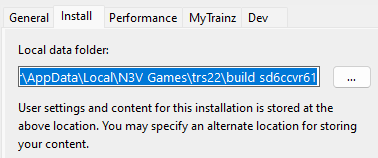
<td><span style="font-weight: 700; font-size: 15px; background-color: lightcyan;"> Left Click </span> on the [[image:SelectFolderBtn.png|link=]] button. The new ''' | <td><span style="font-weight: 700; font-size: 15px; background-color: lightcyan;"> Left Click </span> on the [[image:SelectFolderBtn.png|link=]] button. The new '''Local Data Folder''' will be selected in the '''Settings - Install Tab'''<br> | ||
[[image:MoveUserData14.png|link=]]</td> | [[image:MoveUserData14.png|link=]]</td> | ||
</tr> | </tr> | ||
| Line 538: | Line 548: | ||
<tr valign="top"> | <tr valign="top"> | ||
<td width=35>[[image:Information.png|35px|link=]]</td> | <td width=35>[[image:Information.png|35px|link=]]</td> | ||
<td>On launching '''Trainz''' will open the selected ''' | <td>On launching '''Trainz''' will open the selected '''Local Data Folder''' and you will have normal access to all of its installed assets. This includes installing new assets (from the '''DLS''', '''DLC''', '''.cdp''' files or creating new assets yourself) as well as deleting and modifying/cloning existing assets. The changes you make will '''NOT''' affect any other '''Local Data Folders''' that you may have created.</td> | ||
</tr> | </tr> | ||
</table> | </table> | ||
| Line 558: | Line 568: | ||
---- | ---- | ||
---- | ---- | ||
='''Trainz Wiki'''= | ='''Trainz Wiki'''= | ||
<table width=1000> | <table width=1000> | ||
| Line 568: | Line 577: | ||
<td> | <td> | ||
<span style="font-size: 17px;">'''More Tutorials and Guides to Using Trainz'''</span><br> | <span style="font-size: 17px;">'''More Tutorials and Guides to Using Trainz'''</span><br> | ||
*'''<span class="plain; | *'''<span class="plain;">[http://online.ts2009.com/mediaWiki/index.php/HowTo How to Guides]</span>''' | ||
*'''[[Driver Commands List]]''' | *'''[[Driver Commands List]]''' | ||
*'''[[Session Rule List with Parameters|Session Rules List (Alphabetical) with Parameters]]''' | *'''[[Session Rule List with Parameters|Session Rules List (Alphabetical) with Parameters]]''' | ||
| Line 582: | Line 591: | ||
<td> | <td> | ||
<span style="font-size: 17px;">'''Related Links'''</span><br> | <span style="font-size: 17px;">'''Related Links'''</span><br> | ||
*'''[[How to Move Your User Data Folder|How to Move Your | *'''[[How to Move Your User Data Folder|How to Move Your Local Data Folder]]''' | ||
</td> | </td> | ||
</tr> | </tr> | ||
| Line 590: | Line 599: | ||
</table> | </table> | ||
---- | ---- | ||
This page was created by Trainz user '''<span class="plain; | This page was created by Trainz user '''<span class="plain;">[http://online.ts2009.com/mediaWiki/index.php/User:Pware pware]</span>''' in November 2023 and was last updated as shown below. | ||
---- | ---- | ||
[[Category:How-to guides]] | [[Category:How-to guides]] | ||
Latest revision as of 10:31, 8 September 2026
|
|
|||||||
What is a "Clean Install" |
 |
 |
 |
A Clean Install is a Local Data Folder that contains only those assets that were originally installed with your version of Trainz |
|
There will be no assets that are Installed from DLS, Payware, Packaged or Modified but these can be added |
| A Clean Install will create a Local Data Folder that is identical to the one that existed immediately after you first installed your current version of Trainz. | ||||||||||||||||||||||||||||
|
|
|||||||||||||||||||||||||||

Setting Up the New Local Data Folder |
 |
|
|
|
the new folder can be created in a location (drive and folder tree) of your choosing |
|
it is strongly recommended that you record the location of your original Local Data Folder and any alternative Local Data Folders that you create |
| Steps: To Setup Your New Folder:- | ||||||||||||||
| 1 | Create a Destination Folder for the New User Data Install
|
|||||||||||||
| 2 | Start Trainz |
|||||||||||||
| 3 | Open Trainz Settings From the Trainz Launcher select Trainz Settings 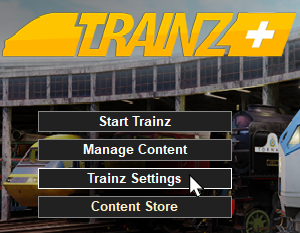 |
|||||||||||||
| 4 | Open Install Left Click on the Install tab
|
|||||||||||||
| 5 | Copy and Save the Current Folder Address Strongly Recommended But Not Required
|
|||||||||||||
| 6 | Point Trainz to the New Local Data Folder
|
|||||||||||||
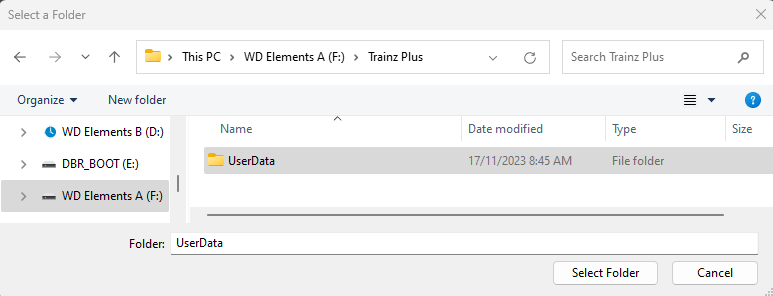 |
||||||||||||||
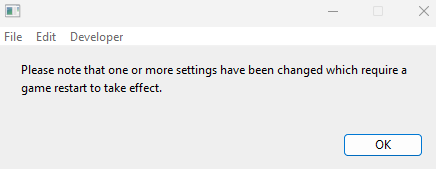
| 7 | Close the Trainz Settings Window You will be shown a message asking for a restart.
|
|||||||||||||
| 8 | Close the Trainz Launcher Dropping you back to the Windows desktop. |
|||||||||||||
| 9 | Restart Trainz Launcher You may get a dialogue window asking you to set your display options (Ultra, etc). If so select one to suit. |
|||||||||||||
|
||||||||||||||







|
Switching Between Local Data Folders |
|
 |
|
|
You can switch Trainz between your seperate Local Data Folders at any time |
|
Only those assets installed in your currently selected Local Data Folder will be available for use in Trainz |
|

Different Local Data Folders can be created containing different sets of assets. Some examples:-
|
| Steps: To Switch Trainz to a Different Local Data Folder:- | ||||||||||||||||||
| 1 | Open the Trainz Settings Install Tab (A repeat of Steps 2 , 3 and 4 in the section above)
|
|||||||||||||||||
| 2 | Navigate to the Alternative Local Data Folder
|
|||||||||||||||||
| 3 | Close the Trainz Settings Window You will be shown a message asking for a restart.
|
|||||||||||||||||
| 4 | Close the Trainz Launcher Dropping you back to the Windows desktop. |
|||||||||||||||||
| 5 | Restart Trainz Launcher You may get a dialogue window asking you to set your display options (Ultra, etc). If so select one to suit. |
|||||||||||||||||
| 6 | Start Trainz Select the Start Trainz option from the Launcher |
|||||||||||||||||
|
|
|
Trainz Wiki
|
|


This page was created by Trainz user pware in November 2023 and was last updated as shown below.


