How to Use Navigation Point Rules: Difference between revisions
From TrainzOnline
Jump to navigationJump to search
mNo edit summary |
|||
| (79 intermediate revisions by the same user not shown) | |||
| Line 1: | Line 1: | ||
<table width=1000 bgcolor=#000000 cellpadding=2> | |||
<tr valign="top"> | |||
<td> | |||
<table width=996 bgcolor=#ffffff cellpadding=2> | |||
<tr valign="middle"> | |||
<td width=35>[[image:Information.png|35px|link=]]</td> | |||
<td><span style="font-size: 15px;">The information in this Wiki Page explains how to use the different '''Navigation Point Rules''' in '''Sessions''' created with '''T:ANE''', '''TRS19''', '''TRS22''' and '''Trainz Plus'''.</span></td> | |||
</tr> | |||
</table> | |||
</td> | |||
</tr> | |||
</table> | |||
<br> | <br> | ||
The | <table width=1000> | ||
<tr valign="top"> | |||
<td width=250> | |||
__TOC__ | |||
</td> | |||
<td> | |||
<table bgcolor="lightcyan" cellpadding=2> | |||
<tr valign="top"> | |||
<td width=10>[[image:BlueDot10x10.png|link=]]</td> | |||
<td>'''Navigation Points''' are icons that appear at set track locations or on set rail vehicles that indicate destinations for user driven trains and tasks to be performed</td> | |||
</tr> | |||
<tr valign="top"> | |||
<td>[[image:BlueDot10x10.png|link=]]</td> | |||
<td>The navigation points are created and controlled by the set of Session rules that are described in this document</td> | |||
</tr> | |||
</table> | |||
<br> | <br> | ||
<table cellpadding=4 bgcolor="Aquamarine"> | |||
<tr valign="top"> | |||
<td>[[image:LinkWiki.PNG|link=]]</td> | |||
<td>For examples of how to use these rules in '''Trainz''' Sessions, see the '''Trainz Wiki Page''' at:-<br> | |||
* '''[[How to Use Navigation Point Rules (Applications)]]''' | |||
</td> | |||
</tr> | |||
</table> | |||
</td> | |||
</tr> | |||
</table> | |||
<table> <!-- BEGIN Nav Buttons Table --> | |||
<tr valign="top"> | |||
<td width=729><span id="stepDisplay"></span> </td> | |||
<td width=46>[[image:BackToTop.png|link=#top|alt=Top|Top]]</td> | |||
<td width=75> </td> | |||
<td width=75>[[image:NextDown.png|link=#stepHide|alt=Next Down|Next Down]]</td> | |||
<td width=75>[[image:BackToBottom.png|link=#bottom|alt=Bottom|Bottom]]</td> | |||
</tr> | |||
</table> <!-- END Nav Buttons Table --> | |||
='''Navigation Display Rule'''= | ='''Navigation Display Rule'''= | ||
<table width=1000 bgcolor="lightcyan" cellpadding=2> | |||
The '''[[Session_Rule_List_with_Parameters#Navigation Display Rule|Navigation Display Rule]]''' | <tr valign="top"> | ||
<table cellpadding=" | <td width=10>[[image:BlueDot10x10.png|link=]]</td> | ||
<tr valign="top> | <td>The '''Navigation Set Hide/Show Rule''' is added to a Session and configured using the [[image:WikiLink.PNG|link=]] '''[[How to Use Session Editor|Session Editor]]''' in Surveyor</td> | ||
<td>[[ | </tr> | ||
<td> | <tr valign="top"> | ||
<td width=10>[[image:BlueDot10x10.png|link=]]</td> | |||
<td>The [[image:WikiLink.PNG|link=]] '''[[Session_Rule_List_with_Parameters#Navigation Display Rule|Navigation Display Rule]]''' creates and displays a '''set of Navigation Points'''</td> | |||
</tr> | |||
</table> | |||
<br> | |||
<table width=1000 bgcolor=#000000 cellpadding=2> | |||
<tr valign="top"> | |||
<td> | |||
<table width=996 bgcolor=#ffffb0 cellpadding=2> | |||
<tr valign="top"> | |||
<td width=25>[[image:NotePad.PNG|link=]]</td> | |||
<td><span style="font-size: 17px;">'''Notes:'''</span><br> | |||
---- | |||
</td> | |||
</tr> | |||
<tr valign="top"> | |||
<td>[[image:DotPoint.JPG|10px|link=]]</td> | |||
<td>A navigation set must be created by the '''Navigation Display Rule''' before it can be used by the other navigation rules</td> | |||
</tr> | |||
<tr valign="top"> | |||
<td>[[image:DotPoint.JPG|10px|link=]]</td> | |||
<td>Multiple sets can be created by adding additional copies of this rule - one copy for each set</td> | |||
</tr> | |||
<tr valign="top"> | |||
<td>[[image:DotPoint.JPG|10px|link=]]</td> | |||
<td>This rule creates the navigation set and displays it. If you have created multiple sets then all of them will be displayed unless you use the '''Navigation Set Hide/Show Rule''' to hide those sets you do not want to be seen immediately</td> | |||
</tr> | |||
</table> | |||
</td> | |||
</tr> | |||
</table> | |||
<br> | |||
<table width=1000> | |||
<tr valign="top"> | |||
<td width=640>[[image:NavDisplaySetDialogUpper.JPG|link=]]</td> | |||
<td> | |||
<table width=360 bgcolor=#000000 cellpadding=2> | |||
<tr valign="top"> | |||
<td> | |||
<table width=356 bgcolor=#ffffb0 cellpadding=2> | |||
<tr valign="top"> | |||
<td width=25>[[image:NotePad.PNG|link=]]</td> | |||
<td><span style="font-size: 17px; font-weight: 700;">Notes:'''</span><br> | |||
---- | |||
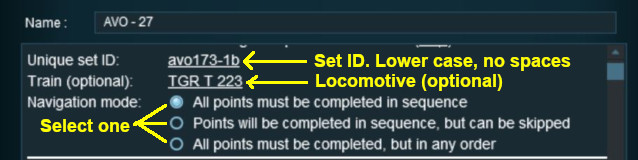
The '''Upper''' section of the Rule Dialogue Box identifies the '''Navigation Display Set''' and how it will operate</td> | |||
</tr> | |||
</table> | |||
</td> | |||
</tr> | |||
</table> | |||
</td> | |||
</tr> | </tr> | ||
</table> | </table> | ||
<table width=1000 cellpadding=4 bgcolor=#eeeeee> | |||
<tr> | |||
<td colspan="2"> | |||
----</td> | |||
</tr> | |||
<tr valign="top"> | |||
<td>[[image:Gears.PNG|link=]]</td> | |||
<td><span style="font-size: 17px;">'''Settings:'''</span> | |||
<table> | |||
<tr valign="top"> | |||
<td colspan=2>'''For the Navigation Set:'''</td> | |||
</tr> | |||
<tr valign="top"> | |||
<td width=10>[[image:BlackDot10x10.png|link=]]</td> | |||
<td>'''Set ID:''' Each Navigation Point Set must have a '''unique ID code'''. This consists of any text characters <span style="background-color: red; color: white; font-weight: 700; font-size: 15px"> EXCEPT </span> the '''SPACE''' character and '''UPPER CASE''' characters</td> | |||
</tr> | |||
<tr valign="top"> | |||
<td>[[image:BlackDot10x10.png|link=]]</td> | |||
<td>'''Train (optional):''' You can add a specific locomotive that this Navigation Point set will be applied to</td> | |||
</tr> | |||
<tr valign="top"> | |||
<td>[[image:BlackDot10x10.png|link=]]</td> | |||
<td>'''Navigation mode:''' Select '''one''' of three options:- | |||
<table> | <table> | ||
<tr valign="top"> | |||
<td>[[image:PortalOptionButtonEmpty.PNG|link=]] '''All points must be completed in sequence''' - the order of the points listed below is the order in which they must be executed. No exceptions</td> | |||
</tr> | |||
<tr valign="top"> | |||
<td>[[image:PortalOptionButtonEmpty.PNG|link=]] '''Points will be completed in sequence, but can be skipped''' - the order of the points below is the order in which they must be executed but points can be skipped. You cannot go back to complete a missed point</td> | |||
</tr> | |||
<tr valign="top"> | |||
<td>[[image:PortalOptionButtonEmpty.PNG|link=]] '''All points must be completed but in any order''' - the order is not important but no points can be missed. All the Navigation Points in the set will be displayed when this option is selected</td> | |||
</tr> | |||
</table> | |||
</td> | |||
</tr> | |||
</table> | |||
</td> | |||
</tr> | |||
<tr> | <tr> | ||
<td>[[ | <td colspan="2"> | ||
----</td> | |||
</tr> | |||
</table> | |||
<table width=1000> | |||
<tr valign="top"> | |||
<td width=640>[[image:NavDisplaySetDialogLower.JPG|link=]]</td> | |||
<td> | <td> | ||
<table | <table width=360 bgcolor=#000000 cellpadding=2> | ||
<tr valign="top"> | <tr valign="top"> | ||
<td>[[ | <td> | ||
<td><font size | <table width=356 bgcolor=#ffffb0 cellpadding=2> | ||
<tr valign="top"> | |||
<td width=25>[[image:NotePad.PNG|link=]]</td> | |||
<td><span style="font-size: 17px; font-weight: 700;">Notes:'''</span><br> | |||
---- | |||
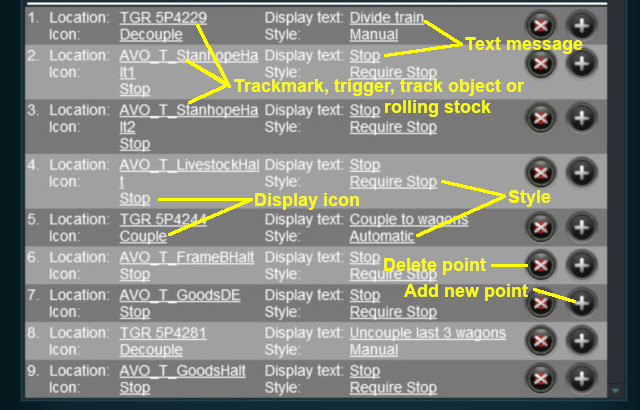
The '''lower''' section of the Rule Dialogue Box defines the individual '''Navigation Points''' in this '''Navigation Display Set'''</td> | |||
</tr> | |||
</table> | |||
</td> | </td> | ||
</tr> | </tr> | ||
</table> | </table> | ||
< | </td> | ||
<table cellpadding= | </tr> | ||
</table> | |||
<table width=1000> | |||
<tr valign="top"> | |||
<td> | |||
<table width=1000 cellpadding=4 bgcolor=#eeeeee> | |||
<tr> | |||
<td colspan="2"> | |||
----</td> | |||
</tr> | |||
<tr valign="top"> | |||
<td>[[image:Gears.PNG|link=]]</td> | |||
<td><span style="font-size: 17px;">'''Settings:'''</span> | |||
<table> | |||
<tr valign="top"> | |||
<td colspan=2>'''For each Navigation Point:'''</td> | |||
</tr> | |||
<tr valign="top"> | |||
<td width=10>[[image:BlackDot10x10.png|link=]]</td> | |||
<td>'''Location:''' - this can be a trackmark, a trigger, track object or a rolling stock vehicle</td> | |||
</tr> | |||
<tr valign="top"> | |||
<td>[[image:BlackDot10x10.png|link=]]</td> | |||
<td>'''Icon:''' - a graphic icon to be displayed representing the Navigation point. Icons are selected from a preset list</td> | |||
</tr> | |||
<tr valign="top"> | |||
<td>[[image:BlackDot10x10.png|link=]]</td> | |||
<td>'''Display text:''' - a short message up to 25 characters long</td> | |||
</tr> | |||
<tr valign="top"> | |||
<td>[[image:BlackDot10x10.png|link=]]</td> | |||
<td>'''Style:''' - the operational style of the Navigation Point. Select '''one''' of:- | |||
<table> | |||
<tr valign="top"> | |||
<td>[[image:BlackDot10x10.png|link=]]</td> | |||
<td>'''Automatic''' - the Navigation Point will be completed and disappear when the consist reaches its location</td> | |||
</tr> | |||
<tr valign="top"> | |||
<td>[[image:BlackDot10x10.png|link=]]</td> | |||
<td>'''Manual''' - the Navigation Point must be completed by another rule</td> | |||
</tr> | |||
<tr valign="top"> | |||
<td>[[image:BlackDot10x10.png|link=]]</td> | |||
<td>'''Require Stop''' - the Navigation Point will be completed and disappear when the consist stops at its location</td> | |||
</tr> | |||
</table> | |||
</td> | |||
</tr> | |||
<tr valign="top"> | |||
<td colspan=2>Navigation points can be added and deleted, but their order cannot be changed | |||
<table> | |||
<tr valign="top"> | |||
<td width=10>[[image:BlackDot10x10.png|link=]]</td> | |||
<td>'''Add Navigation Point''' - new points are added by a <span style="font-weight: 700; font-size: 15px; background-color: lightcyan;">Left Click</span> on the [[image:AddIcon.png|link=]] icon. The new point will be inserted in the line below</td> | |||
</tr> | |||
<tr valign="top"> | <tr valign="top"> | ||
<td>[[ | <td>[[image:BlackDot10x10.png|link=]]</td> | ||
<td | <td>'''Delete Navigation Point''' - existing points can be deleted by a <span style="font-weight: 700; font-size: 15px; background-color: lightcyan;">Left Click</span> on the [[image:DeleteIcon.png|link=]] icon</td> | ||
</tr> | |||
</table> | |||
</td> | </td> | ||
</tr> | </tr> | ||
</table></td> | </table> | ||
</td> | |||
</tr> | |||
<tr> | |||
<td colspan="2"> | |||
----</td> | |||
</tr> | </tr> | ||
</table> | </table> | ||
< | </td> | ||
</tr> | |||
</table> | |||
<table> <!-- BEGIN Nav Buttons Table --> | |||
<tr valign="top"> | |||
<td width=729><span id="stepHide"></span> </td> | |||
<td width=46>[[image:BackToTop.png|link=#top|alt=Top|Top]]</td> | |||
<td width=75>[[image:NextUp.png|link=#stepDisplay|alt=Next Up|Top]]</td> | |||
<td width=75>[[image:NextDown.png|link=#stepClear|alt=Next Down|Next Down]]</td> | |||
<td width=75>[[image:BackToBottom.png|link=#bottom|alt=Bottom|Bottom]]</td> | |||
</tr> | |||
</table> <!-- END Nav Buttons Table --> | |||
='''Navigation Set Hide/Show Rule'''= | ='''Navigation Set Hide/Show Rule'''= | ||
The '''[[Session_Rule_List_with_Parameters#Navigation Set Hide/Show Rule|Navigation Set Hide/Show Rule]]''' hides and displays the navigation sets created by the '''Navigation Display Rule'''. | <table width=1000 bgcolor="lightcyan" cellpadding=2> | ||
<tr valign="top"> | |||
<td width=10>[[image:BlueDot10x10.png|link=]]</td> | |||
<td>The '''Navigation Set Hide/Show Rule''' is added to a Session and configured using the [[image:WikiLink.PNG|link=]] '''[[How to Use Session Editor|Session Editor]]''' in Surveyor</td> | |||
</tr> | |||
<tr valign="top"> | |||
<td width=10>[[image:BlueDot10x10.png|link=]]</td> | |||
<td>The [[image:WikiLink.PNG|link=]] '''[[Session_Rule_List_with_Parameters#Navigation Set Hide/Show Rule|Navigation Set Hide/Show Rule]]''' hides and displays the navigation sets created by the '''Navigation Display Rule'''</td> | |||
</tr> | |||
</table> | |||
<table width=1000> | |||
<tr valign="top"> | |||
<td width=500>[[image:NavPointHideDialog.JPG|500px|link=]]</td> | |||
<td> | |||
<table width=500 bgcolor=#000000 cellpadding=2> | |||
<tr valign="top"> | |||
<td> | |||
<table width=496 bgcolor=#ffffb0 cellpadding=2> | |||
<tr valign="top"> | |||
<td width=25>[[image:NotePad.PNG|link=]]</td> | |||
<td><span style="font-size: 17px; font-weight: 700;">Notes:'''</span><br> | |||
---- | |||
All '''Navigation Sets''' created by the '''Navigation Display Rule''' are visible in Driver by default. If you want to hide any sets until they are needed then use this rule to '''Hide''' them immediately after the sets have been created.</td> | |||
</tr> | |||
</table> | |||
</td> | |||
</tr> | |||
</table> | |||
</td> | |||
</tr> | |||
</table> | |||
<table width=1000 cellpadding=4 bgcolor=#eeeeee> | |||
<tr> | |||
<td colspan="2"> | |||
----</td> | |||
</tr> | |||
<tr valign="top"> | |||
<td>[[image:Gears.PNG|link=]]</td> | |||
<td><span style="font-size: 17px;">'''Settings:'''</span> | |||
<table> | <table> | ||
<tr valign="top"> | <tr valign="top"> | ||
<td>[[ | <td width=10>[[image:BlackDot10x10.png|link=]]</td> | ||
<td> | <td>'''Hide/Show:''' <span style="font-weight: 700; font-size: 15px; background-color: lightcyan;">Left Click</span> to select one of these two options:- | ||
<table | <table> | ||
<tr valign="top"> | |||
<td width=10>[[image:BlackDot10x10.png|link=]]</td> | |||
<td> '''Hide''' will make the entire set invisible</td> | |||
</tr> | |||
<tr valign="top"> | <tr valign="top"> | ||
<td>[[ | <td>[[image:BlackDot10x10.png|link=]]</td> | ||
<td> | <td>'''Show''' will display the next navigation point or more depending on the '''Navigation Mode''' (see [[image:PageLink.PNG|link=]] '''[[#stepDisplay|Navigation Display Rule]]''' above) that has been selected for this particular set</td> | ||
</tr> | </tr> | ||
</table> | </table> | ||
</td> | |||
</tr> | |||
<tr valign="top"> | |||
<td>[[image:BlackDot10x10.png|link=]]</td> | |||
<td>'''Set ID:''' The unique Navigation Point '''Set ID''' code for the set to be hidden or shown. This must be the same ID as entered in the [[image:PageLink.PNG|link=]] '''[[#stepDisplay|Navigation Display Rule]]''' and consists of any text characters <span style="background-color: red; color: white; font-weight: 700; font-size: 15px"> EXCEPT </span> the '''SPACE''' character and '''UPPER CASE''' characters</td> | |||
</tr> | |||
</table> | |||
</td> | |||
</tr> | |||
<tr> | |||
<td colspan="2"> | |||
----</td> | |||
</tr> | </tr> | ||
</table> | </table> | ||
<table> <!-- BEGIN Nav Buttons Table --> | |||
< | <tr valign="top"> | ||
<td width=729><span id="stepClear"></span> </td> | |||
<td width=46>[[image:BackToTop.png|link=#top|alt=Top|Top]]</td> | |||
<td width=75>[[image:NextUp.png|link=#stepHide|alt=Next Up|Top]]</td> | |||
<td width=75>[[image:NextDown.png|link=#stepComplete|alt=Next Down|Next Down]]</td> | |||
<td width=75>[[image:BackToBottom.png|link=#bottom|alt=Bottom|Bottom]]</td> | |||
</tr> | |||
</table> <!-- END Nav Buttons Table --> | |||
='''Navigation Set Clear Rule'''= | ='''Navigation Set Clear Rule'''= | ||
The '''[[Session_Rule_List_with_Parameters#Navigation Set Clear Rule|Navigation Set Clear Rule]]''' clears or completes any uncompleted Navigation Points in a set created by the '''Navigation Display Rule'''. | <table width=1000 bgcolor="lightcyan" cellpadding=2> | ||
<tr valign="top"> | |||
<td width=10>[[image:BlueDot10x10.png|link=]]</td> | |||
<td>The '''Navigation Set Clear Rule''' is added to a Session and configured using the [[image:WikiLink.PNG|link=]] '''[[How to Use Session Editor|Session Editor]]''' in Surveyor</td> | |||
</tr> | |||
<tr> | |||
<td width=10>[[image:BlueDot10x10.png|link=]]</td> | |||
<td>The [[image:WikiLink.PNG|link=]] '''[[Session_Rule_List_with_Parameters#Navigation Set Clear Rule|Navigation Set Clear Rule]]''' clears or completes any uncompleted Navigation Points in a set created by the '''Navigation Display Rule'''</td> | |||
</tr> | |||
</table> | |||
<br> | |||
<table width=1000> | |||
<tr valign="top"> | |||
<td width=500>[[image:NavSetClearDialog.JPG|500px|link=]]</td> | |||
<td> | |||
<table width=500 bgcolor=#000000 cellpadding=2> | |||
<tr valign="top"> | |||
<td> | |||
<table width=496 bgcolor=#ffffb0 cellpadding=2> | |||
<tr valign="top"> | |||
<td width=25>[[image:NotePad.PNG|link=]]</td> | |||
<td><span style="font-size: 17px; font-weight: 700;">Notes:'''</span><br> | |||
---- | |||
Visible '''Navigation Sets''' will be cleared automatically when they have been completed. However, you can clear an unfinished set at any time using this rule.</td> | |||
</tr> | |||
</table> | |||
</td> | |||
</tr> | |||
</table> | |||
</td> | |||
</tr> | |||
</table> | |||
<table width=1000 cellpadding=4 bgcolor=#eeeeee> | |||
<tr> | |||
<td colspan="2"> | |||
----</td> | |||
</tr> | |||
<tr valign="top"> | |||
<td>[[image:Gears.PNG|link=]]</td> | |||
<td><span style="font-size: 17px;">'''Settings:'''</span> | |||
<table> | <table> | ||
<tr valign="top"> | <tr valign="top"> | ||
<td>[[ | <td width=10>[[image:BlackDot10x10.png|link=]]</td> | ||
<td> | <td>'''Set ID:''' The unique Navigation Point '''Set ID''' code for the set to be cleared. This must be the same ID as entered in the [[image:PageLink.PNG|link=]] '''[[#stepDisplay|Navigation Display Rule]]''' and consists of any text characters <span style="background-color: red; color: white; font-weight: 700; font-size: 15px"> EXCEPT </span> the '''SPACE''' character and '''UPPER CASE''' characters</td> | ||
</tr> | </tr> | ||
</table> | </table> | ||
</td> | |||
</tr> | |||
<tr> | |||
<td colspan="2"> | |||
----</td> | |||
</tr> | </tr> | ||
</table> | </table> | ||
<table> <!-- BEGIN Nav Buttons Table --> | |||
< | <tr valign="top"> | ||
<td width=729><span id="stepComplete"></span> </td> | |||
<td width=46>[[image:BackToTop.png|link=#top|alt=Top|Top]]</td> | |||
<td width=75>[[image:NextUp.png|link=#stepClear|alt=Next Up|Top]]</td> | |||
<td width=75>[[image:NextDown.png|link=#stepCheck|alt=Next Down|Next Down]]</td> | |||
<td width=75>[[image:BackToBottom.png|link=#bottom|alt=Bottom|Bottom]]</td> | |||
</tr> | |||
</table> <!-- END Nav Buttons Table --> | |||
='''Navigation Point Complete Rule'''= | ='''Navigation Point Complete Rule'''= | ||
The '''[[Session_Rule_List_with_Parameters#Navigation Point Complete Rule|Navigation Point Complete Rule]]''' clears or completes the selected Navigation Point in a set created by the '''Navigation Display Rule'''. This rule is used to complete Navigation Points with their ''Style'' property set to '''manual'''. | <table width=1000 bgcolor="lightcyan" cellpadding=2> | ||
<tr valign="top"> | |||
<td width=10>[[image:BlueDot10x10.png|link=]]</td> | |||
<td>The '''Navigation Point Complete Rule''' is added to a Session and configured using the [[image:WikiLink.PNG|link=]] '''[[How to Use Session Editor|Session Editor]]''' in Surveyor</td> | |||
</tr> | |||
<tr valign="top"> | |||
<td>[[image:BlueDot10x10.png|link=]]</td> | |||
<td>The [[image:WikiLink.PNG|link=]] '''[[Session_Rule_List_with_Parameters#Navigation Point Complete Rule|Navigation Point Complete Rule]]''' clears or completes the selected '''Navigation Point''' in a set created by the [[image:PageLink.PNG|link=]] '''[[#stepDisplay|Navigation Display Rule]]'''. This rule is used to complete Navigation Points with their ''Style'' property set to '''manual'''</td> | |||
</tr> | |||
</table> | |||
<br> | |||
<table width=1000> | |||
<tr valign="top"> | |||
<td width=500>[[image:NavPointCompleteDialog.JPG|500px|link=]]</td> | |||
<td> | |||
<table width=500 bgcolor=#000000 cellpadding=2> | |||
<tr valign="top"> | |||
<td> | |||
<table width=496 bgcolor=#ffffb0 cellpadding=2> | |||
<tr valign="top"> | |||
<td width=25>[[image:NotePad.PNG|link=]]</td> | |||
<td><span style="font-size: 17px; font-weight: 700;">Notes:'''</span><br> | |||
---- | |||
'''Navigation Points''' with their '''Style:''' set to '''Automatic''' or '''Require Stop''' will be cleared automatically when they have been completed. Those set to '''Manual''' must be cleared by using this rule.</td> | |||
</tr> | |||
</table> | |||
</td> | |||
</tr> | |||
</table> | |||
</td> | |||
</tr> | |||
</table> | |||
<table width=1000 cellpadding=4 bgcolor=#eeeeee> | |||
<tr> | |||
<td colspan="2"> | |||
----</td> | |||
</tr> | |||
<tr valign="top"> | |||
<td>[[image:Gears.PNG|link=]]</td> | |||
<td><span style="font-size: 17px;">'''Settings:'''</span> | |||
<table> | <table> | ||
<tr valign="top"> | <tr valign="top"> | ||
<td>[[ | <td width=10>[[image:BlackDot10x10.png|link=]]</td> | ||
<td> | <td>'''Navigation Point Number''' A valid number identifying the particular Navigation Point to be completed. If the number entered does not exist then the rule will be ignored</td> | ||
< | </tr> | ||
<tr valign="top"> | <tr valign="top"> | ||
<td>[[ | <td>[[image:BlackDot10x10.png|link=]]</td> | ||
<td | <td>'''Set ID:''' The unique Navigation Point '''Set ID''' code for the set. This must be the same ID as entered in the [[image:PageLink.PNG|link=]] '''[[#stepDisplay|Navigation Display Rule]]''' and consists of any text characters <span style="background-color: red; color: white; font-weight: 700; font-size: 15px"> EXCEPT </span> the '''SPACE''' character and '''UPPER CASE''' characters</td> | ||
</tr> | </tr> | ||
</table> | </table> | ||
</td> | |||
</tr> | |||
<tr> | |||
<td colspan="2"> | |||
----</td> | |||
</tr> | </tr> | ||
</table> | </table> | ||
<table> <!-- BEGIN Nav Buttons Table --> | |||
<tr valign="top"> | |||
< | <td width=729><span id="stepCheck"></span> </td> | ||
<td width=46>[[image:BackToTop.png|link=#top|alt=Top|Top]]</td> | |||
<td width=75>[[image:NextUp.png|link=#stepComplete|alt=Next Up|Top]]</td> | |||
<td width=75>[[image:NextDown.png|link=#stepWait|alt=Next Down|Next Down]]</td> | |||
<td width=75>[[image:BackToBottom.png|link=#bottom|alt=Bottom|Bottom]]</td> | |||
</tr> | |||
</table> <!-- END Nav Buttons Table --> | |||
='''Navigation Set Check Rule'''= | ='''Navigation Set Check Rule'''= | ||
The '''[[Session_Rule_List_with_Parameters#Navigation Set Check Rule|Navigation Set Check Rule]]''' checks if the specified Navigation | <table width=1000 bgcolor="lightcyan" cellpadding=2> | ||
<tr valign="top"> | |||
<td width=10>[[image:BlueDot10x10.png|link=]]</td> | |||
<td>The '''Navigation Set Check Rule''' is added to a Session and configured using the [[image:WikiLink.PNG|link=]] '''[[How to Use Session Editor|Session Editor]]''' in Surveyor. It is a [[image:WikiLink.PNG|link=]] '''[[How_to_Use_Parent_and_Child_Rules|Parent Rule]]'''</td> | |||
</tr> | |||
<tr valign="top"> | |||
<td>[[image:BlueDot10x10.png|link=]]</td> | |||
<td>The [[image:WikiLink.PNG|link=]] '''[[Session_Rule_List_with_Parameters#Navigation Set Check Rule|Navigation Set Check Rule]]''' checks if the specified '''Navigation Set''' has been completed, or not completed, then executes any following child rules</td> | |||
</tr> | |||
</table> | |||
<br> | |||
<table width=1000> | |||
<tr valign="top"> | |||
<td width=500>[[image:NavSetCheckDialog.JPG|500px|link=]]</td> | |||
<td> | |||
<table bgcolor=#000000 cellpadding=2> | |||
<tr valign="top"> | |||
<td> | |||
<table bgcolor=#ffffb0 cellpadding=2> | |||
<tr valign="top"> | |||
<td width=25>[[image:NotePad.PNG|link=]]</td> | |||
<td><span style="font-size: 17px; font-weight: 700;">Notes:'''</span><br> | |||
---- | |||
This rule allows you to check if all the '''Navigation Points''' in an identified '''Navigation Point Set''' have been completed or not. It is a '''Parent Rule''' so it can be used to perform other actions (execute '''Child Rules''') based on the result of the check</td> | |||
</tr> | |||
</table> | |||
</td> | |||
</tr> | |||
</table> | |||
</td> | |||
</tr> | |||
</table> | |||
<table width=1000 cellpadding=4 bgcolor=#eeeeee> | |||
<tr> | |||
<td colspan="2"> | |||
----</td> | |||
</tr> | |||
<tr valign="top"> | |||
<td>[[image:Gears.PNG|link=]]</td> | |||
<td><span style="font-size: 17px;">'''Settings:'''</span> | |||
<table> | <table> | ||
<tr valign="top"> | <tr valign="top"> | ||
<td>[[ | <td width=10>[[image:BlackDot10x10.png|link=]]</td> | ||
<td> | <td>'''Set ID:''' The unique Navigation Point '''Set ID''' code for the set to be checked. This must be the same ID as entered in the [[image:PageLink.PNG|link=]] '''[[#stepDisplay|Navigation Display Rule]]''' and consists of any text characters <span style="background-color: red; color: white; font-weight: 700; font-size: 15px"> EXCEPT </span> the '''SPACE''' character and '''UPPER CASE''' characters</td> | ||
< | </tr> | ||
<tr valign="top"> | <tr valign="top"> | ||
<td>[[ | <td>[[image:BlackDot10x10.png|link=]]</td> | ||
<td | <td>'''Complete/Incomplete:''' <span style="font-weight: 700; font-size: 15px; background-color: lightcyan;">Left Click</span> to select one of these two options. The selected Navigation Point Set will be tested to see if it has been '''Completed''' (all of its Navigation Points have been cleared/completed) or if it is '''Incomplete''' (not all of its Navigation Points have been cleared/completed)</td> | ||
</tr> | </tr> | ||
</table> | </table> | ||
</td> | |||
</tr> | |||
<tr> | |||
<td colspan="2"> | |||
----</td> | |||
</tr> | </tr> | ||
</table> | </table> | ||
<table> <!-- BEGIN Nav Buttons Table --> | |||
< | <tr valign="top"> | ||
<td width=729><span id="stepWait"></span> </td> | |||
<td width=46>[[image:BackToTop.png|link=#top|alt=Top|Top]]</td> | |||
<td width=75>[[image:NextUp.png|link=#stepCheck|alt=Next Up|Top]]</td> | |||
<td width=75> </td> | |||
<td width=75>[[image:BackToBottom.png|link=#bottom|alt=Bottom|Bottom]]</td> | |||
</tr> | |||
</table> <!-- END Nav Buttons Table --> | |||
='''Wait on Navigation Point Rule'''= | ='''Wait on Navigation Point Rule'''= | ||
The '''[[Session_Rule_List_with_Parameters#Wait on Navigation Point Rule|Wait on Navigation Point Rule]]''' waits until the specified Navigation Point in the specified set has been completed then executes any following child rules. | <table width=1000 bgcolor="lightcyan" cellpadding=2> | ||
<tr valign="top"> | |||
<td width=10>[[image:BlueDot10x10.png|link=]]</td> | |||
<td>The '''Wait on Navigation Point Rule''' is added to a Session and configured using the [[image:WikiLink.PNG|link=]] '''[[How to Use Session Editor|Session Editor]]''' in Surveyor. It is a [[image:WikiLink.PNG|link=]] '''[[How_to_Use_Parent_and_Child_Rules|Parent Rule]]'''</td> | |||
</tr> | |||
<tr valign="top"> | |||
<td width=10>[[image:BlueDot10x10.png|link=]]</td> | |||
<td>The [[image:WikiLink.PNG|link=]] '''[[Session_Rule_List_with_Parameters#Wait on Navigation Point Rule|Wait on Navigation Point Rule]]''' waits until the specified Navigation Point in the specified set has been completed then executes any following child rules</td> | |||
</tr> | |||
</table> | |||
<br> | |||
<table width=1000> | |||
<tr valign="top"> | |||
<td width=500>[[image:NavPointWaitDialog.JPG|500px|link=]]</td> | |||
<td> | |||
<table bgcolor=#000000 cellpadding=2> | |||
<tr valign="top"> | |||
<td> | |||
<table bgcolor=#ffffb0 cellpadding=2> | |||
<tr valign="top"> | |||
<td width=25>[[image:NotePad.PNG|link=]]</td> | |||
<td><span style="font-size: 17px; font-weight: 700;">Notes:'''</span><br> | |||
---- | |||
This rule allows you to set a '''Wait''' condition until a particular '''Navigation Point''' in a specific '''Navigation Point Set''' has been completed. It is a '''Parent Rule''' so it can be used to perform other actions (execute '''Child Rules''') when the specific '''Navigation Point''' has been completed</td> | |||
</tr> | |||
</table> | |||
</td> | |||
</tr> | |||
</table> | |||
</td> | |||
</tr> | |||
</table> | |||
<table width=1000 cellpadding=4 bgcolor=#eeeeee> | |||
<tr> | |||
<td colspan="2"> | |||
----</td> | |||
</tr> | |||
<tr valign="top"> | |||
<td>[[image:Gears.PNG|link=]]</td> | |||
<td><span style="font-size: 17px;">'''Settings:'''</span> | |||
<table> | <table> | ||
<tr valign="top"> | <tr valign="top"> | ||
<td>[[ | <td width=10>[[image:BlackDot10x10.png|link=]]</td> | ||
<td> | <td>'''Navigation Point Number''' A valid number identifying the particular Navigation Point to be completed. If the number entered does not exist then the rule will be ignored</td> | ||
< | </tr> | ||
<tr valign="top"> | <tr valign="top"> | ||
<td>[[ | <td>[[image:BlackDot10x10.png|link=]]</td> | ||
<td | <td>'''Set ID:''' The unique Navigation Point '''Set ID''' code for the set. This must be the same ID as entered in the '''Navigation Display Rule''' and consists of any text characters <span style="background-color: red; color: white; font-weight: 700; font-size: 15px"> EXCEPT </span> the ''SPACE'' character and ''UPPER CASE'' characters</td> | ||
</tr> | </tr> | ||
</table> | </table> | ||
</td> | |||
</tr> | |||
<tr> | |||
<td colspan="2"> | |||
----</td> | |||
</tr> | </tr> | ||
</table> | </table> | ||
<table> <!-- BEGIN Nav Buttons Table --> | |||
<tr valign="top"> | |||
<td width=729><span id="bottom"></span> </td> | |||
<td width=46>[[image:BackToTop.png|link=#top|alt=Top|Top]]</td> | |||
<td width=75>[[image:NextUp.png|link=#stepWait|alt=Next Up|Top]]</td> | |||
<td width=75> </td> | |||
<td width=75> </td> | |||
</tr> | |||
</table> <!-- END Nav Buttons Table --> | |||
---- | ---- | ||
---- | ---- | ||
='''Trainz Wiki'''= | ='''Trainz Wiki'''= | ||
*'''<span class=" | <table width=1000> | ||
<tr valign="top"> | |||
<td> | |||
<table width=500 cellpadding=2 bgcolor=#ffffff> | |||
<tr valign="top"> | |||
<td width=80>[[image:TrainzWiki.png|link=]]</td> | |||
<td> | |||
<span style="font-size: 17px;">'''More Tutorials and Guides to Using Trainz'''</span><br> | |||
*'''<span class="plain;">[http://online.ts2009.com/mediaWiki/index.php/HowTo How to Guides]</span>''' | |||
*'''[[Driver Commands List]]''' | |||
*'''[[Session Rule List with Parameters|Session Rules List (Alphabetical) with Parameters]]''' | *'''[[Session Rule List with Parameters|Session Rules List (Alphabetical) with Parameters]]''' | ||
*'''[[Session Rules By Categories With Properties|Session Rules List (Categories) With Parameters]]''' | *'''[[Session Rules By Categories With Properties|Session Rules List (Categories) With Parameters]]''' | ||
< | </td> | ||
< | </tr> | ||
< | </table> | ||
</td> | |||
*'''[[How to Use | <td> | ||
<table width=500 cellpadding=4 bgcolor="Aquamarine"> | |||
</ | <tr valign="top"> | ||
< | <td width=50>[[image:LinkWiki.PNG|link=]]</td> | ||
< | <td> | ||
< | <span style="font-size: 17px;">'''Related Links'''</span><br> | ||
* '''[[How to Use Session Editor|How to Use the Session Editor]]''' | |||
</td> | |||
</tr> | |||
</table> | |||
</td> | |||
</tr> | |||
</table> | |||
---- | |||
This page was created by Trainz user '''<span class="plain;">[http://online.ts2009.com/mediaWiki/index.php/User:Pware pware]</span>''' in May 2018 and was last updated as shown below. | |||
---- | |||
[[Category:How-to guides]][[Category:Rules]] | |||
[[Category: | |||
Latest revision as of 00:02, 26 July 2026
|
|

 |
 |
 |
Navigation Display Rule
 |
The Navigation Set Hide/Show Rule is added to a Session and configured using the  Session Editor in Surveyor |
|
The Navigation Display Rule creates and displays a set of Navigation Points |
|

 |
|
|
|
||||||||||||
 |
Settings:
|
|||||||||||
|
|
||||||||||||


 |
|
|
||||||||||||||||||||||||||||


|
 |
|
|
Navigation Set Hide/Show Rule
|
The Navigation Set Hide/Show Rule is added to a Session and configured using the Session Editor in Surveyor |
|
The Navigation Set Hide/Show Rule hides and displays the navigation sets created by the Navigation Display Rule |
| Error creating thumbnail: /bin/bash: line 1: /usr/bin/convert: No such file or directory Error code: 127 |
|
|
|
|||||||||
|
Settings:
|
||||||||
|
|
|||||||||
|
|
|
|
Navigation Set Clear Rule
|
The Navigation Set Clear Rule is added to a Session and configured using the Session Editor in Surveyor |
|
The Navigation Set Clear Rule clears or completes any uncompleted Navigation Points in a set created by the Navigation Display Rule |
| Error creating thumbnail: /bin/bash: line 1: /usr/bin/convert: No such file or directory Error code: 127 |
|
|
|
|||
|
Settings:
|
||
|
|
|||
|
|
|
|
Navigation Point Complete Rule
|
The Navigation Point Complete Rule is added to a Session and configured using the Session Editor in Surveyor |
|
The Navigation Point Complete Rule clears or completes the selected Navigation Point in a set created by the  Navigation Display Rule. This rule is used to complete Navigation Points with their Style property set to manual |
| Error creating thumbnail: /bin/bash: line 1: /usr/bin/convert: No such file or directory Error code: 127 |
|
|
|
|||||
|
Settings:
|
||||
|
|
|||||
|
|
|
|
Navigation Set Check Rule
|
The Navigation Set Check Rule is added to a Session and configured using the Session Editor in Surveyor. It is a Parent Rule |
|
The Navigation Set Check Rule checks if the specified Navigation Set has been completed, or not completed, then executes any following child rules |
| Error creating thumbnail: /bin/bash: line 1: /usr/bin/convert: No such file or directory Error code: 127 |
|
|
|
|||||
|
Settings:
|
||||
|
|
|||||
|
|
|
Wait on Navigation Point Rule
|
The Wait on Navigation Point Rule is added to a Session and configured using the Session Editor in Surveyor. It is a Parent Rule |
|
The Wait on Navigation Point Rule waits until the specified Navigation Point in the specified set has been completed then executes any following child rules |
| Error creating thumbnail: /bin/bash: line 1: /usr/bin/convert: No such file or directory Error code: 127 |
|
|
|
|||||
|
Settings:
|
||||
|
|
|||||
|
|
Trainz Wiki
|
|

This page was created by Trainz user pware in May 2018 and was last updated as shown below.


