How to Use Message Popup Rule: Difference between revisions
mNo edit summary |
|||
| (22 intermediate revisions by the same user not shown) | |||
| Line 1: | Line 1: | ||
<table width=1000 bgcolor=#000000 cellpadding=2> | |||
<table | |||
<tr valign="top"> | <tr valign="top"> | ||
<td> | <td> | ||
<table width=996 bgcolor=#ffffff cellpadding=2> | |||
<tr valign="middle"> | |||
<td width=35>[[image:Information.png|35px|link=]]</td> | |||
<td><span style="font-size: 15px;">The information in this Wiki Page applies to using the '''Message Popup Rule''' to display '''Session''' information and user instructions in '''T:ANE''', '''TRS19''', '''TRS22''' and '''Trainz Plus'''.</span></td> | |||
</tr> | |||
</table> | |||
</td> | </td> | ||
</tr> | </tr> | ||
</table> | </table> | ||
<br> | <br> | ||
<table width=1000> | |||
<tr valign="top"> | |||
<td width=300> | |||
__TOC__ | __TOC__ | ||
<br> | </td> | ||
<td align="center"><span style="font-weight: 700; font-size: 17px; color: white; background-color: black;"> Workflow Diagram </span><br> | |||
<table cellpadding=" | [[image:MessagePopupWorkflow.png|link=|alt=Workflow diagram]]</td> | ||
<td> | |||
<table cellpadding=2 bgcolor="Aquamarine"> | |||
<tr valign="top"> | <tr valign="top"> | ||
<td | <td>[[image:LinkWiki.PNG|link=]]</td> | ||
<td> | |||
For more information on creating a '''HTML Asset''' see the '''Trainz Wiki Page''' at:-<br> | |||
* '''[[How to Create a HTML Asset]]'''</td> | |||
</tr> | </tr> | ||
</table> | |||
</td> | |||
</tr> | |||
</table> | |||
<table> <!-- BEGIN Nav Buttons Table --> | |||
<tr valign="top"> | <tr valign="top"> | ||
<td>[[ | <td width=729><span id="stepNewAsset"></span> </td> | ||
<td> | <td width=46>[[image:BackToTop.png|link=#top|alt=Top|Top]]</td> | ||
<td width=75> </td> | |||
<td width=75>[[image:NextDown.png|link=#stepCustom|alt=Next Down|Next Down]]</td> | |||
<td width=75>[[image:BackToBottom.png|link=#bottom|alt=Bottom|Bottom]]</td> | |||
</tr> | </tr> | ||
</table> <!-- END Nav Buttons Table --> | |||
='''Add a Message Popup Rule'''= | |||
<table width=1000 bgcolor="lightcyan" cellpadding=2> | |||
<tr valign="top"> | <tr valign="top"> | ||
<td>[[ | <td width=10>[[image:BlueDot10x10.png|link=]]</td> | ||
<td>The | <td>The '''[[Session_Rule_List_with_Parameters#Message_Popup_Rule|Message Popup Rule]]''' is a '''Trainz Session Rule''' that creates onscreen messages for users in '''Driver Mode'''.</td> | ||
</tr> | </tr> | ||
</table> | </table> | ||
<br> | <br> | ||
<table width=1000> | |||
<table | |||
<tr valign="top"> | <tr valign="top"> | ||
<td | <td>The '''Message Popup Rule''' is added to a Session and configured using the [[image:WikiLink.PNG|link=]] '''[[How to Use Session Editor|Session Editor]]''' in Surveyor. The rule will open a browser window on the screen in Driver Mode that will remain on the screen until it is closed by the user or by another rule.</td> | ||
</tr> | </tr> | ||
</table> | </table> | ||
<br> | |||
<table bgcolor=#000000 cellpadding=2> | |||
<table cellpadding= | |||
<tr valign="top"> | <tr valign="top"> | ||
<td> | <td> | ||
<table bgcolor=#ffffff cellpadding=2> | |||
<tr valign="top"> | |||
<td colspan=2>There are three ways the message window can be created:-<br> | |||
<span style="font-weight: 700; font-size: 15px;">Options:</span> Choose one of:-</td> | |||
</tr> | </tr> | ||
< | <tr valign="top"> | ||
<td width=25>[[image:Ablue.png|link=]]</td> | |||
< | <td>with a '''Custom Message''' - the quickest and easiest method, <span style="font-weight: 700; font-size: 15px;">OR</span></td> | ||
< | |||
< | |||
</tr> | </tr> | ||
<tr valign="top"> | <tr valign="top"> | ||
<td>[[ | <td>[[image:Bblue.png|link=]]</td> | ||
<td> | <td>with a '''HTML (Web) Page''' - the most complicated method but it often gives the best results, <span style="font-weight: 700; font-size: 15px;">OR</span></td> | ||
</tr> | </tr> | ||
<tr> | <tr valign="top"> | ||
<td | <td>[[image:Cblue.png|link=]]</td> | ||
<td>with a '''String Table Message'''</td> | |||
</tr> | </tr> | ||
</table> | </table> | ||
</td> | |||
</tr> | </tr> | ||
</table> | </table> | ||
<br> | |||
<table> <!-- BEGIN Nav Buttons Table --> | <table> <!-- BEGIN Nav Buttons Table --> | ||
<tr valign="top"> | <tr valign="top"> | ||
<td width=729><span id="stepCustom"></span> </td> | <td width=729><span id="stepCustom"></span> </td> | ||
<td width=46>[[ | <td width=46>[[image:BackToTop.png|link=#top|alt=Top|Top]]</td> | ||
<td width=75>[[ | <td width=75>[[image:NextUp.png|link=#stepNewAsset|alt=Next Up|Top]]</td> | ||
<td width=75>[[ | <td width=75>[[image:NextDown.png|link=#stepHTML|alt=Next Down|Next Down]]</td> | ||
<td width=75>[[ | <td width=75>[[image:BackToBottom.png|link=#bottom|alt=Bottom|Bottom]]</td> | ||
</tr> | </tr> | ||
</table> <!-- END Nav Buttons Table --> | </table> <!-- END Nav Buttons Table --> | ||
| Line 116: | Line 95: | ||
The settings shown in this example will direct '''Trainz''' to load the message from text entered in the Custom Message box. | The settings shown in this example will direct '''Trainz''' to load the message from text entered in the Custom Message box. | ||
<table width=1000> | |||
<tr valign="top"> | |||
<td>[[image:MessagePopup3.JPG|link=]]</td> | |||
<td> | |||
<table bgcolor=#000000 cellpadding=2> | |||
<tr valign="top"> | |||
<td> | |||
<table bgcolor=#ffffb0 cellpadding=2> | |||
<tr valign="top"> | |||
<td width=25>[[image:NotePad.PNG|link=]]</td> | |||
<td><span style="font-size: 17px;">'''Notes:'''</span><br> | |||
---- | |||
</td> | |||
</tr> | |||
<tr valign="top"> | |||
<td colspan=2> | |||
<table> | <table> | ||
<tr valign="top"> | <tr valign="top"> | ||
<td>[[ | <td>[[image:DotPoint.JPG|10px|link=]]</td> | ||
<td>No knowledge of HTML is required for this option</td> | |||
</tr> | |||
<tr valign="top"> | |||
<td>[[image:DotPoint.JPG|10px|link=]]</td> | |||
<td>You can select and display an optional icon with the message</td> | |||
</tr> | |||
<tr valign="top"> | |||
<td>[[image:DotPoint.JPG|10px|link=]]</td> | |||
<td>You are no longer limited in the number of lines of text you can add. Although the popup window will only show 7 lines, a vertical scroll bar will appear for longer messages</td> | |||
</tr> | |||
<tr valign="top"> | |||
<td>[[image:DotPoint.JPG|10px|link=]]</td> | |||
<td>Text only can be entered (box cannot be left blank). Some HTML markup is acceptable, for example <i>italic</i> and <b>bold</b> tags</td> | |||
</tr> | |||
</table> | |||
</td> | |||
</tr> | |||
</table> | |||
</td> | |||
</tr> | |||
</table> | |||
<br> | |||
<table cellpadding=2 bgcolor="Aquamarine"> | |||
<tr valign="top"> | |||
<td>[[image:LinkWiki.PNG|link=]]</td> | |||
<td> | <td> | ||
<table cellpadding= | For more information, see the '''Trainz Wiki Page''' at:-<br> | ||
* '''[[How to Create a HTML Asset]]'''</td> | |||
</tr> | |||
</table> | |||
</td> | |||
</tr> | |||
</table> | |||
<br> | |||
<table width=1000 cellpadding=2 bgcolor=#eeeeee> | |||
<tr> | <tr> | ||
<td colspan="2"> | <td colspan="2"> | ||
| Line 126: | Line 154: | ||
</tr> | </tr> | ||
<tr valign="top"> | <tr valign="top"> | ||
<td>[[ | <td>[[image:Gears.PNG|link=]]</td> | ||
<td><span style="font-size: 17px;">'''Settings:'''</span><br> | <td><span style="font-size: 17px;">'''Settings:'''</span> Shown in the example above:-<br> | ||
[[ | [[image:PortalOptionButtonFilled.PNG|link=]] '''Custom text''' | ||
<table> | |||
<tr valign="top"> | |||
<td>[[image:CheckBoxOff.PNG|link=]] '''Pause game while message is displayed''' - game play will not be paused</td> | |||
</tr> | </tr> | ||
<tr> | <tr valign="top"> | ||
<td | <td>[[image:CheckBox.PNG|link=]] '''Close previous message popup windows''' - this is usually a good idea unless you want multiple message windows open</td> | ||
-- | </tr> | ||
<tr valign="top"> | |||
<td>[[image:BlackDot10x10.png|link=]] '''Message location:''' '''<span style="text-decoration: underline;">Top left</span>''' of the screen has been chosen as the location for the message window. Other positions are '''Top right''', '''Bottom left''' and '''Bottom right'''</td> | |||
</tr> | |||
<tr valign="top"> | |||
<td>[[image:BlackDot10x10.png|link=]] '''Custom Message''' - the message entered into the text box will be displayed</td> | |||
</tr> | </tr> | ||
<tr valign="top"> | <tr valign="top"> | ||
<td>[[ | <td>[[image:BlackDot10x10.png|link=]] '''Icon''' - the selected ''optional'' icon will be displayed</td> | ||
- | |||
</tr> | </tr> | ||
<tr valign="top"> | <tr valign="top"> | ||
<td>[[ | <td>[[image:BlackDot10x10.png|link=]] No optional sound has been added</td> | ||
< | </tr> | ||
</table> | |||
</td> | |||
</tr> | </tr> | ||
< | <tr> | ||
<td colspan="2"> | |||
----</td> | |||
</tr> | </tr> | ||
</table> | </table> | ||
<br> | |||
<table> | <table> | ||
<tr> | <tr> | ||
<td>[[ | <td>[[image:MessagePopup2a.JPG|link=]]</td> | ||
<td>The custom message popup created by the example shown above</td> | <td>The custom message popup created by the example shown above</td> | ||
</tr> | </tr> | ||
</table> | </table> | ||
<br> | <br> | ||
<table | <table bgcolor=#000000> | ||
<tr valign="top"> | <tr valign="top"> | ||
<td>[[ | <td> | ||
<table bgcolor=#ffffe0> | |||
<tr valign="top"> | |||
<td>[[image:PencilTips.PNG|link=]]</td> | |||
<td>To find additional graphic icons that can be added to the '''Message Popup''' window, use '''Content Manager''' and set a '''Custom Filter''' to search for:- | <td>To find additional graphic icons that can be added to the '''Message Popup''' window, use '''Content Manager''' and set a '''Custom Filter''' to search for:- | ||
<table> | |||
<tr valign="top"> | |||
<td width=10>[[image:DotPoint.JPG|10px|link=]]</td> | |||
Not all those shown will be suitable. Double | <td>'''Category''' select '''Texture- Not Environmental'''</td> | ||
</tr> | |||
<tr valign="top"> | |||
<td>[[image:DotPoint.JPG|10px|link=]]</td> | |||
<td>'''Name''' type '''icon'''</td> | |||
</tr> | |||
<tr valign="top"> | |||
<td>[[image:DotPoint.JPG|10px|link=]]</td> | |||
<td>'''On Download Station''' select '''True'''</td> | |||
</tr> | |||
<tr valign="top"> | |||
<td colspan=2>Not all those shown will be suitable. <span style="font-weight: 700; font-size: 15px; background-color: lightcyan;">Double Left Click</span> on a possible icon to display its details before downloading</td> | |||
</tr> | |||
</table> | |||
</td> | |||
</tr> | |||
</table> | |||
</td> | |||
</tr> | </tr> | ||
</table> | </table> | ||
<br> | <br> | ||
<table cellpadding= | <table cellpadding=2 bgcolor="Aquamarine"> | ||
<tr valign="top"> | <tr valign="top"> | ||
<td>[[ | <td>[[image:LinkWiki.PNG|link=]]</td> | ||
<td> | <td> | ||
For information on how to create your own '''Message Popup Icons''', see the '''Trainz Wiki Page''' at:-<br> | For information on how to create your own '''Message Popup Icons''', see the '''Trainz Wiki Page''' at:-<br> | ||
| Line 193: | Line 234: | ||
<table> <!-- BEGIN Nav Buttons Table --> | <table> <!-- BEGIN Nav Buttons Table --> | ||
<tr valign="top"> | <tr valign="top"> | ||
<td width=729><span id=" | <td width=729><span id="stepHTML"></span> </td> | ||
<td width=46>[[ | <td width=46>[[image:BackToTop.png|link=#top|alt=Top|Top]]</td> | ||
<td width=75>[[ | <td width=75>[[image:NextUp.png|link=#stepCustom|alt=Next Up|Top]]</td> | ||
<td width=75>[[ | <td width=75>[[image:NextDown.png|link=#stepString|alt=Next Down|Next Down]]</td> | ||
<td width=75>[[ | <td width=75>[[image:BackToBottom.png|link=#bottom|alt=Bottom|Bottom]]</td> | ||
</tr> | </tr> | ||
</table> <!-- END Nav Buttons Table --> | </table> <!-- END Nav Buttons Table --> | ||
='''Using a | ='''Using a HTML Page'''= | ||
The settings shown in this example will direct | The settings shown in this example will direct Trainz to load the message from a HTML file in a HTML asset. | ||
<table> | <table width=1000> | ||
<tr> | |||
<td valign="top">[[image:MessagePopup1.JPG|link=]]</td> | |||
<td valign="top"> | |||
<table bgcolor=#000000 cellpadding=2> | |||
<tr valign="top"> | |||
<td> | |||
<table bgcolor=#ffffb0 cellpadding=2> | |||
<tr valign="top"> | |||
<td width=25>[[image:NotePad.PNG|link=]]</td> | |||
<td><span style="font-size: 17px;">'''Notes:'''</span><br> | |||
---- | |||
</td> | |||
</tr> | |||
<tr valign="top"> | |||
<td>[[image:DotPoint.JPG|10px|link=]]</td> | |||
<td>Knowledge of HTML, as used by Trainz, will '''probably''' be required for this option</td> | |||
</tr> | |||
<tr valign="top"> | |||
<td>[[image:DotPoint.JPG|10px|link=]]</td> | |||
<td>The HTML page (with filename extension ".html") must be in a Trainz asset of type HTML</td> | |||
</tr> | |||
<tr valign="top"> | |||
<td>[[image:DotPoint.JPG|10px|link=]]</td> | |||
<td>Graphics and a limited set of HTML effects are possible</td> | |||
</tr> | |||
<tr valign="top"> | |||
<td>[[image:DotPoint.JPG|10px|link=]]</td> | |||
<td>The sound file settings '''HTML Wave''' and '''Wave Name''' are optional</td> | |||
</tr> | |||
<tr valign="top"> | |||
<td>[[image:DotPoint.JPG|10px|link=]]</td> | |||
<td>If a sound file is to be played when the message is displayed then it must be of type WAV (with filename extension ".wav") and must be in a Trainz asset of type HTML. It does not have to be in the same HTML asset as the HTML page</td> | |||
</tr> | |||
</table> | |||
</td> | |||
</tr> | |||
</table> | |||
<br> | |||
<table cellpadding=2 bgcolor="Aquamarine"> | |||
<tr valign="top"> | <tr valign="top"> | ||
<td>[[ | <td>[[image:LinkWiki.PNG|link=]]</td> | ||
<td> | <td> | ||
<table cellpadding= | For more information, see the '''Trainz Wiki Page''' at:-<br> | ||
* '''[[How to Create a HTML Asset]]'''</td> | |||
</tr> | |||
</table> | |||
</td> | |||
</tr> | |||
</table> | |||
<br> | |||
<table width=1000 cellpadding=2 bgcolor=#eeeeee> | |||
<tr> | <tr> | ||
<td colspan="2"> | <td colspan="2"> | ||
| Line 215: | Line 303: | ||
</tr> | </tr> | ||
<tr valign="top"> | <tr valign="top"> | ||
<td>[[ | <td>[[image:Gears.PNG|link=]]</td> | ||
<td><span style="font-size: 17px;">'''Settings:'''</span>< | <td><span style="font-size: 17px;">'''Settings:'''</span> Shown in the example above:- | ||
[[ | <table> | ||
<tr valign="top"> | |||
<td>[[image:PortalOptionButtonFilled.PNG|link=]] '''A pre-defined HTML page (advanced)'''</td> | |||
</tr> | |||
:'''Message location:''' '''<span style="text-decoration: underline;">Top left</span>''' of the screen has been chosen as the location for the message window. Other positions are '''Top right''', '''Bottom left''' and '''Bottom right''' | <tr valign="top"> | ||
:'''HTML Asset:''' '''<span style="text-decoration: underline;">General Purpose Session HTML</span>''' one of the HTML assets installed with '''Trainz''' | <td>[[image:CheckBox.PNG|link=]] '''Pause game while message is displayed''' - this will halt the game play until the window is closed. This may be needed if you have a long introductory HTML information page, otherwise leave unchecked</td> | ||
:''' | </tr> | ||
:'''HTML Wave:''' '''<span style="text-decoration: underline;">General Purpose Session HTML</span>''' HTML asset contains the ''optional'' sound file to be played | <tr valign="top"> | ||
:'''Wav Name:''' '''<span style="text-decoration: underline;">all-aboard.wav</span>''' is the ''optional'' sound file to be played | <td>[[image:CheckBox.PNG|link=]] '''Close previous message popup windows''' - this is usually a good idea unless you want multiple message windows open</td> | ||
</tr> | |||
<tr valign="top"> | |||
<td>[[image:BlackDot10x10.png|link=]] '''Message location:''' '''<span style="text-decoration: underline;">Top left</span>''' of the screen has been chosen as the location for the message window. Other positions are '''Top right''', '''Bottom left''' and '''Bottom right'''</td> | |||
</tr> | |||
<tr valign="top"> | |||
<td>[[image:BlackDot10x10.png|link=]] '''HTML Asset:''' '''<span style="text-decoration: underline;">General Purpose Session HTML</span>''' one of the HTML assets installed with '''Trainz'''</td> | |||
</tr> | |||
<tr valign="top"> | |||
<td>[[image:BlackDot10x10.png|link=]] '''HTML Page:''' '''<span style="text-decoration: underline;">right_away.html</span>''' which is a HTML file inside the '''<span style="text-decoration: underline;">General Purpose Session HTML</span>''' asset</td> | |||
</tr> | |||
<tr valign="top"> | |||
<td>[[image:BlackDot10x10.png|link=]] '''HTML Wave:''' '''<span style="text-decoration: underline;">General Purpose Session HTML</span>''' HTML asset contains the ''optional'' sound file to be played</td> | |||
</tr> | |||
<tr valign="top"> | |||
<td>[[image:BlackDot10x10.png|link=]] '''Wav Name:''' '''<span style="text-decoration: underline;">all-aboard.wav</span>''' is the ''optional'' sound file to be played</td> | |||
</tr> | |||
<tr valign="top"> | |||
<td>[[image:CheckBox.PNG|link=]] '''Autoplay Wav''' - the sound will be played when the page is displayed</td> | |||
</tr> | |||
</table> | |||
</td> | |||
</tr> | </tr> | ||
<tr> | <tr> | ||
| Line 234: | Line 342: | ||
</table> | </table> | ||
<table | <table> <!-- BEGIN Nav Buttons Table --> | ||
<tr valign="top"> | |||
<td width=729><span id="stepString"></span> </td> | |||
<td width=46>[[image:BackToTop.png|link=#top|alt=Top|Top]]</td> | |||
<td width=75>[[image:NextUp.png|link=#stepHTML|alt=Next Up|Top]]</td> | |||
<td width=75>[[image:NextDown.png|link=#stepAlt|alt=Next Down|Next Down]]</td> | |||
<td width=75>[[image:BackToBottom.png|link=#bottom|alt=Bottom|Bottom]]</td> | |||
</tr> | |||
</table> <!-- END Nav Buttons Table --> | |||
='''Using a String-Table Message'''= | |||
The settings shown in this example will direct '''Trainz''' to load the message from text stored in the '''config.txt''' string table of a specified HTML asset. | |||
<table width=1000> | |||
<tr valign="top"> | <tr valign="top"> | ||
<td>[[ | <td>[[image:MessagePopup4.JPG|link=]]</td> | ||
<td> | |||
<table bgcolor=#000000 cellpadding=2> | |||
<tr valign="top"> | |||
<td> | |||
<table bgcolor=#ffffb0 cellpadding=2> | |||
<tr valign="top"> | |||
<td width=25>[[image:NotePad.PNG|link=]]</td> | |||
<td><span style="font-size: 17px;">'''Notes:'''</span><br> | <td><span style="font-size: 17px;">'''Notes:'''</span><br> | ||
---- | ---- | ||
</td> | |||
</tr> | |||
<tr valign="top"> | |||
<td width=10>[[image:DotPoint.JPG|10px|link=]]</td> | |||
<td>The '''config.txt''' file of the HTML asset must have a '''string-table''' container which holds all the text messages to be displayed</td> | |||
</tr> | |||
<tr valign="top"> | |||
<td>[[image:DotPoint.JPG|10px|link=]]</td> | |||
<td>The '''string-table token''' is the "tag" which identifies the message text in the '''config.txt''' file</td> | |||
</tr> | |||
</table> | |||
</td> | |||
</tr> | </tr> | ||
</table> | </table> | ||
| Line 247: | Line 386: | ||
</table> | </table> | ||
<br> | <br> | ||
<table width=1000 cellpadding=2 bgcolor=#eeeeee> | |||
<tr> | |||
<td colspan="2"> | |||
----</td> | |||
</tr> | |||
<tr valign="top"> | |||
<td>[[image:Gears.PNG|link=]]</td> | |||
<td><span style="font-size: 17px;">'''Settings:'''</span> Shown in the example above:- | |||
<table> | |||
<tr valign="top"> | |||
<td>[[image:PortalOptionButtonFilled.PNG|link=]] '''A pre-defined string-table entry from a HTML asset (advanced)'''</td> | |||
</tr> | |||
<tr valign="top"> | |||
<td>[[image:CheckBoxOff.PNG|link=]] '''Pause game while message is displayed''' - game play will not be paused</td> | |||
</tr> | |||
<tr valign="top"> | |||
<td>[[image:CheckBox.PNG|link=]] '''Close previous message popup windows''' - this is usually a good idea unless you want multiple message windows open</td> | |||
</tr> | |||
<tr valign="top"> | |||
<td>[[image:BlackDot10x10.png|link=]] '''Message location:''' '''<span style="text-decoration: underline;">Top left</span>''' of the screen has been chosen as the location for the message window. Other positions are '''Top right''', '''Bottom left''' and '''Bottom right'''</td> | |||
</tr> | |||
<tr valign="top"> | |||
<td>[[image:BlackDot10x10.png|link=]] '''HTML Asset:''' '''<span style="text-decoration: underline;">General Purpose Session HTML</span>''' one of the HTML assets installed with '''Trainz'''</td> | |||
</tr> | |||
<tr valign="top"> | |||
<td>[[image:BlackDot10x10.png|link=]] '''String Table Token:''' '''<span style="text-decoration: underline;">html_warning_late</span>''' the string table '''token''' in the config.txt file of the '''<span style="text-decoration: underline;">General Purpose Session HTML</span>''' asset contains the message to be displayed</td> | |||
</tr> | |||
<tr valign="top"> | |||
<td>[[image:BlackDot10x10.png|link=]] '''HTML Wave:''' '''<span style="text-decoration: underline;">General Purpose Session HTML</span>''' HTML asset contains the ''optional'' sound file to be played</td> | |||
</tr> | |||
<tr valign="top"> | |||
<td>[[image:BlackDot10x10.png|link=]] '''Wav Name:''' '''<span style="text-decoration: underline;">all-aboard.wav</span>''' is the ''optional'' sound file to be played</td> | |||
</tr> | |||
<tr valign="top"> | |||
<td>[[image:CheckBox.PNG|link=]] '''Autoplay Wav''' - the sound will be played when the page is displayed</td> | |||
</tr> | |||
</table> | |||
</td> | |||
</tr> | |||
<tr> | |||
<td colspan="2"> | |||
----</td> | |||
</tr> | |||
</table> | |||
For example, the '''config.txt''' file of the asset '''General Purpose Session HTML''' contains the following:- | For example, the '''config.txt''' file of the asset '''General Purpose Session HTML''' contains the following:- | ||
'''string-table''' | '''string-table''' | ||
| Line 254: | Line 437: | ||
...which will produce the message "'''You are running late!'''" from the '''Message Popup Rule''' settings shown above. | ...which will produce the message "'''You are running late!'''" from the '''Message Popup Rule''' settings shown above. | ||
<br> | <br> | ||
<table | <table> <!-- BEGIN Nav Buttons Table --> | ||
<tr valign="top"> | <tr valign="top"> | ||
<td>[[ | <td width=729><span id="stepAlt"></span> </td> | ||
<td> | <td width=46>[[image:BackToTop.png|link=#top|alt=Top|Top]]</td> | ||
<td width=75>[[image:NextUp.png|link=#stepString|alt=Next Up|Top]]</td> | |||
<td width=75> </td> | |||
<td width=75>[[image:BackToBottom.png|link=#bottom|alt=Bottom|Bottom]]</td> | |||
</tr> | </tr> | ||
</table> | </table> <!-- END Nav Buttons Table --> | ||
< | |||
='''Alternatives to the Message Popup Rule'''= | ='''Alternatives to the Message Popup Rule'''= | ||
<table cellpadding= | <table width=1000 cellpadding=2 bgcolor=#ffffff> | ||
<tr valign="top"> | <tr valign="top"> | ||
<td width= | <td width=60>[[image:RulesWiki.PNG|link=]]</td> | ||
<td | <td>There are other HTML message window rules that are alternatives to the '''Message Popup''' rule. A few possibilities are:- | ||
There are other HTML message window rules that are alternatives to the '''Message Popup''' rule. A few possibilities are:-</td> | *'''[[Session_Rule_List_with_Parameters#Display_HTML_Pages_Rule|Display HTML Pages Rule]]''' | ||
*'''[[Session_Rule_List_with_Parameters#Timed_Limited_Display_HTML_Rule_(SP2_and_later)|Timed Limited Display HTML Rule (SP2 and later)]]'''</td> | |||
</tr> | </tr> | ||
</table> | </table> | ||
<br> | <br> | ||
<table> <!-- BEGIN Nav Buttons Table --> | <table> <!-- BEGIN Nav Buttons Table --> | ||
<tr valign="top"> | <tr valign="top"> | ||
<td width=729><span id="bottom"></span> </td> | <td width=729><span id="bottom"></span> </td> | ||
<td width=46>[[ | <td width=46>[[image:BackToTop.png|link=#top|alt=Top|Top]]</td> | ||
<td width=75>[[ | <td width=75>[[image:NextUp.png|link=#stepAlt|alt=Next Up|Top]]</td> | ||
<td width=75> </td> | <td width=75> </td> | ||
<td width=75> </td> | <td width=75> </td> | ||
| Line 304: | Line 468: | ||
---- | ---- | ||
---- | ---- | ||
='''Trainz Wiki'''= | ='''Trainz Wiki'''= | ||
<table | <table width=1000> | ||
<tr valign="top"> | <tr valign="top"> | ||
<td>[[ | <td> | ||
<table width=500 cellpadding=2 bgcolor=#ffffff> | |||
<tr valign="top"> | |||
<td width=80>[[image:TrainzWiki.png|link=]]</td> | |||
<td> | <td> | ||
<span style="font-size: 17px;">'''More Tutorials and Guides to Using Trainz'''</span><br> | <span style="font-size: 17px;">'''More Tutorials and Guides to Using Trainz'''</span><br> | ||
| Line 315: | Line 481: | ||
*'''[[Session Rule List with Parameters|Session Rules List (Alphabetical) with Parameters]]''' | *'''[[Session Rule List with Parameters|Session Rules List (Alphabetical) with Parameters]]''' | ||
*'''[[Session Rules By Categories With Properties|Session Rules List (Categories) With Parameters]]''' | *'''[[Session Rules By Categories With Properties|Session Rules List (Categories) With Parameters]]''' | ||
</td> | |||
</tr> | |||
</table> | |||
</td> | |||
<td> | |||
<table width=500 cellpadding=4 bgcolor="aquamarine"> | |||
<tr valign="top"> | |||
<td width=50>[[image:LinkWiki.PNG|link=]]</td> | |||
<td> | |||
<span style="font-size: 17px;">'''Related Links'''</span><br> | |||
* '''[[How to Use Message Popup Rule (Applications)]]''' | |||
* '''[[How to Use Session Editor|Session Editor]]''' | |||
* '''[[How to Create a HTML Asset]]''' | |||
* '''[[How to Create a Message Popup Icon]]'''</td> | |||
</tr> | |||
</table> | |||
</td> | </td> | ||
</tr> | </tr> | ||
Latest revision as of 05:34, 4 July 2026
|
Workflow Diagram 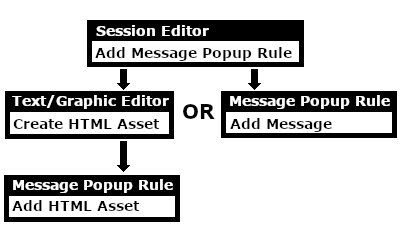 |
|
 |
 |
 |
Add a Message Popup Rule
 |
The Message Popup Rule is a Trainz Session Rule that creates onscreen messages for users in Driver Mode. |
The Message Popup Rule is added to a Session and configured using the  Session Editor in Surveyor. The rule will open a browser window on the screen in Driver Mode that will remain on the screen until it is closed by the user or by another rule. |
|
||||||||


|
 |
|
|
Using a Custom Message
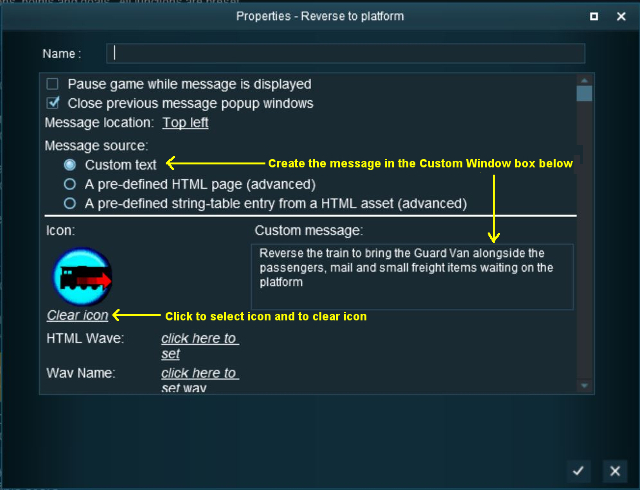
The settings shown in this example will direct Trainz to load the message from text entered in the Custom Message box.
 |
|
|||||||||||||||

|
|
|||||||
 |
Settings: Shown in the example above:-
|
||||||
|
|
|||||||


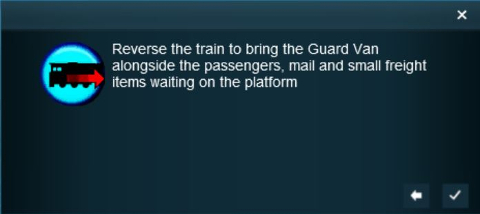 |
The custom message popup created by the example shown above |
|
||||||||||

 |
For information on how to create your own Message Popup Icons, see the Trainz Wiki Page at:- |
|
|
|
|
Using a HTML Page
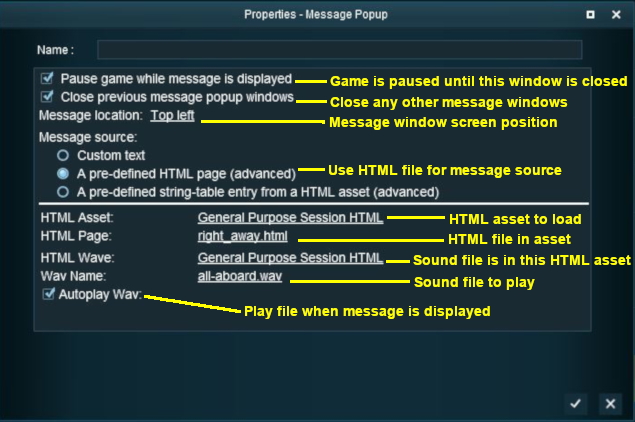
The settings shown in this example will direct Trainz to load the message from a HTML file in a HTML asset.
 |
|
|
|
||||||||||
|
Settings: Shown in the example above:-
|
|||||||||
|
|
||||||||||
|
|
|
|
Using a String-Table Message
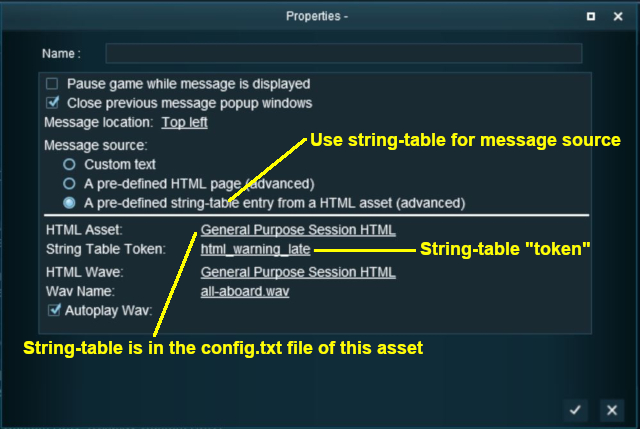
The settings shown in this example will direct Trainz to load the message from text stored in the config.txt string table of a specified HTML asset.
 |
|
|
|
||||||||||
|
Settings: Shown in the example above:-
|
|||||||||
|
|
||||||||||
For example, the config.txt file of the asset General Purpose Session HTML contains the following:-
string-table
    {
        html_warning_late       "You are running late!"
    }
...which will produce the message "You are running late!" from the Message Popup Rule settings shown above.
|
|
|
Alternatives to the Message Popup Rule
 |
There are other HTML message window rules that are alternatives to the Message Popup rule. A few possibilities are:- |
|
|
Trainz Wiki
|
|

This page was created by Trainz user pware in April 2018 and was last updated as shown below.


