How to Manage Backups: Difference between revisions
mNo edit summary |
|||
| (17 intermediate revisions by the same user not shown) | |||
| Line 1: | Line 1: | ||
The information in this Wiki Page | <table width=1000 bgcolor=#000000 cellpadding=2> | ||
<tr valign="top"> | |||
<table cellpadding=2 bgcolor=#c1e7e7> | <td> | ||
<table width=996 bgcolor=#ffffff cellpadding=2> | |||
<tr valign="middle"> | |||
<td width=35>[[image:Information.png|35px|link=]]</td> | |||
<td><span style="font-size: 15px;">The information in this Wiki Page explains automatic and manual backups in '''T:ANE''', '''TRS19''', '''TRS22''' and '''Trainz Plus'''.</span></td> | |||
</tr> | |||
</table> | |||
</td> | |||
</tr> | |||
</table> | |||
<br> | |||
<table width=1000 cellpadding=2 bgcolor=#c1e7e7> | |||
<tr valign="top"> | <tr valign="top"> | ||
<td colspan=2><span style="font-size: 17px; font-weight: 700;">Main Points:</span></td> | <td colspan=2><span style="font-size: 17px; font-weight: 700;">Main Points:</span></td> | ||
</tr> | </tr> | ||
<tr valign="top"> | <tr valign="top"> | ||
<td>[[image:DotPoint.JPG|link=]]</td> | <td>[[image:DotPoint.JPG|10px|link=]]</td> | ||
<td>'''Trainz will automatically backup your current route and session in Surveyor while you work. You can set the number of backups created each day'''</td> | <td>'''Trainz will automatically backup your current route and session in Surveyor while you work. You can set the number of backups created each day (including setting it to 0)'''</td> | ||
</tr> | </tr> | ||
<tr valign="top"> | <tr valign="top"> | ||
<td>[[image:DotPoint.JPG|link=]]</td> | <td>[[image:DotPoint.JPG|10px|link=]]</td> | ||
<td>'''You can use Content Manager to manually create backups of routes, sessions and assets as often as you need'''</td> | <td>'''You can use Content Manager to manually create backups of routes, sessions and assets as often as you need'''</td> | ||
</tr> | </tr> | ||
<tr valign="top"> | <tr valign="top"> | ||
<td>[[image:DotPoint.JPG|link=]]</td> | <td>[[image:DotPoint.JPG|10px|link=]]</td> | ||
<td>'''Both the manual and automatic backups can be restored to Trainz by Content Manager'''</td> | <td>'''Both the manual and automatic backups can be restored to Trainz by Content Manager'''</td> | ||
</tr> | </tr> | ||
<tr valign="top"> | <tr valign="top"> | ||
<td>[[image:DotPoint.JPG|link=]]</td> | <td>[[image:DotPoint.JPG|10px|link=]]</td> | ||
<td>'''You can backup all your user data (built-in assets, DLS downloads, DLC purchases, your own creations)'''</td> | <td>'''You can backup all your user data (built-in assets, DLS downloads, DLC purchases, your own creations)'''</td> | ||
</tr> | </tr> | ||
| Line 24: | Line 35: | ||
<br> | <br> | ||
__TOC__ | __TOC__ | ||
<table> <!-- BEGIN Nav Buttons Table --> | <table width=1000> <!-- BEGIN Nav Buttons Table --> | ||
<tr valign="top"> | <tr valign="top"> | ||
<td width=729><span id="stepVersus"></span> </td> | <td width=729><span id="stepVersus"></span> </td> | ||
| Line 73: | Line 84: | ||
</table> | </table> | ||
<br> | <br> | ||
<table> <!-- BEGIN Nav Buttons Table --> | <table width=1000> <!-- BEGIN Nav Buttons Table --> | ||
<tr valign="top"> | <tr valign="top"> | ||
<td width=729><span id="stepAutomatic"></span> </td> | <td width=729><span id="stepAutomatic"></span> </td> | ||
| Line 91: | Line 102: | ||
</tr> | </tr> | ||
<tr valign="top"> | <tr valign="top"> | ||
<td>[[image:DotPoint.JPG|link=]]</td> | <td>[[image:DotPoint.JPG|10px|link=]]</td> | ||
<td>'''Only a set number of backups are created each day'''</td> | <td>'''Only a set number of backups are created each day'''</td> | ||
</tr> | </tr> | ||
<tr valign="top"> | <tr valign="top"> | ||
<td>[[image:DotPoint.JPG|link=]]</td> | <td>[[image:DotPoint.JPG|10px|link=]]</td> | ||
<td>'''Only 7 days of backups are kept'''</td> | <td>'''Only 7 days of backups are kept'''</td> | ||
</tr> | </tr> | ||
| Line 101: | Line 112: | ||
This is a '''Set and Forget''' operation. You simply tell Trainz how many backups you want created each day and the program takes care of the rest. | This is a '''Set and Forget''' operation. You simply tell Trainz how many backups you want created each day and the program takes care of the rest. | ||
<table cellpadding=2 bgcolor=#ffffff> | <table width=1000 cellpadding=2 bgcolor=#ffffff> | ||
<tr> | <tr> | ||
<td colspan="2"> | <td colspan="2"> | ||
| Line 107: | Line 118: | ||
</tr> | </tr> | ||
<tr valign="top"> | <tr valign="top"> | ||
<td><span style="font-size: 17px; font-weight: 700;">Steps: To Set the Automatic Backups:-</span><br> | |||
<td><span style="font-size: 17px; font-weight: 700;">Steps: | <table> | ||
[[image: | <tr valign="top"> | ||
<td width=25>[[image:DotPoint1.JPG|link=]]</td> | |||
<td>select '''Trainz Settings''' from the '''Launcher''' and then click the '''Dev''' tab.<br> | |||
[[image:LauncherSettingsTabs.png|link=|alt=Launcher Settings Tabs]]</td> | |||
</tr> | |||
<tr valign="top"> | |||
<td>[[image:DotPoint2.JPG|link=]]</td> | |||
<td>One data entry box in this tab will be named '''Daily backups to keep''' and it will have a default value of '''7'''. Set it to the number of backups you want each day.</td> | |||
</tr> | |||
</table> | |||
<table> | <table> | ||
<tr valign="middle"> | <tr valign="middle"> | ||
<td>[[image:DotPoint.JPG|link=]]</td> | <td>[[image:DotPoint.JPG|10px|link=]]</td> | ||
<td>[[image:LauncherSettingsDailyBackups7.png|link=|alt=Launcher Settings Tabs]]</td> | <td>[[image:LauncherSettingsDailyBackups7.png|link=|alt=Launcher Settings Tabs]]</td> | ||
<td>If you are working on developing a new route or session then '''7''' daily backups could be a suitable number.</td> | <td>If you are working on developing a new route or session then '''7''' daily backups could be a suitable number.</td> | ||
</tr> | </tr> | ||
<tr valign="middle"> | <tr valign="middle"> | ||
<td>[[image:DotPoint.JPG|link=]]</td> | <td>[[image:DotPoint.JPG|10px|link=]]</td> | ||
<td>[[image:LauncherSettingsDailyBackups3.png|link=|alt=Launcher Settings Tabs]]</td> | <td>[[image:LauncherSettingsDailyBackups3.png|link=|alt=Launcher Settings Tabs]]</td> | ||
<td>If you are making minor changes to existing routes or sessions then '''3''' or '''4''' daily backups could be a suitable number.</td> | <td>If you are making minor changes to existing routes or sessions then '''3''' or '''4''' daily backups could be a suitable number.</td> | ||
</tr> | </tr> | ||
<tr valign="middle"> | <tr valign="middle"> | ||
<td>[[image:DotPoint.JPG|link=]]</td> | <td>[[image:DotPoint.JPG|10px|link=]]</td> | ||
<td>[[image:LauncherSettingsDailyBackups0.png|link=|alt=Launcher Settings Tabs]]</td> | <td>[[image:LauncherSettingsDailyBackups0.png|link=|alt=Launcher Settings Tabs]]</td> | ||
<td>If you are not working on any routes or sessions then '''0''' daily backups could be a suitable number - but '''remember to reset this when you do need the automatic backups again'''.</td> | <td>If you are not working on any routes or sessions then '''0''' daily backups could be a suitable number - but '''remember to reset this when you do need the automatic backups again'''.</td> | ||
| Line 140: | Line 159: | ||
</tr> | </tr> | ||
<tr> | <tr> | ||
<td | <td> | ||
----</td> | ----</td> | ||
</tr> | </tr> | ||
| Line 171: | Line 190: | ||
=='''Restoring Automatic Backups'''== | =='''Restoring Automatic Backups'''== | ||
The automatic backups are stored in a '''backup''' folder in your Trainz local data folder. The location of this folder is held in your '''Launcher - Trainz Settings - Install''' tab. | <table width=1000> | ||
<tr valign="top"> | |||
<table> | <td>The automatic backups are stored in a '''backup''' folder in your Trainz local data folder. The location of this folder is held in your '''Launcher - Trainz Settings - Install''' tab.</td> | ||
</tr> | |||
</table> | |||
<br> | |||
<table width=1000> | |||
<tr valign="top"> | <tr valign="top"> | ||
<td>[[image:DBR_EDBR31.png|link=]]</td> | <td>[[image:DBR_EDBR31.png|link=]]<br> | ||
'''Example Only:''' Your '''Local Data Folder''' will be different.</td> | |||
<td> | <td> | ||
<table> | <table> | ||
<tr valign="top"> | <tr valign="top"> | ||
<td><span style="font-size: 17px; font-weight: 700;">Steps: To Find the Automatic Backups Folder:-</span><br> | |||
<td><span style="font-size: 17px; font-weight: 700;">Steps:</span><br> | |||
<table> | <table> | ||
<tr valign="top"> | <tr valign="top"> | ||
| Line 199: | Line 222: | ||
</table> | </table> | ||
<br> | <br> | ||
<table width=1000> | |||
<tr valign="top"> | |||
<td> | |||
This folder can also found using '''Windows Explorer''' by following a similar folder path as shown below.<br> | This folder can also found using '''Windows Explorer''' by following a similar folder path as shown below.<br> | ||
[[image:BackupsBuildFolder.png|link=]]<br> | [[image:BackupsBuildFolder.png|link=]]<br> | ||
Where <span style="font-weight: 700; color: white; background-color: black;"> idname </span> is the first 5 characters of your Windows logon name and <span style="font-weight: 700; color: white; background-color: black;"> random </span> will be a random sequence of letters and numbers identifying the '''Trainz Build Number'''.<br> | Where <span style="font-weight: 700; color: white; background-color: black;"> idname </span> is the first 5 characters of your Windows logon name and <span style="font-weight: 700; color: white; background-color: black;"> random </span> will be a random sequence of letters and numbers identifying the '''Trainz Build Number'''.</td> | ||
</tr> | |||
</table> | |||
<br> | |||
<table width=1000 bgcolor=#000000 cellpadding=2> | <table width=1000 bgcolor=#000000 cellpadding=2> | ||
<tr valign="top"> | <tr valign="top"> | ||
| Line 245: | Line 273: | ||
</table> | </table> | ||
<br> | <br> | ||
<table width=1000 bgcolor=#ff0000 cellpadding=2> | |||
<table bgcolor=# | |||
<tr valign="top"> | <tr valign="top"> | ||
<td> | <td> | ||
<table bgcolor=# | <table width=996 bgcolor=#fcbcbc cellpadding=2> | ||
<tr valign="top"> | <tr valign="top"> | ||
<td | <td>[[image:Stop.PNG|link=]]</td> | ||
<td><span style="font-size: | <td><span style="font-size: 15px; font-weight: 700;">WARNING:</span><br> | ||
The old method of dragging and dropping the backup folder into '''Content Manager''' to restore it does not work. Instead the following method is recommended. | |||
The | |||
</td> | </td> | ||
</tr> | </tr> | ||
| Line 264: | Line 290: | ||
<table width=1000 cellpadding=2 bgcolor=#ffffff> | <table width=1000 cellpadding=2 bgcolor=#ffffff> | ||
<tr valign="top"> | <tr valign="top"> | ||
<td><span style="font-size: 17px; font-weight: 700;">Steps: To Identify and Restore the Backups:-</span><br> | |||
<td><span style="font-size: 17px; font-weight: 700;">Steps:</span><br> | [[image:DotPoint1.JPG|link=]] <span style="font-weight: 700; font-size: 15px;">Open The Backups Folder:</span></td> | ||
[[image:DotPoint1.JPG|link=]] <span style="font- | |||
</tr> | </tr> | ||
<tr valign="top"> | <tr valign="top"> | ||
<td> | <td> | ||
<table> | <table> | ||
| Line 294: | Line 318: | ||
</tr> | </tr> | ||
<tr valign="top"> | <tr valign="top"> | ||
<td>[[image:DotPoint2.JPG|link=]] <span style="font-weight: 700; font-size: 15px;">Identify the Backup to Restore:</span></td> | |||
<td>[[image:DotPoint2.JPG|link=]] <span style="font- | |||
</tr> | </tr> | ||
<tr valign="top"> | <tr valign="top"> | ||
<td>Open the backup folder for the date that you want. A list of backup files and folders created that day will be shown. | <td>Open the backup folder for the date that you want. A list of backup files and folders created that day will be shown. | ||
<br> | <br> | ||
| Line 304: | Line 326: | ||
</tr> | </tr> | ||
<tr valign="top"> | <tr valign="top"> | ||
<td> | <td> | ||
<table> | <table> | ||
| Line 319: | Line 340: | ||
</tr> | </tr> | ||
<tr valign="top"> | <tr valign="top"> | ||
<td>[[image:DotPoint3.JPG|link=]] <span style="font-weight: 700; font-size: 15px;">Restore the Backup To Trainz:</span> | |||
<td>[[image:DotPoint3.JPG|link=]] <span style="font- | <table> | ||
#select the '''.tzarc''' file that contains your backup (e.g. the last created version by date and time) | <tr valign="top"> | ||
#copy it into the '''Editing''' folder - this folder will be directly under the same '''build <number>''' folder that contains your backups | <td width=25> </td> | ||
<td width=25>[[image:DotPoint1Blue.png|link=]]</td> | |||
#if the '''.tzarc''' filename is followed by a number sequence (e.g. <span style="font-weight:700;">kuid 45176 100893.tzarc<span style="font-size: 15px;">_323888034</span></span>) then '''rename''' the file to remove all the characters '''<u>AFTER</u>''' the '''.tzarc''' so '''kuid 45176 100893.tzarc_323888034''' becomes '''kuid 45176 100893.tzarc''' | <td>select the '''.tzarc''' file that contains your backup (e.g. the last created version by date and time)</td> | ||
#open '''Content Manager''' | </tr> | ||
#run a database repair | <tr valign="top"> | ||
<td> </td> | |||
<td>[[image:DotPoint2Blue.png|link=]]</td> | |||
<td>copy it into the '''Editing''' folder - this folder will be directly under the same '''build <number>''' folder that contains your backups<br> | |||
[[image:BackupsEditFolder.png|link=]]</td> | |||
</tr> | |||
<tr valign="top"> | |||
<td> </td> | |||
<td>[[image:DotPoint3Blue.png|link=]]</td> | |||
<td>if the '''.tzarc''' filename is followed by a number sequence (e.g. <span style="font-weight:700;">kuid 45176 100893.tzarc<span style="font-size: 15px;">_323888034</span></span>) then '''rename''' the file to remove all the characters '''<u>AFTER</u>''' the '''.tzarc''' so '''kuid 45176 100893.tzarc_323888034''' becomes '''kuid 45176 100893.tzarc'''</td> | |||
</tr> | |||
<tr valign="top"> | |||
<td> </td> | |||
<td>[[image:DotPoint4Blue.png|link=]]</td> | |||
<td>open '''Content Manager'''</td> | |||
</tr> | |||
<tr valign="top"> | |||
<td> </td> | |||
<td>[[image:DotPoint5Blue.png|link=]]</td> | |||
<td>run a '''DBR''' (database repair)</td> | |||
</tr> | |||
<tr valign="top"> | |||
<td> </td> | |||
<td>[[image:DotPoint6Blue.png|link=]]</td> | |||
<td>'''IF''' Content Manager shows your restored asset as '''Open for Edit''' then submit it</td> | |||
</tr> | |||
</table> | |||
</td> | </td> | ||
</tr> | </tr> | ||
<tr> | <tr> | ||
<td | <td> | ||
----</td> | ----</td> | ||
</tr> | </tr> | ||
</table> | </table> | ||
<br> | <br> | ||
More details, including tips on troubleshooting, can be found in the Trainz Knowledge Base at [[image:WikiLink.PNG|link=]] '''<span class=" | <table width=1000> | ||
<tr valign="top"> | |||
<td> | |||
More details, including tips on troubleshooting, can be found in the Trainz Knowledge Base at [[image:WikiLink.PNG|link=]] '''<span class="plain;">[https://support.trainzportal.com/index.php?/Knowledgebase/Article/View/97/0/reinstalling-or-restoring-a-backup-version-of-your-content Restoring Backups]</span>'''</td> | |||
</tr> | |||
</table> | |||
<br> | <br> | ||
<table> <!-- BEGIN Nav Buttons Table --> | <table width=1000> <!-- BEGIN Nav Buttons Table --> | ||
<tr valign="top"> | <tr valign="top"> | ||
<td width=729><span id="stepManual"></span> </td> | <td width=729><span id="stepManual"></span> </td> | ||
| Line 347: | Line 399: | ||
</table> <!-- END Nav Buttons Table --> | </table> <!-- END Nav Buttons Table --> | ||
<br> | <br> | ||
='''Creating Manual Backups'''= | |||
<table cellpadding=2 bgcolor=#c1e7e7> | <table cellpadding=2 bgcolor=#c1e7e7> | ||
<tr valign="top"> | <tr valign="top"> | ||
<td>[[image:DotPoint.JPG|10px|link=]]</td> | |||
<td>[[image:DotPoint.JPG| | |||
<td>'''Manual backups are stored as .CDP files'''</td> | <td>'''Manual backups are stored as .CDP files'''</td> | ||
</tr> | </tr> | ||
<tr valign="top"> | <tr valign="top"> | ||
<td>[[image:DotPoint.JPG|link=]]</td> | <td>[[image:DotPoint.JPG|10px|link=]]</td> | ||
<td>'''Many assets can be stored in a single .CDP file'''</td> | <td>'''Many assets can be stored in a single .CDP file'''</td> | ||
</tr> | </tr> | ||
</table> | </table> | ||
<table cellpadding=2 bgcolor=#ffffff> | <table width=1000 cellpadding=2 bgcolor=#ffffff> | ||
<tr> | <tr> | ||
<td colspan="2"> | <td colspan="2"> | ||
| Line 386: | Line 418: | ||
</tr> | </tr> | ||
<tr valign="top"> | <tr valign="top"> | ||
<td><span style="font-size: 17px; font-weight: 700;">Steps: To Create a Manual Backup:-'''</span><br> | |||
<td><span style="font-size: 17px; font-weight: 700;">Steps:'''</span><br> | |||
<table> | <table> | ||
<tr valign="top"> | <tr valign="top"> | ||
| Line 398: | Line 429: | ||
</td> | </td> | ||
</tr> | </tr> | ||
<tr valign=" | <tr valign="top"> | ||
<td width=10>[[image:DotPoint.JPG|10px|link=]]</td> | <td width=10>[[image:DotPoint.JPG|10px|link=]]</td> | ||
<td>[[image:FilterToday.png|link=|alt=Today Filter]]</td> | <td>[[image:FilterToday.png|link=|alt=Today Filter]]</td> | ||
<td>to show all assets that have been altered today</td> | <td>to show all assets that have been altered today</td> | ||
</tr> | </tr> | ||
<tr valign=" | <tr valign="top"> | ||
<td>[[image:DotPoint.JPG|10px|link=]]</td> | <td>[[image:DotPoint.JPG|10px|link=]]</td> | ||
<td>[[image:FilterRouteSelfInstalled.png|link=|alt=Launcher Settings Tabs]]</td> | <td>[[image:FilterRouteSelfInstalled.png|link=|alt=Launcher Settings Tabs]]</td> | ||
| Line 429: | Line 460: | ||
</table> | </table> | ||
<br> | <br> | ||
=='''Restoring Manual Backups'''== | =='''Restoring Manual Backups'''== | ||
<table cellpadding=2 bgcolor=#c1e7e7> | <table cellpadding=2 bgcolor=#c1e7e7> | ||
<tr valign="top"> | <tr valign="top"> | ||
<td>[[image:DotPoint.JPG|link=]]</td> | <td>[[image:DotPoint.JPG|10px|link=]]</td> | ||
<td>'''Simply drag and drop the backup CDP file or files into Content Manager'''</td> | <td>'''Simply drag and drop the backup CDP file or files into Content Manager'''</td> | ||
</tr> | </tr> | ||
| Line 445: | Line 475: | ||
</tr> | </tr> | ||
<tr valign="top"> | <tr valign="top"> | ||
<td><span style="font-size: 17px; font-weight: 700;">Steps: To Restore a Manual Backup:-</span><br> | |||
<td><span style="font-size: 17px; font-weight: 700;">Steps: | |||
<table> | <table> | ||
<tr valign="top"> | <tr valign="top"> | ||
| Line 475: | Line 504: | ||
</table> | </table> | ||
<br> | <br> | ||
=='''Backup Plan Basics'''== | =='''Backup Plan Basics'''== | ||
<table cellpadding=2 bgcolor=#c1e7e7> | <table cellpadding=2 bgcolor=#c1e7e7> | ||
<tr valign="top"> | <tr valign="top"> | ||
<td>[[image:DotPoint.JPG|link=]]</td> | <td>[[image:DotPoint.JPG|10px|link=]]</td> | ||
<td>'''If you are using a manual backup method then devise a simple backup plan and stick to it'''</td> | <td>'''If you are using a manual backup method then devise a simple backup plan and stick to it'''</td> | ||
</tr> | </tr> | ||
</table> | </table> | ||
<br> | |||
The most important parts of any backup plan are:- | <table width=1000> | ||
< | <tr valign="top"> | ||
<td colspan=2>The most important parts of any backup plan are:-</td> | |||
</tr> | |||
<tr valign="top"> | <tr valign="top"> | ||
<td width=10>[[image:DotPoint.JPG|10px|link=]]</td> | <td width=10>[[image:DotPoint.JPG|10px|link=]]</td> | ||
| Line 585: | Line 615: | ||
</table> | </table> | ||
<br> | <br> | ||
<table> <!-- BEGIN Nav Buttons Table --> | <table width=1000> <!-- BEGIN Nav Buttons Table --> | ||
<tr valign="top"> | <tr valign="top"> | ||
<td width=729><span id="stepPicklists"></span> </td> | <td width=729><span id="stepPicklists"></span> </td> | ||
| Line 595: | Line 625: | ||
</table> <!-- END Nav Buttons Table --> | </table> <!-- END Nav Buttons Table --> | ||
<br> | <br> | ||
='''Backing Up and Restoring Picklists'''= | ='''Backing Up and Restoring Picklists'''= | ||
<table cellpadding=2 bgcolor=#c1e7e7> | <table cellpadding=2 bgcolor=#c1e7e7> | ||
<tr valign="top"> | <tr valign="top"> | ||
<td>[[image:DotPoint.JPG|link=]]</td> | <td>[[image:DotPoint.JPG|10px|link=]]</td> | ||
<td>'''Picklists have to be exported and imported as text files'''</td> | <td>'''Picklists have to be exported and imported as text files'''</td> | ||
</tr> | </tr> | ||
| Line 606: | Line 635: | ||
'''Picklists''' cannot be backed up manually using '''.CDP''' files. They must be exported as text files.<br> | '''Picklists''' cannot be backed up manually using '''.CDP''' files. They must be exported as text files.<br> | ||
<table cellpadding=2 bgcolor="Aquamarine"> | <table width=1000 cellpadding=2 bgcolor="Aquamarine"> | ||
<tr valign="top"> | <tr valign="top"> | ||
<td>[[image:LinkWiki.PNG|link=]]</td> | <td>[[image:LinkWiki.PNG|link=]]</td> | ||
<td> | <td>Detailed instructions on backing up and restoring '''Picklists''' as text files can be found on the '''Trainz Wiki Page''' at:-<br> | ||
Detailed instructions on backing up and restoring '''Picklists''' as text files can be found on the '''Trainz Wiki Page''' at:-<br> | |||
*'''[[How to Backup a Picklist]]'''<br> | *'''[[How to Backup a Picklist]]'''<br> | ||
</td> | </td> | ||
| Line 619: | Line 647: | ||
<table cellpadding=2 bgcolor=#c1e7e7> | <table cellpadding=2 bgcolor=#c1e7e7> | ||
<tr valign="top"> | <tr valign="top"> | ||
<td>[[image:DotPoint.JPG|link=]]</td> | <td>[[image:DotPoint.JPG|10px|link=]]</td> | ||
<td>'''You can backup ALL your installed content including built-ins and DLC'''</td> | <td>'''You can backup ALL your installed content including built-ins and DLC'''</td> | ||
</tr> | </tr> | ||
| Line 627: | Line 655: | ||
<tr valign="top"> | <tr valign="top"> | ||
<td>You can make a backup copy of all your installed content (buildings, tracks, rolling stock, trees, routes, sessions, etc, etc). Everything you have downloaded and installed from the '''DLS''' and other web sites, all the '''built-in''' content and all your '''DLC''' packages. Also included will be all the screenshots you have captured and your automatic backups. In short, everything but the program "executables" and utilities that form the Trainz program itself. | <td>You can make a backup copy of all your installed content (buildings, tracks, rolling stock, trees, routes, sessions, etc, etc). Everything you have downloaded and installed from the '''DLS''' and other web sites, all the '''built-in''' content and all your '''DLC''' packages. Also included will be all the screenshots you have captured and your automatic backups. In short, everything but the program "executables" and utilities that form the Trainz program itself. | ||
<br> | |||
All of this data is stored in your '''Local Data Folder'''. | All of this data is stored in your '''Local Data Folder'''. | ||
</td> | </td> | ||
| Line 643: | Line 671: | ||
</table> | </table> | ||
<table cellpadding=2 bgcolor=#ffffff> | <table width=1000 cellpadding=2 bgcolor=#ffffff> | ||
<tr> | <tr> | ||
<td colspan="2"> | <td colspan="2"> | ||
| Line 649: | Line 677: | ||
</tr> | </tr> | ||
<tr valign="top"> | <tr valign="top"> | ||
<td><span style="font-size: 17px; font-weight: 700;">Steps: To Copy Your Local Data Folder:-</span><br> | |||
<td><span style="font-size: 17px; font-weight: 700;">Steps:</span><br> | [[image:DotPoint1.JPG|link=]] <span style="font-size: 15px; font-weight: 700;">Locate Your Local Data Folder:'''</span><br> | ||
[[image:DotPoint1.JPG|link=]] <span style="font-size: | |||
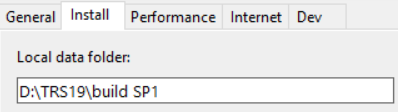
:The name and location of this folder is held in your '''Launcher - Trainz Settings - Install''' tab. The name and location can vary between installations as in the example shown below | :The name and location of this folder is held in your '''Launcher - Trainz Settings - Install''' tab. The name and location can vary between installations as in the example shown below | ||
[[image:DataFolderTRS19.png|link=|alt=Data Folder location]] | [[image:DataFolderTRS19.png|link=|alt=Data Folder location]] | ||
| Line 657: | Line 684: | ||
</tr> | </tr> | ||
<tr valign="top"> | <tr valign="top"> | ||
<td>[[image:DotPoint2.JPG|link=]] <span style="font-size: 15px; font-weight: 700;">Determine the Size of the Folder:'''</span> | |||
<td>[[image:DotPoint2.JPG|link=]] <span style="font-size: | <table> | ||
#Use '''Windows File Explorer''' to locate this folder in its drive as shown in the '''Local Data Folder''' information above | <tr valign="top"> | ||
#Right Mouse Click on the folder name and select the '''Properties''' menu option | <td width=25> </td> | ||
<td width=25>[[image:DotPoint1Blue.png|link=]]</td> | |||
[[image:DataFolderProperties.png|link=|alt=Data Folder properties]][[image:DataFolderSize.png|link=|alt=Data Folder size]] | <td>Use '''Windows File Explorer''' to locate this folder in its drive as shown in the '''Local Data Folder''' information above</td> | ||
</tr> | |||
<tr valign="top"> | |||
<td> </td> | |||
<td>[[image:DotPoint2Blue.png|link=]]</td> | |||
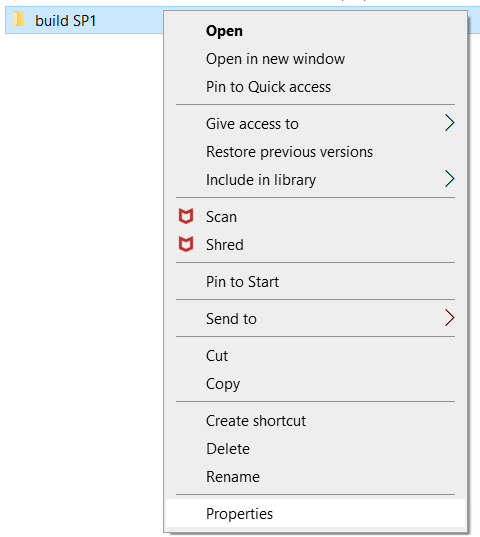
<td>Right Mouse Click on the folder name and select the '''Properties''' menu option<br> | |||
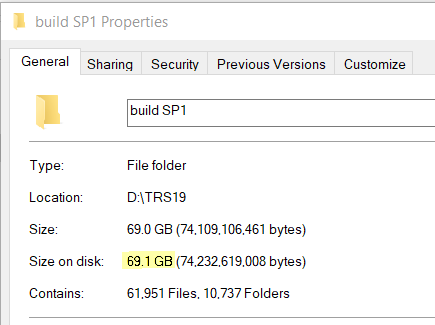
This will display the folder statistics - there may be a delay while the data is collected and displayed. In the example shown below, the '''Local Data Folder''' is just over '''69 GB''' in size<br> | |||
[[image:DataFolderProperties.png|link=|alt=Data Folder properties]][[image:DataFolderSize.png|link=|alt=Data Folder size]]</td> | |||
</tr> | |||
</table> | |||
<table cellpadding=2 bgcolor=#c1e7e7> | <table cellpadding=2 bgcolor=#c1e7e7> | ||
<tr valign="top"> | <tr valign="top"> | ||
<td>[[image:DotPoint.JPG|link=]]</td> | <td>[[image:DotPoint.JPG|10px|link=]]</td> | ||
<td><span style="font-size: 17px; font-weight: 700;">You will need to find a storage device or location, such as an external drive, that has <span style="text-decoration: underline;">more</span> available free space than the folder is using</span></td> | <td><span style="font-size: 17px; font-weight: 700;">You will need to find a storage device or location, such as an external drive, that has <span style="text-decoration: underline;">more</span> available free space than the folder is using</span></td> | ||
</tr> | </tr> | ||
</table></td> | </table> | ||
</td> | |||
</tr> | </tr> | ||
<tr> | <tr> | ||
<td>[[image:DotPoint3.JPG|link=]] <span style="font-size: 15px; font-weight: 700;">Copy the Folder:'''</span><br> | |||
<td>[[image:DotPoint3.JPG|link=]] <span style="font-size: | <table> | ||
#Close the '''Properties Window''' | <tr valign="top"> | ||
#Right Mouse Click on the folder name and select the '''Copy''' menu option | <td width=25> </td> | ||
#Open the '''Destination Drive''' and select (or create) a suitable backup folder | <td width=25>[[image:DotPoint1Blue.png|link=]]</td> | ||
#Right Mouse Click on the backup folder and select the '''Paste''' menu option - this could easily take a long time (even hours) depending on the size of the data | <td>Close the '''Properties Window'''</td> | ||
</tr> | |||
<tr valign="top"> | |||
<td> </td> | |||
<td>[[image:DotPoint2Blue.png|link=]]</td> | |||
<td>Right Mouse Click on the folder name and select the '''Copy''' menu option</td> | |||
</tr> | |||
<tr valign="top"> | |||
<td> </td> | |||
<td>[[image:DotPoint3Blue.png|link=]]</td> | |||
<td>Open the '''Destination Drive''' and select (or create) a suitable backup folder</td> | |||
</tr> | |||
<tr valign="top"> | |||
<td> </td> | |||
<td>[[image:DotPoint4Blue.png|link=]]</td> | |||
<td>Right Mouse Click on the backup folder and select the '''Paste''' menu option - this could easily take a long time (even hours) depending on the size of the data</td> | |||
</tr> | |||
</table> | |||
<br> | <br> | ||
<table bgcolor=#000000 width=900> | <table bgcolor=#000000 width=900> | ||
| Line 694: | Line 749: | ||
</tr> | </tr> | ||
<tr> | <tr> | ||
<td | <td> | ||
----</td> | ----</td> | ||
</tr> | </tr> | ||
</table> | </table> | ||
<br> | <br> | ||
<table> <!-- BEGIN Nav Buttons Table --> | <table width=1000> <!-- BEGIN Nav Buttons Table --> | ||
<tr valign="top"> | <tr valign="top"> | ||
<td width=729><span id="bottom"></span> </td> | <td width=729><span id="bottom"></span> </td> | ||
| Line 709: | Line 764: | ||
</table> <!-- END Nav Buttons Table --> | </table> <!-- END Nav Buttons Table --> | ||
='''Trainz Wiki'''= | ='''Trainz Wiki'''= | ||
<table cellpadding=2 bgcolor=#ffffff> | <table width=1000> | ||
<tr valign="top"> | |||
<td> | |||
<table width=600 cellpadding=2 bgcolor=#ffffff> | |||
<tr valign="top"> | <tr valign="top"> | ||
<td>[[image:TrainzWiki.png|link=]]</td> | <td width=80>[[image:TrainzWiki.png|link=]]</td> | ||
<td> | <td> | ||
<span style="font-size: 17px;">'''More Tutorials and Guides to Using Trainz'''</span><br> | <span style="font-size: 17px;">'''More Tutorials and Guides to Using Trainz'''</span><br> | ||
*'''<span class=" | *'''<span class="plain;">[http://online.ts2009.com/mediaWiki/index.php/HowTo How to Guides]</span>''' | ||
*'''[[Driver Commands List]]''' | *'''[[Driver Commands List]]''' | ||
*'''[[Session Rule List with Parameters|Session Rules List (Alphabetical) with Parameters]]''' | *'''[[Session Rule List with Parameters|Session Rules List (Alphabetical) with Parameters]]''' | ||
*'''[[Session Rules By Categories With Properties|Session Rules List (Categories) With Parameters]]''' | *'''[[Session Rules By Categories With Properties|Session Rules List (Categories) With Parameters]]''' | ||
</td> | |||
</tr> | |||
</table> | |||
</td> | |||
<td> | |||
<table width=400 cellpadding=4 bgcolor="aquamarine"> | |||
<tr valign="top"> | |||
<td width=50>[[image:LinkWiki.PNG|link=]]</td> | |||
<td> | |||
<span style="font-size: 17px;">'''Related Links'''</span><br> | |||
*'''[[How to Perform Database Repairs|How to Perform Database Repairs]]''' | |||
*'''[[How to Restore Deleted Assets|How to Restore Deleted Assets]]''' | |||
*'''[[Understand_Content_Manager_Status_Labels|Understanding Content Manager Status Labels]]''' | |||
*'''[[Using Content Manager to Update Assets|Using Content Manager to Update Assets]]''' | |||
</td> | |||
</tr> | |||
</table> | |||
</td> | </td> | ||
</tr> | </tr> | ||
</table> | </table> | ||
---- | ---- | ||
This page was created by Trainz user '''<span class=" | This page was created by Trainz user '''<span class="plain;">[http://online.ts2009.com/mediaWiki/index.php/User:Pware pware]</span>''' in January 2020 and was last updated as shown below. | ||
---- | ---- | ||
[[Category:How-to guides]] | [[Category:How-to guides]] | ||
Latest revision as of 10:40, 2 September 2026
|
| Main Points: | |
| Error creating thumbnail: /bin/bash: line 1: /usr/bin/convert: No such file or directory Error code: 127 | Trainz will automatically backup your current route and session in Surveyor while you work. You can set the number of backups created each day (including setting it to 0) |
| Error creating thumbnail: /bin/bash: line 1: /usr/bin/convert: No such file or directory Error code: 127 | You can use Content Manager to manually create backups of routes, sessions and assets as often as you need |
| Error creating thumbnail: /bin/bash: line 1: /usr/bin/convert: No such file or directory Error code: 127 | Both the manual and automatic backups can be restored to Trainz by Content Manager |
| Error creating thumbnail: /bin/bash: line 1: /usr/bin/convert: No such file or directory Error code: 127 | You can backup all your user data (built-in assets, DLS downloads, DLC purchases, your own creations) |
 |
 |
 |
Automatic Backups vs Manual Backups
|


|
 |
|
|
Automatic Backups
Creating Automatic Backups
| In Summary: | |
| Error creating thumbnail: /bin/bash: line 1: /usr/bin/convert: No such file or directory Error code: 127 | Only a set number of backups are created each day |
| Error creating thumbnail: /bin/bash: line 1: /usr/bin/convert: No such file or directory Error code: 127 | Only 7 days of backups are kept |
This is a Set and Forget operation. You simply tell Trainz how many backups you want created each day and the program takes care of the rest.
|
|
|||||||||||||||||
Steps: To Set the Automatic Backups:-
|
|||||||||||||||||
|
|
|||||||||||||||||




|
Only the last 7 days of backups are kept and this number cannot be changed.
Restoring Automatic Backups
| The automatic backups are stored in a backup folder in your Trainz local data folder. The location of this folder is held in your Launcher - Trainz Settings - Install tab. |
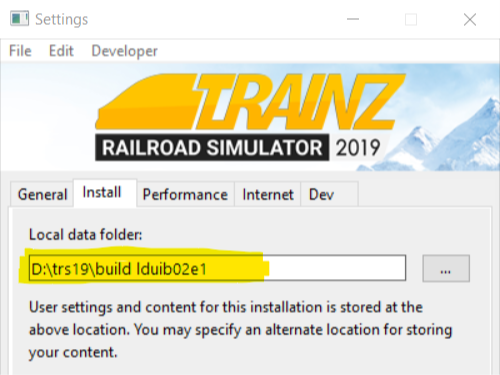 Example Only: Your Local Data Folder will be different. |
|
|
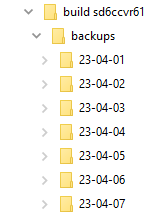
This folder can also found using Windows Explorer by following a similar folder path as shown below.
|

|
|||||||||||


|
Steps: To Identify and Restore the Backups:- Open The Backups Folder: |
||||||||||||||||||
|
||||||||||||||||||
 Identify the Backup to Restore: |
||||||||||||||||||
| Open the backup folder for the date that you want. A list of backup files and folders created that day will be shown.
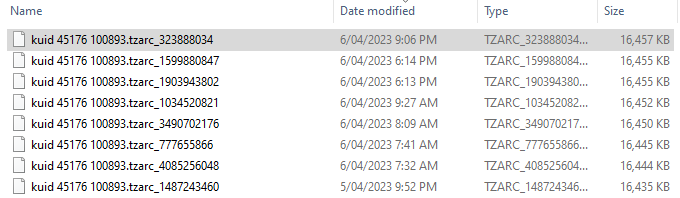 |
||||||||||||||||||
|
||||||||||||||||||
 Restore the Backup To Trainz:
|
||||||||||||||||||
|
|
||||||||||||||||||





More details, including tips on troubleshooting, can be found in the Trainz Knowledge Base at  Restoring Backups |
|
|
|
|
Creating Manual Backups
| Error creating thumbnail: /bin/bash: line 1: /usr/bin/convert: No such file or directory Error code: 127 | Manual backups are stored as .CDP files |
| Error creating thumbnail: /bin/bash: line 1: /usr/bin/convert: No such file or directory Error code: 127 | Many assets can be stored in a single .CDP file |
|
|
|||||||||||||||||
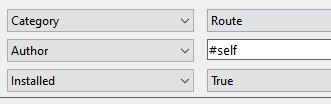
Steps: To Create a Manual Backup:-
|
|||||||||||||||||

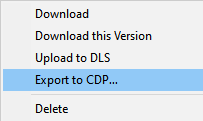

Restoring Manual Backups
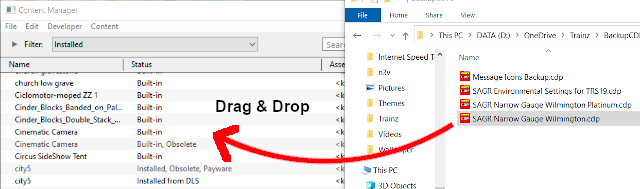
| Error creating thumbnail: /bin/bash: line 1: /usr/bin/convert: No such file or directory Error code: 127 | Simply drag and drop the backup CDP file or files into Content Manager |
|
|
||||||||||
Steps: To Restore a Manual Backup:-
|
||||||||||

Backup Plan Basics
| Error creating thumbnail: /bin/bash: line 1: /usr/bin/convert: No such file or directory Error code: 127 | If you are using a manual backup method then devise a simple backup plan and stick to it |
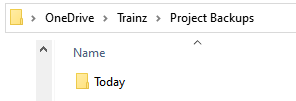
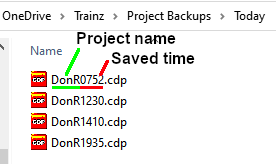
| The most important parts of any backup plan are:- | |||||||||||||||||||||||||||||
| Error creating thumbnail: /bin/bash: line 1: /usr/bin/convert: No such file or directory Error code: 127 | make regular backups - how often will depend on the complexity of the project | ||||||||||||||||||||||||||||
| Error creating thumbnail: /bin/bash: line 1: /usr/bin/convert: No such file or directory Error code: 127 | keep duplicate sets of backups including on offline storage | ||||||||||||||||||||||||||||
| Error creating thumbnail: /bin/bash: line 1: /usr/bin/convert: No such file or directory Error code: 127 | keep previous backup sets, not just the latest ones - how many past sets you will want to keep will depend on factors such as available storage | ||||||||||||||||||||||||||||
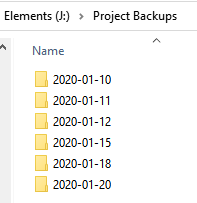
| Error creating thumbnail: /bin/bash: line 1: /usr/bin/convert: No such file or directory Error code: 127 | have a simple but consistent file naming system to be able to quickly identify the backup you need to restore lost work
|
||||||||||||||||||||||||||||




|
|
|
Backing Up and Restoring Picklists
| Error creating thumbnail: /bin/bash: line 1: /usr/bin/convert: No such file or directory Error code: 127 | Picklists have to be exported and imported as text files |
Picklists cannot be backed up manually using .CDP files. They must be exported as text files.
 |
Detailed instructions on backing up and restoring Picklists as text files can be found on the Trainz Wiki Page at:- |
Backing Up All Your User Content
| Error creating thumbnail: /bin/bash: line 1: /usr/bin/convert: No such file or directory Error code: 127 | You can backup ALL your installed content including built-ins and DLC |
| You can make a backup copy of all your installed content (buildings, tracks, rolling stock, trees, routes, sessions, etc, etc). Everything you have downloaded and installed from the DLS and other web sites, all the built-in content and all your DLC packages. Also included will be all the screenshots you have captured and your automatic backups. In short, everything but the program "executables" and utilities that form the Trainz program itself.
|
| Warning: | |
 |
Be aware that this could be a very large quantity of data that could take a lot of time and space to backup |
|
|
|||||||||||||||
| Steps: To Copy Your Local Data Folder:-
|
|||||||||||||||
Determine the Size of the Folder:
|
|||||||||||||||
Copy the Folder:
|
|||||||||||||||
|
|
|||||||||||||||

|
|
Trainz Wiki
|
|

This page was created by Trainz user pware in January 2020 and was last updated as shown below.


