How to Move a Picklist: Difference between revisions
From TrainzOnline
Jump to navigationJump to search
mNo edit summary |
|||
| (6 intermediate revisions by the same user not shown) | |||
| Line 1: | Line 1: | ||
The information in this Wiki Page applies to ''' | <table width=1000 bgcolor=#000000 cellpadding=2> | ||
<tr valign="top"> | |||
<td> | |||
<table width=996 bgcolor=#ffffff cellpadding=2> | |||
<tr valign="middle"> | |||
<td width=35>[[image:Information.png|35px|link=]]</td> | |||
<td><span style="font-size: 15px;">The information in this Wiki Page applies to '''Content Manager''' in '''T:ANE''', '''TRS19''', '''TRS22''' and '''Trainz Plus'''. This guide will show you how to move a Picklist from one copy of '''Trainz''' to another, on the same or different computers.</span></td> | |||
</tr> | |||
</table> | |||
</td> | |||
</tr> | |||
</table> | |||
<br> | |||
<table cellpadding=4 bgcolor="Aquamarine"> | <table cellpadding=4 bgcolor="Aquamarine"> | ||
<tr valign="top"> | <tr valign="top"> | ||
<td>[[image:LinkWiki.PNG|link=]]</td> | <td>[[image:LinkWiki.PNG|link=]]</td> | ||
<td> | <td> | ||
* For instructions on how to '''backup''' a Picklist, see the Trainz Wiki page '''[[How to Backup a Picklist]]''' | * For instructions on how to '''backup''' a Picklist, see the Trainz Wiki page [[image:WikiLink.PNG|link=]] '''[[How_to_Backup_a_Picklist|How to Backup a Picklist]]''' | ||
* For instructions on how to ''' | * For instructions on how to '''manage''' a Picklist, see the Trainz Wiki page [[image:WikiLink.PNG|link=]] '''[[How_to_Manage_Filters_and_Picklists|How to Manage Filters and Picklists]]''' | ||
* For instructions on how to '''rename''' a Picklist, see the Trainz Wiki page '''[[How to Rename a Picklist]]''' | * For instructions on how to '''rename''' a Picklist, see the Trainz Wiki page [[image:WikiLink.PNG|link=]] '''[[How_to_Rename_a_Picklist|How to Rename a Picklist]]'''</td> | ||
</td> | |||
</tr> | </tr> | ||
</table> | </table> | ||
| Line 17: | Line 28: | ||
<tr valign="top"> | <tr valign="top"> | ||
<td>[[image:PencilTips.PNG|link=]]</td> | <td>[[image:PencilTips.PNG|link=]]</td> | ||
<td>If you have made '''backup copies''' of your Picklists then you have already completed half the work. Use the | <td>If you have made '''backup copies''' of your Picklists then you have already completed half the work. Use the steps described in the Wiki Page [[image:WikiLink.PNG|link=]] '''[[How to Backup a Picklist#How to Restore a Picklist|How to Backup a Picklist]] (Restore Operation)''' to complete the move.</td> | ||
</td> | |||
</tr> | </tr> | ||
</table> | </table> | ||
| Line 25: | Line 35: | ||
</table> | </table> | ||
<br> | <br> | ||
<table> <!-- BEGIN Nav Buttons Table --> | <table width=1000> <!-- BEGIN Nav Buttons Table NO SKIPS --> | ||
<tr valign="top"> | <tr valign="top"> | ||
<td width= | <td width=629><span id="stepAccess"></span> | ||
='''Access Your Current Picklists'''= | |||
</td> | |||
<td width=50> </td> <!-- Skip Down --> | |||
<td width=50> </td> <!-- Skip Up --> | |||
<td width=46>[[image:BackToTop.png|link=#top|alt=Top|Top]]</td> | <td width=46>[[image:BackToTop.png|link=#top|alt=Top|Top]]</td> | ||
<td width=75>& | <td width=75> </td> | ||
<td width=75>[[image:NextDown.png|link=#stepTransfer|alt=Next Down|Next Down]]</td> | <td width=75>[[image:NextDown.png|link=#stepTransfer|alt=Next Down|Next Down]]</td> | ||
<td width=75>[[image:BackToBottom.png|link=#bottom|alt=Bottom|Bottom]]</td> | <td width=75>[[image:BackToBottom.png|link=#bottom|alt=Bottom|Bottom]]</td> | ||
</tr> | </tr> | ||
</table> <!-- END Nav Buttons Table --> | </table> <!-- END Nav Buttons Table --> | ||
<table cellpadding=4 bgcolor=#ffffff | <table width=1000 cellpadding=4 bgcolor=#ffffff> <!-- BEGIN Step table --> | ||
<tr valign="top"> | |||
<td colspan=2><span style="font-weight: 700; font-size: 15px;">Steps: To Locate and Copy a Picklist:-</span></td> | |||
</tr> | |||
<tr valign="top"> | <tr valign="top"> | ||
<td>[[image: | <td width=25>[[image:DotPoint1.JPG|link=]]</td> | ||
<td><span style="font-size: 17px; font-weight: 700;">Open Content Manager and Your Picklists</span><br> | |||
<td> | <table width=975> <!-- BEGIN Step 1 table --> | ||
<table width= | |||
<tr valign="top"> | <tr valign="top"> | ||
<td colspan=2 | <td colspan=2>From the '''Trainz Launcher''' select <span style="color: white; background-color: black; font-weight: 700; font-size: 15px;"> Manage Content </span></td> | ||
</tr> | </tr> | ||
<tr valign="top"> | <tr valign="top"> | ||
<td> | <td> | ||
<table bgcolor=#000000 width= | <table bgcolor=#000000 width=485> <!-- BEGIN TRS19 black border --> | ||
<tr valign="top"> | <tr valign="top"> | ||
<td> | <td> | ||
<table width= | <table width=481 bgcolor="white"> <!-- BEGIN TRS19 table --> | ||
<tr valign="top"> | <tr valign="top"> | ||
<td bgcolor=#000000 align="center"><span style="color: white; font- | <td bgcolor=#000000 align="center"><span style="color: white; font-weight: 700; font-size: 15px;">In TRS19 SP4, Trainz Plus SP4 (and later) and TRS22</span></td> | ||
</tr> | </tr> | ||
<tr valign="top"> | <tr valign="top"> | ||
<td> | |||
<table> | |||
<tr valign="top"> | |||
<td width=25>[[image:DotPoint1Blue.png|link=]]</td> | |||
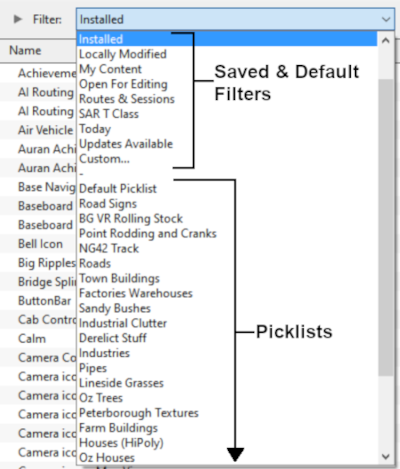
<td>Open the '''Filter List'''<br> | <td>Open the '''Filter List'''<br> | ||
[[image:PickListFilter.png|link=|alt=Pick List Filter]]< | [[image:PickListFilter.png|link=|alt=Pick List Filter]]</td> | ||
</tr> | |||
< | |||
<tr valign="top"> | <tr valign="top"> | ||
<td>[[image: | <td>[[image:DotPoint2Blue.png|link=]]</td> | ||
<td>In '''TRS19 SP4''', '''Trainz Plus SP4''' and later | <td>Select the '''Picklist''' to be backed up. This will open the Picklist</td> | ||
</tr> | |||
</table> | |||
<table bgcolor=#ffffb0 cellpadding=2> | |||
<tr valign="top"> | |||
<td width=25>[[image:NotePad.PNG|link=]]</td> | |||
<td>In '''TRS19 SP4''', '''Trainz Plus SP4''' (and later) and '''TRS22''' you '''CAN''' select and backup the '''Default Picklist'''</td> | |||
</tr> | </tr> | ||
</table> | </table> | ||
</td> | </td> | ||
</tr> | </tr> | ||
</table | </table> | ||
</td> | </td> | ||
</tr> | </tr> | ||
</table> | </table> | ||
</td> | </td> | ||
<td width=20> </td> | |||
<td> | <td> | ||
<table bgcolor=#000000 width= | <table bgcolor=#000000 width=485> <!-- BEGIN TANE black border --> | ||
<tr valign="top"> | <tr valign="top"> | ||
<td> | <td> | ||
<table width= | <table width=481 bgcolor="white"> <!-- BEGIN TANE table --> | ||
<tr valign="top"> | <tr valign="top"> | ||
<td bgcolor=#000000 align="center"><span style="color: white; font- | <td bgcolor=#000000 align="center"><span style="color: white; font-weight: 700; font-size: 15px;">In T:ANE and TRS19 SP3, Trainz Plus SP3 and earlier Trainz versions</span></td> | ||
</tr> | </tr> | ||
<tr valign="top"> | <tr valign="top"> | ||
<td> | <td> | ||
<table> | |||
<tr valign="top"> | |||
[[image: | <td width=25>[[image:DotPoint1Blue.png|link=]]</td> | ||
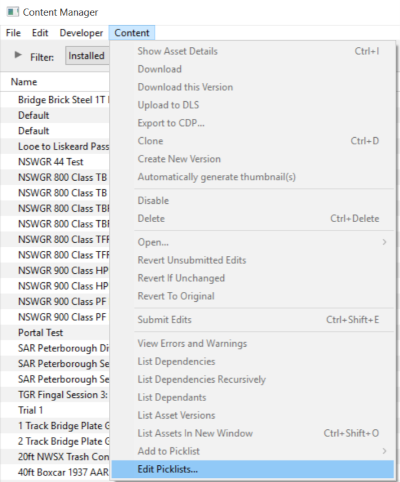
<td>in '''Content Manager''' open the '''Content''' menu</td> | |||
</tr> | |||
<tr valign="top"> | |||
[[image: | <td>[[image:DotPoint2Blue.png|link=]]</td> | ||
<td>select '''Edit Picklist'''<br> | |||
< | [[image:PickListEditPickList.png|link=]]</td> | ||
</tr> | |||
<tr valign="top"> | <tr valign="top"> | ||
<td>[[image: | <td colspan=2>This will display all your current Picklists</td> | ||
<td> | </tr> | ||
<tr valign="top"> | |||
<td>[[image:DotPoint3Blue.png|link=]]</td> | |||
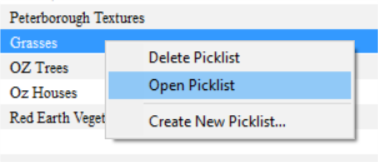
<td><span style="font-weight: 700; font-size: 15px; background-color: lightcyan;">Right Click</span> on the required Picklist</td> | |||
</tr> | |||
<tr valign="top"> | |||
<td>[[image:DotPoint4Blue.png|link=]]</td> | |||
<td>select '''Open Picklist''' from the popup menu<br> | |||
[[image:PickListOpenGrasses.png|link=]]</td> | |||
</tr> | |||
<tr valign="top"> | |||
<td colspan=2>This will open the Picklist</td> | |||
</tr> | </tr> | ||
</table> | </table> | ||
<table bgcolor=#ffffb0 cellpadding=2> | |||
<tr valign="top"> | |||
<td width=25>[[image:NotePad.PNG|link=]]</td> | |||
<td>In '''T:ANE''', '''TRS19/Trainz Plus SP3''' and earlier '''Trainz''' versions you '''CANNOT''' select and backup the '''Default Picklist'''</td> | |||
</tr> | |||
</table> <!-- END Dot Point table --> | |||
</td> | </td> | ||
</tr> | </tr> | ||
| Line 106: | Line 151: | ||
</td> | </td> | ||
</tr> | </tr> | ||
< | </table> | ||
< | |||
<table width=1000> | |||
<tr valign="top"> | <tr valign="top"> | ||
<td | <td width=25>[[image:DotPoint2.JPG|link=]]</td> | ||
<td><span style="font-size: 17px; font-weight: 700;">Select the Picklist Contents:</span><br> | |||
<table> <!-- BEGIN Step 2 table --> | <table> <!-- BEGIN Step 2 table --> | ||
<tr valign="top"> | <tr valign="top"> | ||
<td> | <td> | ||
<table> | |||
<tr valign="top"> | |||
<td width=25>[[image:DotPoint1Blue.png|link=]]</td> | |||
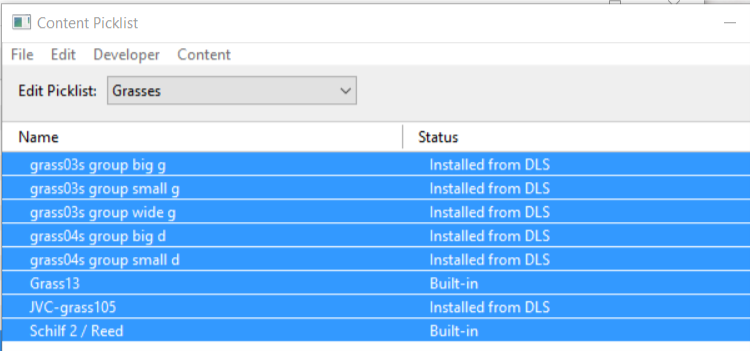
<td><span style="font-weight: 700; font-size: 15px; background-color: lightcyan;">Left Click</span> on any one of the items</td> | |||
</tr> | |||
<tr valign="top"> | |||
<td>[[image:DotPoint2Blue.png|link=]]</td> | |||
<td>press <span style="font-weight: 700; font-size: 15px;"><span style="color: white; background-color: black;"> Ctrl </span> + <span style="color: white; background-color: black;"> A </span></span> to '''Select All''' the items<br> | |||
[[image:PickListSelectAll.png|link=]]</td> | [[image:PickListSelectAll.png|link=]]</td> | ||
</tr> | |||
</table> | |||
</td> | |||
</tr> | </tr> | ||
</table> <!-- END Step 2 table --> | </table> <!-- END Step 2 table --> | ||
</td> | </td> | ||
</tr> | </tr> | ||
<tr> | </table> | ||
<td | |||
--- | <table width=1000> | ||
<tr valign="top"> | |||
<td width=25>[[image:DotPoint3.JPG|link=]]</td> | |||
<td><span style="font-size: 17px; font-weight: 700;">Copy the List to a New Window:</span> | |||
<table> | |||
<tr valign="top"> | |||
<td width=25>[[image:DotPoint1Blue.png|link=]]</td> | |||
<td><span style="font-weight: 700; font-size: 15px; background-color: lightcyan;">Right Click</span> on any one of the items</td> | |||
</tr> | |||
<tr valign="top"> | |||
<td>[[image:DotPoint2Blue.png|link=]]</td> | |||
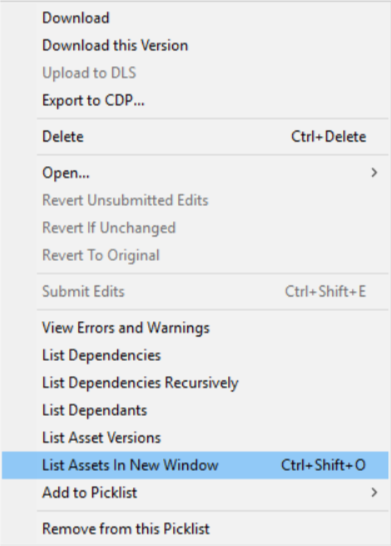
<td>select '''List Assets in New Window''' from the popup menu</td> | |||
</tr> | </tr> | ||
</table> | |||
<br> | |||
<table> <!-- BEGIN Step 3 Side tables --> | |||
<tr valign="top"> | <tr valign="top"> | ||
<td>[[image:PickListListinNewWindow.png|link=]]</td> | |||
<td>[[image: | <td> | ||
<table | <table bgcolor=#000000 width=500> | ||
<tr valign="top"> | <tr valign="top"> | ||
<td> | <td> | ||
#<span style="font-weight: 700; font- | <table bgcolor=#ffffb0 width=496> | ||
<tr valign="top"> | |||
<td>[[image:NotePad.PNG|link=]]</td> | |||
<td><span style="font-size: 17px; font-weight: 700;">Notes:'''</span><br> | |||
---- | |||
The option <span style="font-weight: 700; font-size: 15px;">Export to CDP</span> does appear in the menu list but this will export all the selected assets (with '''ALL''' their meshes, textures, config.txt files, etc) and not just a list of '''<kuids>'''. The resulting '''.cdp''' file can easily be many megabytes in size.</td> | |||
</tr> | |||
</table> | |||
</td> | </td> | ||
</tr> | </tr> | ||
</table | </table> | ||
</td> | </td> | ||
</tr> | </tr> | ||
< | </table> | ||
</td> | |||
</tr> | </tr> | ||
</table> | |||
<table width=1000> | |||
<tr valign="top"> | <tr valign="top"> | ||
<td | <td width=25>[[image:DotPoint4.JPG|link=]]</td> | ||
<td><span style="font-size: 17px; font-weight: 700;">Copy Assets in Picklist:</span><br> | |||
<table> <!-- BEGIN Step 4 table --> | <table> <!-- BEGIN Step 4 table --> | ||
<tr valign="top"> | <tr valign="top"> | ||
<td> | <td> | ||
The Picklist assets will be listed by their kuids in the '''Asset KUID''' box of a new search filter<br> | <table> | ||
[[image:PickListSelectListofAssetsSelected.png|link=]]< | <tr valign="top"> | ||
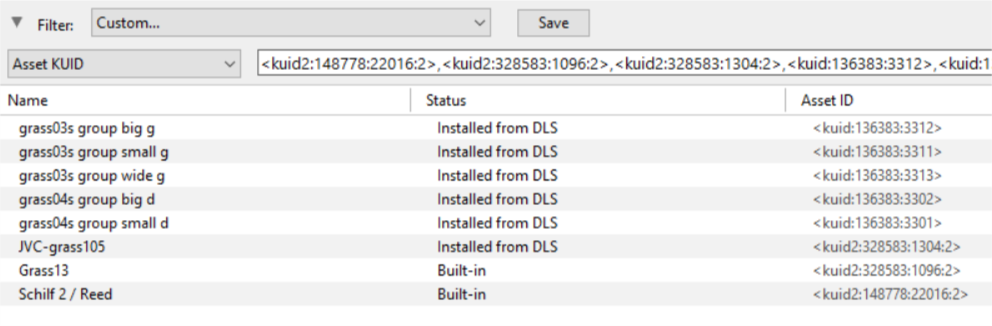
<td colspan=2>The Picklist assets will be listed by their kuids in the '''Asset KUID''' box of a new search filter<br> | |||
[[image:PickListSelectListofAssetsSelected.png|link=]]</td> | |||
</tr> | |||
<tr valign="top"> | |||
<td width=25>[[image:DotPoint1Blue.png|link=]]</td> | |||
<td><span style="font-weight: 700; font-size: 15px; background-color: lightcyan;">Left Click</span> inside the '''Asset KUID''' box and press <span style="font-weight: 700; font-size: 15px;"><span style="color: white; background-color: black;"> Ctrl </span> + <span style="color: white; background-color: black;"> A </span></span> to select them '''ALL'''</td> | |||
</tr> | |||
<tr valign="top"> | |||
<td>[[image:DotPoint2Blue.png|link=]]</td> | |||
<td>copy the asset list to your operating system clipboard (press <span style="font-weight: 700; font-size: 15px;"><span style="color: white; background-color: black;"> Ctrl </span> + <span style="color: white; background-color: black;"> C </span></span>)</td> | |||
</tr> | |||
</table> | |||
</td> | </td> | ||
</tr> | </tr> | ||
</table> <!-- END Step 4 table --> | </table> <!-- END Step 4 table --> | ||
| Line 165: | Line 246: | ||
</table> <!-- END Step Table --> | </table> <!-- END Step Table --> | ||
<br> | <br> | ||
<table> <!-- BEGIN Nav Buttons Table --> | <table width=1000> <!-- BEGIN Nav Buttons Table NO SKIPS --> | ||
<tr valign="top"> | <tr valign="top"> | ||
<td width= | <td width=629><span id="stepTransfer"></span> | ||
='''Transfer the List to Another Copy of Trainz'''= | |||
</td> | |||
<td width=50> </td> <!-- Skip Down --> | |||
<td width=50> </td> <!-- Skip Up --> | |||
<td width=46>[[image:BackToTop.png|link=#top|alt=Top|Top]]</td> | <td width=46>[[image:BackToTop.png|link=#top|alt=Top|Top]]</td> | ||
<td width=75>[[image:NextUp.png|link=#stepAccess|alt=Next Up|Next Up]]</td> | <td width=75>[[image:NextUp.png|link=#stepAccess|alt=Next Up|Next Up]]</td> | ||
| Line 174: | Line 259: | ||
</tr> | </tr> | ||
</table> <!-- END Nav Buttons Table --> | </table> <!-- END Nav Buttons Table --> | ||
<table bgcolor=#000000 | <table bgcolor=#000000> | ||
<tr valign="top"> | <tr valign="top"> | ||
<td> | <td> | ||
<table bgcolor=#ffffb0 | <table bgcolor=#ffffb0> | ||
<tr valign="top"> | <tr valign="top"> | ||
<td>[[image:NotePad.PNG|link=]]</td> | <td>[[image:NotePad.PNG|link=]]</td> | ||
| Line 185: | Line 269: | ||
---- | ---- | ||
If you are transferring the Picklist to another computer then you will need to:- | If you are transferring the Picklist to another computer then you will need to:- | ||
#paste the list from '''Step '''[[image:DotPoint4.JPG|link=]] above into a | <table bgcolor=#ffffff> | ||
<tr valign="top"> | |||
<td colspan=2><span style="font-weight: 700; font-size: 15px;">Steps: To Copy a Picklist Between Different Computers:-</span></td> | |||
On the second computer, reverse the steps by:- | </tr> | ||
<tr valign="top"> | |||
<td width=25>[[image:DotPoint1Blue.png|link=]]</td> | |||
Then proceed as described below | <td>paste the list from '''Step: '''[[image:DotPoint4.JPG|link=]] above into a text editor such as '''Notepad'''</td> | ||
</tr> | |||
<tr valign="top"> | |||
<td>[[image:DotPoint2Blue.png|link=]]</td> | |||
<td>save it as a text file</td> | |||
</tr> | |||
<tr valign="top"> | |||
<td>[[image:DotPoint3Blue.png|link=]]</td> | |||
<td>copy the file to your second computer</td> | |||
</tr> | |||
<tr valign="top"> | |||
<td colspan=2>On the second computer, reverse the steps by:-</td> | |||
</tr> | |||
<tr valign="top"> | |||
<td>[[image:DotPoint4Blue.png|link=]]</td> | |||
<td>opening the text document (in Notepad)</td> | |||
</tr> | |||
<tr valign="top"> | |||
<td>[[image:DotPoint5Blue.png|link=]]</td> | |||
<td>select and copy all the items in the list to the clipboard</td> | |||
</tr> | |||
<tr valign="top"> | |||
<td colspan=2>Then proceed as described below</td> | |||
</tr> | |||
</table> | |||
</td> | </td> | ||
</tr> | </tr> | ||
| Line 199: | Line 307: | ||
</table> | </table> | ||
<br> | <br> | ||
<table cellpadding=4 bgcolor=#ffffff> <!-- BEGIN Step table --> | <table width=1000 cellpadding=4 bgcolor=#ffffff> <!-- BEGIN Step table --> | ||
<tr valign="top"> | <tr valign="top"> | ||
<td | <td colspan=2><span style="font-weight: 700; font-size: 15px;">Steps: To Move the Picklist:-</span></td> | ||
<span style="font- | </tr> | ||
<td>[[image:DotPoint5.JPG|link=]] | <tr valign="top"> | ||
<td width=25>[[image:DotPoint5.JPG|link=]]</td> | |||
<td><span style="font-size: 17px; font-weight: 700;">Open CM in the Destination Trainz and Create a New Filter:</span><br> | |||
<table> <!-- BEGIN Step 6 table --> | <table> <!-- BEGIN Step 6 table --> | ||
<tr valign="top"> | <tr valign="top"> | ||
| Line 209: | Line 319: | ||
<table width=500> | <table width=500> | ||
<tr valign="top"> | <tr valign="top"> | ||
<td> | <td width=25>[[image:DotPoint1Blue.png|link=]]</td> | ||
<td>in the copy of Trainz where the Picklist is being transferred, open '''Content Manager'''</td> | |||
</tr> | |||
<tr valign="top"> | |||
<td>[[image:DotPoint2Blue.png|link=]]</td> | |||
<td>start a new '''Custom''' filter</td> | |||
</tr> | |||
<tr valign="top"> | |||
<td>[[image:DotPoint3Blue.png|link=]]</td> | |||
<td>paste (<span style="color: white; background-color: black; font-weight: 700; font-size: 15px;"> Ctrl </span> '''+''' <span style="color: white; background-color: black; font-weight: 700; font-size: 15px;"> V </span>) the asset list into the '''Asset KUID''' box</td> | |||
</tr> | |||
<tr valign="top"> | |||
<td>[[image:DotPoint4Blue.png|link=]]</td> | |||
<td>delete the filter line '''Installed''' if it is present (but '''<u>before you do</u>''' see '''Tips:''' on the right) | |||
</td> | </td> | ||
</tr> | </tr> | ||
| Line 243: | Line 362: | ||
<td colspan=2>[[image:PickListSelectListofAssets.png|link=]]</td> | <td colspan=2>[[image:PickListSelectListofAssets.png|link=]]</td> | ||
</tr> | </tr> | ||
</table> | |||
</td> | </td> | ||
</tr> | </tr> | ||
</table> | |||
<table width=1000> | |||
<tr valign="top"> | <tr valign="top"> | ||
<td | <td width=25>[[image:DotPoint6.JPG|link=]]</td> | ||
<td><span style="font-size: 17px; font-weight: 700;">Create a New Picklist:</span><br> | |||
<table | <table> | ||
<tr valign="top"> | <tr valign="top"> | ||
<td> | <td colspan=2>[[image:PickListTRS19Paste.png|link=]]</td> | ||
[[image:PickListTRS19Paste.png|link=]] | |||
</td> | |||
</tr> | </tr> | ||
<tr> | <tr valign="top"> | ||
<td | <td width=25>[[image:DotPoint1Blue.png|link=]]</td> | ||
<td>check for any assets labelled as '''Available for download''' and download these assets</td> | |||
</tr> | </tr> | ||
</ | <tr valign="top"> | ||
</td> | <td >[[image:DotPoint2Blue.png|link=]]</td> | ||
<td>select an entry and then select all (<span style="color: white; background-color: black; font-weight: 700; font-size: 15px;"> Ctrl </span> '''+''' <span style="color: white; background-color: black; font-weight: 700; font-size: 15px;"> A </span>)</td> | |||
</tr> | </tr> | ||
<tr valign="top"> | <tr valign="top"> | ||
<td >[[image:DotPoint3Blue.png|link=]]</td> | |||
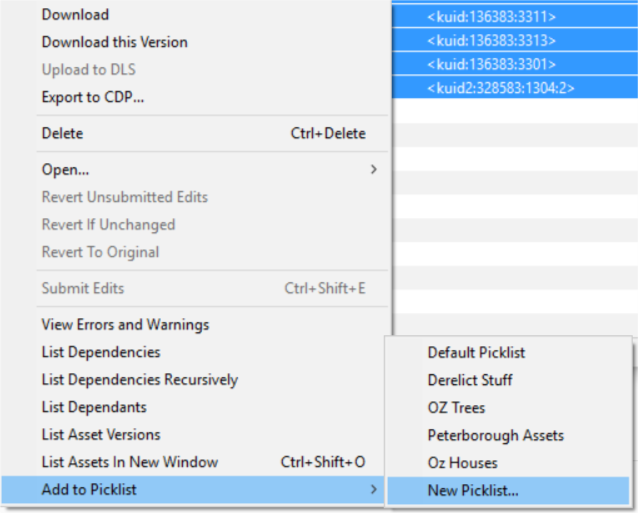
<td>[[image: | <td><span style="font-weight: 700; font-size: 15px; background-color: lightcyan;">Right Click</span> on any entry and select <span style="font-weight: 700; font-size: 15px; color: white; background-color: black;"> Add to Picklist </span> and then <span style="font-weight: 700; font-size: 15px; color: white; background-color: black;"> New Picklist </span> from the popup menus</td> | ||
< | </tr> | ||
<tr valign="top"> | <tr valign="top"> | ||
<td> | <td colspan=2>[[image:PickListTRS19NewList.png|link=]]</td> | ||
[[image: | </tr> | ||
</table> | |||
</td> | </td> | ||
</tr> | </tr> | ||
<tr> | </table> | ||
<td | <br> | ||
----</td> | <table width=1000> | ||
<tr valign="top"> | |||
<td width=25>[[image:DotPoint7.JPG|link=]]</td> | |||
<td><span style="font-size: 17px; font-weight: 700;">Name the Picklist:</span><br> | |||
<table> | |||
<tr valign="top"> | |||
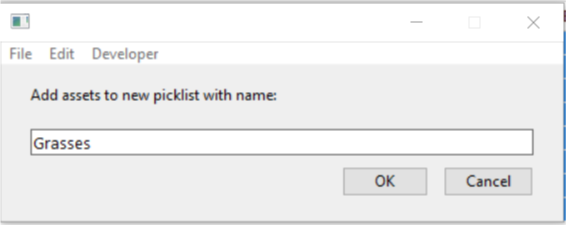
<td>Enter a name for the Picklist (the same name as the original would be a good idea) and <span style="font-weight: 700; font-size: 15px; background-color: lightcyan;">Left Click</span> the <span style="font-weight: 700; font-size: 15px;">OK</span> button (for '''T:ANE''' and '''TRS19''') or the <span style="font-weight: 700; font-size: 15px; color: white; background-color: blue;"> Save </span> button (for '''Trainz Plus''' and '''TRS22''')<br> | |||
[[image:PickListTRS19NewListName.png|link=]]</td> | |||
</tr> | </tr> | ||
</table | </table> | ||
</td> | </td> | ||
</tr> | </tr> | ||
</table | </table> | ||
<br> | <br> | ||
<table> <!-- BEGIN Nav Buttons Table --> | <table> <!-- BEGIN Nav Buttons Table --> | ||
| Line 300: | Line 420: | ||
---- | ---- | ||
---- | ---- | ||
='''Trainz Wiki'''= | ='''Trainz Wiki'''= | ||
<table cellpadding= | <table width=1000> | ||
<tr valign="top"> | |||
<td> | |||
<table width=500 cellpadding=2 bgcolor=#ffffff> | |||
<tr valign="top"> | <tr valign="top"> | ||
<td>[[image:TrainzWiki.png|link=]]</td> | <td width=80>[[image:TrainzWiki.png|link=]]</td> | ||
<td> | <td> | ||
<span style="font-size: 17px;">'''More Tutorials and Guides to Using Trainz'''</span><br> | <span style="font-size: 17px;">'''More Tutorials and Guides to Using Trainz'''</span><br> | ||
*'''<span class=" | *'''<span class="plain;">[http://online.ts2009.com/mediaWiki/index.php/HowTo How to Guides]</span>''' | ||
*'''[[Driver Commands List]]''' | *'''[[Driver Commands List]]''' | ||
*'''[[Session Rule List with Parameters|Session Rules List (Alphabetical) with Parameters]]''' | *'''[[Session Rule List with Parameters|Session Rules List (Alphabetical) with Parameters]]''' | ||
*'''[[Session Rules By Categories With Properties|Session Rules List (Categories) With Parameters]]''' | *'''[[Session Rules By Categories With Properties|Session Rules List (Categories) With Parameters]]''' | ||
</td> | |||
</tr> | |||
</table> | |||
</td> | |||
<td> | |||
<table width=500 cellpadding=4 bgcolor="aquamarine"> | |||
<tr valign="top"> | |||
<td width=50>[[image:LinkWiki.PNG|link=]]</td> | |||
<td> | |||
<span style="font-size: 17px;">'''Related Links'''</span><br> | |||
* '''[[How_to_Backup_a_Picklist|How to Backup a Picklist]]''' | |||
* '''[[How_to_Manage_Filters_and_Picklists|How to Manage Filters and Picklists]]''' | |||
* '''[[How_to_Rename_a_Picklist|How to Rename a Picklist]]''' (for '''TRS19 SP3''' and earlier) | |||
</td> | |||
</tr> | |||
</table> | |||
</td> | </td> | ||
</tr> | </tr> | ||
</table> | </table> | ||
---- | ---- | ||
This page was created by Trainz user '''<span class=" | This page was created by Trainz user '''<span class="plain;">[http://online.ts2009.com/mediaWiki/index.php/User:Pware pware]</span>''' in October 2018 and was last updated as shown below. | ||
---- | ---- | ||
[[Category:How-to guides]] | [[Category:How-to guides]] | ||
Latest revision as of 23:58, 8 September 2026
|
 |
|

|

Access Your Current Picklists |
 |
 |
 |
| Steps: To Locate and Copy a Picklist:- | ||||||||||||||||||||||||||||||||
 |
Open Content Manager and Your Picklists
|
|||||||||||||||||||||||||||||||





 |
Select the Picklist Contents:
|
 |
Copy the List to a New Window:
|
 |
Copy Assets in Picklist:
|
|||||||

Transfer the List to Another Copy of Trainz |
|
 |
|
|
||||||||||||||||||

| Steps: To Move the Picklist:- | |||||||||||||||||
 |
Open CM in the Destination Trainz and Create a New Filter:
|
||||||||||||||||

 |
Create a New Picklist:
|
||||||||||
 |
Name the Picklist:
|
|
|
Trainz Wiki
|
|

This page was created by Trainz user pware in October 2018 and was last updated as shown below.

