How to Use Bulk Asset Update/Replace Tool: Difference between revisions
mNo edit summary |
|||
| (25 intermediate revisions by the same user not shown) | |||
| Line 1: | Line 1: | ||
<table width=1000> | <table width=1000 bgcolor=#000000 cellpadding=2> | ||
<tr> | <tr valign="top"> | ||
<td>The information in this Wiki Page applies to ''' | <td> | ||
<span style=" | <table width=996 bgcolor=#ffffff cellpadding=2> | ||
<tr valign="top"> | |||
<td width=35>[[image:Information.png|35px|link=]]</td> | |||
<td><span style="font-size: 15px;">The information in this Wiki Page applies to the '''Bulk Asset Update/Replace Tool''' using the '''Surveyor Classic''' interface in '''T:ANE''', '''TRS19''', '''TRS22''' and '''Trainz Plus'''.</span><br> | |||
<span style="font-size: 15px;">For the '''Bulk Replace Asset Tool''' using the '''Surveyor 2.0''' interface in '''Trainz Plus''' refer to the Wiki Page at [[image:WikiLink.PNG|link=]] '''[[How_to_Use_S20_Palettes#Bulk_Replace_Asset_Tool_.28Trainz_Plus_Only.29|How to Use S20 Palettes - Bulk Replace Asset Tool]].'''</span></td> | |||
</tr> | |||
</table> | |||
</td> | |||
</tr> | </tr> | ||
</table> | </table> | ||
<br> | |||
__TOC__ | __TOC__ | ||
<table> <!-- BEGIN Nav Buttons Table --> | <table> <!-- BEGIN Nav Buttons Table --> | ||
| Line 21: | Line 28: | ||
<tr valign="top"> | <tr valign="top"> | ||
<td width=10>[[image:BlueDot10x10.png|link=]]</td> | <td width=10>[[image:BlueDot10x10.png|link=]]</td> | ||
<td>' | <td>The '''Bulk Asset Update/Replace Tool''' allows the replacement, deletion and modification of multiple instances of one or more different assets, including textures</td> | ||
</tr> | </tr> | ||
</table> | </table> | ||
| Line 33: | Line 40: | ||
<td><span style="font-size: 17px;">'''Notes:'''</span><br> | <td><span style="font-size: 17px;">'''Notes:'''</span><br> | ||
---- | ---- | ||
The tool automates the tedious process of deleting and replacing objects one at a time, as well as other tasks. | |||
<table> | |||
<tr valign="top"> | |||
<td>[[image:DotPoint.JPG|10px|link=]]</td> | |||
<td>It allow the mass:- | |||
<table> | |||
<tr valign="top"> | |||
<td>[[image:RedDot10x10.png|link=]]</td> | |||
<td>deletion of scenery objects</td> | |||
</tr> | |||
<tr valign="top"> | |||
<td>[[image:RedDot10x10.png|link=]]</td> | |||
<td>replacement of one or more scenery objects by another object</td> | |||
</tr> | |||
<tr valign="top"> | |||
<td>[[image:RedDot10x10.png|link=]]</td> | |||
<td>random rotation of scenery objects</td> | |||
</tr> | |||
<tr valign="top"> | |||
<td>[[image:RedDot10x10.png|link=]]</td> | |||
<td>movement of scenery objects from one layer to another</td> | |||
</tr> | |||
</table> | |||
</td> | |||
</tr> | |||
<tr valign="top"> | |||
<td>[[image:DotPoint.JPG|10px|link=]]</td> | |||
<td>These processes can be performed over the '''entire layout''', a '''single baseboard''' or in a '''selected area''' only</td> | |||
</tr> | |||
<tr valign="top"> | |||
<td>[[image:DotPoint.JPG|10px|link=]]</td> | |||
<td>Deletion and movement between layers can be performed on a set percentage of the selected or replacement scenery objects</td> | |||
</tr> | |||
<tr valign="top"> | |||
<td>[[image:DotPoint.JPG|10px|link=]]</td> | |||
<td>The replacement operation can be performed on textures</td> | |||
</tr> | |||
</table> | |||
</td> | |||
</tr> | </tr> | ||
</table> | </table> | ||
| Line 59: | Line 97: | ||
<tr valign="top"> | <tr valign="top"> | ||
<td width=10>[[image:DotPoint.JPG|10px|link=]]</td> | <td width=10>[[image:DotPoint.JPG|10px|link=]]</td> | ||
<td>'''spline objects''' (tracks are '''not''' counted as splines so you can | <td>'''spline objects''' (tracks are '''not''' counted as splines so you can use the tool on tracks)</td> | ||
</tr> | </tr> | ||
<tr valign="top"> | <tr valign="top"> | ||
| Line 75: | Line 113: | ||
<tr valign="top"> | <tr valign="top"> | ||
<td>[[image:DotPoint.JPG|10px|link=]]</td> | <td>[[image:DotPoint.JPG|10px|link=]]</td> | ||
<td>'''multiple track splines'''</td> | <td>'''multiple (parallel) track splines'''</td> | ||
</tr> | </tr> | ||
<tr valign="top"> | <tr valign="top"> | ||
| Line 83: | Line 121: | ||
<tr valign="top"> | <tr valign="top"> | ||
<td>[[image:DotPoint.JPG|10px|link=]]</td> | <td>[[image:DotPoint.JPG|10px|link=]]</td> | ||
<td>objects of '''mixed types''' e.g. replacing | <td>objects of '''mixed types''' e.g. replacing buildings with track</td> | ||
</tr> | </tr> | ||
</table> | </table> | ||
| Line 106: | Line 144: | ||
<table width=1000> | <table width=1000> | ||
<tr valign="top"> | <tr valign="top"> | ||
<td>The tool is located in the '''Surveyor Main Menu''' in '''TANE''' (below left) | <td>The tool is located in:- | ||
<table> | |||
<tr valign="top"> | |||
<td width=10>[[image:DotPoint.JPG|10px|link=]]</td> | |||
<td>the '''Surveyor Main Menu''' in '''TANE''' (below left).</td> | |||
</tr> | |||
<tr valign="top"> | |||
<td>[[image:DotPoint.JPG|10px|link=]]</td> | |||
<td>the '''Surveyor Tools Menu''' in '''TRS19''' and '''TRS22''' (below right).</td> | |||
</tr> | |||
<tr valign="top"> | |||
<td>[[image:DotPoint.JPG|10px|link=]]</td> | |||
<td>the '''Surveyor Tools Menu''' in '''Trainz Plus''' and '''TRS22PE''' when using '''Surveyor Classic''' (below right).</td> | |||
</tr> | |||
</table> | |||
<br> | |||
[[image:UpdateStartTANE.png|link=]] [[image:UpdateStartTRS19SP1.png|link=]]</td> | [[image:UpdateStartTANE.png|link=]] [[image:UpdateStartTRS19SP1.png|link=]]</td> | ||
</tr> | </tr> | ||
| Line 142: | Line 194: | ||
</table> | </table> | ||
<br> | <br> | ||
<table cellpadding=2 bgcolor=#ffffff> <!-- BEGIN Step table --> | <table width=1000 cellpadding=2 bgcolor=#ffffff> <!-- BEGIN Step table --> | ||
<tr valign="top"> | <tr valign="top"> | ||
<td | <td colspan=2><span style="font-weight: 700; font-size: 15px;">Steps: To Select Assets to Be Updated/Replaced:-</span></td> | ||
</tr> | |||
<tr valign="top"> | <tr valign="top"> | ||
<td>There are two alternate methods of filling the '''Assets to update''' list</td> | <td width=25>[[image:DotPoint1.JPG|link=]]</td> | ||
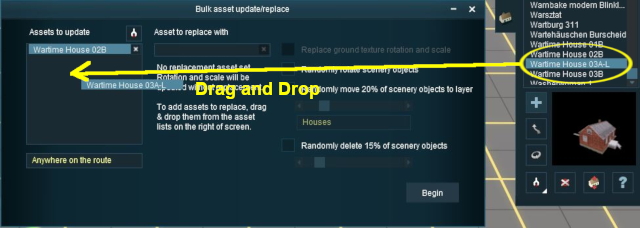
<td><span style="font-weight: 700; font-size: 17px;">Select the Assets to Update</span><br> | |||
There are two alternate methods of filling the '''Assets to update''' list</td> | |||
</tr> | </tr> | ||
<tr valign="top"> | <tr valign="top"> | ||
<td> </td> | |||
<td> | <td> | ||
<table width=400 bgcolor=#0000ff cellpadding=2> <!-- BEGIN Step 1 Alternative 1 inner table --> | <table width=400 bgcolor=#0000ff cellpadding=2> <!-- BEGIN Step 1 Alternative 1 inner table --> | ||
| Line 162: | Line 215: | ||
<table cellpadding=2> | <table cellpadding=2> | ||
<tr valign="top"> | <tr valign="top"> | ||
<td colspan=2><span style="font-weight: 700; font-size: 15px;">Steps:</span> | <td colspan=2><span style="font-weight: 700; font-size: 15px;">Steps: Use the Get Tool:-</span></td> | ||
</tr> | </tr> | ||
<tr valign="top"> | <tr valign="top"> | ||
| Line 184: | Line 237: | ||
</table> | </table> | ||
</td> | </td> | ||
<td | </tr> | ||
<tr valign="top"> | |||
<td> </td> | |||
<td><span style="font-weight: 700; font-size: 15px;"> OR </span></td> | |||
</tr> | |||
<tr valign="top"> | |||
<td> </td> | |||
<td> | <td> | ||
<table width=400 bgcolor=#0000ff cellpadding=2> <!-- BEGIN Step 1 Alternative 1 inner table --> | <table width=400 bgcolor=#0000ff cellpadding=2> <!-- BEGIN Step 1 Alternative 1 inner table --> | ||
| Line 195: | Line 254: | ||
<table bgcolor=#ffffff cellpadding=2> | <table bgcolor=#ffffff cellpadding=2> | ||
<tr valign="top"> | <tr valign="top"> | ||
<td colspan=2><span style="font-weight: 700; font-size: 15px;">Steps: | <td colspan=2><span style="font-weight: 700; font-size: 15px;">Steps: Use Drag-and-Drop:-</span></td> | ||
</tr> | </tr> | ||
<tr valign="top"> | <tr valign="top"> | ||
| Line 212: | Line 271: | ||
</table> <!-- END Step 1 Alternatives outer table --> | </table> <!-- END Step 1 Alternatives outer table --> | ||
</td> | </td> | ||
</tr> | |||
<tr valign="top"> | |||
<td> </td> | |||
<td>This can be repeated for multiple objects, using '''either''' or '''both''' methods, to build the list of '''Assets to update'''.</td> | |||
</tr> | </tr> | ||
</table> <!-- END Step 1 Alternative 1 inner table --> | </table> <!-- END Step 1 Alternative 1 inner table --> | ||
<br> | |||
< | |||
<table width=1000> | <table width=1000> | ||
<tr valign="top"> | <tr valign="top"> | ||
<td width= | <td width=25>[[image:DotPoint2.JPG|link=]]</td> | ||
<td><span style="font-size: 17px; font-weight: 700;">(Optional) Set Control Options:</span><br> | <td><span style="font-size: 17px; font-weight: 700;">(Optional) Set Control Options:</span><br> | ||
Once the '''Assets to update''' list has been completed, the <span style="font-weight: 700; text-decoration: underline;">optional</span> '''Rotate''', '''Move to layer''' and '''Delete''' options can be used and the '''Scope''' can be set.<br> | Once the '''Assets to update''' list has been completed, the <span style="font-weight: 700; text-decoration: underline;">optional</span> '''Rotate''', '''Move to layer''' and '''Delete''' options can be used and the '''Scope''' can be set.<br> | ||
| Line 231: | Line 290: | ||
<table width=1000> | <table width=1000> | ||
<tr valign="top"> | <tr valign="top"> | ||
<td width= | <td width=25>[[image:DotPoint3.JPG|link=]]</td> | ||
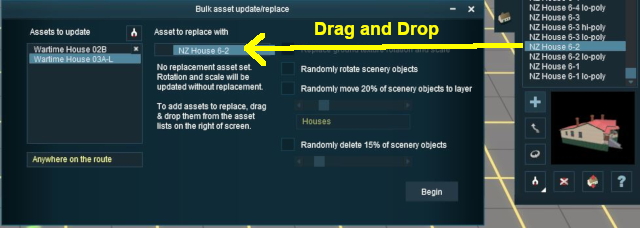
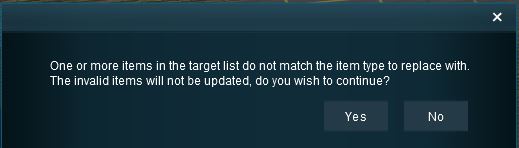
<td><span style="font-size: 17px; font-weight: 700;">(Optional) Add a Replacement Asset:</span><br> | <td><span style="font-size: 17px; font-weight: 700;">(Optional) Add a Replacement Asset:</span><br> | ||
The same method of '''Drag and Drop''' is used to add an object to the '''Asset to replace with''' list. | The same method of '''Drag and Drop''' is used to add an object to the '''Asset to replace with''' list. | ||
| Line 309: | Line 368: | ||
<table width=1000> | <table width=1000> | ||
<tr valign="top"> | <tr valign="top"> | ||
<td width= | <td width=25>[[image:DotPoint4.JPG|link=]]</td> | ||
<td><span style="font-size: 17px; font-weight: 700;">Perform the Update:</span> | <td><span style="font-size: 17px; font-weight: 700;">Perform the Update:</span> | ||
<table> <!-- BEGIN Step 4 table --> | <table> <!-- BEGIN Step 4 table --> | ||
| Line 332: | Line 391: | ||
='''Deleting Assets from the Lists'''= | ='''Deleting Assets from the Lists'''= | ||
<table width=1000 bgcolor=" | <table width=1000> | ||
<tr valign="top"> | |||
<td>[[image:BulkAssetDeleteDragOut.JPG|link=]]</td> | |||
<td> | |||
<table bgcolor=#000000 cellpadding=2> | |||
<tr valign="top"> | |||
<td> | |||
<table bgcolor=#ffffff cellpadding=2> | |||
<tr valign="top"> | |||
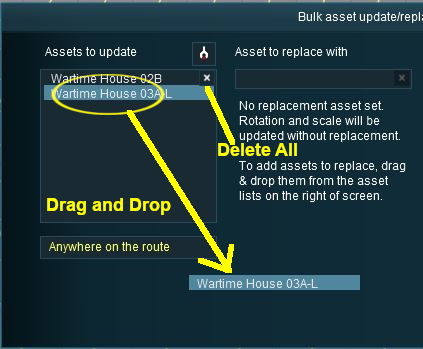
<td colspan=2><span style="font-weight: 700; font-size: 15px;">Options:</span> To remove items from the list choose one of:-</td> | |||
</tr> | |||
<tr valign="top"> | |||
<td width=25>[[image:Ablue.png|link=]]</td> | |||
<td>Use the '''Drag and Drop''' method to remove individual objects from the lists. <span style="font-weight: 700; font-size: 15px;">OR</span></td> | |||
</tr> | |||
<tr valign="top"> | <tr valign="top"> | ||
<td | <td>[[image:Bblue.png|link=]]</td> | ||
<td> | <td><span style="font-weight: 700; font-size: 15px; background-color: lightcyan;">Left Click</span> the [[image:Cross.PNG|link=]] icon to remove all the objects</td> | ||
</tr> | |||
</table> | |||
</td> | |||
</tr> | </tr> | ||
</table> | </table> | ||
</td> | |||
</tr> | </tr> | ||
</table> | </table> | ||
| Line 391: | Line 464: | ||
<table bgcolor=#ffffff cellpadding=2> | <table bgcolor=#ffffff cellpadding=2> | ||
<tr valign="top"> | <tr valign="top"> | ||
<td colspan=2><span style="font-weight: 700; font-size: 15px;">Steps: | <td colspan=2><span style="font-weight: 700; font-size: 15px;">Steps: To Define a Selected Area:-</span><br> | ||
[[image:BulkAssetReplaceLocationArea.JPG|link=]]<br></td> | [[image:BulkAssetReplaceLocationArea.JPG|link=]]<br></td> | ||
</tr> | </tr> | ||
| Line 434: | Line 507: | ||
<table> | <table> | ||
<tr valign="top"> | <tr valign="top"> | ||
<td>[[image: | <td>[[image:BlackDot10x10.png|link=]]</td> | ||
<td>If no '''Replace with''' object is entered then the objects in the '''Assets to update''' list will be '''randomly rotated''' to new orientations</td> | <td>If no '''Replace with''' object is entered then the objects in the '''Assets to update''' list will be '''randomly rotated''' to new orientations</td> | ||
</tr> | </tr> | ||
<tr valign="top"> | <tr valign="top"> | ||
<td>[[image: | <td>[[image:BlackDot10x10.png|link=]]</td> | ||
<td>If a '''Replace with''' object is entered then the replacement objects in the '''Replace with''' list will be '''randomly rotated''' to new orientations</td> | <td>If a '''Replace with''' object is entered then the replacement objects in the '''Replace with''' list will be '''randomly rotated''' to new orientations</td> | ||
</tr> | </tr> | ||
| Line 458: | Line 531: | ||
<table width=996 bgcolor=#ffffff cellpadding=2> | <table width=996 bgcolor=#ffffff cellpadding=2> | ||
<tr valign="top"> | <tr valign="top"> | ||
<td colspan=2><span style="font-weight: 700; font-size: 15px;">Steps: | <td colspan=2><span style="font-weight: 700; font-size: 15px;">Steps: To Randomly Rotate Scenery Objects:-</span></td> | ||
</tr> | </tr> | ||
<tr valign="top"> | <tr valign="top"> | ||
| Line 464: | Line 537: | ||
</tr> | </tr> | ||
<tr valign="top"> | <tr valign="top"> | ||
<td width= | <td width=25>[[image:DotPoint1.JPG|link=]]</td> | ||
<td>a '''Ticked''' [[image:CheckBox.PNG|link=]] checkbox will randomly rotate each replacement (or original) scenery object when it is placed</td> | <td>a '''Ticked''' [[image:CheckBox.PNG|link=]] checkbox will randomly rotate each replacement (or original) scenery object when it is placed<br> | ||
an '''Unticked''' [[image:CheckBoxOff.PNG|link=]] checkbox will keep the original orientation of each scenery object as it is replaced (this will have no effect if there is no '''Replace with''' object)</td> | |||
</tr> | </tr> | ||
<tr valign="top"> | <tr valign="top"> | ||
<td>[[image: | <td>[[image:DotPoint2.JPG|link=]]</td> | ||
<td><span style="font-weight: 700;"><span style="font-weight: 700; font-size: 15px; background-color: lightcyan;">Left Click</span> the <span style="color: white; background-color: black; font-size: 15px;"> BEGIN </span> button to complete the process</span></td> | |||
<td | |||
</tr></table> | </tr></table> | ||
</td> | </td> | ||
| Line 506: | Line 577: | ||
</table> | </table> | ||
<br> | <br> | ||
<table cellpadding=2 bgcolor=#eeeeee> | <table width=1000 cellpadding=2 bgcolor=#eeeeee> | ||
<tr> | <tr> | ||
<td colspan="2"> | <td colspan="2"> | ||
| Line 513: | Line 584: | ||
<tr valign="top"> | <tr valign="top"> | ||
<td>[[image:Gears.PNG|link=]]</td> | <td>[[image:Gears.PNG|link=]]</td> | ||
<td><span style="font-size: 17px;">'''Settings:'''</span>< | <td><span style="font-size: 17px;">'''Settings:'''</span> | ||
<table> | |||
<tr valign="top"> | |||
<td>[[image:BlackDot10x10.png|link=]]</td> | |||
<td>If no '''Replace with''' object is entered then the '''selected percentage''' of the objects in the '''Assets to update''' list will be '''moved''' to the selected layer</td> | |||
All the layers containing the objects must be unlocked. Objects in locked layers will not be moved | </tr> | ||
<tr valign="top"> | |||
<td>[[image:BlackDot10x10.png|link=]]</td> | |||
<td>If a '''Replace with''' object is entered then the '''selected percentage''' of the replacement objects in the '''Replace with''' list will be '''moved''' to the selected layer</td> | |||
</tr> | |||
<tr valign="top"> | |||
<td>[[image:BlackDot10x10.png|link=]]</td> | |||
<td>All the layers containing the objects must be unlocked. Objects in locked layers will not be moved</td> | |||
</tr> | |||
</table> | |||
</td> | </td> | ||
</tr> | </tr> | ||
| Line 527: | Line 607: | ||
</table> | </table> | ||
<table cellpadding=2 bgcolor=#ffffff> | <table width=1000 bgcolor=#000000 cellpadding=2> | ||
<tr> | <tr valign="top"> | ||
<td | <td> | ||
-- | <table width=996 bgcolor=#ffffff cellpadding=2> | ||
<tr valign="top"> | |||
<td><span style="font-weight: 700; font-size: 15px;">Steps: To Move Objects to Another Layer:-</span><br> | |||
[[image:BulkAssetMoveLayer.JPG|link=]] | |||
<table> | |||
<tr valign="top"> | |||
<td width=25>[[image:DotPoint1.JPG|link=]]</td> | |||
<td>'''Tick''' [[image:CheckBox.PNG|link=]] the check box to randomly move a set % of the replacement (or original) scenery objects to another layer, <span style="font-weight: 700; font-size: 15px;">OR</span><br> | |||
'''Untick''' [[image:CheckBoxOff.PNG|link=]] the check box to keep all the replacement scenery objects in the same layer as the original scenery objects. This has no effect if there are no objects in the '''Replace with''' list</td> | |||
</tr> | |||
<tr valign="top"> | |||
<td>[[image:DotPoint2.JPG|link=]]</td> | |||
<td>'''Select a percentage figure''' from '''0%''' (none) to '''100%''' (all)</td> | |||
</tr> | |||
<tr valign="top"> | |||
<td>[[image:DotPoint3.JPG|link=]]</td> | |||
<td>'''Select the layer''' for the objects to move to (the layer must be unlocked)</td> | |||
</tr> | </tr> | ||
<tr valign="top"> | <tr valign="top"> | ||
<td>[[image: | <td>[[image:DotPoint4.JPG|link=]]</td> | ||
<td> | <td><span style="font-weight: 700; font-size: 15px; background-color: lightcyan;">Left Click</span> the <span style="font-weight: 700; color: white; background-color: black; font-size: 15px;"> BEGIN </span> button to complete the process</td> | ||
</tr> | |||
</table> | |||
</td> | |||
<span style="font-weight: 700; font-size: 15px; background-color: lightcyan;">Left Click</span> the <span style="font-weight: 700; color: white; background-color: black; font-size: 15px;"> BEGIN </span> button to complete the process</ | |||
</tr> | </tr> | ||
< | </table> | ||
</td> | |||
</tr> | </tr> | ||
</table> | </table> | ||
<br> | <br> | ||
<table bgcolor=#ff0000 | <table width=1000 bgcolor=#ff0000> | ||
<tr valign="top"> | <tr valign="top"> | ||
<td> | <td> | ||
| Line 557: | Line 646: | ||
<tr valign="top"> | <tr valign="top"> | ||
<td>[[image:Stop.PNG|link=]]</td> | <td>[[image:Stop.PNG|link=]]</td> | ||
<td><span style="font-size: 15px; font-weight: 700;">CAUTION:</span>< | <td><span style="font-size: 15px; font-weight: 700;">CAUTION:</span> | ||
When moving track or track objects (signals, switches, etc) to other layers always make sure that '''no track objects end up in a layer that is above the track | <table> | ||
<tr valign="top"> | |||
<td width=10>[[image:DotPoint.JPG|10px|link=]]</td> | |||
<td>When moving track or track objects (signals, switches, etc) to other layers always make sure that '''no track objects''' end up in a layer that is '''above the layer containing the track''' they are attached to</td> | |||
</tr> | |||
<tr valign="top"> | |||
<td>[[image:DotPoint.JPG|10px|link=]]</td> | |||
<td>Moving objects between the '''Route Layer Group''' and the '''Session Layer Group''' will change where they are saved - in the route or the session </td> | |||
</tr> | |||
</table> | |||
</td> | </td> | ||
</tr> | </tr> | ||
| Line 566: | Line 664: | ||
</table> | </table> | ||
<br> | <br> | ||
<table cellpadding=2 bgcolor=# | <table bgcolor=#000000 cellpadding=2> | ||
<tr valign="top"> | |||
<td> | |||
<table bgcolor=#ffffb0 cellpadding=2> | |||
<tr valign="top"> | <tr valign="top"> | ||
<td>[[image: | <td width=25>[[image:NotePad.PNG|link=]]</td> | ||
<td>'''Option 1 and Option 2 CAN both be checked ON at the same time''' to produce a combined effect</td> | <td>'''Option 1''' and '''Option 2''' CAN both be checked ON at the same time '''to produce a combined effect'''</td> | ||
</tr> | |||
</table> | |||
</td> | |||
</tr> | </tr> | ||
</table> | </table> | ||
| Line 577: | Line 681: | ||
The third option allows the deletion of scenery objects from the layout. | The third option allows the deletion of scenery objects from the layout. | ||
<table cellpadding=2 bgcolor=#eeeeee> | <table width=1000 cellpadding=2 bgcolor=#eeeeee> | ||
<tr> | <tr> | ||
<td colspan="2"> | <td colspan="2"> | ||
| Line 584: | Line 688: | ||
<tr valign="top"> | <tr valign="top"> | ||
<td>[[image:Gears.PNG|link=]]</td> | <td>[[image:Gears.PNG|link=]]</td> | ||
<td><span style="font-size: 17px;">'''Settings:'''</span>< | <td><span style="font-size: 17px;">'''Settings:'''</span> | ||
<table> | |||
All the layers containing the objects must be unlocked. Objects in locked layers will not be deleted | <tr valign="top"> | ||
<td width=10>[[image:BlackDot10x10.png|link=]]</td> | |||
<td>Select a percent figure from '''0%''' to '''100%''' in steps of '''5%'''. Values other than '''0%''' and '''100%''' will be approximate, not exact. Selecting '''0%''' will delete none of the objects, '''100%''' will delete them all</td> | |||
</tr> | |||
<tr valign="top"> | |||
<td>[[image:BlackDot10x10.png|link=]]</td> | |||
<td>All the layers containing the objects must be unlocked. Objects in locked layers will not be deleted</td> | |||
</tr> | |||
</table> | |||
</td> | </td> | ||
</tr> | </tr> | ||
| Line 595: | Line 707: | ||
</table> | </table> | ||
<table cellpadding=2 bgcolor=#ffffff> | <table width=1000 bgcolor=#000000 cellpadding=2> | ||
<tr> | <tr valign="top"> | ||
<td colspan= | <td> | ||
<table width=996 bgcolor=#ffffff cellpadding=2> | |||
<tr valign="top"> | |||
<td colspan=2><span style="font-weight: 700; font-size: 15px;">Steps: To Delete Scenery Objects:-</span><br> | |||
[[image:BulkAssetDelete.JPG|link=]]</td> | |||
</tr> | |||
<tr valign="top"> | |||
<td width=25>[[image:DotPoint1.JPG|link=]]</td> | |||
<td>'''Tick''' [[image:CheckBox.PNG|link=]] the check box to randomly delete a set % of the objects</td> | |||
</tr> | |||
<tr valign="top"> | |||
<td>[[image:DotPoint2.JPG|link=]]</td> | |||
<td>'''Select a percentage figure''' from 0% (none) to 100% (all)</td> | |||
</tr> | </tr> | ||
<tr valign="top"> | <tr valign="top"> | ||
<td>[[image: | <td>[[image:DotPoint3.JPG|link=]]</td> | ||
<td> | <td><span style="font-weight: 700; font-size: 15px; background-color: lightcyan;">Left Click</span> the <span style="font-weight: 700; color: white; background-color: black; font-size: 15px;"> BEGIN </span> button to complete the process</td> | ||
</tr> | |||
</table> | |||
</td> | </td> | ||
</tr> | </tr> | ||
</table> | </table> | ||
<br> | <br> | ||
<table width=1000 bgcolor=#000000 cellpadding=2> | |||
<table cellpadding=2 bgcolor=# | <tr valign="top"> | ||
<td> | |||
<table width=996 bgcolor=#ffffb0 cellpadding=2> | |||
<tr valign="top"> | |||
<td width=25>[[image:NotePad.PNG|link=]]</td> | |||
<td><span style="font-size: 17px;">'''Notes:'''</span><br> | |||
---- | |||
</td> | |||
</tr> | |||
<tr valign="top"> | <tr valign="top"> | ||
<td>[[image:DotPoint.JPG|link=]]</td> | <td width=10>[[image:DotPoint.JPG|10px|link=]]</td> | ||
<td>'''Option 2 and Option 3 CANNOT both be checked ON at the same time | <td>'''Option 2''' and '''Option 3''' '''CANNOT both''' be checked '''ON''' at the same time</td> | ||
</tr> | </tr> | ||
<tr valign="top"> | <tr valign="top"> | ||
<td>[[image:DotPoint.JPG|link=]]</td> | <td>[[image:DotPoint.JPG|10px|link=]]</td> | ||
<td>'''Option 1 and Option 3 CAN both be checked ON at the same time | <td>'''Option 1''' and '''Option 3''' '''CAN both''' be checked '''ON''' at the same time to rotate all the scenery objects before deleting a set percentage of them.</td> | ||
</tr> | |||
</table> | |||
</td> | |||
</tr> | </tr> | ||
</table> | </table> | ||
<br> | <br> | ||
<table bgcolor=#000000 cellpadding=2> | <table width=1000 bgcolor=#000000 cellpadding=2> | ||
<tr valign="top"> | <tr valign="top"> | ||
<td> | <td> | ||
| Line 635: | Line 763: | ||
<td><span style="font-size: 17px;">'''Deleting "Stubborn" Objects:'''</span><br> | <td><span style="font-size: 17px;">'''Deleting "Stubborn" Objects:'''</span><br> | ||
Some objects simply will not delete, for example some non track splines. The workaround for deleting these objects from a layout is:-<br> | Some objects simply will not delete, for example some non track splines. The workaround for deleting these objects from a layout is:-<br> | ||
<table | <table bgcolor=#ffffff cellpadding=2> | ||
<tr> | <tr valign="top"> | ||
<td colspan= | <td colspan=2><span style="font-weight: 700; font-size: 15px;">Steps: To Delete "Stubborn" Objects:-</span></td> | ||
</tr> | </tr> | ||
<tr valign="top"> | <tr valign="top"> | ||
<td>[[image: | <td colspan=2> | ||
<table cellpadding=2 bgcolor=#fcbcbc> | |||
<tr valign="middle"> | |||
<td>[[image:Stop.PNG|link=]] <span style="font-weight: 700; font-size: 15px;">Warning:</span></td> | |||
<td>This method is an '''All or Nothing''' approach. '''ALL''' instances of the selected asset will be deleted from your layout</td> | |||
</tr> | |||
This | </table> | ||
</td> | </td> | ||
</tr> | </tr> | ||
<tr> | <tr valign="top"> | ||
<td | <td width=25>[[image:DotPoint1.JPG|link=]]</td> | ||
--- | <td>exit Surveyor and start '''Content Manager'''</td> | ||
</tr> | |||
<tr valign="top"> | |||
<td>[[image:DotPoint2.JPG|link=]]</td> | |||
<td>locate and select (highlight) the stubborn asset</td> | |||
</tr> | |||
<tr valign="top"> | |||
<td>[[image:DotPoint3.JPG|link=]]</td> | |||
<td><span style="font-weight: 700; font-size: 15px; background-color: lightcyan;">Left Click</span> the '''Content''' menu and select '''Disable''' or '''Hide''' (depending on your version of '''Trainz'''). | |||
This will not delete the object from your layout or from your Trainz installation</td> | |||
</tr> | |||
<tr valign="top"> | |||
<td>[[image:DotPoint4.JPG|link=]]</td> | |||
<td>start Surveyor and reload the route. It will now have a missing dependency</td> | |||
</tr> | |||
<tr valign="top"> | |||
<td>[[image:DotPoint5.JPG|link=]]</td> | |||
<td>from the '''Main Menu''' (in '''T:ANE''') or the '''Tools Menu''' in ('''TRS19/Trains Plus/TRS22''') select the '''Delete Missing Assets''' option</td> | |||
</tr> | |||
<tr valign="top"> | |||
<td>[[image:DotPoint6.JPG|link=]]</td> | |||
<td>save the route and exit Surveyor</td> | |||
</tr> | |||
<tr valign="top"> | |||
<td colspan=2>The disabled asset will no longer be present in your layout. It should now be restored for other uses</td> | |||
</tr> | |||
<tr valign="top"> | |||
<td>[[image:DotPoint7.JPG|link=]]</td> | |||
<td>start '''Content Manager'''</td> | |||
</tr> | |||
<tr valign="top"> | |||
<td>[[image:DotPoint8.JPG|link=]]</td> | |||
<td>locate and select (highlight) the now disabled asset</td> | |||
</tr> | </tr> | ||
<tr valign="top"> | <tr valign="top"> | ||
<td>[[image: | <td>[[image:DotPoint9.JPG|link=]]</td> | ||
<td> | <td><span style="font-weight: 700; font-size: 15px; background-color: lightcyan;">Left Click</span> the '''Content''' menu and select '''Enable'''</td> | ||
</tr> | </tr> | ||
</table> | </table> | ||
| Line 674: | Line 824: | ||
</tr> | </tr> | ||
</table> | </table> | ||
<br> | <br> | ||
<table> <!-- BEGIN Nav Buttons Table --> | <table> <!-- BEGIN Nav Buttons Table --> | ||
| Line 695: | Line 844: | ||
<td><span style="font-size: 17px;">'''Notes:'''</span><br> | <td><span style="font-size: 17px;">'''Notes:'''</span><br> | ||
---- | ---- | ||
<table> | |||
<tr valign="top"> | |||
<td width=10>[[image:DotPoint.JPG|10px|link=]]</td> | |||
<td>'''You cannot rotate or move textures'''. The only available texture setting controls the scale and rotation of the replacement texture</td> | |||
</tr> | |||
<tr valign="top"> | |||
<td>[[image:DotPoint.JPG|10px|link=]]</td> | |||
<td>You can select multiple textures to be replaced by a single texture</td> | |||
</tr> | |||
<tr valign="top"> | |||
<td>[[image:DotPoint.JPG|10px|link=]]</td> | |||
<td>Select the texture assets by using either the "Grab Tool" or by "dragging and dropping"</td> | |||
</tr> | |||
<tr valign="top"> | |||
<td>[[image:DotPoint.JPG|10px|link=]]</td> | |||
<td>Textures can be deleted by using the workaround for '''Deleting Stubborn Objects''' described in the section '''Delete Scenery Objects''' above</td> | |||
</tr> | |||
</table> | |||
</td> | |||
</tr> | </tr> | ||
</table> | </table> | ||
| Line 712: | Line 876: | ||
</table> | </table> | ||
<table cellpadding=2> | <table width=1000 cellpadding=2> | ||
<tr valign="top"> | <tr valign="top"> | ||
<td width="490" align="left">[[image:BulkAssetTextureReplaceOption.JPG|link=]]<br> | <td width="490" align="left">[[image:BulkAssetTextureReplaceOption.JPG|link=]]<br> | ||
| Line 742: | Line 906: | ||
=='''Replacing Some Assets'''== | =='''Replacing Some Assets'''== | ||
<span style="font-size: 17px;">'''The Problem:'''</span><br> | <table width=1000> | ||
<tr valign="top"> | |||
<td><span style="font-size: 17px;">'''The Problem:'''</span><br> | |||
A forest has been created using three different trees. A number (30%) of the two smaller tree types are to be replaced with a larger tree of a different type. | A forest has been created using three different trees. A number (30%) of the two smaller tree types are to be replaced with a larger tree of a different type. | ||
<table> | <table> | ||
<tr valign="top"> | <tr valign="top"> | ||
<td>[[image:BulkAssetTreesOriginal.JPG|link=]]</td> | <td>[[image:BulkAssetTreesOriginal.JPG|link=]]</td> | ||
</tr> | |||
</table> | |||
</td> | |||
</tr> | </tr> | ||
</table> | </table> | ||
<br> | <br> | ||
<span style="font-size: 17px;">'''The Solution:'''</span><br> | <table width=1000> | ||
The '''Bulk Asset Update/Replace Tool''' does not have a feature that will allow the replacement of only some assets (it is ''all'' or ''none''), so a slightly more indirect approach is needed. | <tr valign="top"> | ||
<table> | <td><span style="font-size: 17px;">'''The Solution:'''</span><br> | ||
The '''Bulk Asset Update/Replace Tool''' does not have a feature that will allow the replacement of only some assets (it is ''all'' or ''none''), so a slightly more indirect approach is needed.<br> | |||
[[image:BulkAssetTreesMove.JPG|link=]]</td> | |||
</tr> | |||
<tr valign="top"> | |||
<td> | |||
<table bgcolor=#000000 cellpadding=2> | |||
<tr valign="top"> | <tr valign="top"> | ||
<td> | <td> | ||
<table | <table bgcolor=#ffffff cellpadding=2> | ||
<tr> | <tr valign="top"> | ||
<td colspan= | <td colspan=2><span style="font-weight: 700; font-size: 15px;">Steps: To Replace Only Some of the Assets:-</span></td> | ||
</tr> | |||
<tr valign="top"> | |||
<td width=25>[[image:DotPoint1.JPG|link=]]</td> | |||
<td>A new layer, named '''Trees''' is created</td> | |||
</tr> | </tr> | ||
<tr valign="top"> | <tr valign="top"> | ||
<td>[[image: | <td>[[image:DotPoint2.JPG|link=]]</td> | ||
<td> | <td>The '''Bulk Asset Update/Replace Tool''' is used to move 30% of the two smaller tree types to the new layer</td> | ||
</tr> | </tr> | ||
<tr> | </table> | ||
< | </td> | ||
</tr> | |||
</table> | |||
</td> | |||
</tr> | </tr> | ||
</table> | </table> | ||
<br> | |||
<table cellpadding=2 bgcolor="Aquamarine"> | <table cellpadding=2 bgcolor="Aquamarine"> | ||
<tr valign="top"> | <tr valign="top"> | ||
<td>[[image:LinkWiki.PNG|link=]]</td> | <td>[[image:LinkWiki.PNG|link=]]</td> | ||
<td> | <td>For information on creating new layers, see the '''Trainz Wiki Page''' at:-<br> | ||
For information on creating new layers, see the '''Trainz Wiki Page''' at:-<br> | |||
* '''[[How to Use Layers]]'''</td> | * '''[[How to Use Layers]]'''</td> | ||
</tr> | </tr> | ||
</table> | </table> | ||
<table> | <br> | ||
<table width=1000> | |||
<tr valign="top"> | <tr valign="top"> | ||
<td>[[image:BulkAssetTreesReplace.JPG|link=]]</td> | <td>[[image:BulkAssetTreesReplace.JPG|link=]]</td> | ||
</tr> | |||
<tr valign="top"> | |||
<td> | <td> | ||
<table cellpadding=2 bgcolor=#ffffff> | <table bgcolor=#000000 cellpadding=2> | ||
<tr> | <tr valign="top"> | ||
<td | <td> | ||
<table bgcolor=#ffffff cellpadding=2> | |||
<tr valign="top"> | |||
<td width=25>[[image:DotPoint3.JPG|link=]]</td> | |||
<td>The original layer is then locked - this prevents the replacement of those trees that were not moved to the new layer (note the warning about the locked layer on the bottom left of the Bulk Asset Update/Replace window)</td> | |||
</tr> | |||
<tr valign="top"> | |||
<td>[[image:DotPoint4.JPG|link=]]</td> | |||
<td>The replacement tree is added to the '''Replace With''' list</td> | |||
</tr> | </tr> | ||
<tr valign="top"> | <tr valign="top"> | ||
<td>[[image: | <td>[[image:DotPoint5.JPG|link=]]</td> | ||
<td> | <td>The '''Bulk Asset Update/Replace Tool''' is used to replace the two smaller tree types with the new tree type</td> | ||
</tr> | </tr> | ||
< | </table> | ||
</td> | |||
</tr> | </tr> | ||
</table> | </table> | ||
<br> | |||
<table cellpadding=2 bgcolor="Aquamarine"> | <table cellpadding=2 bgcolor="Aquamarine"> | ||
<tr valign="top"> | <tr valign="top"> | ||
| Line 814: | Line 996: | ||
</table> | </table> | ||
<br> | <br> | ||
The final result | '''The final result''' | ||
<table> | <table width=1000> | ||
<tr valign="top"> | <tr valign="top"> | ||
<td>[[image:BulkAssetTreesModified.JPG|link=]]</td> | <td>[[image:BulkAssetTreesModified.JPG|link=]]</td> | ||
<td | <td> | ||
<table cellpadding=2 bgcolor=#ffffff> | <table bgcolor=#000000 cellpadding=2> | ||
<tr> | <tr valign="top"> | ||
<td colspan=" | <td> | ||
<table bgcolor=#ffffff cellpadding=2> | |||
<tr valign="top"> | |||
<td colspan=2>To complete the process:-</td> | |||
</tr> | |||
<tr valign="top"> | |||
<td width=25>[[image:DotPoint6.JPG|link=]]</td> | |||
<td>The original layer is unlocked</td> | |||
</tr> | </tr> | ||
<tr valign="top"> | <tr valign="top"> | ||
<td>[[image: | <td>[[image:DotPoint7.JPG|link=]]</td> | ||
<td> | <td>The '''Trees''' layer is merged with the original layer</td> | ||
</tr> | </tr> | ||
< | </table> | ||
</td> | |||
</tr> | </tr> | ||
</table> | </table> | ||
<br> | |||
<table cellpadding=2 bgcolor="Aquamarine"> | <table cellpadding=2 bgcolor="Aquamarine"> | ||
<tr valign="top"> | <tr valign="top"> | ||
| Line 852: | Line 1,037: | ||
<span style="font-size: 17px;">'''The Problem:'''</span><br> | <span style="font-size: 17px;">'''The Problem:'''</span><br> | ||
<table cellpadding=2> | <table width=1000 cellpadding=2> | ||
<tr valign="top"> | <tr valign="top"> | ||
<td>[[image:MergedTextureBorderProblem.JPG|link=]]</td> | <td>[[image:MergedTextureBorderProblem.JPG|link=]]</td> | ||
| Line 864: | Line 1,049: | ||
<span style="font-size: 17px;">'''The Solution:'''</span><br><br> | <span style="font-size: 17px;">'''The Solution:'''</span><br><br> | ||
<table bgcolor=#ffffff cellpadding=2> | |||
<tr valign="top"> | |||
<td colspan=2><span style="font-weight: 700; font-size: 15px;">Steps: Grab the Grid</span> | |||
<table> | <table> | ||
<tr valign="top"> | <tr valign="top"> | ||
<td>[[image:BulkAssetGridUpdate.JPG|link=]]</td> | <td>[[image:BulkAssetGridUpdate.JPG|link=]]</td> | ||
<td> | <td>[[image:DotPoint1.JPG|link=]]</td> | ||
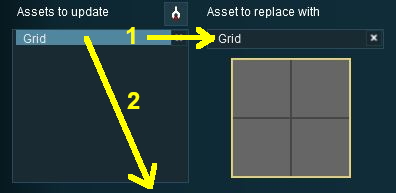
Use the '''Grab Tool''' to <span style="font-weight: 700; font-size: 15px; background-color: lightcyan;">Left Click</span> on one of the bare grid lines to place the Grid texture into the '''Assets to update''' list | <td>Use the '''Grab Tool''' to <span style="font-weight: 700; font-size: 15px; background-color: lightcyan;">Left Click</span> on one of the bare grid lines to place the Grid texture into the '''Assets to update''' list</td> | ||
</tr> | |||
</table> | |||
</td> | </td> | ||
</tr> | </tr> | ||
| Line 880: | Line 1,065: | ||
<table cellpadding=2> | <table cellpadding=2> | ||
<tr valign="top"> | <tr valign="top"> | ||
<td>[[image:BulkAssetGridUpdateGridReplace.JPG|link=]]</td> | <td rowspan=2>[[image:BulkAssetGridUpdateGridReplace.JPG|link=]]</td> | ||
<td> | <td>[[image:DotPoint2.JPG|link=]]</td> | ||
<td>drag the Grid entry from the '''Update''' list into the '''Replace''' list. This will still leave a copy in the Update list</td> | |||
</td> | |||
</tr> | </tr> | ||
</ | <tr valign="top"> | ||
<!-- <td> </td> --> | |||
<td>[[image:DotPoint3.JPG|link=]]</td> | |||
<td>drag the Grid entry from the '''Update''' list out of the Tool box. This will delete the Grid entry from the Update list</td> | |||
</tr> | </tr> | ||
</table> | |||
</td> | |||
</tr> | </tr> | ||
</table> | </table> | ||
<br clear="all"> | <br clear="all"> | ||
<table width=1000 bgcolor=#ffffff cellpadding=2> | |||
<tr valign="top"> | |||
<td colspan=2><span style="font-weight: 700; font-size: 15px;">Steps: Grab the "Bleed Texture" and Clean</span> | |||
<table> | <table> | ||
<tr valign="top"> | <tr valign="top"> | ||
<td>[[image: | <td rowspan=6>[[image:BulkAssetSandUpdateGridReplace.JPG|link=]]</td> | ||
<td><span style="font-size: | <td>[[image:DotPoint4.JPG|link=]]</td> | ||
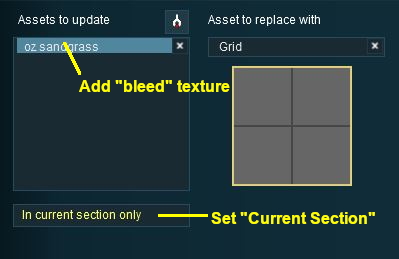
<td>use the '''Grab Tool''' to select the "bleed" texture and place it into the '''Update''' list</td> | |||
< | </tr> | ||
<tr valign="top"> | |||
<td>[[image:DotPoint5.JPG|link=]]</td> | |||
<td><span style="background-color: red; color: white; font-weight: 700; Font-size: 15px;"> IMPORTANT: </span> change the scope setting to '''Current section only''' otherwise this texture will be replaced by the grid throughout the entire layout</td> | |||
</tr> | |||
<tr valign="top"> | |||
<td>[[image:DotPoint6.JPG|link=]]</td> | |||
<td><span style="font-weight: 700; font-size: 15px; background-color: lightcyan;">Left Click</span> the <span style="color: white; background-color: black; font-weight: 700; font-size: 15px;"> BEGIN </span> button to complete the process</td> | |||
</tr> | |||
<tr valign="top"> | |||
<td colspan=2>If more than one baseboard needs this treatment then:-</td> | |||
</tr> | |||
<tr valign="top"> | <tr valign="top"> | ||
<td>[[image: | <td>[[image:DotPoint7.JPG|link=]]</td> | ||
<td> | <td>move the Surveyor cursor to the next baseboard and <span style="font-weight: 700; font-size: 15px; background-color: lightcyan;">Left Click</span> the <span style="color: white; background-color: black; font-weight: 700; font-size: 15px;"> BEGIN </span> button to complete the process</td> | ||
</td> | |||
</tr> | </tr> | ||
</ | <tr valign="top"> | ||
<td>[[image:DotPoint8.JPG|link=]]</td> | |||
<td>repeat as necessary</td> | |||
</tr> | </tr> | ||
< | </table> | ||
</td> | |||
</tr> | </tr> | ||
</table> | </table> | ||
| Line 942: | Line 1,130: | ||
<td> | <td> | ||
<span style="font-size: 17px;">'''More Tutorials and Guides to Using Trainz'''</span><br> | <span style="font-size: 17px;">'''More Tutorials and Guides to Using Trainz'''</span><br> | ||
*'''<span class=" | *'''<span class="plain;">[http://online.ts2009.com/mediaWiki/index.php/HowTo How to Guides]</span>''' | ||
*'''[[Driver Commands List]]''' | *'''[[Driver Commands List]]''' | ||
*'''[[Session Rule List with Parameters|Session Rules List (Alphabetical) with Parameters]]''' | *'''[[Session Rule List with Parameters|Session Rules List (Alphabetical) with Parameters]]''' | ||
| Line 950: | Line 1,138: | ||
</table> | </table> | ||
---- | ---- | ||
This page was created by Trainz user '''<span class=" | This page was created by Trainz user '''<span class="plain;">[http://online.ts2009.com/mediaWiki/index.php/User:Pware pware]</span>''' in June 2018 and was last updated as shown below. | ||
---- | ---- | ||
[[Category:How-to guides]] | [[Category:How-to guides]] | ||
Latest revision as of 04:53, 9 September 2026
|

 |
 |
 |
What is the Bulk Asset Update/Replace Tool?
 |
The Bulk Asset Update/Replace Tool allows the replacement, deletion and modification of multiple instances of one or more different assets, including textures |
|


Things it Will NOT Do

|
 |
|
|
Selecting Assets and Options
The tool is located in:-
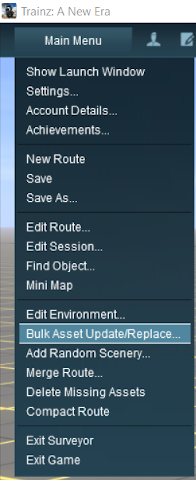 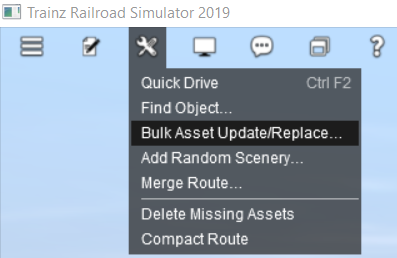 |
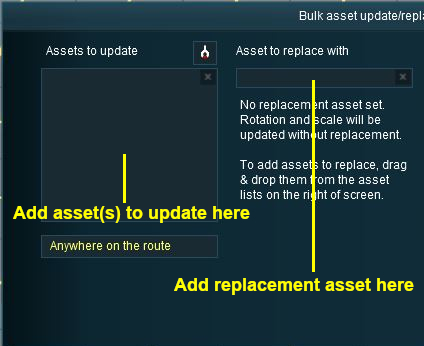 |
|
| Steps: To Select Assets to Be Updated/Replaced:- | ||||||||||||
 |
Select the Assets to Update There are two alternate methods of filling the Assets to update list |
|||||||||||
|
||||||||||||
| OR | ||||||||||||
|
||||||||||||
| This can be repeated for multiple objects, using either or both methods, to build the list of Assets to update. | ||||||||||||


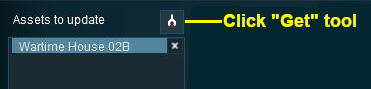

 |
(Optional) Set Control Options: Once the Assets to update list has been completed, the optional Rotate, Move to layer and Delete options can be used and the Scope can be set.  Setting the Options - for Non Texture Objects, Setting the Options - for Texture Objects and Setting the Scope below for more details. |
 |
(Optional) Add a Replacement Asset: The same method of Drag and Drop is used to add an object to the Asset to replace with list.
|
||||||||||||||||||||||||
 |
Perform the Update:
|
|
|
|
|
Deleting Assets from the Lists
 |
|
|||||||

|
|
|
|
Setting the Scope
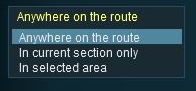
Select the region of the layout where the updates, replacements or deletions will occur:-
 |
|
||||||||||||||||


|
|
|
|
Setting the Options - for Non Texture Objects
Option 1: Randomly Rotate Scenery Objects
The first option controls the rotation or orientation of the original OR the replacement scenery objects.
|
|
|||||||
 |
Settings:
|
||||||
|
|
|||||||

|
||||||||



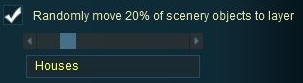
Option 2: Move Scenery Objects to Another Layer
The second option allows the original OR replacement scenery objects to be moved to another layer.
|
||||||

|
|
|||||||
|
Settings:
|
||||||
|
|
|||||||
|
|
|
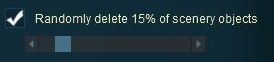
Option 3: Delete Scenery Objects
The third option allows the deletion of scenery objects from the layout.
|
|
|||||
|
Settings:
|
||||
|
|
|||||
|
||||||||
|
|
||||||||||||||||||||||||||||


|
|
|
|
Setting the Options - for Texture Objects
|
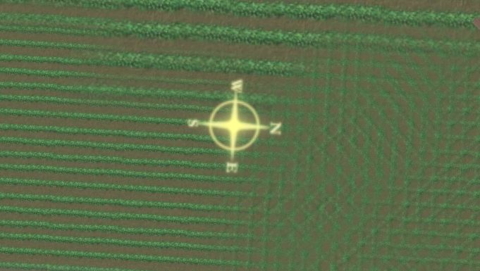
The image below shows a region painted with one texture asset but with different scaling and rotation settings.
 |
 With the check box ticked, the following is the result of a Left Click on the BEGIN button. |
 With the check box unticked, the following is the result of a Left Click on the BEGIN button. |
|
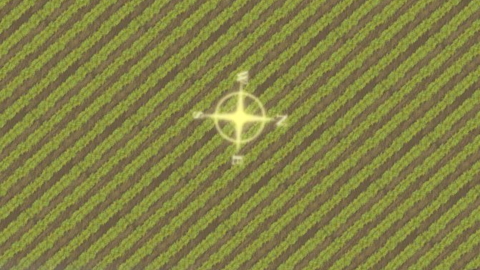 The scale and rotation settings that were used in the original have been replaced with the default scale and rotation settings of the replacement texture. |
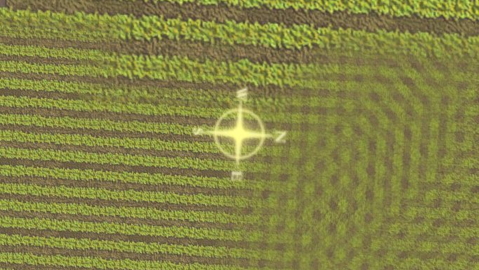 The same scale and rotation settings that were used in the original have been used with the replacement texture. |
|
|
|
Sample Applications
Replacing Some Assets
| The Problem: A forest has been created using three different trees. A number (30%) of the two smaller tree types are to be replaced with a larger tree of a different type.
|
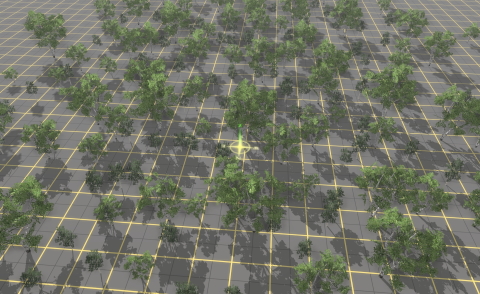
| The Solution: The Bulk Asset Update/Replace Tool does not have a feature that will allow the replacement of only some assets (it is all or none), so a slightly more indirect approach is needed. 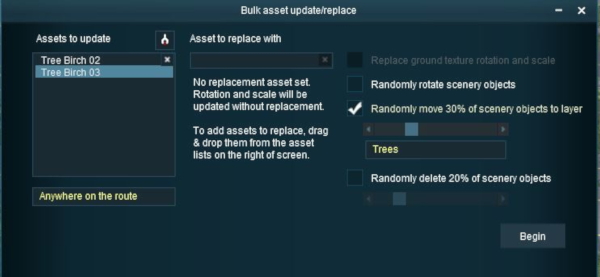 |
|||||||
|
|||||||
 |
For information on creating new layers, see the Trainz Wiki Page at:- |
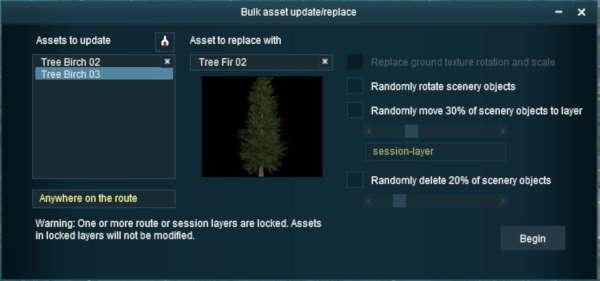 |
|||||||||
|
The final result
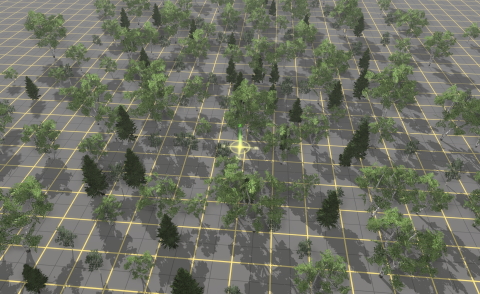 |
|
|||||||||
Fixing "Texture Bleeds"
The Problem:
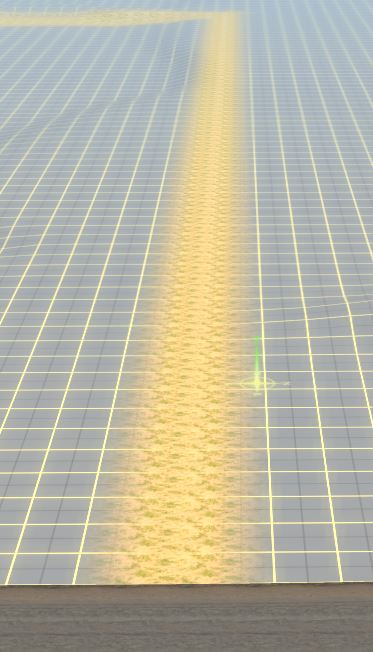 |
Sometimes when adding new baseboards or merging a route containing blank baseboards onto a route containing textured baseboards, there can be a "bleed-over" where a texture from the painted route will flow along some of the baseboard boundaries of the unpainted baseboards as shown in the image left. As strange as it may seem, this is actually "expected behaviour" and its purpose is to resolve other long standing problems that can occur when baseboards are added. The unwanted texture can (usually) be painted over by another texture and this will resolve the problem but there may be a lot of it to paint out and you may prefer a simplier solution. The Bulk Asset Update/Replace Tool can provide such a solution. The Solution:
|
||||||||||
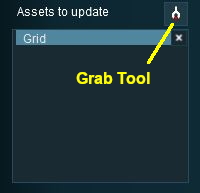
Steps: Grab the "Bleed Texture" and Clean
|
||||||||||||||
|
|
Trainz Wiki
 |
More Tutorials and Guides to Using Trainz |
This page was created by Trainz user pware in June 2018 and was last updated as shown below.


