How to Use Driver Setup Rule: Difference between revisions
mNo edit summary |
|||
| (5 intermediate revisions by the same user not shown) | |||
| Line 1: | Line 1: | ||
The information in this Wiki Page | <table width=1000 bgcolor=#000000 cellpadding=2> | ||
<tr valign="top"> | |||
<td> | |||
<table width=996 bgcolor=#ffffff cellpadding=2> | |||
<tr valign="middle"> | |||
<td width=35>[[image:Information.png|35px|link=]]</td> | |||
<td><span style="font-size: 15px;">The information in this Wiki Page covers the use of the '''Driver Setup Rule''' in the '''Session Editor''' found in '''TANE''', '''TRS19''', '''TRS22''' and '''Trainz Plus'''.</span></td> | |||
</tr> | |||
</table> | |||
</td> | |||
</tr> | |||
</table> | |||
<br> | |||
<table> | <table> | ||
<tr valign="top"> | <tr valign="top"> | ||
| Line 7: | Line 19: | ||
<td> | <td> | ||
<table width=800 bgcolor="lightcyan" cellpadding=2> | <table width=800 bgcolor="lightcyan" cellpadding=2> | ||
<tr valign="top"> | |||
<td colspan=2><span style="font-weight: 700; font-size: 15px;">Key Points:</span></td> | |||
</tr> | |||
<tr valign="top"> | <tr valign="top"> | ||
<td width=10>[[image:BlueDot10x10.png|link=]]</td> | <td width=10>[[image:BlueDot10x10.png|link=]]</td> | ||
| Line 55: | Line 70: | ||
<table bgcolor=#ffffff cellpadding=2> | <table bgcolor=#ffffff cellpadding=2> | ||
<tr valign="top"> | <tr valign="top"> | ||
<td colspan=2><span style="font-weight: 700; font-size: 15px;">Steps: | <td colspan=2><span style="font-weight: 700; font-size: 15px;">Steps: To Open the Driver Setup Rule:-</span></td> | ||
</tr> | </tr> | ||
<tr valign="top"> | <tr valign="top"> | ||
<td width=25>[[image:DotPoint1.JPG|link=]]</td> | <td width=25>[[image:DotPoint1.JPG|link=]]</td> | ||
<td>Open the [[image:WikiLink.PNG|link=]] '''[[How to Use Session Editor|Session Editor]]''' by selecting '''Edit Session''' from the '''Surveyor Main Menu''' in ''' | <td>Open the [[image:WikiLink.PNG|link=]] '''[[How to Use Session Editor|Session Editor]]''' by selecting '''Edit Session''' from the '''Surveyor Main Menu''' in '''T:ANE''' or the '''Surveyor Edit Menu''' in '''TRS19''' and later versions</td> | ||
</tr> | </tr> | ||
<tr valign="top"> | <tr valign="top"> | ||
| Line 83: | Line 98: | ||
<table bgcolor=#ffffff> | <table bgcolor=#ffffff> | ||
<tr valign="top"> | <tr valign="top"> | ||
<td colspan=2><span style="font-weight: 700; font-size: 15px;">Steps: | <td colspan=2><span style="font-weight: 700; font-size: 15px;">Steps: To Add the Driver Setup Rule:-</span></td> | ||
</tr> | </tr> | ||
<tr valign="top"> | <tr valign="top"> | ||
| Line 133: | Line 148: | ||
<table width=1000> | <table width=1000> | ||
<tr valign="top"> | <tr valign="top"> | ||
<td>After opening the '''Driver Setup Rule''' <span style="font-weight: 700; font-size: 15px; background-color: lightcyan;">Left Click</span> the | <td>After opening the '''Driver Setup Rule''' <span style="font-weight: 700; font-size: 15px; background-color: lightcyan;">Left Click</span> the ;:- <br> | ||
[[image:DriverSetupAddAnotherDriver.JPG|link=]]<br> | [[image:DriverSetupAddAnotherDriver.JPG|link=]]<br> | ||
<table bgcolor=#000000> | <table bgcolor=#000000> | ||
| Line 141: | Line 156: | ||
<tr valign="top"> | <tr valign="top"> | ||
<td>[[image:NotePad.PNG|link=]]</td> | <td>[[image:NotePad.PNG|link=]]</td> | ||
<td>If there is a list of drivers already present then scroll down to the bottom of the list to see the | <td>If there is a list of drivers already present then scroll down to the bottom of the list to see the ; | ||
</td> | </td> | ||
</tr> | </tr> | ||
| Line 163: | Line 178: | ||
<tr valign="top"> | <tr valign="top"> | ||
<td>[[image:Stop.PNG|link=]]</td> | <td>[[image:Stop.PNG|link=]]</td> | ||
<td><span style="font-weight: 700; font-size: 17px;">Timeout Problem in T:ANE</span> | <td><span style="font-weight: 700; font-size: 17px;">Timeout Problem in T:ANE</span> This is an issue in '''T:ANE'''. It has been '''FIXED''' in '''TRS19''' and later versions.<br> | ||
This is an issue in '''T:ANE'''. It has been '''FIXED''' in '''TRS19''' and later versions.<br> | |||
<br> | <br> | ||
Adding a large number of drivers to the Driver Setup can cause '''Timeout''' errors particularly if certain driver script libraries are being used. Exactly how many is a "large number" will depend on other factors.<br> | Adding a large number of drivers to the Driver Setup can cause '''Timeout''' errors particularly if certain driver script libraries are being used. Exactly how many is a "large number" will depend on other factors.<br> | ||
| Line 230: | Line 244: | ||
<tr valign="top"> | <tr valign="top"> | ||
<td>[[image:Bug.png|link=]]</td> | <td>[[image:Bug.png|link=]]</td> | ||
<td><span style="font-size: 17px;">''' | <td><span style="font-size: 17px;">'''T:ANE Known Issues:'''</span><br> | ||
[[image:DriverSetupRemoveExisting.JPG|link=]] '''This does not appear to have any effect in | [[image:DriverSetupRemoveExisting.JPG|link=]] '''This does not appear to have any effect in T:ANE'''</td> | ||
</tr> | </tr> | ||
</table></td> | </table></td> | ||
| Line 275: | Line 289: | ||
<tr valign="top"> | <tr valign="top"> | ||
<td>[[image:BlackDot10x10.png|link=]]</td> | <td>[[image:BlackDot10x10.png|link=]]</td> | ||
<td>If '''Unchecked [[image:CheckBoxOff.PNG|link=]]''' then you will have to manually assign drivers to trains by a <span style="font-weight: 700; font-size: 15px; background-color: lightcyan;">Left Click</span> on the '''<span style="text-decoration: underline;">Add another Driver</span>''' | <td>If '''Unchecked [[image:CheckBoxOff.PNG|link=]]''' then you will have to manually assign drivers to trains by a <span style="font-weight: 700; font-size: 15px; background-color: lightcyan;">Left Click</span> on the '''<span style="text-decoration: underline;">Add another Driver</span>''' ;</td> | ||
</tr> | </tr> | ||
</table> | </table> | ||
| Line 401: | Line 415: | ||
<table bgcolor=#ffffff cellpadding=2> | <table bgcolor=#ffffff cellpadding=2> | ||
<tr valign="top"> | <tr valign="top"> | ||
<td colspan=2><span style="font-weight: 700; font-size: 15px;">Steps:</span> | <td colspan=2><span style="font-weight: 700; font-size: 15px;">Steps: To Edit the Driver List:-</span></td> | ||
</tr> | </tr> | ||
<tr valign="top"> | <tr valign="top"> | ||
| Line 487: | Line 501: | ||
<table bgcolor=#ffffff cellpadding=2> | <table bgcolor=#ffffff cellpadding=2> | ||
<tr valign="top"> | <tr valign="top"> | ||
<td colspan=2><span style="font-weight: 700; font-size: 15px;">Steps:</span> | <td colspan=2><span style="font-weight: 700; font-size: 15px;">Steps: To Add Driver Commands:-</span></td> | ||
</tr> | </tr> | ||
<tr valign="top"> | <tr valign="top"> | ||
| Line 592: | Line 606: | ||
<table bgcolor=#ffffff cellpadding=2> | <table bgcolor=#ffffff cellpadding=2> | ||
<tr valign="top"> | <tr valign="top"> | ||
<td colspan=2><span style="font-weight: 700; font-size: 15px;">Steps: | <td colspan=2><span style="font-weight: 700; font-size: 15px;">Steps: To Remove a Command From the Driver Command Bar:-</span></td> | ||
</tr> | </tr> | ||
<tr valign="top"> | <tr valign="top"> | ||
| Line 652: | Line 666: | ||
<table bgcolor=#ffffff cellpadding=2> | <table bgcolor=#ffffff cellpadding=2> | ||
<tr valign="top"> | <tr valign="top"> | ||
<td colspan=2><span style="font-weight: 700; font-size: 15px;">Steps: | <td colspan=2><span style="font-weight: 700; font-size: 15px;">Steps: To Add a Repeat Command:-</span></td> | ||
</tr> | </tr> | ||
<tr valign="top"> | <tr valign="top"> | ||
| Line 738: | Line 752: | ||
<tr valign="top"> | <tr valign="top"> | ||
<td>[[image:Bug.png|link=]]</td> | <td>[[image:Bug.png|link=]]</td> | ||
<td><span style="font-size: 17px;">'''Known Issues:'''</span> This issue has been | <td><span style="font-size: 17px;">'''Known Issues:'''</span> This is an issue in '''T:ANE'''. It has been '''FIXED''' in '''TRS19''' and later versions.<br> | ||
If a '''Repeat''' command is present in the '''Driver Command Bar''' and all the other commands are then deleted, the '''Repeat''' command will remain in the '''Driver Command Bar''' and cannot be removed. Because there are no other commands to be repeated this will not cause a problem. However when later adding new commands the presence of the '''Repeat''' command can be easily overlooked. | If a '''Repeat''' command is present in the '''Driver Command Bar''' and all the other commands are then deleted, the '''Repeat''' command will remain in the '''Driver Command Bar''' and cannot be removed. Because there are no other commands to be repeated this will not cause a problem. However when later adding new commands the presence of the '''Repeat''' command can be easily overlooked. | ||
<table cellpadding=4 bgcolor=#bbffbb width="640"> | <table cellpadding=4 bgcolor=#bbffbb width="640"> | ||
| Line 755: | Line 769: | ||
<tr valign="top"> | <tr valign="top"> | ||
<td width=629><span id="stepCopying"></span> | <td width=629><span id="stepCopying"></span> | ||
='''Copying the Driver Setup Rule'''= | ='''Copying the Driver Setup Rule'''= | ||
</td> | </td> | ||
| Line 779: | Line 792: | ||
<table bgcolor=#ffffff cellpadding=2> | <table bgcolor=#ffffff cellpadding=2> | ||
<tr valign="top"> | <tr valign="top"> | ||
<td colspan=2><span style="font-weight: 700; font-size: 15px;">Steps: | <td colspan=2><span style="font-weight: 700; font-size: 15px;">Steps: To Copy the Driver Setup Rule to Other Sessions:-</span></td> | ||
</tr> | </tr> | ||
<tr valign="top"> | <tr valign="top"> | ||
| Line 858: | Line 871: | ||
<tr valign="top"> | <tr valign="top"> | ||
<td width=10>[[image:BlueDot10x10.png|link=]]</td> | <td width=10>[[image:BlueDot10x10.png|link=]]</td> | ||
<td>The '''[[image:WikiLink.PNG|link=]] [[Session Rule List with Parameters#Driver Command Rule|Driver Command Rule]]''' controls which '''Driver Commands''' will be available | <td>The '''[[image:WikiLink.PNG|link=]] [[Session Rule List with Parameters#Driver Command Rule|Driver Command Rule]]''' controls which '''Driver Commands''' will be available to a user. This applies to both:- | ||
<table> | <table> | ||
<tr valign="top"> | <tr valign="top"> | ||
<td width=10>[[image:BlueDot10x10.png|link=]]</td> | <td width=10>[[image:BlueDot10x10.png|link=]]</td> | ||
<td>commands added to the [[image: | <td>commands added to the [[image:PageLink.PNG|link=]] '''[[#Driver Setup Rule|Driver Setup Rule]]''' in the [[image:WikiLink.PNG|link=]] '''[[How to Use Session Editor|Session Editor]]''' in '''Surveyor''', and</td> | ||
</tr> | </tr> | ||
<tr valign="top"> | <tr valign="top"> | ||
| Line 870: | Line 883: | ||
</table> | </table> | ||
</td> | </td> | ||
</tr> | </tr> | ||
</table> | </table> | ||
| Line 888: | Line 897: | ||
<table bgcolor=#ffffff cellpadding=2> | <table bgcolor=#ffffff cellpadding=2> | ||
<tr valign="top"> | <tr valign="top"> | ||
<td colspan=2><span style="font-weight: 700; font-size: 15px;">Steps: | <td colspan=2><span style="font-weight: 700; font-size: 15px;">Steps: To Edit the Driver Command Rule:-</span></td> | ||
</tr> | </tr> | ||
<tr valign="top"> | <tr valign="top"> | ||
| Line 912: | Line 921: | ||
<table bgcolor=#ffffff cellpadding=2> | <table bgcolor=#ffffff cellpadding=2> | ||
<tr valign="top"> | <tr valign="top"> | ||
<td colspan=2><span style="font-weight: 700; font-size: 15px;">Steps: | <td colspan=2><span style="font-weight: 700; font-size: 15px;">Steps: To Add the Driver Command Rule:-</span></td> | ||
</tr> | </tr> | ||
<tr valign="top"> | <tr valign="top"> | ||
| Line 944: | Line 953: | ||
</table> | </table> | ||
<br> | <br> | ||
<table> | <table width=1000> | ||
<tr valign="top"> | <tr valign="top"> | ||
<td>[[image:DriverCommandAddCommand.JPG|link=]]</td> | <td width=500>[[image:DriverCommandAddCommand.JPG|500px|link=]]</td> | ||
<td> | <td> | ||
<table cellpadding=4 bgcolor=#eeeeee | <table cellpadding=4 bgcolor=#eeeeee> | ||
<tr> | <tr> | ||
<td colspan="2"> | <td colspan="2"> | ||
| Line 978: | Line 987: | ||
</table> | </table> | ||
<br> | <br> | ||
<table bgcolor=#000000 cellpadding=2 | <table bgcolor=#000000 cellpadding=2> | ||
<tr valign="top"> | <tr valign="top"> | ||
<td> | <td> | ||
<table bgcolor=# | <table bgcolor=#ffffe0 cellpadding=2> | ||
<tr valign="top"> | <tr valign="top"> | ||
<td>[[image: | <td>[[image:PencilTips.PNG|link=]]</td> | ||
<td> | <td>Removing '''Driver Commands''' such as '''Navigate''' and '''Drive''' will force players to manually drive trains when in '''Driver''' instead of allowing them to use the AI system to do all the work</td> | ||
</td> | |||
</tr> | </tr> | ||
< | </table> | ||
</td> | </td> | ||
</tr> | </tr> | ||
| Line 1,000: | Line 1,002: | ||
</tr> | </tr> | ||
</table> | </table> | ||
<br> | |||
<table width=1000 bgcolor=#000000 cellpadding=2> | |||
<tr valign="top"> | |||
<td> | |||
<table width=996 bgcolor=#ffffb0 cellpadding=2> | |||
<tr valign="top"> | |||
<td width=25>[[image:NotePad.PNG|link=]]</td> | |||
<td><span style="font-size: 17px;">'''Notes:'''</span><br> | |||
---- | |||
</td> | </td> | ||
</tr> | |||
<tr valign="top"> | |||
<td>[[image:DotPoint.JPG|10px|link=]]</td> | |||
<td>If a command that you want to use does not appear in the list, then check in '''Content Manager''' that it has been installed and is free of errors</td> | |||
</tr> | |||
<tr valign="top"> | |||
<td>[[image:DotPoint.JPG|10px|link=]]</td> | |||
<td>In '''T:ANE''' some Driver Commands that have been checked '''ON''' will not appear in the '''Driver Command Bar''' if there is no target for their action. For example, no set trackmarks or interactive industries for the '''Drive To''' command</td> | |||
</tr> | </tr> | ||
</table> | </table> | ||
| Line 1,020: | Line 1,039: | ||
---- | ---- | ||
---- | ---- | ||
='''Trainz Wiki'''= | ='''Trainz Wiki'''= | ||
<table | <table width=1000> | ||
<tr valign="top"> | <tr valign="top"> | ||
<td>[[image:TrainzWiki.png|link=]]</td> | <td> | ||
<table width=500 cellpadding=2 bgcolor=#ffffff> | |||
<tr valign="top"> | |||
<td width=80>[[image:TrainzWiki.png|link=]]</td> | |||
<td> | <td> | ||
<span style="font-size: 17px;">'''More Tutorials and Guides to Using Trainz'''</span><br> | <span style="font-size: 17px;">'''More Tutorials and Guides to Using Trainz'''</span><br> | ||
*'''<span class=" | *'''<span class="plain;">[http://online.ts2009.com/mediaWiki/index.php/HowTo How to Guides]</span>''' | ||
*'''[[Driver Commands List]]''' | *'''[[Driver Commands List]]''' | ||
*'''[[Session Rule List with Parameters|Session Rules List (Alphabetical) with Parameters]]''' | *'''[[Session Rule List with Parameters|Session Rules List (Alphabetical) with Parameters]]''' | ||
*'''[[Session Rules By Categories With Properties|Session Rules List (Categories) With Parameters]]''' | *'''[[Session Rules By Categories With Properties|Session Rules List (Categories) With Parameters]]''' | ||
</td> | |||
</tr> | |||
</table> | |||
</td> | |||
<td> | |||
<table width=500 cellpadding=4 bgcolor="aquamarine"> | |||
<tr valign="top"> | |||
<td width=50>[[image:LinkWiki.PNG|link=]]</td> | |||
<td> | |||
<span style="font-size: 17px;">'''Related Links'''</span><br> | |||
* '''[[How to Use Session Editor|Using the Session Editor]]''' | |||
</td> | |||
</tr> | |||
</table> | |||
</td> | </td> | ||
</tr> | </tr> | ||
</table> | </table> | ||
---- | ---- | ||
This page was created by Trainz user '''<span class=" | This page was created by Trainz user '''<span class="plain;">[http://online.ts2009.com/mediaWiki/index.php/User:Pware pware]</span>''' in June 2018 and was last updated as shown below. | ||
---- | ---- | ||
[[Category:How-to guides]][[Category:Rules]] | [[Category:How-to guides]][[Category:Rules]] | ||
Latest revision as of 12:36, 31 August 2026
|
|
|||||||
Driver Setup Rule |
 |
 |
 |
 |
 |
A list of available Driver Commands can be found on the Trainz Wiki Page at:- |
The  Driver Setup Rule is automatically added to the Session Editor of every Session.
| Error creating thumbnail: /bin/bash: line 1: /usr/bin/convert: No such file or directory Error code: 127 |
|
||||||||||||||||||||||


Adding New Drivers |
|
 |
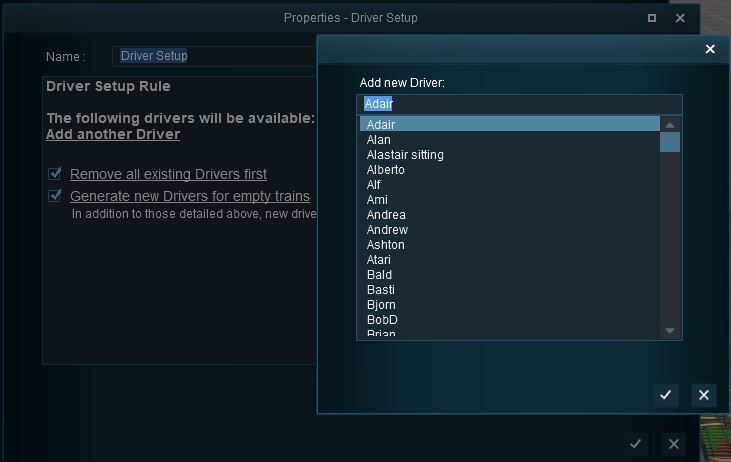
| After opening the Driver Setup Rule Left Click the ;:-
The image on the right shows the properties window if it is opened with no drivers placed in the layout. This will open the Add New Driver window. Select a driver from the list and Left Click the Tick button. |
 |


 |
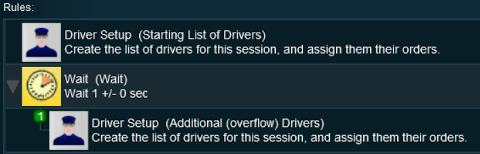
Timeout Problem in T:ANE This is an issue in T:ANE. It has been FIXED in TRS19 and later versions.
|

Remove Existing Drivers First
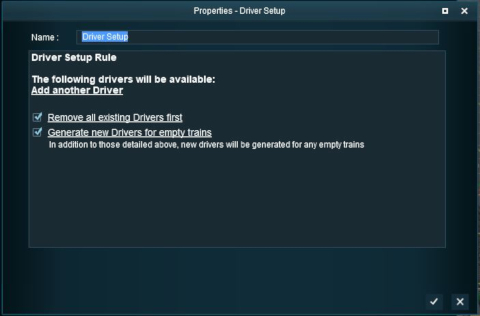
| After selecting the Driver Setup Rule Left Click the Edit button, the Driver Setup Properties Window will be shown. The image below shows the properties window if it is opened with no drivers placed in the layout. |
 |
|
|||||||||||||



|
Generate New Drivers for Empty Trains

|
|
|||||||||||||
Wait For Schedule Completion

|
|
|||||
 |
Settings:
|
||||
|
|
|||||
Focus Camera on First Driver

|
|
|||||
|
Settings:
|
||||
|
|
|||||
Editing the Driver List |
|
|
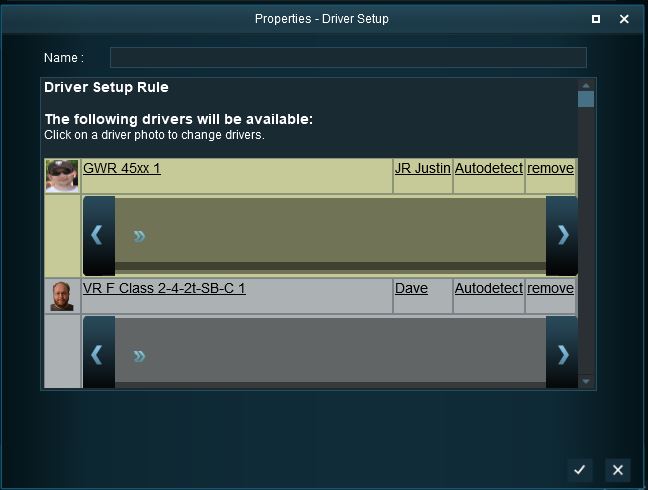
When drivers and trains have been added to the rule, it will appear as shown below.
 |
|
|
||||||||||||||||||||||||


Adding Driver Commands |
|
|
| The grey area below the driver details (name, loco, owner) is the Driver Command Bar. This is where the driving instructions (the "train orders") used by the Trainz AI system are given to the driver. |
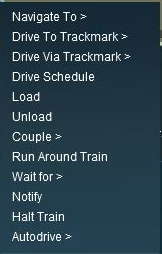
| Error creating thumbnail: /bin/bash: line 1: /usr/bin/convert: No such file or directory Error code: 127 Shown below is a Driver Command Bar after two driver commands have been added. Each command has its own icon. Move the mouse pointer onto a command icon to reveal a tooltip showing the contents of the command, as shown in the image. |
|
||||||||||||||||||||||




|
Deleting Driver Commands |
|
|
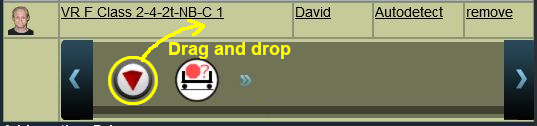
To remove a command from the Driver Command Bar...
 |
|
|||||
The "Repeat" Command |
|
|
 |
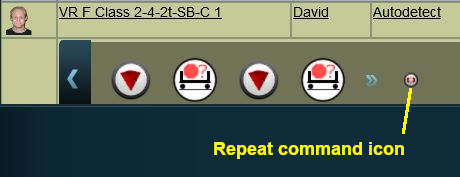
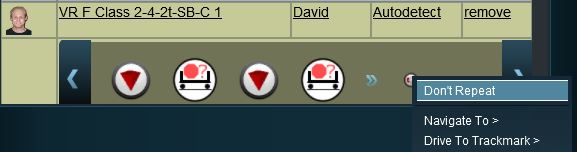
The Repeat command is a special built in Driver Command that allows ALL the driver commands to be repeated endlessly |
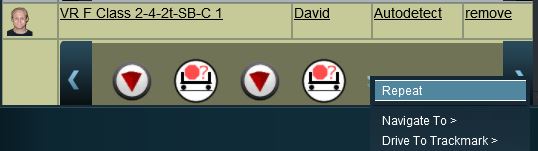 |
|
||||||||||
 |
|
 |
|
|

Copying the Driver Setup Rule |
|
|
 |
|
|
|
The Driver Setup Rule (and other rules) can be copied between Sessions |
|
||||||||||||
|


Driver Command Rule |
|
|
|
|
The Driver Command Rule controls which Driver Commands will be available to a user. This applies to both:-
|
The Driver Command Rule is automatically added to the Session Editor of every Session.
| Error creating thumbnail: /bin/bash: line 1: /usr/bin/convert: No such file or directory Error code: 127 |
|
||||||||||||||||||
| The Rule properties window will open to show all the Driver Commands that have been installed in Trainz on your system. This list includes the commands that are built in and those that have been downloaded from the DLS. |
| Error creating thumbnail: /bin/bash: line 1: /usr/bin/convert: No such file or directory Error code: 127 |
|
|||||||||||||||
|
|
|
Trainz Wiki
|
|

This page was created by Trainz user pware in June 2018 and was last updated as shown below.


