SAR Scenario Paratoo Mixed Passenger Freight V2: Difference between revisions
mNo edit summary |
mNo edit summary |
||
| (5 intermediate revisions by the same user not shown) | |||
| Line 76: | Line 76: | ||
</table> <!-- END Scenario image and loco/consist table --> | </table> <!-- END Scenario image and loco/consist table --> | ||
<span style="font-weight: 700; font-size: 15px; color: white; background-color: black;"> Similar/Related Scenarios </span>< | <table width=1000> | ||
<tr valign="top"> | |||
<td><span style="font-weight: 700; font-size: 15px; color: white; background-color: black;"> DLS Session Based on This Scenario </span><br> | |||
<br> | |||
This is a fully directed session with '''Navigation Points''' and '''Message Popups'''. All junction switches will be set for you. | |||
<br> | |||
<span style="font-weight: 700;"><kuid:109640:109718> <span style="color: brown;">SAR Northern Division Paratoo Mixed Service Session</span></span> - Train '''101''' in the timetable below. | |||
<br></td> | |||
</tr> | |||
<tr valign="top"> | |||
<td><span style="font-weight: 700; font-size: 15px; color: white; background-color: black;"> Similar/Related Scenarios </span></td> | |||
</tr> | |||
</table> | |||
<table width=1000> | <table width=1000> | ||
| Line 102: | Line 114: | ||
<td><span style="font-weight: 700; background-color: black; color: yellow;"> 27 </span> </td> | <td><span style="font-weight: 700; background-color: black; color: yellow;"> 27 </span> </td> | ||
<td>'''[[SAR Scenario Gladstone-Peterborough Freight_V2|Gladstone-Peterborough Local Freight]]'''</td> | <td>'''[[SAR Scenario Gladstone-Peterborough Freight_V2|Gladstone-Peterborough Local Freight]]'''</td> | ||
</tr> | |||
<tr valign="top"> | |||
<td><span style="font-weight: 700; background-color: black; color: yellow;"> 28 </span> </td> | |||
<td>'''[[SAR Scenario Hawker Line Tour_V2|The Hawker Line Tour]]'''</td> | |||
<td colspan=4> </td> | |||
</tr> | </tr> | ||
</table> | </table> | ||
| Line 122: | Line 139: | ||
<tr valign="top"> | <tr valign="top"> | ||
<td> | <td> | ||
# If you have already closed the opening message window then | # Open the session '''SAR Northern Division Free Roam Session V2''' into '''Trainz Driver'''. To do this:<br> | ||
#* From the '''Driver/Surveyor''' loading screen select the route '''SAR Northern Division (Narrow Gauge) Route v2''' | |||
#* Then select <span style="font-weight: 700; color: white; background-color: grey;"> VIEW SESSIONS </span> | |||
#* Then select the session '''SAR Northern Division Free Roam Session V2''' | |||
#* Click <span style="font-weight: 700; color: white; background-color: grey;"> DRIVE SESSION </span> | |||
# If you have already closed the opening message window then pause the session by pressing the <span style="font-weight: 700; font-size: 15px; color: white; background-color: black;"> P </span> key. | |||
# If you decide to set the session clock to a different starting time (for example: to match the train timetable shown below) then follow the instructions shown in the '''Orders''' section | # If you decide to set the session clock to a different starting time (for example: to match the train timetable shown below) then follow the instructions shown in the '''Orders''' section | ||
# Next locate your loco. '''Either''':- | # Next locate your loco. '''Either''':- | ||
| Line 138: | Line 160: | ||
# When you are ready to start, reload the '''Peterborough Base Session''' page (click the '''Scenarios''' button on your current location page) and select this '''Scenario''' again or just use the '''Back''' button on your browser - whichever is quicker. | # When you are ready to start, reload the '''Peterborough Base Session''' page (click the '''Scenarios''' button on your current location page) and select this '''Scenario''' again or just use the '''Back''' button on your browser - whichever is quicker. | ||
# Switch back to '''Trainz Driver Mode''' | # Switch back to '''Trainz Driver Mode''' | ||
# Close the opening message window | # Close the opening message window if it is on the screen '''OR''' if '''Pause''' is shown on the screen instead, press the <span style="font-weight: 700; font-size: 15px; color: white; background-color: black;"> P </span> key. Both actions will start the session. | ||
</td> | </td> | ||
</tr> | </tr> | ||
| Line 260: | Line 282: | ||
<td colspan=2> </td> | <td colspan=2> </td> | ||
<td align="right">'''dep'''</td> | <td align="right">'''dep'''</td> | ||
<td> '''09: | <td> '''09:55'''</td> | ||
<td>'''Nackara'''</td> | <td>'''Nackara'''</td> | ||
<td align="right">'''arr'''</td> | <td align="right">'''arr'''</td> | ||
| Line 271: | Line 293: | ||
<td align="right">'''WX'''</td> | <td align="right">'''WX'''</td> | ||
<td align="right">'''arr'''</td> | <td align="right">'''arr'''</td> | ||
<td> '''10: | <td> '''10:05wD<sup>2</sup>'''</td> | ||
<td> </td> | <td> </td> | ||
<td align="right">'''dep'''</td> | <td align="right">'''dep'''</td> | ||
| Line 347: | Line 369: | ||
<tr valign="top"> | <tr valign="top"> | ||
<td> </td> | <td> </td> | ||
<td align="right">'''Yard'''</td> | |||
<td> </td> | |||
<td align="center">'''DT'''</td> | |||
<td align="right">'''Yard'''</td> | <td align="right">'''Yard'''</td> | ||
<td align="right"> </td> | <td align="right"> </td> | ||
| Line 383: | Line 407: | ||
</tr> | </tr> | ||
</table> <!-- END Black Border for Orders Table --> | </table> <!-- END Black Border for Orders Table --> | ||
<table width=820> <!-- BEGIN Symbol Table --> | |||
<table width=820> <!-- BEGIN Train Symbol Table --> | |||
<tr valign="top"> | <tr valign="top"> | ||
<td colspan=2>'''bold time''' = arrive/depart time</td> | <td colspan=2>'''bold time''' = arrive/depart time</td> | ||
| Line 389: | Line 414: | ||
</tr> | </tr> | ||
<tr valign="top"> | <tr valign="top"> | ||
<td colspan= | <td colspan=5><span style="font-weight: 700; font-size: 15px;">Service Symbols:</span></td> | ||
</tr> | </tr> | ||
<tr valign="top"> | <tr valign="top"> | ||
<td width= | <td width=164>'''A''' Attach wagons</td> | ||
<td width= | <td width=164>'''D''' Detach wagons</td> | ||
<td width= | <td width=164>'''L''' Load</td> | ||
<td width= | <td width=164>'''S''' Stable loco</td> | ||
<td width=164>'''T''' Turn loco</td> | |||
</tr> | </tr> | ||
<tr valign="top"> | <tr valign="top"> | ||
<td>''' | <td>'''U''' Unload</td> | ||
<td>'''a''' on request stop</td> | <td>'''a''' on request stop</td> | ||
<td>'''c''' coal (if required)</td> | <td>'''c''' coal (if required)</td> | ||
<td>'''w''' water (if required)</td> | <td>'''w''' water (if required)</td> | ||
<td> </td> | |||
</tr> | </tr> | ||
</table> <!-- END Train Symbol Table --> | |||
<table width=820> <!-- BEGIN Train Crossing Table --> | |||
<tr valign="top"> | <tr valign="top"> | ||
<td>'''<sup>1</sup>''' Cross '''train [[SAR Scenario Transcontinental Express Freight_V2|820]]'''</td> | <td width=205>'''<sup>1</sup>''' Cross '''train [[SAR Scenario Transcontinental Express Freight_V2|820]]'''</td> | ||
<td>'''<sup>2</sup>''' Cross '''train [[SAR Scenario Gladstone Bulk Ore_V2|821]]'''</td> | <td width=205>'''<sup>2</sup>''' Cross '''train [[SAR Scenario Gladstone Bulk Ore_V2|821]]'''</td> | ||
<td></td> | <td width=205> </td> | ||
<td></td> | <td width=205> </td> | ||
</tr> | </tr> | ||
</table> <!-- END Train Crossing Table --> | |||
<table width=820> <!-- BEGIN Location Symbol Table --> | |||
<tr valign="top"> | <tr valign="top"> | ||
<td colspan=4><span style="font-weight: 700; font-size: 15px;">Location Symbols:</span></td> | <td colspan=4><span style="font-weight: 700; font-size: 15px;">Location Symbols:</span></td> | ||
</tr> | </tr> | ||
<tr valign="top"> | <tr valign="top"> | ||
<td>'''Δ = Turning Triangle'''</td> | <td width=205>'''Δ = Turning Triangle'''</td> | ||
<td>'''C = Loco Coal Loader'''</td> | <td width=205>'''C = Loco Coal Loader'''</td> | ||
<td>'''E = Engine Depot'''</td> | <td width=205>'''E = Engine Depot'''</td> | ||
<td>'''F = Fixed Signals'''</td> | <td width=205>'''F = Fixed Signals'''</td> | ||
</tr> | </tr> | ||
<tr valign="top"> | <tr valign="top"> | ||
| Line 424: | Line 456: | ||
<td>'''X = Crossing Loop'''</td> | <td>'''X = Crossing Loop'''</td> | ||
</tr> | </tr> | ||
</table> | <tr valign="top"> | ||
<td colspan=4 bgcolor="black"></td> | |||
</tr> | |||
</table> <!-- END Location Symbol Table --> | |||
</td> | </td> | ||
<td> | <td> | ||
Latest revision as of 02:33, 7 May 2026
| Error creating thumbnail: /bin/bash: line 1: /usr/bin/convert: No such file or directory Error code: 127 8 |
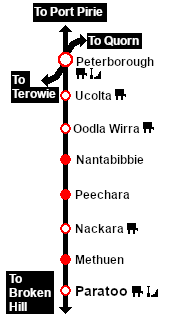
9 Peterborough to Paratoo Mixed Passenger Freight A scenario in the SAR Peterborough Base Session v2.0 |
Error creating thumbnail: /bin/bash: line 1: /usr/bin/convert: No such file or directory Error code: 127 10 |
| Mixed passenger and freight run from Peterborough to Paratoo. |  |
|
The Historical Bit |
When, Where and With What
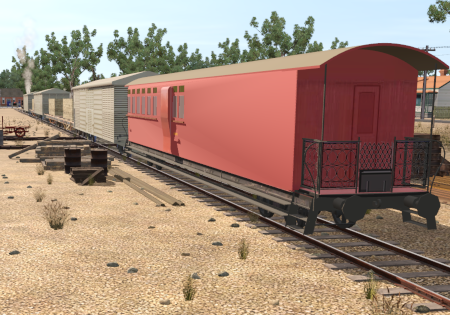 |
|
|||||||||||
| DLS Session Based on This Scenario
|
| Similar/Related Scenarios |
|
|
Each location in the layout has a detailed set of track diagrams that provide a variety of useful information The Getting Started guide below gives a summary of what is available.  graphic, or go to the bottom of the page for all the session links (all links will open in this window). |

Getting Started:
|


Tutorial:
|

|
|
||||||||||||||||||||||||||||||||||||||||||||||||||||||||||||||||||||||||||||||||||||||||||||||||||||||||||||||||||||||||||||||||||||||||||||||||||||||||||||||||||||||||||||||||||||||||||||||||||||||||||||||||||||||||||||||


Driving Notes:
|



This page was created by Trainz user pware in February 2021 and was last updated as shown below.


