How to Use the UDS Interface: Difference between revisions
mNo edit summary |
mNo edit summary |
||
| (3 intermediate revisions by the same user not shown) | |||
| Line 5: | Line 5: | ||
<tr valign="middle"> | <tr valign="middle"> | ||
<td width=35>[[image:Information.png|35px|link=]]</td> | <td width=35>[[image:Information.png|35px|link=]]</td> | ||
<td><span style="font-size: 15px;">The information in this Wiki Page applies to '''TRS19 Platinum Edition''', '''Trainz Plus''' and ''' | <td><span style="font-size: 15px;">The information in this Wiki Page applies to '''TRS19 Platinum Edition''', '''TRS22''' and '''Trainz Plus'''. It explains the use of the '''UDS''' ('''U'''nified '''D'''river '''S'''urveyor) feature that allows you to switch seamlessly between '''Surveyor''' and '''Driver'''.</span></td> | ||
</tr> | </tr> | ||
</table> | </table> | ||
</td> | </td> | ||
</tr> | </tr> | ||
</table> | </table> | ||
| Line 31: | Line 18: | ||
</td> | </td> | ||
<td> | <td> | ||
<table width=775 bgcolor= | <table width=775 bgcolor="lightcyan" cellpadding=2> | ||
<tr valign="top"> | |||
<td colspan=2><span style="font-weight: 700; font-size: 15px;">Key Points:-</span></td> | |||
</tr> | |||
<tr valign="top"> | <tr valign="top"> | ||
<td> | <td width=10>[[image:BlueDot10x10.png|link=]]</td> | ||
< | <td>The '''UDS''' feature is only found in '''TRS19 Platinum Edition''', '''Trainz Plus''' and '''TRS22'''</td> | ||
</tr> | |||
<tr valign="top"> | <tr valign="top"> | ||
<td | <td>[[image:BlueDot10x10.png|link=]]</td> | ||
<td> | <td>It provides a method of quickly switching from '''Driver''' to '''Surveyor''' and back again without having to restart a running session after each switch</td> | ||
</tr> | </tr> | ||
<tr valign="top"> | <tr valign="top"> | ||
<td>[[image: | <td>[[image:BlueDot10x10.png|link=]]</td> | ||
<td> | <td>After switching to '''Surveyor''' and editing you can save your edits before switching back into '''Driver'''</td> | ||
</tr> | </tr> | ||
<tr valign="top"> | <tr valign="top"> | ||
<td>[[image: | <td>[[image:BlueDot10x10.png|link=]]</td> | ||
<td> | <td>If your edits made changes to the session then it is '''<u>recommended</u>''' that you save your work as a new session (unless you really do want to '''overwrite''' the original session)</td> | ||
</tr> | </tr> | ||
<tr valign="top"> | <tr valign="top"> | ||
<td>[[image: | <td>[[image:BlueDot10x10.png|link=]]</td> | ||
<td>The '''<u>virtual location</u>''' of all consists is now stored as part of the '''Session''' even if the consists themselves are placed in the '''Route'''</td> | <td>The '''<u>virtual location</u>''' of all consists is now stored as part of the '''Session''' even if the consists themselves are placed in the '''Route'''</td> | ||
</tr> | </tr> | ||
<tr valign="top"> | <tr valign="top"> | ||
<td>[[image: | <td>[[image:BlueDot10x10.png|link=]]</td> | ||
<td>The '''Session Editor''' | <td>The '''Session Editor''' allows you to reset any or all of the Session Rules before restarting a session</td> | ||
</td> | |||
</tr> | </tr> | ||
</table> | </table> | ||
| Line 76: | Line 64: | ||
</tr> | </tr> | ||
</table> <!-- END Nav Buttons Table --> | </table> <!-- END Nav Buttons Table --> | ||
<br> | |||
<table width=1000> | <table width=1000> | ||
<tr valign="top"> | <tr valign="top"> | ||
| Line 84: | Line 71: | ||
</tr> | </tr> | ||
</table> | </table> | ||
<br> | <br> | ||
<table bgcolor=#ffffb0 width=1000> | <table bgcolor=#ffffb0 width=1000> | ||
<tr valign="top"> | <tr valign="top"> | ||
| Line 120: | Line 106: | ||
<tr valign="top"> | <tr valign="top"> | ||
<td> | <td> | ||
<span style="font-weight: 700; font-size: 15px;">Steps:</span> | <span style="font-weight: 700; font-size: 15px;">Steps: To Fix the Problem:-</span><br> | ||
<table> | <table> | ||
<tr valign="top"> | <tr valign="top"> | ||
| Line 235: | Line 221: | ||
<table bgcolor=#ffffff cellpadding=2> | <table bgcolor=#ffffff cellpadding=2> | ||
<tr valign="top"> | <tr valign="top"> | ||
<td><span style="font-weight: 700; font-size: 15px;">Steps: | <td><span style="font-weight: 700; font-size: 15px;">Steps: To Switch from Driver to Surveyor:-</span> | ||
<table> | <table> | ||
<tr valign="top"> | <tr valign="top"> | ||
| Line 293: | Line 279: | ||
<table bgcolor=#ffffff cellpadding=2> | <table bgcolor=#ffffff cellpadding=2> | ||
<tr valign="top"> | <tr valign="top"> | ||
<td><span style="font-weight: 700; font-size: 15px;">Steps: | <td><span style="font-weight: 700; font-size: 15px;">Steps: To Switch from Surveyor to Driver:-</span> | ||
<table> | <table> | ||
<tr valign="top"> | <tr valign="top"> | ||
| Line 334: | Line 320: | ||
<tr valign="top"> | <tr valign="top"> | ||
<td width=629><span id="stepSaving"></span> | <td width=629><span id="stepSaving"></span> | ||
='''Saving'''= | ='''Saving'''= | ||
</td> | </td> | ||
| Line 457: | Line 442: | ||
<table bgcolor=#ffffff cellpadding=2> | <table bgcolor=#ffffff cellpadding=2> | ||
<tr valign="top"> | <tr valign="top"> | ||
<td colspan=2><span style="font-weight: 700; font-size: 15px;">Steps: | <td colspan=2><span style="font-weight: 700; font-size: 15px;">Steps: To Save the Route Only:-</span></td> | ||
</tr> | </tr> | ||
<tr valign="top"> | <tr valign="top"> | ||
| Line 494: | Line 479: | ||
<table bgcolor=#ffffff cellpadding=2> | <table bgcolor=#ffffff cellpadding=2> | ||
<tr valign="top"> | <tr valign="top"> | ||
<td colspan=2><span style="font-weight: 700; font-size: 15px;">Steps: | <td colspan=2><span style="font-weight: 700; font-size: 15px;">Steps: To Save the Route and a NEW Session:-</span></td> | ||
</tr> | </tr> | ||
<tr valign="top"> | <tr valign="top"> | ||
| Line 525: | Line 510: | ||
<table bgcolor=#ffffff> | <table bgcolor=#ffffff> | ||
<tr valign="top"> | <tr valign="top"> | ||
<td colspan=2><span style="font-weight: 700; font-size: 15px;">Steps:</span></td> | <td colspan=2><span style="font-weight: 700; font-size: 15px;">Steps: To Save Session Layer Edits Without Overwriting the Starting Session:-</span></td> | ||
</tr> | </tr> | ||
<tr valign="top"> | <tr valign="top"> | ||
| Line 533: | Line 518: | ||
<tr valign="top"> | <tr valign="top"> | ||
<td>[[image:DotPoint2.JPG|link=]]</td> | <td>[[image:DotPoint2.JPG|link=]]</td> | ||
<td>switch from '''Driver''' to '''Surveyor''' and edit when required. You can safely edit any '''Route Layer''' which now includes the moved '''Session | <td>switch from '''Driver''' to '''Surveyor''' and edit when required. You can safely edit any '''Route Layer''' which now includes the moved '''Session Layer'''</td> | ||
</tr> | </tr> | ||
<tr valign="top"> | <tr valign="top"> | ||
| Line 543: | Line 528: | ||
<table bgcolor=#ffffff> | <table bgcolor=#ffffff> | ||
<tr valign="top"> | <tr valign="top"> | ||
<td colspan=2><span style="font-weight: 700; font-size: 15px;">Steps:</span></td> | <td colspan=2><span style="font-weight: 700; font-size: 15px;">Steps: To Move the Layer Back to the Session:-</span></td> | ||
</tr> | </tr> | ||
<tr valign="top"> | <tr valign="top"> | ||
| Line 695: | Line 680: | ||
</tr> | </tr> | ||
<tr valign="top"> | <tr valign="top"> | ||
<td>Pierre ('''pguy'''), the creator of the '''EIT''' asset and associated rules, has a detailed description of this and some possible solutions in a Trainz Forum post at:- '''<span class="plain; | <td>Pierre ('''pguy'''), the creator of the '''EIT''' asset and associated rules, has a detailed description of this and some possible solutions in a Trainz Forum post at:- '''<span class="plain;">[https://forums.auran.com/trainz/showthread.php?159841-Interlocking-Towers-Session-Only&p=1825875#post1825875 EITs and the UDS]</span>'''</td> | ||
</tr> | </tr> | ||
</table> | </table> | ||
| Line 754: | Line 739: | ||
---- | ---- | ||
---- | ---- | ||
='''Trainz Wiki'''= | ='''Trainz Wiki'''= | ||
<table width=1000> | <table width=1000> | ||
| Line 764: | Line 748: | ||
<td> | <td> | ||
<span style="font-size: 17px;">'''More Tutorials and Guides to Using Trainz'''</span><br> | <span style="font-size: 17px;">'''More Tutorials and Guides to Using Trainz'''</span><br> | ||
*'''<span class="plain; | *'''<span class="plain;">[http://online.ts2009.com/mediaWiki/index.php/HowTo How to Guides]</span>''' | ||
*'''[[Driver Commands List]]''' | *'''[[Driver Commands List]]''' | ||
*'''[[Session Rule List with Parameters|Session Rules List (Alphabetical) with Parameters]]''' | *'''[[Session Rule List with Parameters|Session Rules List (Alphabetical) with Parameters]]''' | ||
| Line 786: | Line 770: | ||
</table> | </table> | ||
---- | ---- | ||
This page was created by Trainz user '''<span class="plain; | This page was created by Trainz user '''<span class="plain;">[http://online.ts2009.com/mediaWiki/index.php/User:Pware pware]</span>''' in June 2021 and was last updated as shown below. | ||
---- | ---- | ||
[[Category:How-to guides]] | [[Category:How-to guides]] | ||
Latest revision as of 00:33, 30 August 2026
|
|
|||||||||||||||
What is the UDS Interface? |
 |
 |
 |
| UDS stands for U nified D river S urveyor and is an "interface" or option built into TRS19 Platinum Edition, Trainz Plus and TRS22 that allows you to jump seamlessly from Driver into Surveyor and then back into Driver again to resume a session at the point where you left it. There is no need to restart a Driver session from the very beginning. |
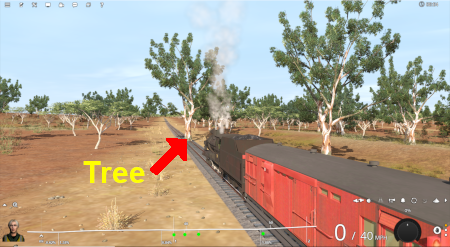
| The Scenario: You are in Driver testing out a route and session when you discover a problem. |
 |
Previously (before the UDS) your only options would be to choose one of the following:-
Options:
|
In both cases you would have to:-
|


 |
The UDS interface allows you to switch, via a menu option, directly to Surveyor without having to stop and exit the Session in Driver first |
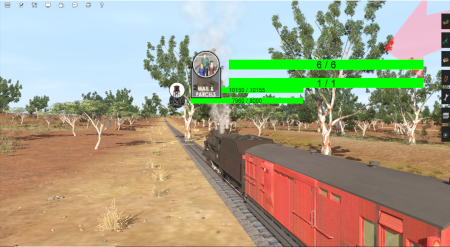
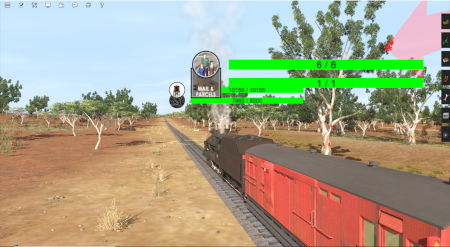
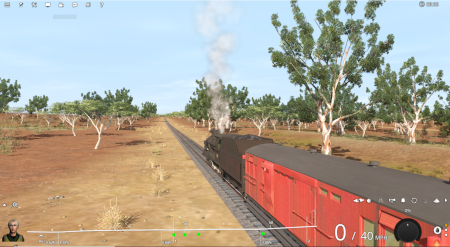
| When using the UDS you switch from Driver to Surveyor with the currently active Driver consist still as the focus and at the place it was located when you switched into Surveyor from Driver. |
 |
|
||||
 |
|
||||
 |
|
Switching Modes |
|
 |
|
|
 |
Driver to Surveyor | |||||||
|
||||||||
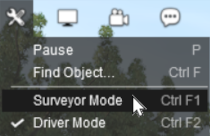
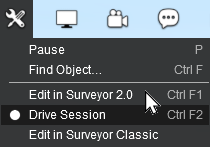

|
||||||

|
Surveyor to Driver | |||||||||
|
||||||||||
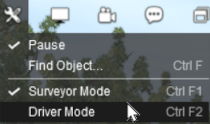
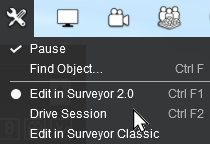
|

Saving |
|
|
|
|
|
||||||

|
||||
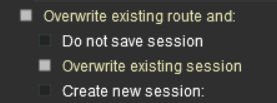
| Most of the problems users seem to be experiencing with the UDS, judging from the posts in the Trainz Forums, is when saving their edited Driver session after switching to Surveyor. |
|
| When you are in Driver at least one of the consists will probably be moving. Some of the Session rules may have already been completed while others may still be running or waiting for events (e.g. triggers to be activated). If, after switching to Surveyor, you then choose to save using the Overwrite existing session option then you will be replacing your original starting Session with a new one with the consists saved in their new positions and the Session rules saved in their new states. So when you later load and restart the Session things will not be the same as they were in the original or starting Session. |
| Unless you have a particular reason for overwriting the original Session then the recommended save options are:- |
 |
||||||||
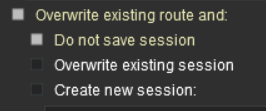
Option  Do Not Save the Session |
||||||||
|
This will save the Route only, using its existing name and it will overwrite the original route. This will save any edits that you have made to the Route but not to the Session. |
|||||||
|
||||||||||
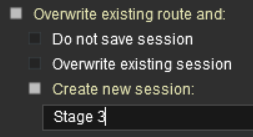
Option  Create a New Session |
||||||||||
|
This will save the Route using its existing name and it will overwrite the original route. It will also save the Session using the name you enter in the text box below the checkbox (Stage 3 in the example shown). The original Session will not be altered. This is useful when you want to test out changes to consists, industry settings, Rules, driver commands, etc but do not want to destroy the original Session. |
|||||||||
|
||||||||||
|
||||||||||||||||||||
Resetting the Session Rules |
|
|
|
|
|
After you switch from Driver to Surveyor it may be necessary to restart or reset some of the Session Rules |
|
As mentioned above, when Driver is running some of the Session rules may be completed while others may still be running or waiting for certain events (e.g. triggers to be activated). When you switch to Surveyor these rules may be in a different state compared to what they were at the start of the Session. When you restart Driver these rules may not be in a useful condition. |
 |
Information on the Session Editor can be found at:- |
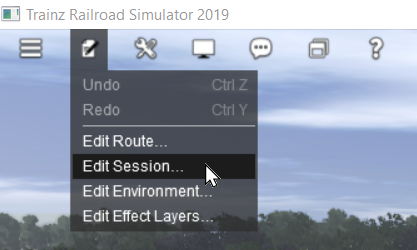
To open the Session Editor open the Edit menu and select Edit Session
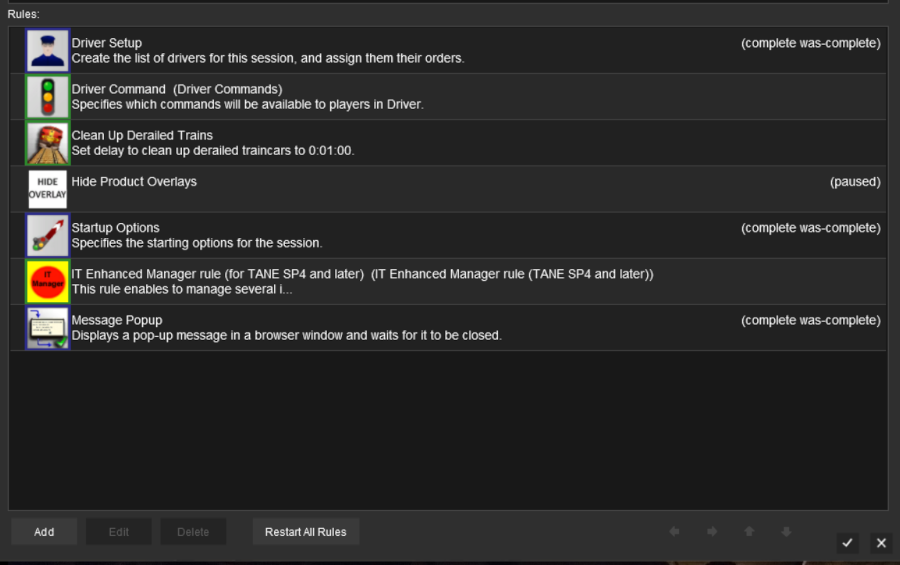
 |
At the bottom of the Session Editor is a new button, Restart ALL Rules . This will reset or restart ALL rules in the Session. |
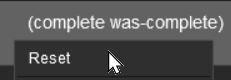 |
Some rules, as shown in the screen shot above, have the label (complete was-complete) after the rule name. This indicates that the rule has already been completed. These rules can be individually restarted by a Left Click on the rule and selecting the Reset option from the pop up menu. This will change the rule status to (paused). |
| When Driver is selected again, all the reset or (paused) rules will be restarted | |
Some Questions Answered |
|
|
|
| Error creating thumbnail: /bin/bash: line 1: /usr/bin/convert: No such file or directory Error code: 127 | I have only edited assets that are in the Route layers but selecting Save always sets the option to "Overwrite exiting session" as the default. Why? |
| Many scenery assets actually have their properties stored in the Session, even when the assets themselves are in a Route layer. Editing the properties of these assets is considered to be a change to the Session. These include:- | |
| Error creating thumbnail: /bin/bash: line 1: /usr/bin/convert: No such file or directory Error code: 127 | junction switches - the left/right switch direction is stored in the Session (but the switch default direction is stored in the Route). See  Setting Switch Directions in Routes and Sessions for more information on this |
| Error creating thumbnail: /bin/bash: line 1: /usr/bin/convert: No such file or directory Error code: 127 | industries - the commodities and quantities loaded/unloaded are stored in the Session |
| Error creating thumbnail: /bin/bash: line 1: /usr/bin/convert: No such file or directory Error code: 127 | industry enabled wagons - the commodities and quantities carried are stored in the Session |
| Error creating thumbnail: /bin/bash: line 1: /usr/bin/convert: No such file or directory Error code: 127 | consist locations - this is stored in the Session (TRS19 Platinum Edition, Trainz Plus and TRS22 only |
| Error creating thumbnail: /bin/bash: line 1: /usr/bin/convert: No such file or directory Error code: 127 | named route objects - while the name is stored in the Route, adding or changing the name is treated as a change to the Session |
| If you have NOT altered any Session data or assets that have been placed in a session layer then you can ignore the request to save the Session as well as the Route. Changing the name of an asset in a route layer, for example, does not alter any session data | |
| Error creating thumbnail: /bin/bash: line 1: /usr/bin/convert: No such file or directory Error code: 127 | Interlocking Towers (including Enhanced Interlocking Towers) show paths as "not editable" after switching to Surveyor. Why? |
| If you make the switch from Driver to Surveyor after an IT/EIT path has been activated (but not yet cleared or cancelled) then you will be unable to edit that path. In addition, you will not be able to add new paths to an IT/EIT that has an open active path. |
| Pierre (pguy), the creator of the EIT asset and associated rules, has a detailed description of this and some possible solutions in a Trainz Forum post at:- EITs and the UDS |
| Error creating thumbnail: /bin/bash: line 1: /usr/bin/convert: No such file or directory Error code: 127 | Can I add new trains or replace existing trains after switching to Surveyor? |
| You can add additional trains and replace existing ones when in Surveyor but it is advised that:- | |
| Error creating thumbnail: /bin/bash: line 1: /usr/bin/convert: No such file or directory Error code: 127 | the Paused option be set ON (the default condition) in Surveyor, and |
| Error creating thumbnail: /bin/bash: line 1: /usr/bin/convert: No such file or directory Error code: 127 | it is recommended that you reset the Driver Setup Rule in the Session Editor, particularly if you have added/edited driver commands to the new or altered consists |
| Error creating thumbnail: /bin/bash: line 1: /usr/bin/convert: No such file or directory Error code: 127 | Does the UDS change how portals work? |
| A train that is driven into a portal and later returned to the layout will be returned in the same layer as the portal and not in the trains originally assigned layer. Trains that are produced by a portal will be assigned to the same layer as the portal. This has possibly always been the case with portals but was probably unnoticed until the arrival of the UDS. It seems to have no other noticeable effect on trains. This could become an issue if you make the switch from Driver to Surveyor after a train has been returned to the layout from a portal. For example, if a train is originally in a Session Layer (as recommended for TRS19 Platinum Edition, Trainz Plus and TRS22) then it is part of a Session. If it is returned from a portal that is in a Route Layer then it will now be in the same Route Layer as the portal and it will be part of the Route, not part of the Session. If you save the Route after switching to Surveyor then the train will be saved in the Route and not in the Session. If this is an issue then the remedy is to open the property dialogue window of any wagon in the train after it has left the portal and change its assigned layer to the correct one. This will set all vehicles in that train to the same correct layer. |
|
|
Trainz Wiki
|
|

This page was created by Trainz user pware in June 2021 and was last updated as shown below.


