How to Use Track Markers: Difference between revisions
mNo edit summary |
mNo edit summary |
||
| (7 intermediate revisions by the same user not shown) | |||
| Line 53: | Line 53: | ||
<td>[[image:BlueDot10x10.png|link=]]</td> | <td>[[image:BlueDot10x10.png|link=]]</td> | ||
<td>They can be placed in a '''Route''' or in a '''Session'''</td> | <td>They can be placed in a '''Route''' or in a '''Session'''</td> | ||
</tr> | |||
</table> | |||
<br> | |||
<table bgcolor=#000000 cellpadding=2> | |||
<tr valign="top"> | |||
<td> | |||
<table bgcolor=#ffffff cellpadding=2> | |||
<tr valign="top"> | |||
<td align="center"><span style="font-weight: 700; font-size: 15px;">Navigation Icons used in this Document</span></td> | |||
</tr> | |||
<tr valign="top"> | |||
<td> | |||
<table> | |||
<tr valign="top"> | |||
<td>[[image:BackToTop.png|link=#top|alt=Top|Top]] [[image:BackToBottom.png|link=#bottom|alt=Bottom|Bottom]]</td> | |||
<td>at '''Chapter Headings''' to jump to the top/bottom of the document</td> | |||
</tr> | |||
<tr valign="top"> | |||
<td>[[image:NextUp.png|link=#top|Next Up]] [[image:NextDown.png|link=#stepTools|link=|Next Down]]</td> | |||
<td>at '''Chapter Headings''' to jump to the next or previous '''Chapter'''<br> | |||
e.g. '''1.''' to '''2.''' to '''3.''', etc</td> | |||
</tr> | |||
<tr valign="top"> | |||
<td>[[image:SkipUp.png|link=#top|Next Up]] [[image:SkipDown.png|link=#stepS20vS10|Skip Down]]</td> | |||
<td>within '''Chapters''' to jump to the next or previous '''Section'''<br> | |||
e.g. '''4.1''' to '''4.2''' to '''4.3''', etc</td> | |||
</tr> | |||
<tr valign="top"> | |||
<td>[[image:SkipMinorUp.png|link=#top|Up]] [[image:SkipMinorDown.png|link=#stepS20vS10|Down]]</td> | |||
<td>within '''Sections''' to jump to the next or previous '''Sub-section'''<br> | |||
e.g. '''3.1.1''' to '''3.1.2''' to '''3.1.3''', etc</td> | |||
</tr> | |||
<tr valign="top"> | |||
<td>[[image:PageLink.PNG|link=]] <span style="font-weight: 700; font-size: 15px; color: blue;">Link</span></td> | |||
<td>'''Internal link''' to another section within this document</td> | |||
</tr> | |||
<tr valign="top"> | |||
<td>[[image:WikiLink.PNG|link=]] <span style="font-weight: 700; font-size: 15px; color: blue;">Link</span></td> | |||
<td>'''External link''' to another document</td> | |||
</tr> | |||
</table> | |||
</td> | |||
</tr> | |||
</table> | |||
</td> | |||
</tr> | </tr> | ||
</table> | </table> | ||
| Line 235: | Line 280: | ||
</table> | </table> | ||
<br> | <br> | ||
<table width=1000> <!-- BEGIN Section Nav Buttons --> | |||
<tr valign="top"> | |||
<td width=629><span id="skipAddMarker10"></span> | |||
===Adding a Track Marker (S10)=== | ===Adding a Track Marker (S10)=== | ||
</td> | |||
<td width=50> </td> | |||
<td width=50> </td> | |||
<td width=46>[[image:SkipMinorDown.png|link=#skipSetName10]][[image:SkipMinorUp.png|link=#skipAddS10]]</td> <!-- for Top and Minor Up/Down --> | |||
<td width=75> </td> | |||
<td width=75> </td> | |||
<td width=75> </td> <!-- for Bottom --> | |||
</tr> | |||
</table> <!-- END Section Nav Buttons --> | |||
<table width=1000 bgcolor="lightcyan" cellpadding=2> | <table width=1000 bgcolor="lightcyan" cellpadding=2> | ||
| Line 262: | Line 319: | ||
<table bgcolor=#ffffff cellpadding=2> | <table bgcolor=#ffffff cellpadding=2> | ||
<tr valign="top"> | <tr valign="top"> | ||
<td colspan=4><span style="font-weight: 700; font-size: 15px;">Steps: | <td colspan=4><span style="font-weight: 700; font-size: 15px;">Steps: To Add a Track Marker:-</span></td> | ||
</tr> | </tr> | ||
<tr valign="top"> | <tr valign="top"> | ||
| Line 355: | Line 412: | ||
<table bgcolor=#ffffff> | <table bgcolor=#ffffff> | ||
<tr valign="top"> | <tr valign="top"> | ||
<td colspan=2><span style="font-weight: 700; font-size: 15px;">Steps: | <td colspan=2><span style="font-weight: 700; font-size: 15px;">Steps: To Delete a Track Marker:-</span></td> | ||
</tr> | </tr> | ||
<tr valign="top"> | <tr valign="top"> | ||
| Line 377: | Line 434: | ||
</table> | </table> | ||
<br> | <br> | ||
<table width=1000> <!-- BEGIN Section Nav Buttons --> | |||
<tr valign="top"> | |||
<td width=629><span id="skipSetName10"></span> | |||
===Set its Name and Layers (S10)=== | ===Set its Name and Layers (S10)=== | ||
</td> | |||
<td width=50> </td> | |||
<td width=50> </td> | |||
<td width=46>[[image:SkipMinorDown.png|link=#skipSetDirection10]][[image:SkipMinorUp.png|link=#skipAddMarker10]]</td> <!-- for Top and Minor Up/Down --> | |||
<td width=75> </td> | |||
<td width=75> </td> | |||
<td width=75> </td> <!-- for Bottom --> | |||
</tr> | |||
</table> <!-- END Section Nav Buttons --> | |||
<table width=1000 bgcolor="lightcyan" cellpadding=2> | <table width=1000 bgcolor="lightcyan" cellpadding=2> | ||
| Line 409: | Line 478: | ||
<table bgcolor=#ffffff cellpadding=2> | <table bgcolor=#ffffff cellpadding=2> | ||
<tr valign="top"> | <tr valign="top"> | ||
<td colspan=2><span style="font-weight: 700; font-size: 15px;">Steps | <td colspan=2><span style="font-weight: 700; font-size: 15px;">Steps To Open the Properties Window For an Existing Track Marker:-:</span></td> | ||
</tr> | </tr> | ||
<tr valign="top"> | <tr valign="top"> | ||
| Line 499: | Line 568: | ||
</table> | </table> | ||
<br> | <br> | ||
<table width=1000> <!-- BEGIN Section Nav Buttons --> | |||
<tr valign="top"> | |||
<td width=629><span id="skipSetDirection10"></span> | |||
===Change its Direction (S10)=== | ===Change its Direction (S10)=== | ||
</td> | |||
<td width=50> </td> | |||
<td width=50> </td> | |||
<td width=46>[[image:SkipMinorDown.png|link=#skipMove10]][[image:SkipMinorUp.png|link=#skipSetName10]]</td> <!-- for Top and Minor Up/Down --> | |||
<td width=75> </td> | |||
<td width=75> </td> | |||
<td width=75> </td> <!-- for Bottom --> | |||
</tr> | |||
</table> <!-- END Section Nav Buttons --> | |||
<table width=1000 bgcolor="lightcyan" cellpadding=2> | <table width=1000 bgcolor="lightcyan" cellpadding=2> | ||
| Line 516: | Line 597: | ||
<table width=606 bgcolor=#ffffff cellpadding=2> | <table width=606 bgcolor=#ffffff cellpadding=2> | ||
<tr valign="top"> | <tr valign="top"> | ||
<td colspan=2><span style="font-weight: 700; font-size: 15px;">Steps: | <td colspan=2><span style="font-weight: 700; font-size: 15px;">Steps: To Reverse the Direction of a Track Marker:-</span></td> | ||
</tr> | </tr> | ||
<tr valign="top"> | <tr valign="top"> | ||
| Line 545: | Line 626: | ||
</table> | </table> | ||
<br> | <br> | ||
<table width=1000> <!-- BEGIN Section Nav Buttons --> | |||
<tr valign="top"> | |||
<td width=629><span id="skipMove10"></span> | |||
===Move it Along the Track (S10)=== | ===Move it Along the Track (S10)=== | ||
</td> | |||
<td width=50> </td> | |||
<td width=50> </td> | |||
<td width=46>[[image:SkipMinorDown.png|link=#skipSetRadius10]][[image:SkipMinorUp.png|link=#skipSetDirection10]]</td> <!-- for Top and Minor Up/Down --> | |||
<td width=75> </td> | |||
<td width=75> </td> | |||
<td width=75> </td> <!-- for Bottom --> | |||
</tr> | |||
</table> <!-- END Section Nav Buttons --> | |||
<table width=1000 bgcolor="lightcyan" cellpadding=2> | <table width=1000 bgcolor="lightcyan" cellpadding=2> | ||
| Line 562: | Line 655: | ||
<table width=606 bgcolor=#ffffff cellpadding=2> | <table width=606 bgcolor=#ffffff cellpadding=2> | ||
<tr valign="top"> | <tr valign="top"> | ||
<td colspan=2><span style="font-weight: 700; font-size: 15px;">Steps: | <td colspan=2><span style="font-weight: 700; font-size: 15px;">Steps: To Move a Track Marker to a New Position or to Another Track:-</span></td> | ||
</tr> | </tr> | ||
<tr valign="top"> | <tr valign="top"> | ||
| Line 605: | Line 698: | ||
</table> | </table> | ||
<br> | <br> | ||
<table width=1000> <!-- BEGIN Section Nav Buttons --> | |||
<tr valign="top"> | |||
<td width=629><span id="skipSetRadius10"></span> | |||
===Set its Effect Radius (S10)=== | ===Set its Effect Radius (S10)=== | ||
</td> | |||
<td width=50> </td> | |||
<td width=50> </td> | |||
<td width=46>[[image:SkipMinorDown.png|link=#skipAddS20]][[image:SkipMinorUp.png|link=#skipMove10]]</td> <!-- for Top and Minor Up/Down --> | |||
<td width=75> </td> | |||
<td width=75> </td> | |||
<td width=75> </td> <!-- for Bottom --> | |||
</tr> | |||
</table> <!-- END Section Nav Buttons --> | |||
<table width=1000 bgcolor="lightcyan" cellpadding=2> | <table width=1000 bgcolor="lightcyan" cellpadding=2> | ||
| Line 625: | Line 730: | ||
<table width=696 bgcolor=#ffffff cellpadding=2> | <table width=696 bgcolor=#ffffff cellpadding=2> | ||
<tr valign="top"> | <tr valign="top"> | ||
<td colspan=2><span style="font-weight: 700; font-size: 15px;">Steps: | <td colspan=2><span style="font-weight: 700; font-size: 15px;">Steps: To Open the Advanced Tools Window:-</span></td> | ||
</tr> | </tr> | ||
<tr valign="top"> | <tr valign="top"> | ||
| Line 692: | Line 797: | ||
<table bgcolor=#ffffff cellpadding=2> | <table bgcolor=#ffffff cellpadding=2> | ||
<tr valign="top"> | <tr valign="top"> | ||
<td colspan=2><span style="font-weight: 700; font-size: 15px;">Steps: | <td colspan=2><span style="font-weight: 700; font-size: 15px;">Steps: To Set a Track Marker Effect Radius:-</span></td> | ||
</tr> | </tr> | ||
<tr valign="top"> | <tr valign="top"> | ||
| Line 820: | Line 925: | ||
</table> | </table> | ||
<br> | <br> | ||
<table width=1000> <!-- BEGIN Section Nav Buttons --> | |||
<tr valign="top"> | |||
<td width=629><span id="skipAddMarker20"></span> | |||
===Adding a Track Marker (S20)=== | ===Adding a Track Marker (S20)=== | ||
</td> | |||
<td width=50> </td> | |||
<td width=50> </td> | |||
<td width=46>[[image:SkipMinorDown.png|link=#skipSetName20]][[image:SkipMinorUp.png|link=#skipAddS20]]</td> <!-- for Top and Minor Up/Down --> | |||
<td width=75> </td> | |||
<td width=75> </td> | |||
<td width=75> </td> <!-- for Bottom --> | |||
</tr> | |||
</table> <!-- END Section Nav Buttons --> | |||
<table width=1000 bgcolor="lightcyan" cellpadding=2> | <table width=1000 bgcolor="lightcyan" cellpadding=2> | ||
| Line 844: | Line 961: | ||
<table width=1000> | <table width=1000> | ||
<tr valign="top"> | <tr valign="top"> | ||
<td><span style="font-weight: 700; font-size: 15px;">Steps: | <td><span style="font-weight: 700; font-size: 15px;">Steps: To Add a Track Marker:-</span></td> | ||
</tr> | </tr> | ||
<tr valign="top"> | <tr valign="top"> | ||
| Line 886: | Line 1,003: | ||
<tr valign="top"> | <tr valign="top"> | ||
<td colspan=2>[[image:PencilTips.PNG|link=]] <span style="font-size: 15px; font-weight: 700; color: white; background-color: blue;"> Shortcut </span> If you already have a '''Track Marker''' placed in your route then:-</td> | <td colspan=2>[[image:PencilTips.PNG|link=]] <span style="font-size: 15px; font-weight: 700; color: white; background-color: blue;"> Shortcut </span> If you already have a '''Track Marker''' placed in your route then:-</td> | ||
</tr> | |||
<tr valign="top"> | |||
<td colspan=2><span style="font-weight: 700; font-size: 15px;">Steps: Using the Eyedropper Tool to Select a Track Marker:-</span></td> | |||
</tr> | </tr> | ||
<tr valign="top"> | <tr valign="top"> | ||
| Line 926: | Line 1,046: | ||
<table bgcolor=#ffffff> | <table bgcolor=#ffffff> | ||
<tr valign="top"> | <tr valign="top"> | ||
<td colspan=2><span style="font-weight: 700; font-size: 15px;;">Steps:</span> | <td colspan=2><span style="font-weight: 700; font-size: 15px;;">Steps: To Display Palettes:-</span></td> | ||
</tr> | </tr> | ||
<tr valign="top"> | <tr valign="top"> | ||
| Line 1,021: | Line 1,141: | ||
<table bgcolor=#ffffff> | <table bgcolor=#ffffff> | ||
<tr valign="top"> | <tr valign="top"> | ||
<td colspan=2><span style="font-weight: 700; font-size: 15px;">Steps | <td colspan=2><span style="font-weight: 700; font-size: 15px;">Steps To Delete a Track Marker:-</span></td> | ||
</tr> | </tr> | ||
<tr valign="top"> | <tr valign="top"> | ||
| Line 1,058: | Line 1,178: | ||
<table width=506 bgcolor=#ffffff cellpadding=2> | <table width=506 bgcolor=#ffffff cellpadding=2> | ||
<tr valign="top"> | <tr valign="top"> | ||
<td colspan=2><span style="font-weight: 700; font-size: 15px;">Steps: | <td colspan=2><span style="font-weight: 700; font-size: 15px;">Steps: To Add a Track Marker:-</span></td> | ||
</tr> | </tr> | ||
<tr valign="top"> | <tr valign="top"> | ||
| Line 1,137: | Line 1,257: | ||
</table> | </table> | ||
<br> | <br> | ||
<table width=1000> <!-- BEGIN Section Nav Buttons --> | |||
<tr valign="top"> | |||
<td width=629><span id="skipSetName20"></span> | |||
===Change its Name (S20)=== | ===Change its Name (S20)=== | ||
</td> | |||
<td width=50> </td> | |||
<td width=50> </td> | |||
<td width=46>[[image:SkipMinorDown.png|link=#skipSetLayer20]][[image:SkipMinorUp.png|link=#skipAddMarker20]]</td> <!-- for Top and Minor Up/Down --> | |||
<td width=75> </td> | |||
<td width=75> </td> | |||
<td width=75> </td> <!-- for Bottom --> | |||
</tr> | |||
</table> <!-- END Section Nav Buttons --> | |||
<table width=1000 bgcolor="lightcyan" cellpadding=2> | <table width=1000 bgcolor="lightcyan" cellpadding=2> | ||
| Line 1,162: | Line 1,293: | ||
<table bgcolor=#ffffff cellpadding=2> | <table bgcolor=#ffffff cellpadding=2> | ||
<tr valign="top"> | <tr valign="top"> | ||
<td colspan=2><span style="font-weight: 700; font-size: 15px;">Steps: | <td colspan=2><span style="font-weight: 700; font-size: 15px;">Steps: To Change the Name of a Track Marker:-</span></td> | ||
</tr> | </tr> | ||
<tr valign="top"> | <tr valign="top"> | ||
| Line 1,200: | Line 1,331: | ||
</table> | </table> | ||
<br> | <br> | ||
<table width=1000> <!-- BEGIN Section Nav Buttons --> | |||
<tr valign="top"> | |||
<td width=629><span id="skipSetLayer20"></span> | |||
===Assign it to Another Layer (S20)=== | ===Assign it to Another Layer (S20)=== | ||
</td> | |||
<table width=1000 bgcolor="lightcyan" cellpadding=2> | <td width=50> </td> | ||
<tr valign="top"> | <td width=50> </td> | ||
<td width=46>[[image:SkipMinorDown.png|link=#skipSetDirection20]][[image:SkipMinorUp.png|link=#skipSetName20]]</td> <!-- for Top and Minor Up/Down --> | |||
<td width=75> </td> | |||
<td width=75> </td> | |||
<td width=75> </td> <!-- for Bottom --> | |||
</tr> | |||
</table> <!-- END Section Nav Buttons --> | |||
<table width=1000 bgcolor="lightcyan" cellpadding=2> | |||
<tr valign="top"> | |||
<td width=10>[[image:BlueDot10x10.png|link=]]</td> | <td width=10>[[image:BlueDot10x10.png|link=]]</td> | ||
<td>The layer assigned to a marker will control where it is saved, in the '''Route''' or the '''Session'''.</td> | <td>The layer assigned to a marker will control where it is saved, in the '''Route''' or the '''Session'''.</td> | ||
| Line 1,222: | Line 1,365: | ||
<table bgcolor=#ffffff cellpadding=2> | <table bgcolor=#ffffff cellpadding=2> | ||
<tr valign="top"> | <tr valign="top"> | ||
<td colspan=2><span style="font-weight: 700; font-size: 15px;">Steps: | <td colspan=2><span style="font-weight: 700; font-size: 15px;">Steps: To Assign a Track Marker to a Layer:-</span></td> | ||
</tr> | </tr> | ||
<tr valign="top"> | <tr valign="top"> | ||
| Line 1,284: | Line 1,427: | ||
</table> | </table> | ||
<br> | <br> | ||
<table width=1000> <!-- BEGIN Section Nav Buttons --> | |||
<tr valign="top"> | |||
<td width=629><span id="skipSetDirection20"></span> | |||
===Change its Direction (S20)=== | ===Change its Direction (S20)=== | ||
</td> | |||
<td width=50> </td> | |||
<td width=50> </td> | |||
<td width=46>[[image:SkipMinorDown.png|link=#skipMove20]][[image:SkipMinorUp.png|link=#skipSetLayer20]]</td> <!-- for Top and Minor Up/Down --> | |||
<td width=75> </td> | |||
<td width=75> </td> | |||
<td width=75> </td> <!-- for Bottom --> | |||
</tr> | |||
</table> <!-- END Section Nav Buttons --> | |||
<table width=1000 bgcolor="lightcyan" cellpadding=2> | <table width=1000 bgcolor="lightcyan" cellpadding=2> | ||
| Line 1,301: | Line 1,456: | ||
<table width=996 bgcolor=#ffffff> | <table width=996 bgcolor=#ffffff> | ||
<tr valign="top"> | <tr valign="top"> | ||
<td colspan=2><span style="font-weight: 700; font-size: 15px;">Steps: | <td colspan=2><span style="font-weight: 700; font-size: 15px;">Steps: To Reverse the Direction of a Track Marker:-</span></td> | ||
</tr> | </tr> | ||
<tr valign="top"> | <tr valign="top"> | ||
| Line 1,319: | Line 1,474: | ||
</table> | </table> | ||
<br> | <br> | ||
<table width=1000> <!-- BEGIN Section Nav Buttons --> | |||
<tr valign="top"> | |||
<td width=629><span id="skipMove20"></span> | |||
===Move it Along the Track (S20)=== | ===Move it Along the Track (S20)=== | ||
</td> | |||
<td width=50> </td> | |||
<td width=50> </td> | |||
<td width=46>[[image:SkipMinorDown.png|link=#skipMoveVertically20]][[image:SkipMinorUp.png|link=#skipSetLayer20]]</td> <!-- for Top and Minor Up/Down --> | |||
<td width=75> </td> | |||
<td width=75> </td> | |||
<td width=75> </td> <!-- for Bottom --> | |||
</tr> | |||
</table> <!-- END Section Nav Buttons --> | |||
<table width=1000 bgcolor="lightcyan" cellpadding=2> | <table width=1000 bgcolor="lightcyan" cellpadding=2> | ||
| Line 1,337: | Line 1,504: | ||
<table bgcolor=#ffffff cellpadding=2> | <table bgcolor=#ffffff cellpadding=2> | ||
<tr valign="top"> | <tr valign="top"> | ||
<td colspan=2><span style="font-weight: 700; font-size: 15px;">Steps: | <td colspan=2><span style="font-weight: 700; font-size: 15px;">Steps: To Move the Track Marker:-</span></td> | ||
</tr> | </tr> | ||
<tr valign="top"> | <tr valign="top"> | ||
| Line 1,392: | Line 1,559: | ||
</table> | </table> | ||
<br> | <br> | ||
<table width=1000> <!-- BEGIN Section Nav Buttons --> | |||
<tr valign="top"> | |||
<td width=629><span id="skipMoveVertically20"></span> | |||
===Move it Vertically (S20)=== | ===Move it Vertically (S20)=== | ||
</td> | |||
<td width=50> </td> | |||
<td width=50> </td> | |||
<td width=46>[[image:SkipMinorDown.png|link=#skipMoveHorizontally20]][[image:SkipMinorUp.png|link=#skipMove20]]</td> <!-- for Top and Minor Up/Down --> | |||
<td width=75> </td> | |||
<td width=75> </td> | |||
<td width=75> </td> <!-- for Bottom --> | |||
</tr> | |||
</table> <!-- END Section Nav Buttons --> | |||
<table width=1000 bgcolor="lightcyan" cellpadding=2> | <table width=1000 bgcolor="lightcyan" cellpadding=2> | ||
| Line 1,416: | Line 1,595: | ||
<table bgcolor=#ffffff cellpadding=2> | <table bgcolor=#ffffff cellpadding=2> | ||
<tr valign="top"> | <tr valign="top"> | ||
<td><span style="font-weight: 700; font-size: 15px;">Steps: | <td colspan=2><span style="font-weight: 700; font-size: 15px;">Steps: To Move a Track Marker Vertically:-</span></td> | ||
</tr> | </tr> | ||
<tr valign="top"> | <tr valign="top"> | ||
| Line 1,424: | Line 1,602: | ||
<tr valign="top"> | <tr valign="top"> | ||
<td width=25>[[image:NotePad.PNG|link=]]</td> | <td width=25>[[image:NotePad.PNG|link=]]</td> | ||
<td>Track Objects can be moved | <td>Track Objects can be moved above and below the track using the [[image:S20_FineAdjustmentToolIcon.png|link=|20px]] '''Fine Adjustment Tool'''.</td> | ||
</tr> | </tr> | ||
</table> | </table> | ||
| Line 1,430: | Line 1,608: | ||
</tr> | </tr> | ||
<tr valign="top"> | <tr valign="top"> | ||
<td width=25>[[image: | <td width=25>[[image:DotPoint7Blue.png|link=]]</td> | ||
<td>Select the [[image:S20_FineAdjustmentToolIcon.png|link=|20px]] '''Fine Adjustment Tool''' (the <span style="font-weight: 700; font-size: 17px; color: white;background-color: black;"> D </span> key) and <span style="font-weight: 700; font-size: 15px; background-color: lightcyan;"> Left Click and Drag </span> ''' | <td>Select the [[image:S20_FineAdjustmentToolIcon.png|link=|20px]] '''Fine Adjustment Tool''' (the <span style="font-weight: 700; font-size: 17px; color: white;background-color: black;"> D </span> key) and <span style="font-weight: 700; font-size: 15px; background-color: lightcyan;"> Left Click and Drag </span> '''Up''' or '''Down''' on the <span style="font-weight: 700; font-size: 15px; color: white; background-color: blue;"> Blue </span> '''Vertical Axis Line''' attached to the '''Track Trigger''' to move it above or below the track</td> | ||
</tr> | </tr> | ||
</table> | </table> | ||
| Line 1,451: | Line 1,625: | ||
<table bgcolor=#ffffff cellpadding=2> | <table bgcolor=#ffffff cellpadding=2> | ||
<tr valign="top"> | <tr valign="top"> | ||
<td colspan=2><span style="font-weight: 700; font-size: 15px;">Steps: | <td colspan=2><span style="font-weight: 700; font-size: 15px;">Steps: To Correctly Reattach the Track Marker to the Track:-</span></td> | ||
</tr> | </tr> | ||
<tr valign="top"> | <tr valign="top"> | ||
| Line 1,472: | Line 1,646: | ||
</table> | </table> | ||
<br> | <br> | ||
<table width=1000> <!-- BEGIN Section Nav Buttons --> | |||
<tr valign="top"> | |||
<td width=629><span id="skipMoveHorizontally20"></span> | |||
===Move it Horizontally (S20)=== | ===Move it Horizontally (S20)=== | ||
</td> | |||
<td width=50> </td> | |||
<td width=50> </td> | |||
<td width=46>[[image:SkipMinorDown.png|link=#skipSetRadius20]][[image:SkipMinorUp.png|link=#skipMoveVertically20]]</td> <!-- for Top and Minor Up/Down --> | |||
<td width=75> </td> | |||
<td width=75> </td> | |||
<td width=75> </td> <!-- for Bottom --> | |||
</tr> | |||
</table> <!-- END Section Nav Buttons --> | |||
<table width=1000 bgcolor="lightcyan" cellpadding=2> | <table width=1000 bgcolor="lightcyan" cellpadding=2> | ||
| Line 1,496: | Line 1,682: | ||
<table bgcolor=#ffffff cellpadding=2> | <table bgcolor=#ffffff cellpadding=2> | ||
<tr valign="top"> | <tr valign="top"> | ||
<td colspan=2><span style="font-weight: 700; font-size: 15px;">Steps: | <td colspan=2><span style="font-weight: 700; font-size: 15px;">Steps: To Move a Track Marker Horizontally:-</span></td> | ||
</tr> | </tr> | ||
<tr valign="top"> | <tr valign="top"> | ||
| Line 1,503: | Line 1,689: | ||
<tr valign="top"> | <tr valign="top"> | ||
<td width=25>[[image:NotePad.PNG|link=]]</td> | <td width=25>[[image:NotePad.PNG|link=]]</td> | ||
<td>Track Objects can be moved '''along''' the track using the method shown in the section [[image:PageLink.PNG|link=]] '''[[#Move it Along the Track (S20)|Move it Along the Track]]''' above <span style="font-weight: 700; font-size: 15px;">OR</span> '''sideways''' from the track using | <td>Track Objects can be moved '''along''' the track using the method shown in the section [[image:PageLink.PNG|link=]] '''[[#Move it Along the Track (S20)|Move it Along the Track]]''' above <span style="font-weight: 700; font-size: 15px;">OR</span> '''sideways''' from the track using the [[image:S20_FineAdjustmentToolIcon.png|link=|20px]] '''Fine Adjustment Tool''' and step [[image:DotPoint8Blue.png|link=]] <span style="font-weight: 700; font-size: 15px;">OR</span> step [[image:DotPoint9Blue.png|link=]] listed below.</td> | ||
</tr> | </tr> | ||
</table> | </table> | ||
| Line 1,511: | Line 1,697: | ||
<td width=25>[[image:DotPoint8Blue.png|link=]]</td> | <td width=25>[[image:DotPoint8Blue.png|link=]]</td> | ||
<td><span style="font-weight: 700; font-size: 15px; background-color: lightcyan;"> Left Click and Drag </span> '''Forward''' or '''Backward''' on the <span style="font-weight: 700; font-size: 15px; color: white; background-color: red;"> Red </span> '''Horizontal Axis Line''' attached to the '''Track Marker''' to move it left or right of the track</td> | <td><span style="font-weight: 700; font-size: 15px; background-color: lightcyan;"> Left Click and Drag </span> '''Forward''' or '''Backward''' on the <span style="font-weight: 700; font-size: 15px; color: white; background-color: red;"> Red </span> '''Horizontal Axis Line''' attached to the '''Track Marker''' to move it left or right of the track</td> | ||
</tr> | |||
<tr valign="top"> | |||
<td> </td> | |||
<td><span style="font-weight: 700; font-size: 15px;">OR</span></td> | |||
</tr> | </tr> | ||
<tr valign="top"> | <tr valign="top"> | ||
| Line 1,530: | Line 1,720: | ||
<table bgcolor=#ffffff cellpadding=2> | <table bgcolor=#ffffff cellpadding=2> | ||
<tr valign="top"> | <tr valign="top"> | ||
<td colspan=2><span style="font-weight: 700; font-size: 15px;">Steps: | <td colspan=2><span style="font-weight: 700; font-size: 15px;">Steps: To Correctly Reattach the Track Marker to the Track:-</span></td> | ||
</tr> | </tr> | ||
<tr valign="top"> | <tr valign="top"> | ||
| Line 1,551: | Line 1,741: | ||
</table> | </table> | ||
<br> | <br> | ||
<span id="S20EffectRadius"></span> | <table width=1000> <!-- BEGIN Section Nav Buttons --> | ||
<tr valign="top"> | |||
<td width=629><span id="skipSetRadius20"></span><span id="S20EffectRadius"></span> | |||
===Set its Effect Radius (S20)=== | ===Set its Effect Radius (S20)=== | ||
</td> | |||
<td width=50> </td> | |||
<td width=50> </td> | |||
<td width=46>[[image:SkipMinorDown.png|link=#stepOperation]][[image:SkipMinorUp.png|link=#skipMoveHorizontally20]]</td> <!-- for Top and Minor Up/Down --> | |||
<td width=75> </td> | |||
<td width=75> </td> | |||
<td width=75> </td> <!-- for Bottom --> | |||
</tr> | |||
</table> <!-- END Section Nav Buttons --> | |||
<table width=1000 bgcolor="lightcyan" cellpadding=2> | <table width=1000 bgcolor="lightcyan" cellpadding=2> | ||
| Line 1,582: | Line 1,783: | ||
<table bgcolor=#ffffff cellpadding=2> | <table bgcolor=#ffffff cellpadding=2> | ||
<tr valign="top"> | <tr valign="top"> | ||
<td colspan=2><span style="font-weight: 700; font-size: 15px;">Steps: | <td colspan=2><span style="font-weight: 700; font-size: 15px;">Steps: To Adjust the Effect Radius of a Track Marker:-</span></td> | ||
</tr> | </tr> | ||
<tr valign="top"> | <tr valign="top"> | ||
| Line 1,791: | Line 1,992: | ||
<td> | <td> | ||
<span style="font-size: 17px;">'''More Tutorials and Guides to Using Trainz'''</span><br> | <span style="font-size: 17px;">'''More Tutorials and Guides to Using Trainz'''</span><br> | ||
*'''<span class="plain; | *'''<span class="plain;">[http://online.ts2009.com/mediaWiki/index.php/HowTo How to Guides]</span>''' | ||
*'''[[Driver Commands List]]''' | *'''[[Driver Commands List]]''' | ||
*'''[[Session Rule List with Parameters|Session Rules List (Alphabetical) with Parameters]]''' | *'''[[Session Rule List with Parameters|Session Rules List (Alphabetical) with Parameters]]''' | ||
| Line 1,815: | Line 2,016: | ||
</table> | </table> | ||
---- | ---- | ||
This page was created by Trainz user '''<span class="plain; | This page was created by Trainz user '''<span class="plain;">[http://online.ts2009.com/mediaWiki/index.php/User:Pware pware]</span>''' in September 2019 and was last updated as shown below. | ||
---- | ---- | ||
[[Category:How-to guides]] | [[Category:How-to guides]] | ||
Latest revision as of 03:57, 5 September 2026
|
 |
 |
|
||||||||||||||||||||||||||||

What are Track Markers? |
 |
|
|
 |
The Trainz AI relies heavily on Track Markers to direct trains around a layout. They are only visible in Surveyor |
|
Error creating thumbnail: /bin/bash: line 1: /usr/bin/convert: No such file or directory Error code: 127 | ||||||||||||
Route or Session? |
|
 |
|
|
|
Track Markers can be placed in a Route Layer or in a Session Layer |
|

 |
Information on Route Layers and Session Layers can be found at:- |
Adding a Track Marker |
 |
|
|
|
|
|

In Surveyor Classic (S10) |
|
 |
| Surveyor Classic (or S10) is the original Surveyor interface supplied with every version of Trainz and is available as an option in TRS22PE and Trainz Plus. |
| The Surveyor Classic interface used here is the one found in Trainz Plus and TRS22PE. There are some differences from the Surveyor Classic interface found in older versions of Trainz. |
Adding a Track Marker (S10) |
  |
|
Track Markers are destinations and waypoints for Driver Commands and placeholders for Navigation Points. |
|
|
||||||||||||||||||||||||||||||||||||||||
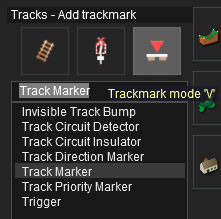




|
||||||||||

Set its Name and Layers (S10) |
|
|
The name of a Track Marker is important. It is used to identify the marker for Session Rules and Driver Commands |
|
The Layer it is assigned to will decide if it will be saved in a Route or in a Session |
| The Name and Layer Settings for a Track Marker are in its Properties Window. | ||||||||||||||
| Error creating thumbnail: /bin/bash: line 1: /usr/bin/convert: No such file or directory Error code: 127 | The Properties Window will open as soon as a new Track Marker has been added to a track segment. | |||||||||||||
| Error creating thumbnail: /bin/bash: line 1: /usr/bin/convert: No such file or directory Error code: 127 | To open the Properties Window for an existing Track Marker:- | |||||||||||||
|
||||||||||||||

 |
|
|


Change its Direction (S10) |
|
|
The direction the Track Marker is pointing has NO EFFECT on its operation. |
If you need to change the direction of a Track Marker then:-
|
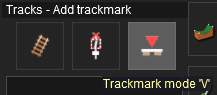 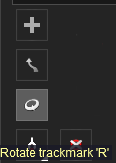 |
||||||||||
Move it Along the Track (S10) |
|
|
Track Markers can be dragged along the track and moved to other tracks. |
If you need to move a Track Marker then:-
|
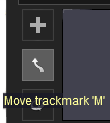 |
||||||||||
|
Set its Effect Radius (S10) |
|
|
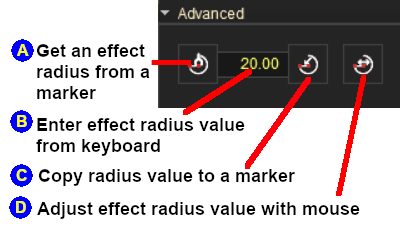
The Effect Radius sets how close a consist has to approach the marker to activate or complete its operation. The default value is 20m. |
| The Effect Radius controls for a Track Marker are in the Tools Menu Advanced Window. |
|
|||||||||
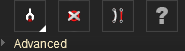
| The Effect Radius is the size of red "effect wings" attached to both ends of the marker. This sets how close a consist has to approach the marker to complete certain driver commands such as Drive To Trackmark or to activate any Navigation Point attached to the marker. The smaller the radius the closer it must approach. |
|
|
|||||||||||||||||||||||||||||||||||||||

|
In Surveyor 2.0 (S20) |
|
|
| Surveyor 2.0 (or S20) is the latest Surveyor interface and is supplied with TRS22PE and Trainz Plus. |
Adding a Track Marker (S20) |
|
|
Track Markers are destinations and waypoints for Driver Commands and placeholders for Navigation Points. |
|
| Steps: To Add a Track Marker:- |
 In the Filter Palette either:- |
|
|
||||||||||||||||||||||||||||||||||||||
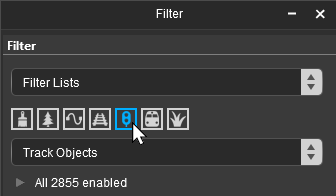
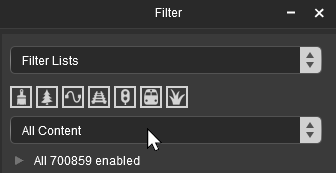
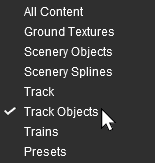


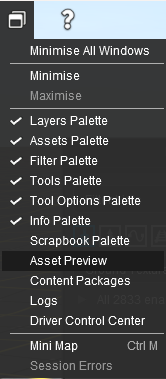


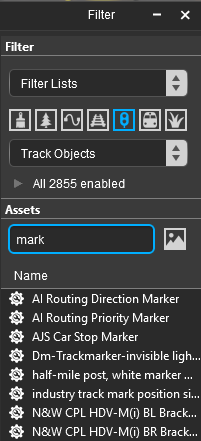
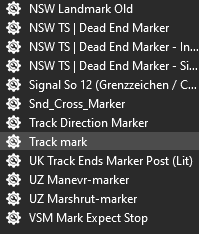
 In the Assets Palette to narrow down the filter list, type "mark" (UPPER/lower case does not matter) in the Search Text Box
 Both pallets shown docked |
|
 Place the Track Marker on the track.
|
||||||||||||||||||||||||||||||||||||||||||
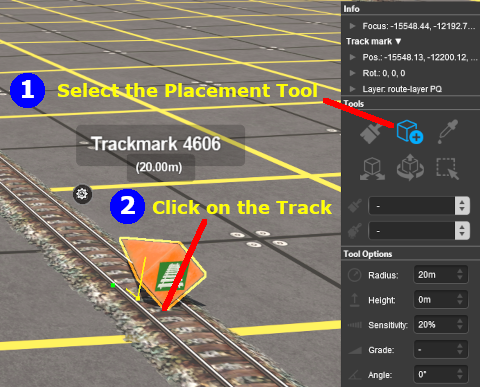
Once you have added a Track Marker and set its properties it can be quickly duplicated (Cloned) in Surveyor 2.0 with those properties and moved to a new location. You can then easily edit the name and properties of the clone at the new location. See  How to Use S20 Tools - Cloning Objects for the details. |
Change its Name (S20) |
|
|
The name of a Track Marker is used to identify it for Driver Commands (Drive To Trackmark, Navigate To Trackmark, etc) and other operations (e.g. Navigation Points). |
| Track Markers can be renamed to give them a more recognisable identity (e.g. ""East Branch Down" instead of "Trackmark 4606"). |
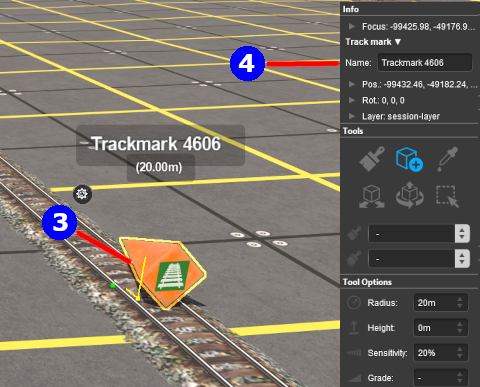 |
|
||||||||||||


Assign it to Another Layer (S20) |
|
|
The layer assigned to a marker will control where it is saved, in the Route or the Session. |
| The Info Palette will show the layer assigned to the currently selected object. To the left of the layer name is a small arrowhead object. | |||||||||||||||||||||||
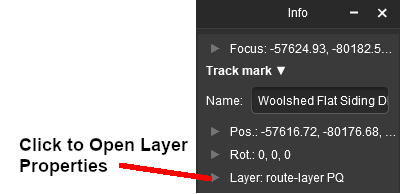 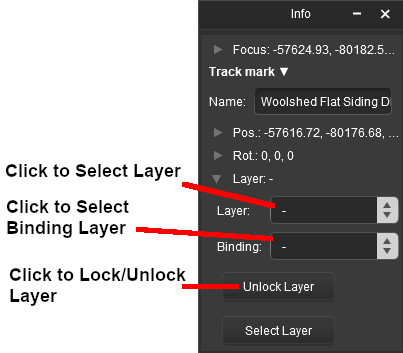 |
|
||||||||||||||||||||||
Change its Direction (S20) |
|
|
The direction a Track Marker is pointing has NO EFFECT on its operation. |
If you need to rotate a Track Marker to face the opposite direction then:-
|
|||||||

Move it Along the Track (S20) |
|
|
Markers can be moved along the track or moved to other tracks. |
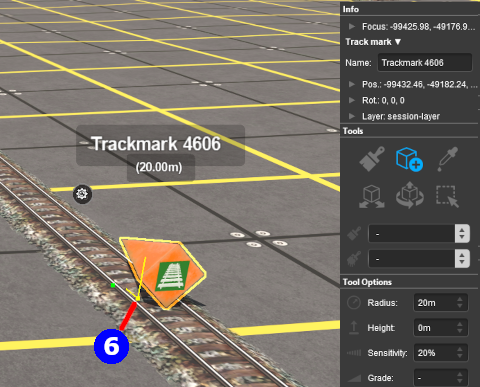 |
|
||||||||||||||

|
Move it Vertically (S20) |
|
|
Markers can be physically placed above or below the track. |
| This feature allow a marker to be placed, for example, above the track so that it will not be hidden in Surveyor if a consist is parked on the marker. A change in height will have NO EFFECT on its operation. |
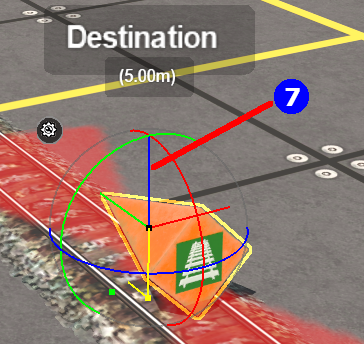 |
|
||||||||||||||||||

Move it Horizontally (S20) |
|
|
Markers can be physically placed left or right of the track. |
| This feature allow a marker to be placed so that it will not be hidden in Surveyor if a consist is parked on the marker. A change in position left or right will have NO EFFECT on its operation. |
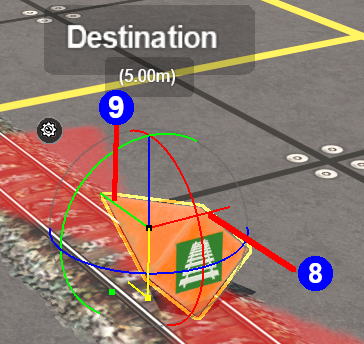 |
|
||||||||||||||||||||||


Set its Effect Radius (S20) |
|
|
The Effect Radius sets how close a consist has to approach the marker to activate or complete its operation. The default value is 20m. |
| The Effect Radius is the size of red "effect wings" attached to both ends of the marker. This sets how close a consist has to approach the trigger to complete certain Driver Commands (such as Wait on Trigger) or activate certain Session Rules (such as Wait on Navigation Point). The smaller the radius the closer it must approach. |
| In the image shown below, the approaching vehicle will "reach" the Track Marker when it is 20m away from it. |
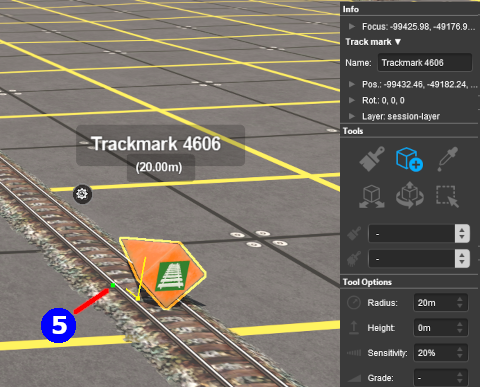 |
|
||||||||||||||||||||||


Track Marker Operation |
|
|
|
|
The most common use for Track Markers is as destinations for driver commands or as "way points" to direct a train to a destination via one or more intermediate places. They can also be used as the targets for Navigation Points and coupling operations.
Driver Navigation Commands
|
Information on adding driver commands can be found at:- |
|
| Error creating thumbnail: /bin/bash: line 1: /usr/bin/convert: No such file or directory Error code: 127 | Drive To Trackmark Instructs the AI driver to Drive, via the shortest available path, to the designated Track Marker. The AI will noticeably slow the train as it approaches the Track Mark. Switches ahead of the train that are not locked against the AI will be set to allow the train to proceed and reset after the train has cleared the switch. The AI driver will NOT attempt to find a way around blockages when calculating the shortest path to the Track Marker. All signals and speed signs along the route are obeyed. |
| Error creating thumbnail: /bin/bash: line 1: /usr/bin/convert: No such file or directory Error code: 127 | Drive Via Trackmark Instructs the AI driver to Drive, via the shortest available path, to and through the designated Track Marker. If there are no further navigation commands (e.g. Drive To, etc) then the AI will halt the train after passing the Track Mark. If there are further navigation commands then the AI will proceed through the Track Marker to the next Track Marker or Industry at normal speed. Switches ahead of the train that are not locked against the AI will be set to allow the train to proceed and reset after the train has cleared the switch. The AI driver will NOT attempt to find a way around blockages when calculating the shortest path to the Track Marker. All signals and speed signs along the route are obeyed. |
| Error creating thumbnail: /bin/bash: line 1: /usr/bin/convert: No such file or directory Error code: 127 | Navigate To Trackmark Instructs the AI driver to Drive, via the shortest available path, to the designated Track Marker. The AI will noticeably slow the train as it approaches the Track Mark. Switches ahead of the train that are not locked against the AI will be set to allow the train to proceed and reset after the train has cleared the switch. The AI driver will attempt to find a way around blockages when calculating the shortest path to the Track Marker. All signals and speed signs along the route are obeyed. |
| Error creating thumbnail: /bin/bash: line 1: /usr/bin/convert: No such file or directory Error code: 127 | Navigate Via Trackmark Instructs the AI driver to Drive, via the shortest available path, to and through the designated Track Marker. If there are no further navigation commands (e.g. Navigate To, etc) then the AI will halt the train after passing the Track Mark. If there are further navigation commands then the AI will proceed through the Track Marker to the next Track Marker or Industry at normal speed. Switches ahead of the train that are not locked against the AI will be set to allow the train to proceed and reset after the train has cleared the switch. The AI driver will attempt to find a way around blockages when calculating the shortest path to the Track Marker. All signals and speed signs along the route are obeyed. |
Navigation Points
|
Navigation Points can be attached to Track Markers to provide users with session instructions. |
|
Information on navigation points can be found at:- |
Coupling Operations
|
An AI controlled train can be issued with a driver command to couple with the consist located at a specified Track Marker. |
| Error creating thumbnail: /bin/bash: line 1: /usr/bin/convert: No such file or directory Error code: 127 | The AI driver moves the train (or just the locomotive if it is by itself) to couple with the wagon that is closest to a specified Track Marker. More information on this command can be found at  Couple At Trackmark This command must be downloaded from the DLS and installed in Trainz |
|
Information on adding driver commands can be found at:- |
|
|
Trainz Wiki
|
|

This page was created by Trainz user pware in September 2019 and was last updated as shown below.


