How to Create a Picklist: Difference between revisions
From TrainzOnline
Jump to navigationJump to search
mNo edit summary |
|||
| (2 intermediate revisions by the same user not shown) | |||
| Line 5: | Line 5: | ||
<tr valign="middle"> | <tr valign="middle"> | ||
<td width=35>[[image:Information.png|35px|link=]]</td> | <td width=35>[[image:Information.png|35px|link=]]</td> | ||
<td><span style="font-size: 15px;"> | <td><span style="font-size: 15px;">This Wiki Page describes how to create a '''Picklist''' and applies to using '''Content Manager''' and '''Surveyor Classic''' in '''T:ANE''', '''TRS19''', '''TRS22''' and '''Trainz Plus'''.<br> | ||
For information on using '''Surveyor 2.0''' refer to the more recent document at [[image:WikiLink.PNG|link=]] '''[[How_to_Manage_Filters_and_Picklists|How to Manage Search Filters and Picklists]]'''</span></td> | For information on using '''Surveyor 2.0''' refer to the more recent document at [[image:WikiLink.PNG|link=]] '''[[How_to_Manage_Filters_and_Picklists|How to Manage Search Filters and Picklists]]'''</span></td> | ||
</tr> | </tr> | ||
| Line 52: | Line 52: | ||
<table width=1000 cellpadding=2> | <table width=1000 cellpadding=2> | ||
<tr valign="top"> | <tr valign="top"> | ||
<td colspan=2><span style="font-weight: 700; font-size: 15px;">Steps:</span></td> | <td colspan=2><span style="font-weight: 700; font-size: 15px;">Steps: To Select a Picklist or Create a New Picklist In Surveyor Classic:-</span></td> | ||
</tr> | </tr> | ||
<tr valign="top"> | <tr valign="top"> | ||
| Line 87: | Line 87: | ||
<tr valign="top"> | <tr valign="top"> | ||
<td>[[image:PickList_Surveyor01.png|link=]]</td> | <td>[[image:PickList_Surveyor01.png|link=]]</td> | ||
<td>To | <td><span style="font-weight: 700; font-size: 15px;">Steps: To Switch to a Different Picklist or To Create a New One:-</span> | ||
<table> | <table> | ||
<tr valign="top"> | <tr valign="top"> | ||
| Line 125: | Line 125: | ||
<td width=25>[[image:DotPoint3.JPG|link=]]</td> | <td width=25>[[image:DotPoint3.JPG|link=]]</td> | ||
<td><span style="font-size: 17px; font-weight: 700;">Add Assets to the Picklist:</span><br> | <td><span style="font-size: 17px; font-weight: 700;">Add Assets to the Picklist:</span><br> | ||
<span style="font-weight: 700; font-size: 15px;">Options:</span> Choose one of two methods:-</td> | <span style="font-weight: 700; font-size: 15px;">Options:</span> Choose one of two methods [[image:Ablue.png|link=]] <span style="font-weight: 700; font-size: 15px;">OR</span> [[image:bblue.png|link=]]:-</td> | ||
</tr> | </tr> | ||
<tr valign="top"> | <tr valign="top"> | ||
| Line 277: | Line 277: | ||
<tr valign="top"> | <tr valign="top"> | ||
<td width=629><span id="stepUsingCM"></span> | <td width=629><span id="stepUsingCM"></span> | ||
='''Using Content Manager (CM)'''= | ='''Using Content Manager (CM)'''= | ||
</td> | </td> | ||
| Line 290: | Line 291: | ||
<table width=1000 cellpadding=2> | <table width=1000 cellpadding=2> | ||
<tr valign="top"> | <tr valign="top"> | ||
<td colspan=2><span style="font-weight: 700; font-size: 15px;">Steps:</span></td> | <td colspan=2><span style="font-weight: 700; font-size: 15px;">Steps: To Create a New Picklist in Content Manager:-</span></td> | ||
</tr> | </tr> | ||
<tr valign="top"> | <tr valign="top"> | ||
Latest revision as of 04:33, 9 September 2026
|

|
|||||||

Using Surveyor Classic |
 |
 |
 |
| Steps: To Select a Picklist or Create a New Picklist In Surveyor Classic:- | |||||
 |
Open the Picklist Window:
|
||||

 |
Select a Picklist or Create a New Picklist:
|
||||||||||||
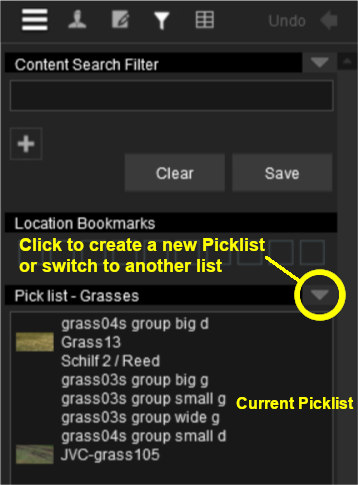

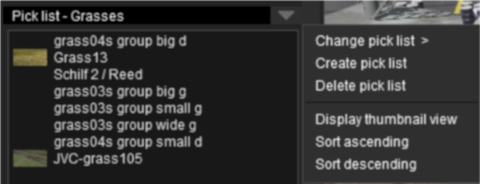


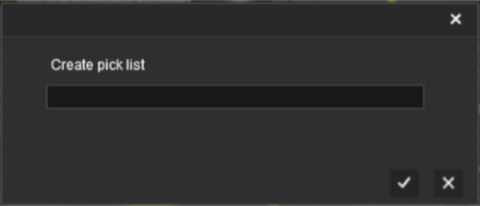
 |
Add Assets to the Picklist: Options: Choose one of two methods  OR  :- |
||||||||||||||||||||||||||||||||||||||||
|
|||||||||||||||||||||||||||||||||||||||||
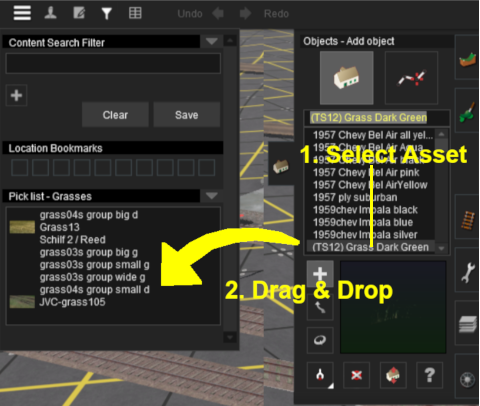


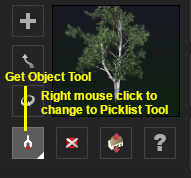

|
Using Content Manager (CM) |
 |
|
 |
|
| Steps: To Create a New Picklist in Content Manager:- | ||||||||||||
|
Select the Assets:
|
|||||||||||
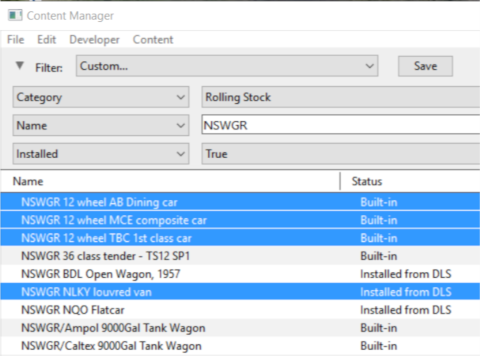
|
Add the Assets to the Picklist:
|
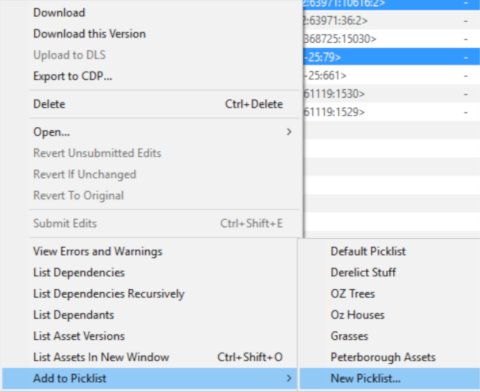
|
Enter Picklist Name (for New Picklist Option Only):
|
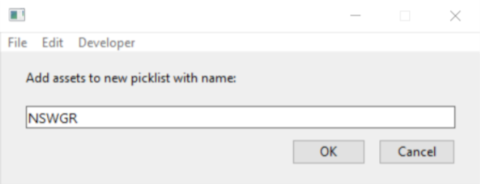
|
|
Trainz Wiki
|
|


This page was created by Trainz user pware in January 2019 and was last updated as shown below.


