How to Backup a Picklist: Difference between revisions

From TrainzOnline
Jump to navigationJump to search
Pware (talk | contribs)
mNo edit summary
Pware (talk | contribs)
mNo edit summary
 
(3 intermediate revisions by the same user not shown)
Line 5: Line 5:
<tr valign="middle">
<td width=35>[[image:Information.png|35px|link=]]</td>
<td><span style="font-size: 15px;">This Wiki Page descibes how to make backups of your Picklists and applies to '''Content Manager''' in '''T:ANE''', '''TRS19''', '''TRS22''' and '''Trainz Plus'''.</span></td>
<td><span style="font-size: 15px;">This Wiki Page describes how to make backups of your Picklists and applies to '''Content Manager''' in '''T:ANE''', '''TRS19''', '''TRS22''' and '''Trainz Plus'''.</span></td>
</tr>
</tr>
</table>
</table>
Line 63: Line 63:
<table width=1000 cellpadding=4 bgcolor=#ffffff> <!-- BEGIN Step table -->
<tr valign="top">
<tr valign="top">
<td colspan=2><span style="font-weight: 700; font-size: 15px;">Steps:</span></td>
<td colspan=2><span style="font-weight: 700; font-size: 15px;">Steps: To Access and Copy a Picklist:-</span></td>
</tr>
</tr>
<tr valign="top">
<tr valign="top">
Line 274: Line 274:
<table width=1000 cellpadding=4 bgcolor=#ffffff> <!-- BEGIN Step table -->
<tr valign="top">
<tr valign="top">
<td colspan=2><span style="font-weight: 700; font-size: 15px;">Steps:</span></td>
<td colspan=2><span style="font-weight: 700; font-size: 15px;">Steps: To Copy the Picklist to a Text File:-</span></td>
</tr>
</tr>
<tr valign="top">
<tr valign="top">
Line 339: Line 339:
<table width=1000 cellpadding=4 bgcolor=#ffffff>
<tr valign="top">
<tr valign="top">
<td colspan=2><span style="font-weight: 700; font-size: 15px;">Steps:</span></td>
<td colspan=2><span style="font-weight: 700; font-size: 15px;">Steps: To Restore a Picklist from a Text File:-</span></td>
</tr>
</tr>
<tr valign="top">
<tr valign="top">

Latest revision as of 10:15, 8 September 2026

Error creating thumbnail: /bin/bash: line 1: /usr/bin/convert: No such file or directory Error code: 127 This Wiki Page describes how to make backups of your Picklists and applies to Content Manager in T:ANE, TRS19, TRS22 and Trainz Plus.


Picklists (as a list of assets) cannot be saved as .CDP files so they cannot be backed up using that method
Picklists can be saved as text files
Picklists can be imported from text files


Access Your Current Picklists

    Top   Next Down Bottom
Steps: To Access and Copy a Picklist:-
Open Content Manager and Your Picklists
From the Trainz Launcher select  Manage Content 
In TRS19 SP4, Trainz Plus SP4 (and later) and TRS22
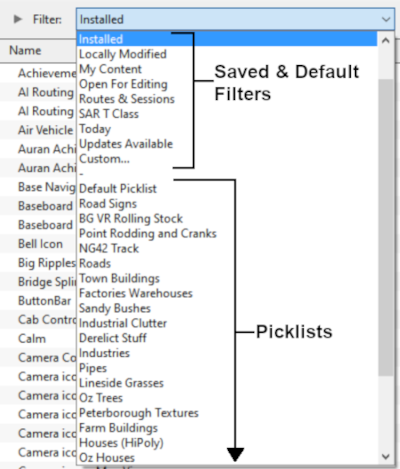
Open the Filter List
Pick List Filter
Select the Picklist to be backed up. This will open the Picklist
In TRS19 SP4, Trainz Plus SP4 (and later) and TRS22 you CAN select and backup the Default Picklist
 
In T:ANE and TRS19 SP3, Trainz Plus SP3 and earlier Trainz versions
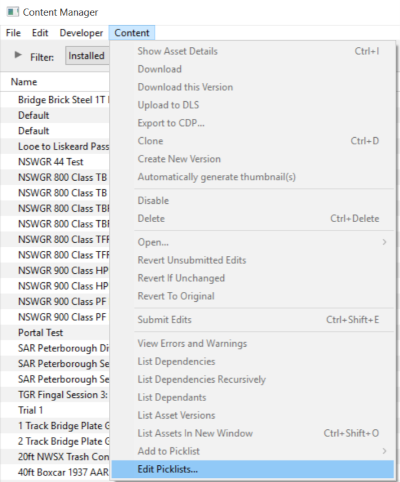
in Content Manager open the Content menu
select Edit Picklist
This will display all your current Picklists
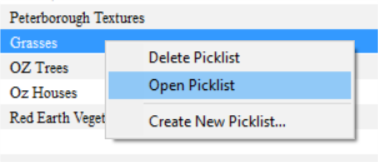
Right Click on the required Picklist
select Open Picklist from the popup menu
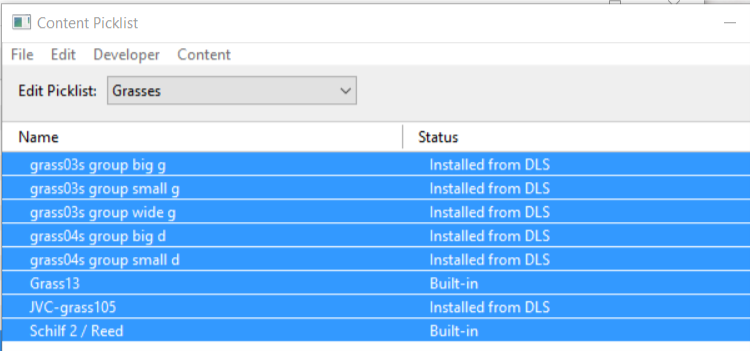
This will open the Picklist
In T:ANE, TRS19/Trainz Plus SP3 and earlier Trainz versions you CANNOT select and backup the Default Picklist
Select the Picklist Contents:
Left Click on any one of the items
press  Ctrl  +  A  to Select All the items
Copy the List to a New Window:
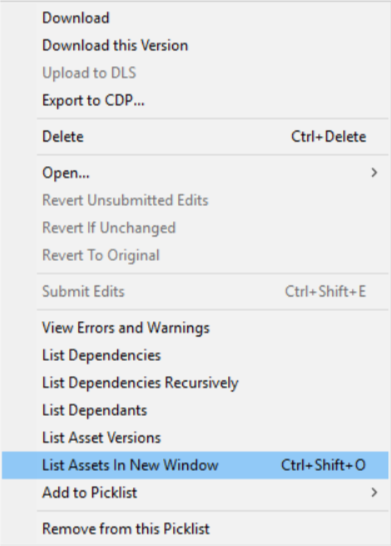
Right Click on any one of the items
select List Assets in New Window from the popup menu


Notes:

The option Export to CDP does appear in the menu list but this will export all the selected assets (with ALL their meshes, textures, config.txt files, etc) and not just a list of <kuids>. The resulting .cdp file can easily be many megabytes in size.
Copy Assets in Picklist:
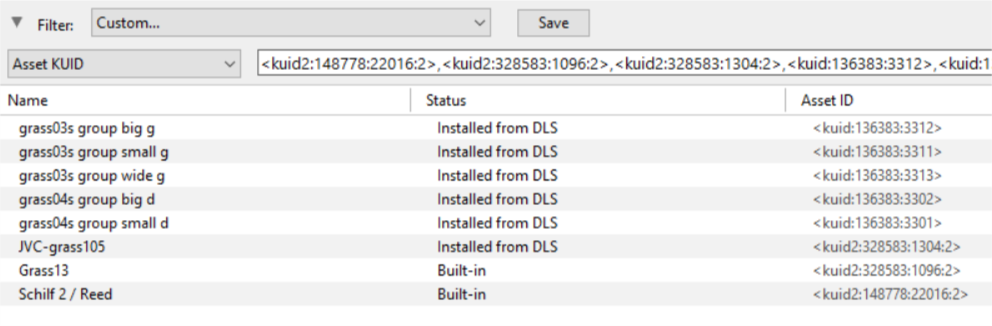
The Picklist assets will be listed by their kuids in the Asset KUID box of a new search filter
Left Click inside the Asset KUID box and press  Ctrl  +  A  to select them ALL
copy the asset list to your operating system clipboard (press  Ctrl  +  C )


Transfer the List to Notepad (or Any Text Editor)

    Top Next Up Next Down Bottom
Steps: To Copy the Picklist to a Text File:-
Open Notepad or Any Other Suitable Text Editor:
open your favourite text editor (MS Notepad, Notepad++, etc)
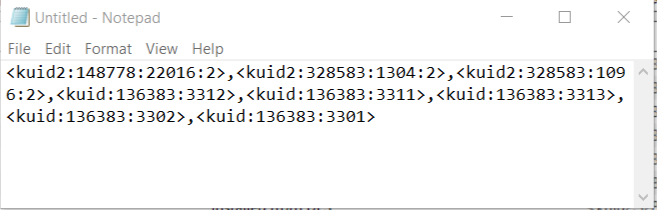
Left Click inside the Notepad window and then press  Ctrl  +  V  (paste)
Save the Picklist as a Text (.txt) File:
from the Notepad File menu select Save or press  Ctrl  +  S . If you are not using Notepad, make sure that the file format is text (.txt) for compatibility
select a suitable backup location for the backup file
enter a filename - the same name as the Picklist would be a good idea - then save


How to Restore a Picklist

    Top Next Up   Bottom
Restoring a Picklist basically involves reversing the above two steps
Steps: To Restore a Picklist from a Text File:-
Open Your Text Editor:
open your favourite text editor (MS Notepad, Notepad++, etc)
locate and load the saved Picklist text file into your text editor
select all the text - press  Ctrl  +  A 
copy the text to your operating system clipboard - press  Ctrl  +  C 


  Open CM in the Destination Trainz and Create a New Filter:
in the copy of Trainz where the Picklist is being restored or transferred, open Content Manager
start a new filter, select Custom
paste ( Ctrl  +  V ) the asset list into the Asset KUID box
delete from the filter the line Installed - this will ensure that any Picklist assets that are on the DLS but not installed on your system will be identified

Error creating thumbnail: /bin/bash: line 1: /usr/bin/convert: No such file or directory Error code: 127 if any assets are identified as Available for download (i.e. they are not installed) then download and install them first


   Create a New Picklist:
 
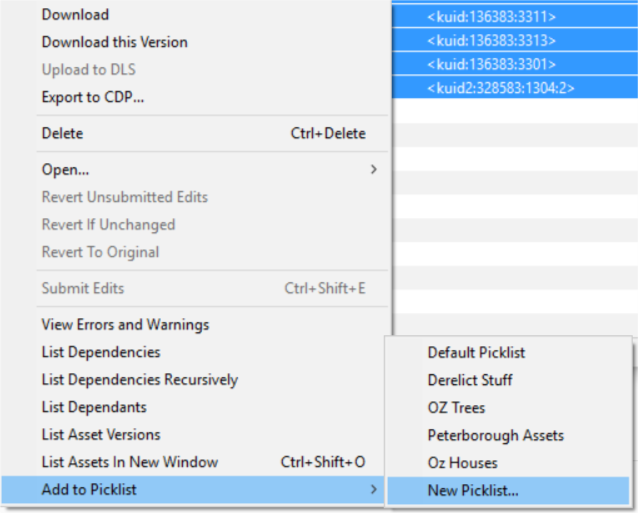
select an entry and then select all ( Ctrl  +  A )
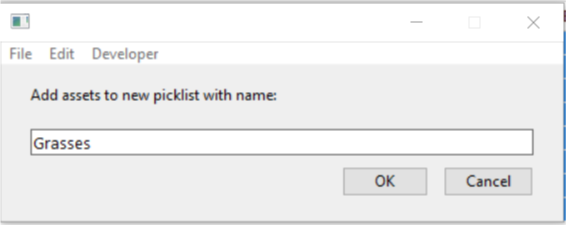
Right Click on any entry and select  Add to Picklist  and then  New Picklist  from the popup menus


Name the Picklist:
Enter a name for the Picklist (the same name as the original would be a good idea) and Left Click the OK button (for T:ANE and TRS19) or the  Save  button (for Trainz Plus and TRS22)


    Top Next Up    


Trainz Wiki

More Tutorials and Guides to Using Trainz

Related Links


This page was created by Trainz user pware in January 2019 and was last updated as shown below.