How to Backup a Picklist: Difference between revisions
From TrainzOnline
Jump to navigationJump to search
→Transfer the List to Notepad (or any text editor): reorganised steps |
→How to Restore a Picklist: reorganised steps |
||
| Line 200: | Line 200: | ||
='''How to Restore a Picklist'''= | ='''How to Restore a Picklist'''= | ||
Restoring a Picklist basically involves reversing the above steps | <table cellpadding="4" bgcolor=#c1e7e7> | ||
<tr valign="top"> | |||
<td>[[file:DotPoint.JPG|link=]]</td> | |||
<td>Restoring a Picklist basically involves reversing the above steps</td> | |||
</tr> | |||
</table> | |||
<table cellpadding="4" bgcolor=#ffffff> | <table cellpadding="4" bgcolor=#ffffff> <!-- BEGIN Step table --> | ||
<tr> | |||
<td colspan="2"> | |||
----</td> | |||
</tr> | |||
<tr valign="top"> | <tr valign="top"> | ||
<td>[[file:Steps.PNG|link=]]</td> | <td>[[file:Steps.PNG|link=]]<br><br> | ||
<td><span style="font-size: 17px;"> | <span style="font-size: 17px; font-weight: 700;">Steps</span></td> | ||
<table> | <td>[[file:DotPoint1.JPG|link=]] <span style="font-size: 17px; font-weight: 700;">Open Notepad or Other Text Editor:</span><br> | ||
<table> <!-- BEGIN Step 1 table --> | |||
<tr valign="top"> | <tr valign="top"> | ||
<td> | <td> | ||
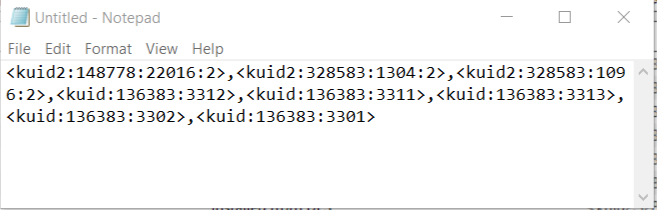
#open your favourite text editor (MS Notepad, Notepad++, etc) | |||
#load the saved Picklist text file, from Step 2 of '''Transfer the List to Notepad''' process explained above, into Notepad | #load the saved Picklist text file, from Step 2 of '''Transfer the List to Notepad''' process explained above, into Notepad | ||
#select all the text - press '''Ctrl-A''' | #select all the text - press '''Ctrl-A''' | ||
#copy the text to the clipboard - press '''Ctrl-C'''</td> | #copy the text to the clipboard - press '''Ctrl-C''' | ||
</td> | |||
</tr> | </tr> | ||
</table></td> | <tr> | ||
<td colspan="2"> | |||
----</td> | |||
</tr> | |||
</table> <!-- END Step 1 table --> | |||
</td> | |||
</tr> | </tr> | ||
<tr valign="top"> | <tr valign="top"> | ||
<td>[[file: | <td> </td> | ||
<td>[[file:DotPoint2.JPG|link=]] <span style="font-size: 17px; font-weight: 700;">Open CM in the Destination Trainz and Create a New Filter:</span><br> | |||
<table> | <table> <!-- BEGIN Step 2 table --> | ||
<tr valign="top"> | <tr valign="top"> | ||
<td> | <td> | ||
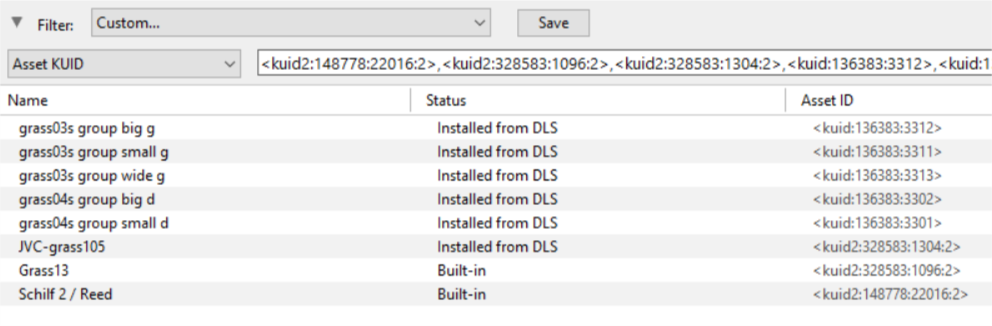
#in the copy of Trainz where the Picklist is being transferred, open '''Content Manager''' | #in the copy of Trainz where the Picklist is being restored or transferred, open '''Content Manager''' | ||
#start a new filter | #start a new filter | ||
#paste ('''Ctrl-V''') the asset list into the '''Asset KUID''' box<br><br> | #paste ('''Ctrl-V''') the asset list into the '''Asset KUID''' box<br><br> | ||
[[file:PickListSelectListofAssets.png|link=]]<br><br></td> | [[file:PickListSelectListofAssets.png|link=]]<br><br> | ||
</td> | |||
</tr> | |||
<tr> | |||
<td colspan="2"> | |||
----</td> | |||
</tr> | </tr> | ||
</table></td> | </table> <!-- END Step 2 table --> | ||
</td> | |||
</tr> | </tr> | ||
<tr valign="top"> | <tr valign="top"> | ||
<td>[[file: | <td> </td> | ||
<td>[[file:DotPoint3.JPG|link=]] <span style="font-size: 17px; font-weight: 700;">Create a New Picklist:</span><br> | |||
<table> <!-- BEGIN Step 3 table --> | |||
<tr valign="top"> | <tr valign="top"> | ||
<td> | <td> | ||
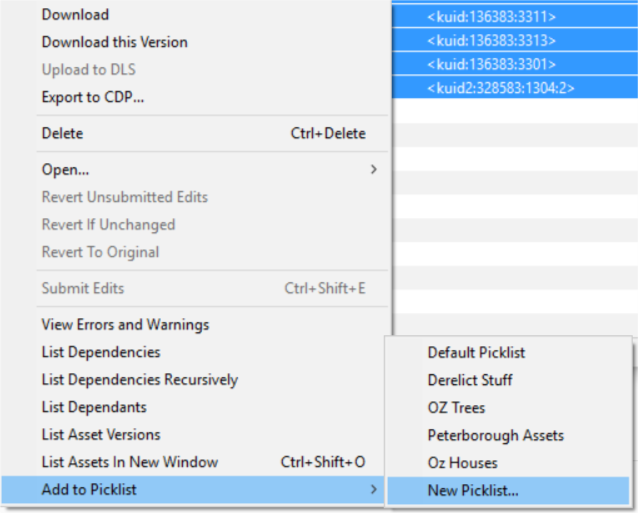
| Line 243: | Line 260: | ||
#select an entry and then select all ('''Ctrl-A''') | #select an entry and then select all ('''Ctrl-A''') | ||
#right mouse click on any entry and select '''Add to Picklist''' and then '''New Picklist''' from the popup menus<br><br> | #right mouse click on any entry and select '''Add to Picklist''' and then '''New Picklist''' from the popup menus<br><br> | ||
[[file:PickListTRS19NewList.png|link=]]<br><br></td> | [[file:PickListTRS19NewList.png|link=]]<br><br> | ||
</td> | |||
</tr> | |||
<tr> | |||
<td colspan="2"> | |||
----</td> | |||
</tr> | </tr> | ||
</table></td> | </table> <!-- END Step 3 table --> | ||
</td> | |||
</tr> | </tr> | ||
<tr valign="top"> | <tr valign="top"> | ||
<td>[[file: | <td> </td> | ||
<td>[[file:DotPoint4.JPG|link=]] <span style="font-size: 17px; font-weight: 700;">Enter a Name for the Picklist:</span><br> | |||
<table> | <table> <!-- BEGIN Step 4 table --> | ||
<tr valign="top"> | <tr valign="top"> | ||
<td> | <td> | ||
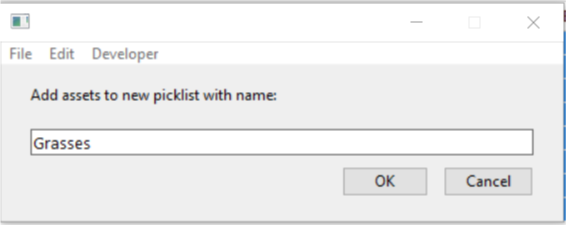
[[file:PickListTRS19NewListName.png|link=]]<br><br> | [[file:PickListTRS19NewListName.png|link=]]<br><br> | ||
Enter a name for the Picklist and click '''Ok'''</td> | Enter a name for the Picklist and click '''Ok''' | ||
</td> | |||
</tr> | </tr> | ||
< | <tr> | ||
<td colspan="2"> | |||
----</td> | |||
</tr> | </tr> | ||
</table> | </table> <!-- END Step 4 table --> | ||
< | </td> | ||
<table width="100%"> | </tr> | ||
</table> <!-- END Steps Table --> | |||
<table width="100%"> <!-- BEGIN Back-To-Top Table --> | |||
<tr valign="top"> | <tr valign="top"> | ||
<td align="right">[[file:BackToTop.png|link=#top|alt=Top|Top]]</td> | <td align="right">[[file:BackToTop.png|link=#top|alt=Top|Top]]</td> | ||
</tr> | </tr> | ||
</table> | </table> <!-- END Back-To-Top Table --> | ||
---- | ---- | ||
---- | ---- | ||
='''Trainz Wiki'''= | ='''Trainz Wiki'''= | ||
<table cellpadding="4" bgcolor=#ffffff> | <table cellpadding="4" bgcolor=#ffffff> | ||
Revision as of 10:21, 10 February 2020
The information in this Wiki Page applies to TANE, TRS19 and Trainz Plus. This guide will show you how to backup a Picklist.
 |
|
|
Information and instructions on backing up and restoring Trainz assets can be found on the Trainz Wiki Page at:- |
| Main Points: | |
 |
Picklists cannot be saved as .CDP files so they cannot be backed up using that method |
|
Picklists can be saved as text files |
|
Picklists can be imported from text files |
Access Your Current Picklists
 Steps |
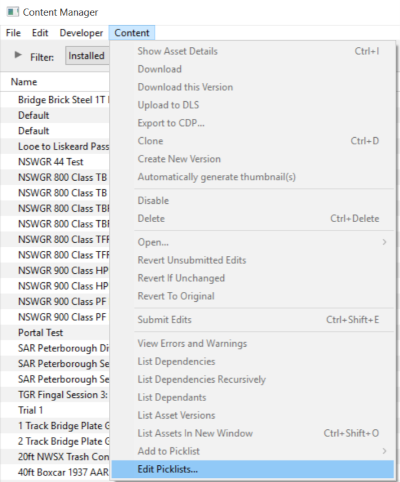
 Open CM and Your Picklists
|
|||
|
|
||||
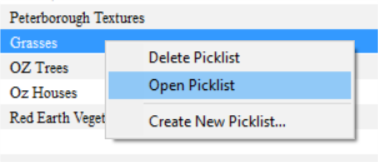
 Select the Picklist to be Backed Up:
|
||||
|
|
||||
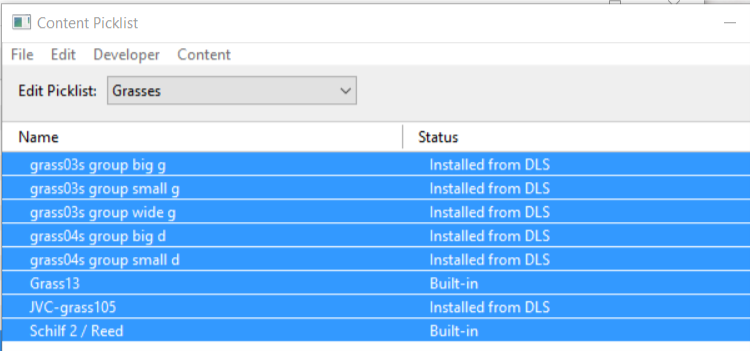
 Select Picklist Contents:
|
||||
|
|
||||
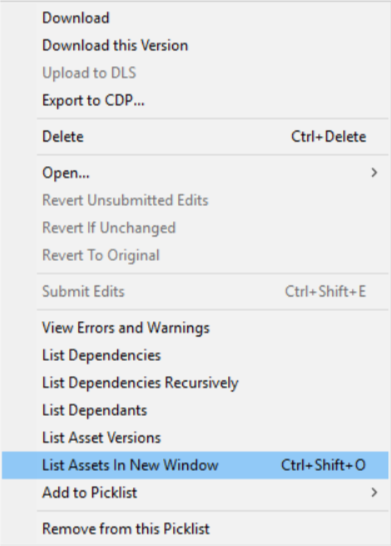
 Transfer List to a New Window:
|
||||
|
|
||||
 Copy Assets in Picklist:
|
||||

 |
Transfer the List to Notepad (or Any Text Editor)
Steps |
Open Notepad or Any Other Suitable Text Editor:
|
|||
Save the Picklist as a Text (.txt) File:
|
||||
|
How to Restore a Picklist
|
Restoring a Picklist basically involves reversing the above steps |
|
|
||||
Steps |
Open Notepad or Other Text Editor:
|
|||
Open CM in the Destination Trainz and Create a New Filter:
|
||||
Create a New Picklist:
|
||||
Enter a Name for the Picklist:
|
||||

|
Trainz Wiki
 |
More Tutorials and Guides to Using Trainz |
This page was created by Trainz user pware in January 2019 and was last updated as shown below.
