How to Move a Picklist: Difference between revisions
m →Transfer the List to Another Copy of Trainz: added instructions for dealing with uninstalled picklist assets |
|||
| Line 188: | Line 188: | ||
<td> | <td> | ||
[[file:PickListTRS19Paste.png|link=]]<br><br> | [[file:PickListTRS19Paste.png|link=]]<br><br> | ||
#select an entry and then select all ('''Ctrl-A''') | #select an entry and then select all ('''Ctrl-A''') | ||
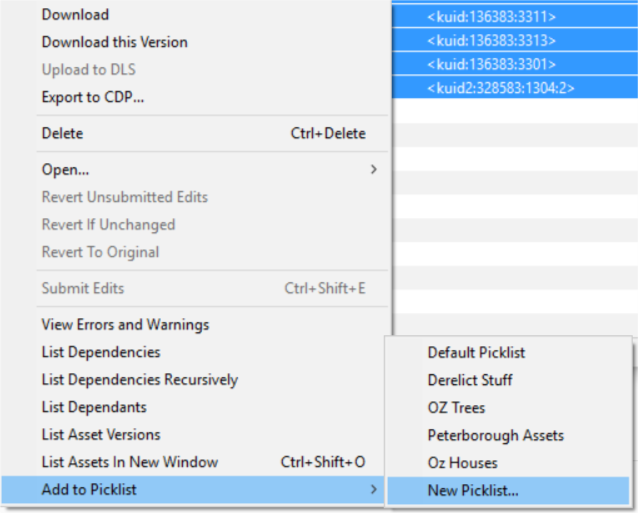
#right mouse click on any entry and select '''Add to Picklist''' and then '''New Picklist''' from the popup menus<br><br> | #right mouse click on any entry and select '''Add to Picklist''' and then '''New Picklist''' from the popup menus<br><br> | ||
Revision as of 22:55, 9 March 2020
The information in this Wiki Page applies to TANE, TRS19 and Trainz Plus. This guide will show you how to move a Picklist from one installation of Trainz to another, on the same or different computers.
 |
This page is also available in text only format suitable for copying and pasting at How to Move a Picklist TEXT |
 |
|
 |
If you have made backup copies of your Picklists then you have already completed half the work. Use the backup Picklists and steps described in the How to Restore a Picklist section of the How to Backup a Picklist Trainz Wiki page to complete the move. |
Access Your Current Picklists
 Steps |
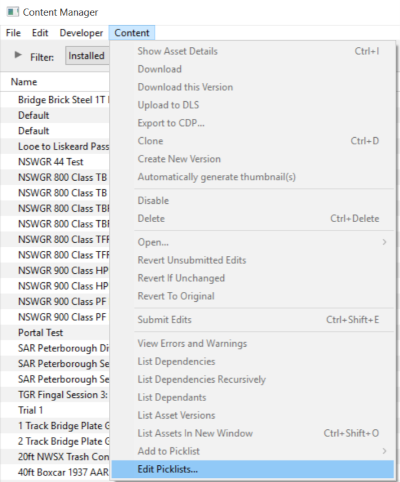
 Open CM and Your Picklists
|
|||
|
|
||||
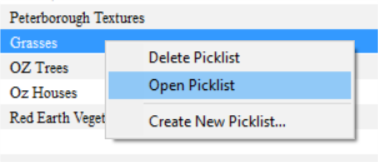
 Select the Picklist to be Backed Up:
|
||||
|
|
||||
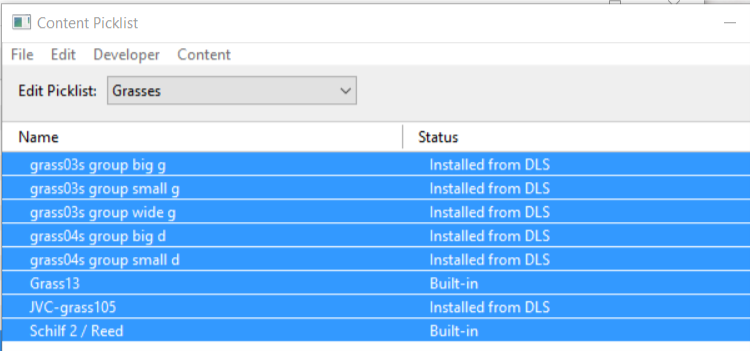
 Select Picklist Contents:
|
||||
|
|
||||
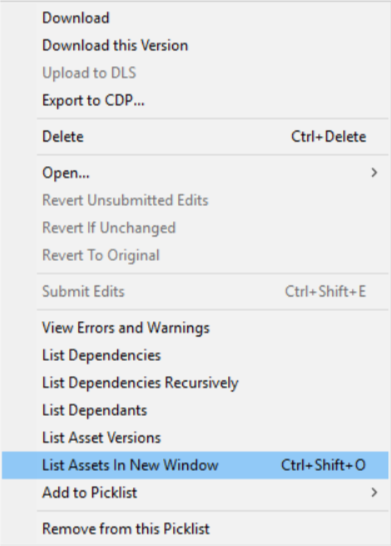
 Transfer List to a New Window:
|
||||
|
|
||||
 Copy Assets in Picklist:
|
||||


 |
Transfer the List to Another Copy of Trainz
 |
Notes: If you are transferring the Picklist to another computer then you will need to:-
On the second computer, reverse the steps by:-
|
|
|
||||
Steps |
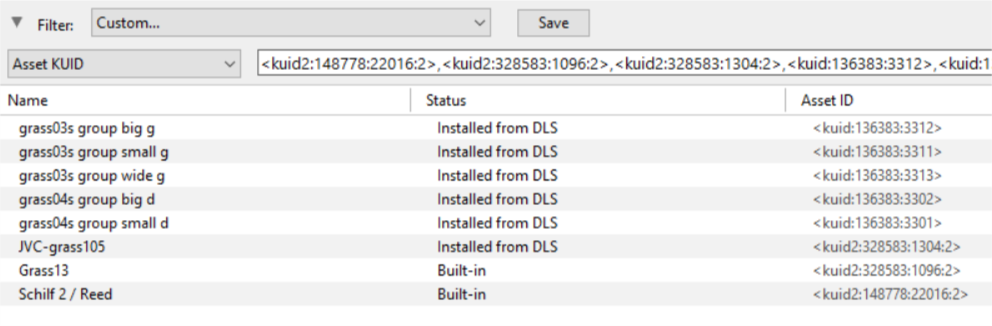
 Open CM in the Destination Trainz and Create a New Filter:
|
|||
 Create a New Picklist:
|
||||
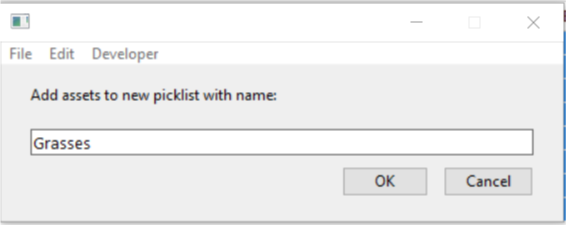
 Enter a Name for the Picklist:
|
||||

|
Trainz Wiki
 |
More Tutorials and Guides to Using Trainz |
This page was created by Trainz user pware in October 2018 and was last updated as shown below.
