SAR Scenario East-West Express: Difference between revisions
From TrainzOnline
Jump to navigationJump to search
added "getting started" and reorganised |
mNo edit summary |
||
| Line 71: | Line 71: | ||
# Next locate your loco. Open the '''Finder''' (press '''CTRL-F''') and type, in the '''name''' field, the name of the loco. For example '''SAR T 200''' (or just '''T 200''' should be enough). Click the '''tick''' icon. | # Next locate your loco. Open the '''Finder''' (press '''CTRL-F''') and type, in the '''name''' field, the name of the loco. For example '''SAR T 200''' (or just '''T 200''' should be enough). Click the '''tick''' icon. | ||
# Take a few moments to get your bearings. Use the [[image:Line_Index_Label.png|link=SAR_Index]] (this link will open in this window) and click on '''Gladstone''' to load its location details and track plans. The [[image:Tab_PH_Grey.png|link=|75px]] tab will give you the '''EIT Paths''' that are available if you wish to use them. The [[image:Tab_TM_Grey.png|link=|75px]] tab will give you the location and names of the invisible '''Track Marks''' for '''Drive To''' commands. The [[image:Tab_IN_Grey.png|link=|75px]] tab will show the names and locations of all active industries and their commodities. The [[image:Tab_SW_Grey.png|link=|75px]] tab will give the names and locations of all junction switches as well as some switch sets you may want to use. | # Take a few moments to get your bearings. Use the [[image:Line_Index_Label.png|link=SAR_Index]] (this link will open in this window) and click on '''Gladstone''' to load its location details and track plans. The [[image:Tab_PH_Grey.png|link=|75px]] tab will give you the '''EIT Paths''' that are available if you wish to use them. The [[image:Tab_TM_Grey.png|link=|75px]] tab will give you the location and names of the invisible '''Track Marks''' for '''Drive To''' commands. The [[image:Tab_IN_Grey.png|link=|75px]] tab will show the names and locations of all active industries and their commodities. The [[image:Tab_SW_Grey.png|link=|75px]] tab will give the names and locations of all junction switches as well as some switch sets you may want to use. | ||
# Each location page has a direct link to the next location, in all directions, so you can explore along the route. | # Each location page has a direct link to the next location page, in all directions, so you can explore along the route. | ||
# When you are ready to start, reload the '''Peterborough Base Session''' page (click the '''Scenarios''' button on your current location page) and select this '''Scenario''' again or just use the '''Back''' button on your browser - whichever is quicker. | # When you are ready to start, reload the '''Peterborough Base Session''' page (click the '''Scenarios''' button on your current location page) and select this '''Scenario''' again or just use the '''Back''' button on your browser - whichever is quicker. | ||
# Press the '''P''' key to start the session. | # Press the '''P''' key to start the session. | ||
Revision as of 23:11, 18 February 2021
Gladstone to Jamestown School Run
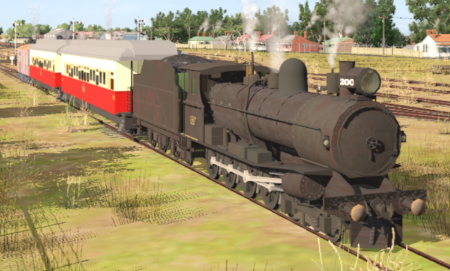
Gladstone to Terowie Passenger
A morning school run from Gladstone to Jamestown Mondays, Wednesdays, Fridays.
Morning passenger and school run from Gladstone to Terowie Tuesdays, Thursdays, Saturdays.
 |
|
|||||||||


| Duration: | Jamestown School Run 35 minutes Terowie Passenger 1 hour 40 minutes |
|
| Loco: | SAR T 200 at Gladstone Station Siding Other Unrostered Locos:
|
|
| Consist: | Attached to SAR T 200. 2 Kuranda BL1 coaches, 1 DB Guard Van | |
|
||
Tasks:
|
||
Driving Notes:
|
||
 |
||


