SAR Scenario Gladstone Shunter: Difference between revisions
From TrainzOnline
Jump to navigationJump to search
mNo edit summary |
mNo edit summary |
||
| Line 65: | Line 65: | ||
# Take a few moments to get your bearings. Use the [[image:Line_Index_Label.png|link=SAR_Index|Location Index]] (this link will open in this window) and click on '''Gladstone''' to load its location details and track plans. The [[image:Tab_PH_Grey.png|link=|75px]] tab will give you the '''EIT Paths''' that are available if you wish to use them. The [[image:Tab_TM_Grey.png|link=|75px]] tab will give you the location and names of the invisible '''Track Marks''' for '''Drive To''' commands. The [[image:Tab_IN_Grey.png|link=|75px]] tab will show the names and locations of all active industries and their commodities. The [[image:Tab_SW_Grey.png|link=|75px]] tab will give the names and locations of all junction switches as well as some switch sets you may want to use. | # Take a few moments to get your bearings. Use the [[image:Line_Index_Label.png|link=SAR_Index|Location Index]] (this link will open in this window) and click on '''Gladstone''' to load its location details and track plans. The [[image:Tab_PH_Grey.png|link=|75px]] tab will give you the '''EIT Paths''' that are available if you wish to use them. The [[image:Tab_TM_Grey.png|link=|75px]] tab will give you the location and names of the invisible '''Track Marks''' for '''Drive To''' commands. The [[image:Tab_IN_Grey.png|link=|75px]] tab will show the names and locations of all active industries and their commodities. The [[image:Tab_SW_Grey.png|link=|75px]] tab will give the names and locations of all junction switches as well as some switch sets you may want to use. | ||
# When you are ready to start, reload the '''Peterborough Base Session''' page (click the '''Scenarios''' button on your current location page) and select this '''Scenario''' again or just use the '''Back''' button on your browser - whichever is quicker. | # When you are ready to start, reload the '''Peterborough Base Session''' page (click the '''Scenarios''' button on your current location page) and select this '''Scenario''' again or just use the '''Back''' button on your browser - whichever is quicker. | ||
# | # Switch back to '''TRS19 Driver''' and press the '''P''' key to start the session. | ||
</td> | </td> | ||
</tr> | </tr> | ||
Revision as of 03:19, 21 February 2021
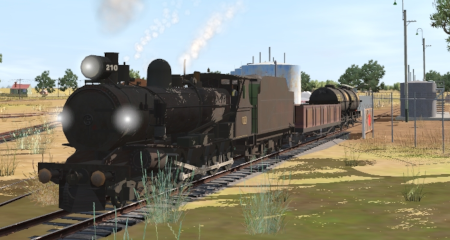
Gladstone Shunter
Shunting operations in Gladstone Yard and nearby sidings.
 |
|
|||||||||


| Duration: | 40 minutes | ||
| Loco: | SAR T 210 at Gladstone Depot Other Unrostered Locos: none |
||
|
|||
Tasks:
|
|||
Driving Notes:
|
|||
 |
|||


