SAR Scenario Paratoo Mixed Passenger Freight: Difference between revisions
From TrainzOnline
Jump to navigationJump to search
mNo edit summary |
mNo edit summary |
||
| Line 60: | Line 60: | ||
<tr valign="top"> | <tr valign="top"> | ||
<td> | <td> | ||
# | # If you have already closed the opening message window then the first step is to pause the session by pressing the <span style="font-weight: 700; font-size: 15px; color: white; background-color: black;"> P </span> key. | ||
# Next locate your loco. '''Either''':- | # Next locate your loco. '''Either''':- | ||
## Open the '''Finder Tool''' (press <span style="font-weight: 700; font-size: 15px; color: white; background-color: black;"> Ctrl </span> <span style="font-weight: 700; font-size: 15px; color: white; background-color: black;"> F </span>) and type, in the '''Name''' field, the name of the loco. For example '''SAR T 202''' (or just '''T 202''' should be enough). Click the '''tick''' icon, '''OR''' | ## Open the '''Finder Tool''' (press <span style="font-weight: 700; font-size: 15px; color: white; background-color: black;"> Ctrl </span> <span style="font-weight: 700; font-size: 15px; color: white; background-color: black;"> F </span>) and type, in the '''Name''' field, the name of the loco. For example '''SAR T 202''' (or just '''T 202''' should be enough). Click the '''tick''' icon, '''OR''' | ||
| Line 71: | Line 71: | ||
# Each location details page has direct links to the adjacent locations so you can explore along the route. | # Each location details page has direct links to the adjacent locations so you can explore along the route. | ||
# When you are ready to start, reload the '''Peterborough Base Session''' page (click the '''Scenarios''' button on your current location page) and select this '''Scenario''' again or just use the '''Back''' button on your browser - whichever is quicker. | # When you are ready to start, reload the '''Peterborough Base Session''' page (click the '''Scenarios''' button on your current location page) and select this '''Scenario''' again or just use the '''Back''' button on your browser - whichever is quicker. | ||
# Switch back to '''TRS19 Driver''' and press the <span style="font-weight: 700; font-size: 15px; color: white; background-color: black;"> P </span> key to start the session. | # Switch back to '''TRS19 Driver''' and either close the opening message window or press the <span style="font-weight: 700; font-size: 15px; color: white; background-color: black;"> P </span> key to start the session. | ||
</td> | </td> | ||
</tr> | </tr> | ||
Revision as of 23:22, 6 May 2021
| Error creating thumbnail: /bin/bash: line 1: /usr/bin/convert: No such file or directory Error code: 127 | 9 Peterborough to Paratoo Mixed Passenger Freight | Error creating thumbnail: /bin/bash: line 1: /usr/bin/convert: No such file or directory Error code: 127 |
| A scenario in the SAR Peterborough Base Session | ||
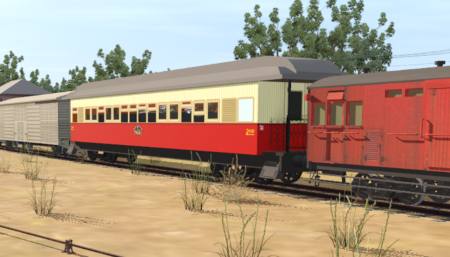
| Mixed passenger and freight run from Peterborough to Paratoo. |  |
 |
|
||||||||||


Getting Started:
|
Tutorial:
|

|
|
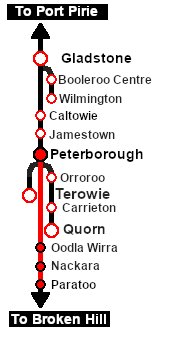


This page was created by Trainz user pware in February 2021 and was last updated as shown below.


