How to Backup a Picklist: Difference between revisions
From TrainzOnline
Jump to navigationJump to search
added instructions for TRS19 SP4 |
|||
| Line 1: | Line 1: | ||
The information in this Wiki Page applies to '''TANE''', '''TRS19''' and '''Trainz Plus'''. This guide will show you how to backup a '''Picklist'''.<br> | The information in this Wiki Page applies to '''TANE''', '''TRS19''' and '''Trainz Plus'''. This guide will show you how to backup a '''Picklist'''.<br> | ||
<table cellpadding="4" bgcolor="Aquamarine"> | <table cellpadding="4" bgcolor="Aquamarine"> | ||
| Line 45: | Line 36: | ||
<td>[[file:DotPoint.JPG|link=]]</td> | <td>[[file:DotPoint.JPG|link=]]</td> | ||
<td>Picklists can be '''imported from text files'''</td> | <td>Picklists can be '''imported from text files'''</td> | ||
</tr> | |||
<tr valign="top"> | |||
<td>[[file:DotPoint.JPG|link=]]</td> | |||
<td>'''There is NO way to select the Default Picklist for moving or backup'''</td> | |||
</tr> | </tr> | ||
</table> | </table> | ||
| Line 50: | Line 45: | ||
='''Access Your Current Picklists'''= | ='''Access Your Current Picklists'''= | ||
<table cellpadding="4" bgcolor=#ffffff> <!-- BEGIN Step table --> | <table cellpadding="4" bgcolor=#ffffff width=910> <!-- BEGIN Step table --> | ||
<tr valign="top"> | <tr valign="top"> | ||
<td>[[file:Steps.PNG|link=]]<br><br> | <td>[[file:Steps.PNG|link=]]<br><br> | ||
<span style="font-size: 17px; font-weight: 700;">Steps</span></td> | <span style="font-size: 17px; font-weight: 700;">Steps</span></td> | ||
<td>[[file:DotPoint1.JPG|link=]] <span style="font-size: 17px; font-weight: 700;">Open CM and Your Picklists</span><br> | <td>[[file:DotPoint1.JPG|link=]] <span style="font-size: 17px; font-weight: 700;">Open CM and Your Picklists</span><br> | ||
<table> <!-- BEGIN Step 1 table --> | <table width=910> <!-- BEGIN Step 1 table --> | ||
<tr valign="top"> | |||
<td colspan=2><br>From the '''Trainz''' Launcher select <span style="color: white; background-color: black; font-weight: 700; font-size: 15px;"> Manage Content </span></td> | |||
</tr> | |||
<tr valign="top"> | |||
<td> | |||
<table bgcolor="black" width=450> <!-- BEGIN TRS19 black border --> | |||
<tr valign="top"> | |||
<td> | |||
<table width=448 bgcolor="white"> <!-- BEGIN TRS19 table --> | |||
<tr valign="top"> | <tr valign="top"> | ||
<td>< | <td bgcolor="black" align="center"><span style="color: white; font-wright: 700; font-size: 15px;">In TRS19 (all versions) SP4 and Trainz Plus SP4</span></td> | ||
</tr> | |||
<tr valign="top"> | <tr valign="top"> | ||
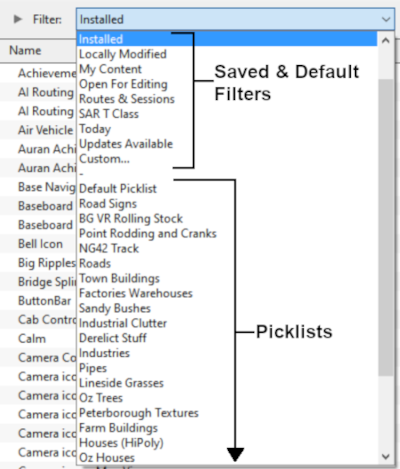
<td>[[ | <td>Open the '''Filter List'''<br> | ||
< | [[image:PickListFilter.png|link=|alt=Pick List Filter]]<br><br> | ||
Select the '''Picklist''' to be backed up. This will open the Picklist.</td> | |||
</tr> | </tr> | ||
</table> <!-- END | </table> <!-- END TRS19 table --> | ||
</td> | </td> | ||
</tr> | </tr> | ||
</table> | </table> <!-- END TRS19 black border --> | ||
</td> | </td> | ||
<td> | |||
<table bgcolor="black" width=450> <!-- BEGIN TANE black border --> | |||
<tr valign="top"> | |||
<td> | |||
<table width=448 bgcolor="white"> <!-- BEGIN TANE table --> | |||
<tr valign="top"> | |||
<td bgcolor="black" align="center"><span style="color: white; font-wright: 700; font-size: 15px;">In T:ANE and TRS19 (all versions) SP3 and Trainz Plus SP3 and earlier</span></td> | |||
</tr> | </tr> | ||
<tr valign="top"> | <tr valign="top"> | ||
<td> | <td> | ||
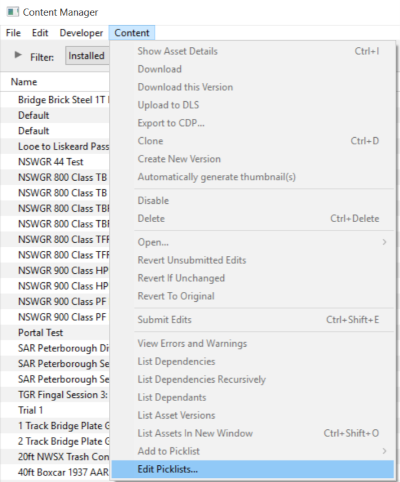
#in '''Content Manager''' open the '''Content''' menu | |||
#select '''Edit Picklist'''<br> | |||
[[file:PickListEditPickList.png|link=]]<br><br> | |||
This will display all your current Picklists. | |||
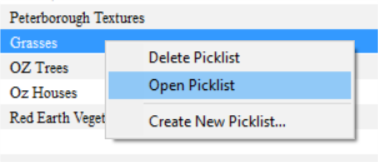
#right mouse click on the required Picklist | #right mouse click on the required Picklist | ||
#select '''Open Picklist''' from the popup menu<br> | #select '''Open Picklist''' from the popup menu<br> | ||
| Line 89: | Line 92: | ||
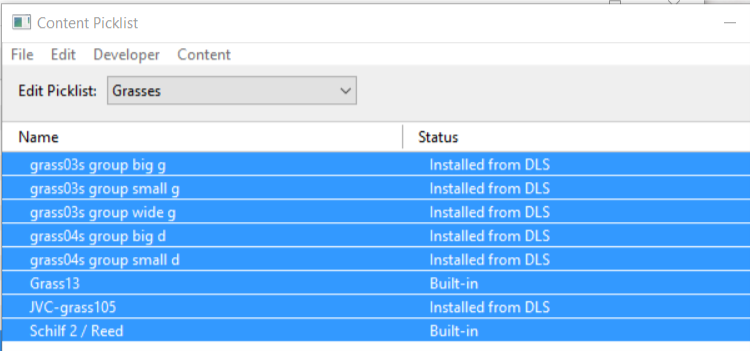
This will open the Picklist</td> | This will open the Picklist</td> | ||
</tr> | </tr> | ||
</table> <!-- END | </table> <!-- END TANE table --> | ||
</td> | |||
</tr> | |||
</table> <!-- END TANE black border --> | |||
</td> | </td> | ||
</tr> | </tr> | ||
</table> <!-- END Step 1 table --> | |||
</td> | |||
<tr> | <tr> | ||
<td colspan="2"> | <td colspan="2"> | ||
| Line 98: | Line 106: | ||
<tr valign="top"> | <tr valign="top"> | ||
<td> </td> | <td> </td> | ||
<td>[[file: | <td>[[file:DotPoint2.JPG|link=]] <span style="font-size: 17px; font-weight: 700;">Select Picklist Contents:</span><br> | ||
<table> <!-- BEGIN Step | <table> <!-- BEGIN Step 2 table --> | ||
<tr valign="top"> | <tr valign="top"> | ||
<td> | <td> | ||
| Line 106: | Line 114: | ||
[[file:PickListSelectAll.png|link=]]</td> | [[file:PickListSelectAll.png|link=]]</td> | ||
</tr> | </tr> | ||
</table> <!-- END Step | </table> <!-- END Step 2 table --> | ||
</td> | </td> | ||
</tr> | </tr> | ||
| Line 115: | Line 123: | ||
<tr valign="top"> | <tr valign="top"> | ||
<td> </td> | <td> </td> | ||
<td>[[file: | <td>[[file:DotPoint3.JPG|link=]] <span style="font-size: 17px; font-weight: 700;">Transfer List to a New Window:</span><br> | ||
<table> <!-- BEGIN Step | <table> <!-- BEGIN Step 3 table --> | ||
<tr valign="top"> | <tr valign="top"> | ||
<td> | <td> | ||
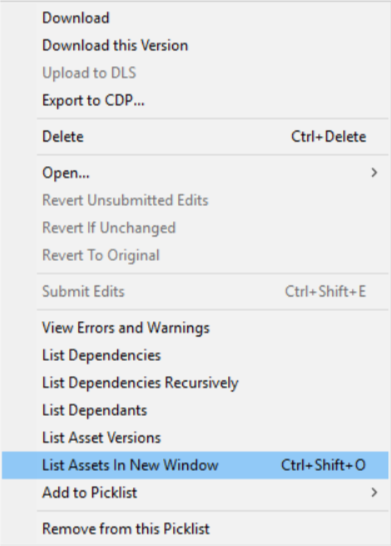
#right mouse click on any one of the items | #right mouse click on any one of the items | ||
#select '''List Assets in New Window''' from the popup menu<br> | #select '''List Assets in New Window''' from the popup menu<br> | ||
<table> <!-- BEGIN Step | <table> <!-- BEGIN Step 3 Side tables --> | ||
<tr valign="top"> | <tr valign="top"> | ||
<td>[[file:PickListListinNewWindow.png|link=]]</td> | <td>[[file:PickListListinNewWindow.png|link=]]</td> | ||
<td> | <td> | ||
<table cellpadding="4" bgcolor=#ffffb0> <!-- BEGIN Step | <table cellpadding="4" bgcolor=#ffffb0> <!-- BEGIN Step 3 Notepad Table --> | ||
<tr valign="top"> | <tr valign="top"> | ||
<td>[[image:NotePad.PNG|link=]]</td> | <td>[[image:NotePad.PNG|link=]]</td> | ||
| Line 131: | Line 139: | ||
The option '''Export to CDP''' appears in the menu list but this will export all the selected assets (with '''ALL''' their meshes, textures, config.txt files, etc) and not just a list of '''<kuids>'''. The resulting '''.cdp''' file can easily be many megabytes in size.</td> | The option '''Export to CDP''' appears in the menu list but this will export all the selected assets (with '''ALL''' their meshes, textures, config.txt files, etc) and not just a list of '''<kuids>'''. The resulting '''.cdp''' file can easily be many megabytes in size.</td> | ||
</tr> | </tr> | ||
</table> <!-- END Step | </table> <!-- END Step 3 NotePad table --> | ||
</td> | </td> | ||
</tr> | </tr> | ||
</table> <!-- END Step | </table> <!-- END Step 3 Side table --> | ||
</td> | </td> | ||
</tr> | </tr> | ||
</table> <!-- END Step | </table> <!-- END Step 3 table --> | ||
</td> | </td> | ||
</tr> | </tr> | ||
| Line 146: | Line 154: | ||
<tr valign="top"> | <tr valign="top"> | ||
<td> </td> | <td> </td> | ||
<td>[[file: | <td>[[file:DotPoint4.JPG|link=]] <span style="font-size: 17px; font-weight: 700;">Copy Assets in Picklist:</span><br> | ||
<table> <!-- BEGIN Step | <table> <!-- BEGIN Step 4 table --> | ||
<tr valign="top"> | <tr valign="top"> | ||
<td> | <td> | ||
Revision as of 10:02, 14 October 2021
The information in this Wiki Page applies to TANE, TRS19 and Trainz Plus. This guide will show you how to backup a Picklist.
 |
|
 |
 |
 |
| Main Points: | |
 |
Picklists (as a list of assets) cannot be saved as .CDP files so they cannot be backed up using that method |
|
Picklists can be saved as text files |
|
Picklists can be imported from text files |
|
There is NO way to select the Default Picklist for moving or backup |
Access Your Current Picklists
 Steps |
 Open CM and Your Picklists
|
||||||||||
|
|
|||||||||||
 Select Picklist Contents:
|
|||||||||||
|
|
|||||||||||
 Transfer List to a New Window:
|
|||||||||||
|
|
|||||||||||
 Copy Assets in Picklist:
|
|||||||||||


|
 |
|
|
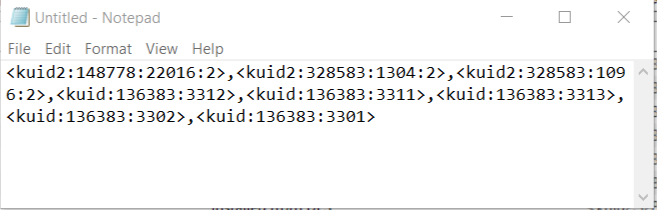
Transfer the List to Notepad (or Any Text Editor)
Steps |
Open Notepad or Any Other Suitable Text Editor:
|
|||
Save the Picklist as a Text (.txt) File:
|
||||
|
|
|
How to Restore a Picklist
|
Restoring a Picklist basically involves reversing the above steps |
|
|
||||
Steps |
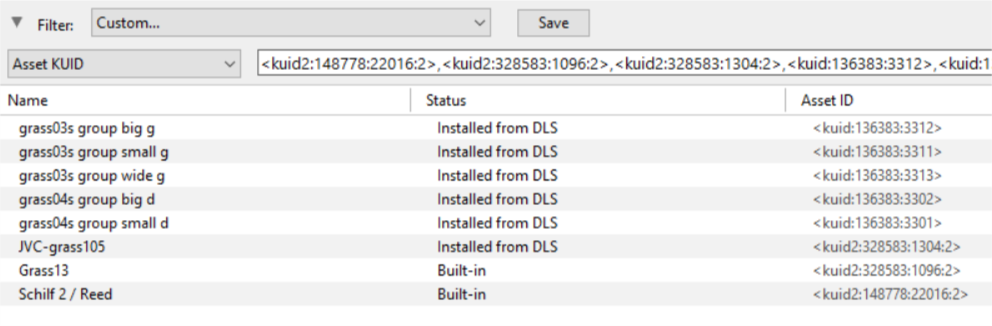
Open Notepad or Other Text Editor:
|
|||
Open CM in the Destination Trainz and Create a New Filter:
|
||||
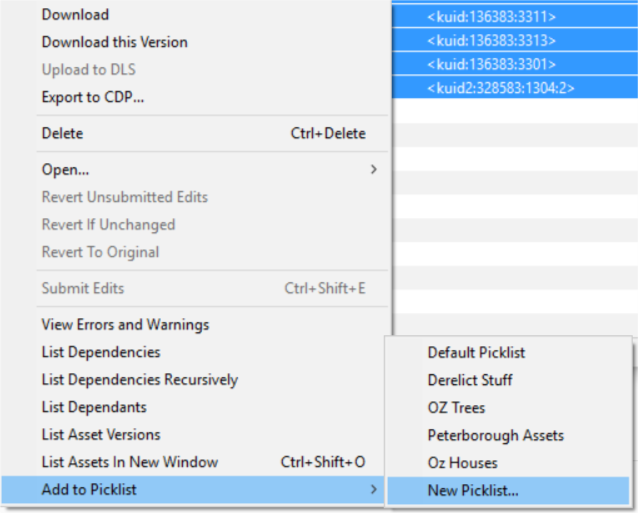
Create a New Picklist:
|
||||
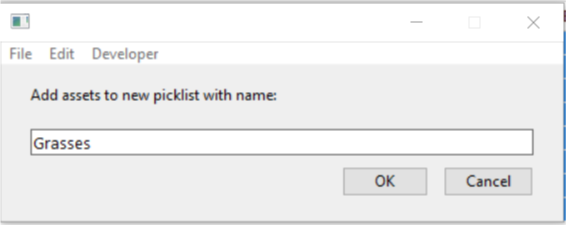
Enter a Name for the Picklist:
|
||||

|
|
Trainz Wiki
 |
More Tutorials and Guides to Using Trainz |
This page was created by Trainz user pware in January 2019 and was last updated as shown below.
