How to Backup a Picklist: Difference between revisions
From TrainzOnline
Jump to navigationJump to search
mNo edit summary |
m Added change to Default Picklist backup for SP4 |
||
| Line 37: | Line 37: | ||
<td>[[file:DotPoint.JPG|link=]]</td> | <td>[[file:DotPoint.JPG|link=]]</td> | ||
<td>Picklists can be '''imported from text files'''</td> | <td>Picklists can be '''imported from text files'''</td> | ||
</tr> | </tr> | ||
</table> | </table> | ||
| Line 67: | Line 63: | ||
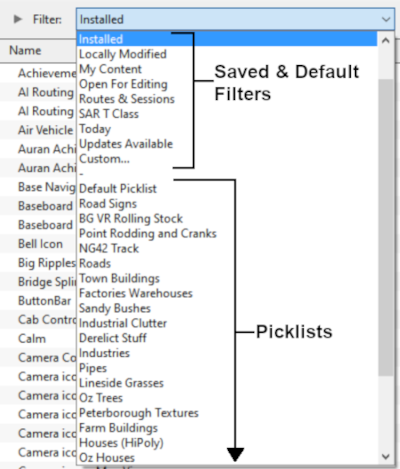
<td>Open the '''Filter List'''<br> | <td>Open the '''Filter List'''<br> | ||
[[image:PickListFilter.png|link=|alt=Pick List Filter]]<br><br> | [[image:PickListFilter.png|link=|alt=Pick List Filter]]<br><br> | ||
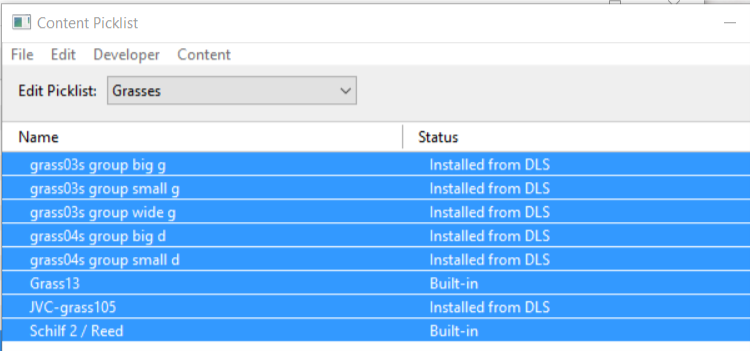
Select the '''Picklist''' to be backed up. This will open the Picklist.</td> | Select the '''Picklist''' to be backed up. This will open the Picklist. | ||
<table cellpadding="4" bgcolor=#c1e7e7> | |||
<tr valign="top"> | |||
<td>[[image:DotPoint.JPG|link=]]</td> | |||
<td>In '''TRS19 SP4''' and '''Trainz Plus SP4''' you '''CAN''' select and backup the '''Default Picklist'''</td> | |||
</tr> | |||
</table> | |||
</td> | |||
</tr> | </tr> | ||
</table> <!-- END TRS19 table --> | </table> <!-- END TRS19 table --> | ||
| Line 91: | Line 94: | ||
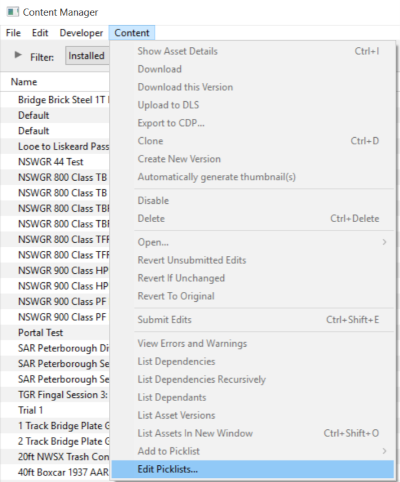
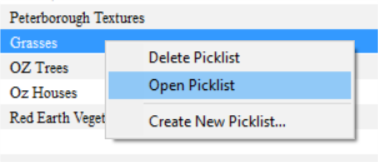
#select '''Open Picklist''' from the popup menu<br> | #select '''Open Picklist''' from the popup menu<br> | ||
[[file:PickListOpenGrasses.png|link=]]<br> | [[file:PickListOpenGrasses.png|link=]]<br> | ||
This will open the Picklist</td> | This will open the Picklist | ||
<table cellpadding="4" bgcolor=#c1e7e7> | |||
<tr valign="top"> | |||
<td>[[image:DotPoint.JPG|link=]]</td> | |||
<td>In '''T:ANE''' and '''TRS19/Trainz Plus SP3''' (and earlier) you '''CANNOT''' select and backup the '''Default Picklist'''</td> | |||
</tr> | |||
</table> | |||
</td> | |||
</tr> | </tr> | ||
</table> <!-- END TANE table --> | </table> <!-- END TANE table --> | ||
Revision as of 21:23, 14 October 2021
The information in this Wiki Page applies to TANE, TRS19 and Trainz Plus. This guide will show you how to backup a Picklist.
 |
|
 |
 |
 |
| Main Points: | |
 |
Picklists (as a list of assets) cannot be saved as .CDP files so they cannot be backed up using that method |
|
Picklists can be saved as text files |
|
Picklists can be imported from text files |
Access Your Current Picklists
 Steps |
 Open CM and Your Picklists
|
||||||||||||||
|
|
|||||||||||||||
 Select Picklist Contents:
|
|||||||||||||||
|
|
|||||||||||||||
 Transfer List to a New Window:
|
|||||||||||||||
|
|
|||||||||||||||
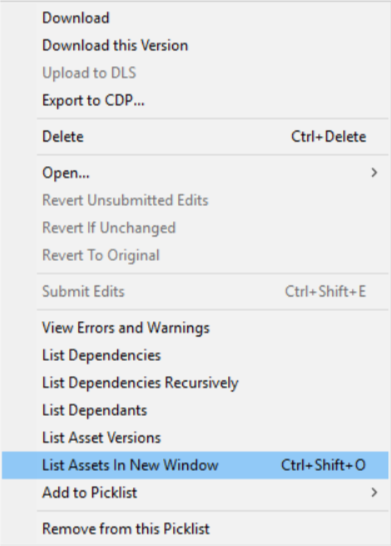
 Copy Assets in Picklist:
|
|||||||||||||||


|
 |
|
|
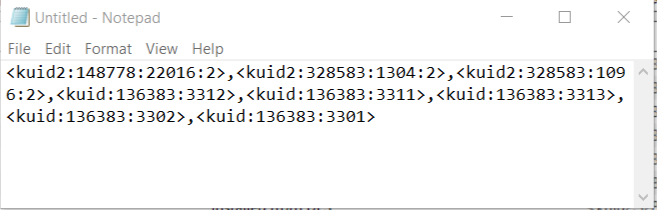
Transfer the List to Notepad (or Any Text Editor)
Steps |
Open Notepad or Any Other Suitable Text Editor:
|
|||
Save the Picklist as a Text (.txt) File:
|
||||
|
|
|
How to Restore a Picklist
|
Restoring a Picklist basically involves reversing the above steps |
|
|
||||
Steps |
Open Notepad or Other Text Editor:
|
|||
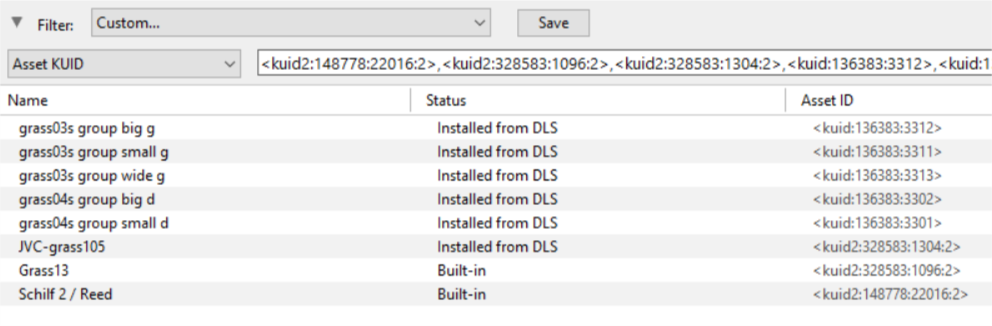
Open CM in the Destination Trainz and Create a New Filter:
|
||||
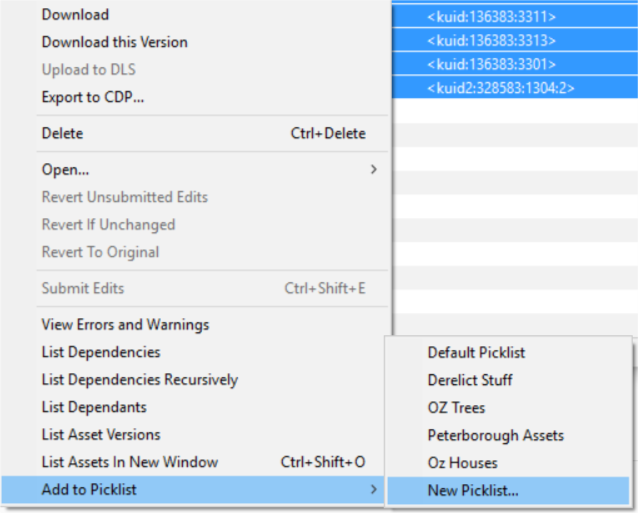
Create a New Picklist:
|
||||
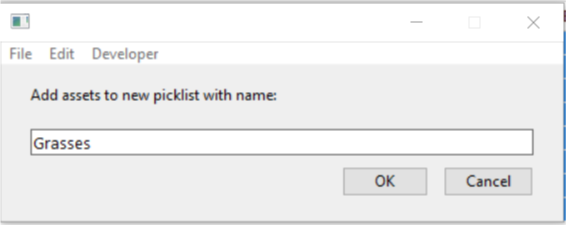
Enter a Name for the Picklist:
|
||||

|
|
Trainz Wiki
 |
More Tutorials and Guides to Using Trainz |
This page was created by Trainz user pware in January 2019 and was last updated as shown below.
