How to Rename a Picklist: Difference between revisions
From TrainzOnline
Jump to navigationJump to search
m adjusted navigation buttons |
|||
| Line 32: | Line 32: | ||
[[image:FilterListEdit.png|link=|alt=Filter List]] | [[image:FilterListEdit.png|link=|alt=Filter List]] | ||
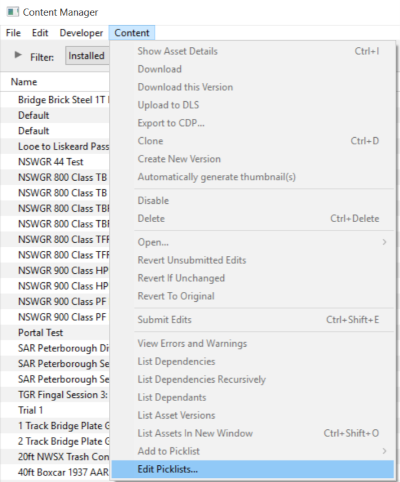
*select '''Edit Filters and Picklists''' | *select '''Edit Filters and Picklists''' | ||
This will open the | This will open the Picklists | ||
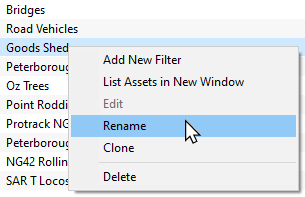
*right mouse click on the Picklist to be renamed and select '''Rename''' | *right mouse click on the Picklist to be renamed and select '''Rename''' | ||
[[image:PicklistRename.png|link=|alt=Rename Picklist]] | [[image:PicklistRename.png|link=|alt=Rename Picklist]] | ||
| Line 49: | Line 49: | ||
</tr> | </tr> | ||
</table> <!-- END Nav Buttons Table --> | </table> <!-- END Nav Buttons Table --> | ||
='''The Renaming Process T:ANE and TRS19 SP3'''= | ='''The Renaming Process T:ANE and TRS19 SP3'''= | ||
<table cellpadding="4" bgcolor=#c1e7e7> | <table cellpadding="4" bgcolor=#c1e7e7> | ||
Revision as of 23:41, 14 October 2021
The information in this Wiki Page applies to TANE, TRS19 and Trainz Plus. This guide will show you how to rename a Picklist.
 |
|
 |
 |
The Renaming Process TRS19 SP4 and Trainz Plus SP4
 |
Steps: From the Trainz Launcher
This will open the Picklists
|

 |
 |
|
The Renaming Process T:ANE and TRS19 SP3
| Main Points for T:ANE and TRS19 SP3: | |
 |
Picklists cannot be renamed directly |
|
The workaround method to rename Picklists is to:-
|
 |
If you have not already created a backup copy of the Picklist, then follow the steps listed in the Trainz Wiki Page  How to Backup a Picklist |
||||||
 |
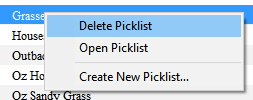
Once you have created the backup copy, delete the Picklist from your Trainz Install
|
||||||
 |
Follow the first 3 steps listed in the Trainz Wiki Page How to Restore a Picklist For the 4th and final step, enter the new name for the Picklist. |
||||||
|
Information and instructions on backing up and restoring Trainz assets can be found on the Trainz Wiki Page at:- |
|
|
Trainz Wiki
 |
More Tutorials and Guides to Using Trainz |
This page was created by Trainz user pware in January 2020 and was last updated as shown below.
