|
|
| Line 265: |
Line 265: |
| <td> | | <td> |
| #open your favourite text editor (MS Notepad, Notepad++, etc) | | #open your favourite text editor (MS Notepad, Notepad++, etc) |
| #load the saved Picklist text file, from Step 2 of '''Transfer the List to Notepad''' process explained above, into Notepad | | #select and load the Picklist text file into your text editor |
| #select all the text - press '''Ctrl-A''' | | #select all the text - press '''Ctrl-A''' |
| #copy the text to the clipboard - press '''Ctrl-C''' | | #copy the text to the clipboard - press '''Ctrl-C''' |
Revision as of 21:51, 11 November 2021
The information in this Wiki Page applies to TANE, TRS19 and Trainz Plus. This guide will show you how to backup a Picklist.
| Main Points: |
 |
Picklists (as a list of assets) cannot be saved as .CDP files so they cannot be backed up using that method |
|
Picklists can be saved as text files |
|
Picklists can be imported from text files |
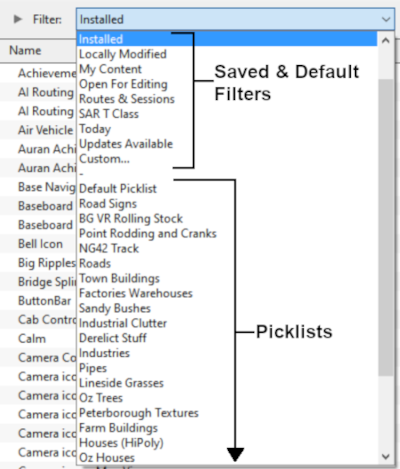
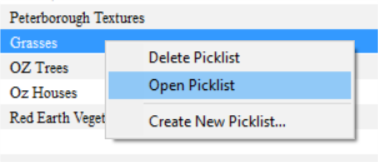
Access Your Current Picklists
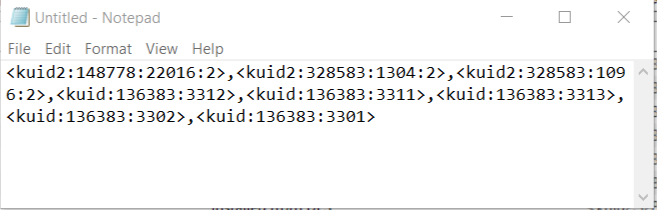
Transfer the List to Notepad (or Any Text Editor)
How to Restore a Picklist
|
Restoring a Picklist basically involves reversing the above steps |
| |
 |
 |
|
|
Trainz Wiki
 |
More Tutorials and Guides to Using Trainz
|
This page was created by Trainz user pware in January 2019 and was last updated as shown below.


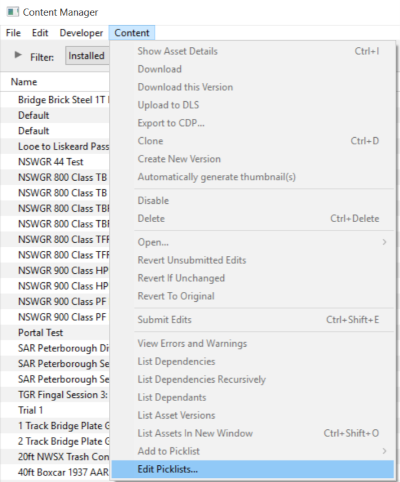
 Open CM and Your Picklists
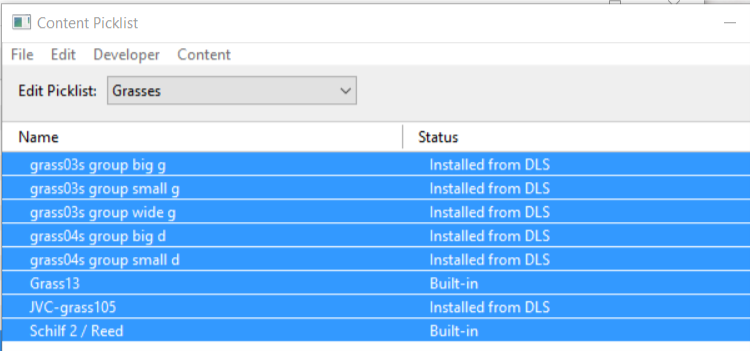
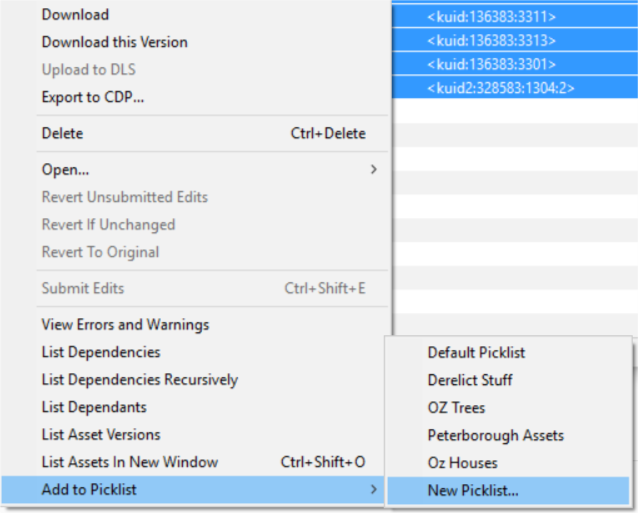
 Select Picklist Contents:
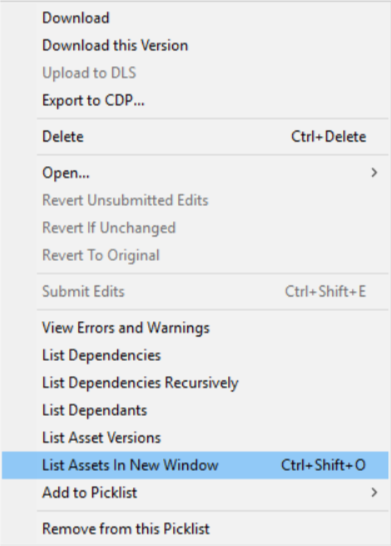
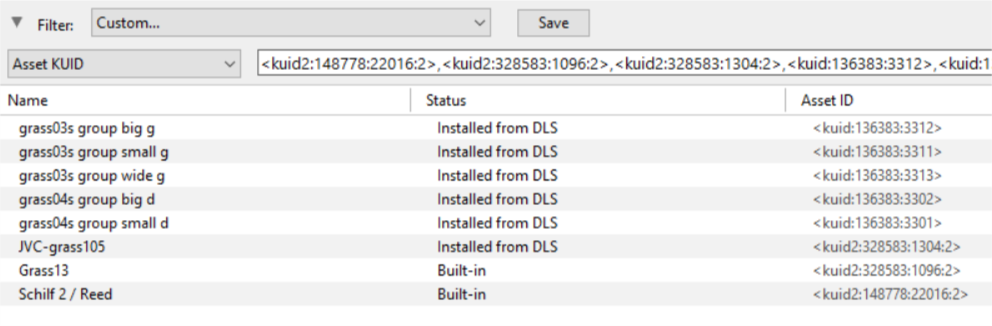
 Transfer List to a New Window:
 Copy Assets in Picklist: