Understand Content Manager Status Labels: Difference between revisions
| Line 464: | Line 464: | ||
:* in some circumstances a removed asset might still be downloaded as a '''dependency''' of another asset but not as an individual asset in its own right. It will receive the label '''Third Party''' once downloaded. | :* in some circumstances a removed asset might still be downloaded as a '''dependency''' of another asset but not as an individual asset in its own right. It will receive the label '''Third Party''' once downloaded. | ||
<table | <table bgcolor=#000000 width=900> | ||
<tr valign="top"> | |||
<td> | |||
<table bgcolor=#ffffb0> | |||
<tr valign="top"> | <tr valign="top"> | ||
<td>[[image:PencilTips.PNG|link=]]</td> | <td>[[image:PencilTips.PNG|link=]]</td> | ||
| Line 473: | Line 476: | ||
<td><br>Highlight the listed assets, '''right mouse click''' and select '''Download''' from the pop up menu.<br><br> | <td><br>Highlight the listed assets, '''right mouse click''' and select '''Download''' from the pop up menu.<br><br> | ||
The updates for the selected assets will be downloaded and installed.</td> | The updates for the selected assets will be downloaded and installed. | ||
</td> | |||
</tr> | </tr> | ||
</table> | </table> | ||
</td> | |||
</tr> | </tr> | ||
</table> | </table> | ||
Revision as of 00:55, 9 March 2022
The information in this Wiki Page applies to TRS19 and Trainz Plus. This page is intended to provide information for understanding the different asset Status labels used by Content Manager.
 |
 |
 |
Content Manager Status
Start Content Manager by clicking Manage Content from the Trainz Launcher.
The Status column in the Content Manager display gives information about each listed assets location, availability, and its "currency" (installed, obsolete, modified, Payware, unknown, etc).
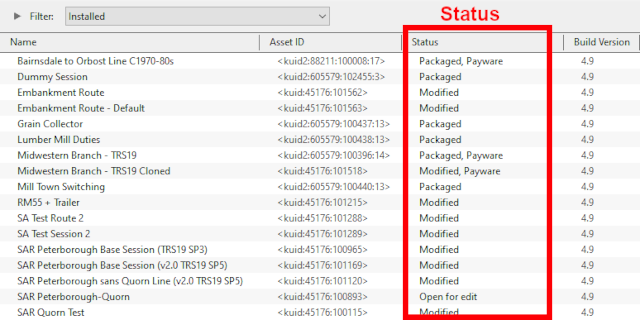 |
|
||||||
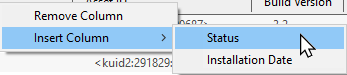
 |
Notes: It is important to remember that:-
|
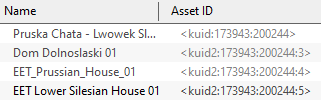
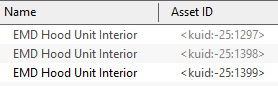
| The Status labels are described in the following sections. |
|
 |
|
|
Available for Download
This modified search filter will show all the freeware assets including their different versions that are available on the Download Station (DLS). Set the Content Manager search filter to Download Station and edit as shown below.
|
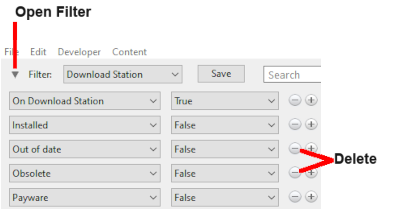
The filtered list will show all the assets except Payware that are available on the DLS. The Status labels that you may see would be:-
|
|
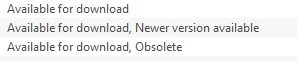
| Available for download | This IS the latest version available on the DLS and it is not already installed. If you are looking to install a new asset or update an existing one, then this is the one you would normally select |
| Available for download, Newer version available | This is NOT the latest version available on the DLS and this particular version is not already installed. There is an update to this version available on the DLS |
| Available for download, Obsolete | This is NOT the latest version available on the DLS and this particular version is not already installed. You have an updated version already installed but it may not be the latest version |
 |
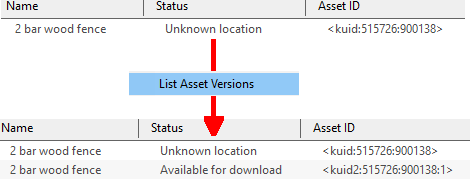
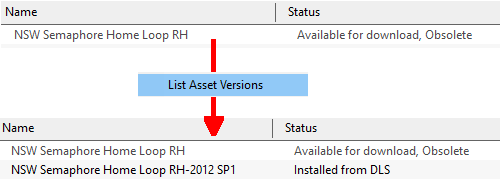
You can also check to see what is the latest version of an asset that is listed as Newer version available or Obsolete. This will produce a list of all the previous versions (installed or not), currently installed (if any) and later versions of the selected asset. | ||||
|
|||||
|
In this case the latest version of the selected asset is already installed (Installed from DLS) and it does not have exactly the same name as the original. If the latest version is not installed in Content Manager then it will be shown as Available for download. |
Create an "Updates Filter"
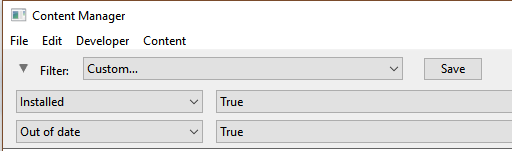
A very useful Content Manager filter to create and save is one that will identify and display any installed assets that have updates available on the DLS. Detailed step-by-step instructions for making the filter (it is a simple process) can be found on the Wiki Page  Set Up An Update Filter but a summary is provided below.
|
Installing the Latest or an Older Version of an Asset
 |
Where there are multiple versions of an asset that is Available for download, including Newer and Obsolete versions, you can select any listed version and Content Manager will download and install only the latest version. |
|

|
You can download and install an earlier (older or Obsolete) version of an asset if you don't want the latest version. |
|

|
|
|
|
Installed
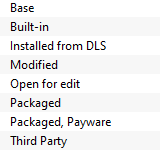
This built-in search filter will show all the assets that are installed in Content Manager. Set the Content Manager search filter to Installed. The Status labels that you may see would be:-
[For simplicity only the major labels are shown in the figure below]
|
|
|
|

Third Party
You may occasionally see the following label on installed assets:-
|
Third Party The assets availability is "questionable". It may be best to avoid using until its status is resolved. |

This will appear on assets that:-
- you have uploaded to the DLS but they have not yet been approved for distribution. Usually it takes 24 hours (sometimes more) before approval is given. After approval the Third Party label will be changed to Installed from DLS
- have been removed from the DLS listing, for a variety of reasons:-
- if the reason was copyright violation then the assets will no longer be available to anyone who had not already downloaded and installed them before they were removed. If you had downloaded them then they will appear as Third Party in your Content Manager. If you include them in an uploaded Route then they will appear as <unknown assets> in the Content Manager of users who have downloaded your Route but do not already have the assets.
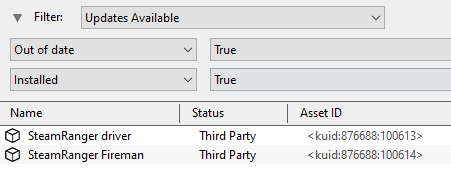
- if the reason is repair work then they can still be downloaded and installed, as Third Party assets, and the repaired assets will (eventually) become available as updates that will be identified using the "Updates Available" filter as shown in the example below.
- in some circumstances a removed asset might still be downloaded as a dependency of another asset but not as an individual asset in its own right. It will receive the label Third Party once downloaded.
DisabledYou may occasionally see the following label on installed assets:-
Disabling assets will "hide" them from other assets, including Routes and Sessions, so they cannot be used. It is a useful technique for deleting troublesome assets from a Route or Session without actually deleting the assets themselves. For an example of this see Payware assets that are Disabled will have Payware (not active) as their status label. Open for Edit
This label will appear on any asset that you have:-
In the first case, exiting Surveyor or Driver will close the open Route and Session assets. In the second and third cases you will need to manually close the open assets.
Unknown, Incompatible, Not InstalledSet the Content Manager search filter to All Content and click the Status column heading (once or twice) to sort the very long list according to their Status labels. Scroll down the list and you may see:- Unknown Location
The Unknown location label can appear if a later version of an asset has been uploaded to the DLS but the original version was not or had been removed for some reason, as shown in the example below.
Incompatible
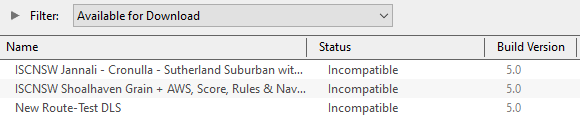
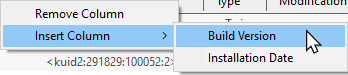
For example: TRS19 and Trainz Plus (SP4) will load Routes and Sessions with Trainz asset version builds up to and including 4.9. Routes and Session with build versions 5.0 and above will be labelled Incompatible and will need a later Trainz version (for example TRS19 SP5 for build 5.0) to be loaded. The Build Version column will identify the minimum Trainz build that the asset needs.
Not Installed
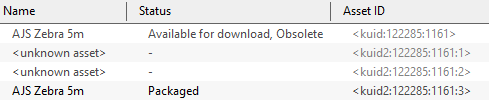
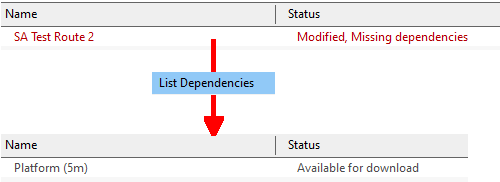
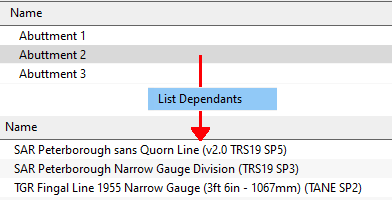
Unknown AssetAn <unknown asset> can appear when using the List Asset Versions or the List Dependencies commands on a selected asset. The label "<unknown asset>" will be shown in the Name column and the Status column will be blank.
Apart from the example above, unknown assets are almost always dependencies of other assets that you have downloaded and installed. The installed assets would be labelled has having Missing dependencies. See the
The unknown asset may:-
Fixing this may not be easy. Possible solutions are:-
Neither is a guaranteed solution. If the unknown asset is in a Route or a Session then a third option is to use the Delete Missing Assets command from the Tools menu in Surveyor, but make a backup copy of the Route or Session first.
Packaged and Payware
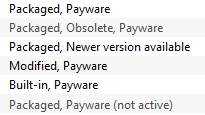
Some of the Status labels that can appear on Packaged and Payware assets are:-
Missing DependenciesThis is a label to be avoided.
This situation shown in the example above can occur if you have:-
Trainz Wiki
This page was created by Trainz user pware in January 2022 and was last updated as shown below. | |||||||||||||||||||||||||||||||||||||||||||||||||||||||||||||||||||||||||||||||||||||||||||||||||||||||||||||||||||||||||||||||||||