How to Rename a Picklist: Difference between revisions
From TrainzOnline
Jump to navigationJump to search
mNo edit summary |
m fixed HTML tag errors |
||
| Line 3: | Line 3: | ||
<table cellpadding=4 bgcolor="Aquamarine"> | <table cellpadding=4 bgcolor="Aquamarine"> | ||
<tr valign="top"> | <tr valign="top"> | ||
<td>[[ | <td>[[image:LinkWiki.PNG|link=]]</td> | ||
<td> | <td> | ||
* For instructions on how to '''backup''' a Picklist, see the Trainz Wiki page '''[[How to Backup a Picklist]]''' | * For instructions on how to '''backup''' a Picklist, see the Trainz Wiki page '''[[How to Backup a Picklist]]''' | ||
| Line 18: | Line 18: | ||
<td width=46> </td> | <td width=46> </td> | ||
<td width=75> </td> | <td width=75> </td> | ||
<td width=75>[[ | <td width=75>[[image:NextDown.png|link=#stepTANE|alt=Next Down|Next Down]]</td> | ||
<td width=75>[[ | <td width=75>[[image:BackToBottom.png|link=#bottom|alt=Bottom|Bottom]]</td> | ||
</tr> | </tr> | ||
</table> <!-- END Nav Buttons Table --> | </table> <!-- END Nav Buttons Table --> | ||
| Line 25: | Line 25: | ||
<table> | <table> | ||
<tr valign="top"> | <tr valign="top"> | ||
<td>[[ | <td>[[image:Steps.PNG|link=]]</td> | ||
<td><span style="font-size: 17px; font-weight: 700;">Steps:'''</span><br> | <td><span style="font-size: 17px; font-weight: 700;">Steps:'''</span><br> | ||
From the '''Trainz''' Launcher | From the '''Trainz''' Launcher | ||
| Line 43: | Line 43: | ||
<tr valign="top"> | <tr valign="top"> | ||
<td width=729><span id="stepTANE"></span> </td> | <td width=729><span id="stepTANE"></span> </td> | ||
<td width=46>[[ | <td width=46>[[image:BackToTop.png|link=#top|alt=Top|Top]]</td> | ||
<td width=75>[[ | <td width=75>[[image:NextUp.png|link=#stepSP4|alt=Next Up|Next Up]]</td> | ||
<td width=75> </td> | <td width=75> </td> | ||
<td width=75>[[ | <td width=75>[[image:BackToBottom.png|link=#bottom|alt=Bottom|Bottom]]</td> | ||
</tr> | </tr> | ||
</table> <!-- END Nav Buttons Table --> | </table> <!-- END Nav Buttons Table --> | ||
| Line 53: | Line 53: | ||
<tr valign="top"> | <tr valign="top"> | ||
<td colspan=2><span style="font-size: 17px; font-weight: 700;">Main Points for T:ANE and TRS19 SP3:</span></td> | <td colspan=2><span style="font-size: 17px; font-weight: 700;">Main Points for T:ANE and TRS19 SP3:</span></td> | ||
</tr> | |||
<tr valign="top"> | <tr valign="top"> | ||
<td>[[ | <td>[[image:DotPoint.JPG|link=]]</td> | ||
<td>Picklists '''cannot''' be renamed directly</td> | <td>Picklists '''cannot''' be renamed directly</td> | ||
</tr> | </tr> | ||
<tr valign="top"> | <tr valign="top"> | ||
<td>[[ | <td>[[image:DotPoint.JPG|link=]]</td> | ||
<td>The workaround method to rename Picklists is to:- | <td>The workaround method to rename Picklists is to:- | ||
#'''Create a backup''' copy of the Picklist | #'''Create a backup''' copy of the Picklist | ||
| Line 67: | Line 68: | ||
<table> | <table> | ||
<tr valign="top"> | <tr valign="top"> | ||
<td>[[ | <td>[[image:DotPoint1.JPG|link=]]</td> | ||
<td>If you have not already created a backup copy of the Picklist, then follow the steps listed in the '''Trainz Wiki Page [[ | <td>If you have not already created a backup copy of the Picklist, then follow the steps listed in the '''Trainz Wiki Page [[image:WikiLink.PNG|link=]] [[How to Backup a Picklist]]'''</td> | ||
</tr> | </tr> | ||
<tr valign="top"> | <tr valign="top"> | ||
<td>[[ | <td>[[image:DotPoint2.JPG|link=]]</td> | ||
<td>Once you have created the backup copy, delete the Picklist from your Trainz Install<br> | <td>Once you have created the backup copy, delete the Picklist from your Trainz Install<br> | ||
<table cellpadding=4 bgcolor=#ffffff> | <table cellpadding=4 bgcolor=#ffffff> | ||
| Line 79: | Line 80: | ||
</tr> | </tr> | ||
<tr valign="top"> | <tr valign="top"> | ||
<td>[[ | <td>[[image:Steps.PNG|link=]]</td> | ||
<td><span style="font-size: 17px; font-weight: 700;">Steps:'''</span><br> | <td><span style="font-size: 17px; font-weight: 700;">Steps:'''</span><br> | ||
From the '''Trainz''' Launcher | From the '''Trainz''' Launcher | ||
| Line 85: | Line 86: | ||
*in '''Content Manager''' open the '''Content''' menu | *in '''Content Manager''' open the '''Content''' menu | ||
*select '''Edit Picklist'''<br> | *select '''Edit Picklist'''<br> | ||
[[ | [[image:PickListEditPickList.png|link=]]<br><br> | ||
This will display all your current Picklists. | This will display all your current Picklists. | ||
*select the Picklist to be deleted | *select the Picklist to be deleted | ||
*right mouse click on the selected Picklist and select '''Delete Picklist''' | *right mouse click on the selected Picklist and select '''Delete Picklist''' | ||
[[ | [[image:PickListDelete.png|link=]]<br> | ||
</td> | </td> | ||
</tr> | </tr> | ||
| Line 99: | Line 100: | ||
</tr> | </tr> | ||
<tr valign="top"> | <tr valign="top"> | ||
<td>[[ | <td>[[image:DotPoint3.JPG|link=]]</td> | ||
<td>Follow the '''first 3 steps''' listed in the '''Trainz Wiki Page [[ | <td>Follow the '''first 3 steps''' listed in the '''Trainz Wiki Page [[image:WikiLink.PNG|link=]] [[How to Backup a Picklist#How to Restore a Picklist|How to Restore a Picklist]]'''<br> | ||
'''For the 4th and final step, enter the new name for the Picklist'''. | '''For the 4th and final step, enter the new name for the Picklist'''. | ||
</td> | </td> | ||
| Line 107: | Line 108: | ||
<table cellpadding=4 bgcolor="Aquamarine"> | <table cellpadding=4 bgcolor="Aquamarine"> | ||
<tr valign="top"> | <tr valign="top"> | ||
<td>[[ | <td>[[image:LinkWiki.PNG|link=]]</td> | ||
<td> | <td> | ||
Information and instructions on backing up and restoring Trainz assets can be found on the '''Trainz Wiki Page''' at:-<br> | Information and instructions on backing up and restoring Trainz assets can be found on the '''Trainz Wiki Page''' at:-<br> | ||
| Line 118: | Line 119: | ||
<tr valign="top"> | <tr valign="top"> | ||
<td width=729><span id="bottom"></span> </td> | <td width=729><span id="bottom"></span> </td> | ||
<td width=46>[[ | <td width=46>[[image:BackToTop.png|link=#top|alt=Top|Top]]</td> | ||
<td width=75>[[ | <td width=75>[[image:NextUp.png|link=#stepTANE|alt=Next Up|Next Up]]</td> | ||
<td width=75> </td> | <td width=75> </td> | ||
<td width=75> </td> | <td width=75> </td> | ||
| Line 129: | Line 130: | ||
<table cellpadding=4 bgcolor=#ffffff> | <table cellpadding=4 bgcolor=#ffffff> | ||
<tr valign="top"> | <tr valign="top"> | ||
<td>[[ | <td>[[image:TrainzWiki.png|link=]]</td> | ||
<td> | <td> | ||
<span style="font-size: 17px;">'''More Tutorials and Guides to Using Trainz'''</span><br> | <span style="font-size: 17px;">'''More Tutorials and Guides to Using Trainz'''</span><br> | ||
Revision as of 09:47, 12 February 2023
The information in this Wiki Page applies to TANE, TRS19, Trainz Plus and TRS22. This guide will show you how to rename a Picklist.
 |
|
 |
 |
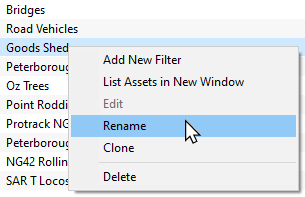
The Renaming Process for TRS19 SP4, Trainz Plus SP4 and Later Versions (Including TRS22)
 |
Steps: From the Trainz Launcher
This will open the Picklists
|

 |
 |
|
The Renaming Process for T:ANE and TRS19 SP3 and Earlier Versions
| Main Points for T:ANE and TRS19 SP3: | |
 |
Picklists cannot be renamed directly |
|
The workaround method to rename Picklists is to:-
|
 |
If you have not already created a backup copy of the Picklist, then follow the steps listed in the Trainz Wiki Page  How to Backup a Picklist |
||||||
 |
Once you have created the backup copy, delete the Picklist from your Trainz Install
|
||||||
 |
Follow the first 3 steps listed in the Trainz Wiki Page How to Restore a Picklist For the 4th and final step, enter the new name for the Picklist. |
||||||
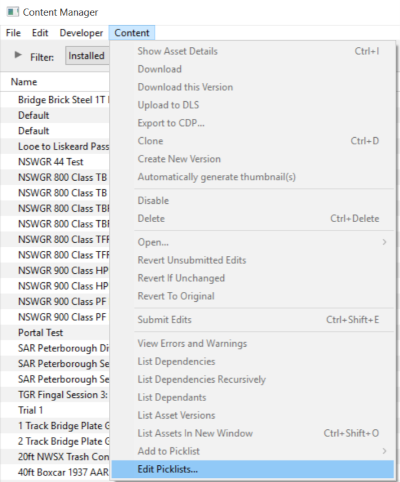
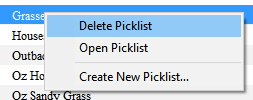
|
Information and instructions on backing up and restoring Trainz assets can be found on the Trainz Wiki Page at:- |
|
|
Trainz Wiki
 |
More Tutorials and Guides to Using Trainz |
This page was created by Trainz user pware in January 2020 and was last updated as shown below.
