How to Use S20 Tools: Difference between revisions
No edit summary |
mNo edit summary |
||
| Line 843: | Line 843: | ||
<br> | <br> | ||
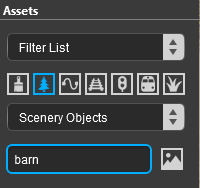
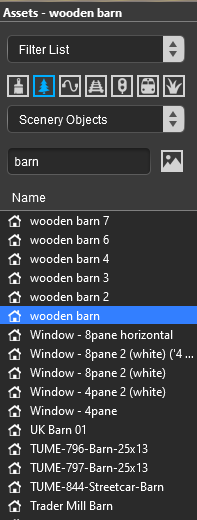
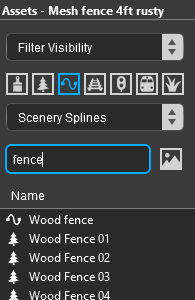
[[image:DotPoint2.JPG|link=]] To narrow down the filter list type part of the object name into the '''Search Text Box'''. For example if you have selected '''Scenery Objects''' and want to find "barns", then type "barn" ('''UPPER/lower''' case does not matter).<br> | [[image:DotPoint2.JPG|link=]] To narrow down the filter list type part of the object name into the '''Search Text Box'''. For example if you have selected '''Scenery Objects''' and want to find "barns", then type "barn" ('''UPPER/lower''' case does not matter).<br> | ||
<table width= | <table width=900> | ||
<tr valign="top"> | <tr valign="top"> | ||
<td>[[image:FilterSelectSearchBarn_S20.png|link=|alt=Text search]]</td> | <td width=200>[[image:FilterSelectSearchBarn_S20.png|link=|alt=Text search]]</td> | ||
<td><br>[[image:DotPoint3.JPG|link=]] This will list all the '''Scenery Objects''' containing the text "barn" in the filter list.<br> | <td><br>[[image:DotPoint3.JPG|link=]] This will list all the '''Scenery Objects''' containing the text "barn" in the filter list.<br> | ||
<table> | <table width=700> | ||
<tr valign="top"> | <tr valign="top"> | ||
<td>[[image:FilterSelectWoodenBarn_S20.png|link=|alt=Filtered list]]</td> | <td width=200>[[image:FilterSelectWoodenBarn_S20.png|link=|alt=Filtered list]]</td> | ||
<td valign="middle">[[image:DotPoint4.JPG|link=]] Select ('''left''' click) on the required item in the list (e.g. "Wooden Barn").<br><br> | <td valign="middle">[[image:DotPoint4.JPG|link=]] Select ('''left''' click) on the required item in the list (e.g. "Wooden Barn").<br><br> | ||
When selected the object will be highlighted on a blue background and its name will appear in the '''Assets Palette''' title bar.<br><br> | |||
If you are not sure about an object then '''Dbl-Left''' click on the name to bring up its image and description.<br><br> | If you are not sure about an object then '''Dbl-Left''' click on the name to bring up its image and description.<br><br> | ||
<table width=700 bgcolor=#000000> | |||
<tr valign="top"> | |||
<td> | |||
<table width=696 bgcolor=#ffffff> | |||
<tr valign="top"> | |||
<td>Selecting an object in the '''Assets Palette''' filter list will automatically select the '''Placement Tool''' so the next '''Left''' click in the route will place that object in the route.</td> | |||
</tr> | |||
</table> | |||
</td> | |||
</tr> | |||
</table> | |||
</td> | |||
</tr> | </tr> | ||
</table> | </table> | ||
| Line 867: | Line 879: | ||
</tr> | </tr> | ||
<tr valign="top"> | <tr valign="top"> | ||
<td> | <td> | ||
# If the '''Placement Tool''' is not selected then '''Left''' click it or press the <span style="color: white; background-color: black; font-weight: 700; font-size: 15px;"> E </span> key | # If the '''Placement Tool''' is not selected then '''Left''' click it or press the <span style="color: white; background-color: black; font-weight: 700; font-size: 15px;"> E </span> key | ||
# '''Click''' on the spot where you want to place the object</td> | # '''Click''' on the spot where you want to place the object</td> | ||
Revision as of 21:24, 11 January 2023
The information in this Wiki Page applies to Surveyor 2.0 (S20) as found in Trainz Plus.
This document is still being written
|
|||||||||

 |
 |
 |
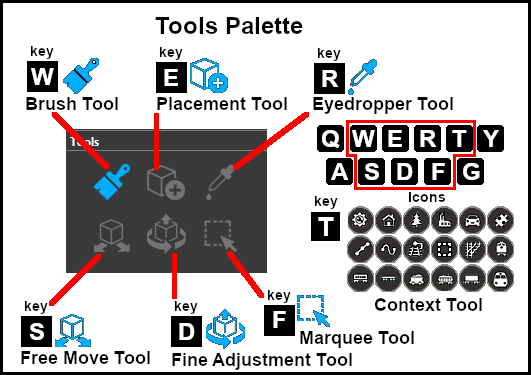
The Tools Palette
 |
|
|||||||||||||||||

The Brush Tool
The Brush Tool is used for painting the route. It can:-
When selected, the Brush Tool will show two drop down menu lists. |
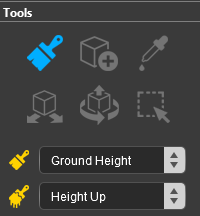 |

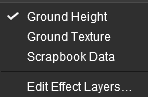
| The first drop down menu will set the Brush Target, the type of brush. The Targets are:- |
|||||
|
 |
|
|||
Ground Height
|

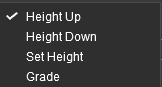
When the Ground Height Target is selected, the second drop down box will give a choice of several Ground Height tools.
| The choices are:- | |
|
 |
| The available brush tool options are shown in the Tool Options Palette with a Gold coloured icon next to their names. Those options that have their icon greyed out will be ignored, but they can still be edited. | ||||||||||||||||||||||||||||||||||||
Height Up/Height Down 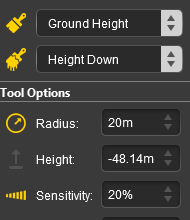 |
Set Height 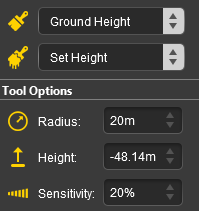 |
Grade 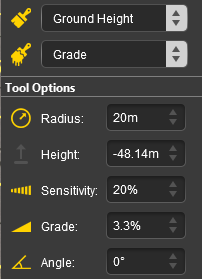 |
|
|||||||||||||||||||||||||||||||||
|
Ground Texture
|
When the Ground Texture Target is selected, the second drop down box will be disabled - there are no brush texture tool choices.
The available brush tool options are shown in the Tool Options Palette with a Gold coloured icon next to their names. Those options that have their icon greyed out will be ignored, but they can still be edited.
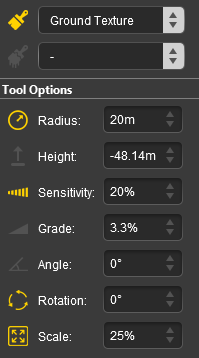 |
|
||||||||||||||||||||||||||||
|

Scrapbook Data
|

|
The Scrapbook Brush
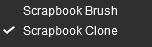
When the Scrapbook Data Target is selected, the second drop down box will give a choice of two Scrapbook Data tools.
| The choices are:- | |
|
 |
|
| The available brush tool options are shown in the Tool Options Palette with a Gold coloured icon next to their names. Those options that have their icon greyed out will be ignored, but they can still be edited. | |||||||||||||||||||||||||||||||
Scrapbook Brush 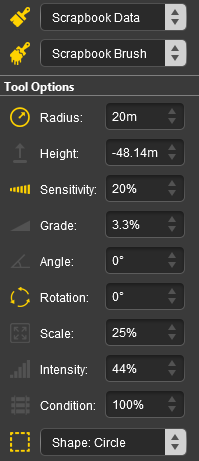 |
Scrapbook Clone 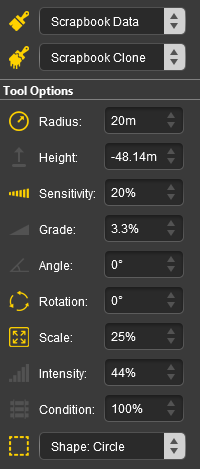 |
|
|||||||||||||||||||||||||||||
|
The Scrapbook Palette 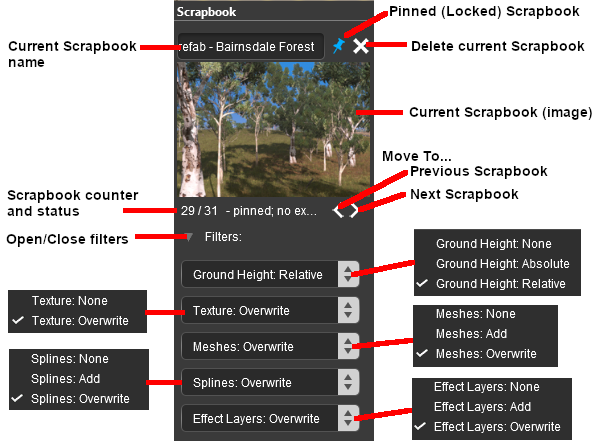 |
|
|||||||||||||||||||||||||||||||||||||||||||
Edit Effect Layers...
When this Target is selected, the Edit Effect Layers options will appear. This is the same as selecting Edit Effect Layers ... from the Trainz Edit Menu.
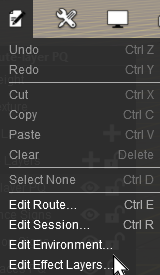 |
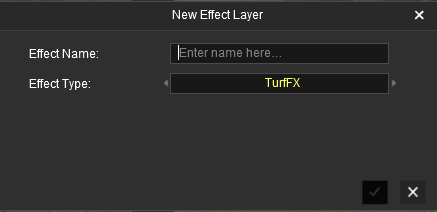 |
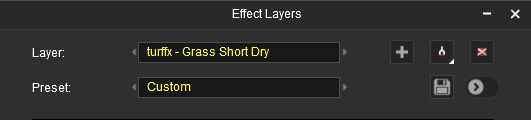 |
 |
More information on creating and editing Effect Layers can be found on the Trainz Wiki at:- |
|
 |
|
|
The Placement Tool
The Placement Tool is used to add objects to the route.
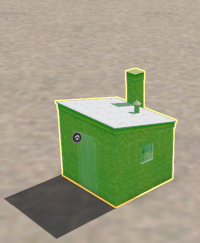
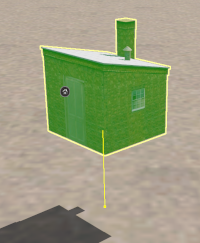
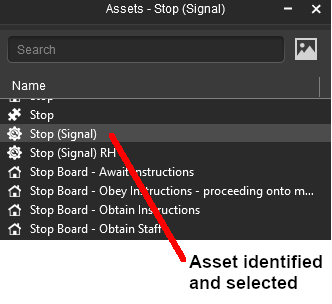
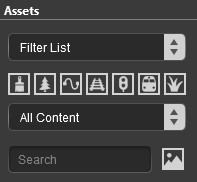
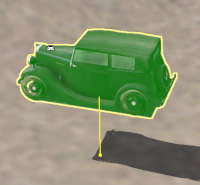
The first step is to identify and select the particular object that you want to add to the route. Placing a Scenery Mesh ObjectIndividual "non-spline" scenery objects that are not attached to track are often referred to in Trainz terminology as Scenery Mesh Objects.
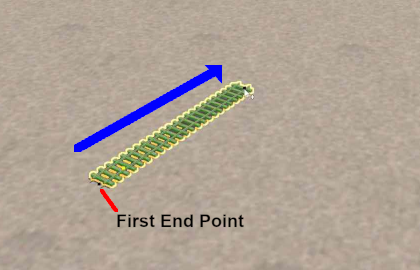
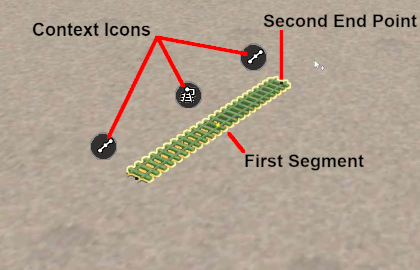
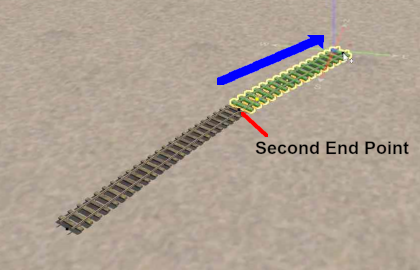
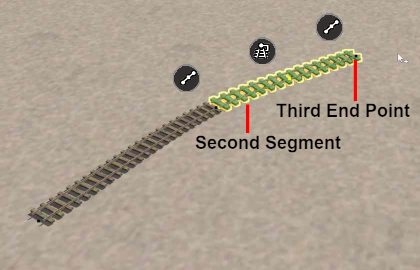
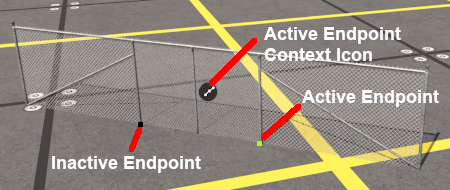
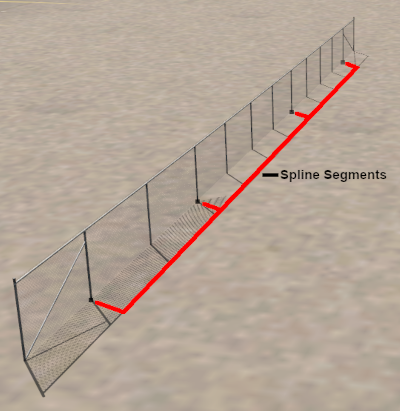
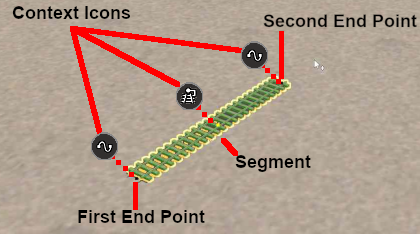
Placing a Scenery or Track SplineTo start the process of laying a track or spline, follow the steps listed above for placing a Scenery Mesh Object.
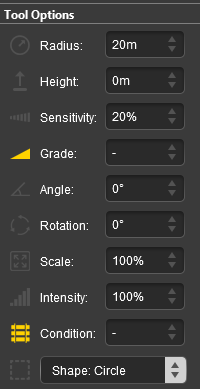
Placement Tool Options
Deleting Placed Objects
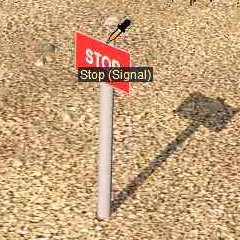
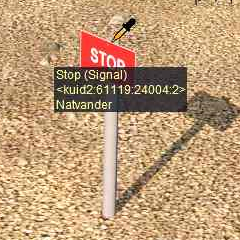
The Eyedropper Tool
| ||||||||||||||||||||||||||||||||||||||||||||||||||||||||||||||||||||||||||||||||||||||||||||||||||||||||||||||||||||||||||||||||||||||||||||||||||||||||||||||||||||||||||||||||||||||||||||||||||||||||||||||||||||||||||||||||||||||||||||||||||||||||||||||||||||||||||||||||||||||||||||||