How to Move a Picklist: Difference between revisions

From TrainzOnline
Jump to navigationJump to search
Pware (talk | contribs)
mNo edit summary
Pware (talk | contribs)
Line 208: Line 208:
<td>
<td>
#in the copy of Trainz where the Picklist is being transferred, open '''Content Manager'''
#start a new filter
#start a new '''Custom''' filter
#delete the filter line '''Installed''' if it is present
#paste (<span style="color: white; background-color: black; font-weight: 700; font-size: 15px;">&#160;Ctrl&#160;</span> '''+''' <span style="color: white; background-color: black; font-weight: 700; font-size: 15px;">&#160;V&#160;</span>) the asset list into the '''Asset KUID''' box<br><br>
[[image:PickListSelectListofAssets.png|link=]]<br><br>
[[image:PickListSelectListofAssets.png|link=]]<br><br>
Line 270: Line 271:
----
----
----
----
='''Trainz Wiki'''=
='''Trainz Wiki'''=
<table cellpadding=4 bgcolor=#ffffff>

Revision as of 22:18, 7 July 2023

The information in this Wiki Page applies to TANE, TRS19, Trainz Plus and TRS22. This guide will show you how to move a Picklist from one installation of Trainz to another, on the same or different computers.


If you have made backup copies of your Picklists then you have already completed half the work. Use the backup Picklists and steps described in the How to Restore a Picklist section of the How to Backup a Picklist Trainz Wiki page to complete the move.


  Top   Next Down Bottom

Access Your Current Picklists


Steps
 Open CM and Your Picklists

From the Trainz Launcher select  Manage Content 
In TRS19 SP4, Trainz Plus SP4 and later, including TRS22
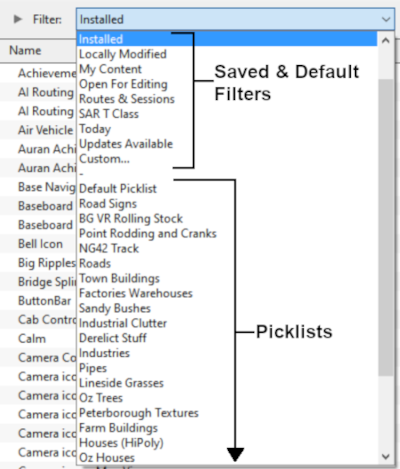
Open the Filter List

Pick List Filter

Select the Picklist to be backed up. This will open the Picklist.

In TRS19 SP4, Trainz Plus SP4 and later version including TRS22 you CAN select and move the Default Picklist
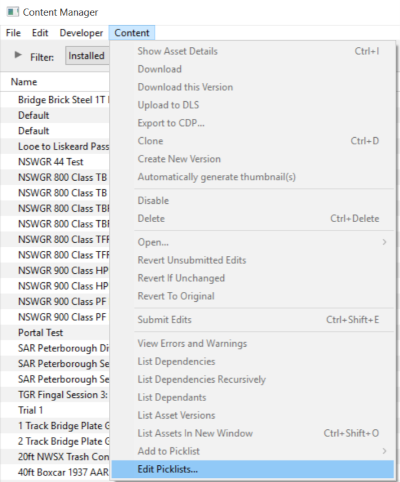
In T:ANE and TRS19 SP3, Trainz Plus SP3 and earlier versions
  1. in Content Manager open the Content menu
  2. select Edit Picklist


This will display all your current Picklists.

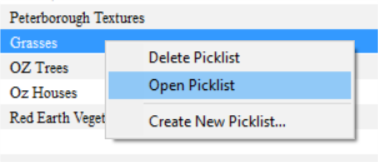
  1. Right Click on the required Picklist
  2. select Open Picklist from the popup menu


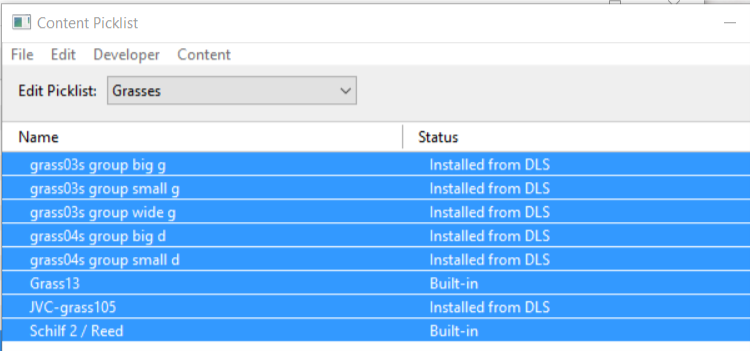
This will open the Picklist

In T:ANE and TRS19/Trainz Plus SP3 (and earlier) you CANNOT select and move the Default Picklist

   Select Picklist Contents:
  1. Left Click on any one of the items
  2. press  Ctrl  +  A  to Select All the items

   Transfer List to a New Window:
  1. Right Click on any one of the items
  2. select List Assets in New Window from the popup menu

   Copy Assets in Picklist:

The Picklist assets will be listed by their kuids in the Asset KUID box of a new search filter


  1. Left Click inside the Asset KUID box and press  Ctrl  +  A  to select them all
  2. copy the asset list to the clipboard (press  Ctrl  +  C )


  Top Next Up   Bottom

Transfer the List to Another Copy of Trainz

Notes:

If you are transferring the Picklist to another computer then you will need to:-

  1. paste the list from Step above into a program such as Notepad
  2. save it as a text file
  3. copy the file to your second computer.

On the second computer, reverse the steps by:-

  1. opening the document (in Notepad)
  2. select and copy to the clipboard all the items in the list

Then proceed as described below.


Steps
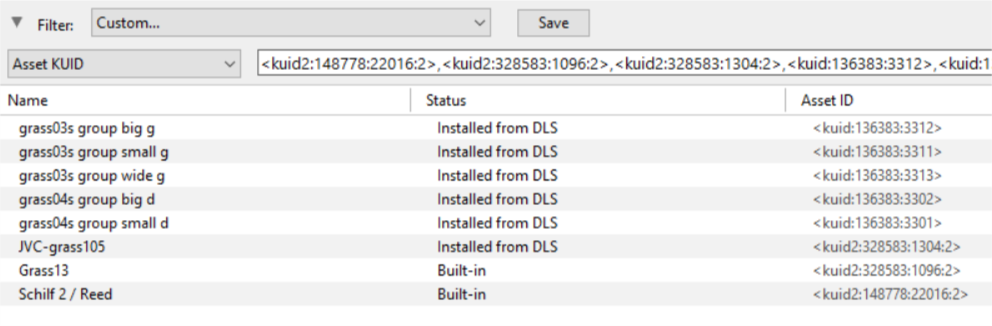
 Open CM in the Destination Trainz and Create a New Filter:
  1. in the copy of Trainz where the Picklist is being transferred, open Content Manager
  2. start a new Custom filter
  3. delete the filter line Installed if it is present
  4. paste ( Ctrl  +  V ) the asset list into the Asset KUID box


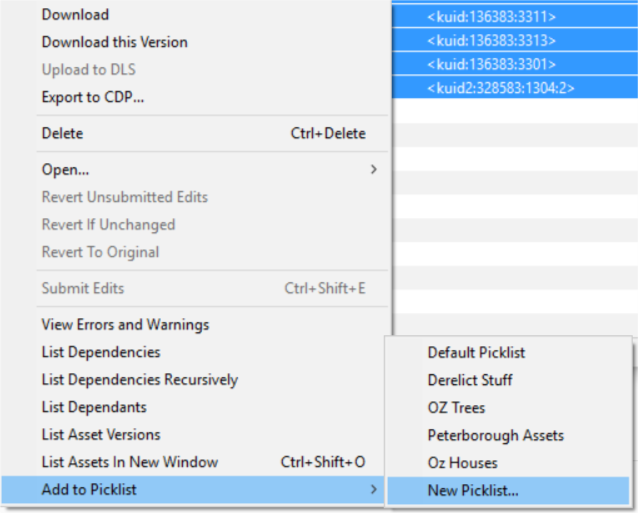
   Create a New Picklist:


  1. check for any assets labelled as Available for download and download these assets
  2. select an entry and then select all ( Ctrl  +  A )
  3. Right Click on any entry and select Add to Picklist and then New Picklist from the popup menus


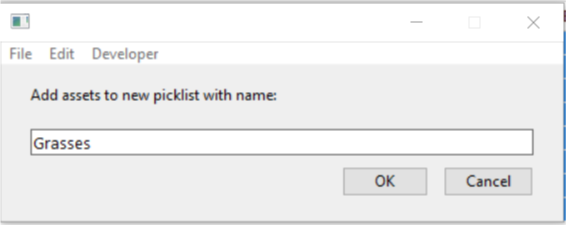
   Enter a Name for the Picklist:


Enter a name for the Picklist and Left Click Ok


  Top Next Up    


Trainz Wiki

More Tutorials and Guides to Using Trainz


This page was created by Trainz user pware in October 2018 and was last updated as shown below.