How to Use Navigation Point Rules: Difference between revisions
From TrainzOnline
Jump to navigationJump to search
mNo edit summary |
|||
| Line 3: | Line 3: | ||
<table cellpadding=4 bgcolor="Aquamarine"> | <table cellpadding=4 bgcolor="Aquamarine"> | ||
<tr valign="top"> | <tr valign="top"> | ||
<td>[[ | <td>[[image:LinkWiki.PNG|link=]]</td> | ||
<td> | <td> | ||
For examples of how to use these rules in '''Trainz''' Sessions, see the '''Trainz Wiki Page''' at:-<br> | For examples of how to use these rules in '''Trainz''' Sessions, see the '''Trainz Wiki Page''' at:-<br> | ||
| Line 25: | Line 25: | ||
<table> <!-- BEGIN Nav Buttons Table --> | <table> <!-- BEGIN Nav Buttons Table --> | ||
<tr valign="top"> | <tr valign="top"> | ||
<td width=729><span id="stepDisplay"></span>& | <td width=729><span id="stepDisplay"></span> </td> | ||
<td width=46>[[ | <td width=46>[[image:BackToTop.png|link=#top|alt=Top|Top]]</td> | ||
<td width=75>& | <td width=75> </td> | ||
<td width=75>[[ | <td width=75>[[image:NextDown.png|link=#stepHide|alt=Next Down|Next Down]]</td> | ||
<td width=75>[[ | <td width=75>[[image:BackToBottom.png|link=#bottom|alt=Bottom|Bottom]]</td> | ||
</tr> | </tr> | ||
</table> <!-- END Nav Buttons Table --> | </table> <!-- END Nav Buttons Table --> | ||
| Line 37: | Line 37: | ||
<tr valign="top"> | <tr valign="top"> | ||
<td width=10>[[image:BlueDot10x10.png|link=]]</td> | <td width=10>[[image:BlueDot10x10.png|link=]]</td> | ||
<td>The '''Navigation Set Hide/Show Rule''' is added to a Session and configured using the [[ | <td>The '''Navigation Set Hide/Show Rule''' is added to a Session and configured using the [[image:WikiLink.PNG|link=]] '''[[How to Use Session Editor|Session Editor]]''' in Surveyor</td> | ||
</tr> | </tr> | ||
<tr valign="top"> | <tr valign="top"> | ||
<td width=10>[[image:BlueDot10x10.png|link=]]</td> | <td width=10>[[image:BlueDot10x10.png|link=]]</td> | ||
<td>The [[ | <td>The [[image:WikiLink.PNG|link=]] '''[[Session_Rule_List_with_Parameters#Navigation Display Rule|Navigation Display Rule]]''' create a '''set of Navigation Points'''</td> | ||
</tr> | </tr> | ||
</table> | </table> | ||
| Line 74: | Line 74: | ||
<table width=1000> | <table width=1000> | ||
<tr valign="top"> | <tr valign="top"> | ||
<td width=640>[[ | <td width=640>[[image:NavDisplaySetDialogUpper.JPG|link=]]</td> | ||
<td> | <td> | ||
<table width=360 bgcolor=#000000 cellpadding=2> | <table width=360 bgcolor=#000000 cellpadding=2> | ||
| Line 100: | Line 100: | ||
</tr> | </tr> | ||
<tr valign="top"> | <tr valign="top"> | ||
<td>[[ | <td>[[image:Gears.PNG|link=]]</td> | ||
<td><span style="font-size: 17px;">'''Settings:'''</span> | <td><span style="font-size: 17px;">'''Settings:'''</span> | ||
<table> | <table> | ||
| Line 108: | Line 108: | ||
<tr valign="top"> | <tr valign="top"> | ||
<td width=10>[[image:BlackDot10x10.png|link=]]</td> | <td width=10>[[image:BlackDot10x10.png|link=]]</td> | ||
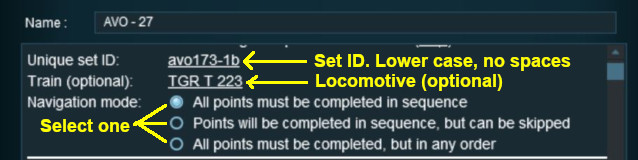
<td>'''Set ID:''' Each Navigation Point Set must have a '''unique ID code'''. This consists of any text characters <span style="background-color: red; color: white; font-weight: 700; font-size: 15px">& | <td>'''Set ID:''' Each Navigation Point Set must have a '''unique ID code'''. This consists of any text characters <span style="background-color: red; color: white; font-weight: 700; font-size: 15px"> EXCEPT </span> the '''SPACE''' character and '''UPPER CASE''' characters</td> | ||
</tr> | </tr> | ||
<tr valign="top"> | <tr valign="top"> | ||
| Line 119: | Line 119: | ||
<table> | <table> | ||
<tr valign="top"> | <tr valign="top"> | ||
<td>[[ | <td>[[image:PortalOptionButtonEmpty.PNG|link=]] '''All points must be completed in sequence''' - the order of the points listed below is the order in which they must be executed. No exceptions</td> | ||
</tr> | </tr> | ||
<tr valign="top"> | <tr valign="top"> | ||
<td>[[ | <td>[[image:PortalOptionButtonEmpty.PNG|link=]] '''Points will be completed in sequence, but can be skipped''' - the order of the points below is the order in which they must be executed but points can be skipped. You cannot go back to complete a missed point</td> | ||
</tr> | </tr> | ||
<tr valign="top"> | <tr valign="top"> | ||
<td>[[ | <td>[[image:PortalOptionButtonEmpty.PNG|link=]] '''All points must be completed but in any order''' - the order is not important but no points can be missed. All the Navigation Points in the set will be displayed when this option is selected</td> | ||
</tr> | </tr> | ||
</table> | </table> | ||
| Line 141: | Line 141: | ||
<table width=1000> | <table width=1000> | ||
<tr valign="top"> | <tr valign="top"> | ||
<td width=640>[[ | <td width=640>[[image:NavDisplaySetDialogLower.JPG|link=]]</td> | ||
<td> | <td> | ||
<table width=360 bgcolor=#000000 cellpadding=2> | <table width=360 bgcolor=#000000 cellpadding=2> | ||
| Line 170: | Line 170: | ||
</tr> | </tr> | ||
<tr valign="top"> | <tr valign="top"> | ||
<td>[[ | <td>[[image:Gears.PNG|link=]]</td> | ||
<td><span style="font-size: 17px;">'''Settings:'''</span> | <td><span style="font-size: 17px;">'''Settings:'''</span> | ||
<table> | <table> | ||
| Line 235: | Line 235: | ||
<table> <!-- BEGIN Nav Buttons Table --> | <table> <!-- BEGIN Nav Buttons Table --> | ||
<tr valign="top"> | <tr valign="top"> | ||
<td width=729><span id="stepHide"></span>& | <td width=729><span id="stepHide"></span> </td> | ||
<td width=46>[[ | <td width=46>[[image:BackToTop.png|link=#top|alt=Top|Top]]</td> | ||
<td width=75>[[ | <td width=75>[[image:NextUp.png|link=#stepDisplay|alt=Next Up|Top]]</td> | ||
<td width=75>[[ | <td width=75>[[image:NextDown.png|link=#stepClear|alt=Next Down|Next Down]]</td> | ||
<td width=75>[[ | <td width=75>[[image:BackToBottom.png|link=#bottom|alt=Bottom|Bottom]]</td> | ||
</tr> | </tr> | ||
</table> <!-- END Nav Buttons Table --> | </table> <!-- END Nav Buttons Table --> | ||
| Line 248: | Line 248: | ||
<tr valign="top"> | <tr valign="top"> | ||
<td width=10>[[image:BlueDot10x10.png|link=]]</td> | <td width=10>[[image:BlueDot10x10.png|link=]]</td> | ||
<td>The '''Navigation Set Hide/Show Rule''' is added to a Session and configured using the [[ | <td>The '''Navigation Set Hide/Show Rule''' is added to a Session and configured using the [[image:WikiLink.PNG|link=]] '''[[How to Use Session Editor|Session Editor]]''' in Surveyor</td> | ||
</tr> | </tr> | ||
<tr valign="top"> | <tr valign="top"> | ||
<td width=10>[[image:BlueDot10x10.png|link=]]</td> | <td width=10>[[image:BlueDot10x10.png|link=]]</td> | ||
<td>The [[ | <td>The [[image:WikiLink.PNG|link=]] '''[[Session_Rule_List_with_Parameters#Navigation Set Hide/Show Rule|Navigation Set Hide/Show Rule]]''' hides and displays the navigation sets created by the '''Navigation Display Rule'''</td> | ||
</tr> | </tr> | ||
</table> | </table> | ||
| Line 258: | Line 258: | ||
<table width=1000> | <table width=1000> | ||
<tr valign="top"> | <tr valign="top"> | ||
<td width=500>[[ | <td width=500>[[image:NavPointHideDialog.JPG|500px|link=]]</td> | ||
<td> | <td> | ||
<table width=500 bgcolor=#000000 cellpadding=2> | <table width=500 bgcolor=#000000 cellpadding=2> | ||
| Line 284: | Line 284: | ||
</tr> | </tr> | ||
<tr valign="top"> | <tr valign="top"> | ||
<td>[[ | <td>[[image:Gears.PNG|link=]]</td> | ||
<td><span style="font-size: 17px;">'''Settings:'''</span> | <td><span style="font-size: 17px;">'''Settings:'''</span> | ||
<table> | <table> | ||
| Line 304: | Line 304: | ||
<tr valign="top"> | <tr valign="top"> | ||
<td>[[image:BlackDot10x10.png|link=]]</td> | <td>[[image:BlackDot10x10.png|link=]]</td> | ||
<td>'''Set ID:''' The unique Navigation Point '''Set ID''' code for the set to be hidden or shown. This must be the same ID as entered in the [[image:PageLink.PNG|link=]] '''[[#stepDisplay|Navigation Display Rule]]''' and consists of any text characters <span style="background-color: red; color: white; font-weight: 700; font-size: 15px">& | <td>'''Set ID:''' The unique Navigation Point '''Set ID''' code for the set to be hidden or shown. This must be the same ID as entered in the [[image:PageLink.PNG|link=]] '''[[#stepDisplay|Navigation Display Rule]]''' and consists of any text characters <span style="background-color: red; color: white; font-weight: 700; font-size: 15px"> EXCEPT </span> the '''SPACE''' character and '''UPPER CASE''' characters</td> | ||
</tr> | </tr> | ||
</table> | </table> | ||
| Line 317: | Line 317: | ||
<table> <!-- BEGIN Nav Buttons Table --> | <table> <!-- BEGIN Nav Buttons Table --> | ||
<tr valign="top"> | <tr valign="top"> | ||
<td width=729><span id="stepClear"></span>& | <td width=729><span id="stepClear"></span> </td> | ||
<td width=46>[[ | <td width=46>[[image:BackToTop.png|link=#top|alt=Top|Top]]</td> | ||
<td width=75>[[ | <td width=75>[[image:NextUp.png|link=#stepHide|alt=Next Up|Top]]</td> | ||
<td width=75>[[ | <td width=75>[[image:NextDown.png|link=#stepComplete|alt=Next Down|Next Down]]</td> | ||
<td width=75>[[ | <td width=75>[[image:BackToBottom.png|link=#bottom|alt=Bottom|Bottom]]</td> | ||
</tr> | </tr> | ||
</table> <!-- END Nav Buttons Table --> | </table> <!-- END Nav Buttons Table --> | ||
| Line 330: | Line 330: | ||
<tr valign="top"> | <tr valign="top"> | ||
<td width=10>[[image:BlueDot10x10.png|link=]]</td> | <td width=10>[[image:BlueDot10x10.png|link=]]</td> | ||
<td>The '''Navigation Set Clear Rule''' is added to a Session and configured using the [[ | <td>The '''Navigation Set Clear Rule''' is added to a Session and configured using the [[image:WikiLink.PNG|link=]] '''[[How to Use Session Editor|Session Editor]]''' in Surveyor</td> | ||
</tr> | </tr> | ||
<tr> | <tr> | ||
<td width=10>[[image:BlueDot10x10.png|link=]]</td> | <td width=10>[[image:BlueDot10x10.png|link=]]</td> | ||
<td>The [[ | <td>The [[image:WikiLink.PNG|link=]] '''[[Session_Rule_List_with_Parameters#Navigation Set Clear Rule|Navigation Set Clear Rule]]''' clears or completes any uncompleted Navigation Points in a set created by the '''Navigation Display Rule'''</td> | ||
</tr> | </tr> | ||
</table> | </table> | ||
| Line 340: | Line 340: | ||
<table width=1000> | <table width=1000> | ||
<tr valign="top"> | <tr valign="top"> | ||
<td width=500>[[ | <td width=500>[[image:NavSetClearDialog.JPG|500px|link=]]</td> | ||
<td> | <td> | ||
<table width=500 bgcolor=#000000 cellpadding=2> | <table width=500 bgcolor=#000000 cellpadding=2> | ||
| Line 366: | Line 366: | ||
</tr> | </tr> | ||
<tr valign="top"> | <tr valign="top"> | ||
<td>[[ | <td>[[image:Gears.PNG|link=]]</td> | ||
<td><span style="font-size: 17px;">'''Settings:'''</span> | <td><span style="font-size: 17px;">'''Settings:'''</span> | ||
<table> | <table> | ||
<tr valign="top"> | <tr valign="top"> | ||
<td width=10>[[image:BlackDot10x10.png|link=]]</td> | <td width=10>[[image:BlackDot10x10.png|link=]]</td> | ||
<td>'''Set ID:''' The unique Navigation Point '''Set ID''' code for the set to be cleared. This must be the same ID as entered in the [[image:PageLink.PNG|link=]] '''[[#stepDisplay|Navigation Display Rule]]''' and consists of any text characters <span style="background-color: red; color: white; font-weight: 700; font-size: 15px">& | <td>'''Set ID:''' The unique Navigation Point '''Set ID''' code for the set to be cleared. This must be the same ID as entered in the [[image:PageLink.PNG|link=]] '''[[#stepDisplay|Navigation Display Rule]]''' and consists of any text characters <span style="background-color: red; color: white; font-weight: 700; font-size: 15px"> EXCEPT </span> the '''SPACE''' character and '''UPPER CASE''' characters</td> | ||
</tr> | </tr> | ||
</table> | </table> | ||
| Line 384: | Line 384: | ||
<table> <!-- BEGIN Nav Buttons Table --> | <table> <!-- BEGIN Nav Buttons Table --> | ||
<tr valign="top"> | <tr valign="top"> | ||
<td width=729><span id="stepComplete"></span>& | <td width=729><span id="stepComplete"></span> </td> | ||
<td width=46>[[ | <td width=46>[[image:BackToTop.png|link=#top|alt=Top|Top]]</td> | ||
<td width=75>[[ | <td width=75>[[image:NextUp.png|link=#stepClear|alt=Next Up|Top]]</td> | ||
<td width=75>[[ | <td width=75>[[image:NextDown.png|link=#stepCheck|alt=Next Down|Next Down]]</td> | ||
<td width=75>[[ | <td width=75>[[image:BackToBottom.png|link=#bottom|alt=Bottom|Bottom]]</td> | ||
</tr> | </tr> | ||
</table> <!-- END Nav Buttons Table --> | </table> <!-- END Nav Buttons Table --> | ||
| Line 441: | Line 441: | ||
<tr valign="top"> | <tr valign="top"> | ||
<td>[[image:BlackDot10x10.png|link=]]</td> | <td>[[image:BlackDot10x10.png|link=]]</td> | ||
<td>'''Set ID:''' The unique Navigation Point '''Set ID''' code for the set. This must be the same ID as entered in the [[image:PageLink.PNG|link=]] '''[[#stepDisplay|Navigation Display Rule]]''' and consists of any text characters <span style="background-color: red; color: white; font-weight: 700; font-size: 15px">& | <td>'''Set ID:''' The unique Navigation Point '''Set ID''' code for the set. This must be the same ID as entered in the [[image:PageLink.PNG|link=]] '''[[#stepDisplay|Navigation Display Rule]]''' and consists of any text characters <span style="background-color: red; color: white; font-weight: 700; font-size: 15px"> EXCEPT </span> the '''SPACE''' character and '''UPPER CASE''' characters</td> | ||
</tr> | </tr> | ||
</table> | </table> | ||
| Line 454: | Line 454: | ||
<table> <!-- BEGIN Nav Buttons Table --> | <table> <!-- BEGIN Nav Buttons Table --> | ||
<tr valign="top"> | <tr valign="top"> | ||
<td width=729><span id="stepCheck"></span>& | <td width=729><span id="stepCheck"></span> </td> | ||
<td width=46>[[image:BackToTop.png|link=#top|alt=Top|Top]]</td> | <td width=46>[[image:BackToTop.png|link=#top|alt=Top|Top]]</td> | ||
<td width=75>[[image:NextUp.png|link=#stepComplete|alt=Next Up|Top]]</td> | <td width=75>[[image:NextUp.png|link=#stepComplete|alt=Next Up|Top]]</td> | ||
| Line 508: | Line 508: | ||
<tr valign="top"> | <tr valign="top"> | ||
<td width=10>[[image:BlackDot10x10.png|link=]]</td> | <td width=10>[[image:BlackDot10x10.png|link=]]</td> | ||
<td>'''Set ID:''' The unique Navigation Point '''Set ID''' code for the set to be checked. This must be the same ID as entered in the [[image:PageLink.PNG|link=]] '''[[#stepDisplay|Navigation Display Rule]]''' and consists of any text characters <span style="background-color: red; color: white; font-weight: 700; font-size: 15px">& | <td>'''Set ID:''' The unique Navigation Point '''Set ID''' code for the set to be checked. This must be the same ID as entered in the [[image:PageLink.PNG|link=]] '''[[#stepDisplay|Navigation Display Rule]]''' and consists of any text characters <span style="background-color: red; color: white; font-weight: 700; font-size: 15px"> EXCEPT </span> the '''SPACE''' character and '''UPPER CASE''' characters</td> | ||
</tr> | </tr> | ||
<tr valign="top"> | <tr valign="top"> | ||
| Line 525: | Line 525: | ||
<table> <!-- BEGIN Nav Buttons Table --> | <table> <!-- BEGIN Nav Buttons Table --> | ||
<tr valign="top"> | <tr valign="top"> | ||
<td width=729><span id="stepWait"></span>& | <td width=729><span id="stepWait"></span> </td> | ||
<td width=46>[[image:BackToTop.png|link=#top|alt=Top|Top]]</td> | <td width=46>[[image:BackToTop.png|link=#top|alt=Top|Top]]</td> | ||
<td width=75>[[image:NextUp.png|link=#stepCheck|alt=Next Up|Top]]</td> | <td width=75>[[image:NextUp.png|link=#stepCheck|alt=Next Up|Top]]</td> | ||
<td width=75> | <td width=75> </td> | ||
<td width=75>[[image:BackToBottom.png|link=#bottom|alt=Bottom|Bottom]]</td> | <td width=75>[[image:BackToBottom.png|link=#bottom|alt=Bottom|Bottom]]</td> | ||
</tr> | </tr> | ||
| Line 596: | Line 596: | ||
<table> <!-- BEGIN Nav Buttons Table --> | <table> <!-- BEGIN Nav Buttons Table --> | ||
<tr valign="top"> | <tr valign="top"> | ||
<td width=729><span id="bottom"></span>& | <td width=729><span id="bottom"></span> </td> | ||
<td width=46>[[image:BackToTop.png|link=#top|alt=Top|Top]]</td> | <td width=46>[[image:BackToTop.png|link=#top|alt=Top|Top]]</td> | ||
<td width=75>[[image:NextUp.png|link=#stepWait|alt=Next Up|Top]]</td> | <td width=75>[[image:NextUp.png|link=#stepWait|alt=Next Up|Top]]</td> | ||
<td width=75>& | <td width=75> </td> | ||
<td width=75>& | <td width=75> </td> | ||
</tr> | </tr> | ||
</table> <!-- END Nav Buttons Table --> | </table> <!-- END Nav Buttons Table --> | ||
| Line 609: | Line 609: | ||
<table cellpadding=4 bgcolor=#ffffff> | <table cellpadding=4 bgcolor=#ffffff> | ||
<tr valign="top"> | <tr valign="top"> | ||
<td>[[ | <td>[[image:TrainzWiki.png|link=]]</td> | ||
<td> | <td> | ||
<span style="font-size: 17px;">'''More Tutorials and Guides to Using Trainz'''</span><br> | <span style="font-size: 17px;">'''More Tutorials and Guides to Using Trainz'''</span><br> | ||
Revision as of 22:35, 20 September 2023
The information in this Wiki Page applies to TANE, TRS19, Trainz Plus and TRS22. It describes how to configure the various Navigation Point Rules.
 |
For examples of how to use these rules in Trainz Sessions, see the Trainz Wiki Page at:- |
 |
Navigation Points are icons that appear at set track locations or on set rail vehicles that indicate destinations for user driven trains and tasks to be performed |
The navigation points are created and controlled by the set of Session rules that are described in this document.
 |
 |
 |
Navigation Display Rule
|
The Navigation Set Hide/Show Rule is added to a Session and configured using the  Session Editor in Surveyor |
|
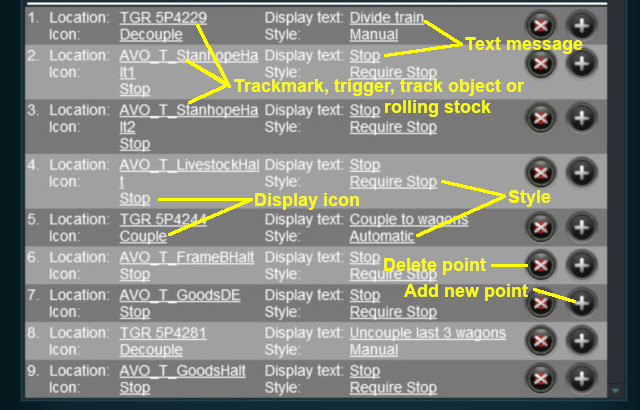
The Navigation Display Rule create a set of Navigation Points |
|

 |
|
|
|
||||||||||||
 |
Settings:
|
|||||||||||
|
|
||||||||||||


 |
|
|
||||||||||||||||||||||||||||
|
 |
|
|
Navigation Set Hide/Show Rule
|
The Navigation Set Hide/Show Rule is added to a Session and configured using the Session Editor in Surveyor |
|
The Navigation Set Hide/Show Rule hides and displays the navigation sets created by the Navigation Display Rule |
| Error creating thumbnail: /bin/bash: line 1: /usr/bin/convert: No such file or directory Error code: 127 |
|
|
|
|||||||||
|
Settings:
|
||||||||
|
|
|||||||||
|
|
|
|
Navigation Set Clear Rule
|
The Navigation Set Clear Rule is added to a Session and configured using the Session Editor in Surveyor |
|
The Navigation Set Clear Rule clears or completes any uncompleted Navigation Points in a set created by the Navigation Display Rule |
| Error creating thumbnail: /bin/bash: line 1: /usr/bin/convert: No such file or directory Error code: 127 |
|
|
|
|||
|
Settings:
|
||
|
|
|||
|
|
|
|
Navigation Point Complete Rule
|
The Navigation Point Complete Rule is added to a Session and configured using the Session Editor in Surveyor |
|
The Navigation Point Complete Rule clears or completes the selected Navigation Point in a set created by the  Navigation Display Rule. This rule is used to complete Navigation Points with their Style property set to manual |
| Error creating thumbnail: /bin/bash: line 1: /usr/bin/convert: No such file or directory Error code: 127 |
|
|
|
|||||
|
Settings:
|
||||
|
|
|||||
|
|
|
|
Navigation Set Check Rule
|
The Navigation Set Check Rule is added to a Session and configured using the Session Editor in Surveyor. It is a Parent Rule |
|
The Navigation Set Check Rule checks if the specified Navigation Set has been completed, or not completed, then executes any following child rules |
| Error creating thumbnail: /bin/bash: line 1: /usr/bin/convert: No such file or directory Error code: 127 |
|
|
|
|||||
|
Settings:
|
||||
|
|
|||||
|
|
|
Wait on Navigation Point Rule
|
The Wait on Navigation Point Rule is added to a Session and configured using the Session Editor in Surveyor. It is a Parent Rule |
|
The Wait on Navigation Point Rule waits until the specified Navigation Point in the specified set has been completed then executes any following child rules |
| Error creating thumbnail: /bin/bash: line 1: /usr/bin/convert: No such file or directory Error code: 127 |
|
|
|
|||||
|
Settings:
|
||||
|
|
|||||
|
|
Trainz Wiki
 |
More Tutorials and Guides to Using Trainz |
This page was created by Trainz user pware in May 2018 and was last updated as shown below.


