How to Create a Picklist: Difference between revisions
From TrainzOnline
Jump to navigationJump to search
mNo edit summary |
|||
| Line 24: | Line 24: | ||
<td>[[image:LinkWiki.PNG|link=]]</td> | <td>[[image:LinkWiki.PNG|link=]]</td> | ||
<td> | <td> | ||
* For instructions on how to '''backup''' a Picklist, see the Trainz Wiki page '''[[How to Backup a Picklist]]''' | * For instructions on how to '''backup''' a Picklist, see the Trainz Wiki page [[image:WikiLink.PNG|link=]] '''[[How_to_Backup_a_Picklist|How to Backup a Picklist]]''' | ||
* For instructions on how to '''move''' a Picklist, see the Trainz Wiki page '''[[How to Move a Picklist]]''' | * For instructions on how to '''move''' a Picklist, see the Trainz Wiki page [[image:WikiLink.PNG|link=]] '''[[How_to_Move a Picklist|How to Move a Picklist]]''' | ||
* For instructions on how to '''rename''' a Picklist, see the Trainz Wiki page '''[[How to Rename a Picklist]]''' | * For instructions on how to '''manage''' a Picklist, see the Trainz Wiki page [[image:WikiLink.PNG|link=]] '''[[How_to_Manage_Filters_and_Picklists|How to Manage Filters and Picklists]]''' | ||
* For instructions on how to '''rename''' a Picklist, see the Trainz Wiki page [[image:WikiLink.PNG|link=]] '''[[How_to_Rename_a_Picklist|How to Rename a Picklist]]''' | |||
</td> | </td> | ||
</tr> | </tr> | ||
| Line 715: | Line 716: | ||
<tr valign="top"> | <tr valign="top"> | ||
<td width=629><span id="stepUsingCM"></span> | <td width=629><span id="stepUsingCM"></span> | ||
='''Using Content Manager (CM)'''= | ='''Using Content Manager (CM)'''= | ||
</td> | </td> | ||
Revision as of 00:13, 9 October 2023
The information in this Wiki Page applies to TANE, TRS19, Trainz Plus and TRS22.
|
 |
|

|
||||||||
Using Surveyor Classic |
 |
 |
 |
| Steps: | |||||
 |
Open the Picklist Window:
|
||||

 |
Select a Picklist or Create a New Picklist:
|
||||||||||||
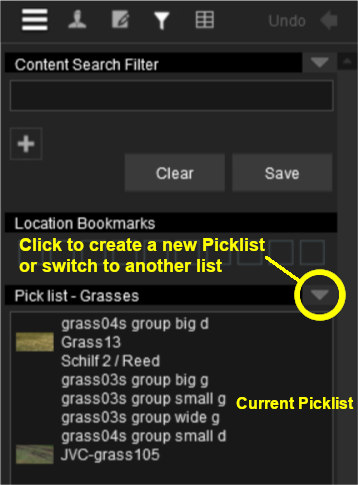

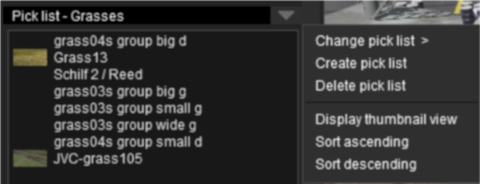


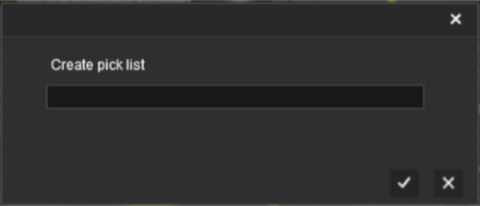
 |
Add Assets to the Picklist: Options: Choose one of two methods:- |
||||||||||||||||||||||||||||||||||||||||
|
|||||||||||||||||||||||||||||||||||||||||
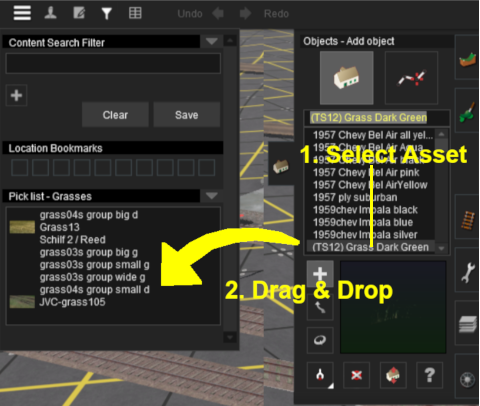


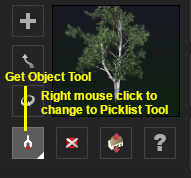

|
Using Surveyor 2.0 |
 |
|
|
 |
|
|
Locating the Picklists
 |
Picklists are created, managed and deleted using the Assets Palette in Surveyor 2.0 |
The Assets Palette gives you access to all the installed Assets, the Search Filters created in Content Manager and the Picklists.
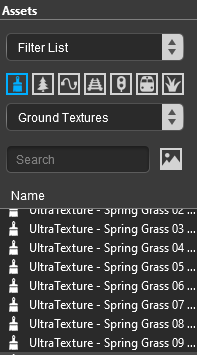 The Assets Palette |
|
|||||||||||||||||||||
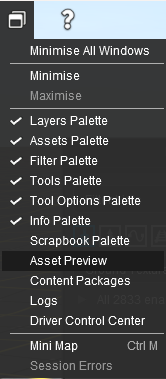


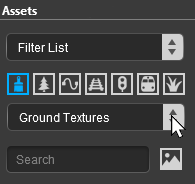 |
|
|||||||||||||||||||||||||||||
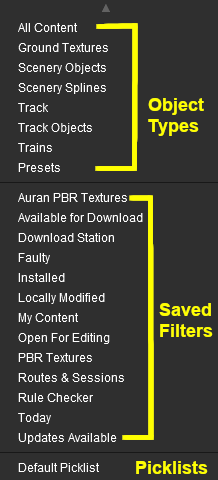

Creating a New Picklist |
|
 |
|
New Picklists are created by selecting an asset in the Assets Palette or by selecting an existing object in the route |
| A new Picklist is created by first identifying an asset or object that will be added to the new (yet to be created) Picklist. You cannot create an empty Picklist. | |||||||||||||||||||||||||||||||||||
| Options: Choose one of two methods:- | |||||||||||||||||||||||||||||||||||
|
|
||||||||||||||||||||||||||||||||||
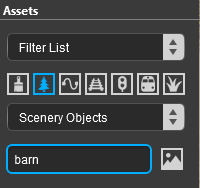
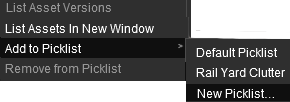
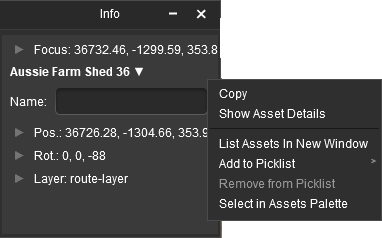
In both Options  and  a new popout menu will appear. |
||||
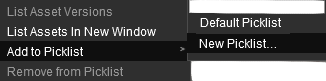 |
|
|||
|


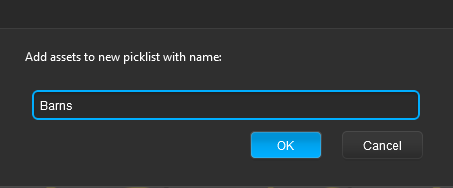
To Remove Assets from a Picklist
|
||||||||||||||||

Using Content Manager (CM) |
|
|
|
|
| Steps: | ||||||||||||
|
Select the Assets:
|
|||||||||||
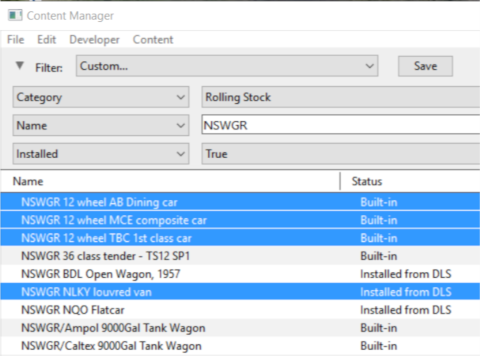
|
Add the Assets to the Picklist:
|
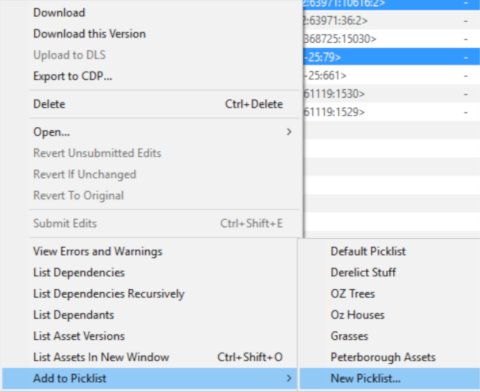
|
Enter Picklist Name (for New Picklist Option Only):
|
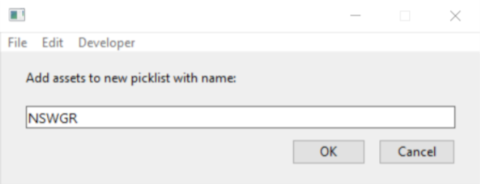
|
|
Trainz Wiki
 |
More Tutorials and Guides to Using Trainz |
This page was created by Trainz user pware in January 2019 and was last updated as shown below.

