How to Restore Deleted Assets: Difference between revisions
From TrainzOnline
Jump to navigationJump to search
No edit summary |
mNo edit summary |
||
| Line 200: | Line 200: | ||
<tr valign="top"> | <tr valign="top"> | ||
<td>[[image:BlueDot10x10.png|link=]]</td> | <td>[[image:BlueDot10x10.png|link=]]</td> | ||
<td>If | <td>If the identical '''Packaged''' asset is also on the '''DLS''' then it can be restored from there</td> | ||
</tr> | </tr> | ||
</table> | </table> | ||
<br> | <br> | ||
<table width=1000 bgcolor=#000000 cellpadding=2> | |||
<tr valign="top"> | |||
<td> | |||
<table width=996 bgcolor=#ffffff cellpadding=2> | |||
<tr valign="middle"> | |||
<td width=35>[[image:Information.png|35px|link=]]</td> | |||
<td >'''DLC''' packages can be uninstalled and later reinstalled without any extra costs for an unlimited number of times. Each '''DLC''' package contains all the dependant assets in the one download even if those assets are already on the '''DLS'''.</td> | |||
</tr> | |||
</table> | |||
</td> | |||
</tr> | |||
</table> | |||
<br> | |||
<table width=1000 bgcolor=#000000 cellpadding=2> | |||
<tr valign="top"> | |||
<td> | |||
<table width=996 bgcolor=#ffffff cellpadding=2> | |||
<tr valign="top"> | |||
<td colspan=2><span style="font-weight: 700; font-size: 15px;">Steps:</span> To Reinstall a '''DLC Package''':-</td> | |||
</tr> | |||
<tr valign="top"> | |||
<td width=25>[[image:DotPoint1.JPG|link=]]</td> | |||
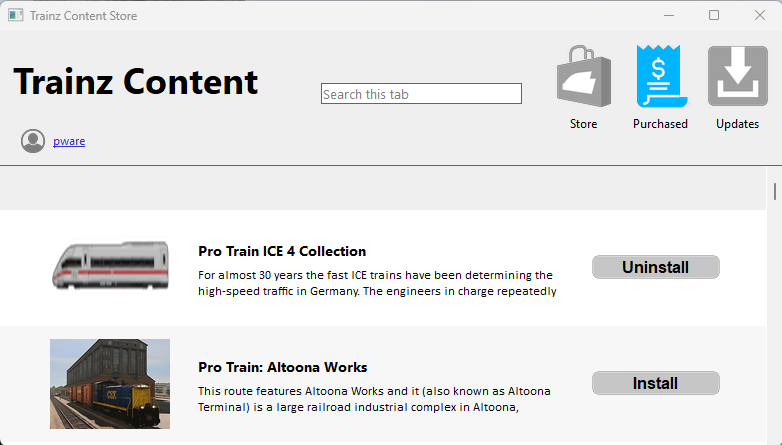
<td>Open the '''Content Store''' from the '''Trainz Launcher'''. Make sure that the '''Purchased''' icon has been selected (is coloured blue).<br> | |||
This will show all the '''DLC Packages''' that you have purchased or can install for free. | |||
<table> | |||
<tr valign="top"> | |||
<td width=10>[[image:DotPoint.JPG|10px|link=]]</td> | |||
<td>Items marked with the <span style="font-weight: 700; font-size: 15px;">Uninstall</span> button are currently installed in your copy of '''Trainz'''</td> | |||
</tr> | |||
<tr valign="top"> | |||
<td>[[image:DotPoint.JPG|10px|link=]]</td> | |||
<td>Items marked with the <span style="font-weight: 700; font-size: 15px;">Install</span> button have been purchased (or are available for free) but are not installed in your copy of '''Trainz''' | |||
</td> | |||
</tr> | |||
<tr valign="top"> | |||
<td>[[image:DotPoint.JPG|10px|link=]]</td> | |||
<td>If you have '''Uninstalled''' a package then it will show the <span style="font-weight: 700; font-size: 15px;">Install</span> button | |||
</td> | |||
</tr> | |||
</table> | |||
<br> | |||
[[image:ContentStorePurchased.png|link=]]</td> | |||
</tr> | |||
<tr valign="top"> | |||
<td>[[image:DotPoint2.JPG|link=]]</td> | |||
<td>Scroll down the list to locate the package to be reinstalled. You can enter a partial name in the '''Search''' box to help narrow the search</td> | |||
</tr> | |||
<tr valign="top"> | |||
<td>[[image:DotPoint3.JPG|link=]]</td> | |||
<td><span style="font-weight: 700; font-size: 15px; background-color: lightcyan;"> Left Click </span> on the <span style="font-weight: 700; font-size: 15px;">Install</span> button of the package. The install may take some time depending on the size of the package and the speed of your internet connection</td> | |||
</tr> | |||
</table> | |||
</td> | |||
</tr> | |||
</table> | |||
<br> | |||
<span id="stepRestoreBackup"></span> | <span id="stepRestoreBackup"></span> | ||
<table width=1000> <!-- BEGIN Nav Buttons Table NO SKIPS --> | <table width=1000> <!-- BEGIN Nav Buttons Table NO SKIPS --> | ||
| Line 222: | Line 281: | ||
<tr valign="top"> | <tr valign="top"> | ||
<td width=10>[[image:BlueDot10x10.png|link=]]</td> | <td width=10>[[image:BlueDot10x10.png|link=]]</td> | ||
<td>Assets deleted within the last '''7 Days''' are stored in the '''Backup Folder''' for the date they were deleted</td> | <td>Assets deleted using '''Content Manager''' within the last '''7 Days''' are stored in the '''Backup Folder''' for the date they were deleted</td> | ||
</tr> | </tr> | ||
<tr valign="top"> | <tr valign="top"> | ||
Revision as of 10:49, 25 April 2025
| The information in this Wiki Page applies to TRS19, Trainz Plus and TRS22 and describes the methods that can be used to restore assets deleted by Content Manager. |
 |
 |
|

Restore Deleted DLS Assets |
 |
|
|
 |
Deleted assets that were originally Installed from DLS can be easily restored by installing them again from the DLS |
| Deleted assets that were installed from the DLS are the easiest of all to restore. Simply use Content Manager to locate the assets and download them again. | ||
| Error creating thumbnail: /bin/bash: line 1: /usr/bin/convert: No such file or directory Error code: 127 | Select the Download Station filter from the Filter drop down menu | 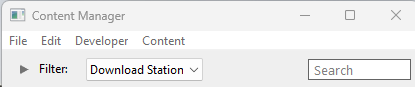 |
| Error creating thumbnail: /bin/bash: line 1: /usr/bin/convert: No such file or directory Error code: 127 | Optional: Type part of the asset name in the Search box to narrow the search | |
| Error creating thumbnail: /bin/bash: line 1: /usr/bin/convert: No such file or directory Error code: 127 | Right Click on the asset name in the displayed list and select the Download option | |
|


Restore Deleted .cdp File Assets |
|
 |
|
|
|
Deleted assets that were installed from .cdp files can be easily restored by reinstalling them from the same .cdp files |
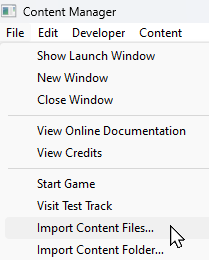 |
Deleted assets that were installed from .cdp files can be reinstalled from the same files.
|
||||||||||||||


Restore Deleted Payware and Packaged Assets |
|
|
|
|
|
Payware and Packaged assets that were installed from a DLC package can be restored by reinstalling the same DLC Package |
|
If the identical Packaged asset is also on the DLS then it can be restored from there |
|
|
||||||||||||||
Restore Deleted Assets from the Backup |
|
|
|
|
Assets deleted using Content Manager within the last 7 Days are stored in the Backup Folder for the date they were deleted |
|
Deleted assets can be restored using their backup |
|
|
Trainz Wiki
|
|


This page was created by Trainz user pware in April 2025 and was last updated as shown below.


