How to Configure Trainz Settings: Difference between revisions

From TrainzOnline
Jump to navigationJump to search
Pware (talk | contribs)
No edit summary
Line 385: Line 385:
</table>
</table>
<br>
<br>
<span id="VSynch"></span>
<table width=1000>
<table width=1000>
<tr valign="top">
<tr valign="top">
Line 440: Line 439:
</table>
</table>
<br>
<br>
<span id="DX11-12"></span>
<table width=1000>
<table width=1000>
<tr valign="top">
<tr valign="top">
Line 510: Line 510:
<tr valign="top">
<tr valign="top">
<td width=629><span id="skipGeneralLanguage"></span>
=='''Language and Font Settings'''==
</td>
</td>
Line 1,631: Line 1,630:
<table width=1000>
<table width=1000>
<tr valign="top">
<tr valign="top">
<td>'''Post Processing''', which happens after an image frame has been constructed, applies filters or special effects to the entire image frame before it is finally displayed on the screen. Examples would include adding motion blur, atmospheric effects, dynamic lighting.</td>
<td>'''Post Processing''', which happens after an image frame has been constructed, applies filters or special effects to the entire image frame before it is finally displayed on the screen. Examples would include adding motion blur, atmospheric effects, dynamic lighting. </td>
</tr>
</tr>
</table>
</table>
Line 1,680: Line 1,679:
<tr valign="top">
<tr valign="top">
<td width=629><span id="skipWater"></span>
=='''Water Quality'''==
</td>
</td>
Line 1,740: Line 1,738:
<tr valign="top">
<tr valign="top">
<td width=629><span id="skipDetail"></span>
=='''Detail Scenery'''==
</td>
</td>
Line 1,771: Line 1,768:
<tr valign="top">
<tr valign="top">
<td>[[image:DotPoint.JPG|10px|link=]]</td>
<td>The '''TurfFX''' effect layer is not visible in the current '''Trainz Plus (beta)''' version when using the '''DirectX 12''' Windows API (see [[image:PageLink.PNG|link=]]&#160;'''[[#VSynch|Vertical Synchronization]]''')</td>
<td>The '''TurfFX''' effect layer is not visible in the current '''Trainz Plus (beta)''' version when using the '''DirectX 12''' Windows API (see [[image:PageLink.PNG|link=]]&#160;'''[[#DX11-12|Vertical Synchronization]]''')</td>
</tr>
</tr>
<tr valign="top">
<tr valign="top">
Line 1,827: Line 1,824:
<tr valign="top">
<tr valign="top">
<td width=629><span id="skipAntiAliasing"></span>
=='''Antialiasing'''==
</td>
</td>

Revision as of 07:57, 8 August 2026

Error creating thumbnail: /bin/bash: line 1: /usr/bin/convert: No such file or directory Error code: 127 The information in this Wiki Page describes the process of configuring the performance and other settings of Trainz. It applies to TRS19, TRS22 and Trainz Plus.


          Next Down Bottom
Key Points:-
a new install of Trainz requires that you must Login to the program. This is usually a one time only process
the user controlled configuration settings in Trainz allow you to match the performance of the program to:-
your installed hardware, including your GPU and video
the unique requirements of any routes you are running
you can specify the location of your Local Data Folder, which holds all your installed assets, and you can switch between different folders
you can switch between the normal and the Beta Test program streams
if you are an asset creator you can optimise the program for advanced asset testing


Load the Trainz Launcher

    Top   Next Down Bottom
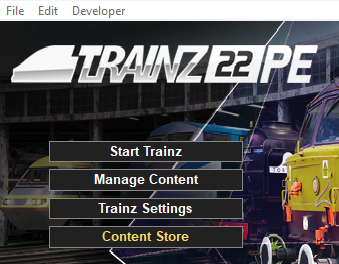
Start your copy of Trainz which will load to show the Launcher Window (shown below).


Notes:

Error creating thumbnail: /bin/bash: line 1: /usr/bin/convert: No such file or directory Error code: 127 The examples and images shown here are for the TRS22 Platinum Edition but the process described below is almost identical for all versions of Trainz from T:ANE onwards.
Error creating thumbnail: /bin/bash: line 1: /usr/bin/convert: No such file or directory Error code: 127 The earlier versions (T:ANE and TRS19) will have some different messages and some different labels.
Error creating thumbnail: /bin/bash: line 1: /usr/bin/convert: No such file or directory Error code: 127 Later versions (TRS22 and Trainz Plus) will have some additional options and controls


Open the Trainz Settings Controls

    Top Next Up Next Down Bottom
The Trainz Settings control how Trainz interacts with your Operating System and Graphics Display, where it stores your data, its overall performance, etc
It also stores your login credentials which, amongst other things, gives you free access to the Download Station or DLS where assets such as routes, sessions, rolling stock and many different types of scenery can be downloaded and installed


Steps: To
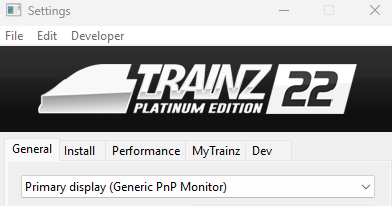
In the Trainz Launcher window  Left Click  on the box labelled  Trainz Settings 


This will open the Settings Dialogue Window shown below. Each TAB in this window controls different aspects of the program.

Tab Configures...
 General your display characteristics such as the screen resolution, synchronisation, preferred language and font size.
 Installed the location of your Local Data Folder where all your assets are kept and the type of program updates you want to receive.
 Performance the performance of the program to better match the hardware of your computer system and the demands of the routes you are running. Some experimentation will be required.
 MyTrainz your user login details and online features. In some older versions this Tab is labelled Internet.
 Dev the program for advanced testing of assets that are under development. These features are for asset developers ONLY. Unless you are an experienced asset developer you are strongly advised to NOT change these settings as some of them will adversely affect many older assets.
 Left Click  on the required TAB (e.g. Performance, MyTrainz, etc) to open an display the selected settings. The General Tab is automatically opened when the Settings Dialogue Window is opened.


The General Settings

Skip Down   Top Next Up Next Down Bottom
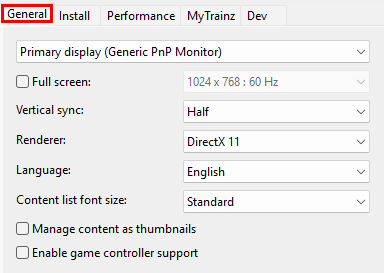
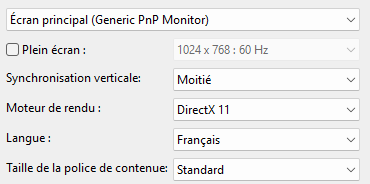
These settings are your display characteristics such as the screen resolution, synchronisation, preferred language and font size.


 Left Click  on the  General  tab


Error creating thumbnail: /bin/bash: line 1: /usr/bin/convert: No such file or directory Error code: 127 Some of these settings will depend on your display hardware and may require some experimentation on your part to get the visual and performance results that you like.


Display Settings

Skip Down Skip Up        
This sets the display monitor that Trainz will run on, its screen resolution and other features.


Primary Monitor
IF you have more than one display monitor/screen attached to your computer then you can select the one that you want Trainz to use.
Steps: To Select the Monitor:-
 Left Click  on the menu box or its arrow icon to show the attached display monitors that your operating system has detected.
Then  Left Click  on the display monitor that you want Trainz to use.


Screen Size and Display Resolution
This sets the screen size (as in full screen or windowed), its resolution (in pixels) and the refresh rate (in Hertz or cycles per second).
If the Full Screen box is NOT checked then Trainz will run in windowed mode with the Trainz Railroad Simulator bar at the top of the program window and the Windows Tool Bar at the bottom of the screen.
This allows you to resize the window when required and to easily switch to other programs when needed. The resolution settings drop box cannot be opened if the Full Screen is not checked.
If the Full Screen box is checked then Trainz will run in full screen mode WITHOUT the Trainz Railroad Simulator bar at the top of the program and the Windows Tool Bar at the bottom of the screen.


The Screen Resolution and Refresh Rate values are determined by your video card and not the display monitor you are using. It is important to match the selected settings from your video card with the same settings used by your display monitor. Some experimentation may be required to get the best results.


Steps: To Set the Screen Size and Resolution:-
 Left Click  on the Full Screen check box to check it ON. This will allow the full range of available screen resolutions to be shown and selected.
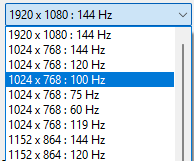
 Left Click  on the menu box or its arrow icon to display the list of screen resolutions and refresh rates that your graphics card supports.
Then  Left Click  on the resolution and rate that you want to use. Some experimentation may be needed to get the best results.


Vertical Synchronization
This is a technology that matches (synchronizes) the construction of each video frame between your graphics card and your display monitor.

Vertical Synchronization, when turned on, prevents the next frame from being sent to your display monitor before the previous frame has been fully drawn on its screen.


Steps: To Select the Vertical Synchronization:-
 Left Click  on the menu box or its arrow icon to show the options.
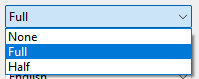
None your graphics card will not delay sending each frame to the display monitor. Only recommended if your display monitor has a higher refresh rate than the rate set on your video card
Full each video frame is sent to the display monitor, line by line, in one pass, when the monitor is ready to receive it
Half each video frame is sent to the display monitor in two passes when the monitor is ready to receive it. The odd numbered lines will be sent in the first pass then the even numbered lines in the second
Then  Left Click  on the setting that you want to use. Some experimentation may be needed to get the best results.


Renderer
DirectX is the program interface (API) used by Windows to render 3D images on your display monitor. Currently there are two versions in use by most games and simulations.
Error creating thumbnail: /bin/bash: line 1: /usr/bin/convert: No such file or directory Error code: 127 DirectX 11 is supported by all Windows versions of Trainz. It uses only a single CPU core and does not support ray tracing. However, it sometimes works better in older (legacy) games than the newer DirectX 12.
Error creating thumbnail: /bin/bash: line 1: /usr/bin/convert: No such file or directory Error code: 127 DirectX 12 is currently only supported by the latest Windows beta version of Trainz Plus. It uses multiple CPU cores, which makes it faster, and it supports ray tracing (not yet implemented in Trainz). The performance benefit you will get from using DirectX 12 depends heavily on factors such as game optimization and your computer hardware.


If you select the DirectX 12 renderer in the current Trainz Plus beta version then all TurfFX Effect Layers will be disabled and will not show.


Steps: To Select the Renderer:-
 Left Click  on the menu box or its arrow icon to show the options.

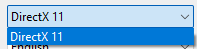
All non-beta Trainz versions
 
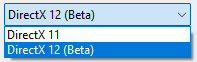
Trainz Plus SP8 beta
Then  Left Click  on the Renderer that you want to use.  Note:  the DirectX 12 option is in beta test and is only available in the beta version of Trainz Plus.


Language and Font Settings

Skip Down Skip Up        
The selected language sets the preferred language for all internal menus, palette titles and commands, drop down lists
The language used in all driver session message popups and HTML pages is set within those assets and not in this configuration
The selected font size option only applies to asset lists


Language
Trainz allows you to choose a preferred display language for all menus, option boxes, command lists, etc that are part of the program. The default language is English.


Steps: To Set the Preferred Display Language:-
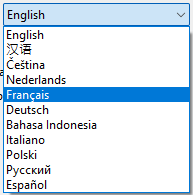
 Left Click  on the Language menu box or its arrow icon to display the list of available languages.
 
Then  Left Click  on the language that you want to use - for example Français (French).
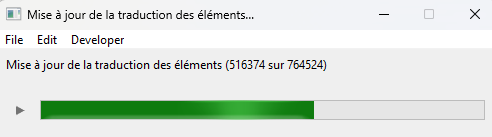
Close the Trainz Settings dialogue window. The program will immediately search all installed assets for language tags that include the selected language in their config.txt files. A progress bar will be shown in the selected language.
When the progress bar completes and disappears close the Trainz Launcher.
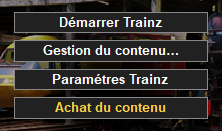
Restart Trainz. The Trainz Launcher will reappear using labels in the selected language.
All other menu screens will also be shown using the selected language.
The names of individual assets, as shown in some Surveyor 2.0 Palettes, Surveyor Classic Tools and in Content Manager, will only use the preferred language IF that language has been added to the assets. Otherwise English will be used.


Font Size
This allows you to display lists of assets (content) in a larger font size. It applies to the asset lists shown in some Surveyor 2.0 Palettes and in Content Manager.


Steps: To Set the Asset Name Font Size:-
 Left Click  on the menu box or its arrow icon to show the options.
 
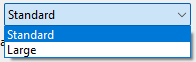
There are only two choices: Standard which is the default and Large
 Left Click  on the size option that you want to use.

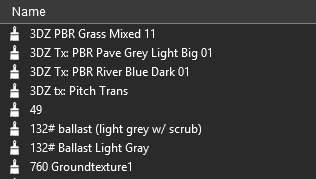
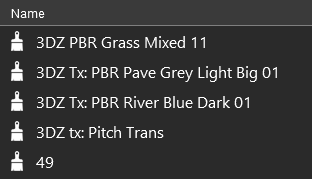
Assets Palette Standard Font

Assets Palette Large Font
This will only change the size of the font used to display the names of individual assets, as shown in some Surveyor 2.0 Palettes and in Content Manager. It has no effect on the font sizes used in Surveyor Classic.


Misc Settings

Skip Down Skip Up        
Key Points:-
You can display all assets in Content Manager using their thumbnails
You can add support or some non-keyboard game controllers


Content Manager Thumbnails
This allows you to display all the assets in Content Manager using their thumbnails. The thumbnails will be constructed from the actual mesh and texture files (if present) in the assets and not from the Thumbnail.jpg images supplied by the creator.


Steps: To Display Assets Using Thumbnails in Content Manager:-
 Left Click  in the checkbox to turn this option ON or OFF.
 
This will only affect the display of assets in Content Manager. The Assets Palette and Filter Palette in Surveyor 2.0 each has a button icon that will turn their thumbnail view on and off.


Game Controller Support
This allows you to control Trainz using an external game controller instead of the keyboard and mouse. The RailDriver Controller is one example. You must have the necessary software drivers installed.


Steps: To Enable Game Controller Support:-
 Left Click  in the checkbox to turn this option ON or OFF.


The Install Settings

Skip Down   Top Next Up Next Down Bottom
These settings identify the location of your Local Data Folder where all your assets are kept and the type of program updates you want to receive.


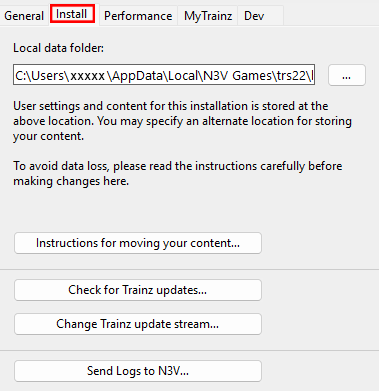
 Left Click  on the  Install  tab


Local Data Folder

Skip Down Skip Up  
This controls where Trainz stores all the assets that are built-in, downloaded (DLS, DLC, etc) and those that you have created yourself. Your screenshots are also stored here.

The xxxxx shown in the image above and left will be based on your Windows User Name and will be different for each user.

Because it is possible to move the Local Data Folder to another location and drive, the location shown in the images here may not be the same as shown in your installation of Trainz.
You can:-
Error creating thumbnail: /bin/bash: line 1: /usr/bin/convert: No such file or directory Error code: 127 edit the contents of this box to point to an empty folder on the same drive or another drive and, after restarting, Trainz will automatically create a new Local Data Folder there that will only contain the assets that came built-in when the program was installed. This is a fresh install. The original folder with all its contents will not be deleted.
Error creating thumbnail: /bin/bash: line 1: /usr/bin/convert: No such file or directory Error code: 127 use Windows File Explorer or another file utility to move the current folder to a new location and then edit the address in the text box to point to that location. When Trainz restarts it will use the new location as its Local Data Folder.


WARNING:
While the steps involved in moving your Local Data Folder are relatively simple they must be done with care. Common mistakes include not checking if the new location has enough storage space (the data being moved can be GigaBytes in size) and simple typing errors will lead to problems.


Instructions for moving or copying the Local Data Folder can be found on the Trainz Wiki.
Error creating thumbnail: /bin/bash: line 1: /usr/bin/convert: No such file or directory Error code: 127 A  Left Click  on the button labelled Instructions for moving your content will load the page at Moving Content.
Error creating thumbnail: /bin/bash: line 1: /usr/bin/convert: No such file or directory Error code: 127 Other related pages on the Wiki can be found at:-
 How to Create a Clean Local Data Folder
 How to Move Your Local Data Folder


Trainz Updates

Skip Down Skip Up  
This will allow you to manually check if any new updates (Service Packs or Hot Fixes) are available for your version and buld number of Trainz. If you are a beta tester then it will also check for new beta updates.


Notes:

Trainz will periodically check for any updates automatically so you do not have to run this manual check at all. If an update is detected by the automatic system you will be given the option to download and install it, or to ignore it for a few days to a week before another request to update is made. This button allows you to change your mind and perform the update at a time that is convenient to you.


Steps: To Check for Trainz Updates:-
 Left Click  on the button.
A Trainz Update window will appear and the automatic checker will run.
Error creating thumbnail: /bin/bash: line 1: /usr/bin/convert: No such file or directory Error code: 127 If no update is available then the message No update for Trainz is available at the current time will appear in the window. In this case simply close the window.
Error creating thumbnail: /bin/bash: line 1: /usr/bin/convert: No such file or directory Error code: 127 If an update is available you will be given the option to install it now or delay the installation for a few days to a week.
To delay the update select the delay period from the dropdown menu list and  Left Click  on the Continue button
To install an available update follow Step  3 .
To install the update leave the dropdown menu list at Install and  Left Click  on the Continue button then follow the prompts.
For the majority of installs there will be no need to change any of the settings shown in the series of windows that will appear.


Notes: Issues after Installing an Update

CAUTION:
When restarting Trainz after an update there may be significant delays
Error creating thumbnail: /bin/bash: line 1: /usr/bin/convert: No such file or directory Error code: 127 After an update has been installed, the Trainz Launcher will be automatically closed and then restarted. This will be followed by an automatic DBR (database rebuild) but without the usual progress bar on the screen. Depending on the size of your Local Data Folder this may take some time.
You can check to see if the DBR is still running before you start Trainz
Steps: To Check if a DBR is running in the Background:-
From the Trainz Launcher open the Developer menu
Select the option Show Client Logs

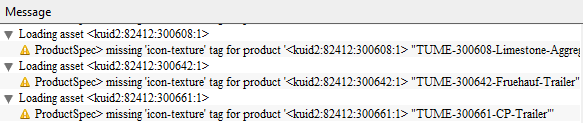
If a window appears with a self scrolling and growing list containing entries such as Loading asset <kuid ... as shown below, or Validating <kuid ... then a DBR is in progress.

When the list stops scrolling then the DBR has been completed.
Error creating thumbnail: /bin/bash: line 1: /usr/bin/convert: No such file or directory Error code: 127 Depending on the size and complexity of the update there may be other delays after selecting the option Start Trainz. These may become obvious when you load a route or session into Surveyor or Driver. These delays will be caused by the program updating, precaching and compiling data and will occur the first time you load a route or session into the new update. The symptoms may include any or all of:-
long delays for scenery assets to (slowly) appear
ground textures not loading
messages at the top of the screen such as "Precaching Content" and "Compiling Shaders"
slow response to keyboard or mouse commands


These symptoms are temporary and they will disappear. The second time that same route or session is loaded the loading and start process will return to normal.


Trainz Update Stream

Skip Down Skip Up  
This allows you to switch between different update streams that the latest release Trainz versions have available.


What is a Trainz Update Stream?
Any version of Trainz that has not yet reached its End-of-Support date (see the Wiki link at  Trainz Life Cycle Policy for the dates) will continue to receive updates. This includes the current (latest) release versions. These updates will be normal SP (Service Pack) and occasionally HF (Hot Fix) updates. They form the Normal Update Stream and are available to everyone who has a currently supported version of Trainz.
In addition, the next release of Trainz, which could be a completely new version or more likely the next SP update, will be undergoing Beta Testing. These Beta test versions will have their own separate update stream, the Beta Update Stream. Usually there will be many beta updates released before the next Normal Update Stream release.


Notes: The Beta Update Stream

Beta Test Versions of Trainz are always full of bugs - finding the bugs is the reason for the beta testing. They also have some normal features switched off, to make the testing easier, and contain annoying "pop-up" messages ("Assertions") that will halt the operation of the program whenever an "anomaly" is discovered.

Beta testing is not for everyone
Beta testing requires a lot of patience, some analytical skills and the ability to accurately report the events that led up to the discovery of a possible new bug. Sending possible bug reports to the Trainz Bug Report site is a vital part of beta testing.

If you are not interested in doing any of that then Beta Testing is not for you. If all you are interested in is playing with the "cool new features" that may be present, then you will be disappointed and frustrated. If you later change your mind then you will find that it is NOT simple to switch back to the Normal Update Stream - you will either have to wait until the next normal stream update is released, which can be several months, or reinstall the program from scratch.


Steps: To Change Your Trainz Update Stream:-
 Left Click  on the button. This will open a the first of a series of dialogue windows.
 
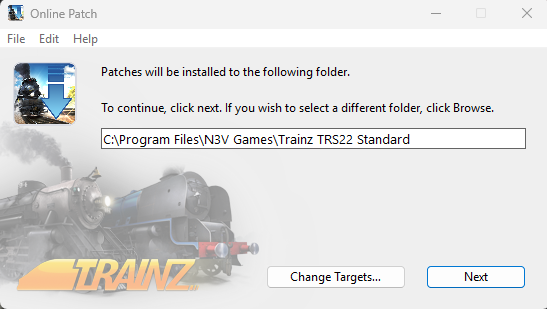
The first dialogue window will allow you to set where the patch will be installed. The current location, where your copy of Trainz is installed, will be shown in the window.
Error creating thumbnail: /bin/bash: line 1: /usr/bin/convert: No such file or directory Error code: 127 To leave this unchanged  Left Click  on the Next button
Error creating thumbnail: /bin/bash: line 1: /usr/bin/convert: No such file or directory Error code: 127 To change the location  Left Click  on the Change Targets... button (not Browse as named in the instructions shown in the image) then locate and select an available folder or drive and folder for the update patch

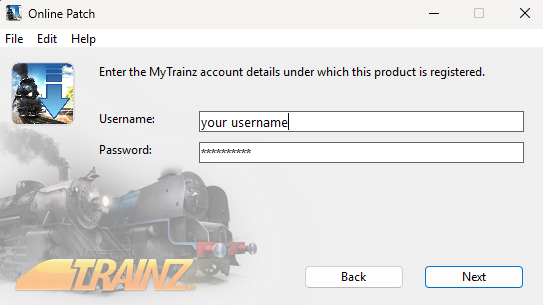
This will display the second dialogue window
 
in the second dialogue window enter your Trainz Login details
Error creating thumbnail: /bin/bash: line 1: /usr/bin/convert: No such file or directory Error code: 127 Enter your username and password
Error creating thumbnail: /bin/bash: line 1: /usr/bin/convert: No such file or directory Error code: 127 To confirm the entry  Left Click  on the Next button. This will display the third dialogue window
Error creating thumbnail: /bin/bash: line 1: /usr/bin/convert: No such file or directory Error code: 127 To backout and return to the previous dialogue window,  Left Click  on the Back button
 
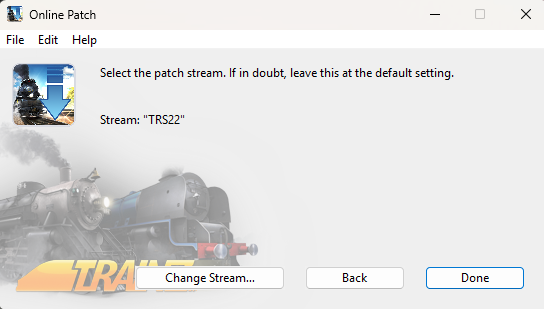
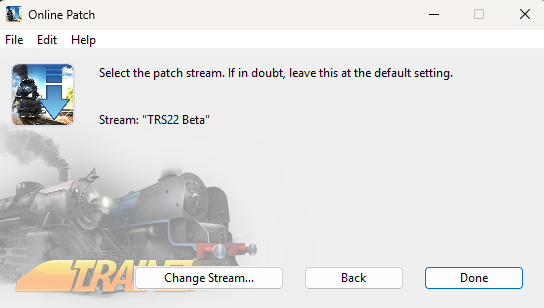
The third dialogue window will show your current Update Stream
Error creating thumbnail: /bin/bash: line 1: /usr/bin/convert: No such file or directory Error code: 127 To accept this and exit without changing the stream,  Left Click  on the Done button
Error creating thumbnail: /bin/bash: line 1: /usr/bin/convert: No such file or directory Error code: 127 To change the set Update Stream  Left Click  on the Change Stream... button. This will display the fourth dialogue window
Error creating thumbnail: /bin/bash: line 1: /usr/bin/convert: No such file or directory Error code: 127 To backout and return to the previous dialogue window,  Left Click  on the Back button
 
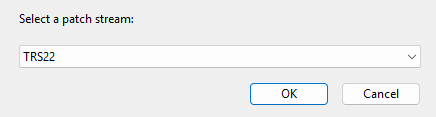
The fourth dialogue window will allow you to change your current Update Stream
Error creating thumbnail: /bin/bash: line 1: /usr/bin/convert: No such file or directory Error code: 127 To exit without changing the stream,  Left Click  on the Cancel button
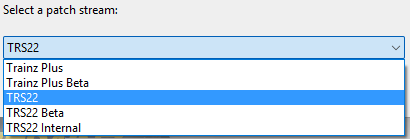
Error creating thumbnail: /bin/bash: line 1: /usr/bin/convert: No such file or directory Error code: 127 To change the Update Stream,  Left Click  inside the selection box to bring up a drop down menu of options
Error creating thumbnail: /bin/bash: line 1: /usr/bin/convert: No such file or directory Error code: 127  Left Click  on the required option then  Left Click  on the OK button. This will display the final dialogue window
 
The final dialogue window will display the new Update Stream. This is a repeat of the third dialogue window.
Error creating thumbnail: /bin/bash: line 1: /usr/bin/convert: No such file or directory Error code: 127 To accept this and exit  Left Click  on the Done button
Error creating thumbnail: /bin/bash: line 1: /usr/bin/convert: No such file or directory Error code: 127 To change the set Update Stream  Left Click  on the Change Stream... button. This will display the fourth dialogue window again to allow you to select a different Update Stream
Error creating thumbnail: /bin/bash: line 1: /usr/bin/convert: No such file or directory Error code: 127 To backout and return to the previous dialogue window,  Left Click  on the Back button


You can change your Trainz Update Stream at any time but going from the Beta Update Stream back to the Normal Update Stream is best performed after the beta test program has finished and the beta and normal versions have the same build numbers. If you remain on the Beta Update Stream then you will automatically get the first beta update for the next SP version when it is released.


Send Logs to N3V

Skip Down Skip Up  
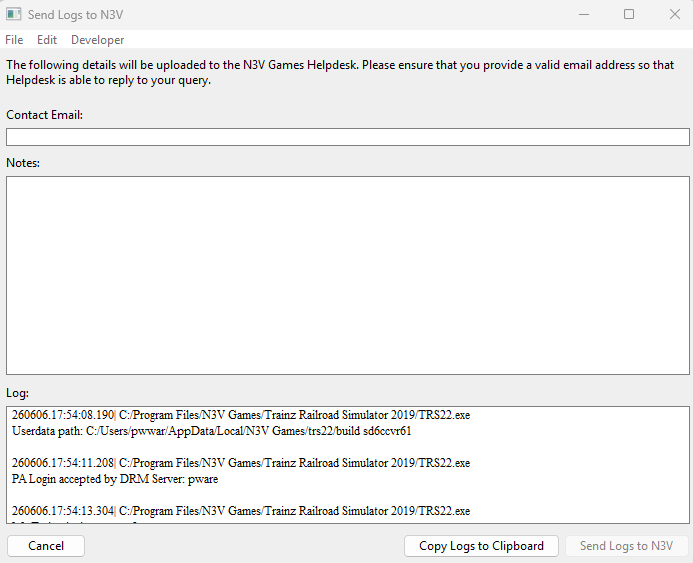
This allows you to send diagnostic logs directly to the N3V Games Support Desk for analysis or to copy the logs to your system clipboard.


Trainz keeps a text copy, a "log", of a wide range of actions by the program. These include the results of running a DBR, or an EDBR, error and warning messages generated when assets are installed, assertions created by a beta version, build startups and logins, configuration changes, etc. These logs are NOT sent automatically. You have to manually choose this option each time you want to send the logs. Alternatively, they can be sent to your system clipboard.


Steps: To Send Logs to N3V or to Your Clipboard:-
 Left Click  on the button
 
Enter a valid Contact Email address where the Support Desk can contact you.


When an email address has been added the Send Logs to N3V button will be selectable
 
Type a report in the Notes: section describing the problem. Include as much detail as possible.
 
 Left Click  on the
Error creating thumbnail: /bin/bash: line 1: /usr/bin/convert: No such file or directory Error code: 127 Cancel button to cancel the request
Error creating thumbnail: /bin/bash: line 1: /usr/bin/convert: No such file or directory Error code: 127 Copy Logs to Clipboard to copy the data into your OS clipboard
Error creating thumbnail: /bin/bash: line 1: /usr/bin/convert: No such file or directory Error code: 127 Send Logs to N3V to send an email containing the logs to the Trainz Support Desk. This option is only available if an email address has been added to the report


An alternative method of reporting a problem to the developers at N3V is to fill out and submit a Bug Report form. The form can be found at:-
https://n3vgames.typeform.com/to/xRdryu


The Performance Settings

Skip Down   Top Next Up Next Down Bottom
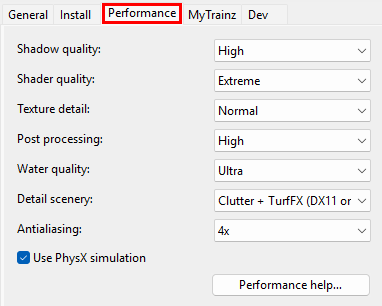
These settings are where you can "fine tune" the performance of the program to better match the hardware of your computer system and the demands of the routes you are running.
You may need to experiment with these settings to get the best match with your system and the routes you run.


 Left Click  on the  Performance  tab


WARNING:
Changing most of these settings will force you to restart Trainz.


 Left Click  on the button to open the  Launcher Settings Help Page.


Shadow Quality

Skip Down Skip Up  
This allows you to set the visual resolution of shadows, increase the distance at which they will be drawn and the number of object types that will have shadows. Note: Some objects, such as power lines, will only display shadows on the higher settings.


Steps: To Set the Shadow Quality:-
 Left Click  on the Shadow Quality Drop Down box. This will display the range of available values.
 
 Left Click  on a value. Higher values will create better shadow effects but some users may prefer to shorten the Draw Distance when using higher values. The Draw Distance setting is in the Surveyor Main Menu - Video Settings.


A restart will be needed after changing this setting


Shader Quality

Skip Down Skip Up  
This allows you to select Shader Quality that will be used.


Notes: About Shaders

Shaders (they have nothing to do with shade) are short programs that run on your GPU (Graphics Processing Unit). They input raw data from a scene, which consists of triangles together with lighting conditions and other features, and output the finished pixels onto the screen. There are different types of shaders with different levels of complexity and tasks that they perform.


Steps: To Set the Shader Quality:-
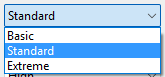
 Left Click  on the Shader Quality Drop Down box. This will display the range of available settings.
 
 Left Click  on a setting. Higher settings will give better results but it will depend on your GPU. Basic or Standard may be better choices for lower specification systems. Shaders cannot be turned off completely.


A restart will be needed after changing this setting


Texture Detail

Skip Down Skip Up  
This allows you to set the size of textures that will be loaded.


Steps: To Set the Texture Detail:-
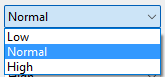
 Left Click  on the Texture Detail Drop Down box. This will display the range of available settings.
 
 Left Click  on a setting. Lower settings will use less memory and may speed up loading times but, depending on your GPU, there may be a drop in image quality.


A restart will be needed after changing this setting


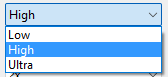
Post Processing

Skip Down Skip Up  
This allows you to adjust the level of Post Processing.


Post Processing, which happens after an image frame has been constructed, applies filters or special effects to the entire image frame before it is finally displayed on the screen. Examples would include adding motion blur, atmospheric effects, dynamic lighting.


Steps: To Set the Level of Post Processing Used:-
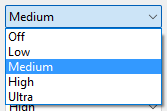
 Left Click  on the Post Processing Drop Down box. This will display the range of available settings.
 
 Left Click  on a setting. The effect of this depends on your screen resolution (see  Screen Size and Display Resolution) and your GPU. On system with lower specification hardware, combined with a high resolution setting, you may see a drop in performance if Ultra (and even High on some systems) has been selected.


A restart will be needed after changing this setting


Water Quality

Skip Down Skip Up  
This allows you to set the level of water effects such as reflections from the surface.


Steps: To Set the Water Quality:-
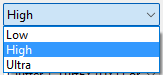
 Left Click  on the Water Quality Drop Down box. This will display the range of available settings.
 
 Left Click  on a setting. Low will use basic Shaders only with no water surface reflections. High will create reflections but it will skip some that are not likely to be visible. Ultra will skip fewer items but will have the biggest impact on performance.


A restart will be needed after changing this setting


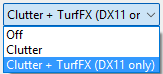
Detail Scenery

Skip Down Skip Up  
This allows you to show/hide TurfFX and Clutter effect layers.


Notes:

Error creating thumbnail: /bin/bash: line 1: /usr/bin/convert: No such file or directory Error code: 127 The TurfFX effect layer is only available on NVidia GPUs
Error creating thumbnail: /bin/bash: line 1: /usr/bin/convert: No such file or directory Error code: 127 The TurfFX effect layer is not visible in the current Trainz Plus (beta) version when using the DirectX 12 Windows API (see  Vertical Synchronization)
Error creating thumbnail: /bin/bash: line 1: /usr/bin/convert: No such file or directory Error code: 127 This setting does not affect the display of the Water and Color effect layers


Steps: To Set the Scenery Detail:-
 Left Click  on the Scenery Detail Drop Down box. This will display the range of available settings.
 
 Left Click  on a setting. Off will hide both TurfFX and Clutter effect layers. Clutter show the Clutter effect layer only. Clutter + TurfFX (DX11 only) will show both (if TurfFX is supported) on the DirectX 11 API only. DirectX 12 is currently only supported in the Trainz Plus (beta) version.


A restart will be needed after changing this setting


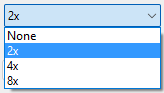
Antialiasing

Skip Down Skip Up  
This allows you to reduce the appearance of "jagged edges" on objects by smoothing out their pixelation.


Notes: Antialiasing

Every object on your display screen (even this text) is made of individual pixels and they work like tiny Lego blocks. A horizontal or a vertical line of pixels, or Lego blocks, has no jagged edges.

However, a diagonal line or curve will look like a set of stairs when viewed close up. This is the jagged edge or "jaggies". Antialiasing eliminates or reduces the "jaggies" by adjusting the colours of the pixels along the edge and the surrounding area so that they form a smooth transition from the object colour (e.g. the black lettering) to the background colour (the white page).


Steps: To Set the Antialiasing Level:-
 Left Click  on the Antialiasing Drop Down box. This will display the range of available values.
 
 Left Click  on a value. Depending on your graphics card a setting of 4x will give reasonably good results.


A restart will be needed after changing this setting


PhysX Simulation

  Skip Up  
This allows you to switch particle effect collisions on/off.
An example of particle effects collisions would be smoke being blocked from passing through the roof and walls of a tunnel or an engine shed. The object (tunnel or shed) must be created with PhysX meshes that will interact with smoke particles. For most scenes this will have a small impact on performance but the performance will decrease as the number of particles and objects with PhysX meshes increases.


Steps: To Set the PhysX Simulations ON/OFF:-
 Left Click  on the Check Box. No restart will be needed after changing this setting.


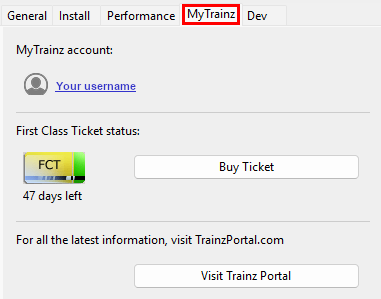
The MyTrainz Settings

Skip Down   Top Next Up Next Down Bottom
These settings identify your user login details. In some older versions this Tab is labelled Internet.
You can also check your current FCT status and, if required, purchase more FCT access.


 Left Click  on the  MyTrainz  tab


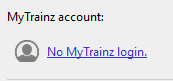
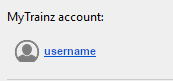
MyTrainz account:
This section should show your normal Trainz Forum username which should be the same name you used when you purchased this copy of Trainz.


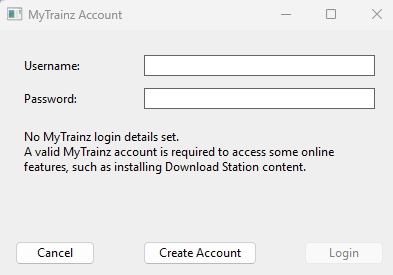
IF you have NOT set up a Trainz Account then you will see the following information in the MyTrainz tab, depending on your version of Trainz.


TRS22 and Trainz Plus version
 
TRS19 version

First Class Ticket status:
This section shows the status (active/inactive, days left) of your current FCT and the option to purchase a new one. An FCT gives you faster and a higher priority access to the DLS.

If you are a Trainz Plus subscriber then you will have an FCT as part of your subscription for the duration of your subscription.


Enter Login Details

Skip Down Skip Up        
Your Login details are needed to access the Download Station and other online data.
Your Trainz Login is the same as the Trainz Forum Login that you used to purchase or subscribe to your current copy of Trainz. If you do not have a Trainz Forum Login then you can create a new account.


Steps: To Enter your User Details into Trainz:
 Left Click  on the link No MyTrainz login or username
If you simply need to confirm your current login then  Left Click  on your username link and renter your details.
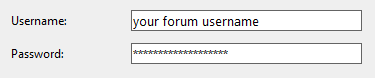
Enter your Trainz Forum Username and Password into the dialogue window text boxes.
If you do not have a Trainz Forum login then skip to the next section
 Create an Account.
 Left Click  on the button which will become active as soon as data has been entered
There will be a delay while the data is checked. This will be followed by one of two messages
IF you see the login succeeded message then  Left Click  on the button.
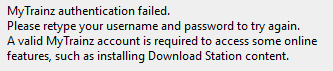
IF you see the failed message then try again (you may have mistyped the username or password). If the failed message persists then contact the Support desk.
After entering your login details, close the Trainz Settings dialogue window and exit the Trainz Launcher. Then restart Trainz.


Create an Account

Skip Down Skip Up        
You will need a Trainz Account to be able to access the online features of Trainz including the Download Station where there is a vast library of free assets (routes and sessions, locomotives and rolling stock, signals and tracks, scenery of all types, ground textures, etc) available for you to download and install.
A Trainz Account will also give you a Trainz Forum Login username and password to access the Trainz Forum.


Notes:

If you already have a Trainz Forum username and password then you already have a Trainz Account that will also log you into the Trainz program as described in the section  Enter Login Details below. In this case you do not need to create a new account.

The Trainz Forum is located at  Trainz. Near the top right of the Forum home page, between the links for Code of Conduct and Search, if you see a letter on a round coloured background followed by a name, then that is your username and you already have an account. If you see a link called Login then you most likely do not have an account and you will need to login with the account details that will be created by following the Steps described below.


Steps: To Create a New Account:
 Left Click  on the link No MyTrainz login or username
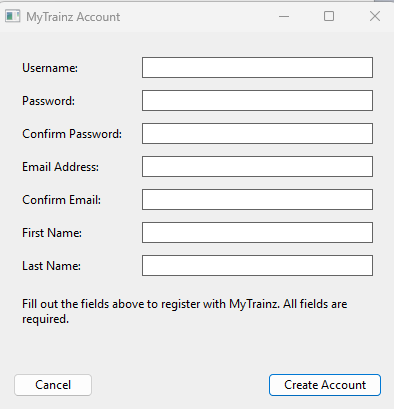
In the dialogue window (shown right) where you are asked to enter your Username and Password  Left Click  on the button.
In the New Account Dialogue Window (shown right) enter ALL the information requested.
When complete,  Left Click  on the button. This will create a new Trainz Account with a Username and Password to enter into your Trainz program and into the Trainz Forum.
After entering your login details, close the Trainz Settings dialogue window and exit the Trainz Launcher. Then restart Trainz.
Error creating thumbnail: /bin/bash: line 1: /usr/bin/convert: No such file or directory Error code: 127 If required, you can then enter your login details into Trainz as described in the section  Enter Login Details below.
It would be a good idea to login again to confirm that your new Trainz Account is working correctly.
Error creating thumbnail: /bin/bash: line 1: /usr/bin/convert: No such file or directory Error code: 127 You will also be able to login to the Trainz Forum using your new login details - open the  Trainz Forum home page and click the Log In link. Then enter the same username and password that you entered in the New Account Dialogue Window. Each time you access the forum this username and password will be used automatically to identify you without having to login again.


First Class Ticket

Skip Down Skip Up        
The FCT or First Class Ticket is an optional prepaid feature that gives you higher speed priority access to the Download Station or DLS.
An FCT is automatically included in all Trainz Plus subscriptions for the duration of the subscription.


With an FCT:-
Error creating thumbnail: /bin/bash: line 1: /usr/bin/convert: No such file or directory Error code: 127 there is no limit to how much or how often you can download from the DLS.
Error creating thumbnail: /bin/bash: line 1: /usr/bin/convert: No such file or directory Error code: 127 you get priority Download Station access.
Error creating thumbnail: /bin/bash: line 1: /usr/bin/convert: No such file or directory Error code: 127 Only 1 FCT is needed per account, not 1 per Trainz product. So if you own both TRS19 and TRS22 then the same FCT will be used for both.
Error creating thumbnail: /bin/bash: line 1: /usr/bin/convert: No such file or directory Error code: 127 you will get increased download speeds. The exact speed will depend on external factors such as the speed of your internet connection, the paths taken by the data to reach your system, the access speed of the servers used by N3V and any restrictions imposed by your Internet Service Provider.


Notes: FCT FaCTs

Error creating thumbnail: /bin/bash: line 1: /usr/bin/convert: No such file or directory Error code: 127 FCTs can be purchased for periods of 7, 30, 90, 180 and 365 day durations
Error creating thumbnail: /bin/bash: line 1: /usr/bin/convert: No such file or directory Error code: 127 Once purchased an FCT has to be manually activated before it can be used. You can purchase an FCT when it is on sale, for example, and leave it inactive until you are ready to use it.
Error creating thumbnail: /bin/bash: line 1: /usr/bin/convert: No such file or directory Error code: 127 FCTs that have not been activated do not lose any days from their account.
Error creating thumbnail: /bin/bash: line 1: /usr/bin/convert: No such file or directory Error code: 127 You can stockpile multiple FCTs - have more than one stored in your account - and only activate another one after the active FCT expires.
Error creating thumbnail: /bin/bash: line 1: /usr/bin/convert: No such file or directory Error code: 127 If you have a Trainz Plus subscription then you will automatically get an FCT that will last until the subscription expires. Renew you subscription and the FCT will also be renewed.


The FCT Status indicates how many days are left on your current active FCT.


 Left Click  on the button to purchase another FCT (you can activate it at any time after purchase).


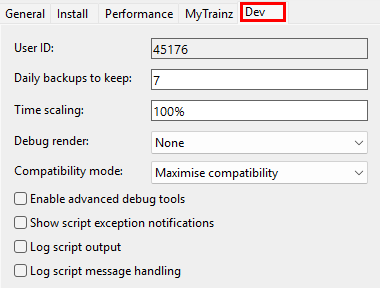
The Dev Settings

    Top Next Up Next Down Bottom
These settings are designed for asset developers ONLY to test the performance and other features of the assets they create.
Unless you are an experienced asset developer you are strongly advised to NOT change these settings.
They also control how often automatic backups will be made of any routes or sessions that you are currently developing in Surveyor.


 Left Click  on the  Dev  tab


      Top Next Up    


Trainz Wiki

More Tutorials and Guides to Using Trainz


This page was created by Trainz user pware in July 2026 and was last updated as shown below.