|
|
| Line 575: |
Line 575: |
| <tr valign="top"> | | <tr valign="top"> |
| <td width=629><span id="skipGeneralLanguage"></span> | | <td width=629><span id="skipGeneralLanguage"></span> |
| =='''Language and Font Settings'''==
| |
| </td>
| |
| <td width=50>[[image:SkipDown.png|link=#skipGeneralMisc|Skip Down]]</td> <!-- skip Down -->
| |
| <td width=50>[[image:SkipUp.png|link=#skipGeneralDisplay|Skip Up]]</td> <!-- skip Up -->
| |
| <td width=46> </td>
| |
| <td width=75> </td>
| |
| <td width=75> </td>
| |
| <td width=75> </td>
| |
| </tr>
| |
| </table> <!-- END Nav Buttons Table -->
| |
|
| |
| <table width=1000 bgcolor="lightcyan" cellpadding=2>
| |
| <tr valign="top">
| |
| <td width=10>[[image:BlueDot10x10.png|link=]]</td>
| |
| <td>The selected language sets the preferred language for all internal menus, palette titles and commands, drop down lists</td>
| |
| </tr>
| |
| <tr valign="top">
| |
| <td>[[image:BlueDot10x10.png|link=]]</td>
| |
| <td>The language used in all driver session message popups and HTML pages is set within those assets and not in this configuration</td>
| |
| </tr>
| |
| <tr valign="top">
| |
| <td>[[image:BlueDot10x10.png|link=]]</td>
| |
| <td>The selected font size option only applies to asset lists</td>
| |
| </tr>
| |
| </table>
| |
| <br>
| |
| <table width=1000>
| |
| <tr valign="top">
| |
| <td>[[image:DotPointBlueSquare.png|link=]] <span style="font-weight: 700; font-size: 15px;">Language</span></td>
| |
| </tr>
| |
| <tr valign="top">
| |
| <td>'''Trainz''' allows you to choose a preferred display language for all menus, option boxes, command lists, etc that are part of the program. The default language is '''English'''.</td>
| |
| </tr>
| |
| </table>
| |
| <br>
| |
| <table width=1000 bgcolor=#000000 cellpadding=2>
| |
| <tr valign="top">
| |
| <td>
| |
| <table bgcolor=#ffffff cellpadding=2>
| |
| <tr valign="top">
| |
| <td>
| |
| <table>
| |
| <tr valign="top">
| |
| <td colspan=2><span style="font-weight: 700; font-size: 15px;">Steps: To Set the Preferred Display Language:-</span></td>
| |
| </tr>
| |
| <tr valign="top">
| |
| <td width=25>[[image:DotPoint1.JPG|link=]]</td>
| |
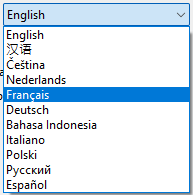
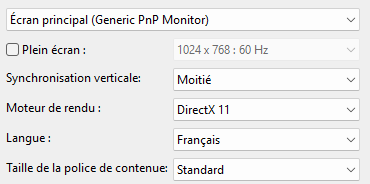
| <td><span style="font-weight: 700; font-size: 15px; background-color: lightcyan;"> Left Click </span> on the '''Language''' menu box or its arrow icon to display the list of available languages.</td>
| |
| <td width=195 rowspan=4>[[image:General-LanguageMenu.png|link=]]</td>
| |
| </tr>
| |
| <tr valign="top">
| |
| <td> </td>
| |
| <td>[[image:General-Language.png|link=]]</td>
| |
| <!-- <td></td> -->
| |
| </tr>
| |
| <tr valign="top">
| |
| <td>[[image:DotPoint2.JPG|link=]]</td>
| |
| <td>Then <span style="font-weight: 700; font-size: 15px; background-color: lightcyan;"> Left Click </span> on the language that you want to use - for example '''Français (French)'''.</td>
| |
| <!-- <td></td> -->
| |
| </tr>
| |
| <tr valign="top">
| |
| <td>[[image:DotPoint3.JPG|link=]]</td>
| |
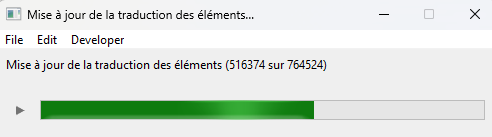
| <td>Close the '''Trainz Settings''' dialogue window. The program will immediately search all installed assets for language tags that include the selected language in their config.txt files. A progress bar will be shown in the selected language.<br>
| |
| [[image:General-FrenchProgressBar.png|link=]]</td>
| |
| <!-- <td></td> -->
| |
| </tr>
| |
| <tr valign="top">
| |
| <td>[[image:DotPoint4.JPG|link=]]</td>
| |
| <td colspan=2>When the progress bar completes and disappears close the '''Trainz Launcher'''.</td>
| |
| </tr>
| |
| <tr valign="top">
| |
| <td>[[image:DotPoint5.JPG|link=]]</td>
| |
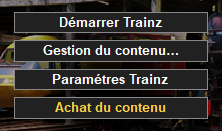
| <td colspan=2>Restart '''Trainz'''. The '''Trainz Launcher''' will reappear using labels in the selected language.
| |
| <table>
| |
| <tr valign="top">
| |
| <td width=225>[[image:General-FrenchLauncherMenu.png|link=]]</td>
| |
| <td width=380>All other menu screens will also be shown using the selected language.<br>
| |
| [[image:General-French.png|link=]]</td>
| |
| <td>
| |
| <table bgcolor=#ffffb0 cellpadding=2>
| |
| <tr valign="top">
| |
| <td width=25>[[image:NotePad.PNG|link=]]</td>
| |
| <td>The names of individual assets, as shown in some '''Surveyor 2.0 Palettes''', '''Surveyor Classic Tools''' and in '''Content Manager''', will only use the preferred language <span style="font-weight: 700; font-size: 15px;">IF</span> that language has been added to the asset's '''config.txt''' file. Otherwise '''English''' will be used.</td>
| |
| </tr>
| |
| </table>
| |
| </td>
| |
| </tr>
| |
| </table>
| |
| </td>
| |
| </tr>
| |
| </table>
| |
| </td>
| |
| </tr>
| |
| </table>
| |
| </td>
| |
| </tr>
| |
| </table>
| |
| <br>
| |
| <table width=1000>
| |
| <tr valign="top">
| |
| <td>[[image:DotPointBlueSquare.png|link=]] <span style="font-weight: 700; font-size: 15px;">Font Size</span></td>
| |
| </tr>
| |
| <tr valign="top">
| |
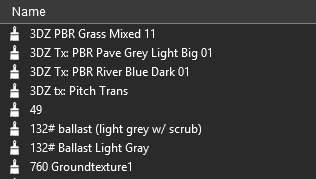
| <td>This allows you to display lists of assets (content) in a larger font size. It applies to the asset lists shown in some '''Surveyor 2.0 Palettes''' and in '''Content Manager'''.</td>
| |
| </tr>
| |
| </table>
| |
| <br>
| |
| <table width=1000 bgcolor=#000000 cellpadding=2>
| |
| <tr valign="top">
| |
| <td>
| |
| <table width=996 bgcolor=#ffffff cellpadding=2>
| |
| <tr valign="top">
| |
| <td colspan=2><span style="font-weight: 700; font-size: 15px;">Steps: To Set the Asset Name Font Size:-</span></td>
| |
| </tr>
| |
| <tr valign="top">
| |
| <td width=25>[[image:DotPoint1.JPG|link=]]</td>
| |
| <td width=400><span style="font-weight: 700; font-size: 15px; background-color: lightcyan;"> Left Click </span> on the menu box or its arrow icon to show the options.</td>
| |
| <td>[[image:General-FontSize.png|link=]]</td>
| |
| </tr>
| |
| <tr valign="top">
| |
| <td> </td>
| |
| <td colspan=2>
| |
| <table>
| |
| <tr valign="top">
| |
| <td width=200>[[image:General-FontSizeMenu.png|link=]]</td>
| |
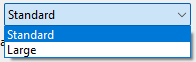
| <td>There are only two choices: '''Standard''' which is the default and '''Large'''</td>
| |
| </tr>
| |
| </table>
| |
| </td>
| |
| </tr>
| |
| <tr valign="top">
| |
| <td>[[image:DotPoint2.JPG|link=]]</td>
| |
| <td colspan=2><span style="font-weight: 700; font-size: 15px; background-color: lightcyan;"> Left Click </span> on the size option that you want to use.
| |
| <table>
| |
| <tr valign="top">
| |
| <td width=320>[[image:General-FontNormal.png|link=]]<br>
| |
| '''Assets Palette Standard Font'''</td>
| |
| <td width=320>[[image:General-FontLarge.png|link=]]<br>
| |
| '''Assets Palette Large Font'''</td>
| |
| <td>
| |
| <table bgcolor=#ffffb0 cellpadding=2>
| |
| <tr valign="top">
| |
| <td width=25>[[image:NotePad.PNG|link=]]</td>
| |
| <td>This will only change the size of the font used to display the names of individual assets, as shown in some '''Surveyor 2.0 Palettes''' and in '''Content Manager'''. It has no effect on the font sizes used in '''Surveyor Classic'''.</td>
| |
| </tr>
| |
| </table>
| |
| </td>
| |
| </tr>
| |
| </table>
| |
| </td>
| |
| </tr>
| |
| </table>
| |
| </td>
| |
| </tr>
| |
| </table>
| |
| <br>
| |
| <table width=1000> <!-- BEGIN Nav Buttons Table SKIPS -->
| |
| <tr valign="top">
| |
| <td width=629><span id="skipGeneralMisc"></span>
| |
| =='''Misc Settings'''==
| |
| </td>
| |
| <td width=50>[[image:SkipDown.png|link=#stepTabInstalled|Skip Down]]</td> <!-- skip Down -->
| |
| <td width=50>[[image:SkipUp.png|link=#skipGeneralLanguage|Skip Up]]</td> <!-- skip Up -->
| |
| <td width=46> </td>
| |
| <td width=75> </td>
| |
| <td width=75> </td>
| |
| <td width=75> </td>
| |
| </tr>
| |
| </table> <!-- END Nav Buttons Table -->
| |
|
| |
| <table width=1000 bgcolor="lightcyan" cellpadding=2>
| |
| <tr valign="top">
| |
| <td colspan=2><span style="font-weight: 700; font-size: 15px;">Key Points:-</span></td>
| |
| </tr>
| |
| <tr valign="top">
| |
| <td width=10>[[image:BlueDot10x10.png|link=]]</td>
| |
| <td>You can display all assets in '''Content Manager''' using their thumbnails</td>
| |
| </tr>
| |
| <tr valign="top">
| |
| <td>[[image:BlueDot10x10.png|link=]]</td>
| |
| <td>You can add support or some non-keyboard game controllers</td>
| |
| </tr>
| |
| </table>
| |
| <br>
| |
| <table width=1000>
| |
| <tr valign="top">
| |
| <td>[[image:DotPointBlueSquare.png|link=]] <span style="font-weight: 700; font-size: 15px;">Content Manager Thumbnails</span></td>
| |
| </tr>
| |
| <tr valign="top">
| |
| <td>[[image:General-ContentThumbnails.png|link=]]</td>
| |
| </tr>
| |
| <tr valign="top">
| |
| <td>This allows you to display all the assets in '''Content Manager''' using their thumbnails. The thumbnails will be constructed from the actual mesh and texture files (if present) in the assets and not from the '''Thumbnail.jpg''' images supplied by the creator.</td>
| |
| </tr>
| |
| </table>
| |
| <br>
| |
| <table width=1000 bgcolor=#000000 cellpadding=2>
| |
| <tr valign="top">
| |
| <td>
| |
| <table width=996 bgcolor=#ffffff cellpadding=2>
| |
| <tr valign="top">
| |
| <td colspan=2><span style="font-weight: 700; font-size: 15px;">Steps: To Display Assets Using Thumbnails in Content Manager:-</span></td>
| |
| </tr>
| |
| <tr valign="top">
| |
| <td width=25>[[image:DotPoint1.JPG|link=]]</td>
| |
| <td><span style="font-weight: 700; font-size: 15px; background-color: lightcyan;"> Left Click </span> on the '''Check Box''' to turn this control '''ON''' or '''OFF'''.</td>
| |
| </tr>
| |
| <tr valign="top">
| |
| <td> </td>
| |
| <td>
| |
| <table bgcolor=#ffffb0 cellpadding=2>
| |
| <tr valign="top">
| |
| <td width=25>[[image:NotePad.PNG|link=]]</td>
| |
| <td>This will only affect the display of assets in '''Content Manager'''. The '''Assets Palette''' and '''Filter Palette''' in '''Surveyor 2.0''' each has a button icon that will turn their thumbnail view on and off.</td>
| |
| </tr>
| |
| </table>
| |
| </td>
| |
| </tr>
| |
| </table>
| |
| </td>
| |
| </tr>
| |
| </table>
| |
| <br>
| |
| <table width=1000>
| |
| <tr valign="top">
| |
| <td>[[image:DotPointBlueSquare.png|link=]] <span style="font-weight: 700; font-size: 15px;">Game Controller Support</span></td>
| |
| </tr>
| |
| <tr valign="top">
| |
| <td>[[image:General-GameController.png|link=]]</td>
| |
| </tr>
| |
| <tr valign="top">
| |
| <td>This allows you to control '''Trainz''' using an external game controller instead of the keyboard and mouse. The '''RailDriver Controller''' is one example. You must have the necessary software drivers installed.</td>
| |
| </tr>
| |
| </table>
| |
| <br>
| |
| <table width=1000 bgcolor=#000000 cellpadding=2>
| |
| <tr valign="top">
| |
| <td>
| |
| <table width=996 bgcolor=#ffffff cellpadding=2>
| |
| <tr valign="top">
| |
| <td colspan=2><span style="font-weight: 700; font-size: 15px;">Steps: To Enable Game Controller Support:-</span></td>
| |
| </tr>
| |
| <tr valign="top">
| |
| <td width=25>[[image:DotPoint1.JPG|link=]]</td>
| |
| <td><span style="font-weight: 700; font-size: 15px; background-color: lightcyan;"> Left Click </span> on the '''Check Box''' to turn this control '''ON''' or '''OFF'''.</td>
| |
| </tr>
| |
| </table>
| |
| </td>
| |
| </tr>
| |
| </table>
| |
| <br>
| |
| <table width=1000> <!-- BEGIN Nav Buttons Table NO SKIPS -->
| |
| <tr valign="top">
| |
| <td width=629><span id="stepTabInstalled"></span>
| |
|
| |
| =='''Language and Font Settings'''== | | =='''Language and Font Settings'''== |
| </td> | | </td> |
| Line 1,207: |
Line 952: |
| <tr valign="top"> | | <tr valign="top"> |
| <td width=629><span id="skipTrainzUpdates"></span> | | <td width=629><span id="skipTrainzUpdates"></span> |
|
| |
| =='''Trainz Updates'''== | | =='''Trainz Updates'''== |
| </td> | | </td> |
| Line 1,906: |
Line 1,650: |
| <tr valign="top"> | | <tr valign="top"> |
| <td width=629><span id="skipTexture"></span> | | <td width=629><span id="skipTexture"></span> |
|
| |
| =='''Texture Detail'''== | | =='''Texture Detail'''== |
| </td> | | </td> |
| Line 2,202: |
Line 1,945: |
| <tr valign="top"> | | <tr valign="top"> |
| <td width=629><span id="skipAntiAliasing"></span> | | <td width=629><span id="skipAntiAliasing"></span> |
|
| |
| =='''Antialiasing'''== | | =='''Antialiasing'''== |
| </td> | | </td> |
| Line 2,278: |
Line 2,020: |
| <tr valign="top"> | | <tr valign="top"> |
| <td width=629><span id="skipPhysX"></span> | | <td width=629><span id="skipPhysX"></span> |
|
| |
| =='''PhysX Simulation'''== | | =='''PhysX Simulation'''== |
| </td> | | </td> |
| Line 2,962: |
Line 2,703: |
| <tr valign="top"> | | <tr valign="top"> |
| <td width=629><span id="stepTabDev"></span> | | <td width=629><span id="stepTabDev"></span> |
|
| |
| ='''The Dev Settings'''= | | ='''The Dev Settings'''= |
| </td> | | </td> |
| Line 3,165: |
Line 2,905: |
| <tr valign="top"> | | <tr valign="top"> |
| <td width=629><span id="skipTimeScaling"></span> | | <td width=629><span id="skipTimeScaling"></span> |
|
| |
| =='''Time Scaling:'''== | | =='''Time Scaling:'''== |
| </td> | | </td> |
| Line 3,269: |
Line 3,008: |
| <tr valign="top"> | | <tr valign="top"> |
| <td width=629><span id="skipDebugRender"></span> | | <td width=629><span id="skipDebugRender"></span> |
|
| |
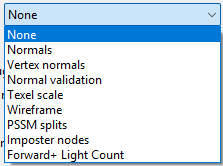
| =='''Debug Render:'''== | | =='''Debug Render:'''== |
| </td> | | </td> |
| Line 3,350: |
Line 3,088: |
| <tr valign="top"> | | <tr valign="top"> |
| <td width=629><span id="skipCompatibility"></span> | | <td width=629><span id="skipCompatibility"></span> |
|
| |
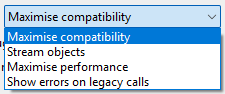
| =='''Compatibility Mode:'''== | | =='''Compatibility Mode:'''== |
| </td> | | </td> |
| Line 3,472: |
Line 3,209: |
| <tr valign="top"> | | <tr valign="top"> |
| <td width=629><span id="skipDebugLogs"></span> | | <td width=629><span id="skipDebugLogs"></span> |
|
| |
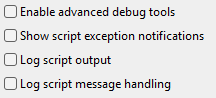
| =='''Debug Tools and Logs:'''== | | =='''Debug Tools and Logs:'''== |
| </td> | | </td> |
| Line 3,601: |
Line 3,337: |
| ---- | | ---- |
| ---- | | ---- |
|
| |
| ='''Trainz Wiki'''= | | ='''Trainz Wiki'''= |
| <table cellpadding=2 bgcolor=#ffffff> | | <table cellpadding=2 bgcolor=#ffffff> |






 Primary Monitor








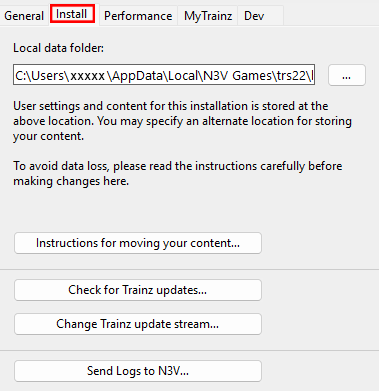


 Moving Content.



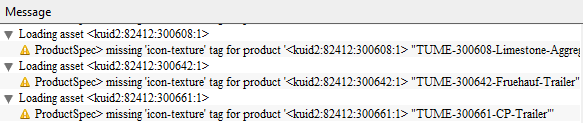




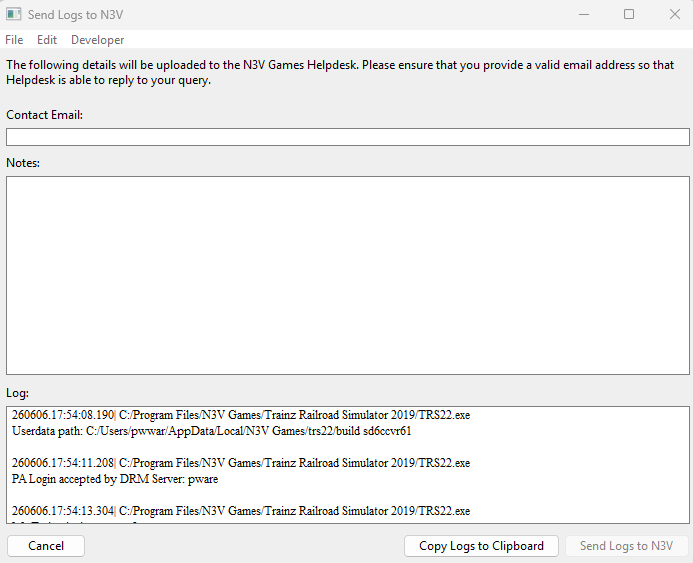




















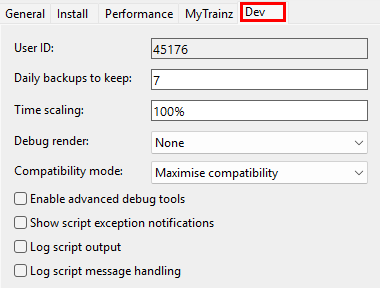

 Local Data Folder) and are only kept for 7 days.