How to Deal with Missing Dependencies: Difference between revisions
mNo edit summary |
|||
| Line 134: | Line 134: | ||
<tr valign="top"> | <tr valign="top"> | ||
<td>[[image:DotPoint2.JPG|link=]]</td> | <td>[[image:DotPoint2.JPG|link=]]</td> | ||
<td><span style="font-weight: 700; font-size: 15px; background-color: lightcyan;"> Right Click </span> on any one of the highlighted assets and select the option <span style="font-weight: 700; font-size: 15px;">List Dependencies</span></td> | <td><span style="font-weight: 700; font-size: 15px; background-color: lightcyan;"> Right Click </span> on any one of the highlighted assets and select the option <span style="font-weight: 700; font-size: 15px; background-color: #d9d9d9;"> List Dependencies </span></td> | ||
<!-- <td></td> --> | <!-- <td></td> --> | ||
</tr> | </tr> | ||
| Line 156: | Line 157: | ||
<tr valign="top"> | <tr valign="top"> | ||
<td>[[image:DotPoint5.JPG|link=]]</td> | <td>[[image:DotPoint5.JPG|link=]]</td> | ||
<td colspan=2><span style="font-weight: 700; font-size: 15px; background-color: lightcyan;"> Right Click </span> on any one of the highlighted items and select the option <span style="font-weight: 700; font-size: 15px;">Download</span> | <td colspan=2><span style="font-weight: 700; font-size: 15px; background-color: lightcyan;"> Right Click </span> on any one of the highlighted items and select the option <span style="font-weight: 700; font-size: 15px; background-color: #d9d9d9;"> Download </span> | ||
</td> | </td> | ||
</tr> | </tr> | ||
| Line 195: | Line 196: | ||
<tr valign="top"> | <tr valign="top"> | ||
<td>[[image:DotPoint2.JPG|link=]]</td> | <td>[[image:DotPoint2.JPG|link=]]</td> | ||
<td><span style="font-weight: 700; font-size: 15px; background-color: lightcyan;"> Right Click </span> on any one of the highlighted assets and select the option <span style="font-weight: 700; font-size: 15px;">List Dependencies</span></td> | <td><span style="font-weight: 700; font-size: 15px; background-color: lightcyan;"> Right Click </span> on any one of the highlighted assets and select the option <span style="font-weight: 700; font-size: 15px; background-color: #d9d9d9;"> List Dependencies </span></td> | ||
</tr> | </tr> | ||
<tr valign="top"> | <tr valign="top"> | ||
| Line 208: | Line 209: | ||
<tr valign="top"> | <tr valign="top"> | ||
<td>[[image:DotPoint5.JPG|link=]]</td> | <td>[[image:DotPoint5.JPG|link=]]</td> | ||
<td>Open the <span style="font-weight: 700; font-size: 15px;">Content</span> menu and select the <span style="font-weight: 700; font-size: 15px;">Enable</span> option.</td> | <td>Open the <span style="font-weight: 700; font-size: 15px;">Content</span> menu and select the <span style="font-weight: 700; font-size: 15px; background-color: #d9d9d9;"> Enable </span> option.</td> | ||
</tr> | </tr> | ||
</table> | </table> | ||
| Line 273: | Line 274: | ||
<tr valign="top"> | <tr valign="top"> | ||
<td>[[image:DotPoint2.JPG|link=]]</td> | <td>[[image:DotPoint2.JPG|link=]]</td> | ||
<td><span style="font-weight: 700; font-size: 15px; background-color: lightcyan;"> Right Click </span> on any one of the highlighted assets and select the option <span style="font-weight: 700; font-size: 15px;">List Dependencies</span></td> | <td><span style="font-weight: 700; font-size: 15px; background-color: lightcyan;"> Right Click </span> on any one of the highlighted assets and select the option <span style="font-weight: 700; font-size: 15px; background-color: #d9d9d9;">List Dependencies</span></td> | ||
</tr> | </tr> | ||
<tr valign="top"> | <tr valign="top"> | ||
| Line 293: | Line 294: | ||
<tr valign="top"> | <tr valign="top"> | ||
<td>[[image:DotPoint5.JPG|link=]]</td> | <td>[[image:DotPoint5.JPG|link=]]</td> | ||
<td><span style="font-weight: 700; font-size: 15px; background-color: lightcyan;"> Right Click </span> on any one of the selected dependencies and select the option <span style="font-weight: 700; font-size: 15px;">Download</span></td> | <td><span style="font-weight: 700; font-size: 15px; background-color: lightcyan;"> Right Click </span> on any one of the selected dependencies and select the option <span style="font-weight: 700; font-size: 15px; background-color: #d9d9d9;"> Download </span></td> | ||
</tr> | </tr> | ||
</table> | </table> | ||
| Line 469: | Line 470: | ||
</table> | </table> | ||
<br> | <br> | ||
==='''Missing Ground Textures'''=== | ==='''Missing Ground Textures'''=== | ||
| Line 565: | Line 565: | ||
<td width=300>[[image:MainMenuSelectGeneral_S20.png|link=]]</td> | <td width=300>[[image:MainMenuSelectGeneral_S20.png|link=]]</td> | ||
<td width=25>[[image:DotPoint3.JPG|link=]]</td> | <td width=25>[[image:DotPoint3.JPG|link=]]</td> | ||
<td><span style="font-weight: 700; font-size: 15px; background-color: lightcyan;"> Left Click </span> on the <span style="background-color: black; color: white; font-weight: 700; font-size: 15px;"> General Settings</span> option.<br> | <td><span style="font-weight: 700; font-size: 15px; background-color: lightcyan;"> Left Click </span> on the <span style="background-color: black; color: white; font-weight: 700; font-size: 15px; background-color: #d9d9d9;"> General Settings </span> option.<br> | ||
<br> | <br> | ||
This will display the '''General Settings''' options as a set of check boxes in the right of the window.</td> | This will display the '''General Settings''' options as a set of check boxes in the right of the window.</td> | ||
| Line 820: | Line 820: | ||
---- | ---- | ||
---- | ---- | ||
='''Trainz Wiki'''= | ='''Trainz Wiki'''= | ||
<table width=1000> | <table width=1000> | ||
Revision as of 06:37, 20 October 2026
|
 |
 |
|
|||||||||
What Causes Missing Dependencies? |
 |
|
|
|
| Missing Dependencies can occur when an asset:- |
 |
has been installed from a .cdp file (e.g. from a 3rd party web site) or from a content folder (e.g. on your HD) without also installing other assets it requires. | |||||||||||||||||||||
| If an asset with Missing Dependencies has been installed using the Import Content Files... or Import Content Folder... options in the File menu of Content Manager, then the missing dependencies may be on the DLS. When these two import methods are used Content Manager does not check the DLS for any missing dependencies. | ||||||||||||||||||||||
|
||||||||||||||||||||||





 |
has been Disabled or Deleted in Content Manager. | |||||||||||||||||||||||||
| If a dependency has been Disabled then it is still installed but it is blocked from being used. Removing the block will make it available for use. | ||||||||||||||||||||||||||
|
||||||||||||||||||||||||||
If a dependency has been Deleted then it is no longer installed. It can be reinstalled if it is on the DLS. |
||||||||||||||||||||||||||
|
||||||||||||||||||||||||||

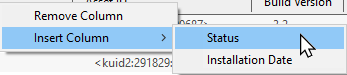
 |
has been installed but contains dependencies that are not on the DLS or built-in. | ||||||
| Downloaded assets can sometimes contain dependencies that are not on the DLS or Built-in (ones that came installed with Trainz). This can lead to frustrations especially if the creator of the downloaded asset has not provided any information on where these missing dependencies can be found. Even when the location, such as a 3rd party web site, has been identified as the source that site may no longer exist. | |||||||
| If the missing dependencies are not on the DLS then fixing this may not be easy. Possible solutions are:- | |||||||
|
|||||||

|
||||||||||||
Locating Missing Dependencies in a Layout |
|
 |
|
|
 |
Missing spline and track dependencies in a layout will be marked by dotted lines in Surveyor |
|
Missing ground texture dependencies will be shown as a bright false colour in Surveyor |
|
Missing scenery objects, including rolling stock and track objects (e.g. signals, switches), will NOT be visible in Surveyor unless a setting has been ticked ON |
| Before deciding to delete any missing dependencies from a route or session, it is recommended that you identify, as far as possible, what those dependencies are and how they are used. This will provide clues to finding currently installed and suitable replacements.
|
Missing Splines (including Track)
|
Missing Spline Dependencies will be shown in Surveyor as broken white parallel lines |
| In the following examples... | |
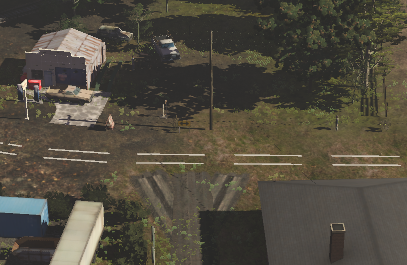 |
|
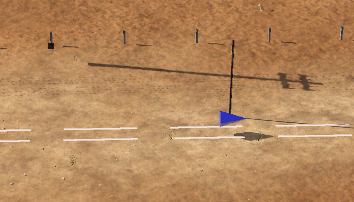 |
|
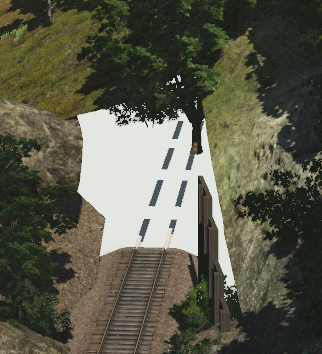 |
|
Missing Ground Textures
|
Missing Ground Texture Dependencies will be shown as a false colour covering their location in the layout |
|
Zooming out will reveal any underlying ground texture |
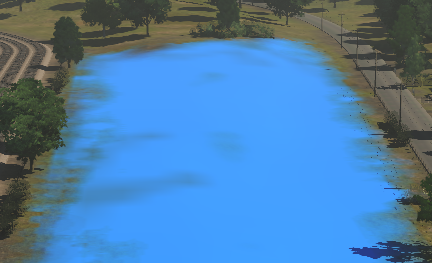 |
|
Missing Scenery Objects (incl Rolling Stock and Track Objects)
|
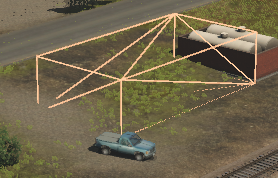
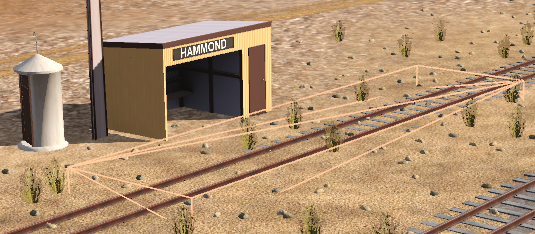
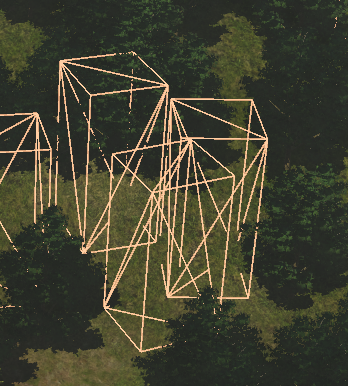
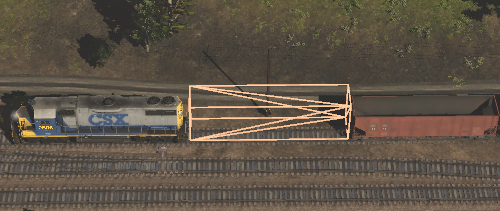
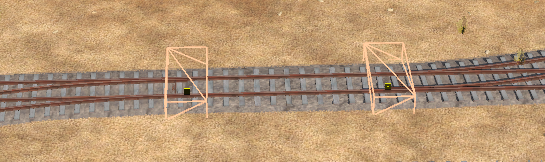
Missing Scenery Dependencies will be shown as orange 3D frames in the layout ONLY IF a control setting has been ticked. Otherwise there may be no indication that something is missing. |
|
| Locating these objects in a layout can give you useful clues as to what the missing dependencies are (e.g. trees/bushes, cars, buildings, signals, wagons, etc). |
|
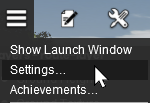
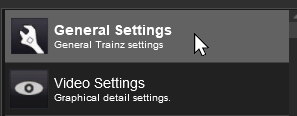
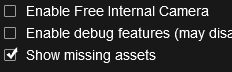


| With the Show missing assets check box set on, each scenery object that is missing will be shown as an Orange Wire Frame Box in Surveyor but will still be invisible in Driver. |
| In the following examples... | |
 |
|
 |
|
 |
|
 |
|
 |
|
Deleting Missing Dependencies |
|
|
|
|
Missing dependencies throughout a route can be deleted by a command found in the Tools menu of Surveyor |
|
||||||

|
|
|||||
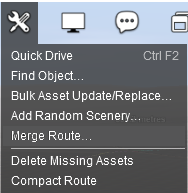
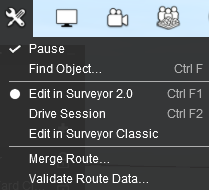
| Delete Missing Assets
|
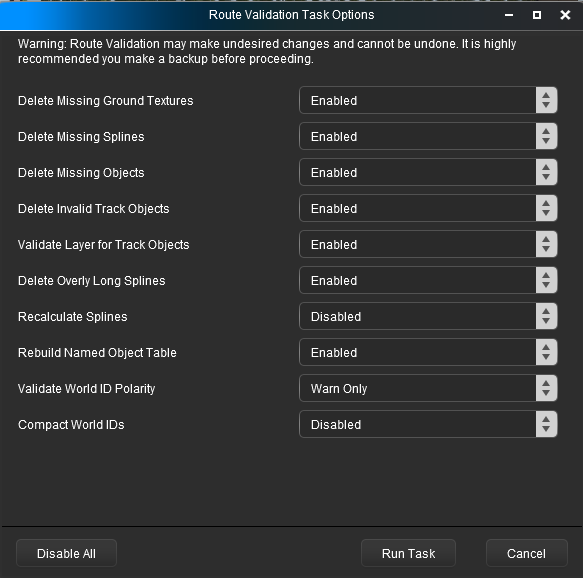 |
|
||||||||||||||


|
|
Trainz Wiki
|
|


This page was created by Trainz user pware in October 2026 and was last updated as shown below.


