How to Backup a Picklist: Difference between revisions
From TrainzOnline
Jump to navigationJump to search
m replaced all <font> tags with <span style=...> tags, removed all image hyperlinks |
|||
| Line 7: | Line 7: | ||
<table cellpadding="4" bgcolor=#ffffff> | <table cellpadding="4" bgcolor=#ffffff> | ||
<tr valign="top"> | <tr valign="top"> | ||
<td>[[file:Steps.PNG]]</td> | <td>[[file:Steps.PNG|link=]]</td> | ||
<td><font size | <td><span style="font-size: 17px;">'''Step 1: Open CM and Your Picklists'''</span><br> | ||
<table> | <table> | ||
<tr valign="top"> | <tr valign="top"> | ||
| Line 15: | Line 15: | ||
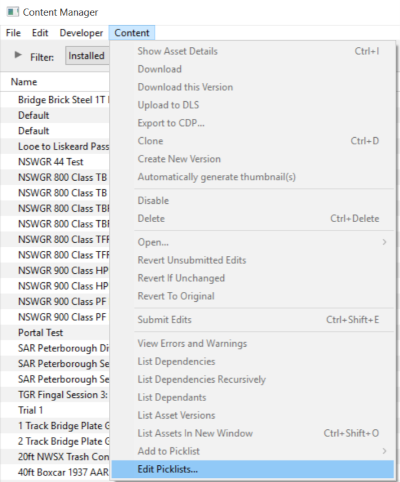
#in '''Content Manager''' open the '''Content''' menu | #in '''Content Manager''' open the '''Content''' menu | ||
#select '''Edit Picklist'''<br> | #select '''Edit Picklist'''<br> | ||
[[file:PickListEditPickList.png]]<br><br> | [[file:PickListEditPickList.png|link=]]<br><br> | ||
This will display all your current Picklists. | This will display all your current Picklists. | ||
</td> | </td> | ||
| Line 25: | Line 25: | ||
<table cellpadding="4" bgcolor=#ffffff> | <table cellpadding="4" bgcolor=#ffffff> | ||
<tr valign="top"> | <tr valign="top"> | ||
<td>[[file:Steps.PNG]]</td> | <td>[[file:Steps.PNG|link=]]</td> | ||
<td><font size | <td><span style="font-size: 17px;">'''Step 2: Select the Picklist to be backed up'''</span><br> | ||
<table> | <table> | ||
<tr valign="top"> | <tr valign="top"> | ||
| Line 32: | Line 32: | ||
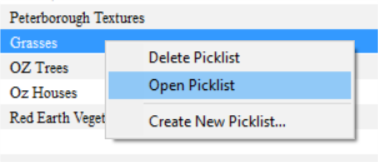
#right mouse click on the required Picklist | #right mouse click on the required Picklist | ||
#select '''Open Picklist''' from the popup menu<br> | #select '''Open Picklist''' from the popup menu<br> | ||
[[file:PickListOpenGrasses.png]]<br> | [[file:PickListOpenGrasses.png|link=]]<br> | ||
This will open the Picklist</td> | This will open the Picklist</td> | ||
</tr> | </tr> | ||
| Line 41: | Line 41: | ||
<table cellpadding="4" bgcolor=#ffffff> | <table cellpadding="4" bgcolor=#ffffff> | ||
<tr valign="top"> | <tr valign="top"> | ||
<td>[[file:Steps.PNG]]</td> | <td>[[file:Steps.PNG|link=]]</td> | ||
<td><font size | <td><span style="font-size: 17px;">'''Step 3: Select Picklist Contents'''</span><br> | ||
<table> | <table> | ||
<tr valign="top"> | <tr valign="top"> | ||
| Line 48: | Line 48: | ||
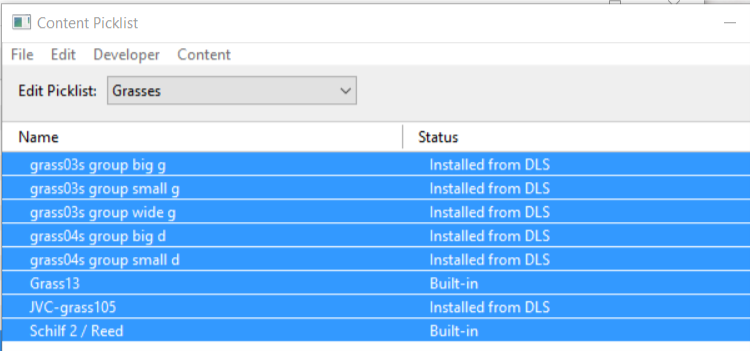
#left mouse click on any one of the items | #left mouse click on any one of the items | ||
#press '''Ctrl-A''' to '''Select All''' the items<br> | #press '''Ctrl-A''' to '''Select All''' the items<br> | ||
[[file:PickListSelectAll.png]]</td> | [[file:PickListSelectAll.png|link=]]</td> | ||
</tr><br> | </tr><br> | ||
</table></td> | </table></td> | ||
| Line 56: | Line 56: | ||
<table cellpadding="4" bgcolor=#ffffff> | <table cellpadding="4" bgcolor=#ffffff> | ||
<tr valign="top"> | <tr valign="top"> | ||
<td>[[file:Steps.PNG]]</td> | <td>[[file:Steps.PNG|link=]]</td> | ||
<td><font size | <td><span style="font-size: 17px;">'''Step 4: Transfer List to a New Window'''</span><br> | ||
<table> | <table> | ||
<tr valign="top"> | <tr valign="top"> | ||
| Line 63: | Line 63: | ||
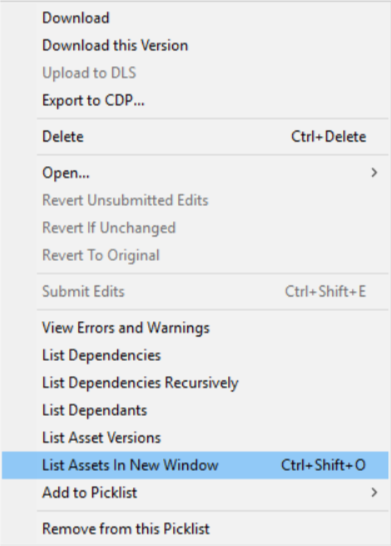
#right mouse click on any one of the items | #right mouse click on any one of the items | ||
#select '''List Assets in New Window''' from the popup menu<br> | #select '''List Assets in New Window''' from the popup menu<br> | ||
[[file:PickListListinNewWindow.png]]</td> | [[file:PickListListinNewWindow.png|link=]]</td> | ||
</tr> | </tr> | ||
</table></td> | </table></td> | ||
| Line 71: | Line 71: | ||
<table cellpadding="4" bgcolor=#ffffff> | <table cellpadding="4" bgcolor=#ffffff> | ||
<tr valign="top"> | <tr valign="top"> | ||
<td>[[file:Steps.PNG]]</td> | <td>[[file:Steps.PNG|link=]]</td> | ||
<td><font size | <td><span style="font-size: 17px;">'''Step 5: Copy Assets in Picklist'''</span><br> | ||
<table> | <table> | ||
<tr valign="top"> | <tr valign="top"> | ||
<td> | <td> | ||
The Picklist assets will be listed by their kuids in the '''Asset KUID''' box of a new search filter<br> | The Picklist assets will be listed by their kuids in the '''Asset KUID''' box of a new search filter<br> | ||
[[file:PickListSelectListofAssetsSelected.png]]<br><br> | [[file:PickListSelectListofAssetsSelected.png|link=]]<br><br> | ||
#click inside the '''Asset KUID''' box and press '''Ctrl-A''' to select them all | #click inside the '''Asset KUID''' box and press '''Ctrl-A''' to select them all | ||
#copy the asset list to the clipboard (press '''Ctrl-C''')</td> | #copy the asset list to the clipboard (press '''Ctrl-C''')</td> | ||
| Line 85: | Line 85: | ||
</table> | </table> | ||
<br> | <br> | ||
='''Transfer the List to Notepad (or any text editor)'''= | ='''Transfer the List to Notepad (or any text editor)'''= | ||
<table cellpadding="4" bgcolor=#ffffff> | <table cellpadding="4" bgcolor=#ffffff> | ||
<tr valign="top"> | <tr valign="top"> | ||
<td>[[file:Steps.PNG]]</td> | <td>[[file:Steps.PNG|link=]]</td> | ||
<td><font size | <td><span style="font-size: 17px;">'''Step 1: Open Notepad or any other suitable text editor program'''</span><br> | ||
<table> | <table> | ||
<tr valign="top"> | <tr valign="top"> | ||
<td> | <td> | ||
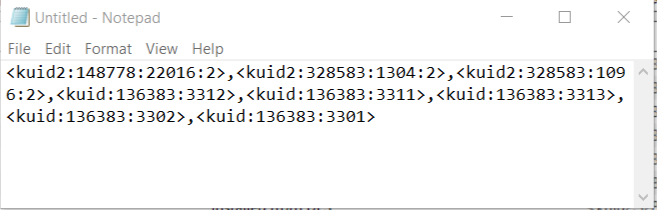
*click inside the Notepad window and then press '''Ctrl-V''' (paste) | *click inside the Notepad window and then press '''Ctrl-V''' (paste) | ||
[[file:PickListNotepad01.png]]</td> | [[file:PickListNotepad01.png|link=]]</td> | ||
</tr> | </tr> | ||
</table></td> | </table></td> | ||
| Line 104: | Line 103: | ||
<table cellpadding="4" bgcolor=#ffffff> | <table cellpadding="4" bgcolor=#ffffff> | ||
<tr valign="top"> | <tr valign="top"> | ||
<td>[[file:Steps.PNG]]</td> | <td>[[file:Steps.PNG|link=]]</td> | ||
<td><font size | <td><span style="font-size: 17px;">'''Step 2: Save the Picklist as a text (.txt) file'''</span><br> | ||
<table> | <table> | ||
<tr valign="top"> | <tr valign="top"> | ||
<td> | <td> | ||
#from the Notepad File menu select '''Save''' or press '''Ctrl-S'''. If you are not using Notepad, make | #from the Notepad File menu select '''Save''' or press '''Ctrl-S'''. If you are not using Notepad, make that the file format is text (.txt) for compatibility | ||
#select a suitable backup location for the backup file | #select a suitable backup location for the backup file | ||
#enter a filename - the same name as the Picklist would be a good idea - then save</td> | #enter a filename - the same name as the Picklist would be a good idea - then save</td> | ||
| Line 124: | Line 123: | ||
<table cellpadding="4" bgcolor=#ffffff> | <table cellpadding="4" bgcolor=#ffffff> | ||
<tr valign="top"> | <tr valign="top"> | ||
<td>[[file:Steps.PNG]]</td> | <td>[[file:Steps.PNG|link=]]</td> | ||
<td><font size | <td><span style="font-size: 17px;">'''Step 1: Open Notepad or any other suitable text editor program'''</span><br> | ||
<table> | <table> | ||
<tr valign="top"> | <tr valign="top"> | ||
| Line 139: | Line 138: | ||
<table cellpadding="4" bgcolor=#ffffff> | <table cellpadding="4" bgcolor=#ffffff> | ||
<tr valign="top"> | <tr valign="top"> | ||
<td>[[file:Steps.PNG]]</td> | <td>[[file:Steps.PNG|link=]]</td> | ||
<td><font size | <td><span style="font-size: 17px;">'''Step 2: Open CM in the Destination Trainz and Create a New Filter'''</span><br> | ||
<table> | <table> | ||
<tr valign="top"> | <tr valign="top"> | ||
| Line 147: | Line 146: | ||
#start a new filter | #start a new filter | ||
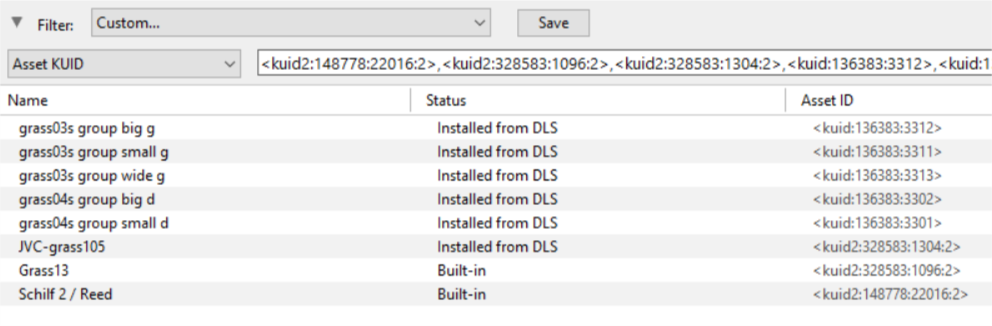
#paste ('''Ctrl-V''') the asset list into the '''Asset KUID''' box<br><br> | #paste ('''Ctrl-V''') the asset list into the '''Asset KUID''' box<br><br> | ||
[[file:PickListSelectListofAssets.png]]<br><br></td> | [[file:PickListSelectListofAssets.png|link=]]<br><br></td> | ||
</tr> | </tr> | ||
</table></td> | </table></td> | ||
| Line 155: | Line 154: | ||
<table cellpadding="4" bgcolor=#ffffff> | <table cellpadding="4" bgcolor=#ffffff> | ||
<tr valign="top"> | <tr valign="top"> | ||
<td>[[file:Steps.PNG]]</td> | <td>[[file:Steps.PNG|link=]]</td> | ||
<td><font size | <td><span style="font-size: 17px;">'''Step 3: Create a New Picklist'''</span><br><br> | ||
The pasted asset list will appear in the CM display window, as shown below.<table> | The pasted asset list will appear in the CM display window, as shown below.<table> | ||
<tr valign="top"> | <tr valign="top"> | ||
<td> | <td> | ||
[[file:PickListTRS19Paste.png]]<br><br> | [[file:PickListTRS19Paste.png|link=]]<br><br> | ||
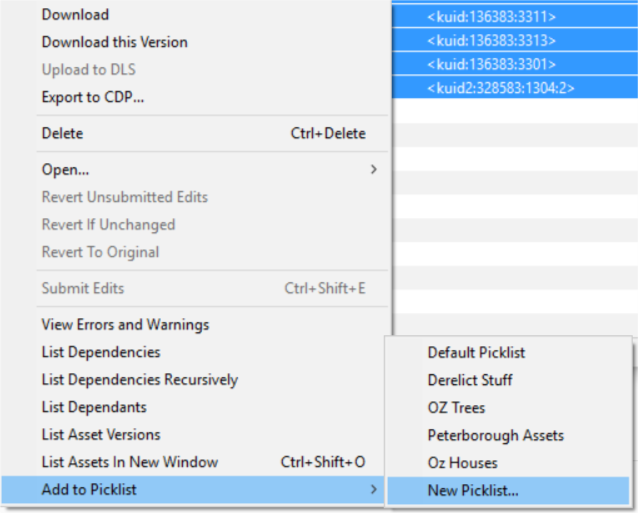
#select an entry and then select all ('''Ctrl-A''') | #select an entry and then select all ('''Ctrl-A''') | ||
#right mouse click on any entry and select '''Add to Picklist''' and then '''New Picklist''' from the popup menus<br><br> | #right mouse click on any entry and select '''Add to Picklist''' and then '''New Picklist''' from the popup menus<br><br> | ||
[[file:PickListTRS19NewList.png]]<br><br></td> | [[file:PickListTRS19NewList.png|link=]]<br><br></td> | ||
</tr> | </tr> | ||
</table></td> | </table></td> | ||
| Line 171: | Line 170: | ||
<table cellpadding="4" bgcolor=#ffffff> | <table cellpadding="4" bgcolor=#ffffff> | ||
<tr valign="top"> | <tr valign="top"> | ||
<td>[[file:Steps.PNG]]</td> | <td>[[file:Steps.PNG|link=]]</td> | ||
<td><font size | <td><span style="font-size: 17px;">'''Step 4: Enter a Name for the Picklist'''</span><br> | ||
<table> | <table> | ||
<tr valign="top"> | <tr valign="top"> | ||
<td> | <td> | ||
[[file:PickListTRS19NewListName.png]]<br><br> | [[file:PickListTRS19NewListName.png|link=]]<br><br> | ||
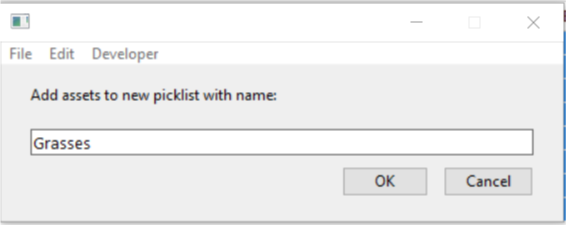
Enter a name for the Picklist and click '''Ok'''</td> | Enter a name for the Picklist and click '''Ok'''</td> | ||
</tr> | </tr> | ||
| Line 187: | Line 186: | ||
<table cellpadding="4" bgcolor=#ffffff> | <table cellpadding="4" bgcolor=#ffffff> | ||
<tr valign="top"> | <tr valign="top"> | ||
<td>[[file:TrainzWiki.png]]</td> | <td>[[file:TrainzWiki.png|link=]]</td> | ||
<td> | <td> | ||
<font size | <span style="font-size: 17px;">'''More Tutorials and Guides to Using Trainz'''</span><br> | ||
*'''<span class="plainlinks">[http://online.ts2009.com/mediaWiki/index.php/HowTo How to Guides]</span>''' | *'''<span class="plainlinks">[http://online.ts2009.com/mediaWiki/index.php/HowTo How to Guides]</span>''' | ||
*'''[[Driver Commands List]]''' | *'''[[Driver Commands List]]''' | ||
Revision as of 21:33, 5 September 2019
Picklists cannot be saved as .cdp files so they cannot be backed up using that method. This guide will show you how to backup a Picklist in TRS19 or TANE (both programs use identical methods).
- For instructions on how to create a Picklist, see the wiki page How to Create a Picklist
- For instructions on how to move a Picklist, see the wiki page How to Move a Picklist
Access Your Current Picklists
 |
Step 1: Open CM and Your Picklists
|
|
Step 2: Select the Picklist to be backed up
|
|
Step 3: Select Picklist Contents
|
|
Step 4: Transfer List to a New Window
|
|
Step 5: Copy Assets in Picklist
|

Transfer the List to Notepad (or any text editor)
|
Step 1: Open Notepad or any other suitable text editor program
|
|
Step 2: Save the Picklist as a text (.txt) file
|
How to Restore a Picklist
Restoring a Picklist basically involves reversing the above steps.
|
Step 1: Open Notepad or any other suitable text editor program
|
|
Step 2: Open CM in the Destination Trainz and Create a New Filter
|

|
Step 3: Create a New Picklist The pasted asset list will appear in the CM display window, as shown below.
|
|
Step 4: Enter a Name for the Picklist
|
Trainz Wiki
 |
More Tutorials and Guides to Using Trainz |
