How to Use Track Priority Markers: Difference between revisions
From TrainzOnline
Jump to navigationJump to search
mNo edit summary |
No edit summary |
||
| Line 51: | Line 51: | ||
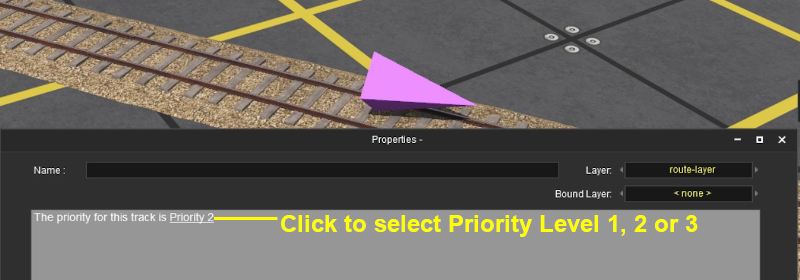
Click the label <span style="text-decoration: underline; font-weight: 700;">Priority 2</span> to cycle through the options | Click the label <span style="text-decoration: underline; font-weight: 700;">Priority 2</span> to cycle through the options | ||
*<span style="text-decoration: underline; font-weight: 700;">Priority 1</span> | *<span style="text-decoration: underline; font-weight: 700;">Priority 1</span> | ||
*<span style="text-decoration: underline; font-weight: 700;">Priority 2</span> | *<span style="text-decoration: underline; font-weight: 700;">Priority 2</span> (the default selection) | ||
*<span style="text-decoration: underline; font-weight: 700;">Priority 3</span> | *<span style="text-decoration: underline; font-weight: 700;">Priority 3</span> | ||
These priority values have no set meanings but can be assigned to specific trains to give them avoidance behaviour on ''that'' section of track (the track sections are defined as between consecutive junction point sets). | These priority values have no set meanings but can be assigned to specific trains to give them avoidance behaviour on ''that'' section of track (the track sections are defined as between consecutive junction point sets).</td> | ||
</tr> | |||
</table> | |||
='''Assigning Priority Levels to Trains'''= | |||
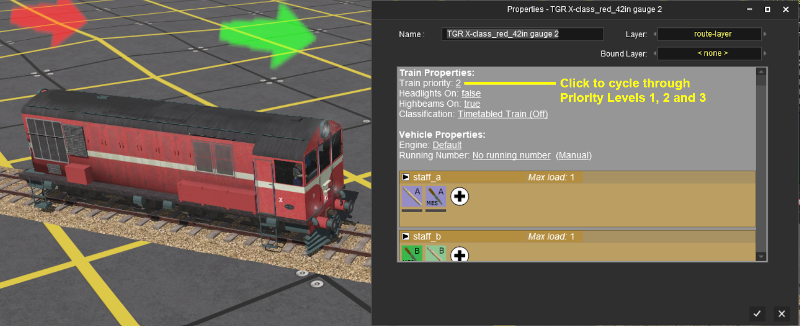
Each locomotive can be assigned a priority level of <span style="text-decoration: underline; font-weight: 700;">1</span>, <span style="text-decoration: underline; font-weight: 700;">2</span> or <span style="text-decoration: underline; font-weight: 700;">3</span>. <span style="text-decoration: underline; font-weight: 700;">Priority 2</span> is the default level. Again, these values have no set meanings beyond what you decide they will mean.<br> | |||
For example you could assign priority <span style="text-decoration: underline; font-weight: 700;">1</span> to '''express trains''' and <span style="text-decoration: underline; font-weight: 700;">3</span> to '''slow general freight stopping trains'''.<br> | |||
[[file:PriorityTrain.png|link=]]<br> | |||
</td> | ='''Priority Operation'''= | ||
<table cellpadding="4" bgcolor=#c1e7e7> | |||
<tr valign="top"> | |||
<td>[[file:DotPoint.JPG]]</td> | |||
<td>'''Priority Track Markers only work on AI controlled trains.''' They have no effect on manually controlled trains</td> | |||
</tr> | |||
<tr valign="top"> | |||
<td>[[file:DotPoint.JPG]]</td> | |||
<td>Priority Track Markers "fool" an AI train that has been set to the same priority level into "thinking" that the path containing the marker is infinitely long so it will attempt to find a "shorter" path</td> | |||
</tr> | |||
<tr valign="top"> | |||
<td>[[file:DotPoint.JPG]]</td> | |||
<td>If no other path is possible then the AI will '''ignore''' the Priority Track Marker</td> | |||
</tr> | </tr> | ||
</table> | </table> | ||
---- | ---- | ||
Revision as of 07:07, 13 September 2019
The information in this Wiki Page applies to both TANE and TRS19.
What are Track Priority Markers?
| In Summary: | |
 |
Track priority markers are purple coloured track marker that are invisible in Driver Mode but visible in Surveyor Mode. They are used to direct specific trains away from the track section where they are placed |
|
Track priority markers are NOT a substitute for Driver Commands with trackmarks or for Interlocking Towers |
|
Track priority markers will be IGNORED if there is no alternative path for a redirected train |
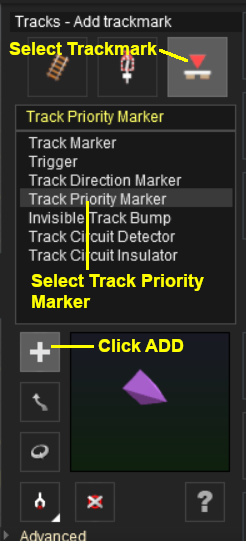
Adding a Track Priority Marker
 |
|
||||||

Assigning Priority Levels to Trains
Each locomotive can be assigned a priority level of 1, 2 or 3. Priority 2 is the default level. Again, these values have no set meanings beyond what you decide they will mean.
For example you could assign priority 1 to express trains and 3 to slow general freight stopping trains.
Priority Operation
 |
Priority Track Markers only work on AI controlled trains. They have no effect on manually controlled trains |
|
Priority Track Markers "fool" an AI train that has been set to the same priority level into "thinking" that the path containing the marker is infinitely long so it will attempt to find a "shorter" path |
|
If no other path is possible then the AI will ignore the Priority Track Marker |
Trainz Wiki
 |
More Tutorials and Guides to Using Trainz |
