How to Move a Picklist: Difference between revisions
From TrainzOnline
Jump to navigationJump to search
mNo edit summary |
m →Access Your Current Picklists: added note about the Default picklist |
||
| Line 29: | Line 29: | ||
</tr> | </tr> | ||
</table></td> | </table></td> | ||
</tr> | |||
</table> | |||
<table cellpadding="4" bgcolor=#c1e7e7> | |||
<tr valign="top"> | |||
<td>[[file:DotPoint.JPG|link=]]</td> | |||
<td>'''If you are using a ''Default'' picklist there is NO way to select it for moving or backup'''</td> | |||
</tr> | </tr> | ||
</table> | </table> | ||
Revision as of 21:46, 21 October 2019
The information in this Wiki Page applies to both TANE and TRS19 and will show you how to move a Picklist created in Trainz (TRS19 or TANE) to another installation of Trainz (for example, on another computer).
 |
|
Access Your Current Picklists
 |
Step 1: Open CM and Your Picklists
|
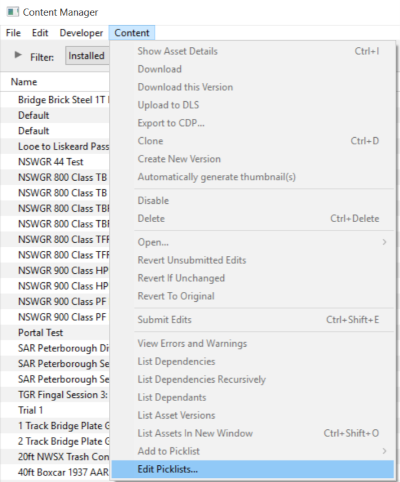
 |
If you are using a Default picklist there is NO way to select it for moving or backup |
|
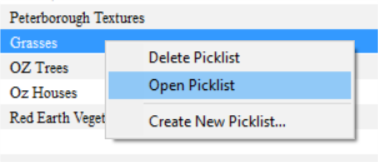
Step 2: Select the Picklist to be moved
|
|
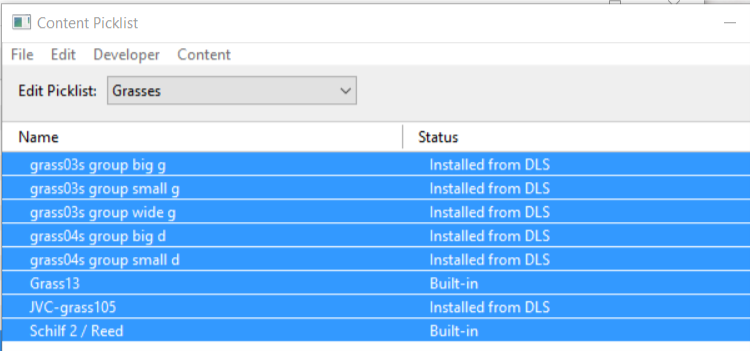
Step 3: Select Picklist Contents
|
|
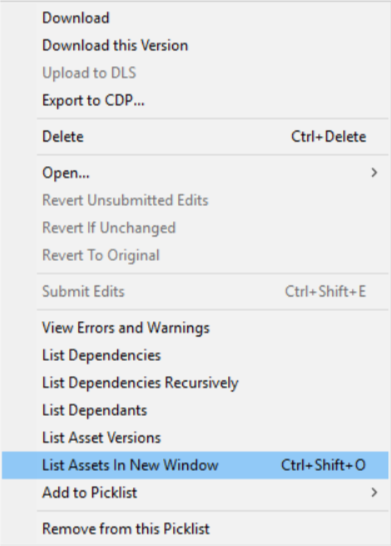
Step 4: Transfer List to a New Window
|
|
Step 5: Copy Assets in Picklist
|

Transfer the List to Another Copy of Trainz
 |
Notes: If you are transferring the Picklist to another computer then you will need to:-
There you can reverse the steps by:-
|
|
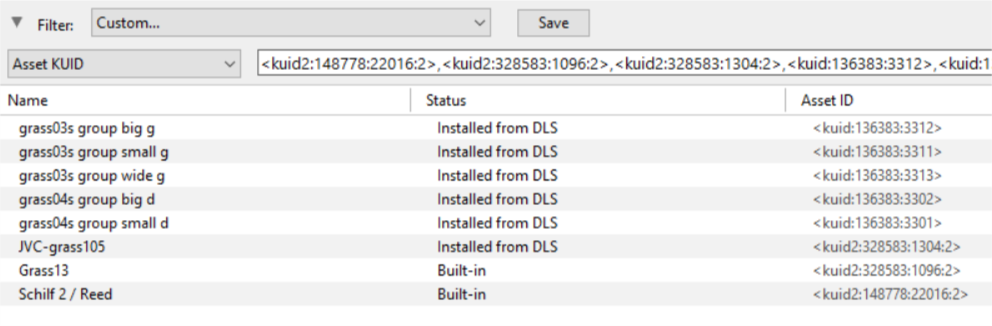
Step 6: Open CM in the Destination Trainz and Create a New Filter
|

|
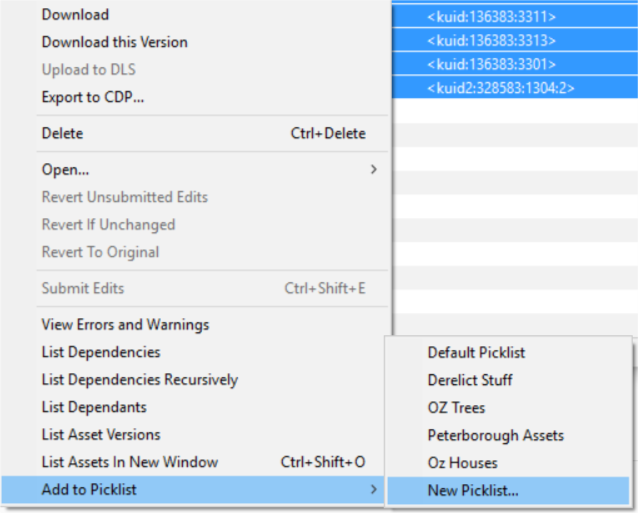
Step 7: Create a New Picklist The pasted asset list will appear in the CM display window, as shown below.
|
|
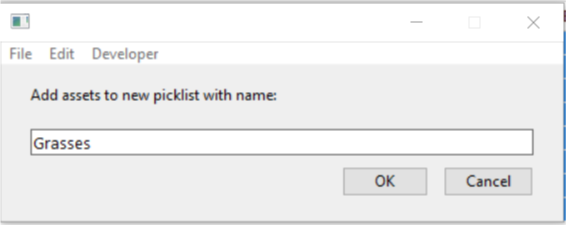
Step 8: Enter a Name for the Picklist
|
Trainz Wiki
 |
More Tutorials and Guides to Using Trainz |
