How to Backup a Picklist: Difference between revisions
From TrainzOnline
Jump to navigationJump to search
mNo edit summary |
added Main Points in introduction |
||
| Line 1: | Line 1: | ||
The information in this Wiki Page applies to '''TANE''', '''TRS19''' and '''Trainz Plus''' | The information in this Wiki Page applies to '''TANE''', '''TRS19''' and '''Trainz Plus'''. This guide will show you how to backup a '''Picklist'''.<br> | ||
<table cellpadding="4" bgcolor="Aquamarine"> | <table cellpadding="4" bgcolor="Aquamarine"> | ||
| Line 8: | Line 8: | ||
* For instructions on how to '''move''' a Picklist, see the Trainz Wiki page '''[[How to Move a Picklist]]''' | * For instructions on how to '''move''' a Picklist, see the Trainz Wiki page '''[[How to Move a Picklist]]''' | ||
</td> | </td> | ||
</tr> | |||
</table> | |||
<br> | |||
__TOC__ | |||
<br> | |||
<table cellpadding="4" bgcolor=#c1e7e7> | |||
<tr valign="top"> | |||
<td colspan=2><span style="font-size: 17px; font-weight: 700;">Main Points:</span></td> | |||
<tr valign="top"> | |||
<td>[[file:DotPoint.JPG|link=]]</td> | |||
<td>Picklists cannot be saved as '''.CDP''' files so they cannot be backed up using that method</td> | |||
</tr> | |||
<tr valign="top"> | |||
<td>[[file:DotPoint.JPG|link=]]</td> | |||
<td>Picklists can be '''saved as text files'''</td> | |||
</tr> | |||
<tr valign="top"> | |||
<td>[[file:DotPoint.JPG|link=]]</td> | |||
<td>Picklists can be '''imported from text files'''</td> | |||
</tr> | </tr> | ||
</table> | </table> | ||
| Line 128: | Line 147: | ||
<tr valign="top"> | <tr valign="top"> | ||
<td> | <td> | ||
#from the Notepad File menu select '''Save''' or press '''Ctrl-S'''. If you are not using Notepad, make that the file format is text (.txt) for compatibility | #from the Notepad File menu select '''Save''' or press '''Ctrl-S'''. If you are not using Notepad, make sure that the file format is text (.txt) for compatibility | ||
#select a suitable backup location for the backup file | #select a suitable backup location for the backup file | ||
#enter a filename - the same name as the Picklist would be a good idea - then save</td> | #enter a filename - the same name as the Picklist would be a good idea - then save</td> | ||
Revision as of 10:50, 4 December 2019
The information in this Wiki Page applies to TANE, TRS19 and Trainz Plus. This guide will show you how to backup a Picklist.
 |
|
| Main Points: | |
 |
Picklists cannot be saved as .CDP files so they cannot be backed up using that method |
|
Picklists can be saved as text files |
|
Picklists can be imported from text files |
Access Your Current Picklists
 |
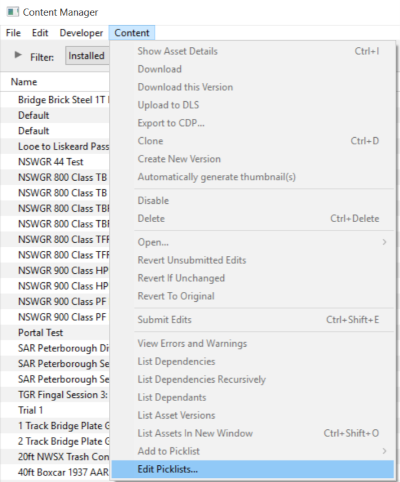
Step 1: Open CM and Your Picklists
|
|
If you are using a Default picklist there is NO way to select it for moving or backup |
|
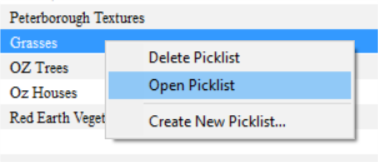
Step 2: Select the Picklist to be backed up
|
|
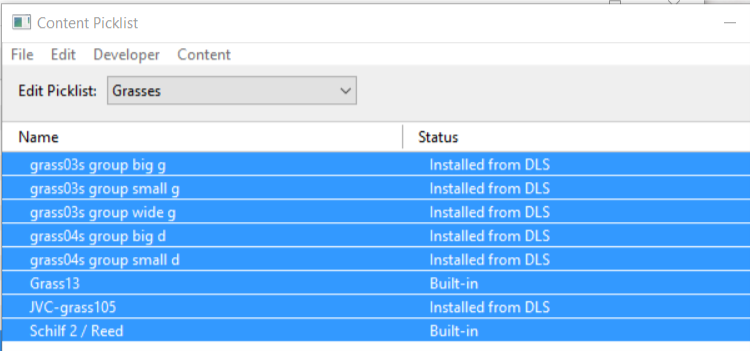
Step 3: Select Picklist Contents
|
|
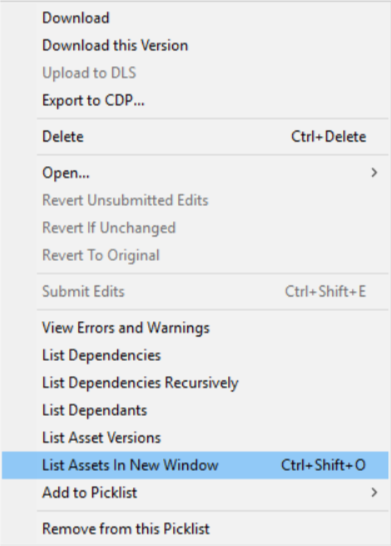
Step 4: Transfer List to a New Window
|
|
Step 5: Copy Assets in Picklist
|

 |
Transfer the List to Notepad (or any text editor)
|
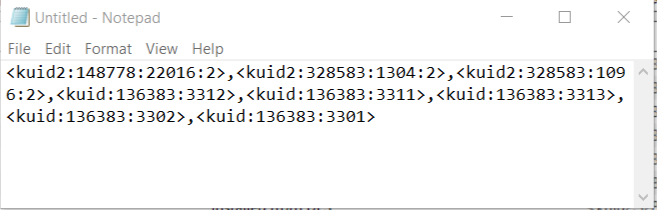
Step 1: Open Notepad or any other suitable text editor program
|
|
Step 2: Save the Picklist as a text (.txt) file
|
|
How to Restore a Picklist
Restoring a Picklist basically involves reversing the above steps.
|
Step 1: Open Notepad or any other suitable text editor program
|
|
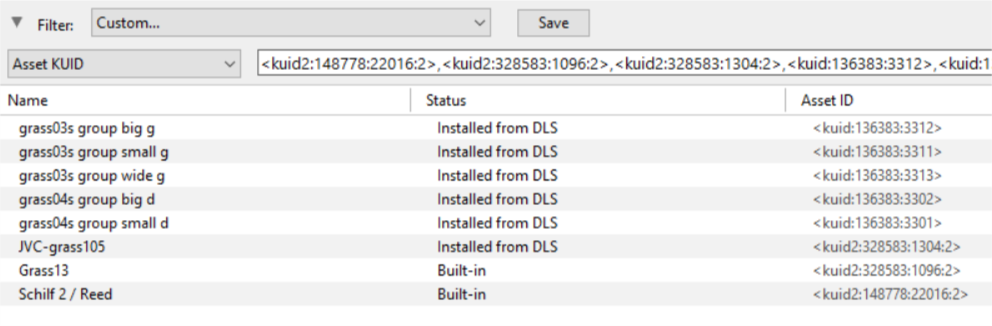
Step 2: Open CM in the Destination Trainz and Create a New Filter
|

|
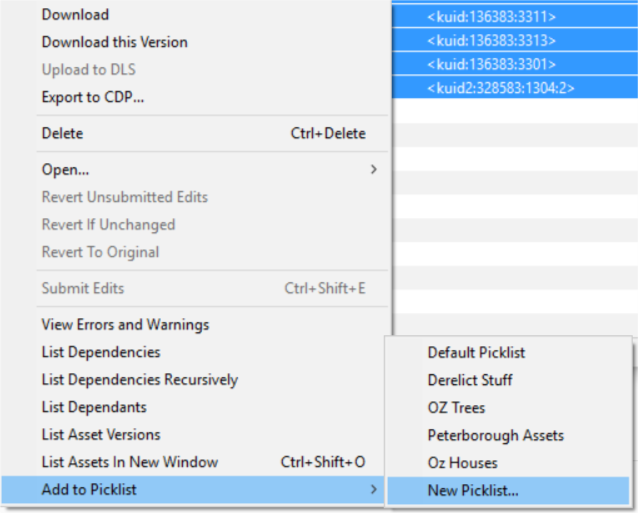
Step 3: Create a New Picklist The pasted asset list will appear in the CM display window, as shown below.
|
|
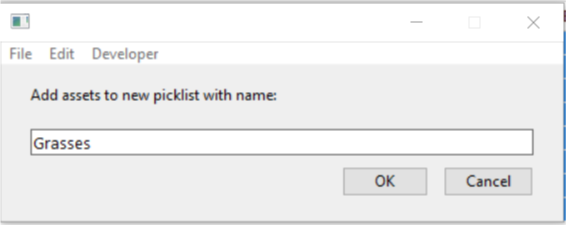
Step 4: Enter a Name for the Picklist
|
|
Trainz Wiki
 |
More Tutorials and Guides to Using Trainz |
