How to Move a Picklist: Difference between revisions
From TrainzOnline
Jump to navigationJump to search
m →Transfer the List to Another Copy of Trainz: added point about downloading any missing assets |
→Access Your Current Picklists: reorganised steps |
||
| Line 21: | Line 21: | ||
='''Access Your Current Picklists'''= | ='''Access Your Current Picklists'''= | ||
<table cellpadding="4" bgcolor=#ffffff> | <table cellpadding="4" bgcolor=#ffffff> <!-- BEGIN Step table --> | ||
<tr valign="top"> | <tr valign="top"> | ||
<td>[[file:Steps.PNG|link=]]</td> | <td>[[file:Steps.PNG|link=]]<br><br> | ||
<td><span style="font-size: 17px;"> | <span style="font-size: 17px; font-weight: 700;">Steps</span></td> | ||
<table> | <td>[[file:DotPoint1.JPG|link=]] <span style="font-size: 17px; font-weight: 700;">Open CM and Your Picklists</span><br> | ||
<table> <!-- BEGIN Step 1 table --> | |||
<tr valign="top"> | <tr valign="top"> | ||
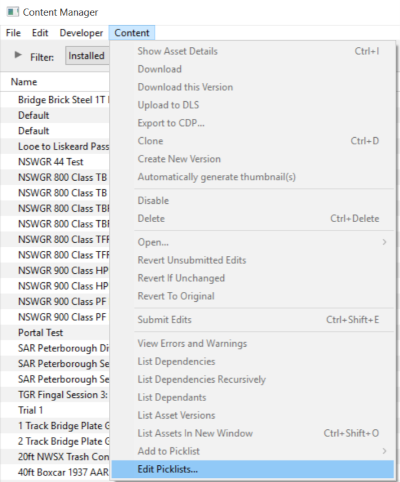
<td><br>From the '''Trainz''' Launcher | <td><br>From the '''Trainz''' Launcher | ||
| Line 33: | Line 34: | ||
[[file:PickListEditPickList.png|link=]]<br><br> | [[file:PickListEditPickList.png|link=]]<br><br> | ||
This will display all your current Picklists. | This will display all your current Picklists. | ||
<table cellpadding="4" bgcolor=#c1e7e7> <!-- BEGIN Step 1 Dot Point --> | |||
<tr valign="top"> | |||
<td>[[file:DotPoint.JPG|link=]]</td> | |||
<td>'''If you are using a ''Default'' picklist there is NO way to select it for moving or backup'''</td> | |||
</tr> | |||
</table> <!-- END Step 1 Dot Point --> | |||
</td> | </td> | ||
</tr> | </tr> | ||
</table></td> | </table> <!-- END Step 1 table --> | ||
</td> | |||
</tr> | </tr> | ||
< | <tr> | ||
< | <td colspan="2"> | ||
----</td> | |||
</tr> | </tr> | ||
<tr valign="top"> | <tr valign="top"> | ||
<td>[[file: | <td> </td> | ||
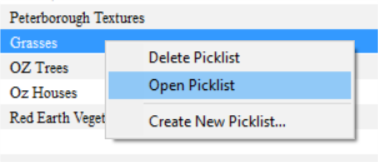
<td>[[file:DotPoint2.JPG|link=]] <span style="font-size: 17px; font-weight: 700;">Select the Picklist to be Backed Up:</span><br> | |||
<table> | <table> <!-- BEGIN Step 2 table --> | ||
<tr valign="top"> | <tr valign="top"> | ||
<td> | <td> | ||
| Line 57: | Line 60: | ||
This will open the Picklist</td> | This will open the Picklist</td> | ||
</tr> | </tr> | ||
</table></td> | </table> <!-- END Step 2 table --> | ||
</td> | |||
</tr> | |||
<tr> | |||
<td colspan="2"> | |||
----</td> | |||
</tr> | </tr> | ||
<tr valign="top"> | <tr valign="top"> | ||
<td>[[file: | <td> </td> | ||
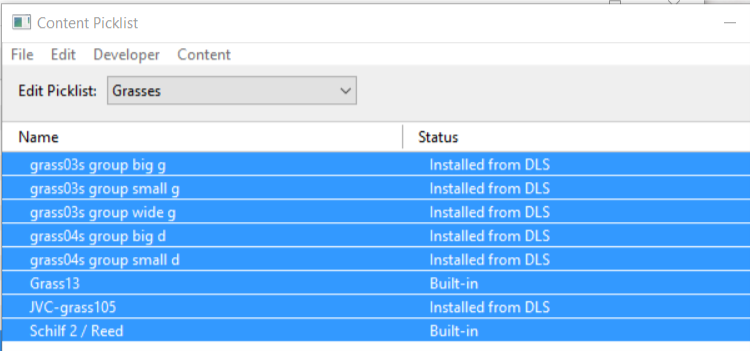
<td>[[file:DotPoint3.JPG|link=]] <span style="font-size: 17px; font-weight: 700;">Select Picklist Contents:</span><br> | |||
<table> | <table> <!-- BEGIN Step 3 table --> | ||
<tr valign="top"> | <tr valign="top"> | ||
<td> | <td> | ||
| Line 71: | Line 76: | ||
#press '''Ctrl-A''' to '''Select All''' the items<br> | #press '''Ctrl-A''' to '''Select All''' the items<br> | ||
[[file:PickListSelectAll.png|link=]]</td> | [[file:PickListSelectAll.png|link=]]</td> | ||
</tr> | </tr> | ||
</table> | </table> <!-- END Step 3 table --> | ||
< | </td> | ||
< | </tr> | ||
<tr> | |||
<td colspan="2"> | |||
----</td> | |||
</tr> | |||
<tr valign="top"> | <tr valign="top"> | ||
<td>[[file: | <td> </td> | ||
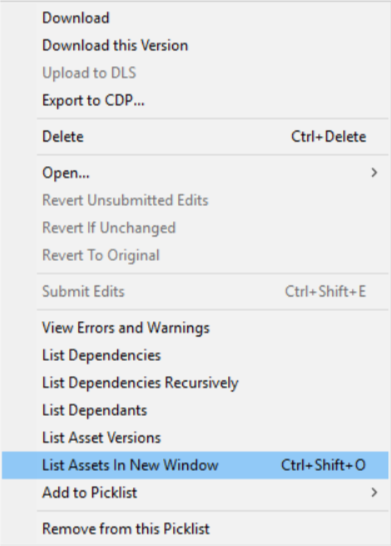
<td>[[file:DotPoint4.JPG|link=]] <span style="font-size: 17px; font-weight: 700;">Transfer List to a New Window:</span><br> | |||
<table> | <table> <!-- BEGIN Step 4 table --> | ||
<tr valign="top"> | <tr valign="top"> | ||
<td> | <td> | ||
#right mouse click on any one of the items | #right mouse click on any one of the items | ||
#select '''List Assets in New Window''' from the popup menu<br> | #select '''List Assets in New Window''' from the popup menu<br> | ||
[[file:PickListListinNewWindow.png|link=]]</td> | [[file:PickListListinNewWindow.png|link=]] | ||
</td> | |||
</tr> | </tr> | ||
</table></td> | </table> <!-- END Step 4 table --> | ||
</td> | |||
</tr> | |||
<tr> | |||
<td colspan="2"> | |||
----</td> | |||
</tr> | </tr> | ||
<tr valign="top"> | <tr valign="top"> | ||
<td>[[file: | <td> </td> | ||
<td>[[file:DotPoint5.JPG|link=]] <span style="font-size: 17px; font-weight: 700;">Copy Assets in Picklist:</span><br> | |||
<table> | <table> <!-- BEGIN Step 5 table --> | ||
<tr valign="top"> | <tr valign="top"> | ||
<td> | <td> | ||
| Line 101: | Line 111: | ||
[[file:PickListSelectListofAssetsSelected.png|link=]]<br><br> | [[file:PickListSelectListofAssetsSelected.png|link=]]<br><br> | ||
#click inside the '''Asset KUID''' box and press '''Ctrl-A''' to select them all | #click inside the '''Asset KUID''' box and press '''Ctrl-A''' to select them all | ||
#copy the asset list to the clipboard (press '''Ctrl-C''')</td> | #copy the asset list to the clipboard (press '''Ctrl-C''') | ||
</td> | |||
</tr> | |||
<tr> | |||
<td colspan="2"> | |||
----</td> | |||
</tr> | </tr> | ||
</table></td> | </table> <!-- END Step 5 table --> | ||
</td> | |||
</tr> | </tr> | ||
</table> | </table> <!-- END Steps Table --> | ||
< | <table width="100%"> <!-- BEGIN Back-To-Top Table --> | ||
<table width="100%"> | |||
<tr valign="top"> | <tr valign="top"> | ||
<td align="right">[[file:BackToTop.png|link=#top|alt=Top|Top]]</td> | <td align="right">[[file:BackToTop.png|link=#top|alt=Top|Top]]</td> | ||
</tr> | </tr> | ||
</table> | </table> <!-- END Back-To-Top Table --> | ||
='''Transfer the List to Another Copy of Trainz'''= | ='''Transfer the List to Another Copy of Trainz'''= | ||
Revision as of 21:39, 10 February 2020
The information in this Wiki Page applies to TANE, TRS19 and Trainz Plus. It will show you how to move a Picklist to another installation of Trainz.
 |
|
 |
If you have made backup copies of your Picklists then you have already completed half the work. Use the backup Picklists and steps described in the How to Restore a Picklist section of the How to Backup a Picklist Trainz Wiki page to complete the move. |
Access Your Current Picklists
 Steps |
 Open CM and Your Picklists
|
|||
|
|
||||
 Select the Picklist to be Backed Up:
|
||||
|
|
||||
 Select Picklist Contents:
|
||||
|
|
||||
 Transfer List to a New Window:
|
||||
|
|
||||
 Copy Assets in Picklist:
|
||||


 |
Transfer the List to Another Copy of Trainz
 |
Notes: If you are transferring the Picklist to another computer then you will need to:-
There you can reverse the steps by:-
|
|
Step 6: Open CM in the Destination Trainz and Create a New Filter
|

|
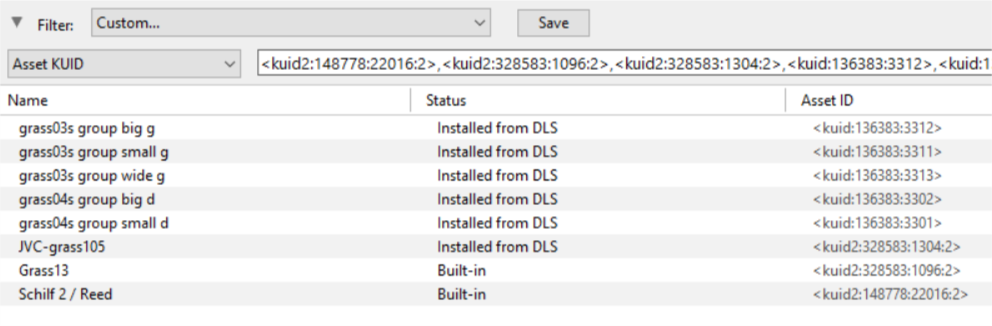
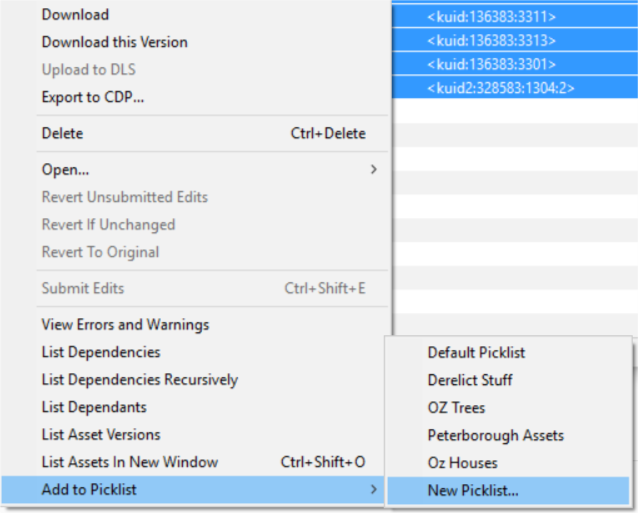
Step 7: Create a New Picklist The pasted asset list will appear in the CM display window, as shown below.
|
|
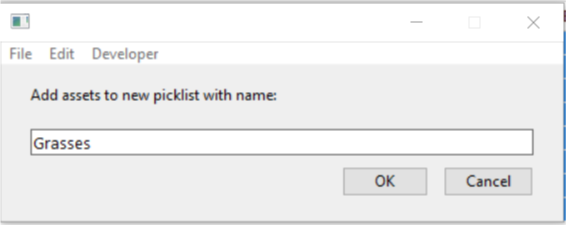
Step 8: Enter a Name for the Picklist
|
|
Trainz Wiki
 |
More Tutorials and Guides to Using Trainz |
This page was created by Trainz user pware in October 2018 and was last updated as shown below.
