SAR Scenario Terowie Shunter: Difference between revisions
From TrainzOnline
Jump to navigationJump to search
added "getting started" and reorganised |
mNo edit summary |
||
| Line 58: | Line 58: | ||
<td> | <td> | ||
<span style="font-size: 15px; font-weight: 700;">Getting Started:</span><br> | <span style="font-size: 15px; font-weight: 700;">Getting Started:</span><br> | ||
# The first step in '''Driver''' is to locate your loco. Open the '''Finder''' (press '''CTRL-F''') and type, in the '''name''' field, the name of the loco. For example '''SAR T | # The first step in '''Driver''' is to locate your loco. Open the '''Finder''' (press '''CTRL-F''') and type, in the '''name''' field, the name of the loco. For example '''SAR T 198''' (or just '''T 198''' should be enough). Click the '''tick''' icon. | ||
# Next pause the simulation by pressing the '''P''' key. | # Next pause the simulation by pressing the '''P''' key. | ||
# Take a few moments to get your bearings. Use the [[image:Line_Index_Label.png|link=SAR_Index]] (this link will open in this window) and click on '''Terowie''' to load its location details and track plans. The [[image:Tab_PH_Grey.png|link=|75px]] tab will give you the '''EIT Paths''' that are available if you wish to use them but probably not in this scenario. The [[image:Tab_TM_Grey.png|link=|75px]] tab will give you the location and names of the invisible '''Track Marks''' for '''Drive To''' commands. The [[image:Tab_IN_Grey.png|link=|75px]] tab will show the names and locations of all active industries and their commodities. The [[image:Tab_SW_Grey.png|link=|75px]] tab will give the names and locations of all junction switches as well as some switch sets you may want to use. | # Take a few moments to get your bearings. Use the [[image:Line_Index_Label.png|link=SAR_Index]] (this link will open in this window) and click on '''Terowie''' to load its location details and track plans. The [[image:Tab_PH_Grey.png|link=|75px]] tab will give you the '''EIT Paths''' that are available if you wish to use them but probably not in this scenario. The [[image:Tab_TM_Grey.png|link=|75px]] tab will give you the location and names of the invisible '''Track Marks''' for '''Drive To''' commands. The [[image:Tab_IN_Grey.png|link=|75px]] tab will show the names and locations of all active industries and their commodities. The [[image:Tab_SW_Grey.png|link=|75px]] tab will give the names and locations of all junction switches as well as some switch sets you may want to use. | ||
# When you are ready to start, reload the ''' | # When you are ready to start, reload the '''Base Session Scenario Page''' (from the [[image:Line_Index_Label.png|link=SAR_Index]]) and select this '''Scenario''' again or just use the '''Back''' button on your browser - whichever is quicker. | ||
# Press the '''P''' key to start the simulation. | # Press the '''P''' key to start the simulation. | ||
</td> | </td> | ||
Revision as of 06:27, 18 February 2021
Terowie Shunter
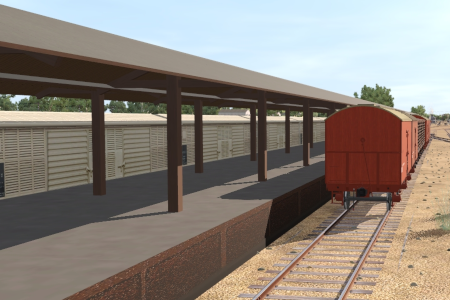
Shunting operations in Terowie Yard.
 |
|
|||||||||


| Duration: | xx minutes | |
| Loco: | SAR T 198 at Terowie Depot Other Unrostered Locos:
|
|
|
||
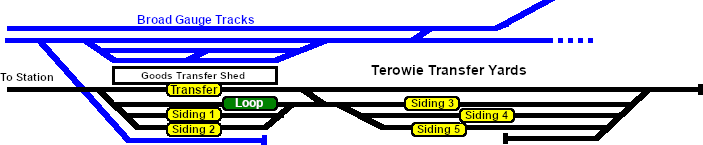
| Yard Map | ||
 |
||
Tasks:
|
||
Driving Notes:
|
||
 |
||


