SAR Scenarios Tutorial: Difference between revisions
mNo edit summary |
mNo edit summary |
||
| Line 261: | Line 261: | ||
You can set an EIT path without having to be directly in front of a '''Starting Signal'''. For example, you can set all the EIT paths for the train through '''Caltowie''' and into '''Jamestown''' before you even leave '''Gladstone'''. <br> | You can set an EIT path without having to be directly in front of a '''Starting Signal'''. For example, you can set all the EIT paths for the train through '''Caltowie''' and into '''Jamestown''' before you even leave '''Gladstone'''. <br> | ||
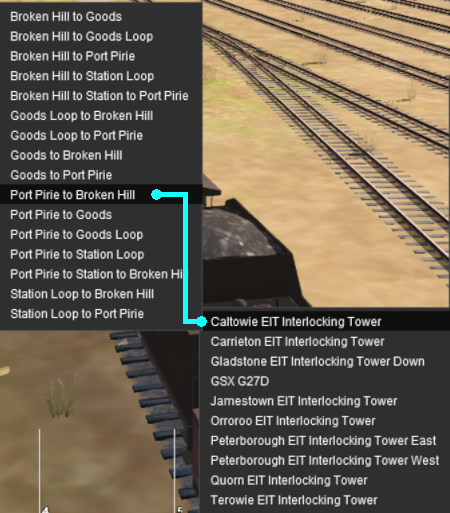
To set a path for a distant EIT, from the open '''Driver Command Menu''', select the <span style="font-weight: 700;"><span style="color: white; background-color: black;"> IT SetPath (TANE SP4 and later) </span></span> option. Then select the '''EIT''' from the list.<br> | |||
[[image:DotPoint1.JPG|link=]] <span style="font-weight: 700; font-size: 17px; background-color: black; color: white;"> Direct (Through) Path </span><br> | |||
<table> <!-- BEGIN Caltowie EIT paths selection --> | <table> <!-- BEGIN Caltowie EIT paths selection --> | ||
<tr valign="top"> | <tr valign="top"> | ||
<td width=450>[[image:Caltowie EIT and Paths.png|link=|alt=Caltowie EIT]]</td> | <td width=450>[[image:Caltowie EIT and Paths.png|link=|alt=Caltowie EIT]]</td> | ||
<td> | <td> | ||
Select the <span style="font-weight: 700; background-color: black; color: white;"> Caltowie EIT Interlocking Tower </span>. This will open a list of '''ALL''' the '''EIT paths''' controlled by the '''Caltowie EIT''', including any paths that will not be directly accessable to your consist.<br> | |||
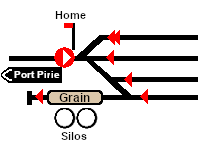
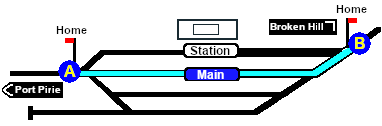
Select the path <span style="font-weight: 700; background-color: black; color: white;"> Port Pirie to Broken Hill </span>. On the '''Caltowie''' [[image:Tab_PH_Grey.png|link=|75px]] page (link via [[image:Line_Index_Label.png|link=SAR_Index|Location Index]] - link will open in this window) this is identified as:-<br><br> | |||
[[image:CT Path AtoB.png|link=|alt=A to B Path]]<br><br> | |||
This will set a direct path, via the <span style="font-weight: 700;"><span style="color: white; background-color: blue;"> Main </span> Line</span>, through '''Caltowie Yard''' towards '''Broken Hill'''.<br> | |||
[[image:Caltowie AtoB Path.png|link=|alt=Caltowie AB]]<br> | |||
You could also select any of the <span style="font-weight: 700; background-color: black; color: white;"> Port Pirie to ... </span> paths. The only other through path is <span style="font-weight: 700; background-color: black; color: white;"> Port Pirie to Station to Broken Hill </span> which will take you through the yard via the '''Station'''. The other <span style="font-weight: 700; background-color: black; color: white;"> Port Pirie to ... </span> paths will take you into the yard but will not provide a set path out. You will need to select and set one of the <span style="font-weight: 700; background-color: black; color: white;"> ... to Broken Hill </span> paths to exit the yard. | |||
</td> | |||
</tr> | |||
</table> <!-- END Caltowie EIT paths selection --> | |||
<br> | |||
[[image:DotPoint2.JPG|link=]] <span style="font-weight: 700; font-size: 17px; background-color: black; color: white;"> Indirect (Through) Path via Station </span><br> | |||
<table> <!-- BEGIN Caltowie EIT paths selection --> | |||
<tr valign="top"> | |||
<td width=450>[[image:Caltowie EIT and Paths.png|link=|alt=Caltowie EIT]]</td> | |||
<td> | |||
Select the <span style="font-weight: 700; background-color: black; color: white;"> Caltowie EIT Interlocking Tower </span>. This will open a list of '''ALL''' the '''EIT paths''' controlled by the '''Caltowie EIT''', including any paths that will not be directly accessable to your consist.<br> | |||
Select the path <span style="font-weight: 700; background-color: black; color: white;"> Port Pirie to Broken Hill </span>. On the '''Caltowie''' [[image:Tab_PH_Grey.png|link=|75px]] page (link via [[image:Line_Index_Label.png|link=SAR_Index|Location Index]] - link will open in this window) this is identified as:-<br><br> | Select the path <span style="font-weight: 700; background-color: black; color: white;"> Port Pirie to Broken Hill </span>. On the '''Caltowie''' [[image:Tab_PH_Grey.png|link=|75px]] page (link via [[image:Line_Index_Label.png|link=SAR_Index|Location Index]] - link will open in this window) this is identified as:-<br><br> | ||
[[image: | [[image:CT Path AtoB.png|link=|alt=A to B Path]]<br><br> | ||
This will set a direct path, via the <span style="font-weight: 700;"><span style="color: white; background-color: blue;"> Main </span> Line</span>, through '''Caltowie Yard''' towards '''Broken Hill'''.<br> | This will set a direct path, via the <span style="font-weight: 700;"><span style="color: white; background-color: blue;"> Main </span> Line</span>, through '''Caltowie Yard''' towards '''Broken Hill'''.<br> | ||
[[image: | [[image:Caltowie AtoB Path.png|link=|alt=Caltowie AB]]<br> | ||
</td> | </td> | ||
Revision as of 04:00, 9 March 2021
 SAR Peterborough Enhanced Interlocking Towers, AI and Manual Driving Tutorial |
| A part of the SAR Peterborough Base Session |
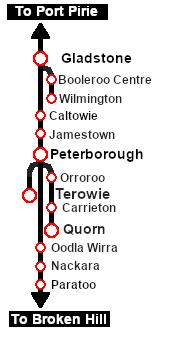
Enhanced Interlocking Towers (EITs) are included in the SAR Peterborough Base Session (they are not part of the route or layout) to provide easier navigation in some of the more complex yards in the layout. The EITs provide paths into and out of the yards. In some cases they also provide direct paths through the yards.
Gladstone and Peterborough have each been split into two EITs because of the large number of paths at each location. |
 |
Driver Commands are available for use in the session.
 |
Driver Commands are optional, they do not have to be used |
Apart from the standard commands (Drive To, Load, Unload, Couple, Wait For, etc), additional commands have been added. Specifically:-
- IT SetPath (TANE SP4 and later) - to allow EIT paths to be set in the Driver Command Bar
- IT CancelEnhancedPath (TANE SP4 and later) - to cancel any set EIT path
- Instant Load Command - to instantly load all wagons (except locos) with the first item in their product queues
- InstantLoadLocos - to instantly load all locos (or their tenders) with water and either coal or bunker c oil
- InstantUnload - to instantly unload all wagons (except locos)
The Tutorial Scenario
The scenario used in this tutorial is  Gladstone-Peterborough Depot Fuel which has the consist already fully assembled with its locomotive (T 258) at the starting signal of the Gladstone EIT Goods Loop to Broken Hill path. This tutorial will follow the scenario until after the consist arrives at Jamestown.
From the Gladstone-Peterborough Depot Fuel instructions page:-
Getting Started:
|
| The Driver Command Bar |
||||
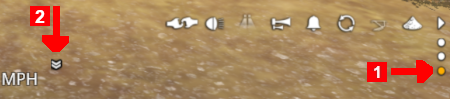
| Make sure that the Driver Command Bar is visible on the screen. In Driver Mode the interactive driver controls are at the bottom right of the screen. |
||||
 |
||||
 |
Cycle Through the Command States Click the 3 dots on the extreme bottom right of the screen to cycle the control display through to the Driver Command Bar - stop when the last of the 3 dots is highlighted. |
 |
Open the Driver Command Menu Click on the chevron icon to open the command menu. |
|
|
||||||||||
Step |
Setting an EIT Path from a Starting Signal
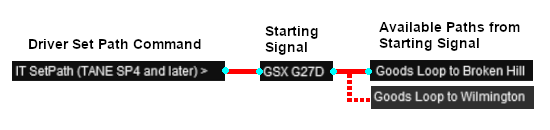
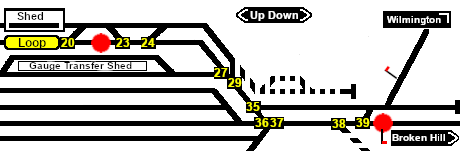
From the open Driver Command Menu, select the IT SetPath (TANE SP4 and later) option. This will open a list of all the EITs that have been placed in the Session. Because an EIT Starting Signal, in this case invisible signal GSX G27D, is directly in front of the loco, the signal will be included in the EIT list.
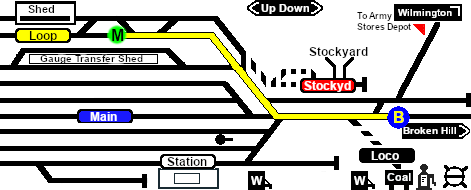
Select the path Goods Loop to Broken Hill .
Paths that have been set can be cancelled so that their signals and junction switches will be returned to their previous states. They will be returned automatically after the consist has cleared the Exit Signal for a path but if you change your mind and decide to take a different path or not use the EITs then a set path can be cancelled. From the Driver Command Menu select the IT CancelEnhancedPath command.
You will have the option of cancelling ALL PATHS or selecting a particular EIT and path to cancel. |
|||||||||
Step |
Driving to the Next EIT Location
You can manually drive the train through to Caltowie without using the EIT (as described in Step 1 above). This would require that all the switches along the path be correctly set first. You can do this by manually setting all the switches yourself using the information on the Gladstone Error creating thumbnail: /bin/bash: line 1: /usr/bin/convert: No such file or directory Error code: 127 page (link via
You can also drive by adding Driver Commands directly into the Driver Command Bar on the bottom right of the screen. The Drive To, Drive to Trackmark, Drive via commands that will automatically set all the path switches are available in all scenarios for your use. A large number of Track Marks and some industies have been added to provide destinations for these commands. The approach to every location in the route has Error creating thumbnail: /bin/bash: line 1: /usr/bin/convert: No such file or directory Error code: 127 Track Marks added to allow you to use this method to let the AI do most of the driving work. These track marks are placed a short distance ahead of the approach home signal, a semaphore signal, at those locations that have visible signals. Where the location has no visible signals (the majority of locations in the division were unsignalled) then a visible Caution track sign has been placed alongside the track mark. The Track Marks are shown on the Caltowie Error creating thumbnail: /bin/bash: line 1: /usr/bin/convert: No such file or directory Error code: 127 page (link via
|
|||||||||
Step |
Setting the Next EIT You can set an EIT path without having to be directly in front of a Starting Signal. For example, you can set all the EIT paths for the train through Caltowie and into Jamestown before you even leave Gladstone. To set a path for a distant EIT, from the open Driver Command Menu, select the IT SetPath (TANE SP4 and later) option. Then select the EIT from the list.
|
|||||||||