How to Use Driver Setup Rule: Difference between revisions

From TrainzOnline
Jump to navigationJump to search
Pware (talk | contribs)
Line 288: Line 288:
<td width="162">[[file:DriverSetupCommandMenu.JPG|link=]]</td>
<td>
<td>
<table cellpadding="4" bgcolor=#ffffb0>
<table bgcolor="black" width=484>
<tr valign="top">
<td>
<table bgcolor=#ffffb0 width=480>
<tr valign="top">
<tr valign="top">
<td>[[file:NotePad.PNG|link=]]</td>
Line 304: Line 307:
</tr>
</tr>
</table>
</table>
<br>
</td>
<table cellpadding="4" bgcolor=#ffffb0>
</tr>
</table>
 
<table bgcolor="black" width=904>
<tr valign="top">
<td>
<table bgcolor=#ffffb0 width=900>
<tr valign="top">
<tr valign="top">
<td>[[file:NotePad.PNG|link=]]</td>
<td>[[image:NotePad.PNG|link=]]</td>
<td>When a driver command has been executed in '''Driver Mode''' by the Trainz AI system, it will be deleted from the '''Driver Command Bar''' and the next command in the sequence will then be executed. This will continue until the last command has been executed and deleted. Then the AI control of the train will terminate.</td>
<td><span style="font-size: 17px; font-weight: 700;">Notes:'''</span><br>
----
When a driver command has been executed in '''Driver Mode''' by the Trainz AI system, it will be deleted from the '''Driver Command Bar''' and the next command in the sequence will then be executed. This will continue until the last command has been executed and deleted. Then the AI control of the train will terminate.
</td>
</tr>
</table>
</td>
</tr>
</tr>
</table>
</table>

Revision as of 07:10, 27 February 2022

The information in this Wiki Page applies to TANE, TRS19 and Trainz Plus.

  Top   Next Down Bottom

Driver Setup Rule

Main Points:
The Driver Setup Rule assigns drivers to consists and issues them with Driver Commands.
Driver Commands are lists of instructions or "orders" that drivers are tasked to complete under the control of the Trainz AI system.


A list of available Driver Commands can be found on the Trainz Wiki Page at:-


The Driver Setup Rule is automatically added to the Session Editor of every Session.

Error creating thumbnail: /bin/bash: line 1: /usr/bin/convert: No such file or directory Error code: 127

Steps:
  1. Open the Session Editor by selecting Edit Session from the Surveyor Main Menu in TANE or the Surveyor Edit Menu in TRS19 and Trainz Plus
  2. Select the Driver Setup Rule shown left (it is usually the rule at the top of the list)
  3. Click the Edit button at the bottom of the Session Editor window


If the Driver Setup Rule is not shown in the list then...
  1. Click the Add button at the bottom of the Session Editor window
  2. Scroll through the list of rules to locate and select the Driver Setup Rule
  3. Click the icon on the rule list window

More information on the Session Editor can be found on the Trainz Wiki Page at:-

Adding New Drivers

Timeout Problem in T:ANE
This is an issue in T:ANE. It has been FIXED in TRS19 and Trainz Plus

Adding a large number of drivers to the Driver Setup can cause Timeout errors particularly if certain driver script libraries are being used. Exactly how many is a "large number" will depend on other factors.

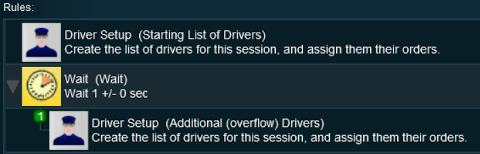
If Driver Setup Timeout errors are reported, then split the drivers between two copies of the Driver Setup Rule and place the second copy as a child of a Wait Rule set for a delay of just a few seconds, as shown on the right.

This gives Trainz enough time to process all the drivers in the first Driver Setup rule before starting on the second Driver Setup rule.

Information on how to use Parent and Child rules can be found at Parent and Child Rules


Remove Existing Drivers First

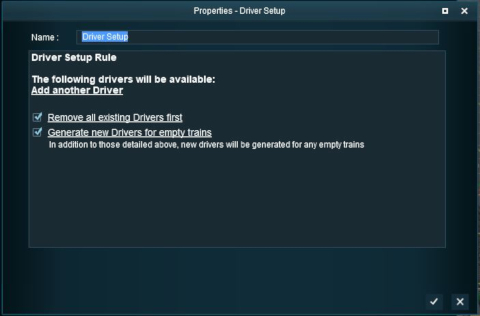
After selecting the Driver Setup Rule and clicking the Edit button, the Driver Setup Properties Window will be shown. The image below shows the properties window if it is opened with no locomotives placed in the layout.


TRS19/Trainz Plus Settings:
  • If Checked All existing drivers will be removed so all trains will become "empty" (no drivers). When used with the Generate new Drivers for empty trains option, it will produce a new list of randomly selected drivers for all trains.
  • If Unchecked All existing drivers will remain with their previously assigned trains.

TANE Known Issues:
This does not appear to have any effect in TANE
If your session uses a rule that will expect to find a particular driver in charge of a train (e.g. driver Charlie in the Trigger Check Rule) then manually assign Charlie as the driver of a train and do not select the option Remove all existing Drivers first.


Generate New Drivers for Empty Trains

When using the Driver Setup Rule for the first time with no drivers assigned to existing trains, the Generate new Drivers for empty trains option will immediately assign drivers to each train. Each time a new train is added to the layout, it will be automatically assigned a driver.

Settings:
  • If Checked randomly selected drivers will be assigned to all newly added driveable trains. Existing drivers will not be affected unless the Remove all existing Drivers first option has been selected.
  • If Unchecked then you will have to manually assign drivers to trains by clicking the Add another Driver link


Wait For Schedule Completion


Settings:
  • If Checked then this Driver Setup Rule will not complete until all Schedule Rules (if any) have been completed.
  • If Unchecked then this Driver Setup Rule will complete as soon as all its drivers have been assigned locos and commands (if any).


Focus Camera on First Driver


Settings:
  • If Checked then the Session will start with the camera focussed on the first driver in the list.
  • If Unchecked then the Session will start with the camera focussed on the scene that last had the camera focus in Surveyor.


Editing the Driver List

When drivers and trains have been added to the rule, it will appear as shown below.
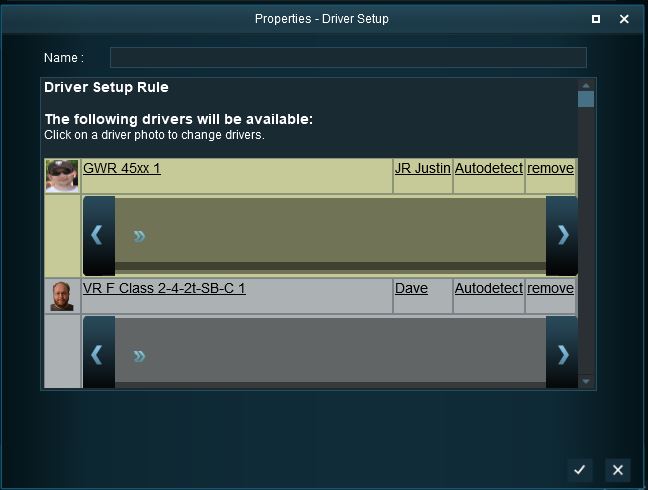
If a loco name appears in red then it has been removed from the layout.

Steps:
  • Click on the driver icon to select a different driver from the Session list.
  • Click on the loco name to select a different loco from the Session list (an empty loco list means no unassigned locos are available).
  • Click on the driver name to type in a new name for this driver (this will not change the driver icon).
  • Click on Autodetect to select a new owner for this driver and loco. There are four "owner" options:-
  1. AI driver - this train will be under AI control even if it has no Driver Command Bar orders to follow. This can be used to prevent a user from taking control of the train.
  2. Autodetect - if the train has Driver Command Bar orders then it will be under AI control. If it has no Driver Command Bar orders then it will be under user control.
  3. First Human Player - the train will be assigned to the user or a multiplayer, whoever selects it first.
  4. Multiplayer Driver - the train will be assigned to a multiplayer.

If you need to remove a driver:-

  • Click remove to delete this driver from the rule.

Adding Driver Commands

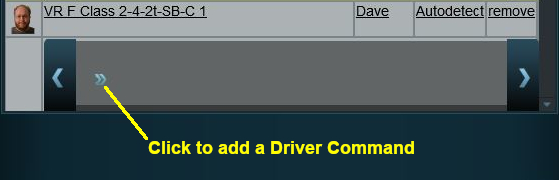
The grey area below the driver details (name, loco, owner) is the Driver Command Bar. This is where the driving instructions (the "train orders") used by the Trainz AI system are given to the driver.

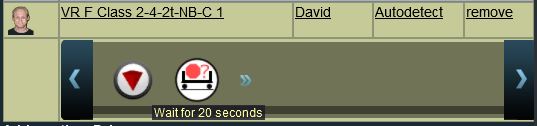
Shown below is a Driver Command Bar after two driver commands have been added. Each command has its own icon. Move the mouse pointer onto a command icon to reveal a tooltip showing the contents of the command, as shown in the image.


Steps:
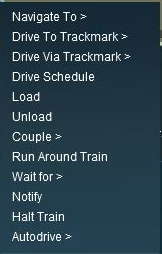
  1. Click the small "double chevron" icon shown in the image on the left. This will open a Command List menu which will show the driver commands that can be added to this drivers Command Bar.
  2. Click on a command to add it to the Driver Command Bar.

Notes:

  • The commands that will be shown and are available for use are decided by another rule, the Driver Command Rule. If a command that you want is not in the list then open and edit the Driver Command Rule.
  • Many of the items in the menu will open sub-menus. These are indicated by the > character after the command name. For example:-
    • The Drive To Trackmark will open a sub-menu listing all the available trackmarks
    • The Navigate To will open a sub-menu of all the interactive industries
    • The Wait For will open a sub-menu of different wait times
Notes:

When a driver command has been executed in Driver Mode by the Trainz AI system, it will be deleted from the Driver Command Bar and the next command in the sequence will then be executed. This will continue until the last command has been executed and deleted. Then the AI control of the train will terminate.

Deleting Driver Commands

To remove a command from the Driver Command Bar...
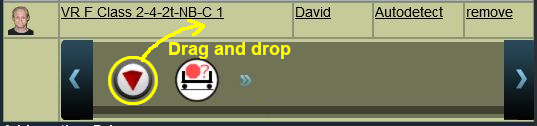

Steps:
  1. Click on the command and hold down the left mouse button
  2. Drag the command out of the Driver Command Bar area

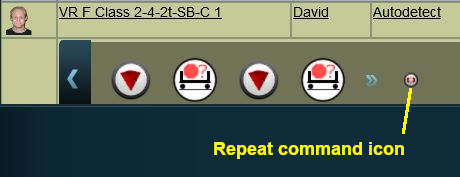
The "Repeat" Command

The "Repeat" command is a special built in command that allows all the driver commands to be repeated endlessly.
The Repeat command is only available when at least one command is present in the Driver Command Bar. Only one Repeat command can be added to a Driver Command Bar.

Steps:
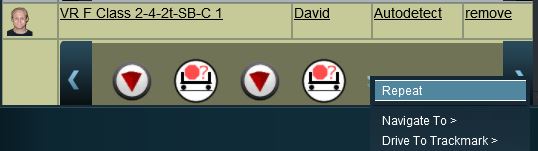
  1. Click the Add Command button on the Driver Command Bar
  2. Select the Repeat option

The Repeat icon will always be placed at the end of the Driver Command Bar after the Add Command button
As each command is executed by the Trainz AI system, it will be deleted from the front of the command list and added to the end of the list to create an "endless loop" of commands.
Notes:

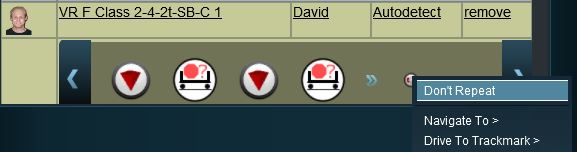
  • If a Repeat command is already present, then the Add Command menu list will show Don't Repeat as its first option
  • Select Don't Repeat to remove the Repeat command


Known Issues:

If a Repeat command is present in the Driver Command Bar and all the other commands are then deleted, the Repeat command will remain in the Driver Command Bar and cannot be removed. Because there are no other commands to be repeated this will not cause a problem. However when later adding new commands the presence of the Repeat command can be easily overlooked.

Workaround:
Add a command (any command) to the Driver Command Bar. The Don't Repeat option will then become available and the Repeat command can be removed.
  Top Next Up Next Down Bottom

Copying the Driver Setup Rule

The Driver Setup Rule (and other rules) can be copied between Sessions
Text 

This sub-section is also available in text only format suitable for copying and pasting at Copying Rules Between Sessions TEXT


Steps:
  1. in the Session Editor right mouse click on the Driver Setup Rule
  2. select Copy from the popup menu
  3. exit the Session
  4. load the second Session (where the Rule is to be copied to) into Surveyor and open the Session Editor
  5. right mouse click after the last rule entry and select Paste


Notes:

There are some conditions that must be met for this to work.

Drivers, Driver Assignments and Driver Commands ONLY are Copied
Copying the Driver Setup Rule will NOT copy the actual locomotives and consists that the drivers are assigned to. These must be copied or recreated separately
No Duplicate Locos Allowed - this is only an issue if you keep both the original and the copied Driver Setup Rule in the Session
If the same loco is present in both Driver Setup Rules then only the first loco (in the top copy of the rule) will be active. The duplicate loco in the second copy of the rule will be ignored
Missing Locos will be Ignored
If a loco is listed in the copied Driver Setup Rule but does not exist in the new Session because it was not copied across then it will be ignored
  Top Next Up Next Down Bottom

Driver Command Rule

Main Points:
The Driver Command Rule controls which Driver Commands will be available in a Session. This applies to both:-
  • driver commands added to the Driver Setup Rule in the Session Editor in Surveyor Mode, and
  • driver commands for the user to manually add to the Driver Command Bar of user and AI controlled trains running in Driver Mode.
Removing commands such as Navigate To will force players to manually drive trains when in Driver Mode instead of allowing them to use the Trainz AI system to do all the work.


The Driver Command Rule is automatically added to the Session Editor of every Session.

Error creating thumbnail: /bin/bash: line 1: /usr/bin/convert: No such file or directory Error code: 127
Steps:
  1. Select the Driver Command Rule shown left (it is usually the rule near the top of the list)
  2. Click the Edit button at the bottom of the Session Editor window


If the Driver Command Rule is not shown in the list then...
  1. Click the Add button at the bottom of the Session Editor window
  2. Scroll through the list of rules to locate and select the Driver Command Rule
  3. Click the icon on the rule list window
This will add the rule to the Session Editor.


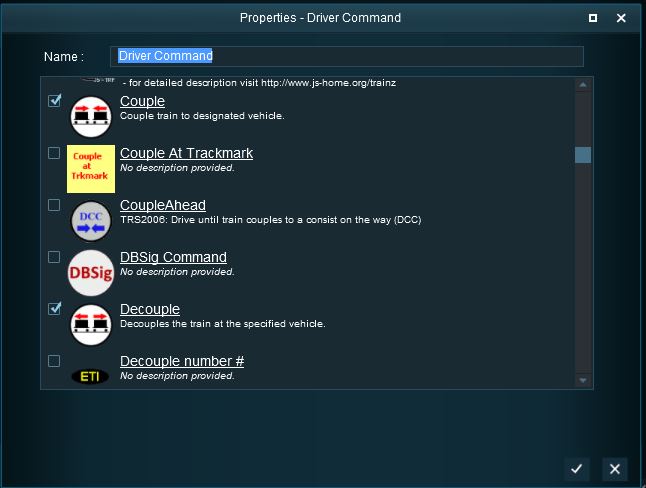
The Rule properties window will open to show all the Driver Commands that have been installed in Trainz on your system. This list includes the commands that are built in and those that have been downloaded from the DLS.

Settings:
  • Commands that are Checked ON will be available in the Driver Setup Rule Command List in the Session Editor and for the user in Driver Mode
  • Commands that are Checked OFF will NOT be available in the Driver Setup Rule Command List in the Session Editor and for the user in Driver Mode
  • To change the status of a command simply check it ON or OFF


In TANE some Driver Commands that have been checked ON will not appear in the Driver Command Bar if there is no target for their action. For example, no set triggers or interactive industries.
If a command that you want to use does not appear in the list, then check in Content Manager that it has been installed or downloaded and is free of errors.


  Top Next Up    


Trainz Wiki

More Tutorials and Guides to Using Trainz


This page was created by Trainz user pware in June 2018 and was last updated as shown below.