SAR Scenario Laura Test Run: Difference between revisions
From TrainzOnline
Jump to navigationJump to search
mNo edit summary |
mNo edit summary |
||
| Line 11: | Line 11: | ||
<table width=1000> <!-- BEGIN Summary table --> | <table width=1000> <!-- BEGIN Summary table --> | ||
<tr valign="top"> | <tr valign="top"> | ||
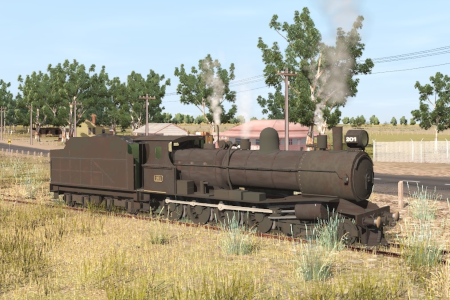
<td align="left">Loco '''T | <td align="left">Loco '''T 201''' has just been serviced with some minor repairs to its running gear at the '''Gladstone Depot Shed'''. Before it can re-enter service it is required to make a trial run to '''Laura''' on the '''Wilmington Line''' and back.</td> | ||
<td align="right">[[file:BackToBottom.png|link=#bottom|alt=Bottom|Bottom]]</td> | <td align="right">[[file:BackToBottom.png|link=#bottom|alt=Bottom|Bottom]]</td> | ||
</tr> | </tr> | ||
| Line 31: | Line 31: | ||
<tr valign="top"> | <tr valign="top"> | ||
<td><span style="font-size: 15px; font-weight: 700; color: white; background-color: black;"> Loco: </span></td> | <td><span style="font-size: 15px; font-weight: 700; color: white; background-color: black;"> Loco: </span></td> | ||
<td>'''[[SAR_Scenario_Rolling_Stock#SAR_T_Class|SAR T | <td>'''[[SAR_Scenario_Rolling_Stock#SAR_T_Class|SAR T 201]]''' at <span style="font-weight: 700;">Gladstone <span style="color: white; background-color: black;"> Loco Depot </span></span><br> | ||
'''Other Unrostered Locos:''' '''None'''</td> | '''Other Unrostered Locos:''' '''None'''</td> | ||
</tr> | </tr> | ||
| Line 65: | Line 65: | ||
# If you have already closed the opening message window then the first step is to pause the session by pressing the <span style="font-weight: 700; font-size: 15px; color: white; background-color: black;"> P </span> key. | # If you have already closed the opening message window then the first step is to pause the session by pressing the <span style="font-weight: 700; font-size: 15px; color: white; background-color: black;"> P </span> key. | ||
# Next locate your loco. '''Either''':- | # Next locate your loco. '''Either''':- | ||
## Open the '''Finder Tool''' (press <span style="font-weight: 700; font-size: 15px; color: white; background-color: black;"> Ctrl </span> <span style="font-weight: 700; font-size: 15px; color: white; background-color: black;"> F </span>) and type, in the '''Name''' field, the name of the loco. For example '''SAR T | ## Open the '''Finder Tool''' (press <span style="font-weight: 700; font-size: 15px; color: white; background-color: black;"> Ctrl </span> <span style="font-weight: 700; font-size: 15px; color: white; background-color: black;"> F </span>) and type, in the '''Name''' field, the name of the loco. For example '''SAR T 201''' (or just '''T 201''' should be enough). Click the '''tick''' icon, '''OR''' | ||
## Open the '''Driver List''' (bottom left of the screen) and select the loco from there - click the drivers '''Eye''' icon to jump to the loco. | ## Open the '''Driver List''' (bottom left of the screen) and select the loco from there - click the drivers '''Eye''' icon to jump to the loco. | ||
# Take a few moments to get your bearings. Click [[image:Line_Index_Gladstone.png|link=SAR_Gladstone|Gladstone Data]] (this link will open in this window) to show the location details and track plans for '''Gladstone'''. In each location details page:- | # Take a few moments to get your bearings. Click [[image:Line_Index_Gladstone.png|link=SAR_Gladstone|Gladstone Data]] (this link will open in this window) to show the location details and track plans for '''Gladstone'''. In each location details page:- | ||
Revision as of 01:47, 30 May 2022
| Loco T 201 has just been serviced with some minor repairs to its running gear at the Gladstone Depot Shed. Before it can re-enter service it is required to make a trial run to Laura on the Wilmington Line and back. |  |
 |
|
||||||||||||


Getting Started:
|

Tutorial:
|

|
|



This page was created by Trainz user pware in May 2022 and was last updated as shown below.


