SAR Scenario Rail Car Inspection Run: Difference between revisions
From TrainzOnline
Jump to navigationJump to search
mNo edit summary |
mNo edit summary |
||
| Line 31: | Line 31: | ||
<tr valign="top"> | <tr valign="top"> | ||
<td><span style="font-size: 15px; font-weight: 700; color: white; background-color: black;"> Loco: </span></td> | <td><span style="font-size: 15px; font-weight: 700; color: white; background-color: black;"> Loco: </span></td> | ||
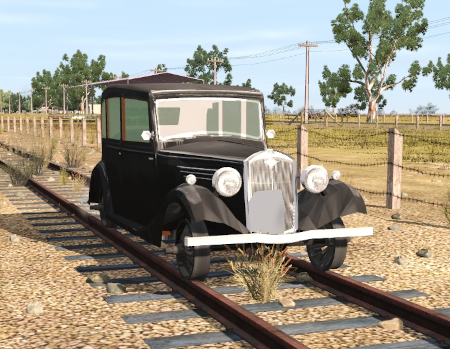
<td>'''[[SAR_Scenario_Rolling_Stock#Wolseley|Wolseley Rail Car]]''' at <span style="font-weight: 700;">Peterborough <span style="color: white; background-color: black;"> Loco Depot </span></span> | <td>'''[[SAR_Scenario_Rolling_Stock#Wolseley|Wolseley Rail Car]]''' at <span style="font-weight: 700;">Peterborough <span style="color: white; background-color: black;"> Loco Depot </span></span></td> | ||
</tr> | </tr> | ||
<tr valign="top"> | <tr valign="top"> | ||
| Line 60: | Line 59: | ||
# If you have already closed the opening message window then the first step is to pause the session by pressing the <span style="font-weight: 700; font-size: 15px; color: white; background-color: black;"> P </span> key. | # If you have already closed the opening message window then the first step is to pause the session by pressing the <span style="font-weight: 700; font-size: 15px; color: white; background-color: black;"> P </span> key. | ||
# Next locate your loco. '''Either''':- | # Next locate your loco. '''Either''':- | ||
## Open the '''Finder Tool''' (press <span style="font-weight: 700; font-size: 15px; color: white; background-color: black;"> Ctrl </span> <span style="font-weight: 700; font-size: 15px; color: white; background-color: black;"> F </span>) and type, in the '''Name''' field, the name of the loco | ## Open the '''Finder Tool''' (press <span style="font-weight: 700; font-size: 15px; color: white; background-color: black;"> Ctrl </span> <span style="font-weight: 700; font-size: 15px; color: white; background-color: black;"> F </span>) and type, in the '''Name''' field, the name of the loco, in this case '''Wolseley'''. Click the '''tick''' icon, '''OR''' | ||
## Open the '''Driver List''' (bottom left of the screen) and | ## Open the '''Driver List''' (bottom left of the screen) and scroll through the driver names to find '''Rail Car'''. Click the '''Eye''' icon for the selected driver to jump to the vehicle. | ||
# Take a few moments to get your bearings. Click [[image:Line_Index_Peterborough.png|link=SAR_Peterborough|Peterborough Data]] (this link will open in this window) to show the location details and track plans for '''Peterborough'''. In each location details page:- | # Take a few moments to get your bearings. Click [[image:Line_Index_Peterborough.png|link=SAR_Peterborough|Peterborough Data]] (this link will open in this window) to show the location details and track plans for '''Peterborough'''. In each location details page:- | ||
#*the [[image:Tab_HM_White.png|link=|75px]] tab gives an overall summary of each location with a "potted" history (where available). | #*the [[image:Tab_HM_White.png|link=|75px]] tab gives an overall summary of each location with a "potted" history (where available). | ||
Revision as of 08:21, 21 August 2022
| Take the Wolseley Rail Car out on an inspection run |  |
 |
|
||||||||||


Getting Started:
|

Tutorial:
|

|
|





This page was created by Trainz user pware in August 2022 and was last updated as shown below.


