SAR Scenario Peterborough Shunter: Difference between revisions
From TrainzOnline
Jump to navigationJump to search
mNo edit summary |
mNo edit summary |
||
| Line 1: | Line 1: | ||
<!-- V2.0 variations in "Locos", "Getting Started" --> | <!-- V2.0 variations in "Locos", "Consists", "Getting Started" --> | ||
<table width=1000> <!-- BEGIN Title table --> | <table width=1000> <!-- BEGIN Title table --> | ||
<tr valign="top"> | <tr valign="top"> | ||
| Line 41: | Line 41: | ||
Also available in <span style="font-weight: 700; background-color: yellow;"> Base Session v2.0 </span> | Also available in <span style="font-weight: 700; background-color: yellow;"> Base Session v2.0 </span> | ||
*'''[[SAR_Scenario_Rolling_Stock#SAR_Y_Class|SAR Y 141]] at <span style="color: white; background-color: black;"> Loco Sheds </span>''' | *'''[[SAR_Scenario_Rolling_Stock#SAR_Y_Class|SAR Y 141]] at <span style="color: white; background-color: black;"> Loco Sheds </span>''' | ||
*'''[[SAR_Scenario_Rolling_Stock#SAR_830_Class|SAR 837/840]] at <span style="color: white; background-color: black;"> Loco Sheds </span>''' | *'''[[SAR_Scenario_Rolling_Stock#SAR_830_Class|SAR 837]] at <span style="color: white; background-color: black;"> Loco Sheds </span>''' | ||
*'''[[SAR_Scenario_Rolling_Stock#SAR_830_Class|SAR 840]] at <span style="color: white; background-color: black;"> Loco Sheds </span>''' | |||
END V2.0 --> | END V2.0 --> | ||
</td> | </td> | ||
| Line 80: | Line 81: | ||
# If you have already closed the opening message window then the first step is to pause the session by pressing the <span style="font-weight: 700; font-size: 15px; color: white; background-color: black;"> P </span> key. | # If you have already closed the opening message window then the first step is to pause the session by pressing the <span style="font-weight: 700; font-size: 15px; color: white; background-color: black;"> P </span> key. | ||
# Next locate your loco. '''Either''':- | # Next locate your loco. '''Either''':- | ||
# | #*Open the '''Finder Tool''' (press <span style="font-weight: 700; font-size: 15px; color: white; background-color: black;"> Ctrl </span> <span style="font-weight: 700; font-size: 15px; color: white; background-color: black;"> F </span>) and type, in the '''Name''' field, the name of your selected loco. For example '''SAR T 233''' (or just '''T 233''' should be enough). Click the '''tick''' icon, '''OR''' | ||
<!-- BEGIN V1.0 | <!-- BEGIN V1.0 --> | ||
# | #*Open the '''Driver List''' (bottom left of the screen) and then scroll through the list to find the '''loco name''' ('''SAR T 233''') then click the drivers '''Eye''' icon [[image:Driver_Eye.png|link=]] to take control of the loco | ||
<!-- END V1.0 --> | <!-- END V1.0 --> | ||
<!-- BEGIN V2.0 | <!-- BEGIN V2.0 | ||
# | #*Open the '''Driver List''' (bottom left of the screen) and then scroll through the list to find '''either''':- | ||
#:*the '''loco name''' ('''SAR T 233''') '''OR''' | |||
#:*the '''driver''' icon (named '''Driver 233''') - this is a non-animated icon | |||
#::then click the drivers '''Eye''' icon [[image:Driver_Eye.png|link=]] to take control of the loco | |||
END V2.0 --> | END V2.0 --> | ||
# Take a few moments to get your bearings. Click [[image:Line_Index_Peterborough.png|link=SAR_Peterborough|Peterborough Data]] (this link will open in this window) to show the location details and track plans for '''Peterborough'''. In each location details page:- | # Take a few moments to get your bearings. Click [[image:Line_Index_Peterborough.png|link=SAR_Peterborough|Peterborough Data]] (this link will open in this window) to show the location details and track plans for '''Peterborough'''. In each location details page:- | ||
Revision as of 11:25, 24 August 2022
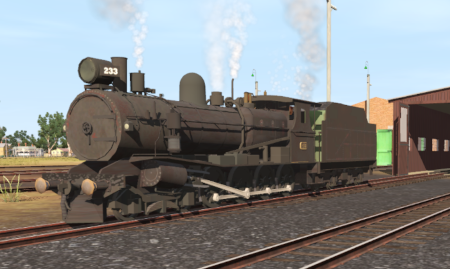
| Shunting operations that cover the length of Peterborough Yard and Peterborough Depot. |  |
 |
|

|
|
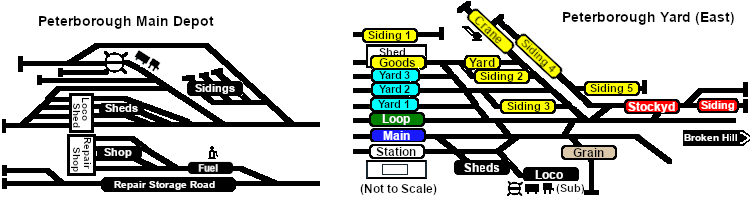
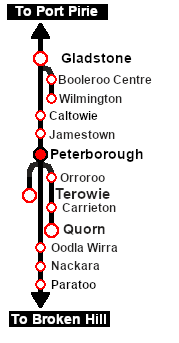
Each location in the layout has a detailed set of track diagrams that provide a variety of useful information The Getting Started guide below gives a summary of what is available.  graphic, or go to the bottom of the page for all the session links (all links will open in this window). |

Getting Started:
|


Tutorial:
|

|
|



This page was created by Trainz user pware in February 2021 and was last updated as shown below.


